---
title: "HTML Code banners"
description: "Serve your own HTML/JS markup — a third-party ad tag, custom HTML — with the HTML Code banner type, step by step, including Return as iFrame on video placements and checking the creative with Preview."
type: "howto"
audience: [network-manager]
keywords: [HTML code banner, code banner, third-party tag, javascript tag, custom markup, macros, preview, return as iframe, ad unit]
ui_path: "Account → Advertisers → campaign → Add new banner"
---
Fetch the complete documentation index at: https://epom.com/ad-server/docs/llms.txt. Use this file to discover all available pages before exploring further. Append .md to any documentation page URL to get its markdown version.
# HTML Code banners
An **HTML Code** banner takes the markup you paste — a third-party ad tag, custom HTML/JS — and
serves it verbatim with macros expanded. It is valid on Site, Non-standard, Mobile site, Video
and Application placements, and renders through **Preview** before it reaches a page. The other
markup type, [Template banners](https://epom.com/ad-server/docs/guides/advertising/banner-html-and-template-template.md), renders a template
your network prepared; both are compared on [HTML code and Template banners](https://epom.com/ad-server/docs/guides/advertising/banner-html-and-template.md).
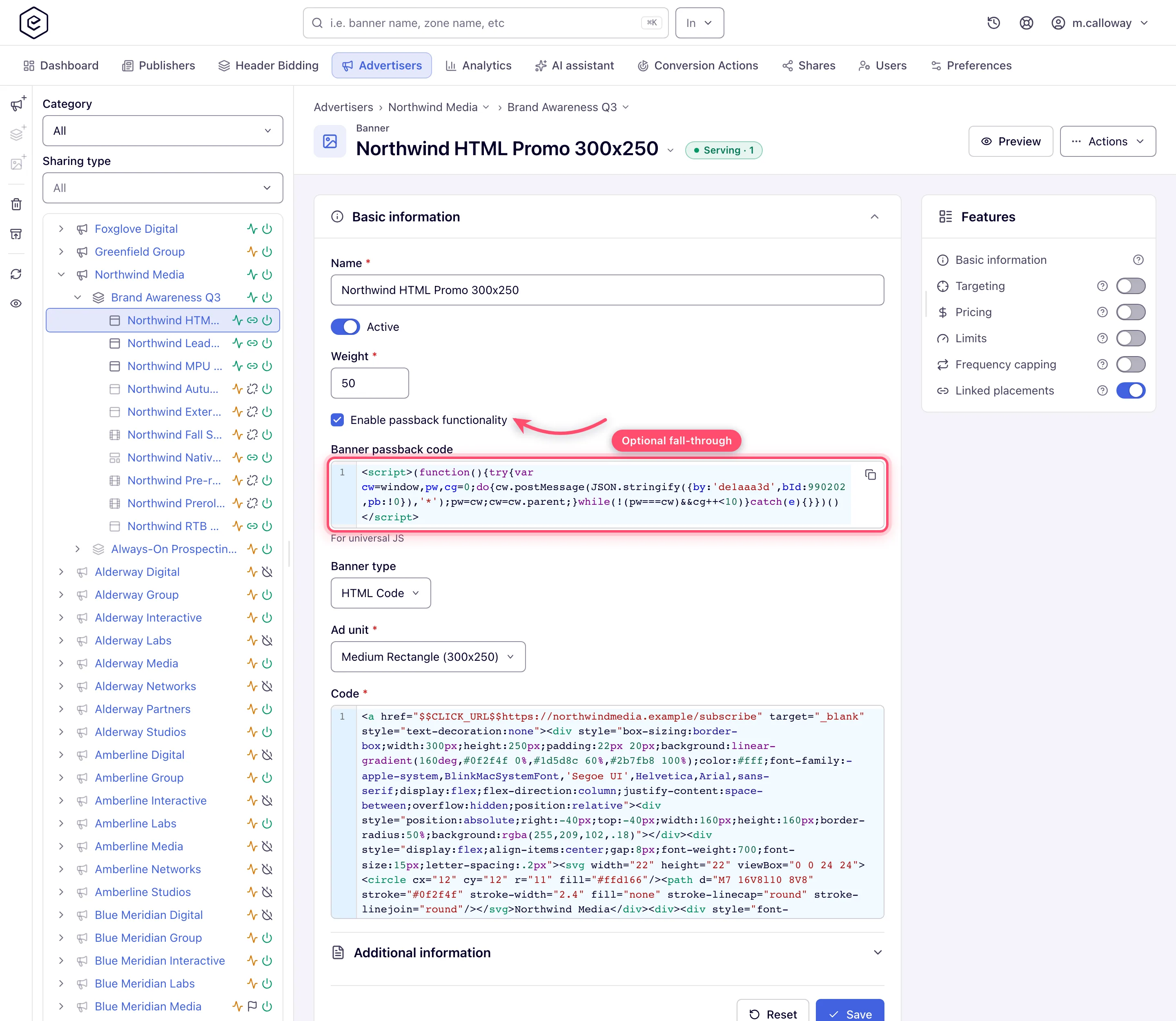
**Example.** Northwind Media gets a 300×250 JavaScript tag from an ad network for its sports
sites. One HTML Code banner on a Site placement with the tag pasted into **Code**, Ad unit
300×250 and **Enable passback functionality** ticked lets the tag hand the slot back when it has
no ad, so the next line of demand fills it instead of a blank.
## Typical scenarios
| You want | Set | Where |
|---|---|---|
| A third-party JavaScript tag on a 300×250 site slot | Banner type **HTML Code**, Ad unit 300×250, the tag in **Code** | Add new banner → Site placement |
| Custom markup inside a VAST response | HTML Code on a **Video** placement, Ad unit required; **Return as iFrame** ticked (default) wraps it in an iframe | Add new banner → Video placement |
| A dynamic value in the markup (click URL, cache-buster, your own parameter) | `$$CLICK_URL$$`, `$$RANDOM$$`, custom parameters — expanded at serve time | [Macros reference](https://epom.com/ad-server/docs/reference/macros.md) |
## Step by step
### HTML Code
1. **Add new banner** → the placement type. HTML Code is valid on Site, Non-standard, Mobile
site, Video and Application placements — **not Email, not Native**.
2. Set **Banner type** to *HTML Code*.
3. Pick the **Ad unit** where the form shows one: required on Site and Video, optional on Mobile
site, absent on Non-standard and Application (see [What each placement asks for](https://epom.com/ad-server/docs/guides/advertising/banner-html-and-template.md#what-each-placement-asks-for)).
4. Paste your markup into **Code**. Required. Macros such as `$$CLICK_URL$$`, `$$RANDOM$$` and
your own custom parameters are expanded at serve time — see the
[macros reference](https://epom.com/ad-server/docs/reference/macros.md).
5. On a **Video** placement, leave **Return as iFrame** ticked to wrap the markup in an iframe
inside the VAST response, or untick it to return the markup as it is.
6. On Site, Non-standard and Mobile site placements, tick **Enable passback functionality** if
the tag should hand the slot back — see [Set up passback](https://epom.com/ad-server/docs/guides/advertising/banner-html-and-template-passback.md).
7. **Save**. The banner opens on its own edit page; link it to placements from the **Linked
placements** card.
### Check it with Preview
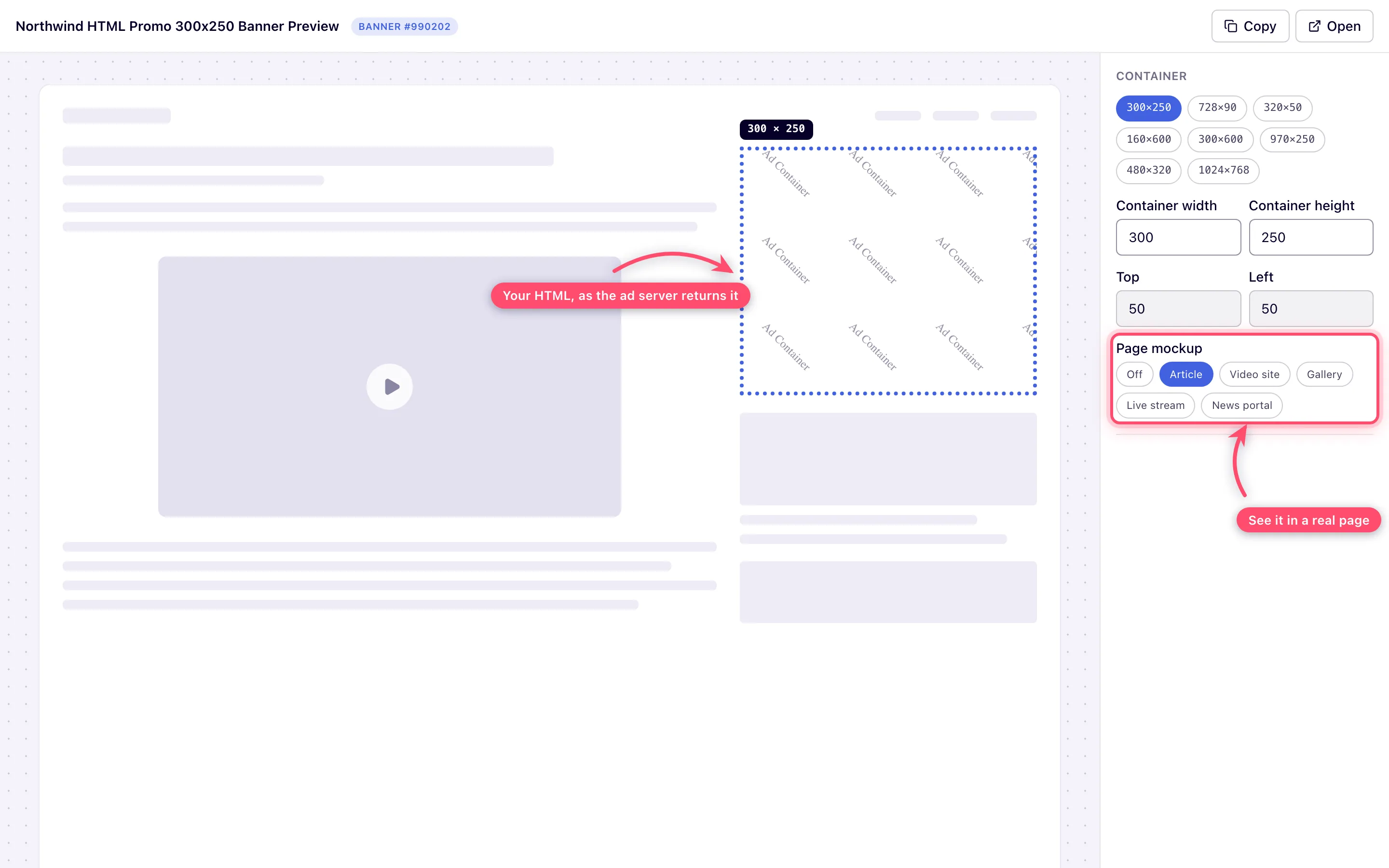
**Preview** in the page header opens the creative in a new tab and actually renders it. Resize
the container, switch between the standard ad sizes, and drop the creative into a page mockup —
article, video site, gallery, live stream or news portal — to see it the way a visitor would.
Preview works for Template banners too.
## Caveats and exceptions
**A Code banner serves your markup verbatim into publisher pages.** A broken or slow third-party
tag degrades every placement the banner is linked to — preview it, and prefer a tag you can point
at a test endpoint first.
The caveats that apply to both markup types — who can do this, the Ad unit rules per placement,
what switching the type and saving deletes — are on
[HTML code and Template banners](https://epom.com/ad-server/docs/guides/advertising/banner-html-and-template.md#caveats-and-exceptions).
## Not working?
| Symptom | Check | Where |
|---|---|---|
| Macro left unexpanded in the served markup | Misspelt or unknown macro name | [Macros reference](https://epom.com/ad-server/docs/reference/macros.md) |
The rest of the list — passback, the type switch, a creative that renders in Preview but not on
the page — is on [HTML code and Template banners](https://epom.com/ad-server/docs/guides/advertising/banner-html-and-template.md#not-working).
## Reference
Which placements take a Code banner and which fields each asks for:
[What each placement asks for](https://epom.com/ad-server/docs/guides/advertising/banner-html-and-template.md#what-each-placement-asks-for) and
[Options and fields](https://epom.com/ad-server/docs/guides/advertising/banner-html-and-template.md#options-and-fields).
## Related
- [HTML code and Template banners](https://epom.com/ad-server/docs/guides/advertising/banner-html-and-template.md)
- [Template banners](https://epom.com/ad-server/docs/guides/advertising/banner-html-and-template-template.md)
- [Set up passback on a Code or Template banner](https://epom.com/ad-server/docs/guides/advertising/banner-html-and-template-passback.md)
- [Macros reference](https://epom.com/ad-server/docs/reference/macros.md)
- [Click tracking with third-party tags](https://epom.com/ad-server/docs/troubleshooting/click-tracking-third-party-tags.md)