---
title: "Application, email and click-through placements"
description: "Configure the specialist placement types — in-app slots served via the ad API, email placements with creative and landing URLs, and click-through placements for pure click tracking."
type: "howto"
audience: [network-manager, admin]
keywords: [application placement, in-app, Android, iOS, ad API, email placement, creative URL, landing page URL, click-through placement, tracking URLs]
ui_path: "Account → Publishers → site → zone → placement"
---
Fetch the complete documentation index at: https://epom.com/ad-server/docs/llms.txt. Use this file to discover all available pages before exploring further. Append .md to any documentation page URL to get its markdown version.
# Application, email and click-through placements
Three specialist types round out the placement family. **Application** placements serve into
native mobile apps through the ad API; **Email** placements produce email-safe image
and click URLs; **Click-through** placements carry no ad markup at all — they exist to track
clicks. (Mobile *web* pages use the [Mobile Site Placement](https://epom.com/ad-server/docs/guides/inventory/placement-display.md), covered
with the display family.)
## Who this is for
Publishers with app, newsletter or tracking inventory; network managers configuring it.
## Prerequisites
- A saved placement of the respective type ([create one](https://epom.com/ad-server/docs/guides/inventory/placements-create.md)).
- For application placements: an app, or a server on its behalf, able
to call the ad API.
- For email placements: an email template you can paste an image + link pair into.
## Steps
Follow the part for the placement type you are creating.
### Application placements (in-app)
1. Open the placement. Beyond the shared fields, fill the app-specific selects:
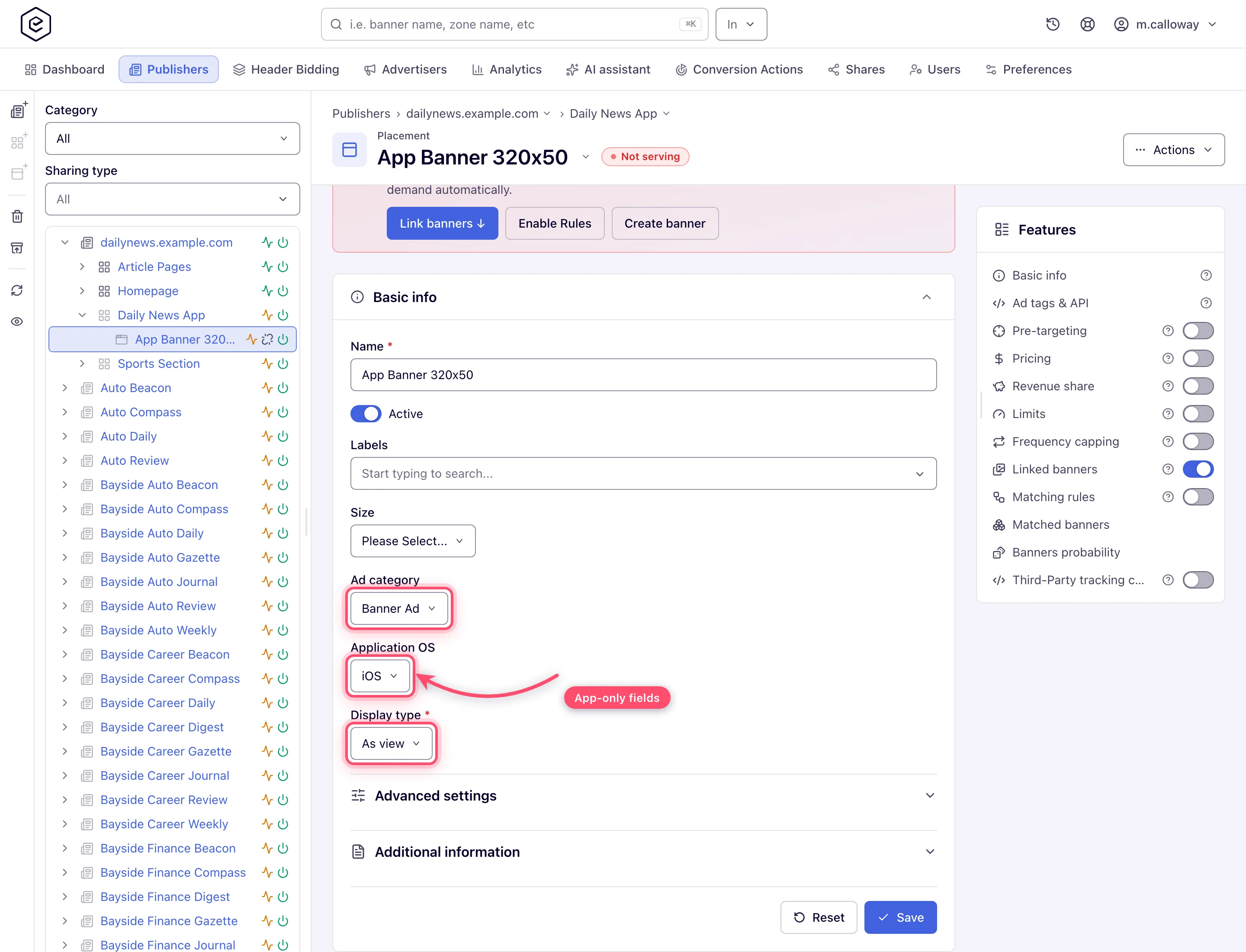
- **Ad category** — the ad format of the slot: *Banner Ad*, *Interstitial Ad*, *Native Ad* or
*Rewarded video* (a new placement starts on *Banner Ad*);
- **Application OS** — *iOS* (the default) or *Android*. A non-native application banner is
eligible for the slot only when its OS and ad category both equal the placement's;
- **Display type** — *As view* or *As activity*: how the app shows the ad. It is returned in the
API response as `DISPLAY_TYPE`, unless the banner names its own.
2. **Refresh interval (sec)** — how often the app should re-request an ad (`0` = no refresh) — is
drawn only on a placement that already has a value stored, and a new Application placement has
none, so the console does not offer it to set. Give it over the REST API
(`refreshInterval` on `POST /rest-api/placements/update/app.do`); once stored it shows here. It
is the application/native flavor of refresh, distinct from the display family's "Refresh
after".
3. Save, then open **Ad tags & API** → **API** tab: the request URL, the parameter table
(`key`, `clientIp`, `clientUa`, `format`, device identifiers…) and sample responses. It is
the only integration path for this type — call it from the app or from your server.
| Field | What it does | Notes |
|---|---|---|
| Ad category | Ad format of the slot (Banner Ad, Interstitial Ad, Native Ad, Rewarded video) | Default Banner Ad; part of banner matching; validation errors from saving land on this field |
| Application OS | Platform of the app (iOS, Android) | Default iOS; part of banner matching |
| Display type | Presentation style in the app (As view, As activity) | No default; see the corner case below |
| Refresh interval (sec) | Ad-refresh cadence, `0` = off | Only on a placement that already has a stored value; set over REST |
| Size | Ad unit for the slot — 8 units, from Leaderboard 728×90 to the four phone/tablet interstitials | Not required. Only **Site** and **Email** placements require one; every other type that has a Size field leaves it optional |
| Placement key | Identifier used by API calls | Read-only, saved placements only |
> **Corner case:** the classic page hid **Domain as default channel** on application placements —
> apps have no domain for it to read. On the new interface the checkbox is rendered anyway, along
> with the rest of the display family's *Advanced settings*; leave it off and pass a channel
> explicitly as a request parameter if you segment reporting by channel.
> **Corner case:** **Display type** is marked required on the form but nothing on the server
> enforces it and nothing pre-selects a value — a placement can be saved without one. *Ad category*
> and *Application OS*, by contrast, are both defaulted and validated.
### Email placements
1. Create and save the placement — the integration URLs exist only after the first save. Open
the **Ad tags & API** card and its **Email** tab:
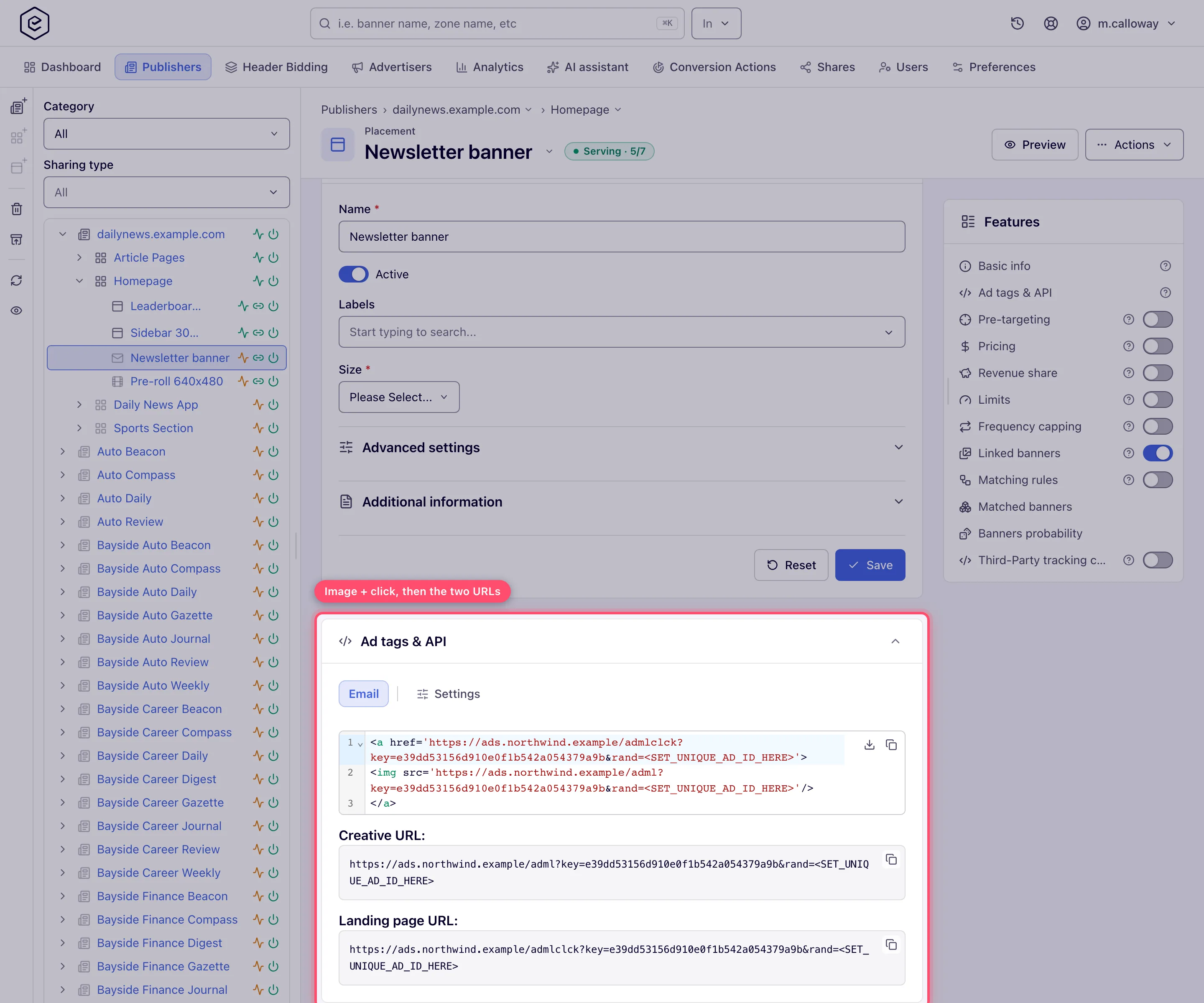
- the **image + click code** block — a ready-to-paste `![]() ` snippet;
- **Creative URL** — the `
` snippet;
- **Creative URL** — the `![]() ` beacon, on its own copyable field;
- **Landing page URL** — the `` click target, on its own copyable field.
2. If your network serves from several domains, pick the **Domain** on the **Settings** tab —
the URLs are rebuilt for the chosen domain (it saves immediately).
3. Any [default parameters](https://epom.com/ad-server/docs/guides/inventory/ad-tags-and-api.md) you set in **Settings** are baked into all
three, and they refresh in place when you change a default or the domain.
> **Corner case:** email clients execute no JavaScript, so an email placement can only rotate
> whatever renders as a static image at open time. Both URLs are read-only — you never edit
> them, only copy. Add a cache-busting merge tag for the `rand` parameter if your email
> platform supports it.
### Click-through placements
A click-through placement records clicks and redirects — useful for text links, sponsorships
or off-platform media you can't tag with markup.
1. Create and save the placement (name is essentially the only field — there is no size and no
generated ad tag).
2. Link creatives to the placement — the tracking URLs are per creative, so an unlinked
placement has none. Only **image and video** creatives (local or external) produce them; an
HTML, template, native or OpenRTB creative linked here is skipped.
3. Open the **Ad tags & API** card. On this type it carries no tag tab — it opens on **Show
tracking URLs**, a grid of the linked creatives with their **Type** and **Landing page URL**:
> **Note:** the grid is not pictured here. It only lists linked image and video creatives, and
> the reference environment the help-centre screenshots are taken on has click-through banners
> switched off at the role level, so the tab renders *"No linked image or video banners yet"*.
- Tick a row and click **URLs** — or double-click it — to open that creative's six URLs, each
on its own copyable field: **Landing page URL**, **Creative URL**, **Impression pixel URL**,
**Click-through URL**, **Click-through URL (hidden landing page)** and **Click pixel URL**.
The dialog renders the creative itself above them and links to its **Preview**, so you can
confirm you are copying the right row's URLs.
- **Export** downloads the same eight columns as CSV — the rows you ticked, or every row when
you ticked none.
4. Give the third party the URL that matches what they can fire: a click-through URL where they
send the visitor (it logs the click and forwards to the landing page), the click or impression
pixel where they can only request an image.
> **Which interface:** the above is the **new interface**. The classic placement page has no such
> tab — it keeps a **Show tracking URLs** button in the Basic-info form's button row, beside Reset
> and Save, which opens the same list as a separate page. Both are built from the same URLs.
> **Corner case:** click-through placements are the one type whose **Ad tags & API** card exists
> without a single code tab, and the copy-ad-tag quick action in trees/grids still answers "This
> placement type has no ad tag" — correctly, since there is none to copy. The card shows even on
> shares where the rest of the form is read-only; the **Settings** tab beside it is the part that
> disappears when you cannot edit.
> **Corner case:** the tracking URLs are built on the placement's own **Domain**, **Protocol** and
> default parameters, all set on the **Settings** tab of the same card — change one and the URLs
> are rebuilt, so a URL already handed to a partner is not necessarily the URL the tab shows
> today. Re-issue after a domain change.
> **Corner case:** on a share carrying *Mask campaigns*, the rows keep their URLs but lose the
> identifying parts — you can still hand out a tracking URL for a creative whose advertiser you
> are not entitled to see.
## Corner cases and gotchas (all three types)
> **Corner case:** **Application** and **Click-through** placements have no **Preview** button —
> there is no self-contained markup to render (API responses, redirects). An **Email** placement
> does have one, because its Mail tag is preview-capable. On a demo deployment with a demo page
> configured the button appears on every type, but only Site, Native and Video placements open
> the demo page; the others open the built-in preview, which answers **Not Supported** for an
> Application or Click-through placement.
> **Corner case:** the application **API tab** needs its own permission. Without it the Ad tags &
> API card has nothing to show for this type and looks broken — ask your network admin for the
> grant.
## Over the API
- **Email placements** — `POST /rest-api/placements/update/email.do` creates one (`zoneId`, `type=EMAIL_PLACEMENT`,
`name`, `adUnitId`) or updates it (`id`), with `description`, `active`, labels, `servingDomain` (one of the domains
`GET /rest-api/placements/{placementId}/serving-domains.do` lists — the same as the console's Domain picker, and like it ignored without the *Set Ad-Serving Domain (Placement)* permission) and a `zoneId` that moves it. It must keep an ad unit; creating one needs the Email Placements
permission.
- **Click-through tracking URLs** — `GET /rest-api/placements/{placementId}/tracking-urls.do` answers the Tracking
URLs tab: per linked image or video banner, the click-through URL, the one that hides the landing page, and the click
and impression pixel URLs. It needs view rights on the site.
- **Creatives for a click-through placement** — there is no click-through creative type, in the console or over the
API: a click-through placement accepts a banner of any placement type. Create an image or video banner as usual
(`POST /rest-api/banner/create.do` with e.g. `placementType=SITE_PLACEMENT`, `bannerType=LOCAL_FILE` or
`EXTERNAL_FILE`) and link it with `PUT /rest-api/banners/{bannerId}/placements.do?ids={placementId}&append=true`.
A create with `placementType=CLICK_THROUGH_PLACEMENT` is refused with a message saying this.
## Per-role notes
- **Publisher** — configures application and email placements; the **Email** tab gives the
image-plus-link code. The application **API** tab needs its own grant — ask your network admin.
- **Network manager** — all three types, once your network administrator enables Click-through Placement and the
application API tab for the role.
- **Can View share** — the forms are read-only; the email and tracking URLs stay copyable.
- **Demo account** — Preview appears on Application and Click-through placements but answers **Not
Supported** ([Demo accounts](https://epom.com/ad-server/docs/roles/demo-account.md#previewing-a-placement)).
Exact grants: see [User roles](https://epom.com/ad-server/docs/guides/admin/users-and-roles.md).
## Related
- [Create a placement](https://epom.com/ad-server/docs/guides/inventory/placements-create.md)
- [Display placements](https://epom.com/ad-server/docs/guides/inventory/placement-display.md) (covers Mobile Site placements)
- [Ad tags, invocation codes and the API](https://epom.com/ad-server/docs/guides/inventory/ad-tags-and-api.md)
- [Placement types reference](https://epom.com/ad-server/docs/reference/placement-types.md)
` beacon, on its own copyable field;
- **Landing page URL** — the `` click target, on its own copyable field.
2. If your network serves from several domains, pick the **Domain** on the **Settings** tab —
the URLs are rebuilt for the chosen domain (it saves immediately).
3. Any [default parameters](https://epom.com/ad-server/docs/guides/inventory/ad-tags-and-api.md) you set in **Settings** are baked into all
three, and they refresh in place when you change a default or the domain.
> **Corner case:** email clients execute no JavaScript, so an email placement can only rotate
> whatever renders as a static image at open time. Both URLs are read-only — you never edit
> them, only copy. Add a cache-busting merge tag for the `rand` parameter if your email
> platform supports it.
### Click-through placements
A click-through placement records clicks and redirects — useful for text links, sponsorships
or off-platform media you can't tag with markup.
1. Create and save the placement (name is essentially the only field — there is no size and no
generated ad tag).
2. Link creatives to the placement — the tracking URLs are per creative, so an unlinked
placement has none. Only **image and video** creatives (local or external) produce them; an
HTML, template, native or OpenRTB creative linked here is skipped.
3. Open the **Ad tags & API** card. On this type it carries no tag tab — it opens on **Show
tracking URLs**, a grid of the linked creatives with their **Type** and **Landing page URL**:
> **Note:** the grid is not pictured here. It only lists linked image and video creatives, and
> the reference environment the help-centre screenshots are taken on has click-through banners
> switched off at the role level, so the tab renders *"No linked image or video banners yet"*.
- Tick a row and click **URLs** — or double-click it — to open that creative's six URLs, each
on its own copyable field: **Landing page URL**, **Creative URL**, **Impression pixel URL**,
**Click-through URL**, **Click-through URL (hidden landing page)** and **Click pixel URL**.
The dialog renders the creative itself above them and links to its **Preview**, so you can
confirm you are copying the right row's URLs.
- **Export** downloads the same eight columns as CSV — the rows you ticked, or every row when
you ticked none.
4. Give the third party the URL that matches what they can fire: a click-through URL where they
send the visitor (it logs the click and forwards to the landing page), the click or impression
pixel where they can only request an image.
> **Which interface:** the above is the **new interface**. The classic placement page has no such
> tab — it keeps a **Show tracking URLs** button in the Basic-info form's button row, beside Reset
> and Save, which opens the same list as a separate page. Both are built from the same URLs.
> **Corner case:** click-through placements are the one type whose **Ad tags & API** card exists
> without a single code tab, and the copy-ad-tag quick action in trees/grids still answers "This
> placement type has no ad tag" — correctly, since there is none to copy. The card shows even on
> shares where the rest of the form is read-only; the **Settings** tab beside it is the part that
> disappears when you cannot edit.
> **Corner case:** the tracking URLs are built on the placement's own **Domain**, **Protocol** and
> default parameters, all set on the **Settings** tab of the same card — change one and the URLs
> are rebuilt, so a URL already handed to a partner is not necessarily the URL the tab shows
> today. Re-issue after a domain change.
> **Corner case:** on a share carrying *Mask campaigns*, the rows keep their URLs but lose the
> identifying parts — you can still hand out a tracking URL for a creative whose advertiser you
> are not entitled to see.
## Corner cases and gotchas (all three types)
> **Corner case:** **Application** and **Click-through** placements have no **Preview** button —
> there is no self-contained markup to render (API responses, redirects). An **Email** placement
> does have one, because its Mail tag is preview-capable. On a demo deployment with a demo page
> configured the button appears on every type, but only Site, Native and Video placements open
> the demo page; the others open the built-in preview, which answers **Not Supported** for an
> Application or Click-through placement.
> **Corner case:** the application **API tab** needs its own permission. Without it the Ad tags &
> API card has nothing to show for this type and looks broken — ask your network admin for the
> grant.
## Over the API
- **Email placements** — `POST /rest-api/placements/update/email.do` creates one (`zoneId`, `type=EMAIL_PLACEMENT`,
`name`, `adUnitId`) or updates it (`id`), with `description`, `active`, labels, `servingDomain` (one of the domains
`GET /rest-api/placements/{placementId}/serving-domains.do` lists — the same as the console's Domain picker, and like it ignored without the *Set Ad-Serving Domain (Placement)* permission) and a `zoneId` that moves it. It must keep an ad unit; creating one needs the Email Placements
permission.
- **Click-through tracking URLs** — `GET /rest-api/placements/{placementId}/tracking-urls.do` answers the Tracking
URLs tab: per linked image or video banner, the click-through URL, the one that hides the landing page, and the click
and impression pixel URLs. It needs view rights on the site.
- **Creatives for a click-through placement** — there is no click-through creative type, in the console or over the
API: a click-through placement accepts a banner of any placement type. Create an image or video banner as usual
(`POST /rest-api/banner/create.do` with e.g. `placementType=SITE_PLACEMENT`, `bannerType=LOCAL_FILE` or
`EXTERNAL_FILE`) and link it with `PUT /rest-api/banners/{bannerId}/placements.do?ids={placementId}&append=true`.
A create with `placementType=CLICK_THROUGH_PLACEMENT` is refused with a message saying this.
## Per-role notes
- **Publisher** — configures application and email placements; the **Email** tab gives the
image-plus-link code. The application **API** tab needs its own grant — ask your network admin.
- **Network manager** — all three types, once your network administrator enables Click-through Placement and the
application API tab for the role.
- **Can View share** — the forms are read-only; the email and tracking URLs stay copyable.
- **Demo account** — Preview appears on Application and Click-through placements but answers **Not
Supported** ([Demo accounts](https://epom.com/ad-server/docs/roles/demo-account.md#previewing-a-placement)).
Exact grants: see [User roles](https://epom.com/ad-server/docs/guides/admin/users-and-roles.md).
## Related
- [Create a placement](https://epom.com/ad-server/docs/guides/inventory/placements-create.md)
- [Display placements](https://epom.com/ad-server/docs/guides/inventory/placement-display.md) (covers Mobile Site placements)
- [Ad tags, invocation codes and the API](https://epom.com/ad-server/docs/guides/inventory/ad-tags-and-api.md)
- [Placement types reference](https://epom.com/ad-server/docs/reference/placement-types.md)