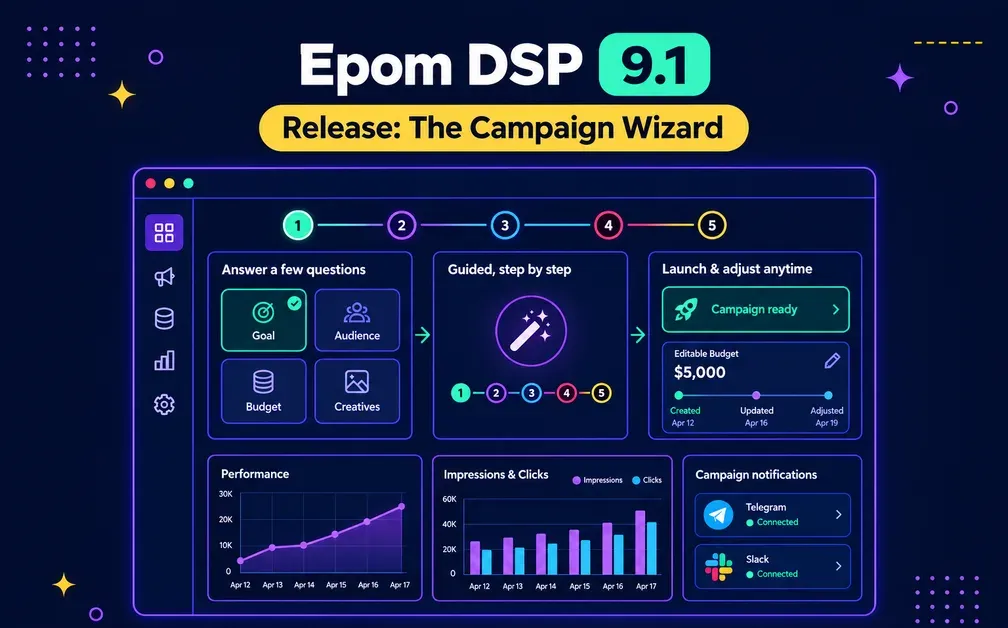
- Campaign Wizard: A guided, step-by-step setup that builds a complete campaign from plain business questions.
- Editable Budgets, now with history: Adjust budgets mid-flight and see every change, status, and outcome in one clear timeline.
- Daily limits in your time zone: New budgets reset at local midnight, not at midnight UTC.
- Steadier even pacing: Day-and-time schedules are now respected across the whole flight, not just the first week.
- Telegram alerts: Send DSP notifications to Telegram as well as Slack, across up to five channels.
In 8.8 we rebuilt campaign setup into a guided flow, and 8.9 added goal-based optimization. Version 9.1 takes the natural next step: a full Campaign Wizard that turns creating a campaign into a guided questionnaire almost anyone can complete.
Around it, Editable Budgets gains a complete edit history, daily limits now reset in the budget's own time zone, even pacing got steadier on scheduled campaigns, and your alerts can now go to Telegram. Here's everything new.
Epom white-label DSP now lets you launch a campaign through a guided wizard, adjust budgets on the fly, and run it all under your own brand. Start a free trial and build your first campaign.
The Campaign Wizard: Guided Setup, Start To Finish
The Campaign Wizard (Quick Setup) is a guided, simplified campaign-creation flow for people who don't have deep programmatic expertise. Instead of a page of advanced controls, you answer a structured, step-by-step questionnaire of business-level questions, and the Wizard turns your answers into a complete, ready-to-run campaign.
It walks through ten steps, in order:
| # | Step | What you choose |
|---|---|---|
| 1 | Goal & Success Metric | Your objective — awareness, website visits, or conversions — and how success is measured. |
| 2 | Destination URL | Where the ad sends people, with macro support. |
| 3 | Ad Format | Banner, video, or native. |
| 4 | Naming & Folder | A campaign name and the folder to keep it in. |
| 5 | Geo Targeting | The locations you want to reach. |
| 6 | Inventory, Device, OS & Language | Traffic type, device, operating system, and language. |
| 7 | Third-Party Audience Segments | Optional audience segments to target. |
| 8 | Budget Setup | Spend, limits, and flight dates. |
| 9 | Creatives | The creatives to run. |
| 10 | Summary | A review of everything, with Dynamic CPM and a reach estimate. |
Access is controlled by a new Campaign Wizard role permission, which admins switch on per role under User Roles → Campaigns.
Two things need to be in place for it to work: Dynamic CPM must be enabled for the role (for Banner, Video, or Native), and Bid Probing must be enabled on the tenant. If every Dynamic CPM permission is turned off for a role, the Wizard switches off automatically — and turning the Wizard on doesn't, by itself, enable Dynamic CPM.
💡 Key point: The Wizard is a layer on top of the full platform, not a replacement — campaigns built in Advanced mode are untouched, so experienced buyers keep every control.
Drafts: Pick Up Where You Left Off
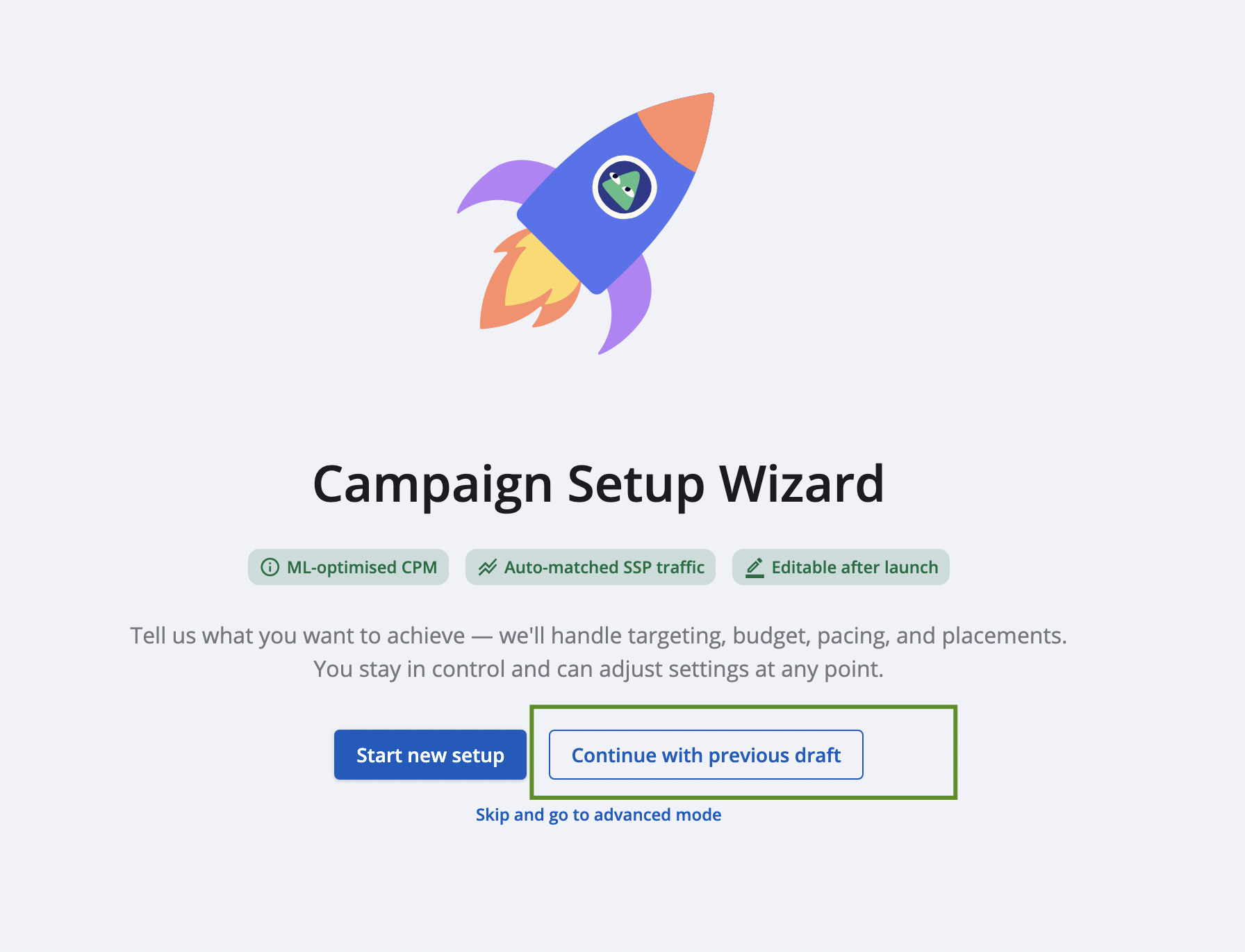
Progress saves automatically. Each step is stored the moment you press Next, so nothing is lost if you close the Wizard or reload the page.
Next time, the start screen offers two choices: resume the previous draft — picking up at the first unfinished step, with earlier choices (including selected creatives) restored — or start a fresh setup, which discards the draft.
A few rules keep drafts tidy: each user has one draft at a time, kept for 14 days by default. A draft is private and inactive — it doesn't appear in the campaign list and doesn't bid or spend until the campaign is actually created. You can go back and change any completed step, but you can't skip ahead.
Traffic Without The Guesswork
The Wizard deliberately doesn't ask which SSP endpoints (traffic sources) to use. A campaign created in the Wizard bids on all traffic available on the tenant, filtered by its targeting — geo, device, OS, traffic type, and language.
That means a new user can launch without knowing which endpoints to pick, and a Wizard campaign won't sit idle because no source was linked. (Advanced-mode campaigns are unaffected and still choose their own sources.)
Editable Budgets, Now With A Full History
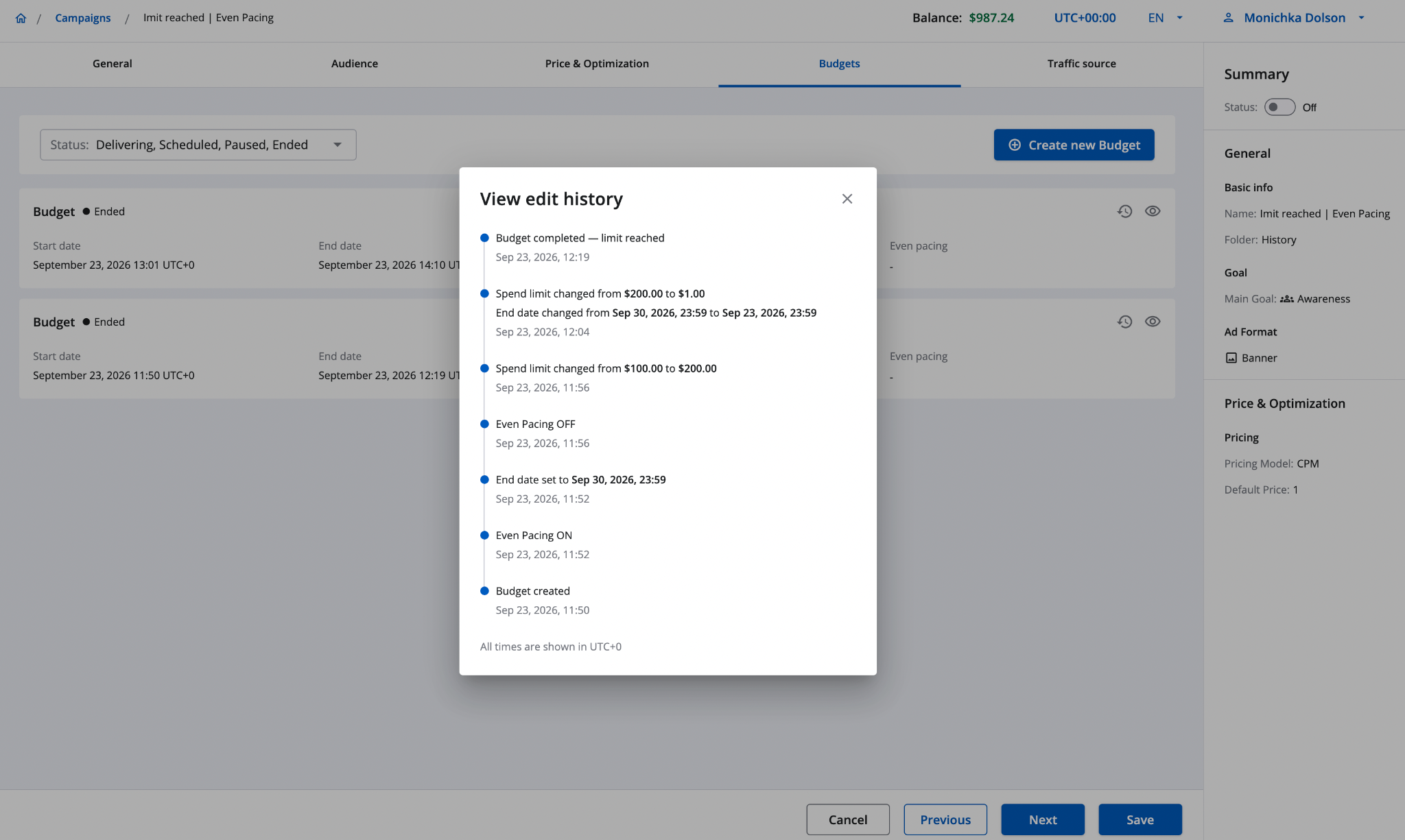
Editable Budgets let you change a budget mid-flight — spend limit, impressions limit, or end date — without rebuilding it. Under the hood each edit is a new, linked version, but analytics still shows a single clean budget row. Version 9.1 makes the history behind that row genuinely useful.
Now, every edit appears in the history as soon as you save it, as one entry per save rather than one row per changed field. Edits show their status — Pending while a tenant cooldown runs, or Not applied if the budget ended first — Even Pacing on/off changes are logged, and the timeline closes with how the budget finished (stopped, limit reached, or flight ended). History also covers paused and scheduled budgets.
The statuses you'll see:
| Status | What it means |
|---|---|
| Pending | Saved and already in the history, but waiting out the tenant's cooldown. The budget keeps its current terms until the edit applies, and a pending edit doesn't count toward the edit limit, so you can still correct it. |
| Not applied | The budget finished before the cooldown ended, so the edit never took effect. A pending edit never restarts a finished budget. |
| Budget stopped | A user stopped the budget manually before its limit or end date. Delivery ends there, and any still-pending edit becomes Not applied. |
| Completed — limit reached | The budget spent its full limit and stopped on its own; pending edits become Not applied. |
| Flight ended | The budget's end date passed and delivery stopped on schedule; pending edits become Not applied. |
Daily Limits Reset In Your Time Zone
Daily limits now reset at midnight in the budget's own time zone, not at midnight UTC. A budget set to UTC+10, for example, starts its new day at 00:00 local time instead of at 10:00 — so daily pacing lines up with the day your audience actually experiences. This applies to new budgets only; budgets already running keep resetting at UTC, so pacing on live campaigns doesn't change. (The feature, TIMEZONE_AWARE_DAILY_LIMITS, is off by default and enabled per tenant.)
Steadier Even Pacing With Day & Time Targeting
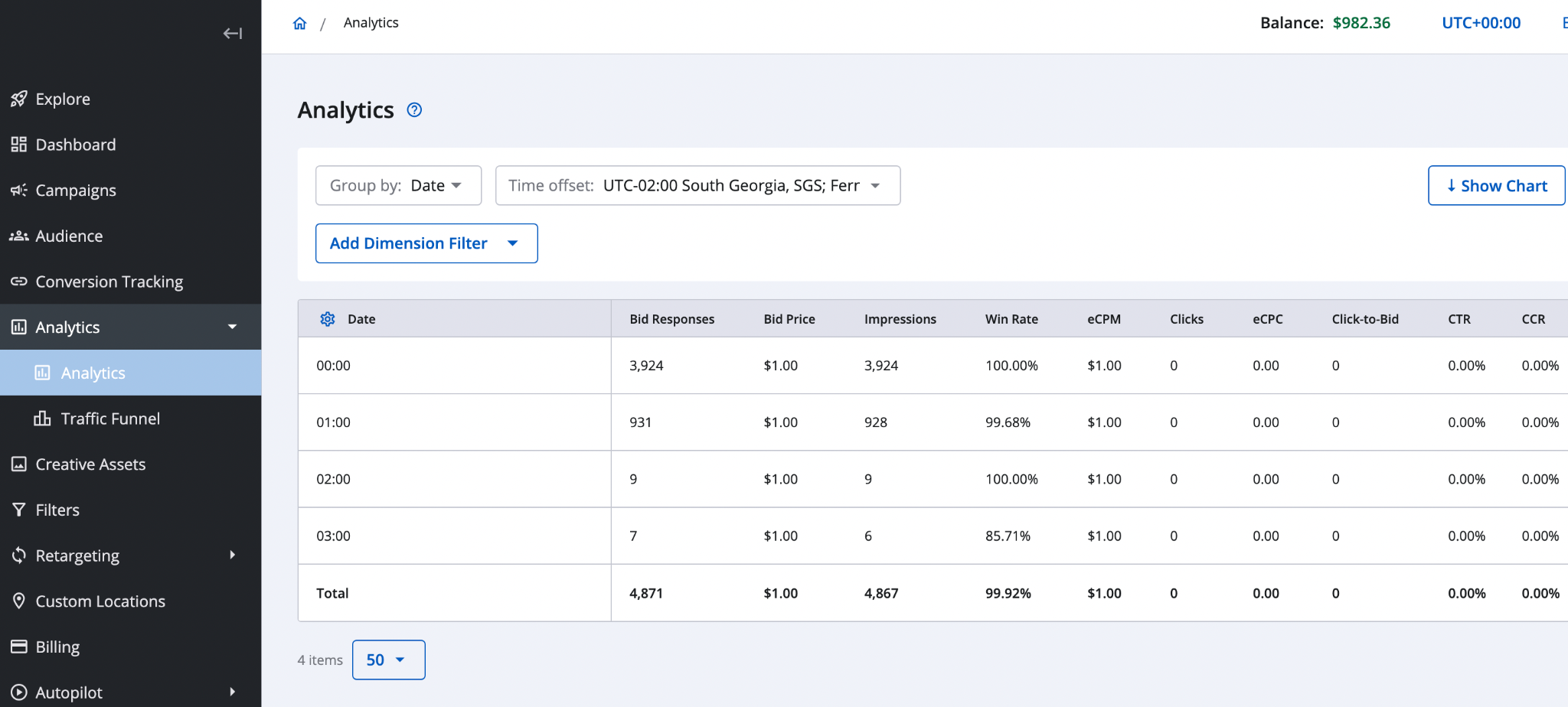
Even pacing now accounts for a campaign's Day & Time schedule across the entire flight, not just the first week. Previously, a total budget with a schedule and a flight longer than a week could spend faster than planned after the first few days. Now spend and impressions are spread evenly across all scheduled hours of the flight, and budgets with impression, click, or spend limits follow the schedule correctly.
Alerts In Telegram, Not Just Slack
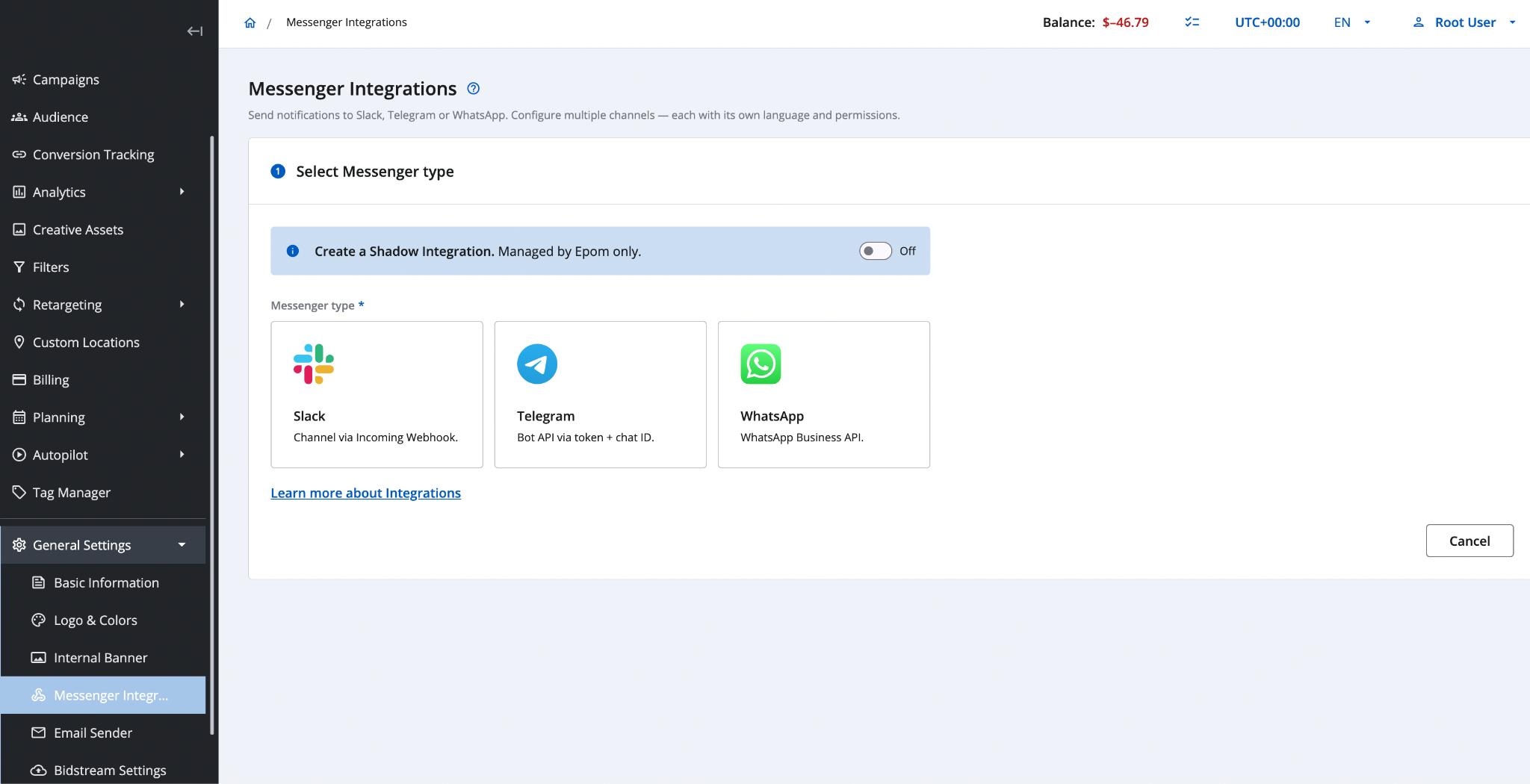
DSP notifications can now go to Telegram as well as Slack, set up under General Settings → Messenger Integrations. You can connect up to five integrations per account in any mix of the two — even several of the same type, say one Telegram chat for finance and another for campaign managers. Each integration has its own name and notification language (English by default), and a Test Connection check confirms the credentials before you save.
You'll receive the same alerts you already get in Slack — a campaign created, a budget limit reached, a new user registered — and each alert goes to every connected messenger at the same time.
Put Epom DSP 9.1 To Work
Version 9.1 is about making Epom easy to start and easy to steer: a guided Wizard that launches a campaign from plain questions, budgets you can change and trace, pacing that respects your schedule and time zone, and alerts wherever your team already works.
Open the Wizard and build your next campaign in a few guided steps. Launch your campaign