
Serving state — what makes an entity actually serve
The full checklist an impression must pass — active flags up both trees, approval, links and suitability, targeting — and what the edit-page serving pill does and does not tell you.
“Active” is only one of several switches between a saved banner and a live impression. This page lists every condition, in the order the platform effectively applies them, and explains the serving pill shown in banner and placement edit-page headers.
The full checklist
A banner appears in a placement only when all of the following hold at once:
- The demand chain is on. The banner is active, and its campaign is active, and its advertiser is active. Any one toggle off silences the whole branch.
- The supply chain is on. The placement is active, and its zone is active, and its site is active. Deactivating a site silences every placement under it in one click.
- Nothing in either chain is deleted. Deleted entities drop out of ad serving entirely, links included.
- The banner is approved — if your network moderates. See Approval and moderation below.
- The pair is linked and suitable. A direct link exists with the linking switch on for both the banner and the placement — or a rules match does, with Rules on at both ends — and the banner still fits the placement’s type and size (Hierarchy and linking).
- The request passes targeting. Pre-targeting on site → zone → placement, then targeting on advertiser → campaign → banner (How ad selection works).
- Caps and limits leave room. Frequency/click/action caps for this viewer aren’t exhausted, and no impression/click/spend/action limit or budget has been reached — limits can auto-stop a campaign entirely. A direct banner must also clear the placement’s or site’s minimum margin, if one is set.
- It wins the pick. Everything above only makes the banner eligible; priority, weights, and optimization decide who actually serves each request.
Changes to any of these reach live traffic through the ad servers’ copy of your settings, not instantly: some saves take about a second, anything else waits for the full refresh that runs every 10 minutes by default (How current the numbers are).
The serving pill
Banner and placement edit pages carry a pill in the header that answers one specific question: is this entity wired to the other side of the bridge? It appears only to roles that have the page’s Linked card, and only while that card’s own switch is on.
| Pill | Meaning |
|---|---|
| 🔴 Not serving | No direct links and the entity’s own Rules switch is off — nothing can serve from this side. |
| 🟡 Rules only | No direct links, but the entity’s own Rules switch is on — impressions happen only where rules match. |
| ⚪ Paused · N | The entity itself is turned off (and has links or Rules), or every one of its N linked entities is turned off. An entity that is off and has no wiring at all still reads Not serving. |
| 🟢 Serving · N | N direct links go to entities that are switched on. With a mix of on and off links the pill shows Serving · active/total. |
The count is the number of direct links to entities that are not deleted. A link counts as on while the linked entity’s own On/Off switch is on and its own Linked card switch is on — the ad server ignores the link otherwise. The pill does not look at the linked entity’s zone, site, campaign or advertiser.
Clicking the pill scrolls to the linking card. In the red and amber states a banner above the cards spells out the consequence and offers the fixes: Link banners / Link placements, Enable Rules (when your role can), or a shortcut to create the missing counterpart.
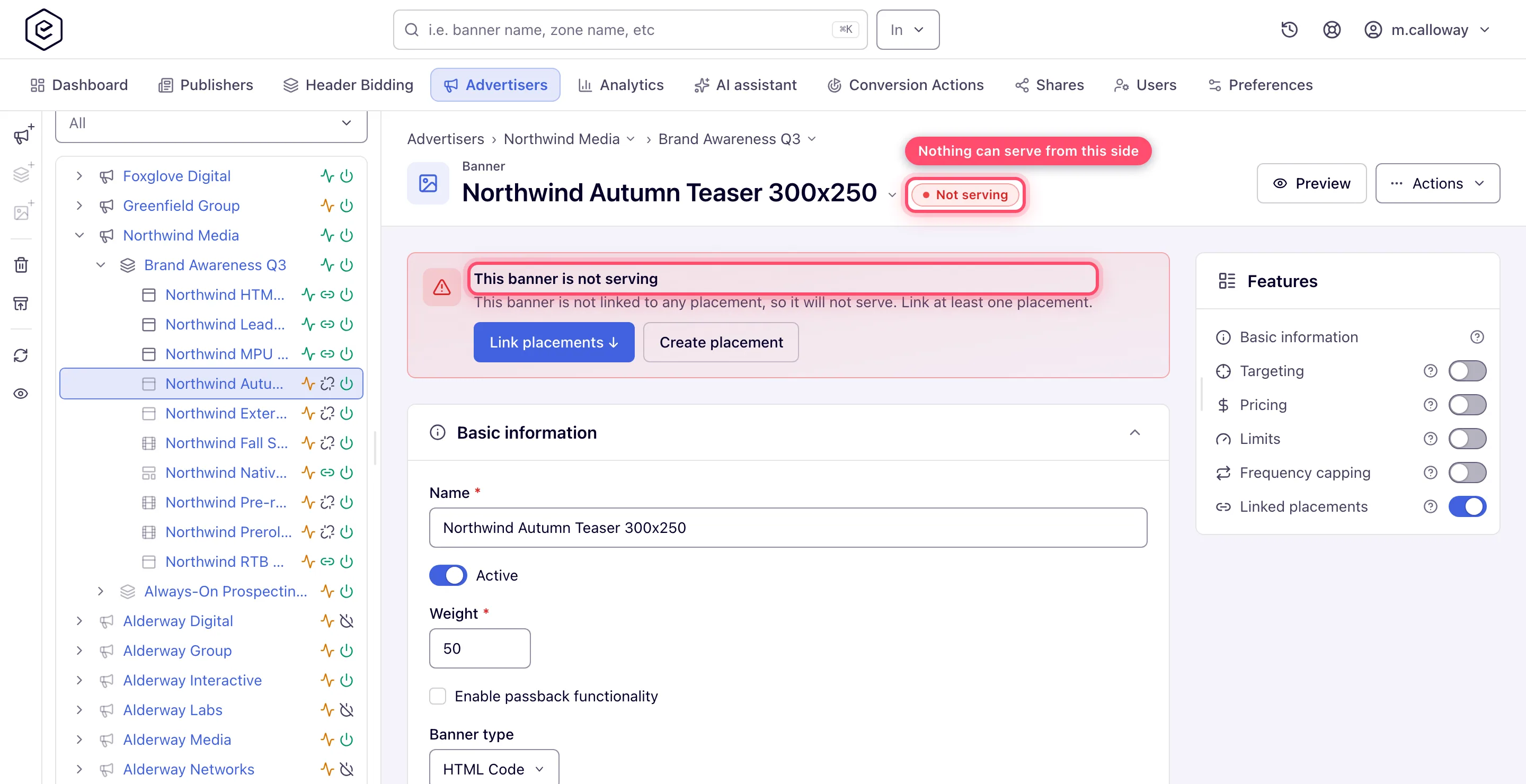
Warning: the pill checks the direct links plus the On/Off and linking switches of the entity itself and of its linked entities — nothing else. It does not count Rules matches, and it does not look at the parents of either side. A banner can show 🟢 Serving · 12 and still serve zero impressions because the placements’ zone or site is paused, its campaign or advertiser is paused, a limit is reached, or targeting rejects all traffic. Green pill + zero impressions means: work through the checklist above, top to bottom, or follow Ad not serving.
As a publisher. The stock Publisher role has no Linked banners card, so it sees neither the pill nor the setup banner. What you control is the supply chain (condition 2) — the Active switches on placement, zone and site — and the pre-targeting half of condition 6, plus the tag on the page and the placement’s Default code. Links, rules, campaign targeting, caps and limits are set by the network. The publisher checklist is in Ad not serving; whatever it does not explain, the network manager resolves.
Parent entities without children get a similar amber nudge instead: a site with no zones, a zone with no placements, an advertiser or campaign with nothing under it — the chain isn’t built yet, so there is nothing to wire.
Approval and moderation
Banner approval has four states — New, Pending, Approved, Rejected — but it blocks serving only through the moderation grants of the user who edits the creative. Moderation is a property of a role, not a network-wide mode: the permissions are Soft Banners Moderation and Banners Moderation With Deactivation, both administrator-only, and a user holding Banners Approval is never moderated.
- No moderation grant (the case whenever no role holds one): a creative is created Approved, and approval never interferes with serving.
- Soft Banners Moderation: creating a creative sets it to New, and editing a moderated field of an approved or rejected one resets it to Pending, but it keeps serving while it waits.
- Banners Moderation With Deactivation: creating or editing a moderated field resets the creative (New on create, Pending on edit) and switches it off. It cannot be activated again until a reviewer approves it — attempts are refused with “Banner can’t be activated until it is approved”. Approving clears the verdict only; whoever owns the campaign switches the creative back on.
- Rejecting a creative also switches it off, and approving it later does not switch it back on.
So approval gates serving indirectly, via the active flag — the ad server reads a banner’s active flag, never its approval status, which is why a rejected banner shows as simply “inactive” in delivery terms. Which edits count as moderated is a network setting your network administrator chooses under Admin → Ad serving → Inventory & campaigns settings → Banner approval moderation fields: URL for local/external banner type, Banner Creative for Local/External File Banner Type and Code for HTML code banner type; with all three off, editing an approved creative never re-queues it. The edit-page header shows an approval badge only to users who hold one of the moderation permissions, and only for the states that need attention — Pending and Rejected; approved and new banners show no badge. Sites have an analogous network-approval status used by the pending-sites review flow (Moderation & quality).
Corner case: under moderation with deactivation, editing a live creative’s moderated field takes it off air immediately — the save resets it to Pending and deactivates it until re-approved. Plan creative swaps around your review latency.
Corner case: only changes to the fields ticked in the network setting above (the creative file, its URL or its HTML code) reset approval. Renaming a banner or adjusting its weight does not send it back to review.
What “not serving” looks like from outside
When no banner survives the checklist for a request, the placement returns its default
code on the entry points that carry it (a VAST request gets an empty VAST document with an
<Error> node instead, a native request a “no ads” JSON, and an Application placement an empty
response). From the page’s point of view that is a normal, successful response — there is no error
to see. That is why diagnosis starts from the
entity pages and reports, not from the browser console:
Ad not serving walks the same checklist as a
decision tree, and Statuses & indicators lists
every icon and badge the UI uses to flag the states described here.
