
HTML code and Template banners
Serve your own HTML/JS markup with the HTML Code type, or a rich-media system template with per-banner properties.
Two ways to serve markup instead of a plain file:
- HTML Code — you paste the markup yourself: third-party ad tags, custom HTML/JS.
- Template — you pick a rich-media template your network prepared and fill in its properties.
Both render through Preview before they ever reach a page.
Who this is for
- HTML Code — anyone trafficking third-party tags or custom creatives.
- Template — advertisers using ready-made rich formats (interstitials, catfish bars, interscrollers, native blocks). The templates themselves are authored in the Templates section, see Templates.
Prerequisites
- A campaign you can edit.
- For Template banners: at least one template enabled for the placement type you’re targeting.
Steps — HTML Code
- Add new banner → the placement type. HTML Code is valid on Site, Non-standard, Mobile site, Video and Application placements — not Email, not Native.
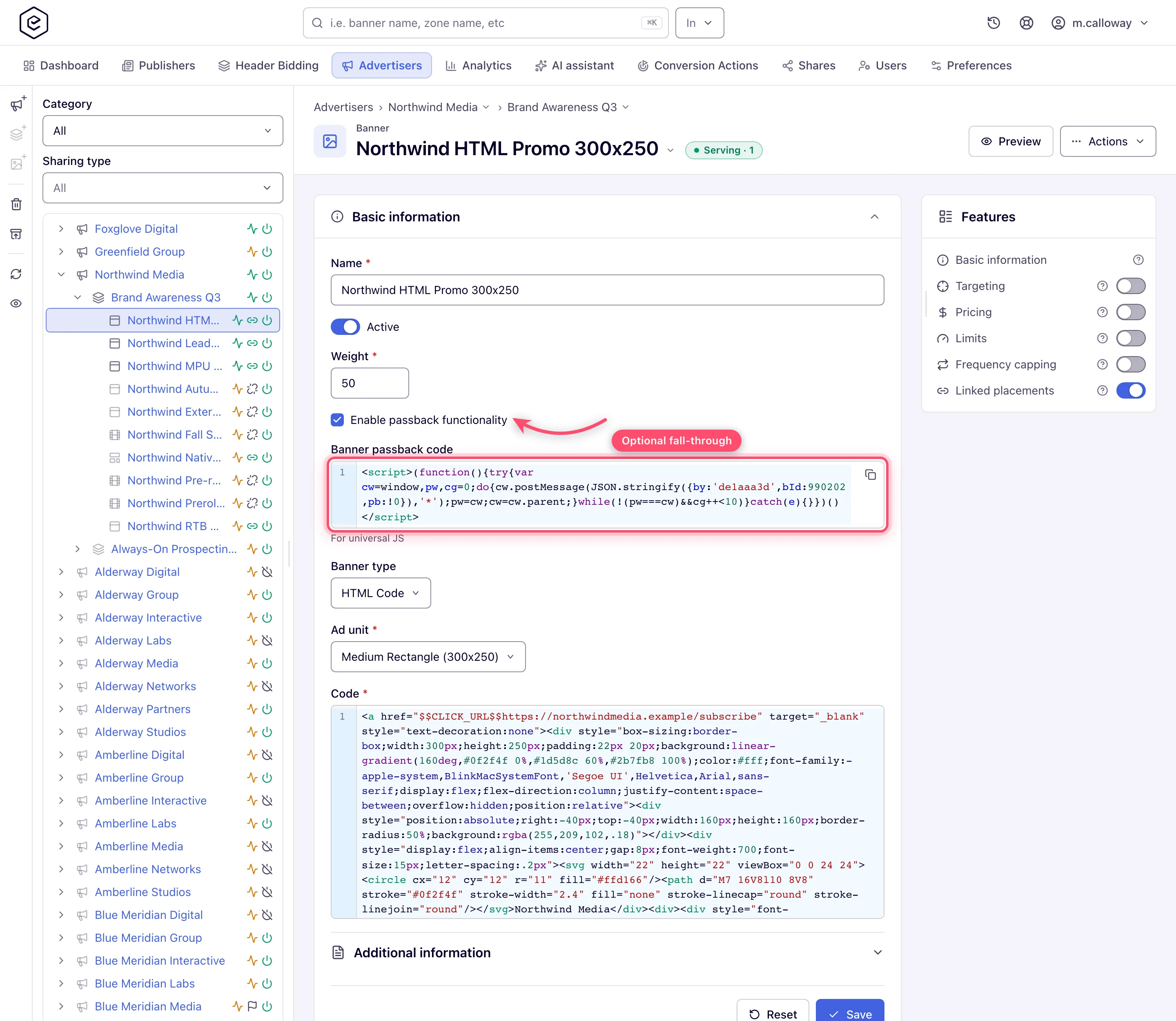
- Set Banner type to HTML Code.
- Pick the Ad unit where the form shows one (see the table below — it isn’t shown on every placement, and it isn’t always required).
- Paste your markup into Code. Required. Macros such as
$$CLICK_URL$$,$$RANDOM$$and your own custom parameters are expanded at serve time — see the macros reference. - On a Video placement, Return as iFrame wraps the markup in an iframe inside the VAST response. It is ticked by default; untick it to return the markup as it is.
- On Site, Non-standard and Mobile site placements, a role that holds the AJAX invocation-code permission also sees Enable passback functionality, above Banner type — read Passback first.
- Save. The banner opens on its own edit page; link it to placements from the Linked placements card.
Check it with Preview
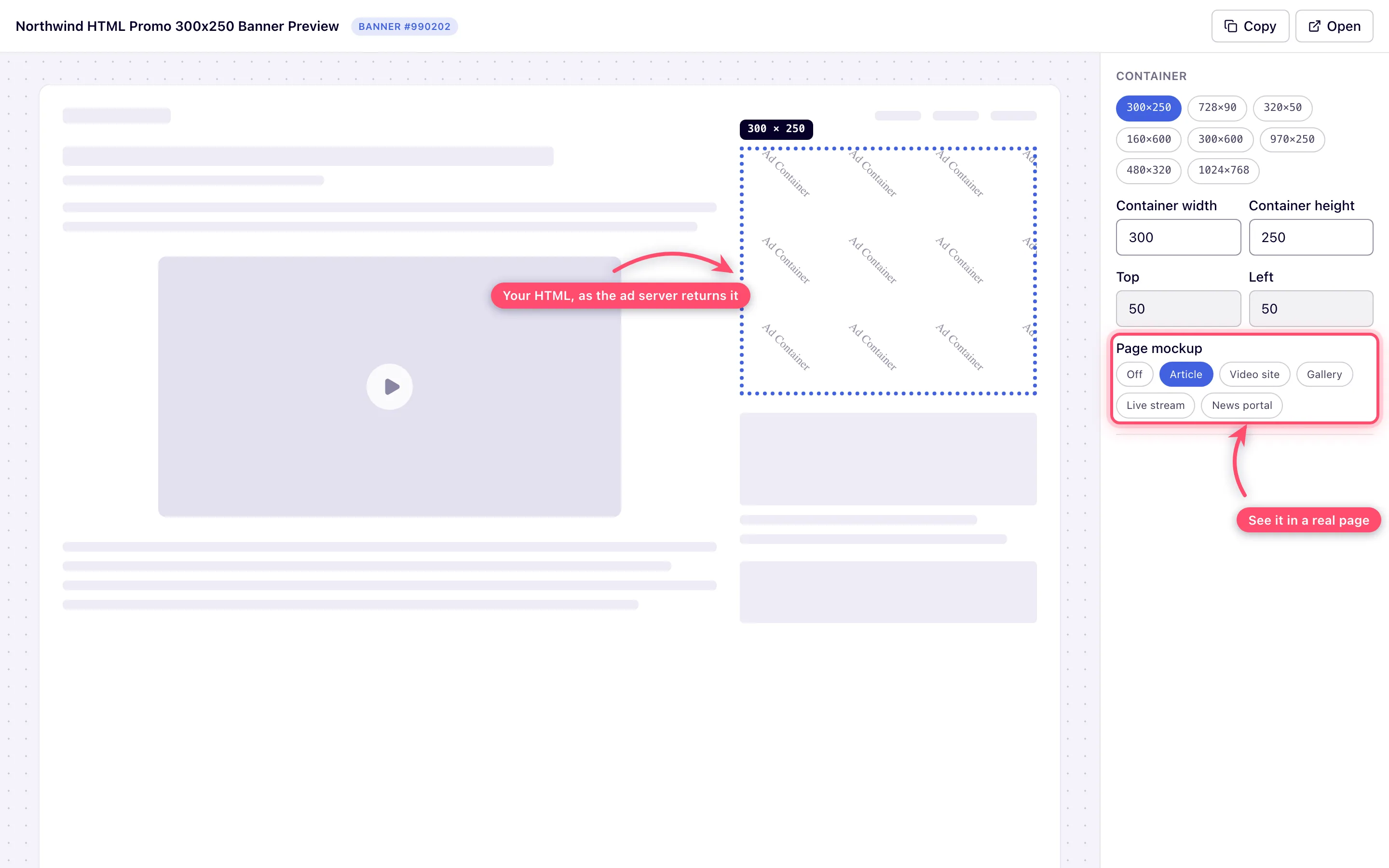
Preview in the page header opens the creative in a new tab and actually renders it. Resize the container, switch between the standard ad sizes, and drop the creative into a page mockup — article, video site, gallery, live stream or news portal — to see it the way a visitor would.
Steps — Template
- Add new banner → the placement type. Template is valid on Site, Non-standard, Mobile site and Application placements — not Video, not Email, not Native.
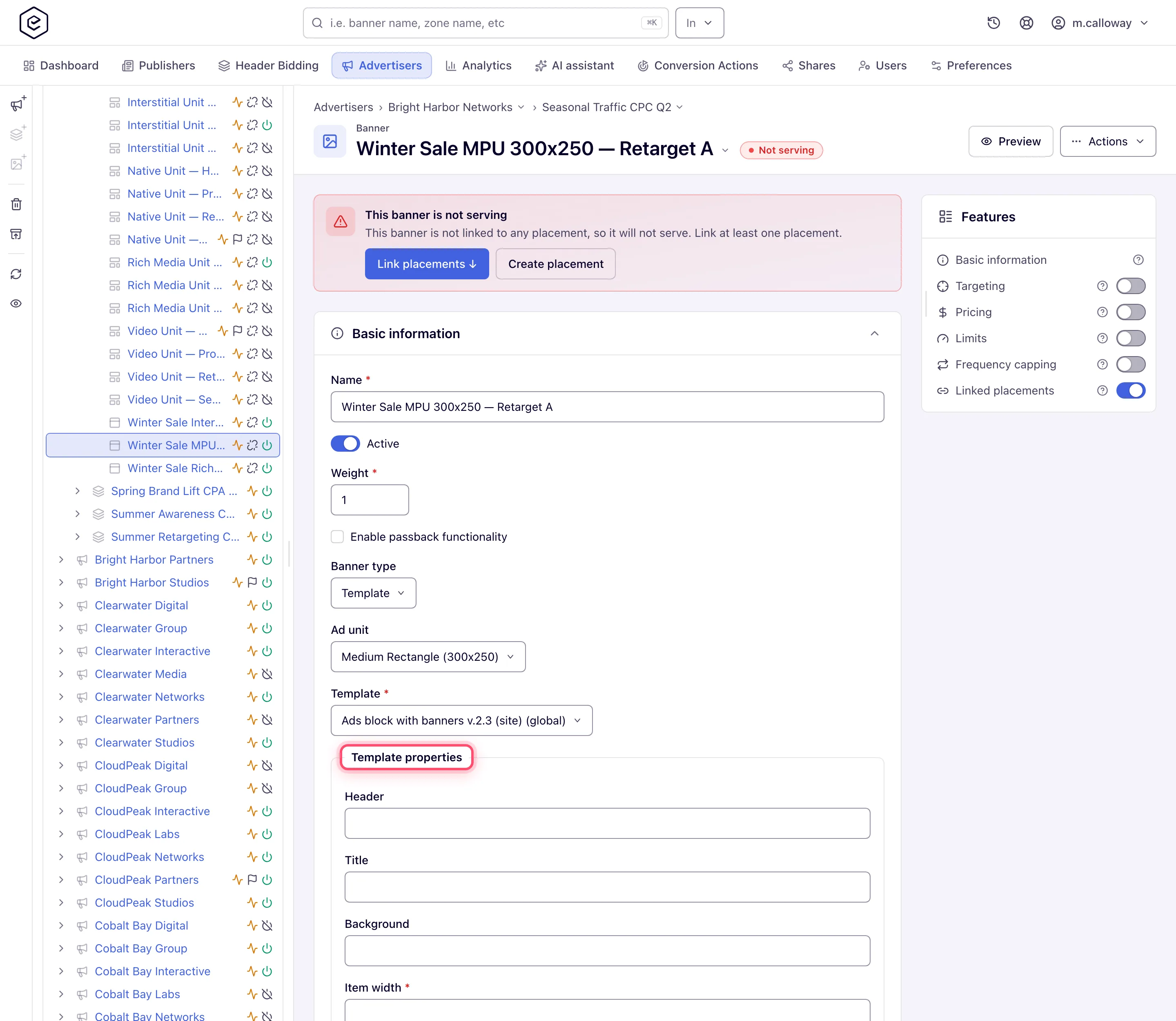
- Set Banner type to Template, then pick a Template. Required. The list is filtered to templates enabled for that placement type, and it can come back empty — see the corner cases.
- Fill in Template properties. The fields come from the template itself, so every template asks for something different: text, numbers with their own min/max, dropdowns, checkboxes and file uploads (including HTML5 ZIP bundles — see HTML5 ZIP creatives). A file field can also take a link (From link): the file is downloaded once when you save and stored as if you had uploaded it. An HTML5 ZIP field can also take a ZIP from the Media Library (Media library). Links typed into text fields are never downloaded — the platform cannot tell a file link from any other URL.
- Pick the Ad unit where shown. For Template banners it is never required.
- On Site and Non-standard placements, optionally enable passback.
- Save. Preview works for Template banners too.
What each placement asks for
| Placement | HTML Code | Template |
|---|---|---|
| Site | Ad unit required, Code, passback | Ad unit optional, Template, passback |
| Non-standard | Code, passback — no Ad unit field | Template, passback — no Ad unit field |
| Mobile site | Ad unit optional, Code, passback, Install conversion action | Ad unit optional, Template, Install conversion action — no passback |
| Video | Ad unit required, Code, Return as iFrame | not offered |
| Application | Code, Ad category, Application OS, Install conversion action, Customization parameters, and Display type when the category is Interstitial Ad on Android — no Ad unit, no passback | same, plus Target |
| Email, Native | not offered | not offered |
Options and fields
| Field | Type | What it does |
|---|---|---|
| Code | HTML Code | The markup that gets served, verbatim, with macros expanded. Required. |
| Template | Template | The system template to render. Required. Filtered by placement type. |
| Template properties | Template | Per-banner values for the template’s own fields. A property marked required blocks the save until it is filled; a file property keeps its existing file if you save without picking a new one. |
| Ad unit / Width / Height | both | Creative size. Custom reveals manual width and height inputs. |
| Return as iFrame | HTML Code, Video | Wraps the markup in an iframe inside the VAST response. Ticked by default. |
| Enable passback functionality | both | See below. Site / Non-standard / Mobile site for Code; Site / Non-standard for Template. |
| Target | Template, Application | Which browser window the click opens. |
| Preview | both | Header button, available once the banner is saved. |
Passback
Passback lets a creative tell the Epom tag “I have nothing to show”, so the tag can fall through to the next line of demand. The checkbox is shown only to a role that holds the AJAX invocation-code permission for the banner’s placement type (Standard, Non-standard or Mobile site), and only once your network has an AJAX invocation-code domain to build the snippet from; if you don’t see it, ask your network administrator to grant the permission in Admin → Users & access → User roles & permissions. Then tick Enable passback functionality, save, and reopen the banner: a Banner passback code block appears below the checkbox. Paste that snippet into your creative on the path where it decides not to render — it posts a message up the frame chain that the Epom AJAX tag picks up.
Note: the snippet is built from your network’s AJAX invocation-code domain. If the network has none configured, the checkbox is not offered at all — ask Epom support or your account manager to set up an AJAX invocation code for the network. A banner that already has passback switched on keeps the checkbox so you can turn it off.
Note: with several AJAX invocation-code domains, pick the one your page’s tag is served from in the Domain list above the code block; the snippet follows the choice, which is not saved — the first domain is shown each time you reopen the banner.
Placement-side fallback chains are a different feature — see Daisy chaining and passback.
Corner cases and gotchas
Corner case: the passback code block only exists on a saved banner. Enable → Save → the block appears. There is nothing to copy while you are still creating the banner.
Corner case: the Ad unit is required for a Code banner on Site and Video, optional on Mobile site, and not shown at all on Non-standard and Application. An unsized mobile code banner saves fine and leaves the markup to size itself.
Corner case: Template is offered on Mobile site and Application placements even when no template is enabled for them. You reach a form with a required Template field and an empty list, and the banner cannot be saved. Check the catalog first if you are trafficking to those.
Corner case: a template’s URL properties are validated as URLs — a reserved documentation domain like
something.exampleis rejected with Must be a valid URL. The banner’s own click URL field is not validated that way, so the same address can be fine in one field and refused in the other.
Warning: switching an existing banner between HTML Code and Template and saving deletes the old type’s data. Saving as Template clears the stored image or video file name and the Title; saving as HTML Code clears the template, its property values, the stored files, the URL and the Title. Switching back does not restore them, so copy the markup or note the property values first. Until you save, flipping the combo changes nothing.
Warning: a Code banner serves your markup verbatim into publisher pages. A broken or slow third-party tag degrades every placement the banner is linked to — preview it, and prefer a tag you can point at a test endpoint first.
Per-role notes
- Advertiser — the stock role has no Template banners; ask your network manager to switch them on for your role. With them, you build the banner from whatever the Template combo offers; the templates themselves are authored elsewhere, see Templates.
- Network manager — the same banner form, and the section where those templates are written.
- Can view share — the code editor, template combo and property fields are disabled and the card carries a Read-only pill; Preview and the passback code stay readable and copyable. Ask the owner for Can edit if you need to change the creative.
Related
- Banner types — decision guide
- Create and manage banner templates — building the templates this page consumes
- Serve an HTML5 creative from a ZIP bundle
- Macros reference
- Daisy chaining and passback
- Bulk banner operations — mass-updating template properties
- Catfish, sticky, branding (skin) and interstitial formats — formats built on templates, and their sizing, click and “not showing” checklists
