
Use case: brand safety with category rules, domain lists and advertiser blocks
Assemble Epom's four scattered avoidance controls — category-matching rules, domain and app-package lists, advertiser/campaign/banner blocks, and competitive separation — into one brand-safety playbook, and learn which of them actually stops demand and which only steers it.
There is no single “Brand Safety” screen in Epom. What “brand safety” means in practice — your ads never appear alongside unsuitable content, and unwanted advertisers never appear on your pages — is assembled from four separate mechanisms that live in different parts of the platform. This recipe wires them together into one playbook and tells you which control to reach for depending on what you’re trying to avoid.
Read this first: only two of the four stop anything. Named blocks and domain / app-package exclusion are hard filters. Category rules only decide which demand the platform pairs with your inventory automatically — they cannot remove a banner that anyone linked by hand — and for programmatic demand the category lever is an advisory request to the DSP.
Read the goal in your own words, then pick the row:
| You want to avoid… | Use | Does it stop demand? | Lives in |
|---|---|---|---|
| A class of demand being paired with your inventory automatically (e.g. gambling advertisers on a kids’ site) | Category rules | No — they steer automatic pairing; hand-linked banners are untouched | Admin → Ad serving → Rules, then the Matching rules card |
| Specific domains or app bundles as inventory | Domain / App-package lists (free-text or preset) | Yes | Targeting / Pre-targeting cards |
| One named advertiser, campaign or banner on your inventory | Named blocks | Yes — the only hard stop for direct demand | Banners probability card / analytics |
| A rival advertiser’s ad sharing a page with yours | Competitive separation | Yes, within one page view | Campaign → Exclude competitors campaigns |
Note: this page is about avoidance by content and identity. Keeping malware and policy-violating creatives out — moderation queues, DSP creative scanning, fraud/traffic quality — is a different, complementary layer covered in Protect your inventory from bad creatives and bad traffic. A complete brand-safety posture uses both.
Who this is for
- Publishers / network managers protecting inventory: named blocks on the placement, and — for a network manager — the site and placement pre-targeting rules. The category taxonomy and the Rules screen are admin-area pages.
- Advertisers / network managers protecting a brand: domain exclusion and competitive separation on the demand side.
Which of these cards and buttons a role sees is switched on per role by your network administrator — see Per-role notes at the end.
Prerequisites
- The taxonomies you’ll match on already exist — categories are defined by your network administrator (see Manage category taxonomies); rules only select from existing categories and labels.
- Entities are classified: for category rules to match, advertisers must carry advertising categories (a campaign or banner inherits its advertiser’s) and sites must carry inventory categories.
- For domain/app lists you maintain in the admin area, admin access to the preset pages.
Steps
Work through the mechanisms in the order that fits your goal — each is independent, and the corner cases for each sit directly under it.
Mechanism 1 — steer which demand is paired with your inventory (category rules)
A category rule is the broadest, most maintainable way to say “this inventory should be paired with these kinds of demand”: define the policy once against a category, and every advertiser you later tag with that category is covered automatically — no per-advertiser bookkeeping. What it does is create pairings. For every ad request the ad server takes the union of the banners linked to the placement by hand and the banners the rules pair with it, and only then applies targeting. So a rule can bring demand in that nobody linked; it cannot take out demand that was linked by hand.
- Classify demand and supply first. Tag advertisers with an advertising category (e.g. “Gambling”, “Alcohol”) in the Category field of their Basic info card; tag sensitive inventory with an inventory category (e.g. “Children”) in the Category field of the site’s Basic info card.
- Administrator step: go to Admin → Ad serving → Rules and click Add. Name the rule and pick the Type Campaign Rule — it matches advertisers’ categories and labels and is attached to sites, zones or placements to control which demand is paired with them.
- Under Conditions click Add and build each condition: an include / exclude picker, an Operator (AND / OR), and the Category (and Label) values. An include condition pairs only the categories you approve of (an allowance list); an exclude condition drops matching advertisers from what the rule pairs. Conditions are ANDed — an advertiser must satisfy every one.
- Tick Active (a new rule is created inactive, and an inactive rule is ignored even where it is attached) and Save.
- Attach the rule. On each site, zone or placement open the Matching rules card, switch it on and add the rule — and make sure Matching rules is also on for the demand side (advertiser, campaign or banner); with one side off nothing is paired. To have the rule attached automatically, tick the Apply automatically to boxes (All sites / All zones / All placements) and have your network administrator set the matching card in Admin → Ad serving → Inventory & campaigns settings → Rules panel default status to On.
Full mechanics and the include/exclude/AND/OR semantics: Matching rules and network defaults and Attach matching rules to an entity.
Corner case — an exclude line is not a block. It subtracts from the pairings the rule itself would create, never from pairings that already exist. A gambling banner a trafficker linked to the placement by hand keeps serving whatever any rule says. To stop a specific advertiser, use a named block (Mechanism 3).
Corner case — two Exclude lines on one entity cancel each other out. Lines on the Matching rules card are unioned, so “everything except A” plus “everything except B” is “everything except what is both A and B”: if A and B do not overlap, nothing is excluded at all. To exclude two rules, put them in one Exclude line with any of, and do not mix an Include line with an Exclude line on the same entity (the union can only widen).
Corner case: Apply automatically to is consumed at one moment only — when an entity’s Matching rules card is switched on — and it is not retroactive. A new site or placement is born with the card on only if the matching card in Rules panel default status is On; that setting ships Off for all six levels, so flagging the rule alone does nothing until it is changed. Entities that already exist get the rule only when someone attaches it or switches their card on.
Corner case: an uncategorised or miscategorised advertiser is invisible to the rule — a banner has no category of its own, it inherits its advertiser’s.
Corner case: deleting a category that a rule matches on silently drops it from the rule’s match line — the line can quietly stop matching anything. Audit rules after pruning the taxonomy (see taxonomies corner cases).
Mechanism 2 — block domains and apps your ads must not show on (domain blacklist)
If you don’t want your ads to show on particular sites or apps, block those domains or app bundles with an Exclude rule. Category rules steer pairing; domain and app-package rules gate the inventory context a creative runs in. Use these on the demand side to keep a brand off named sites/apps, or on the supply side to refuse demand pointed at certain contexts.
- A handful of values: open the entity’s Targeting (demand) or Pre-targeting (supply) card and add a Domain or App Package rule with Exclude — one value per rule (Channel accepts a comma/semicolon list in one click).
- Hundreds of values (a real blocklist): have your network administrator build a preset group once — a named domain or app-package list — then target the whole list with a single Preset Domains / Preset App Packages rule set to Exclude. Updating the list later updates every rule that references it. See Preset groups.
Each of these rule types is switched on per role. Demand-side Channel is on for the stock Network Manager role; demand-side Domains is off for every stock role, and so are the supply-side Domains, App Package and both Preset rules. The stock Advertiser role has neither Domains nor Channel. A type missing from the card’s Add list has to be switched on for your role — ask your network manager.
Corner case — “advertiser domains”: Epom’s domain rules match the inventory domain a request comes from, not a landing-page domain declared by a bidder. For programmatic demand, the network manager can additionally send blocked categories to DSPs — the Blocked IAB category field on the OpenRTB card (called RTB configuration on a placement), sent as
bcatin bid requests. That is a request the DSP may ignore, not a filter: Epom never checks the creative that comes back. See Keep unwanted ad categories off your inventory and The four category systems.
Corner case: a preset rule stores a reference to the group, not a copy — emptying or repurposing the group instantly changes every entity that targets it. Check what uses a list before clearing it.
Mechanism 3 — block a named advertiser, campaign or banner
When the problem is one specific party, not a category, block it by name. These blocks are absolute — they remove the pairing regardless of how well any dimension rule or matching rule matches, and they are the only hard stop for direct demand.
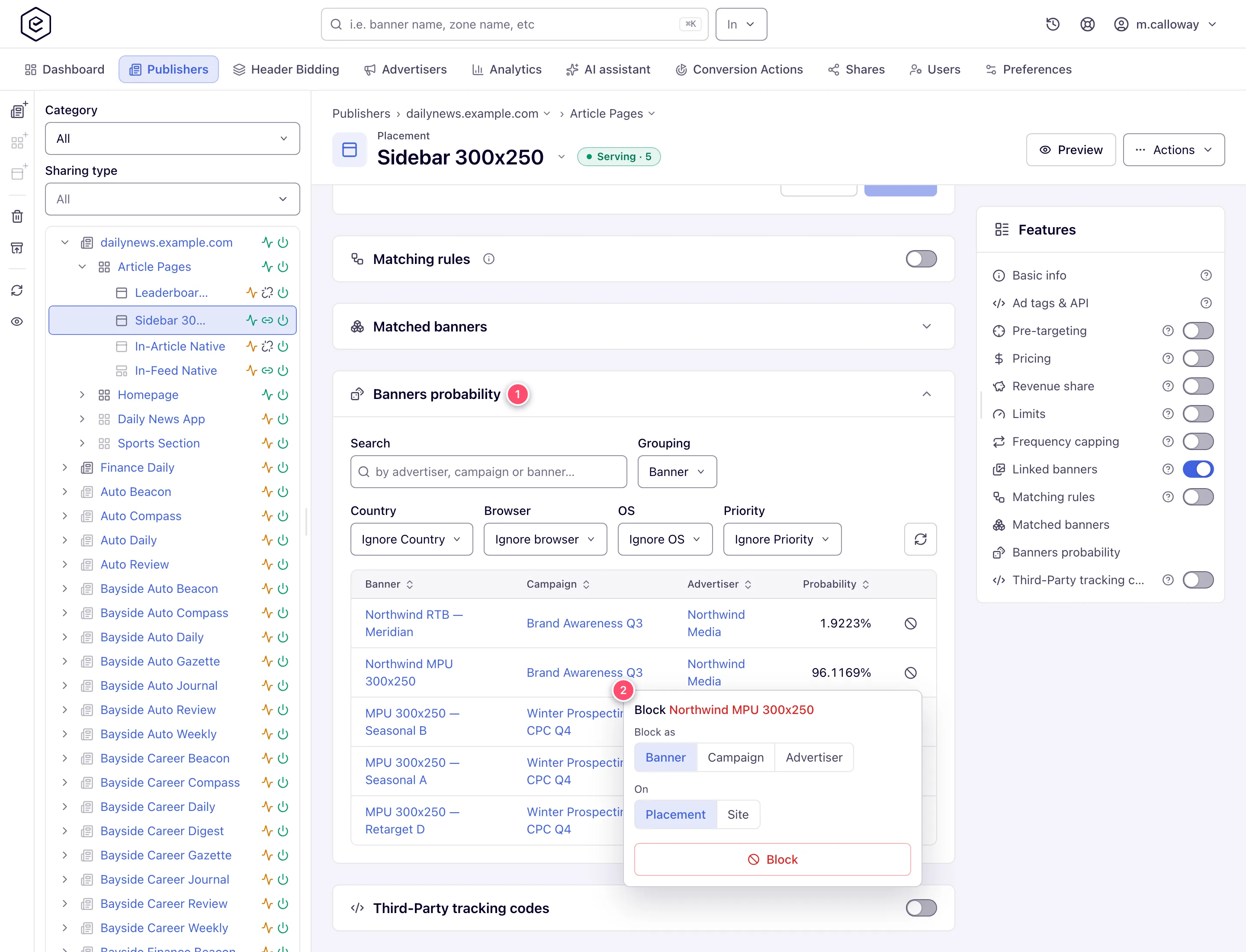
- On Account → Publishers → site → zone → placement, open the Banners probability card — it lists every banner that can currently win on this placement.
- Click the Block button at the end of the row (a circle with a slash). The popover
offers Block as Banner, Campaign or Advertiser (blocking the advertiser removes
all its campaigns and banners at once, including campaigns created later) and On — this
Placement, the whole Site, or All sites. Click Block, then confirm.
- The block appears on the Pre-targeting card under Excluded: Blocking and can be removed there. In the other direction, an advertiser or network manager can block a site or placement from demand: run an Account → Analytics report grouped by Site or Placement together with Banner or Campaign, tick rows, and click Block site / Block placement in the selection bar — the rule lands on the banner’s or campaign’s Targeting card. The success toast appears whatever the server answered, so confirm the chip under Excluded: Blocking there.
The Block buttons are drawn only for roles allowed that scope — each scope (placement / site / all sites; blocked sites / blocked placements on the demand side) is switched on separately, per role, and none is on out of the box. Ask your network manager if a button is missing.
Full behavior and scopes: Block demand and inventory.
Corner case: creating a block silently switches the targeting card on for the entity that receives it (a block can’t work with targeting off), which also re-activates that entity’s positive rules. Blocks then keep applying even if you later switch the card off — the switch only governs positive dimension rules.
Mechanism 4 — keep rivals off the same page (competitive separation)
Brand safety for an advertiser often means “don’t put my ad next to my competitor’s”. The campaign Exclude competitors campaigns card names campaigns that must not appear in the same page view — once one wins a slot, the others are skipped for the remaining slots and the next eligible campaign serves.
Set it up on Account → Advertisers → advertiser → campaign → Exclude competitors campaigns; full details and the mutual-exclusion gotchas are in Exclude competitive campaigns. The stock Advertiser role has the card; the stock Network Manager role does not until your network administrator switches on Manage Competitor Campaigns for it.
Corner case: the scope is one page view, not a session or a site — the same two campaigns can appear on consecutive pages. And the exclusion only stays mutual while both campaigns’ cards are on.
Corner cases and gotchas
The per-mechanism corner cases sit under each mechanism above. This is the boundary — be honest with stakeholders about it so you don’t promise a control that isn’t there:
- No category-level hard block for direct demand. Matching rules pair, they do not filter. The hard stops are named blocks, domain / app-package exclusion and removing the link.
- No category-level hard block for programmatic demand either. Blocked IAB categories
travel as
bcat, which a DSP is free to ignore; if a forbidden creative gets through, block that DSP partner’s banner by name. - No content-keyword blocking. There is no page-text or keyword-scanning dimension. The
closest signals are Channel — a page-section value the publisher’s ad tag passes (e.g.
sport,politics) — and Custom Parameter, which matches key-value pairs in the ad request; both work only for values the tag actually sends. If the tag doesn’t pass a section value, there is nothing to match on. - No semantic/NLP page classification. Contextual safety is driven by the categories you assign and the domain/app/channel values in the request, not by machine reading of the page.
- Creative-level safety (malware, policy) is the separate scanning/moderation layer, not these avoidance lists — see the Note at the top.
Assembling the layers
A typical publisher-side brand-safety setup stacks all four, in this order of strength:
- Named blocks (Mechanism 3) for the offenders you already know — the one control that removes hand-linked direct demand — and for any DSP creative that got through.
- Domain / app-package exclusion, with preset lists for the contexts you’ve catalogued (Mechanism 2).
- A category rule (Mechanism 1) so that what the platform pairs with your inventory automatically stays inside the categories you approve — as a baseline for new pairings, not a cleanup of existing ones.
- On the demand side, advertisers add competitive separation (Mechanism 4) themselves.
Verify the outcome after each change. The Banners probability card on the placement drops a blocked advertiser, campaign or banner from its list entirely; the Matched banners card (and Matched placements on the demand side) shows what the platform pairs by linking and by rules — before targeting is applied, so it will not show the effect of a pre-targeting exclude.
Per-role notes
- Network manager: every row of the table, once your network administrator has switched on the block scopes, the domain rule types and competitive separation you need.
- Publisher: blocking a banner, campaign or advertiser on your placement, and category and domain rules on your inventory, are requests to your network manager.
- Advertiser: Targeting on your advertiser, campaigns and creatives, and Exclude competitors campaigns on your campaigns. Domain and Channel exclusions are not in the stock role — ask your network manager.
- Can view share: existing blocks and rules are visible but read-only.
Related
- Matching rules and network defaults
- Attach matching rules to an entity
- Manage category taxonomies
- Keep unwanted ad categories off your inventory
- Preset groups — domains, IP ranges, app packages
- Block demand and inventory (pre-targeting blocks)
- Exclude competitive campaigns
- Protect your inventory from bad creatives and bad traffic
- Targeting dimension reference
