
Configure white-label branding
Company details, platform defaults, colour theme, logos, the sign-in background and the network's Anthropic API key — the four tabs of White label preferences and what each setting actually changes.
White label preferences is where one installation becomes your platform: the company details that appear in outgoing mail, the colour theme every user sees, the logos and favicon, the sign-in page artwork, the language and UI-version policy, and the network’s REST API key pair. Four tabs — Main, Appearance, Images and REST API keys — and each one saves through its own endpoint, independently of the others.
Everything here is install-wide. There is no per-network scoping inside a single installation: the settings have no owner, so a change applies to every user, every publisher, every advertiser and every ad response the installation produces.
Who this is for
Administrators whose role carries the White Label Preferences admin permission. The grant is all-or-nothing — there is no images-only or theme-only variant, so you cannot let someone manage logos without also handing them the REST API keys.
No network user sees this page — not a network manager, a publisher or an advertiser. They see its results.
Prerequisites
- Artwork prepared at the size each slot names. Every image card prints the expected dimensions; a raster file that does not match is rejected (see Image slots).
- A decision on the language and UI-version policy — the toggles apply platform-wide the moment you save.
- If you want to change the system default ad-serving domain, ask Epom support or your account manager first: that value ends up in every tracking URL the platform generates, and the new host must already be registered for your network.
Steps
Main tab — company details and platform defaults
-
Go to Admin → Ad serving → White label preferences. The Main tab opens first.
-
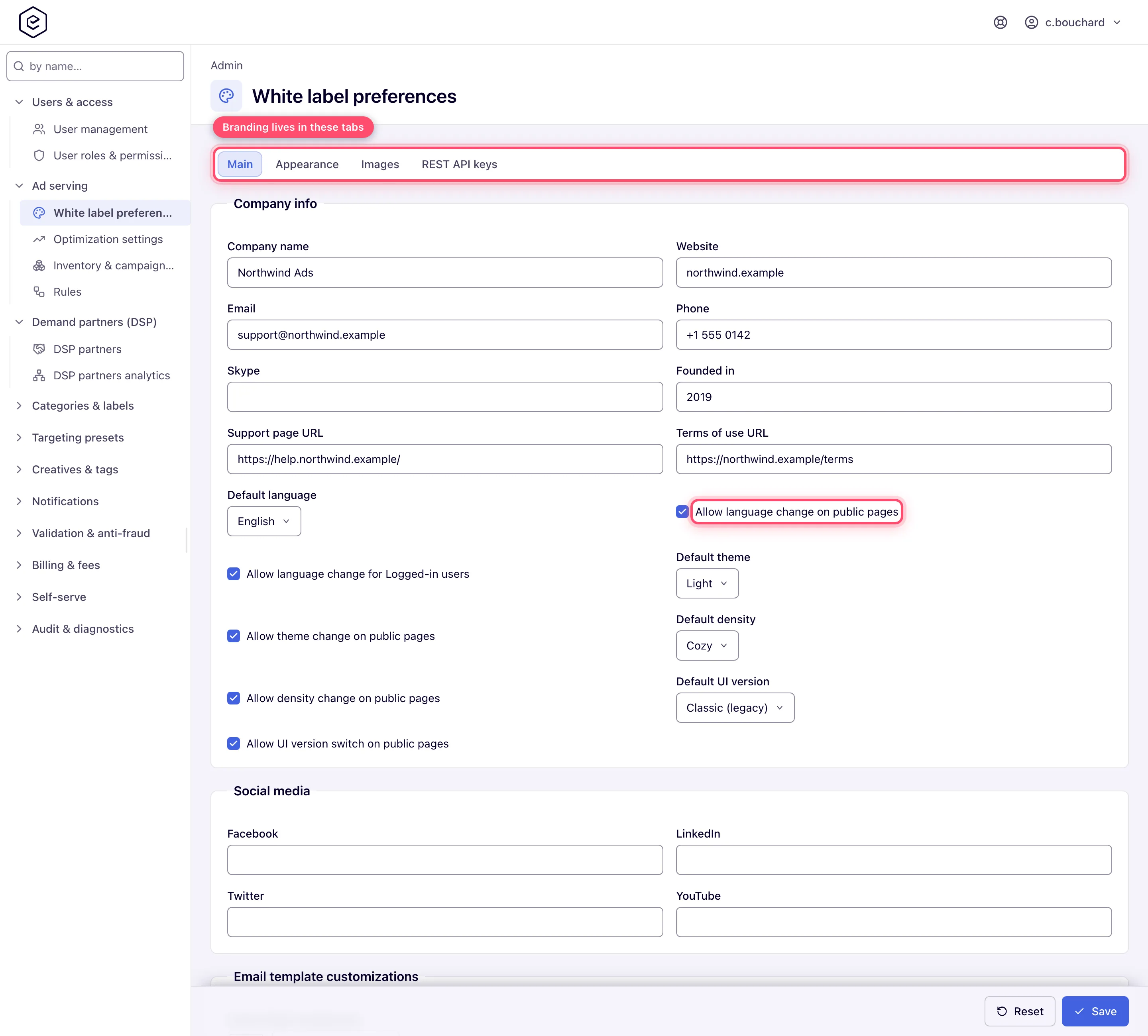
Fill in Company info: Company name, Website, Email, Phone, Support page URL, Terms of use URL. Company name is required — clearing it fails the save with Required under the field and nothing is written.
-
Set the language policy. Default language is the locale new and anonymous visitors get. Allow language change on public pages puts a language picker on sign-in, sign-up, forgot- and reset-password; Allow language change for Logged-in users puts one in the header menu and on the Preferences page. They are independent, and in a fresh installation both are off — see Corner cases.
-
Set the interface defaults: Default theme, Allow theme change on public pages, Default density, Allow density change on public pages, Default UI version (Classic (legacy) or New) and Allow UI version switch on public pages.
-
Work down the remaining sections — Social media, Email template customizations, Analytics customizations, Ad-serving settings, Branded placement settings, Referral program settings, User’s payment details. Every field is listed under Options & fields.
-
Click Save in the sticky bar at the bottom. A green Properties successfully saved toast confirms it. Reset returns every field on the tab to the values the page loaded with — it does not undo a save.
Appearance tab — the colour theme
-
Open Appearance.
-
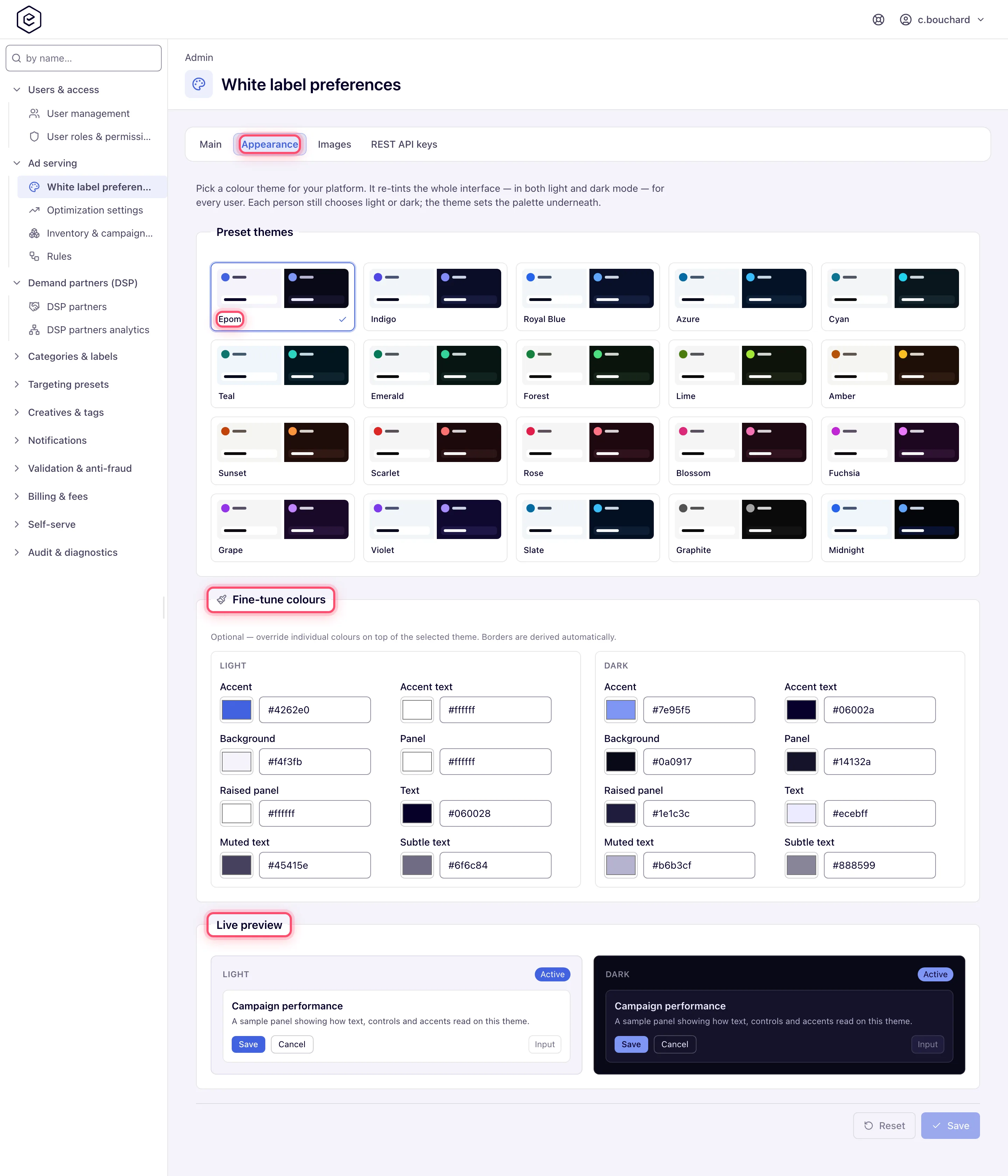
Pick one of the 20 preset themes. Each preset carries a light and a dark palette; the theme re-tints the whole interface in both modes, and each user still chooses light or dark for themselves. Picking a preset clears any per-colour tweaks you had made.
-
Optionally open Fine-tune colours and override individual tokens — Accent, Accent text, Background, Panel, Raised panel, Text, Muted text and Subtle text, separately for Light and Dark. Setting a token back to the preset’s own value removes the override; a Customised badge appears while any override exists and Reset to preset clears them all. Border colours are derived automatically and are not editable.
-
Read both Live preview cards. They render in their own palette regardless of the mode you are currently using, so you see light and dark at the same time.
-
Click Save. The toast reads Theme saved — it now applies across the platform, and the new palette is applied to your own session immediately, without a reload. Save and Reset stay disabled until you change something.
Images tab — logos, favicon and the sign-in background
-
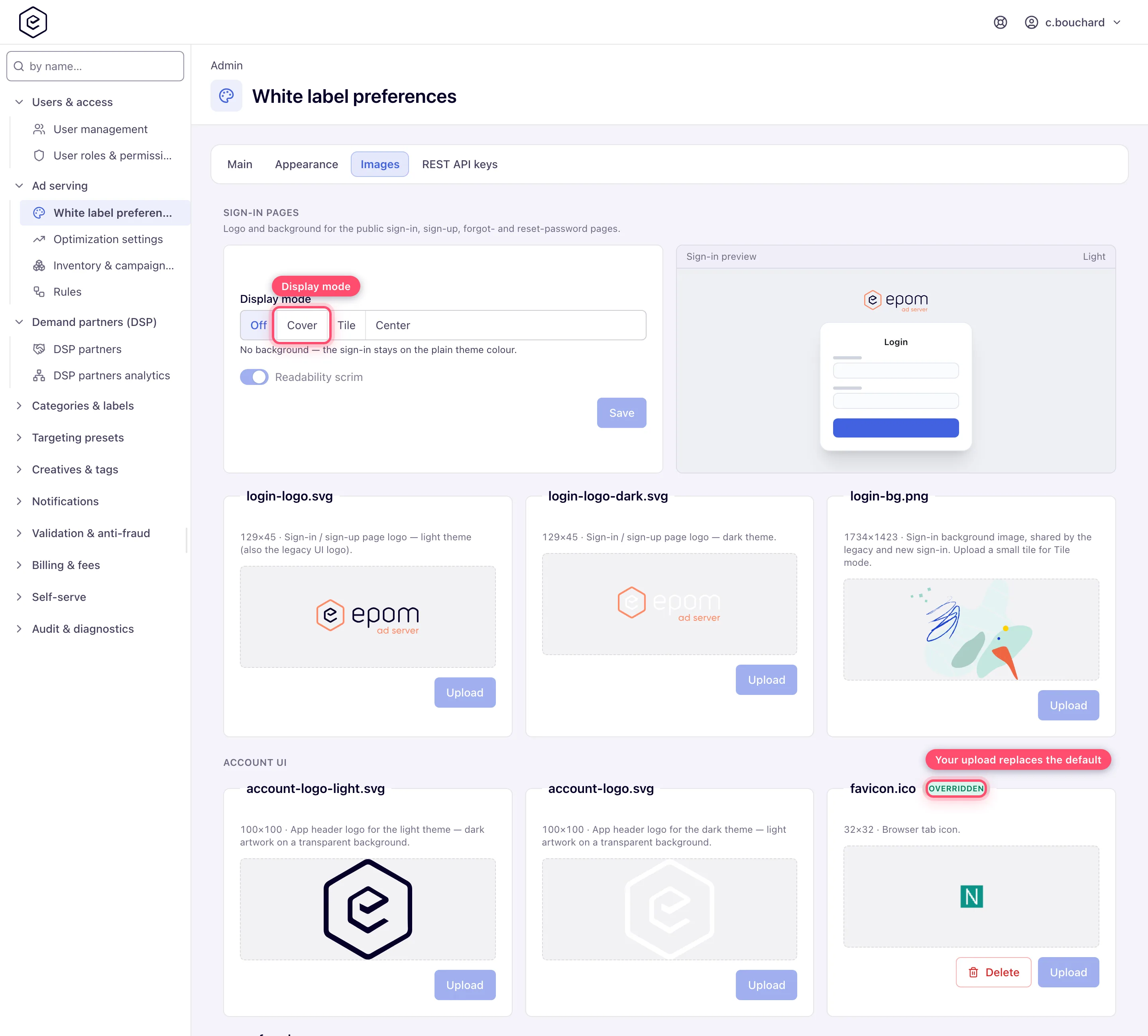
Open Images. The tab starts with Sign-in pages — the branding for the public auth pages, kept together with a live preview — followed by the remaining slots grouped as Account UI, Emails, Email reports and Ad serving.
-
In Sign-in pages, choose a Display mode — Off, Cover, Tile or Center (described in Sign-in background modes) — and turn Readability scrim on or off. The Sign-in preview beside the controls updates as you click. This block has its own Save button; the Main tab’s Save has nothing to do with it.
-
To replace any image, click its preview (or drop a file onto it). The card shows the file you picked, previewed locally, and the Upload button becomes available. Click Upload; a Done toast confirms it and the preview refreshes.
-
A green Overridden badge marks every slot that is running your file instead of the packaged one, and only those slots get a Delete button. Delete asks Revert to default image? and, on confirm, removes your file so the stock artwork comes back.
REST API keys tab
-
Open REST API keys. The Keys management card holds the network-level pair: Public key (username) and Private key (password). They authenticate the keyed REST endpoints
POST /rest-api/register-user/{key}/{hash}/{timestamp}andPOST /rest-api/user-sign-up/{key}/{hash}/{timestamp}, where the hash is signed with the private key.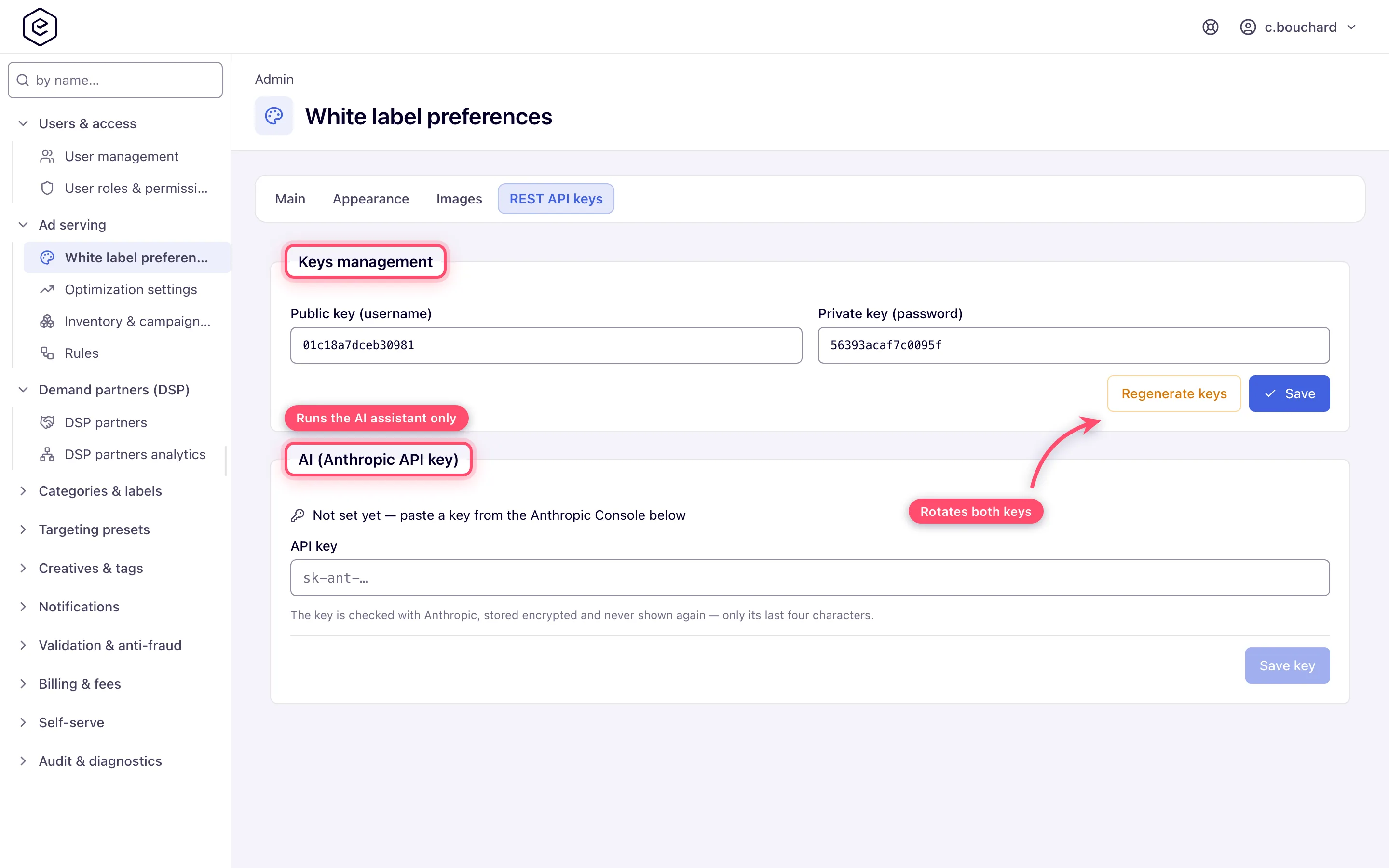
-
To rotate both keys, click Regenerate keys and confirm. A new random pair is generated and saved at once, the fields show the new values, and Keys regenerated. confirms it. To set a key of your own instead, type the new value (16 hex characters) into the field and click Save. Either way, every integration using the old pair must be updated before its next call: the old pair stops working within about a minute.
-
Under AI (Anthropic API key), paste the network’s own key from the Anthropic Console and click Save key. Every user without a key of their own then runs the AI assistant on it, and the platform bills nothing for it. Ask in analytics and the traffic-quality analysis do not use this key. The key is checked with Anthropic before it is stored (a refused key is not saved), kept encrypted and never shown again — only its last four characters (The network key …7f3a is in use). Replace key swaps it, Remove key deletes it: users without a key of their own then lose the assistant at once, unless the platform’s key is switched on for the network.
Options and fields
Company info — company details
| Field | What it does | Notes |
|---|---|---|
| Company name | Signs outgoing mail — the footer of every notification, the daily digest and scheduled analytics reports. | Required. An empty value fails the save. |
| Website | Shown in the e-mail footer as Visit our website, and used as the <AdSystem> value in VAST responses unless VAST AdSystem name is set. | Not validated as a URL; stored verbatim. |
| The Contact us address in the e-mail footer. | Not validated as an address. | |
| Phone | Shown as a tel: link in the e-mail footer. | |
| Support page URL | Target of the help icon in the app header. | Leading and trailing spaces are trimmed on save. |
| Terms of use URL | Target of the terms link on the sign-up page. The whole terms-agreement line only appears once a URL is set — on both the classic and the new sign-up. | Must be a valid URL if filled. |
Company info — platform defaults
| Field | What it does | Default |
|---|---|---|
| Default language | The locale for anonymous visitors and for users who have not chosen one. | English |
| Allow language change on public pages | Shows the language picker on sign-in, sign-up, forgot- and reset-password. | Off |
| Allow language change for Logged-in users | Shows Display language in the header user menu and on the Preferences page. | Off |
| Default theme | Light or dark for anyone who has not chosen: a user with no saved preference, in a browser that has never stored one. Also applies on the new sign-in pages. A user’s own choice always wins. | Light |
| Allow theme change on public pages | Adds the light/dark switch to the new sign-in pages’ preferences menu. | Off |
| Default density | Cozy or compact for anyone who has not chosen — the same rule as Default theme. | Cozy |
| Allow density change on public pages | Adds the cozy/compact switch to the new sign-in pages’ preferences menu. | Off |
| Default UI version | Which interface a visitor gets when they have not chosen: Classic (legacy) or New. | Classic (legacy) |
| Allow UI version switch on public pages | Shows the “switch UI” control on the classic sign-in and in the new sign-in’s preferences menu, and the UI-version row in the signed-in header menu. | Off |
Note: on the new sign-in, sign-up, forgot- and reset-password pages the four “allow …” toggles feed one gear-icon preferences menu, which shows only the rows you enabled — Display language, Color theme, Density, Open classic UI. Turn all four off and the gear icon disappears entirely. The classic pages instead show a standalone language dropdown and a standalone “switch UI” button.
Ad-serving settings
| Field | What it does | Notes |
|---|---|---|
| System default ad-serving domain | The host used by every site and advertiser that has no ad-serving domain of its own. It reaches invocation codes and the impression, click and conversion URLs inside served markup. | Empty falls back to a server-side default host set by Epom support. To move the network to a new domain, ask Epom support or your account manager. |
| Redirect URL for ad-serving domain | Where a console page requested on an ad-serving host is redirected — hosted test pages are left alone. See Test pages and your ad-serving domain. | Must be a valid URL if filled. |
| VAST AdSystem name | The <AdSystem> value in every VAST response. | Empty falls back to Website. |
| Custom log in URL | Sends unauthenticated visitors here instead of the built-in sign-in. | Must be a valid URL if filled. |
| Custom log out URL | Where users land after signing out. | Must be a valid URL if filled. |
| Password required | Forces every new account to have a password. | When checked, Set password URL is greyed out. |
| Set password URL | External page where an invited user sets their first password. The invitation e-mail links to it with the single-use token appended after a #, so the page reads the token from its own URL fragment; empty uses the built-in password page. | Only usable while Password required is off. |
| Hide sign-up | Removes the sign-up link from the sign-in page, classic and new alike. | Hides the link only; the sign-up form stays reachable by its address — see the corner case below. |
| Sign-up URL | External page to use instead of the built-in sign-up. | Must be a valid URL if filled. |
| Forgot password URL | External page to use instead of the built-in recovery flow. | Must be a valid URL if filled. |
Branded placement settings
Controls the small branded overlay the ad server can draw on top of a served ad.
| Field | What it does |
|---|---|
| Enable placement overlay | Master switch for the overlay feature. |
| Enable by default on site placements | New site placements get the overlay switched on. |
| Enable by default on non-standard placements | New non-standard placements get the overlay switched on. |
| Overlay text | The caption rendered in the overlay. |
| Overlay landing page | Where a click on the overlay goes. Must be a valid URL if filled. |
| Overlay text colour | Caption colour. |
| Overlay width | Overlay width in pixels. Must be 0 or more. |
| Overlay background colour | Overlay background. |
| Overlay background opacity (0-1) | 0 is fully transparent, 1 fully opaque. |
| Horizontal position | Left or Right. |
| Vertical position | Top or Bottom. |
The overlay’s icon is the overlay.png image slot on the Images tab.
The remaining Main-tab sections
| Section | Field | What it does |
|---|---|---|
| Social media | Facebook / LinkedIn / Twitter / YouTube | Icon links in the footer of every notification e-mail. Each must be a valid URL if filled. |
| Email template customizations | Email header background | Background of the header band in notification e-mails. Empty leaves the stock dark band. |
| Analytics customizations | Decimal precision | Decimal places for money and rate columns in reports. Accepted range 2–3; the input does not say so, the save does. |
| Analytics customizations | Top n with “other” | How many rows a chart shows before the rest are collapsed into Other. Accepted range 3–50. |
| Referral program settings | Title | Heading of the referral page. See Referral program. |
| Referral program settings | Referral program URL | The link a user copies and shares. $$REF_ID in it is replaced with that user’s id. |
| Referral program settings | Referral program description URL | Target of the Learn more link on the referral page. Rendered as a textarea, but it is a single URL and is validated as one. |
| User’s payment details | Billing contact label / Wire details label / PayPal details label | The explanatory text shown beside each payment-details block when an admin edits a user. |
Sign-in background modes
The mode is stored separately from the image, and the two together decide what the sign-in looks like.
| Mode | What the new sign-in does |
|---|---|
| Off | No background image; the page sits on the plain theme colour. |
| Cover | The image fills the screen and is cropped to fit. Best for full-bleed artwork. |
| Tile | A small image repeats to fill the screen. Upload a light-weight tile, not a full-screen render. |
| Center | The whole image, centred and scaled to fit — never cropped. |
Readability scrim washes the background behind the sign-in card so the fields stay legible over busy artwork. In dark mode the background is dimmed further on top of the scrim, so one image serves both modes.
Image slots
Eleven slots appear on the Images tab. The size shown on each card is the dimensions of the file currently in the slot — the packaged default, or your override once you upload one. For an SVG that is the width and height the file declares, which is why both account logos read 100×100: the packaged files declare neither, and 100×100 is the fallback.
| Slot | Group | Used for | Default size |
|---|---|---|---|
login-logo.svg | Sign-in pages | Sign-in / sign-up logo, light theme. Also the classic UI’s sign-in logo. | 129×45 |
login-logo-dark.svg | Sign-in pages | Sign-in / sign-up logo, dark theme. | 129×45 |
login-bg.png | Sign-in pages | The sign-in background image. | 1734×1423 |
account-logo-light.svg | Account UI | App header logo for the light theme — dark artwork on transparency. | 100×100 |
account-logo.svg | Account UI | App header logo for the dark theme — light artwork on transparency. | 100×100 |
favicon.ico | Account UI | Browser tab icon. | 16×16 |
referral.png | Account UI | Referral page banner — classic UI only; the new referral page uses its own illustration. | 619×195 |
email-logo.png | Emails | Header logo in notification e-mails. | 384×120 |
logo-report.png | Email reports | Header logo in e-mailed analytics reports. | 131×129 |
logo-small.png | Email reports | Footer logo in e-mailed analytics reports. | 120×44 |
overlay.png | Ad serving | The branded overlay icon drawn on served ads. | 32×32 |
A twelfth slot, logo.png, still exists on the server — a legacy sign-in logo that
pre-dates login-logo.svg and is used only when that one has never been uploaded. It is
not shown in this tab and can only be replaced from the classic White Label Preferences
page.
These twelve names are the only ones an upload or a revert accepts; a request naming any other image is refused with a message on that field.
Corner cases and gotchas
Warning: saving the Main tab switches the sign-in background back off. The Main tab’s Save posts a whole-form object that includes the two sign-in-background keys even though the tab has no controls for them, so the display mode is written back as Off and the readability scrim back on. Set the background to Cover with the scrim off, save the Main tab, and the sign-in loses its background. Whenever you save the Main tab, go back to Images → Sign-in pages, set the mode again and press that section’s own Save.
Corner case: a saved change is not instantly true everywhere. The servers, including the ad servers, can keep serving the previous settings for up to a minute, and the browser can cache them for another minute. Give a text change about a minute and a reload before you conclude it did not take.
Corner case: images take longer than text. An uploaded file reaches every server within about a minute and is then cached by browsers for five minutes. Browsers hold favicons especially hard, so allow the full five minutes — or open a private window — before deciding an upload failed.
Corner case: the Appearance theme only re-tints the new UI. The classic interface keeps its own colours regardless of the preset, and so do notification e-mails and served-ad markup. On a repeat visit the new UI paints from a copy of the theme cached in the browser and then refreshes it from the server, so the very first load after a theme change can show the previous palette for a moment.
Corner case: both language toggles are off in a fresh installation, and they are the only thing standing between your users and the 15 translated interfaces. With both off there is no language picker anywhere — not on the sign-in page, not in the header menu, not on the Preferences page — and nothing tells a user that other languages exist. If your platform is translated and nobody can find the switch, this pair is where to look.
Corner case: Default theme and Default density reach only people who have not chosen. The order is: a switch made in the current tab, then the user’s saved preference, then what this browser last used, then these two defaults. Anyone who has ever flipped the switch in a browser keeps that choice there, so changing a default is mostly felt by new users and new browsers. It reaches open sessions within about five minutes.
Corner case: Website does double duty. It is the Visit our website link in every notification e-mail and the default
<AdSystem>value in VAST responses, so every video player parsing your tags reads it. Fill in VAST AdSystem name to decouple the two.
Corner case: the logo slots are theme-specific and fall back to each other, so uploading one of a pair is enough —
account-logo.svg(dark theme) andaccount-logo-light.svg(light theme) stand in for one another, and the sign-in pairlogin-logo.svg/login-logo-dark.svgdoes the same. Upload both only when you have artwork tuned per background. No other slot has a fallback: leavefavicon.ico,overlay.pngor an e-mail logo alone and the packaged Epom artwork is what ships.
Corner case: each slot accepts only the file type its extension implies — SVG for a
.svgslot, PNG for a.pngslot, and ICO or PNG forfavicon.ico. Sizes are checked too: a raster file must match the slot’s default dimensions exactly, an SVG only has to declare a width of 500 px or less, and a favicon must be square and 500 px or less. The one exception islogin-bg.png, which is scaled to fill and accepts any dimensions. A rejected file produces a toast naming the rule — Size must be 32x32, or up to 500px wide for this image — and nothing is stored.
Corner case: the size message for an SVG slot quotes a number you should ignore. The packaged
account-logo.svgdeclares no width or height, so the platform reads it as 100×100 and a too-wide upload is refused with Size must be 100x100, or up to 500px wide for this image. Only the 500 px width cap applies to an SVG; your artwork does not have to be 100×100.
Corner case: uploaded files are stored and served byte for byte — the platform checks the format and the dimensions and writes the file unchanged, on every server. Upload only artwork you produced or trust, particularly SVG, which is markup rather than pixels.
Corner case: the classic sign-in page paints
login-bg.pngwhatever the display mode says. Off removes the background from the new sign-in only; the classic page falls back to its fixed 867×711 centred rendering, and never applies the readability scrim.
Corner case: Hide sign-up removes the link from both sign-in pages, but it does not disable the sign-up form itself — anyone who knows its address can still open it. Which roles a visitor can sign up into is each role’s Sign-up grant.
Corner case: three settings live only on the classic White Label Preferences page — Custom CSS, Supply chain seller domain and the
logo.pngslot. Saving from the new page leaves them untouched, so it is safe to use both, but you cannot see or edit them here. The classic page also carries the branded-placement Sample preview, which the new page does not.
Supply chain seller domain is your own domain as your buyers know it, published as the
seller in the IAB supply chain that header-bidding tags carry. There is one per installation,
and it takes effect only on a site that also has a Supply chain seller ID (Inventory → the
site → Additional information) — with either one empty, tags carry no chain at all, which is
the correct state when you are not reselling. Publish a matching sellers.json on that domain,
or buyers will discount a chain they cannot verify.
Corner case: the system default ad-serving domain is not just a label. It is the host every site and advertiser without its own ad-serving domain falls back to, and it ends up inside the impression, click and conversion URLs of served creatives — see Get the pixel and S2S tracking code. Change it only together with Epom support, who move the rest of the network to the new host; a host the ad servers do not answer on silently breaks tracking.
Per-role notes
- Administrators need White Label Preferences; without it the sidebar entry disappears and every endpoint behind all four tabs is refused.
- Network managers, publishers and advertisers cannot open this page. They get its results: the logo, colours and company details on every screen, and the branding on their mail.
- Every user gets the language and UI-version defaults until they choose otherwise in Preferences; the language toggles decide whether they can choose at all.
