
Video banners
Serve video with an uploaded file, a hosted file, a third-party VAST/VPAID tag, a VPAID framework or multi-rendition Advanced Local Videos — plus companions and VAST event tracking.
Five banner types cover video demand on video placements:
| Type | Use when |
|---|---|
| Local Video | You have the file. Epom hosts it and wraps it in VAST. |
| External Video | The file sits on your CDN; you give Epom its URL. |
| Third Party VAST/VPAID Tag URL | Another ad server hands you a VAST or VPAID tag. |
| VPAID Framework | You use an interactive framework your network administrator installed, with per-banner parameters. |
| Advanced Local Video(s) (Beta) | You want several renditions of one creative in a single VAST response. |
Local Video and External Video are also offered on email placements. The other three are video-placement-only.
Who this is for
Advertisers and network managers running in-stream or out-stream video. Each video type is its own role permission, and the stock Advertiser role has no video creatives at all. If a type you need is missing, ask your network manager to switch it on for your role.
Prerequisites
- A campaign you can edit and a video placement to link to.
- The media file, its hosted URL, or the third-party tag.
Steps
- On the campaign, Add new banner → Add banner for Video Placement. The form opens on Local Video.
- Fill the fields for your type — they differ more than you’d expect, so see what each type asks for below.
- Optionally set the click-through URL and the Title (the ad title in the VAST response). For CTV and broadcast buys, enter the spot’s ISCI / Ad-ID code (see below).
- Save. The video-specific cards described further down appear only once the banner exists.
- Link the banner to the video placement.
Local Video
Drop the file into Banner creative. The File source switch above the drop zone offers two other ways in: From link, where you paste the file’s address (public http/https only, within the network’s video size limit and never more than 100 MB) and it is downloaded once when you save and stored exactly like an upload — so the host need not stay online — and Media library, which uses a library video. After saving, the upload zone is replaced by a Video file row that plays the creative right there in the form, with download and delete buttons.
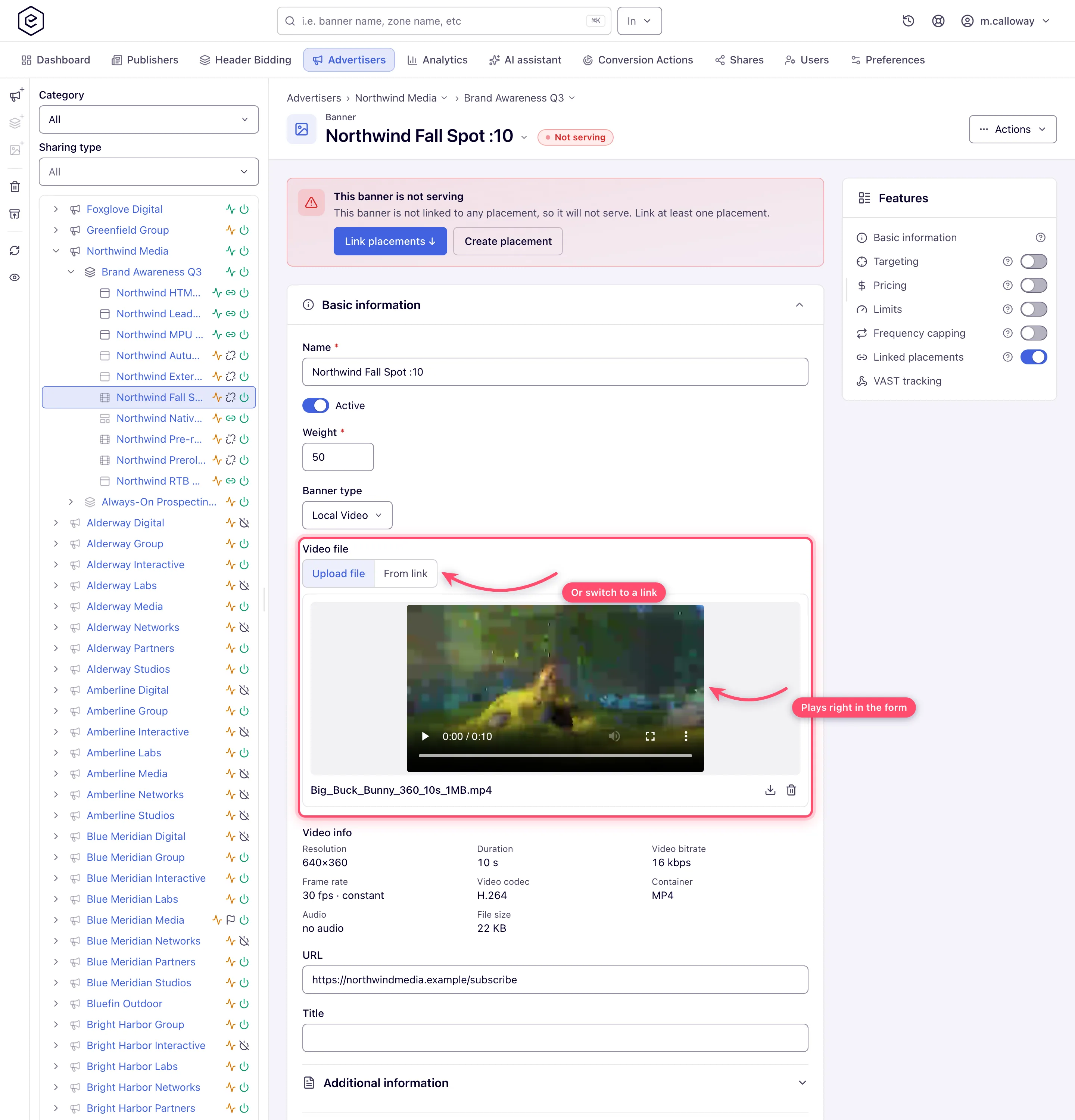
Underneath it, Video info reports what the platform read from the file: resolution, duration, video bitrate, frame rate, codecs, container, audio, loudness and file size. With the Video Creative Requirements permission it also lists each linked site whose publisher spec is switched on, with whether the file is served there — see Publisher video requirements. Nothing in it blocks the save.
External Video
Paste the file’s URL into Banner link — required. Tick Serve from our server to keep the link but play Epom’s own copy of the file; see Serving an external file from our server.
Third Party VAST/VPAID Tag URL
Paste the tag into URL — required here, unlike the file types — and pick the In-Stream video type. The VAST properties fieldset carries three wrapper switches.
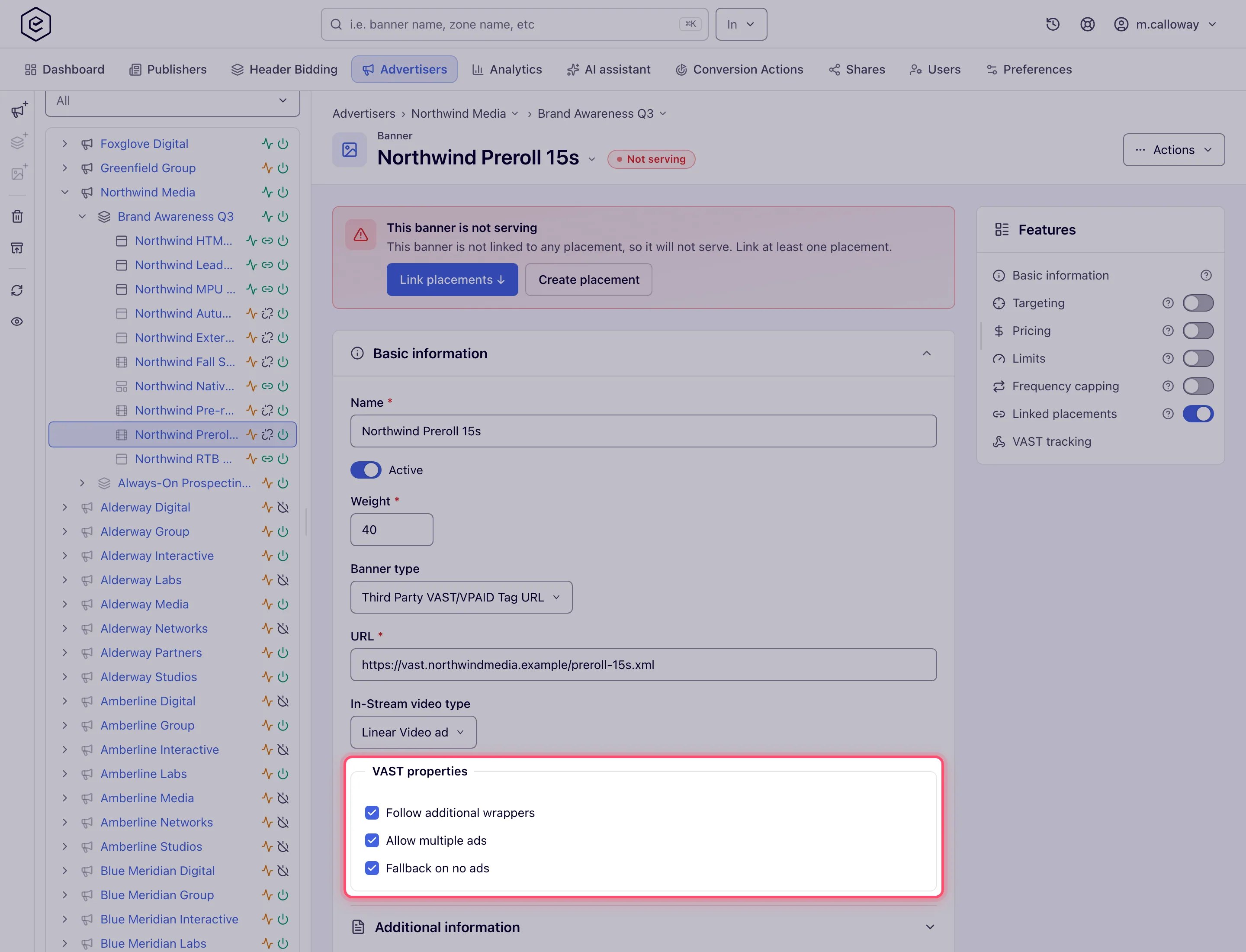
Note: this type has no Title field. The tag’s own VAST response supplies the ad title.
What each type asks for
Verified by opening the create form for each type on both placement types it accepts:
| Field | Local Video | External Video | VAST/VPAID tag | VPAID Framework | Advanced Local Videos |
|---|---|---|---|---|---|
| Banner creative (upload, From link or Media library) | ✓ | — | — | — | — (added after save: the Media files card takes an upload or Media library) |
| Banner link (file URL) | — | required | — | — | — |
| Serve from our server | — | optional | — | — | — |
| URL (click-through) | optional | optional | required — the tag | optional | optional |
| Title | ✓ | ✓ | absent | ✓ | ✓ |
| ISCI / Ad-ID code | ✓ | ✓ | — | ✓ | ✓ |
| Ad-ID registry | ✓ | ✓ | — | ✓ | ✓ |
| VPAID framework | — | — | — | required | — |
| In-Stream video type | — | — | ✓ | — | — |
| VAST properties | — | — | ✓ | — | — |
| Ad unit | — | — | — | — | — |
No video type asks for an ad unit. (Ad units are required on a video placement only for the non-video types — HTML Code, Local File and External File.)
In-Stream video type offers Linear Video ad and Non-linear Video ad. Only a subset of banner types can be non-linear — HTML Code, Local File, External File and the VAST tag — so the video-file types are always linear.
VAST properties are the three wrapper switches: Follow additional wrappers, Allow multiple ads, Fallback on no ads. (Earlier Sandboxed iframe, Always hide controls, Max execution time and Max iterations settings were removed — they matched no IAB schema and no player read them.)
Publisher video requirements
A publisher can set a video spec on a site (resolution, duration, bitrate, codecs, loudness and so on) and switch it on. An uploaded video that misses it is not served on that site. The verdict shows where you link:
- Which creatives are checked. Only a Local Video (its file) and an Advanced Local Video(s) banner (each of its renditions). An Advanced Local Video(s) creative is served on a site when at least one rendition meets the spec, and that site’s VAST carries only the renditions that do, best first — see Video files. Every other creative — External Video, VAST tag, VPAID framework, HTML Code, image — reads Not checked and is never stopped. A spec that is switched off checks nothing.
- On the banner. Video info lists each linked site, as a link to that site’s requirements, with a Meets spec, Not checked or Not served: … badge (the reasons follow the colon). The Linked placements card opens with Not served on N linked placement(s): the file misses that publisher’s spec; in the tree each failing link carries a red Not served pill whose tooltip lists what is missed, and the grid has a Publisher spec column.
- Before you link. Ticking a not-yet-linked placement whose site spec the file misses shows a warning above Save: N of the placements you are linking have video requirements this file misses: it will be linked but not served there. The link is still made.
The verdicts need the Video Creative Requirements permission (enabled or read-only); without it the badges, pills and warnings are absent. The spec itself is set on the site — see Video creative requirements.
Video file too big? Size limit, format and compression
- Format. A Local Video upload must be a video file — anything else is refused with “Must be video (mp4 or flv)”. Whether a player can play it is a separate question: MP4 with H.264 video and AAC audio is what web and mobile players accept most widely.
- Size limit. The upload is refused with “File is bigger than N MB” above the network’s Max allowed video file size (20 MB by default; Epom sets it network-wide). Native video assets use the same limit.
- Epom does not shrink your file by default. Compress the video before uploading — lower the bitrate or the resolution in any video encoder — or serve it from your own host as an External Video, which has no upload limit (unless Serve from our server is ticked, which checks the downloaded copy like an upload).
- Server-side compression (set by Epom). Epom can configure a network to re-encode video uploads (H.264, AAC stereo, web-optimized): a Local Video file on save, and an Advanced Local Videos original into each resolution you tick. It is off by default; when it is on, the Local Video size limit applies to the re-encoded file. When it is off, Advanced Local Videos stores only the original you uploaded. Ask Epom support or your account manager whether it is enabled before relying on it.
- Compression never upscales. A resolution larger than the uploaded file is not made: a 720p upload with 1080p ticked gives no 1080p rendition. An Original resolution that is already H.264 in MP4 (with AAC audio or none) and within the size limit is stored as uploaded, not re-encoded; any other original is re-encoded at its own size.
- A publisher’s video spec (bitrate, codec, loudness…) is checked separately, per site — see Check video creatives against a publisher’s spec.
Serving an external file from our server
An External Video normally plays from its link on every impression, so the advertiser’s host has
to stay up and fast for the whole flight. Serve from our server keeps the link in the banner
but, when you save, downloads the file behind it, checks it like an upload and plays that copy
instead — the VAST MediaFile then points at our storage.
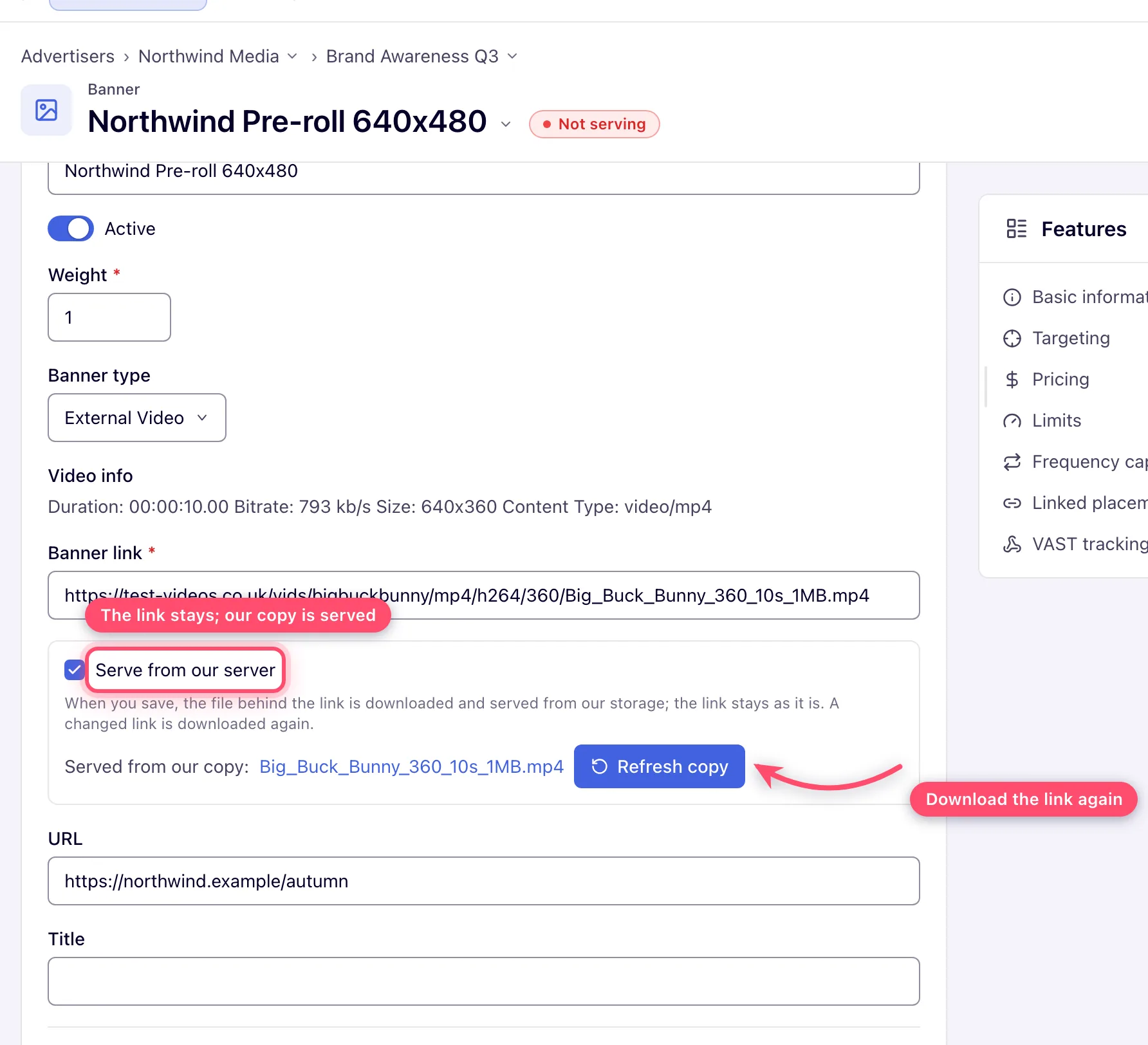
- A changed link is downloaded again on the next save. Refresh copy downloads the same link again, for a file that changed behind an unchanged address — nothing is re-fetched on its own.
- A download that fails blocks the save, with the reason under the link (not reachable, too large, not a video, not a public address).
- Clearing the box plays the link again and drops the copy.
- The same box exists for External File images and External Native assets.
The saved-banner video sections
These exist only on a saved banner. If you don’t see one, save the banner first.
VAST tracking
A card of its own at the bottom of the banner, on video placements only and never for OpenRTB banners — event tracking for RTB video comes from the bid’s own markup. A new video banner starts with the events an admin set under Default VAST tracking events → New video banners (see Rules, defaults and taxonomies).
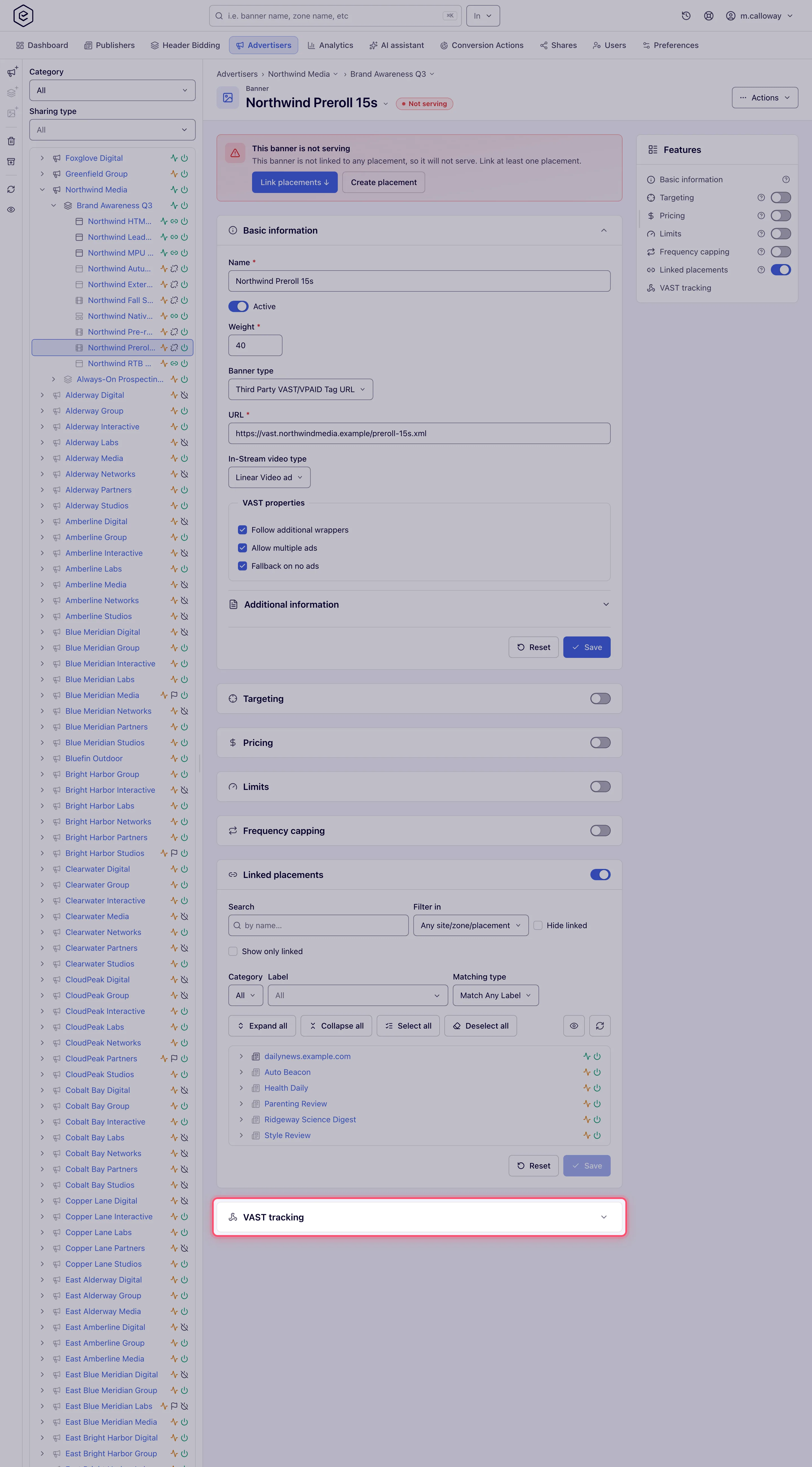
Three parts:
- Playback events — the standard VAST milestones, grouped as Quartiles & completion (Ad Loaded, Ad Creative View, Ad Start, the three quartiles, Ad Complete), Interaction (Ad Skip, Mute, Unmute, Pause, Resume, Fullscreen, Exit Fullscreen, Expand, Collapse) and Viewability & other (Ad Viewable Impression, Ad Repeated Viewable Impression, Ad Not Viewable Impression, Ad View Undetermined Impression). Tick the ones you want and Save — this section has its own Save button.
- Third-party pixels — a tracking URL that fires on impression, on click, or on a chosen VAST event. The list shows each URL in full; click a URL or its Fires on value to change it in place.
- Progress points — fire a conversion action at a custom time or percentage. The Title list is your conversion actions, so it is empty until you have some.
Video files — Advanced Local Videos only
Video files sits right under Banner type, where a Local Video keeps its file, and is always open. On a banner that is not saved yet it only says that files are added once the banner is saved — save first, then add them.
Add files from one of three sources — choosing is adding, there is no separate Add step:
- Upload — drop or pick several videos at once. Each one goes up on its own row with its progress; a file still waiting or uploading can be cancelled, and one that fails says why on its row with Try again.
- From link — paste one public link per line and press Add files. Each link is downloaded once and stored with the creative (the same checks as a Local Video’s link: reachable, a video, within the size limit); a refused link shows the reason on its own row.
- Media library — tick several media library videos and Add files. Files the banner already has are shown ticked and cannot be picked again. A library file is referenced, not copied. If one of the picked files is refused, none is added and the refused one says why.
Resolutions appear only where the installation’s video compression is on: Original resolution, 1080p, 720p, 480p, 360p, 320p, 240p (the first four ticked by default) make lower renditions from an upload or a link, never one larger than the file. With compression off every file is stored as it is, so add each rendition you encoded.
Every file is a card in the order the VAST serves them — highest bitrate first, then widest. The first card is marked Served first · Mezzanine: it is the file a stitcher transcodes from. A publisher whose video spec is switched on receives only the renditions that meet it, still best first, so its stitcher transcodes from the best file it accepts. With the Video Creative Requirements permission each card names the linked sites it is Served on and those it is Not on, and the per-site verdicts are listed under the files. When no rendition meets a linked site’s spec, a warning above the cards names that site: the creative is not served there until you add a rendition that fits. Each card shows a still with the frame height, the file name (a link-added file shows its link), where it came from (Upload, Link or Media library) and its facts — resolution, bitrate, duration, codecs, aspect ratio and size — plus Play (inline), Download and Remove. Removing a library file leaves it in the library; an uploaded or downloaded file is deleted. A card is flagged when its duration differs from the first file’s by more than half a second (the VAST’s Duration is the first file’s) or its aspect ratio differs (players letterbox when they switch). There is no manual order.
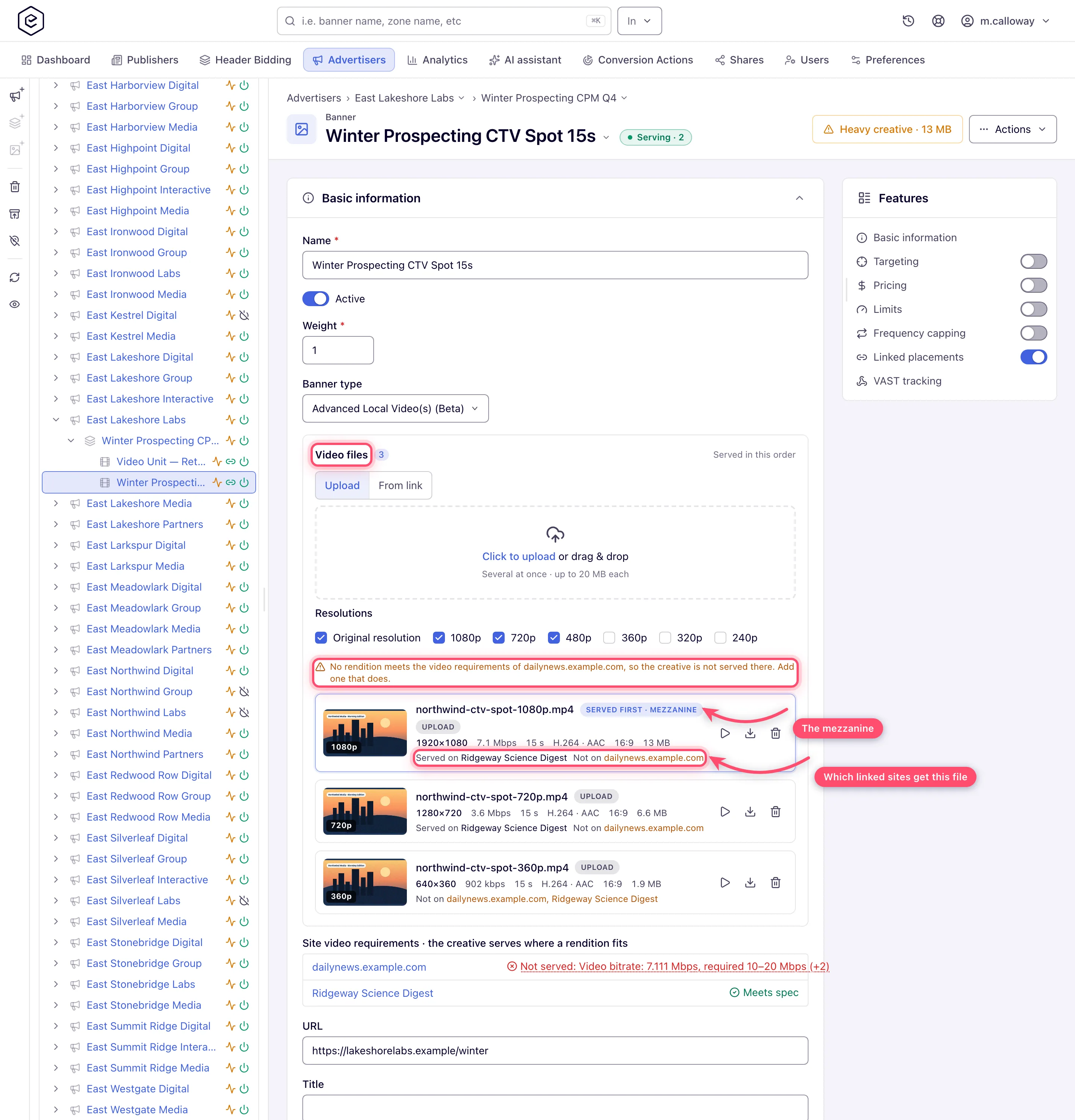
A banner with no video file at all is not served — it is skipped as having nothing to play, like a Local Video without its file — so add at least one rendition before linking it.
Companions
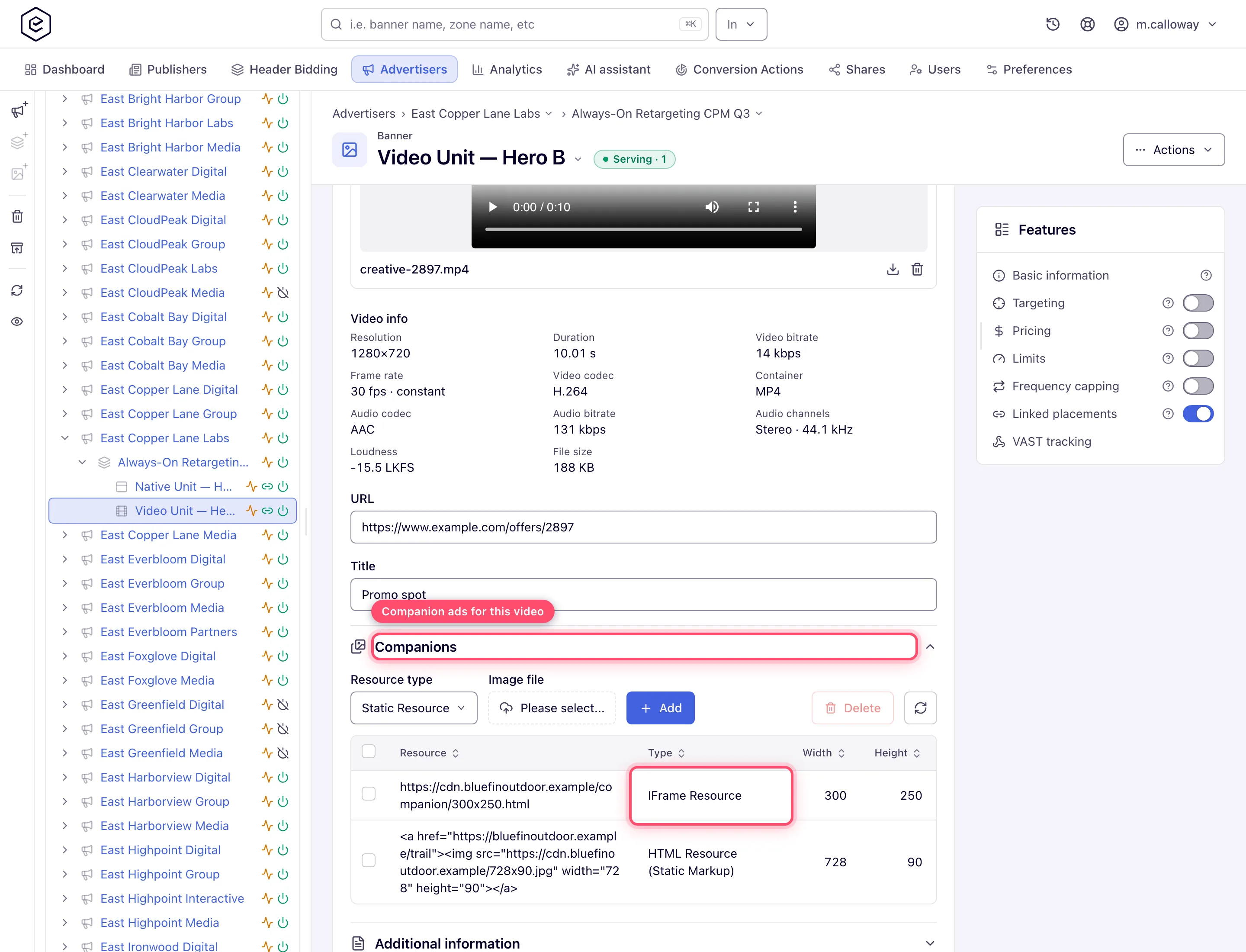
A Companions subsection on Local Video, External Video and Advanced Local Videos banners. Companion banners render beside the player. The subsection opens by itself once the banner has companions, and its header shows how many. Add a companion: pick the resource type, fill in what it needs (below) and press Add; a refusal is shown under the row. Four resource types:
| Resource type | You provide |
|---|---|
| Static Resource | an uploaded image file (Local Video, Advanced Local Video(s)) or an image URL (External Video) |
| HTML Resource (Static Markup) | markup, plus width and height |
| HTML Resource (Template Markup) | a video-companion template, plus width and height |
| IFrame Resource | a URL, plus width and height |
Each companion is a card: a preview (a static image shows the image itself; HTML markup is rendered without running its scripts; a template and an IFrame show a labelled frame of their size), the size, the type, its resource, and where a click goes — a static image opens the banner’s URL, the others carry their click in the markup, the template or the framed page. An HTML card opens a larger preview; a static card opens its image and an IFrame card its page. Remove asks first.
Companion banners next to the video (VAST CompanionAds)
Companions you add on the Companion ads card go into the VAST response as <CompanionAds>
of the same creative as the video. Whether and where they appear is decided by the player
(and the page around it) — the player must support companions and have a slot of a matching
size; Epom only delivers them in the response. A Third Party VAST/VPAID Tag URL banner has no
Companion ads card: whatever companions the partner’s own VAST carries are passed on as they are.
For a banner placed inside the player (an overlay or a non-linear ad), use the banner’s
In-Stream video type → Non-linear instead — see
Linear vs non-linear.
ISCI / Ad-ID code
CTV and broadcast publishers identify every spot by its industry code: the Ad-ID (formerly ISCI) in the US, or a Clearcast clock number in the UK. They check the code on delivery and reconcile their invoices against it, so it has to reach them unchanged. Enter it on the video banner, and Epom sends it in every VAST response for that creative:
| VAST version | Where the code goes |
|---|---|
| 4.1, 4.2, 4.3 | <UniversalAdId idRegistry="ad-id.org">ABCD1234000H</UniversalAdId> and the Creative’s adId attribute |
| 4.0 | <UniversalAdId idRegistry="ad-id.org" idValue="ABCD1234000H"/> and the Creative’s adId attribute |
| 2.0, 3.0 | the Creative’s AdID attribute, described by those schemas as “Ad-ID for the creative (formerly ISCI)”, plus a UniversalAdId extension as the IAB VAST CTV Addendum 2024 defines it (see below) |
The registry defaults to ad-id.org. Change it only when the code comes from another registry,
for example clearcast.co.uk. The code and the registry each take up to 64 characters. A banner
without a code keeps sending unknown, which is what VAST 4 prescribes when no code exists.
The code is also an analytics dimension. Group a General report by ISCI / Ad-ID to add up delivery per spot across every banner that carries it. Filter a General report or an Impressions, Clicks or Conversions log by one or more codes; the filter offers the codes set on the banners you can report on. The logs also show the code as a column next to the banner. See Analytics dimensions.
Who sees it: the code fields, the group-by, the filter and the log column all need the
Banner ISCI / Ad-ID Code permission — ask your network admin to switch it on for the roles that
traffic video. The fields appear on a video
placement only, for Local Video, External Video, VPAID Framework and Advanced Local Video(s) — an
email placement’s Local or External Video has none. Without it the banner form has
no code fields, the API leaves a code it is sent unchanged and lists it under ignoredFields,
and reports offer neither the dimension nor the filter. Codes already saved keep going out in VAST whoever edits the banner.
Corner case: reports read the code from the banner at the time the report runs. If you change a banner’s code, its past delivery moves to the new code too — they are not stored per impression.
Corner case: companion creatives in the same response keep
unknown. The code identifies the video spot, not the companion banner next to it.
Corner case: a Third Party VAST/VPAID Tag URL banner has no code field. The creative, and its UniversalAdId, come from the other ad server’s response.
What a server-side ad insertion stitcher receives
On CTV a stitcher (AWS MediaTailor, Google DAI, …) transcodes the video once, caches the result and splices it into the stream. Every Local Video, External Video and Advanced Local Video(s) response is built for that:
- A stable creative id.
<Creative id="4512-a1b2c3d4">is the banner id plus a short hash of the video file. Stitchers cache their transcode under it and never expire it, so it stays the same while the file does — the ad plays straight from the cache — and changes the moment you upload a different file, so the old version never plays in its place. The first request after a new file is still skipped while the stitcher transcodes; that happens once per file. - A mezzanine file — the source a stitcher transcodes from. Videos are served as uploaded, so
it is the same file the
<MediaFile>points at:<Mezzanine>in<MediaFiles>on VAST 4.x (with its delivery, type and size from 4.1), and aMezzanineextension on 2.0 (in the ad’s<Extensions>) and 3.0 (in<CreativeExtensions>), as the IAB VAST CTV Addendum 2024 defines. Upload the best-quality file you have: the mezzanine is only as good as the upload, and the network’s maximum video file size (Preferences) caps it. - Best file first. With several media files (Advanced Local Video(s)) the highest-bitrate one comes first, and the response duration is taken from it. On a site with a publisher video spec the files the spec refuses are left out, so the best file that site accepts comes first.
- Only standard event names. MediaTailor rejects a whole response over one event name the VAST specification does not define. Epom translates the player-size events per version and leaves out what a version lacks:
| Event | 2.0 | 3.0 | 4.0 | 4.1 – 4.3 |
|---|---|---|---|---|
| Fullscreen / Exit fullscreen | fullscreen / — | fullscreen / exitFullscreen | playerExpand / playerCollapse | playerExpand / playerCollapse |
| Expand / Collapse (linear video) | expand / collapse | expand / collapse | — | — |
| Ad loaded | — | — | — | loaded |
The event settings, their conversion actions and the reports are unchanged — only the name
written into the response differs. skip and progress are sent on 2.0 as well: 2.0 is what a
tag without a version gets, and progress points often drive conversions.
Several networks in one slot: waterfalls, pods and wrapper flags
A video request returns one banner unless the placement’s Return (ads in pod) (or
maxAds on the tag) is above 1 — then the response is a numbered ad pod, and players such
as JW Player and Google IMA play every ad in it. For a waterfall across several VAST tags keep
the pod at 1 and either give the player one Epom placement per network in order, or let Epom
pick one wrapper per request by priority. The VAST 4.0 Wrapper properties (Follow
additional wrappers, Allow multiple ads, Fallback on no ads) are written into the
<Wrapper> only when the tag is requested as VAST 4.0 or later, and only steer how the player
treats that one partner’s answer. Full recipe, macros for the partner’s tag URL and how to read
fill per network: Run a pre-roll waterfall across several video networks.
Macros in the video’s click-through URL (domain, placement, click ID)
The banner’s URL becomes the VAST <ClickThrough>, and it goes through the same macro
processing as any landing page before it is written — so
https://offer.example.com/?src=$$PAGE_DOMAIN$$&pl=$$PLACEMENT_ID$$&cid=$$CLICK_ID$$ reaches
the viewer filled in. By default the <ClickThrough> is Epom’s click redirect with that landing
page inside it, so the click is counted on the way.
Two limits:
- The page domain is often not known in video. A player that loads the VAST from its own
frame sends its own address, which is never taken for the page, so
$$PAGE_DOMAIN$$comes out empty. Pass the page in the VAST tag instead — the Page Domain and Page URL tag parameters take the player’s macros, see Passing the page from a player or ad server — and read it back as described in Why is$$PAGE_DOMAIN$$empty?. - A partner’s VAST tag keeps its own click-through. On a Third Party VAST/VPAID Tag URL
banner Epom writes a wrapper: the tag URL itself is macro-processed (so you can pass the domain
or placement to the partner), and Epom adds its own click tracking, but the
<ClickThrough>is the partner’s, inside their VAST. Epom cannot rewrite it — ask the partner to put the parameter in their landing URL.
Corner cases and gotchas
Corner case: VAST tracking, Video files and Companions exist only on saved banners. On a brand-new banner they are absent, not broken (Video files says so under Banner type) — save first, then add them.
Corner case: the VAST tracking card opens collapsed and its playback events have their own Save button, separate from the banner’s. Ticking events and pressing the banner’s Save does not store them.
Corner case: Video files appears only for Advanced Local Video(s) — a plain Local Video banner has one file and no rendition list. Switching an existing banner to Advanced does not move its file into the rendition set.
Corner case: the VAST/VPAID tag type has no Title, and its URL is required where the file types treat URL as an optional click-through. If you are copying settings between types, that field changes meaning.
Corner case — companions need a landing URL. A banner’s companions are written into the VAST only when the banner has a click-through (landing) URL; without one the response carries the video alone. Third Party VAST tag banners and DSP video never get Epom companions — the partner’s own VAST decides.
Corner case — AdParameters are VPAID only.
<AdParameters>appears in VPAID responses, where it configures the VPAID unit. A plain VAST response has none.
Corner case: Show skip button after (seconds) is gated on the Banner Video Skip Button permission. On networks where that permission was never granted to any role the field never appears, whatever the placement’s own skip settings say.
Note: for video bought programmatically, use an OpenRTB banner with video mime types rather than a file type.
Over the API
-
POST /rest-api/banner/{bannerId}/update.dotakes the video settings of this page:skipButtonShowAfterSeconds(with the Video Skip Button permission),returnAsIframe,title, and for a VAST tag banner the three VAST 4.0 wrapper flags — which apply even whenbannerTypeis not resent.GET /rest-api/banner/{bannerId}.doreturns them. -
The file. A Local Video takes a multipart
videoFile; orvideoFileUrl, a public http/https address the server downloads once and stores (up to the video size limit — 20 MB by default, never more than 100 MB); ormediaAssetId, a Media Library video. An External Video takesvideoFileLink, withhostExternalFiles=truefor Serve from our server andrefreshHostedFiles=true(update only) to download the link again. A save reads the link to confirm it is a video and to fill Video info, but an update that keeps the link of a banner that already is an External Video with its video info stored does not read it again, so an unrelated update does not depend on the advertiser’s host being up; a new link, a change of banner type orrefreshHostedFiles=truereads it again. -
ISCI / Ad-ID.
universalAdIdValueanduniversalAdIdRegistry(an empty value clears the code). Without the Banner ISCI / Ad-ID Code permission they are left unchanged and listed underignoredFields. -
GET /rest-api/banner/{bannerId}/video-compliance.doreturns the file’s facts and, with the Video Creative Requirements permission, the verdict per linked site; for an Advanced Local Video(s) banner,renditionsalso gives each rendition’s verdict per linked site. -
The Companions card is
/rest-api/banner/{bannerId}/vast/companions.do:GETlists,POSTadds one without an upload (type=STATICwith an image URL inexternalCreativeLink;IFRAMEwith the frame URL;HTML_STATICwithmarkup;HTML_TEMPLATEwith a Video CompaniontemplateId— the last three withwidthandheight), andDELETE .../companions/{companionId}.doremoves one. It needs the VAST Companion Ads permission. -
The Media files card of an Advanced Local Video(s) banner is
/rest-api/banner/{bannerId}/vast/media-files.do:GETlists the renditions in served order (servedFirston the first), each with its publicurl,source(UPLOAD,LINKwith thesourceUrlit was downloaded from, orLIBRARYwith itsmediaAssetId) andfacts(resolution, duration, bitrate, frame rate, codecs, container, audio, file size, loudness). It also answerseditableandoptions:compressionEnabled, thescalesthat can be made, andmaxFileSizeBytes.POSTuploads a multipartfileor downloads a publicurl— checked and limited exactly like a Local Video’svideoFileUrl— withscaleTopicking the renditions where the network compresses video (ORIGINAL,_1080P…_240P); a resolution larger than the file is left out and named inskippedScales.POST .../media-files/from-library.doadds media library videos by reference: one asmediaAssetId, several at once asmediaAssetIds. Every file is checked first (a video you can see, within the video size limit); if one is refused, nothing is added and each refused file is named inerrors['mediaAssetIds[<id>]']. A video the banner already has is listed inskippedinstead of being added twice.DELETE .../media-files/{mediaFileId}.doremoves one — an uploaded file is erased, a library file stays in the library.
It needs the Advanced Local Video(s) permission (
whoami.may.advancedLocalVideosfor the assistant). The assistant’screative_createwithkindVIDEO_RENDITIONScreates such a banner with its files in one step.
Per-role notes
- Advertiser — no Add banner for Video Placement on the stock role. Your network manager switches video creatives on for your role, and links them to placements.
- Network manager — video creatives are on the stock role; a role is changed in Admin → Users & access → User roles & permissions.
- Can view share — uploads and grids are read-only, the add and delete buttons on media files and companions are hidden, and the VAST tracking card appears at all only if something is already configured. Ask the owner for Can edit if you need to change the creative.
- Custom roles — each video type, companions, VAST event tracking, Advanced media files and Show skip button after can be switched off per role. A hidden field’s value sent anyway is not saved.
Related
- Reuse creative files with the Media Library — upload a video once and pick it in many Local Video or Advanced Local Video(s) creatives
- Video placements
- Diagnose video ad playback failures (VAST errors)
- Banner types — decision guide
- OpenRTB (DSP) banners
- Other admin tools — where your network administrator installs a VPAID framework
