
Save a conversion funnel and report on it
Name an ordered set of conversion actions once, then pick it by name in analytics instead of rebuilding the selection on every report.
A report spread across a funnel — newsletter signup, then free trial, then purchase — is built by picking those conversion actions in that order. The order is the column order, so picking them alphabetically reads the funnel backwards, and the next person on the account has no way to learn which actions form the funnel or what sequence they run in.
A saved funnel is that selection, named and kept. You build it once on Account → Conversion Actions, then choose it by name in Split columns by when you run a report.
Who this is for
Network managers and advertisers who report on the same multi-step journey repeatedly. The Funnels panel sits inside Account → Conversion Actions, so it reaches the two roles that have that section and not the publisher. There is no separate funnel permission — whoever can open the page can build funnels. Changing or deleting one is narrower: it belongs to the funnel’s author and to a user holding the network-wide (All) Global Actions grant; see Per-role notes.
Prerequisites
- At least two conversion actions you can see. Both your own actions and the built-in system tracking actions (VAST quartiles, viewability) count — see Create and edit conversion actions.
- For the reporting half: a General report with the conversion columns ticked.
Steps
Build a funnel
-
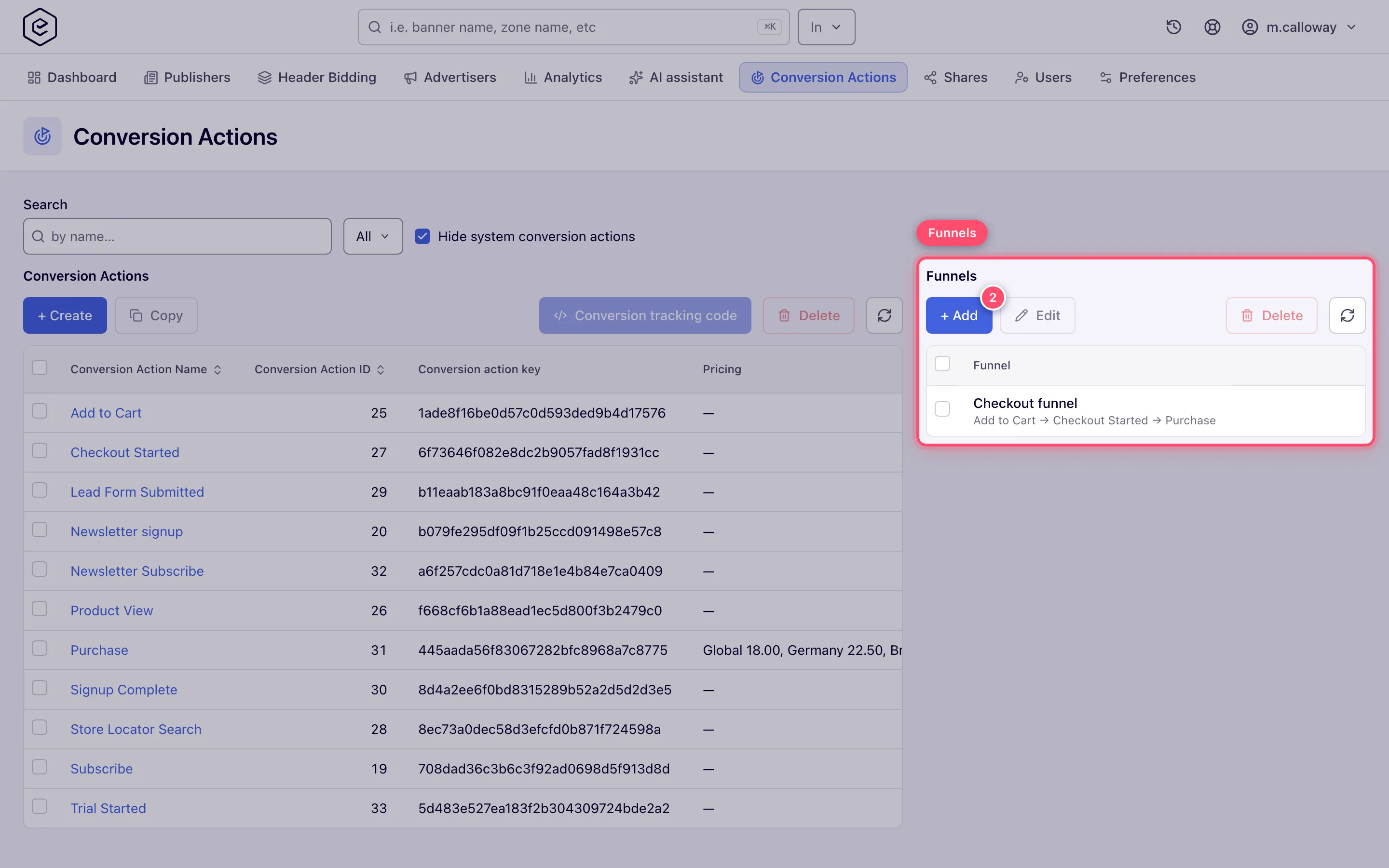
Go to Account → Conversion Actions. The Funnels panel is the right-hand column beside the actions grid. On a window narrower than about 1280 px the two stack and the panel sits below the grid.
-
Select + Add. The Add funnel dialog opens.
-
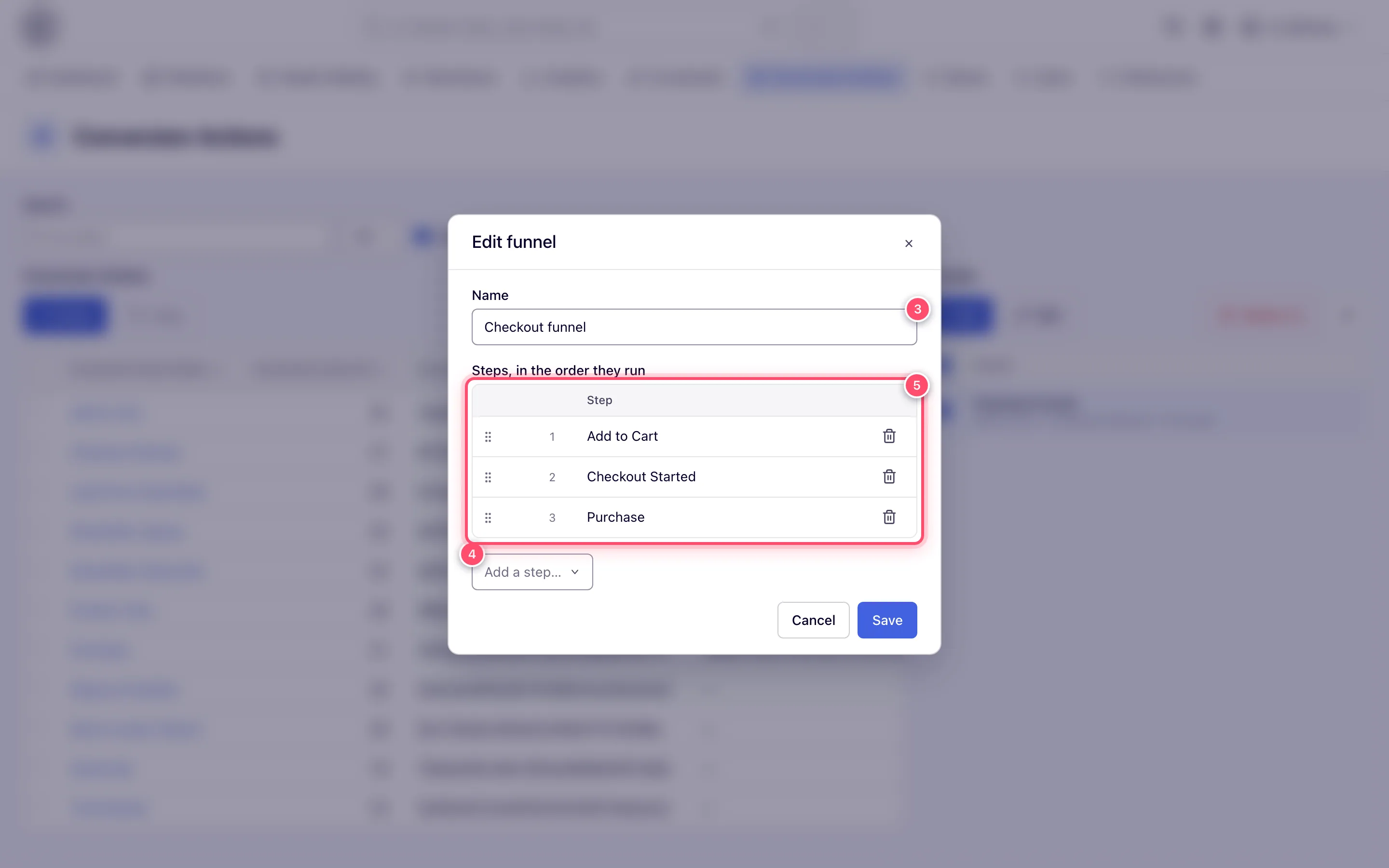
Type a Name. This is the label you will look for in the report, so name it after the journey rather than after the actions: “Signup to first purchase”, not “NL + FT + PUR”.
-
Add each step from the Add a step… picker. Typing filters the list, and because every entry is labelled
name (id: N)a pasted action id finds its action as readily as a name does. An action already in the funnel drops out of the picker — a step cannot appear twice, and the server refuses a repeated action with an error on the field. -
Drag the rows by the handle on the left into the order the steps run. The number in front of a row is the column it will become, counting from the left of the report.
-
Select Save.
Save stays disabled until the funnel has a name and at least two steps. Below two, the Steps field carries the reason: “Pick at least two steps — a single action is already offered on its own.” One conversion action is already available by itself in the report, so a one-step funnel would be a second name for the same column.
Report on it
-
Open Analytics and leave Type of reports on General.
-
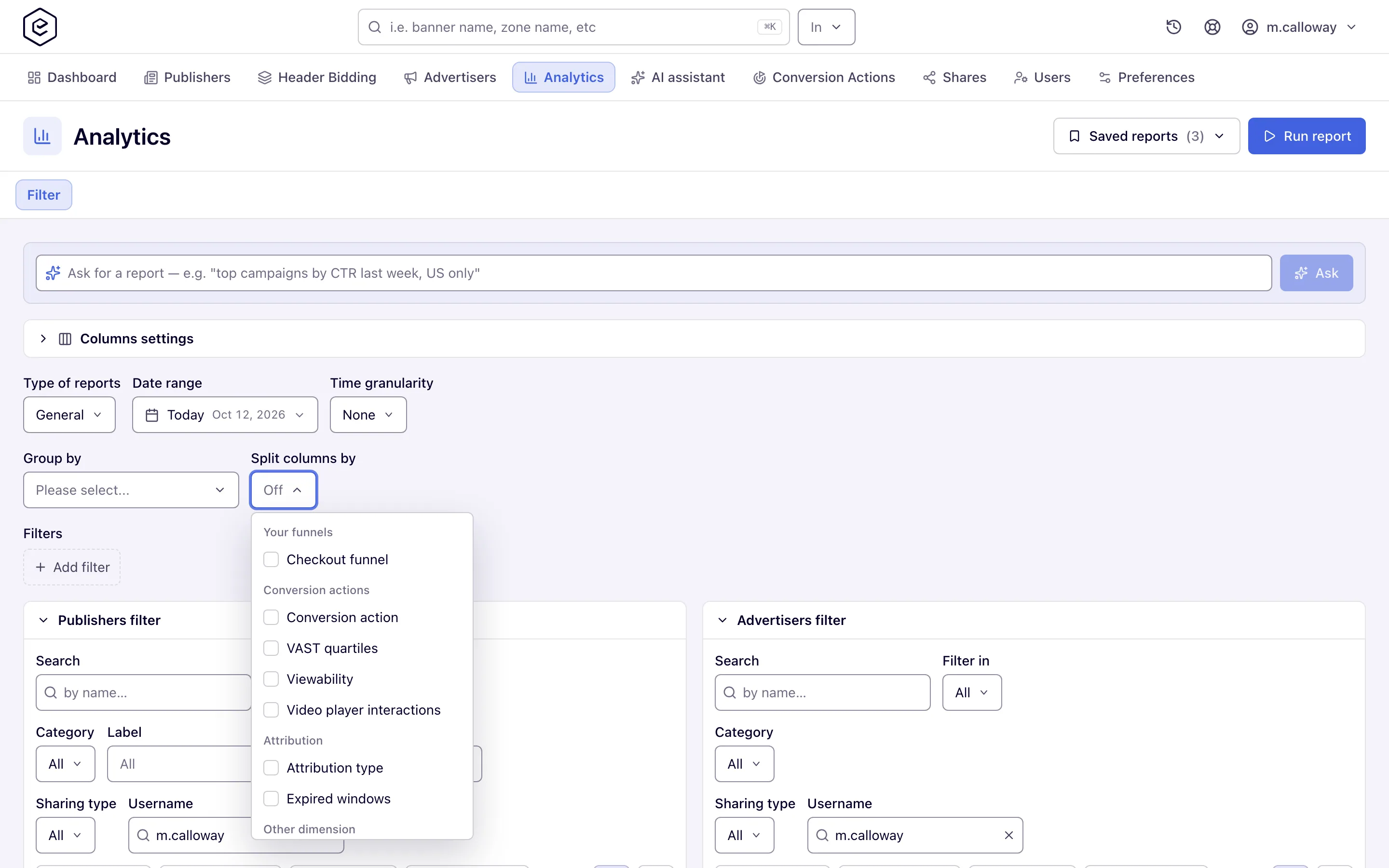
Open Split columns by. Saved funnels are the first group in the list — Your funnels — above Conversion actions, Attribution and Other dimension.
-
Pick the funnel. Its steps are written into the Conversion Action Filter in the funnel’s own order, and the filter chip on the Filters bar shows how many were selected. If none of your chosen columns is a conversion metric, Conversions is added for you — every split here divides conversions, so the report needs one.
-
Select Run report. The report carries one column per step, left to right in the funnel’s order, under a heading that reads the funnel’s name. If you add or remove a user action in the filter afterwards, the columns no longer match one funnel and the heading falls back to Conversion actions.
Funnels are offered only where the per-action split is: a General report that is not already grouped by conversion action. The Advanced (Hadoop) report builds its columns by a different path, so it offers no conversion-action split at all — funnels included.
Edit or delete a funnel
- Tick exactly one row and select Edit, or double-click the row. The same dialog opens, titled Edit funnel instead of Add funnel. Edit stays disabled while no row or more than one row is ticked. Saving needs you to be the funnel’s author, or to hold the Global Actions Update grant at the All level.
- Tick any number of rows and select Delete. The confirmation asks “Delete N record(s)?”. Deleting a funnel does not touch the conversion actions in it. Deleting needs you to be the author of every ticked funnel, or to hold the Global Actions Delete grant at the All level; one funnel you may not delete refuses the whole batch.
- Refresh re-reads the list — useful after somebody else has added a funnel in another session.
Options and fields
The Funnels panel
| Control | What it does |
|---|---|
| + Add | Opens an empty Add funnel dialog. |
| Edit | Opens the ticked funnel. Enabled only with exactly one row ticked; double-clicking a row does the same. |
| Delete | Deletes every ticked funnel after a confirmation. The count in the button label is the number ticked. |
| Refresh | Re-reads the funnels list from the server. |
| Funnel (the only column) | The funnel’s name, with its steps below it as step → step → step in running order. |
With no funnels saved, the panel reads “Save the steps you report on every day, in order, and pick them by name in analytics.”
The funnel editor
| Field | What it does |
|---|---|
| Name | The label the funnel gets in Split columns by. Required, at most 255 characters — Save is disabled while it is blank, and the server refuses a blank or longer name with an error on the field. It is not translated and not checked for uniqueness: two funnels may share a name and will then be indistinguishable in the report’s list. |
| Steps, in the order they run | The ordered step list. Each row shows its position number, the action’s name, a drag handle for reordering and a Remove step button. Reordering is drag-only — there are no up/down buttons. |
| Add a step… | The step pool: every conversion action you can see, unpaged and unfiltered. This is deliberately not the actions grid’s rows — the grid shows one filtered page and hides system actions by default, so the pool offers more than the grid does. Entries read name (id: N); a saved step drops the id and reads as the action is named. |
| Save / Cancel | Save is disabled until the name is non-blank and there are at least two steps. Cancel discards the dialog. |
Corner cases and gotchas
Note: delete a conversion action that a funnel uses and the funnel simply loses that step: it stays in the Funnels panel with the steps that survive, and you can still edit or delete it. Its next save drops the deleted step for good.
Corner case: the report applies the same “at least two steps” rule as the editor — a funnel below it is not offered in Split columns by, though it stays in the Funnels panel. You cannot reach that state from the editor, which refuses to save fewer than two steps; a funnel only loses steps when its actions are deleted (see the note above) — edit it to add a step back, or delete it.
Corner case: a funnel is listed to whoever can see every action in it — even view-only — and a colleague who cannot see even one step does not see the funnel at all. There is nothing to share.
Corner case: a refused edit or delete names its reason — “You cannot see every step of this funnel” when a step is hidden from you, or “Only the funnel’s author, or a user who manages every conversion action, can change or delete it” when you can see every step but are not the author and do not hold the All-level grant. Nothing is changed either way.
Corner case: pressing Escape closes the funnel editor and discards it, including while the Add a step… picker is open. One Escape dismisses the picker and the dialog together, so click elsewhere rather than pressing Escape if you only meant to close the picker.
Corner case: the system tracking actions are in the step pool, so a funnel can be built out of VAST quartiles or viewability events. They are not hidden the way the actions grid hides them — the grid’s Hide system conversion actions filter has no effect on the step picker.
Corner case: with no funnels saved, the Your funnels group still appears in Split columns by, carrying a Create a funnel link. Following it opens the Conversion Actions page with the funnel editor already open, so you do not have to find the panel yourself.
Corner case: if the report is already grouped by conversion action, every funnel is listed but greyed out with the reason “Conversion action is already a row dimension” — the actions cannot be the rows and the columns at once. Changing the group-by to conversion action after you have picked a funnel silently drops the pick.
Corner case: the funnel decides the column order, not the column set. Nothing stops you adding another action to the Conversion Action Filter afterwards, and nothing warns you that the report no longer matches the funnel you started from.
Corner case: a funnel is not a saved report. It stores the steps and their order and nothing else — not the date range, the group-by, the metrics or the filters. Use a saved report for those.
Per-role notes
- Network manager — funnels over every conversion action on the network.
- Advertiser — the same panel over the actions your account can see, so your funnels and a network manager’s need not match. Both roles have Your funnels in Group by.
- Publisher — no Conversion Actions section, so no funnels.
- Anyone who is not the author — can edit or delete a funnel only with the Global Actions grant at the All level; ask your network admin.
Related
- Create and edit conversion actions — the steps a funnel is built from.
- Conversion tracking overview
- Install the landing-page helper — firing one conversion per funnel step.
- Report types — which reports offer the per-action split.
- Metrics reference
- Analytics dimensions
