
Moderate banners, sites and traffic quality
Approve or reject pending banners and sites, read the traffic-quality scores, and tune the network-wide validation settings that decide which events count.
Three independent surfaces keep a network clean, and they do not back each other up: the approval queues hold new creatives and sites for human review, Traffic Quality scores your supply for invalid traffic, and Validation settings decide which impressions, clicks and conversions are counted as real. A creative can pass moderation and still deliver nothing but bot traffic; a Fraudulent placement keeps serving until you stop it yourself.
Who this is for
Network administrators and network managers. Pending banners, Pending sites and Traffic Quality are account tabs; Validation settings is an admin page. Which of them you see depends on your role — see Manage users, roles and permissions.
The gate covers the queue and every verdict in it: approving or rejecting a banner needs Banners Approval, and approving, rejecting or re-categorising a site needs Sites Approval — even for someone who can edit that banner or site.
Note: Banners Approval and Sites Approval are off on the stock network roles, and they are admin-only permissions — the User roles & permissions page does not list them. To give a network manager the two queues, an administrator holding Admin Roles & Permissions opens that role on Admin → Users & access → Admin roles & permissions and enables them there (see Manage users, roles and permissions). Until then the Pending banners and Pending sites tabs do not appear in the account area.
Prerequisites
- Banner moderation is switched on per role, not per network. A user’s saves are moderated only when their own ACL role carries Soft Banners Moderation or Banners Moderation With Deactivation. On a network where no role holds either, nothing ever enters the banner queue no matter what the admin settings say. A user who holds Banners Approval is never moderated at all — their own saves stay approved.
- The two “Banner approval …” admin cards do not switch moderation on. They only tune a flow a permission has already enabled — see Options & fields below for what each does.
- What the switch does depends on which moderation grant the role carries. With banners moderation with deactivation, a creative cannot be activated until it is approved, and editing a moderated field switches it off again — so review is what puts it on the air. With soft banners moderation, editing a moderated field only sends the creative back to the queue: it keeps serving while it waits. Soft moderation is a review workflow, not a hold.
- Site moderation is a network preference. Set Admin → Ad serving → Inventory & campaigns settings → Site default status to Pending; new publisher sites then queue for review. It ships as Approved, so by default nothing queues. The queue is a review workflow, not a hold: a pending site’s placements serve while they wait. To keep a site’s inventory off the air until it is reviewed, switch its placements off.
- Traffic Quality has to be switched on for your network — it is off by default and has no in-product switch; ask Epom support or your account manager — and your role needs both permissions above.
- Traffic Quality scores one day at a time, and only placements with enough traffic that day. A quiet placement is never scored and never appears.
Steps
Approve or reject a creative
-
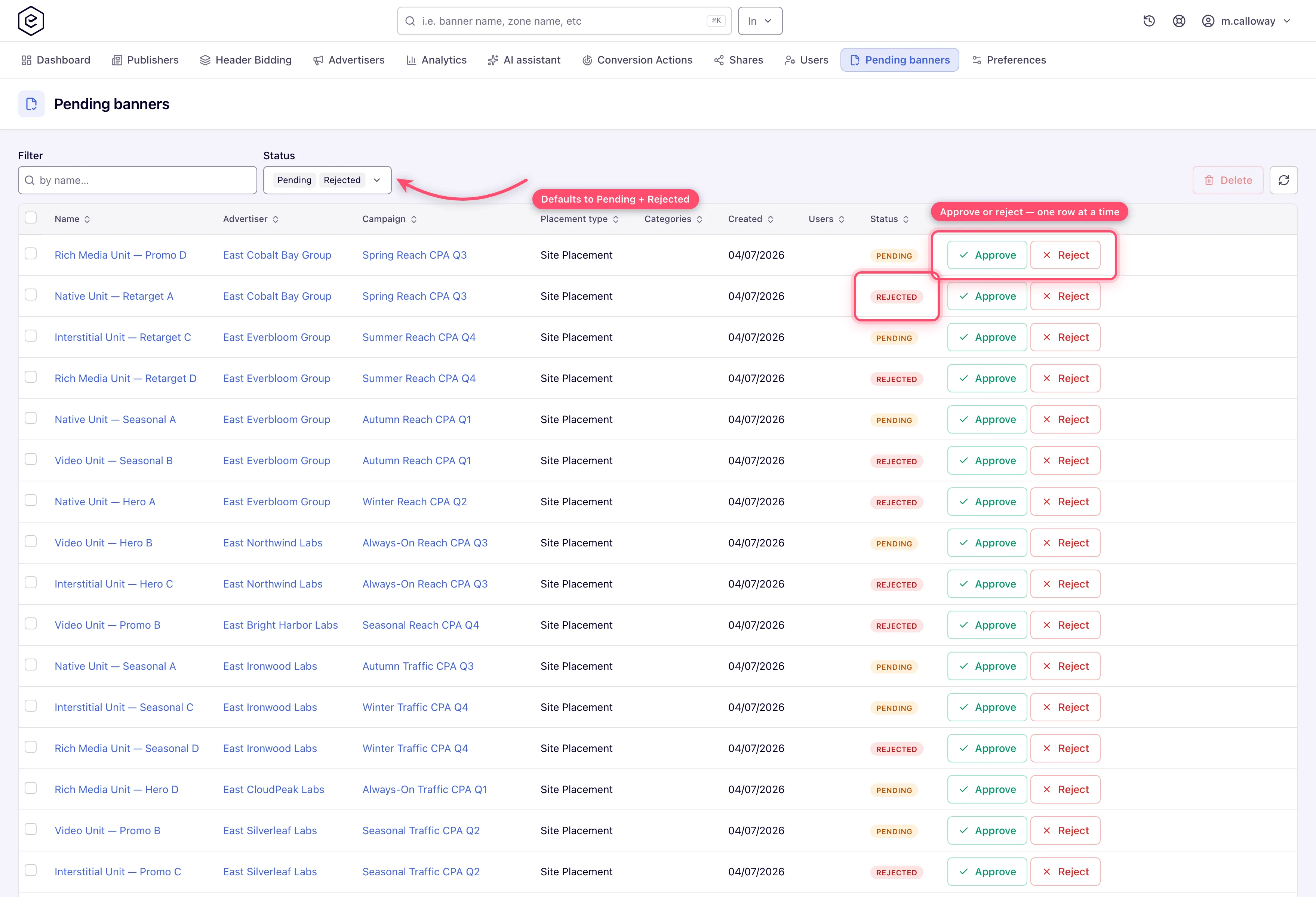
Go to Account → Pending banners.
-
Each row is one creative: Name, Advertiser, Campaign, Placement type, Categories, Created, Users (the accounts the advertiser is shared with) and a Status pill. Name, advertiser and campaign all link to their edit pages.
-
Narrow the queue with the two filters. Status defaults to Pending + Rejected; Approved and New can be added. The Filter box is labelled by name… but matches either a banner name or the username of a user the advertiser is shared with — see the corner case on its blind spot before you trust an empty result.
-
Click Approve on the row. It applies immediately and the row reloads. Approving also needs edit rights on the advertiser — a Can Edit or Is Owner share; on a Can View advertiser it is refused.
-
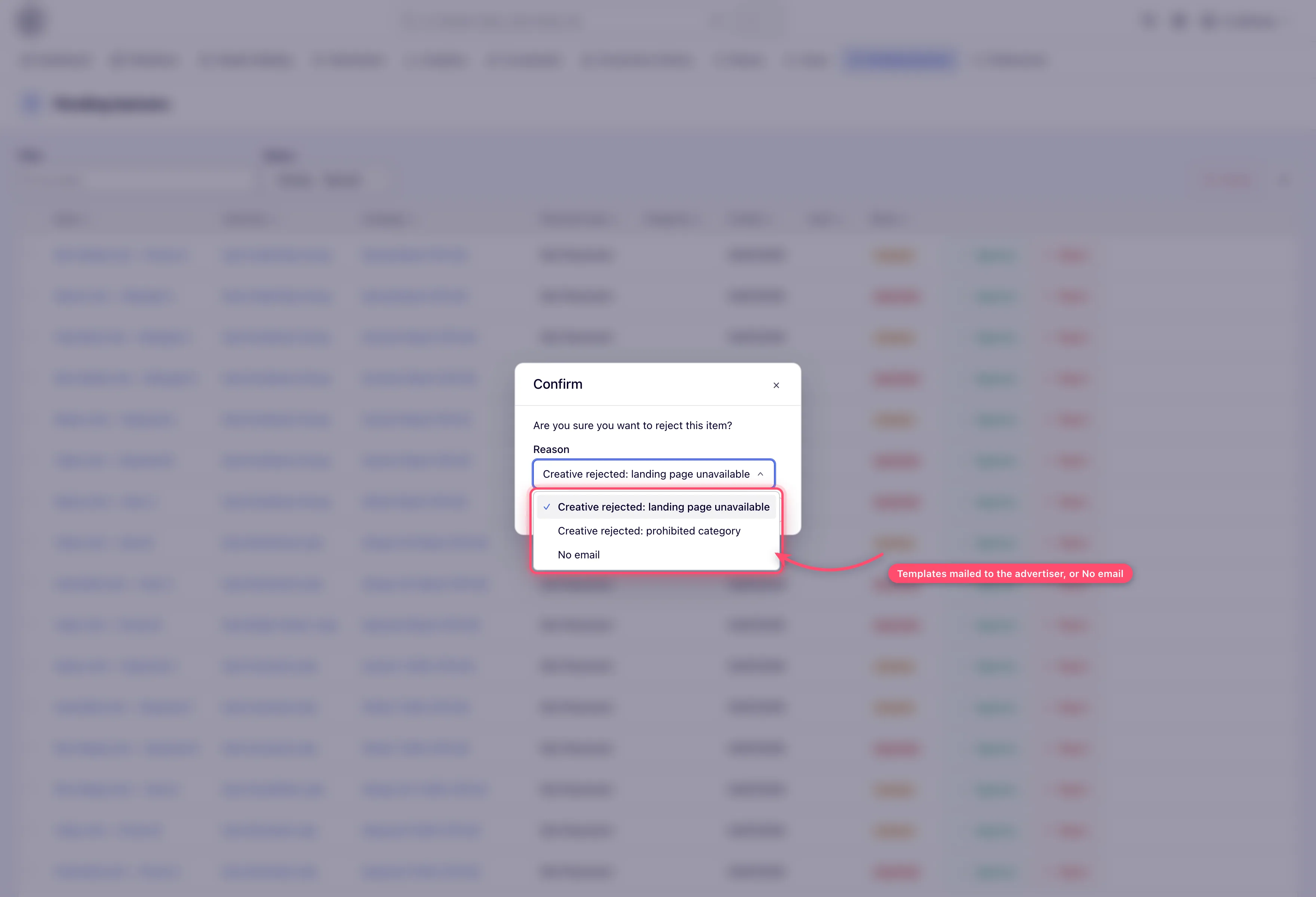
Click Reject on the row. The confirmation asks “Are you sure you want to reject this item?” and offers a Reason: every active e-mail template for the Banner Rejected event, plus No email. The first template is preselected; the one you pick is mailed to everyone the advertiser is shared with, and No email rejects silently. Rejecting also switches the creative off, so it stops serving immediately; it stays in the queue under the Rejected filter.
-
To remove creatives instead, tick their checkboxes and use Delete at the top right — this is the only action that works on a multi-row selection, and it confirms with “The following items will be deleted along with everything in them. You can restore them within 90 days.” — see Restore something you deleted.
You can also moderate one creative from its own page: open it and use Actions → Approve / Reject — Reject asks for the same Reason. Both entries disappear once the creative is approved, and Reject greys out once it is already rejected. A user whose own role is moderated gets a different third entry there instead — Submit for approval — which is how a creative that is New or Rejected goes back into the queue.
Approval does not switch a creative back on. Whether it was deactivated by a rejection or by moderation-with-deactivation, approving it only clears the verdict — whoever owns the campaign decides when it runs again. That keeps a reviewer working through the queue from putting creatives back on the air that were paused on purpose.
Approving gives the moderator no share. Approving a banner or a site records the verdict and notifies the owners; it does not add the moderator as an owner of the advertiser or site. Grant a share separately if the moderator should manage it.
Approve or reject a site
- Go to Account → Pending sites. The columns are Name, URL (opens the live site in a new tab), Categories, Created, Users and Status. There is no New status for sites — only Pending, Rejected and Approved.
- Approve, Reject or select rows and Delete, exactly as for creatives. The Reason on a site rejection lists the active templates for the Site Rejected event; the one you pick is mailed to the site’s owners, and No email rejects silently.
Note: approving a site is also what generates its automatic placements. A site left pending may simply have no placements to serve.
Read traffic-quality scores
-
Go to Account → Traffic Quality.
-
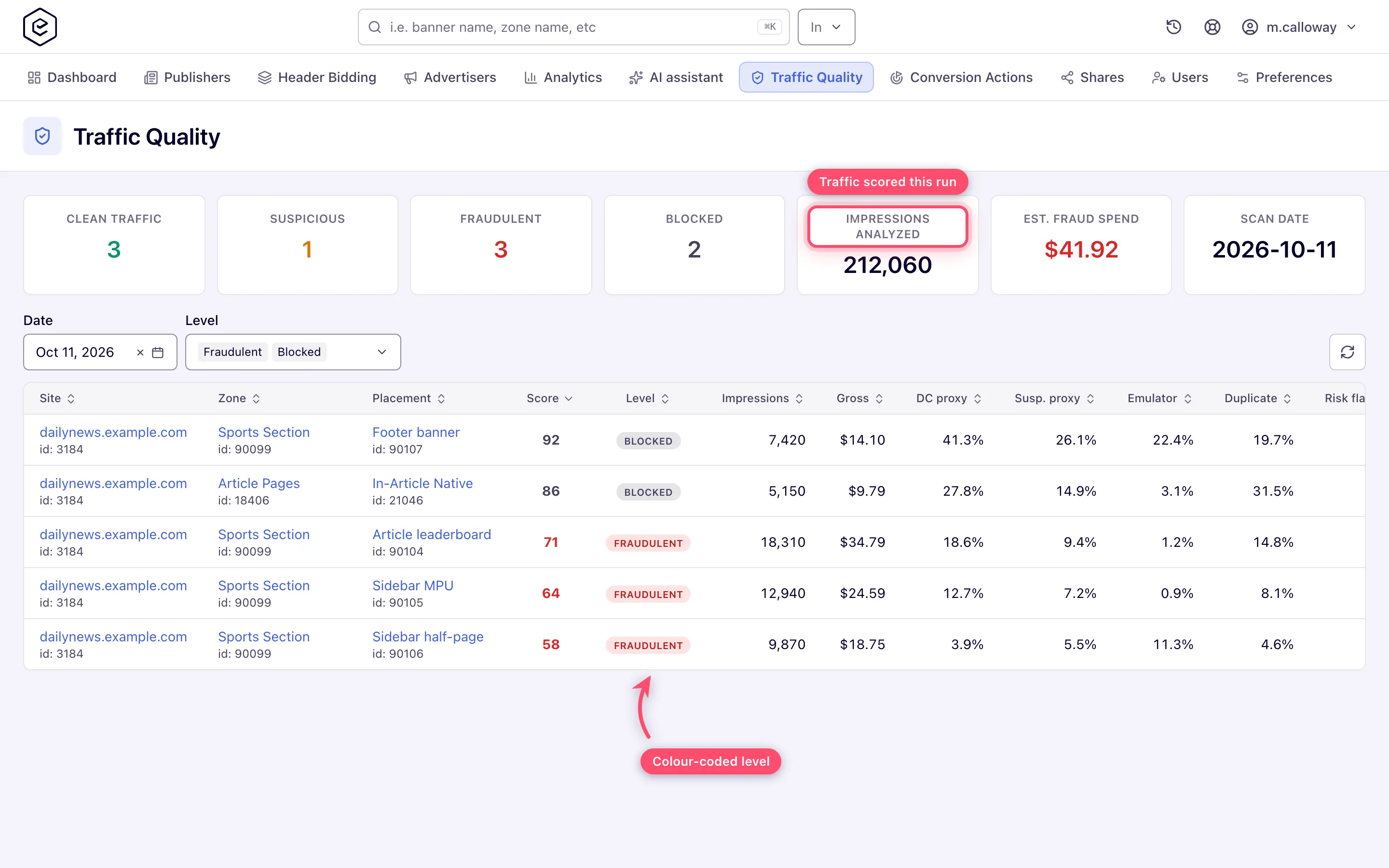
The seven cards summarise the selected scan date: Clean traffic, Suspicious, Fraudulent and Critical (these four are counts of placements, not impressions), then Impressions analyzed, Est. fraud spend and Scan date. They ignore the Level filter — they always count every placement you may see for that date. Est. fraud spend is an estimate: each placement’s gross times the share of its impressions that carry invalid-traffic signals.
-
Filter by Date — it defaults to yesterday and will not accept a date after today — and by Level, a multi-select that defaults to Fraudulent + Critical so the worst rows surface first.
-
Each row scores one placement: Site, Zone, Placement (all three link into the publisher tree), the numeric Score, the colour-coded Level, Impressions and Gross, then five percentages — DC proxy, Susp. proxy, Emulator, Duplicate, Risk flagged — and finally Indicators, the named detections that fired. On a window about 1,440 px wide the grid scrolls sideways inside its card: Indicators and the Report column (with Generate report) sit past the right edge until you scroll the grid.
-
For evidence, click Generate report on the row. The button becomes Generating…; the page polls every 30 seconds and, when the report is ready, asks Report for placement N is ready. Download now? and then shows Download PDF on the row. Rows already generating when you open the page keep polling.
-
To fill a gap, ask Epom support or your account manager to run a backfill. It scores only recent days that have no scores at all; it cannot rescan a date you choose.
The Traffic Quality page shows only zeros or an empty grid
Scores are computed once a day, for yesterday, and later retries fill days that were missed. The page only reads what that run saved, so zeros mean one of:
-
The feature is not switched on for your network. Traffic Quality scoring is a server-side setting. Until it is on, no day has scores. Ask Epom support or your account manager.
-
The day is not scored yet. Today has no scores by design, and yesterday’s appear only after the nightly run has processed the day. Pick an earlier scan date.
-
The level filter hides them. The summary cards count every level, the grid shows only the levels ticked in the filter — Fraudulent + Critical by default. Cards with numbers above an empty grid mean the traffic was clean or merely suspicious: add Clean and Suspicious to the filter.
-
You cannot see those sites. Rows of placements on sites your role has no view access to are left out of both the cards and the grid.
A Risk-flagged percentage of 0 on every row while other indicators are non-zero means the external risk-scoring service is not enabled on the network — the other indicators are computed without it.
Tune the validation settings
-
Go to Admin → Validation & anti-fraud → Validation settings.
-
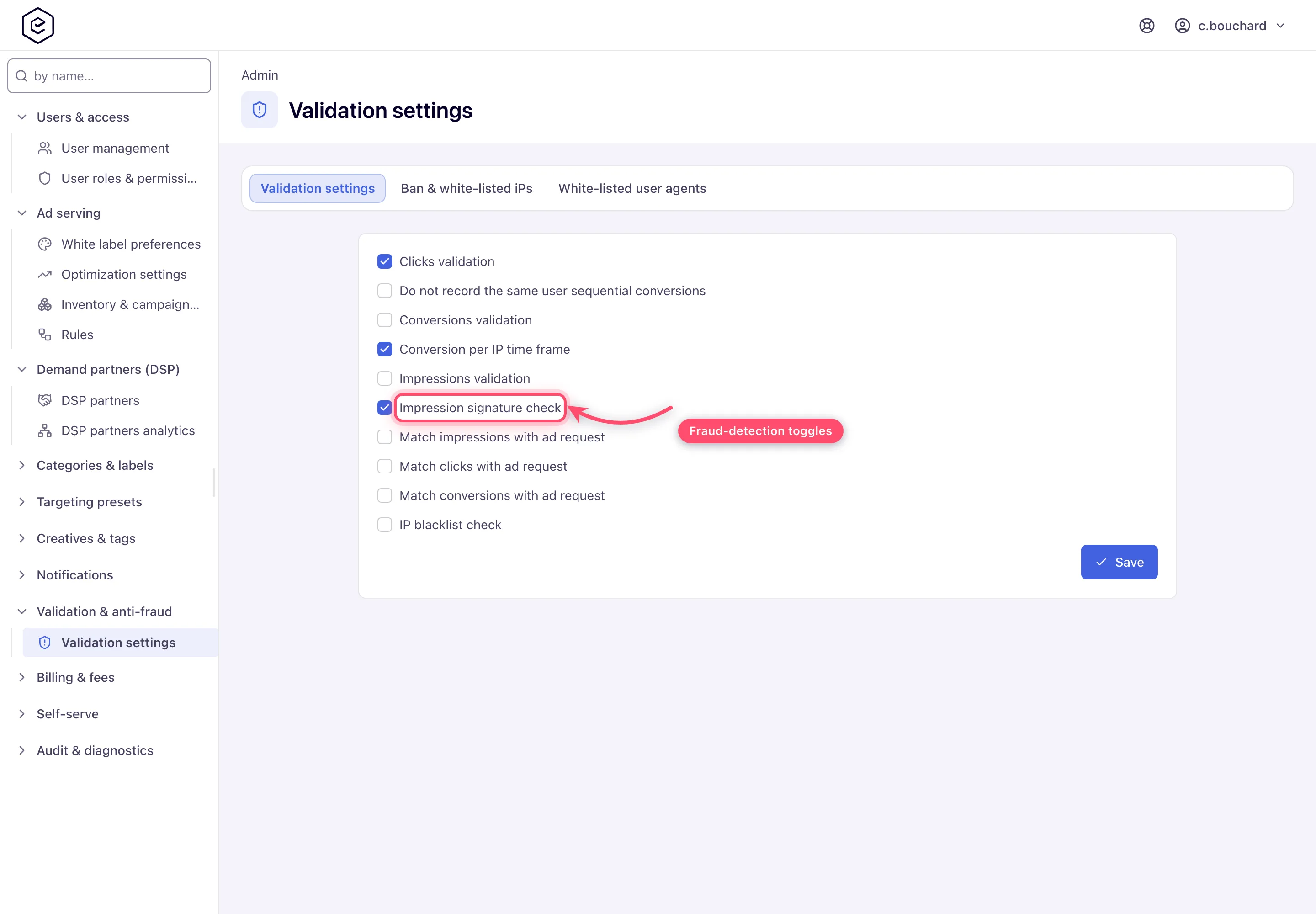
The settings are grouped by the event they act on — Impressions, Clicks, Conversions and All events — and the ⓘ beside each one says what it does. Pick Off, Monitor or Enforce for each check, change a time window if you need to, and click Save. A green “Data saved.” toast confirms it.
-
Maintain the addresses on the Ban & white-listed iPs tab. Columns are IP range, Count, Info and Status; Count is how often the ad servers have matched that entry since they last restarted, and Info is the location the address resolves to — both read
0and—on a network that has not matched anything yet. Status shows BAN or WHITE-LIST; whitelisted ranges are never banned by impression-fraud detection and never blocked by the IP blacklist check. The tab has a search box, an Add button, CSV import, a Download CSV button, and Delete for selected rows. -
Maintain user agents on the White-listed user agents tab. Columns are User agent, Wildcard (✓ or —), Event, Placement type and Status — each entry applies to one event type and one placement type, so the same string may need several rows. This tab has Add, Delete and Refresh only: no search box and no CSV, so a long user-agent list has to be entered one row at a time.
-
Allow about a minute for a saved validation setting to reach the ad servers, and up to about ten minutes for a new IP-list entry: the ad servers reload that list every ten minutes.
See which addresses got flagged
The ad servers keep their own lists of the IP addresses they flagged for click fraud and invalid traffic. To see who was flagged, ask Epom support or your account manager.
Options and fields
Validation settings — checks that change what is counted
On screen the settings are grouped by event: Impressions (Impression signature check with its three time windows, Impression deduplication, Impressions validation, Video impressions: suspected-IP check, Match impressions with ad request), Clicks (Click signature check with its time window, Click deduplication, Clicks validation, Match clicks with ad request), Conversions (Conversion deduplication (S2S), Do not record the same user sequential conversions, Conversion per IP time frame, Match conversions with ad request) and All events (IP blacklist check). Each event lists its checks in the same order: signature, duplicates, fraud patterns, then matching with the ad request. Hover the ⓘ beside a setting for what it does.
Every check below is a selector with three modes:
- Off — the check does not run.
- Monitor — the check runs and labels what it catches with a Rejection Reason, but the event still counts: it stays in the General report, the delivery limits and billing. Group the Advanced report by Rejection Reason to see how much enforcing would remove. Start here.
- Enforce — what the check catches is refused: kept out of the General report, limits and billing, and counted under the Rejected columns with its reason. This is how the old ticked box behaved.
A box that was ticked before the upgrade comes up as Enforce, an unticked one as Off — nothing changes until you pick Monitor. The legacy admin page still shows these as boxes; ticking one there brings the check back in the mode it was last in.
Every one of these is network-wide and applies from the moment you save; none of them reprocesses past data.
| Selector | What it catches | Reason | Default |
|---|---|---|---|
| Impression signature check | An impression whose beacon signature is missing, forged or older than the signature windows. Beacons rendered since release 153 also carry a signature bound to their ad request (th); one whose th does not verify is judged by the older per-second signature (s), exactly as before, so release 153 refuses no beacon for its th alone | INVALID_SIGNATURE, EXPIRED_SIGNATURE | Enforce |
| Impressions validation | Web impressions from an address with too many impressions or user agents. Enforce refuses them and bans the worst addresses into the IP blacklist; Monitor only labels them and bans nothing. Needs IP blacklist check on as well. A video impression from such an address is judged by the next selector instead. | SUSPECTED_IP | Enforce |
| Video impressions: suspected-IP check | A video impression from an address Impressions validation suspects. CTV players, server-side ad insertion stitchers and mobile carriers send many viewers’ beacons from one address, so while this is Off a video impression counts on its signature and age alone, as before release 153. Monitor labels it, Enforce refuses it — never more than Impressions validation does itself, so it acts only while that check is on. It judges only video beacons that carry the release-153 signature; an older or unsigned beacon is judged as before. Until you pick a mode it follows the ad-serving configuration. | SUSPECTED_IP | Off |
| Clicks validation | Fraudulent clicks: no user cookie where one is expected, or too many clicks from one address or user on a banner. It also runs the IP blacklist on clicks — such a click is refused only while both this check and IP blacklist check enforce. | CLICK_FRAUD, IP_BLACKLIST | Enforce |
| Conversion deduplication (S2S) (Conversions validation on the legacy admin page) | Duplicate conversions — server-to-server only, and only for actions that also have their own Reject duplicate conversions switch on. The pixel path uses a separate server-side setting (ask Epom support or your account manager), which this selector does not change. | DUPLICATE | Off |
| Do not record the same user sequential conversions | A conversion for a banner or campaign that this user’s capping or a realtime limit already rules out | SEQUENTIAL_CONVERSION | Off |
| Conversion per IP time frame | A conversion caught by one of the two per-IP windows set on its conversion action | IP_TIME_FRAME | Enforce |
| IP blacklist check | Impressions, clicks and conversions from an address on the Ban & white-listed iPs tab; white-listed ranges always pass. Off stops the matching at once. | IP_BLACKLIST | Enforce |
Corner case: the user-agent blacklist on clicks is not part of Clicks validation — a click from a blacklisted user agent is refused whatever mode the selector is in.
Corner case: an event two checks catch carries one reason. A refused event shows the reason of the check that refused it; one that counts shows the first check that labelled it. A repeated click, or one on an expired or edited link, also trips Clicks validation (same visitor, same banner, seconds apart): when both refuse it, or both only monitor, it reads
DUPLICATEorEXPIRED_CLICK, the more exact reason, so Duplicate clicks and Expired clicks still count it.
Validation settings — tracking validation
Three selectors — one in the Impressions group, two in the Clicks group — catch impressions and clicks that arrive more than once, and click links that are too old. Each takes Off, Monitor or Enforce.
| Selector | What it catches | Recognised for |
|---|---|---|
| Impression deduplication | A second impression of the same render of a banner — same ad request, placement and render time. A placement rotation that serves the banner again is a new render, not a repeat | Signature max age plus a minute for a banner (about 11 minutes by default), Video impression max age for a video (5 hours) — how long the original impression could still be accepted |
| Click signature check | A click on a link that carries a signature (th) which is forged or was made for another ad request, or on a signed link older than the Clicks group’s Signature max age. A link without a signature always passes, in every mode — see the corner case on unsigned links below | — |
| Click deduplication | A second click on the same render of a banner — same ad request, placement and render time | The Clicks group’s Signature max age, 24 hours by default |
- Monitor counts the event as usual and labels it, so Duplicate impressions, Duplicate clicks and Expired clicks on the Advanced report show what enforcing would remove. Start here. These columns are in the report’s Extended view — switch to it under Preferences → Advanced analytics view; the Simple view has no per-reason columns, only the Rejection Reason grouping.
- Enforce keeps the event out of the General report, delivery limits and billing; it is counted under the Rejected columns instead. The visitor still gets the pixel or still reaches the landing page, but no server-side tracker fires for it.
- Until you change one, each selector shows the mode the ad-serving configuration gives — Off for all three as shipped — and keeps following that configuration when you save the page without touching it. Once you pick a mode, yours applies.
To see why events were refused, group the Advanced report, or the Impressions or Clicks log, by Rejection Reason.
Validation settings — time windows
Four fields set how long an impression beacon or a click link stays acceptable. All four are in seconds; leave one empty to use the default, which its placeholder shows (Default: 600). The defaults come from the ad-server configuration — ask Epom support or your account manager to change them for every account at once.
| Field | Group | What it sets | Default | Allowed |
|---|---|---|---|---|
| Signature max age | Impressions | How old a banner impression beacon may be and still count | 600 (10 minutes) | 30 – 3,600 |
| Signature max lead | Impressions | How far ahead of the server clock a beacon may be, to absorb clock drift between servers | 60 | 0 – 600 |
| Video impression max age | Impressions | How long after the VAST response a video impression may still arrive | 18,000 (5 hours) | 60 – 86,400 |
| Signature max age | Clicks | How long a click link stays valid for Click signature check, and how long a click is remembered for Click deduplication | 86,400 (24 hours) | 60 – 2,592,000 (30 days) |
The signature windows apply whenever Impression signature check is on — they are not new, only editable here now. A value outside the allowed range is refused with a message under its field, and nothing on the form is saved until it is fixed.
Corner case: shortening Signature max age also shortens how long a header-bidding quote is valid — the bid’s expiry is taken from the same window, so a bid rendered after it counts for nothing.
Validation settings — flags that only label the event
| Checkbox | What it actually does | Default |
|---|---|---|
| Match impressions with ad request | Stamps a validation marker on the raw impression record. | Off |
| Match clicks with ad request | Same, for clicks. | Off |
| Match conversions with ad request | Same, for conversions, using the per-action Match conversions with request setting. | Off |
Note: these three reject nothing. They mark the raw log record; whether an event is then treated as invalid is decided later in analytics processing, not by the ad server. They will not change your General-report numbers.
The two “Banner approval …” admin cards
Both live on Admin → Ad serving → Inventory & campaigns settings, and neither switches moderation on.
| Card | What it controls |
|---|---|
| Banner approval obligatory fields | Which of Advertiser category, Pricing, Targeting, Limits an advertiser must fill in before Submit for approval is accepted. A missing one produces an error message instead of a queue entry. |
| Banner approval moderation fields | Which field changes send an already-approved creative back to Pending: URL for local/external banner type, Banner Creative for Local/External File Banner Type, Code for HTML code banner type. With all three off, editing an approved creative never re-queues it. |
Approval statuses
| Status | Banner | Site | Badged on the entity page |
|---|---|---|---|
| New | Yes — a creative created by a moderated user | — | No |
| Pending | Yes | Yes | Yes |
| Approved | Yes | Yes | No |
| Rejected | Yes | Yes | Yes |
Traffic-quality levels
| Level | Score | Meaning |
|---|---|---|
| Clean (green) | 0–2 | No significant indicators. |
| Suspicious (yellow) | 3–5 | Elevated indicators; watch the placement. |
| Fraudulent (red) | 6–9 | Strong signals. Only Fraudulent and Critical rows get the detailed second-pass analysis behind the PDF. |
| Critical (grey) | 10 and above | The worst band. It is a label, not an action. |
Corner cases and gotchas
Corner case: which impressions and clicks carry the release-153 signature. The 153 checks (Click signature check, both deduplication selectors, Video impressions: suspected-IP check) judge only beacons and links that carry it (
th). Everything else is judged as before release 153 — by its older signature, Impressions validation, Clicks validation and, for a video, its age — and none of the newer checks refuses or labels it, whatever its mode.
Signed (while a matching check is on) Never signed Impressions Banner beacons and the $$IMPRESSION_IMG_URL$$/$$IMPRESSION_TAG_JS$$macros, impression redirects (/ir, the$$IMPRESSION_REDIRECT_URL$$macro), mobile-SDK and API beacons, native impression trackers, VAST<Impression>(ours and a DSP’s VAST), no-impression beaconsThe click-through placement’s static impression pixel, e-mail placements (counted with the ad request) Clicks click.gif(the$$CLICK_URL$$macro, SDK click beacons, VAST click tracking),/crredirects (the$$CLICK_REDIRECT_URL$$macros, native links, API ads, DSP markup, VAST click-through)The click-through placement’s static links (console tab and the tracking-urls REST call — exempt from both click checks), e-mail clicks Beacons and links rendered by a server still on release 152, or while the matching checks were off, carry no signature either. Click signature check refuses a click only for a signature that matches no key the network has used (on a link that still has its transaction id), or for a correctly signed link older than the Clicks group’s Signature max age. A signature also names the kind of hit it was made for, so an impression’s never passes as a click’s. Because an unsigned link is accepted, removing the signature from a link gets past the check; making it mandatory is left for a later release.
Corner case: the signing key is a server setting. When Epom support changes it, links and beacons signed with the old key keep verifying for a day, while the old key is kept as the previous one.
Corner case: some events cannot be deduplicated and always pass: an impression beacon that reports several impressions at once (the mobile SDK does this), any event whose ad request had no transaction id, clicks on the static click-through links you paste into third-party systems — those links also never expire — and any beacon or link without the release-153 signature (
th): one rendered before the check was switched on, by a server still on release 152, or by a path that does not sign. Those are judged as before release 153, never as duplicates. Ads after the first in one VAST response (a pod or a repeat) are numbered, so their impressions and clicks are different ones, not duplicates.
Corner case: a click link carries a signature only while Click signature check or Click deduplication is on (Monitor or Enforce), and an impression beacon while Impression signature check or Impression deduplication is. Links and beacons rendered while those were off carry none, so the checks let them through; they apply to everything the ad server renders after you turn one on.
Corner case: each rotation of a placement (its refresh interval in the ad tag) is a new ad request with its own transaction id, unless the publisher passes their own id in the tag (
data-trx-id), which every rotation keeps sending. Since release 153 the Unique view’s direct requests, impressions, clicks and conversions therefore count each rotation separately.
Corner case: deduplication remembers events in memcached. If memcached is down, impressions and clicks are counted as if the check were off, and none are refused.
Corner case: a Pending creative does not automatically stop serving. Ad serving has no approval filter at all — delivery is decided by the Active switch. Under Banners Moderation With Deactivation the product deactivates the creative for you and refuses to let it be re-activated until approved. Under Soft Banners Moderation it does not, so a soft-moderated creative keeps delivering while it waits. Rejecting is different: it switches the creative off whichever grant applies — an active creative you reject stops serving immediately, the same as a moderation-with-deactivation refusal.
Corner case: a pending site’s inventory serves normally too. Site approval is a workflow state; nothing in ad serving reads it.
Corner case: the Reason list is built from the e-mail templates, not typed per rejection. With no active Banner Rejected / Site Rejected template it offers only No email — add or activate a template under the admin e-mail templates to give moderators a reason to send. A creative’s rejection mail goes to every user the advertiser is shared with (owners, editors and viewers); a site’s goes to its owners only.
Corner case: the obvious workflow — an advertiser uploads, the network reviews — is not reachable from the standard Roles screen. Moderation only applies to a user whose role carries Soft Banners Moderation or Banners Moderation With Deactivation, and those two are hidden from the account-role permission matrix, so an advertiser or publisher role cannot be given them there. As shipped, the queue is fed by administrative users editing creatives. Arranging genuine advertiser self-service moderation needs Epom support.
Corner case: enabling moderation is forward-looking only. Existing creatives keep the status they have — normally Approved — and go on serving. One enters the queue only when someone next edits a field listed under Banner approval moderation fields. There is no “re-moderate everything” action; a bulk re-review has to be arranged with your administrator.
Corner case: entity pages badge only Pending and Rejected approval states — an approved banner or site shows no approval badge at all. Absence of a badge means approved, not “unknown”. The badge is also hidden entirely from users who hold none of the three moderation permissions.
Corner case: the banner queue’s Filter box only ever returns creatives whose advertiser is shared with at least one user — the search runs through the sharing table. A creative under an unshared advertiser is in the queue, and visible with the box empty, but searching for it by name finds nothing. An empty search result is not proof the creative is absent; clear the box and sort the Name column instead.
Corner case: the approval queues load the whole result set and page it in the browser, so sorting and paging never re-query. On a large backlog the first load is the slow part.
Corner case: a day that is scored again refreshes its rows — except rows that already have a PDF report, which keep the numbers the report was built from. A backfill only ever scores days with no scores at all, though, so in practice a day that already has scores is not rescanned.
Corner case: PDF generation gives up silently after about 20 minutes (40 polls, 30 seconds apart) with no error. If a row never turns ready, generate it again rather than waiting. Only one report is built at a time network-wide.
Corner case: rejected events are counted, not thrown away — in the Advanced reports as Rejected impressions, Rejected clicks and Rejected conversions, and on the General report as the Conv. fraud column, which counts the rejected conversions whatever the report is grouped by. For conversions specifically, the rejection may be a duplicate, the IP blocklist, either per-IP time frame, or a capping/limit exclusion — the integrator’s response only distinguishes duplicates, and everything else is reported as OK. See Conversion actions for the per-action fields and Invalid traffic and risk scoring for how the counters feed the eligible figures.
Corner case: the user-agent list has no on/off switch — unlike the IP list it is live as soon as it has rows, and it keeps working even when Clicks validation is off. A user-agent whitelist hit is a strong override: it suppresses bot detection, the suspected-IP escalation and the missing-cookie click rejection. Each entry applies to one event type and one placement type, and matches the whole string unless you tick Wildcard.
Note: enter single IPv4 addresses (
45.129.14.7),from-toranges (45.129.14.0-45.129.14.255) or CIDR blocks (45.129.14.0/24).
Corner case: both address tabs hold Ban and Whitelist rows despite their labels — the Status column is what distinguishes them, and a whitelist hit always wins.
Corner case: a role without the Traffic Quality grants can still open the Traffic Quality page by its address. It shows every card at 0 and No traffic quality data for selected date and level filter — the data request is refused silently. A zero grid there is not evidence of clean traffic; check the role first.
Corner case: a server-side ad insertion stitcher (CTV) fires pixels for thousands of viewers from a handful of addresses. If it does not forward the viewer’s IP, impression-fraud detection bans those addresses and every ad request through the stitcher is blocked. Video impressions: suspected-IP check does not prevent that: it decides only whether the video impression itself counts, while the address is still tallied and banned. Whitelist the stitcher’s egress ranges — see Video placements.
Warning: the validation toggles apply network-wide and immediately affect billable counts. Switching on stricter matching (impressions/clicks/conversions vs ad request) can visibly drop reported numbers — coordinate with billing before changing mid-month.
Over the API
The creative verdict is also available over REST, with the same Banners Approval gate and the same effects as the queue buttons:
POST /rest-api/banner/{bannerId}/approvalstatus.dowithstatus=NEW,PENDING,APPROVEDorREJECTED. Rejecting switches the creative off, as the page does; approving does not switch it on. Setting the status the banner already has changes nothing and answers with a message.APPROVEDandREJECTEDe-mail everyone the advertiser is shared with. A caller without Banners Approval gets403, a banner that does not exist or is deleted gets404.POST /rest-api/banners/sendToApprove.dowithbannerIdsmoves banners toPENDINGand answers with the ids that moved (only banners that pass the moderation validation are moved); an id that is no banner, or a deleted one, is refused with400and nothing changes.
There is no REST endpoint for site approval, and none for the traffic-quality grid or the validation settings. From an AI assistant over MCP, api_write reaches the two calls above and whoami reports your Banners Approval grant as may.approveBanners; see the MCP server guide.
Per-role notes
-
Administrator — works Validation settings from the admin sidebar; reaches the three account tabs only by switching into a network user who holds the grant.
-
Network manager — sees a queue tab only with Banners Approval or Sites Approval, which are set on Admin roles & permissions, not the account-role editor.
-
Publisher, advertiser — no queues and no Submit for approval; they see only the Pending or Rejected badge and the rejection email.
Exact grants: see Manage users, roles and permissions.
