
Reuse creative files with the Media Library
Upload a video, image or HTML5 ZIP once to the network's Media Library and pick it in any number of creatives; the creatives reference the file, so deleting it from the library never breaks one.
A CTV master, a display image or an HTML5 bundle often runs in many creatives at once: one per publisher, per campaign, per flight. Without the library each creative carries its own copy, so the same 30-second spot is uploaded again and again. The Media Library stores a file once for the whole network; any number of creatives then point at it instead of holding their own copy.
Who this is for
- Advertisers / traffickers who build several creatives from the same video, image or HTML5 ZIP.
- Network managers who switch the library on for a role and want to know what it does to serving and storage.
Prerequisites
- The Media Library permission on your role (Campaigns Management group). It is off for every role until a network manager turns it on.
- The network’s file storage service switched on. The library keeps its files there; while it is off the page says so and refuses uploads.
- Campaign rights: viewing campaigns to browse the library, editing campaigns to upload, rename or delete.
Steps
Upload files
- Open Account → Media Library and click Upload files.
- Pick the Advertiser the files are for. It is a label for finding the files again, not a lock — see Who sees which files. A user with access to only some advertisers must choose one of theirs.
- Drop one or more files: a video, an image (JPG, PNG, GIF, WebP or SVG) or an HTML5 ZIP. Each file uploads on its own with a progress bar, so one refused file does not hold the others.
- Each row ends as Ready, Already in library (an identical file was found; nothing was stored twice) or Not added with the reason. The drop zone stays open, so files from several folders can be added one after another; Clear finished empties the list without closing the dialog.
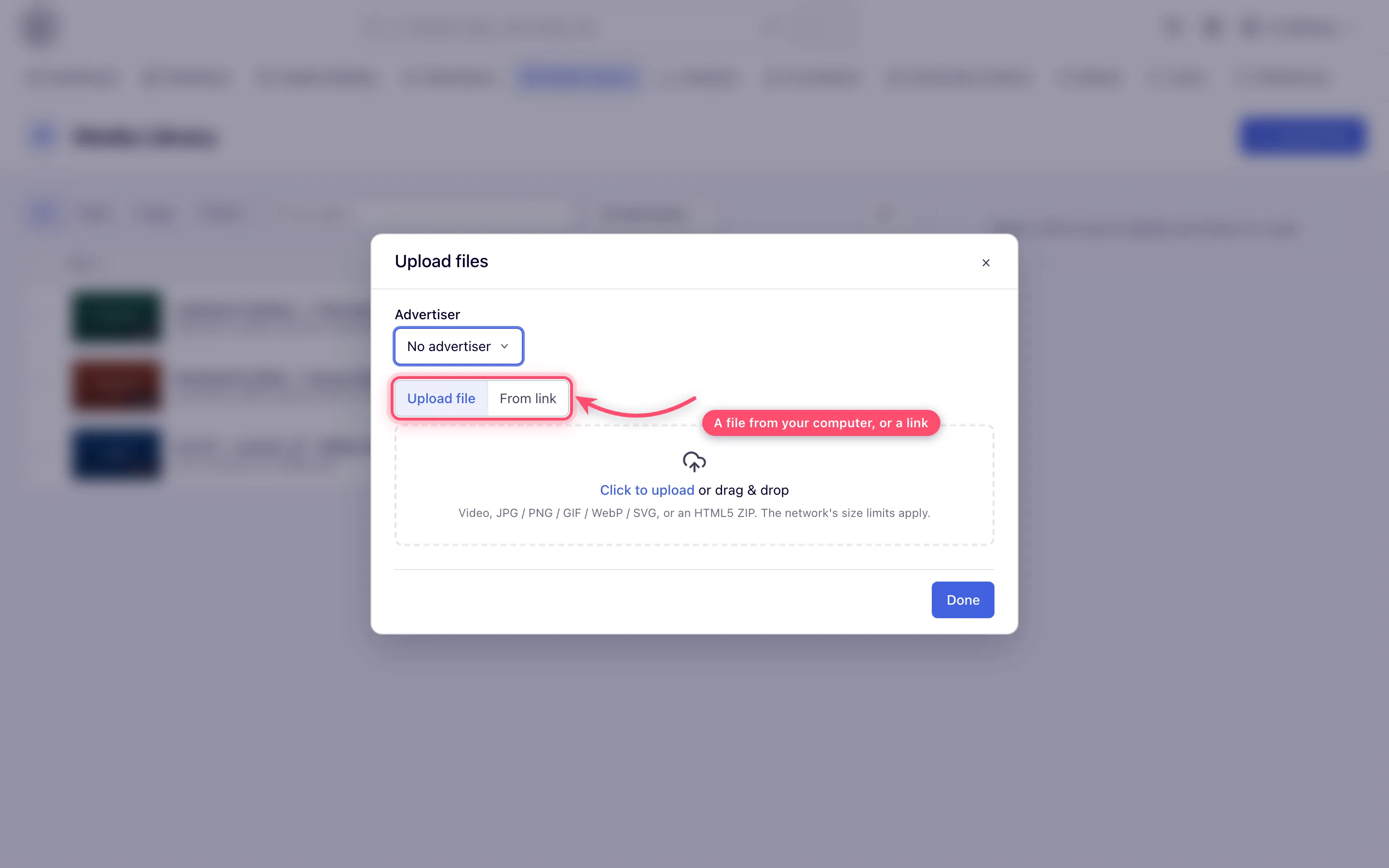
The advertiser can be changed later: in the file’s panel for one file, or for every ticked file at once. A user who sees every advertiser can also set it back to No advertiser.
To add a file that is already online, switch the dialog to From link, paste a public http(s) link and click Add (Enter works too): the file is downloaded once, under the same rules as an upload, named after the last part of the link’s path and listed with the uploads. Private and internal addresses are refused, and a download stops at the larger of the network’s two upload limits (never less than 10 MB, never more than 100 MB); the file is then held to the limit for its kind.
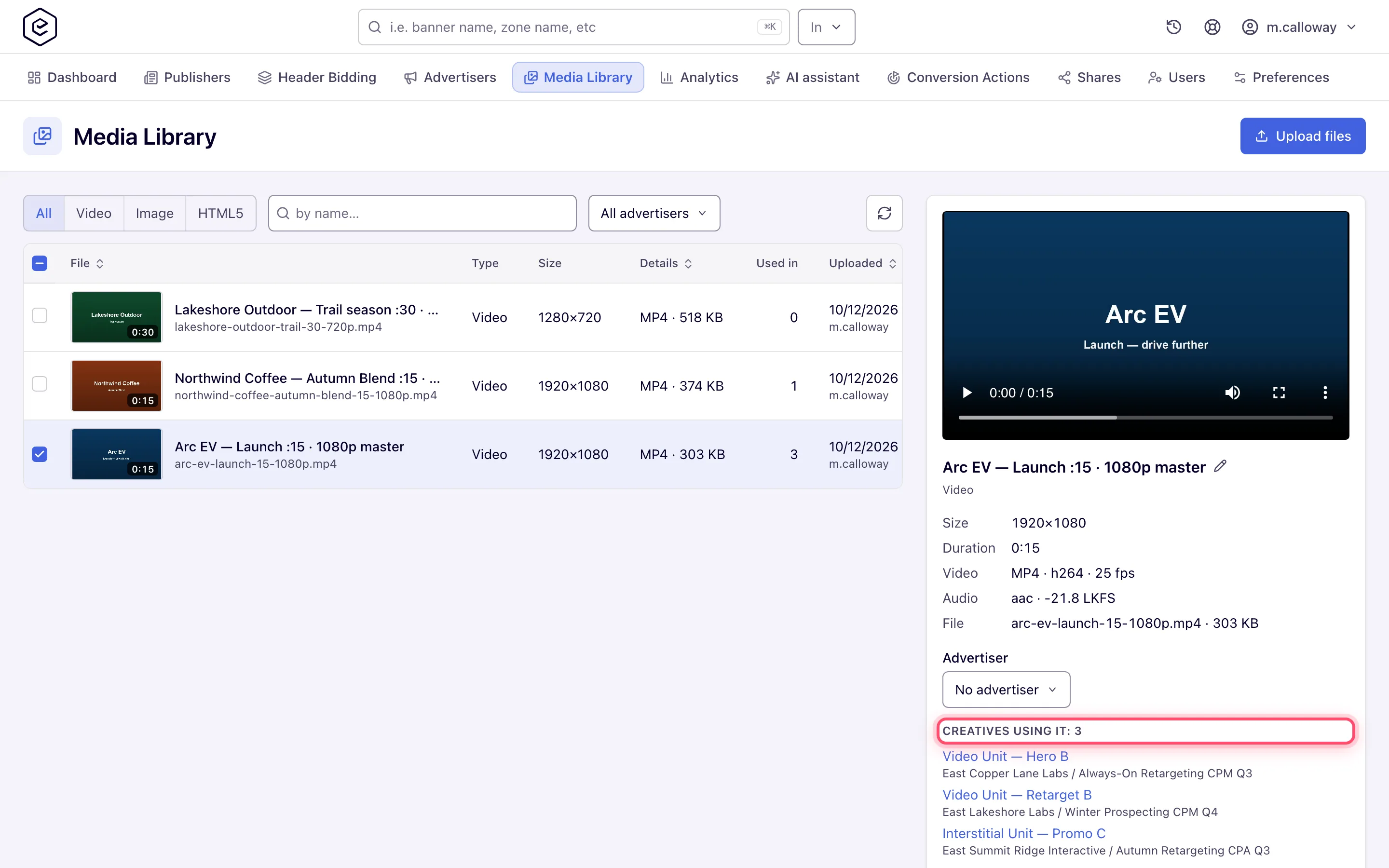
The page lists the library as a grid — File (with the advertiser, or the file name when it has none, underneath), Type, Size, Details, Used in and Uploaded — that you can narrow by type (All, Video, Image, HTML5), by name and by advertiser, and sort by File, Details or Uploaded. Click a row to open its panel. To rename a file, click the pencil next to its name there; Enter or clicking away saves, Esc cancels. The panel also shows the file’s facts, its advertiser, a Download button (not for an HTML5 ZIP) and every creative that uses it:
Use a library file in a creative
A slot that takes a creative’s file switches between its sources side by side. With the Media Library permission, Media library is one of them: choose it, pick a file, click Use this file, then Save the creative. The picker lists only files the slot can use, searchable by name, loading more as you scroll; double-clicking a card picks it. When none fit, it says what is missing and offers Upload files (the upload opens over the picker and the new file is listed straight away) and a link to the library page:
| Creative type | Slot | Sources offered | What the picker shows |
|---|---|---|---|
| Local File (image) | The creative’s file | Upload file, From link, Media library | Images of the creative’s ad unit size |
| Local Video | The creative’s file | Upload file, From link, Media library | Videos |
| Advanced Local Video(s) | Video files, under Banner type (saved creatives) | Upload, From link, Media library — several files at once, no separate Add step | Videos, several picked together; files the creative already has are ticked and cannot be picked again. A library file joins the renditions as is (resolutions apply to uploads and links only) |
| Template with an HTML5 ZIP property | That property | Upload file, From link, Media library | HTML5 ZIPs of the creative’s ad unit size |
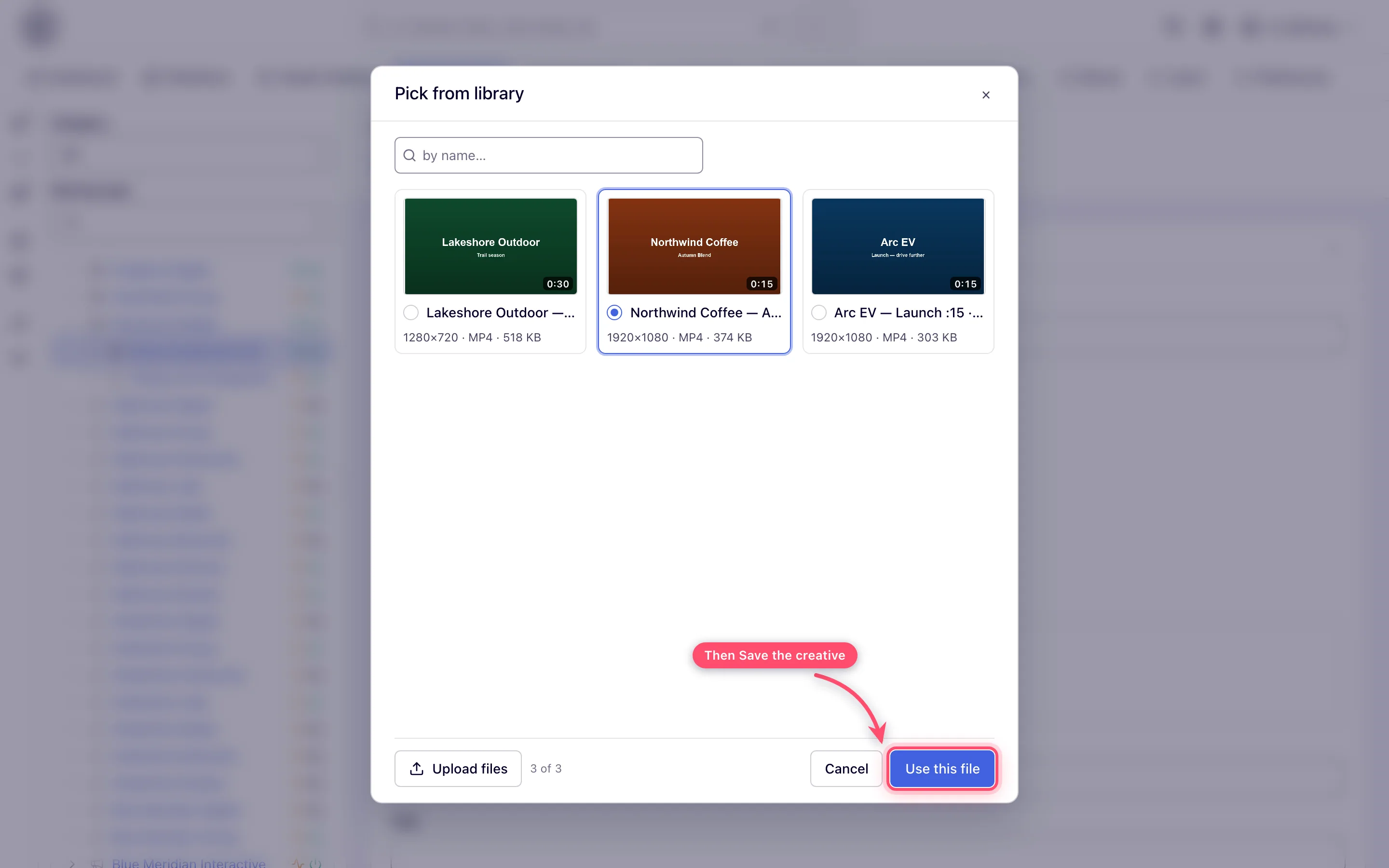
The saved file shows From the media library under its name. A creative that already has a file can switch to any source to replace it: an upload, a link or another library file takes its place on save. The chosen source’s input sits above the saved file; when the saved file already comes from that source, clicking it is how you replace it (a library file opens the picker, an uploaded file opens the file dialog).
How it works
- Referenced, not copied. The creative stores a pointer to the library file. Ad servers serve the file straight from the file storage service, so a 200 MB master is stored once however many creatives use it.
- Files never change. A library file is never overwritten. To fix a spot, upload the corrected file and pick it in the creatives that should play it; each creative keeps playing exactly the file it was saved with until you change it. CTV publishers approve a spot by its exact file, so nothing swaps under an approved creative.
- Duplicates. Every upload is fingerprinted (MD5). An identical file you can already see is not stored again; the upload answers with the existing file.
- Video facts. Videos are read with ffprobe on upload. The creative takes those facts with the file, so video creative requirements check a library video exactly like an uploaded one.
- Size limits. Videos follow the network’s video upload limit and images its image limit, as stored — Epom can set either as low as 1 byte; an HTML5 ZIP is held to neither and follows the HTML5 archive limits.
Who sees which files
The library is one per network.
- A user who sees every advertiser sees every file and can pick any file for any creative.
- A user with shared advertisers sees the files uploaded for one of their advertisers, and any file a creative of their advertisers already uses. They can rename or delete only files uploaded for one of their advertisers. For a file they see only because their creatives use it, the library hides the advertiser it was uploaded for and who uploaded it, and Used in counts only their own creatives.
There is no separate sharing step: when a network manager picks a file for an advertiser’s creative, that advertiser’s users see it from then on.
Deleting a file
Delete removes the file from the library and from the picker. Creatives already using it keep serving it; the confirmation says how many. Tick several files to act on them together: the panel beside the grid then shows Selected files: N, their total size and how many are used by creatives, and offers Delete, Delete only unused (N) — shown only when the selection mixes used and unused files, and it leaves the used ones in place — an Advertiser with Apply to selected, and Clear selection. Each file is its own request: if one is refused the others still go through, and the toast (“Files deleted: N”, “Advertiser changed: N”) is followed by a “Not deleted” or “Not changed” toast naming the files that were not. The stored file is erased within the hour after no live creative uses it any more.
Corner cases and gotchas
- Removing the file from a creative. Deleting the file on the creative’s edit page detaches the library file from that creative only; the library keeps it. A Local File creative then needs a new file before it can be saved, as with an uploaded image.
- Changing the creative’s type. A creative that switches to a type which takes no library file (for example to External File) drops the pointer on save.
- Copying a creative. The copy points at the same library file; nothing is duplicated.
- The file storage service switched off. The library page explains why it is empty and offers no upload, creative editors stop offering Media library as a source, and the API refuses a pick naming the reason. Creatives keep their pointers; they serve again once the service is back.
- The same video twice. The picker shows the videos an Advanced Local Video(s) creative already
has as ticked and not pickable; over the API, adding one again changes nothing and the answer
names it in
skipped. - A file used by many creatives. The file’s panel lists the first hundred creatives and says how many more there are; the count above the list is always the full one.
- Image size. The picker filters images and HTML5 ZIPs by the creative’s ad unit size because the creative serves the file unscaled. A library image of another size can still be found on the library page.
Using it from the API or the assistant
GET /rest-api/media-library/assets.dolists files (filterskind,query,advertiserId,width+height, paging);GET /rest-api/media-library/assets/{assetId}.doadds the creatives that use the file (usageLimit, 100 by default;usagesTotalandusagesMoresay whether the list is cut).POST /rest-api/media-library/assets/upload.do(multipartfile) andPOST /rest-api/media-library/assets/upload-from-url.do(url) add files;…/{assetId}/update.dorenames or relabels (advertiserId0 removes the label);…/{assetId}/delete.dodeletes.- Banner create and update take
mediaAssetId: a video for Local Video, an image for Local File, a video Advanced Local Video(s) adds to its media files, or a ZIP for a template with one HTML5 ZIP property. With several HTML5 ZIP properties sendmediaAsset.<property key>per property. - An existing Advanced Local Video(s) creative takes library videos as more renditions through
POST /rest-api/banner/{bannerId}/vast/media-files/from-library.do: one asmediaAssetId, or several at once asmediaAssetIds. All of them are checked before any is added — a file that is not a video, that you cannot see or that is over the video size limit refuses the whole call, naming each such file. A video the creative already has is not added again and comes back inskipped(and asalreadyAddedwith the singlemediaAssetId).GETon…/vast/media-files.dolists its renditions in served order, each withsourceLIBRARYand itsmediaAssetIdwhen it comes from the library. - The assistant’s
creative_createtool acceptsmediaAssetIdforIMAGE_FILE,VIDEO_FILEandHTML5_URLcreatives, andmediaAssetIdsfor aVIDEO_RENDITIONS(Advanced Local Video(s)) creative;whoami.may.mediaLibrarysays whether the role has the permission. See MCP server.
Per-role notes
- View-only campaign rights: the Media Library tab opens and you can browse and inspect
files, but Upload, rename, the advertiser label, Delete and multi-select are hidden; the
API answers
403to those calls. - Shared advertisers only: you see and manage files as described under Who sees which files; uploading or relabelling for an advertiser not shared with you is refused.
- Custom-role users: without the Media Library permission, or without campaign view rights,
the tab is not shown, editors do not offer Media library as a file source and the API answers
403naming the missing permission. - Classic interface: it has no library page or picker; a creative that uses a library file shows that file name in its file field.
