
Report types
Every statistics type — General, Advanced, the raw event logs, Header Bidding and Targeting Cookie — with availability, freshness and permission gating.
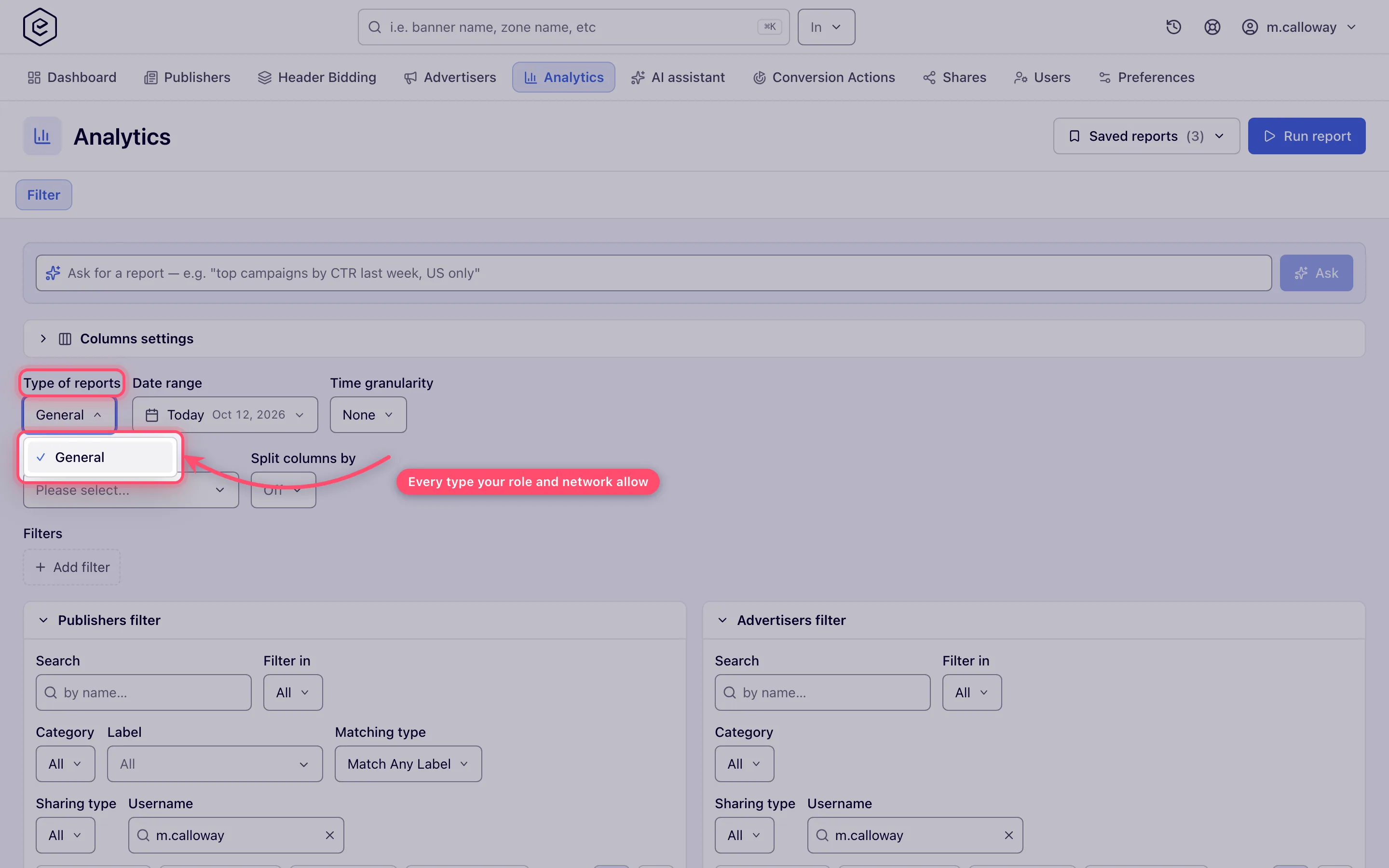
The Type of reports selector on the Analytics Filter tab is the first choice you make in the report builder, and it decides more than it looks like it does: which data answers the query, how far behind real time that data is, whether the report runs inline or as a background job, and which of the group-by, granularity and filter controls appear at all.
Who this is for
Everyone who runs reports. Many roles see only General. Every other type takes two independent things: the type switched on for your role, and the network configured for it — so the same role on two networks can see different lists.
Prerequisites
- The Analytics section, and campaigns or inventory you can see — without them there is no report builder to choose a type in.
- For most types other than General, a piece of network configuration as well: cookie logging, Advanced analytics, header bidding. See Availability.
The types
General is always in the list; the other six are specialised types switched on per role and per network.
| Type | One row is | Data comes from | How it runs |
|---|---|---|---|
| General | Aggregated statistics for your group-by (campaign, site, country, day…) | Daily and hourly aggregates the ad servers write, with conversions joined in | Inline, no progress bar |
| Advanced | Aggregates recomputed from the full ad-request log, with 32 extra dimensions | The full ad-request log | Background job with a progress bar |
| Impressions Log | One impression event | The individual event logs | Background job with a progress bar |
| Clicks Log | One click event | Same | Background job with a progress bar |
| Conversions Log | One conversion event | Same | Background job with a progress bar |
| Header Bidding | A group of header-bidding rounds, split by what filled them — a campaign booked here, the publisher’s own ad server, its AdX / AdSense backfill, a partner’s bidder code, or nobody — shown as Direct campaigns, Ad server (GAM), AdX / AdSense, a bidder’s name, or Unfilled | Its own daily and hourly aggregates | Inline, no progress bar |
| Targeting Cookie | Cookie name/value statistics from cookie-targeting logs | Its own daily aggregate | Inline, no progress bar |
Note: three types read pre-aggregated statistics, not just General. Header Bidding and Targeting Cookie each have their own daily aggregates, which is why they run inline like General rather than as a background job. Only Advanced and the three event logs read the full event logs.
The dropdown lists types in a fixed order — General first, then Targeting Cookie, the three event logs, Advanced and Header Bidding. Entries you lack are dropped, not greyed out, so the list simply gets shorter.
Freshness: nothing shows the current hour
The most common wrong assumption about General is that it is live. It is not, and neither is anything else.
Ad servers collect events in hourly batches, and a scheduled load makes a batch reportable only once its hour has ended. The hour in progress is never included, in any report type.
| Report types | A completed hour becomes reportable | Default schedule |
|---|---|---|
| General, Header Bidding, Targeting Cookie | Right after the hour ends | Hourly, about a minute past the hour; Epom support or your account manager can set a shorter schedule for your network |
| Advanced and the three event logs | About half an hour after the hour ends | Hourly, roughly 25–30 minutes past the hour |
In practice, on the default hourly schedule: an impression at 10:58 becomes reportable a couple of minutes later; one at 10:02 takes just over an hour. Today’s report is therefore always partial — it ends at the last completed hour, whatever the clock says. For final daily numbers, report on yesterday or earlier.
Note: there is no control in the account UI to load the current hour early. If you need it for troubleshooting, ask Epom support or your account manager.
Why two reports over the same dates can still disagree once both have loaded is a separate story: see How Epom computes your numbers and Analytics discrepancies.
Steps: picking a type
- Start with General for any “how much / which one” question. It is the only type that carries the full group-by set, every time granularity and the conversion-attribution split, and it is the type dashboards and most saved reports are built on.
- Switch to Advanced when you need a dimension General does not have — browser, OS, device, carrier, risk, custom parameter and the rest of the list below — or a report-level Time zone. Note that Advanced offers fewer time granularities, not more (see the next table).
- Use an event log when you need the individual events: auditing one click, reconciling an event stream against a partner, inspecting invalid traffic. These have no group-by at all — they are lists, not aggregates.
- Use Header Bidding to ask which source filled a header-bidding slot. It is supply-side only: there is no advertiser, campaign or banner dimension in it.
- Use Targeting Cookie only on a network that has cookie logging switched on — otherwise the type is not in the list at all.
What each type offers
Choosing a type rewrites the form. These controls appear, disappear and change contents:
| Control | General | Advanced | Impressions / Clicks / Conversions Log | Header Bidding | Targeting Cookie |
|---|---|---|---|---|---|
| Time granularity | None, Hour, Day, Week, Month, Year, 24 Hours | None, Hour, Day, 24 Hours | hidden | None, Hour, Day, Week, Month, Year | None, Day, Week |
| Group by | ✓ | ✓ | hidden | ✓ | ✓ |
| Split columns by (per-action columns) | ✓ | ✓ | hidden | hidden | hidden |
| Time zone | — | ✓ | — | — | — |
| Validation (valid / invalid records) | — | — | ✓ | — | — |
Two things here surprise people:
- Advanced has the shortest granularity list among the aggregate types, not the longest. Week, Month and Year are General and Header Bidding only.
- Header Bidding is the only specialised type that keeps Week / Month / Year. It is nonetheless the one aggregate type without 24 Hours, which exists only for General and Advanced data.
Group-by dimensions per type
Each type gets its own dimension set, and the differences are bigger than “Advanced adds some”.
| Type | Group-by dimensions |
|---|---|
| General | The full base set — Site, OpenRTB Publisher ID, Zone, Placement, Placement Size, Placement Label, Advertiser, Campaign, Banner, Banner Label, Banner Template, ISCI / Ad-ID, Channel, Country, Country Group, Action — plus Attribution Type, and Advertiser Owner / Site Owner where permitted. OpenRTB Publisher ID and ISCI / Ad-ID appear only where your network administrator has switched them on for your role |
| Advanced | The base set minus Banner Template, ISCI / Ad-ID and Attribution Type, plus the Advanced-only dimensions below |
| Impressions / Clicks / Conversions Log | The base set minus Attribution Type — but the Group by control is hidden for these types, so a log report is always a flat event list |
| Header Bidding | Only Fill Source, Country, Placement, Zone, Site |
| Targeting Cookie | Only Country |
Header Bidding and Targeting Cookie do not inherit the base set — their data has no other dimensions to group on. Attribution Type is General-only.
Advanced-only dimensions: Browser, Browser Version, OS, OS Version, Top Domain, Package Name, Screen size, Mobile Carrier, Connection Type, Language, Accept-Language, Time Zone Name, Browser Country, Traffic Source, Location, Custom parameter, Device format, Proxy, Device Vendor, Device Model, Device Model Code, Device Release Year, Device RAM, Price Band, Is Web App, Incognito Mode, Browser Rank, Hardware Rank, Platform Rank, Risk Level, Risk Category.
Corner case: on a network running compacted analytics logs, twenty of those are removed from Advanced’s group-by list — carrier, connection type, both language fields, time-zone name, browser country, traffic source, incognito, web-app, placement size and type, device format, proxy and the device and risk fields. They stay available as filters, which is the trap: filtering Advanced on a dimension the compacted logs do not carry can legitimately return zero rows while the totals show traffic. If a filtered Advanced report comes back empty, drop the exotic dimension and re-run before concluding the data is lost.
Which report shows city, device, domain, IP or custom parameter?
| You want a breakdown by… | Report and setting |
|---|---|
| Country | General (Group by Country or Country Group) — works over any period |
| City or region | Advanced → Group by Location (shown as Region - City); the raw logs carry it per event |
| Browser, OS and their versions, screen size | Advanced → Group by Browser, Operating System, Screen size |
| Device type, vendor, model | Advanced → filters Device format, Device Vendor, Device Model (on networks with compacted analytics logs these are filter-only — run one report per value) |
| Page domain | Advanced → Group by Top Domain (the page the ad was served on), or filter on it with the Top Domain text filter — see below |
Custom parameter (cp.* in the tag) | Advanced → Group by Custom parameter |
| Custom parameter of a conversion | General → Group by Conversion action, then Split columns by → Custom parameter |
| IP address, user agent, one row per click | Impressions Log / Clicks Log — one row per event with IP, user agent, location, referer and custom parameters (every column) |
| Clicks | Any report: Clicks column; individual clicks in the Clicks Log |
| Sub-source of your traffic | Pass it as the channel (ch=) and group a General report by Channel — the only one of these that works over long periods |
Advanced and the logs only reach back a few days (see how far back each report goes). For a monthly breakdown by city or domain, run Advanced every day and keep the exports, or ask Epom support or your account manager to set up the raw event export.
Ask the assistant to analyse the raw logs
Instead of exporting a log and counting rows yourself, ask the AI assistant
(or an assistant connected over MCP) a question about single events —
“which domains do the clicks on banner 301 come from?”, “are there clicks without impressions on
placement 77 yesterday?”, “which conversions of campaign 40 have no click?”, “what values did
cp.sub1 arrive with?”, “which IPs repeat?”. It reads the same Impressions, Clicks, Conversions or
Actions Log you would run (same permissions, same cache) for up to 3 days and answers with counts
per value, distinct IPs and users, and a few sample rows. Clicks are matched to impressions, and
conversions to clicks, by transaction id within those days — a conversion whose click came earlier,
or a view-through one, has no click there. At most 50,000 rows are read per log; when a period has
more, the answer says so and its counts cover only those rows, so narrow it to a banner, placement
or shorter period for exact figures. Each question costs one analytics request
(GET /rest-api/analytics/raw-log-analyze over the REST API).
Why is my Custom parameter or Top Domain breakdown empty?
These Advanced groupings show only what the request itself carried. A grouping that returns no data, or an empty or useless column, almost always means the tag did not send it:
- Custom parameter lists the
cp.<name>=<value>parameters of the ad request (plus defaults set under the placement’s Inventory settings). A VAST tag, a direct link or a server-to-server request that does not append&cp.pubdomain=…has nothing to group — add the parameter to the tag URL the player or partner calls, with the partner’s macro as the value. Your network administrator can also exclude parameter names from logging network-wide; those never appear. - Top Domain is the page the ad was served on, as
https://hostin lower case. It comes from the tag’soparameter (the Page Domain tag parameter, see Invocation codes), else theOriginheader, else theX-Device-Referer/X-Refererheaders a server-side caller forwards. A value that names no page is skipped and the next source is used:null,file://, an unexpanded macro, the Google IMA SDK frame (imasdk.googleapis.com), Google’s ad frames (*.googlesyndication.com), and your own serving, CDN and file-storage hosts. Empty when no source names a page. - Each event reads its own request — except Top Domain. An impression or click row takes
IP and device from the impression pixel or click hit, not from the ad request, and a video ping
comes from the player. Top Domain is carried from the ad request into every impression and click
URL, VAST ones included, so it names the page. Only when the ad request had no page does the hit’s
own
Originheader fill it — a server-side VAST call carries no page headers, but the viewer’s browser firing the impression often does. - Referer is now Top Domain. The Referer grouping used to read the domain of whatever
called the ad server — on impressions and clicks often a player, an ad frame, a CDN or the ad
server’s own name — so it is no longer offered, and the domain text filter now reads Top Domain.
The REST API, MCP and saved or scheduled reports still accept
REFERERandhadoopRefDomain: both read Top Domain, and the column keeps the namereferer. A saved report grouped by Referer opens grouped by Top Domain.
Corner case: filtering on a dimension your network stores as filter-only can return no rows while the totals report shows traffic — drop the extra filter and rerun before concluding the data is missing.
Reporting a long period (several months)
- Use General for anything longer than a few days — Advanced and the logs cannot reach back that far, and General’s Hour breakdown covers only about the last two weeks (use Day, Week or Month).
- A long period with a fine group-by (day × advertiser × placement × country) is a very large result. Exports cut it at the format’s row limit — you are warned that only the first N rows are exported — and a large Advanced report says Report is too big, summary is not available instead of a totals row. Run the period in shorter pieces (one month at a time) or group more coarsely, then combine the files.
Which filters appear where
| Filter group | General | Advanced | Impr. / Clicks Log | Conversions Log | Header Bidding | Targeting Cookie |
|---|---|---|---|---|---|---|
| Country | ✓ | ✓ | ✓ | ✓ | ✓ | — |
| OpenRTB Publisher ID | ✓ | ✓ | — | — | — | — |
| ISCI / Ad-ID | ✓ | — | ✓ | ✓ | — | — |
| Fill Source | — | — | — | — | ✓ | — |
| Placement type / size | ✓ | ✓ | — | — | — | — |
| Conversion action | ✓ | ✓ | — | ✓ | — | — |
| Labels & banner templates | ✓ | — | — | — | — | — |
| Browser / OS / browser country | — | ✓ | — | — | — | — |
| Device details (vendor, model, RAM…) | — | ✓ | — | — | — | — |
| Risk / connection / incognito / language / traffic source | — | ✓ | ✓ | — | — | — |
| Custom parameter / cookie / ref. domain / package | — | ✓ | — | — | — | — |
| Cookie name & value fragments | — | — | — | — | — | ✓ |
| Validation (valid / invalid records) | — | — | ✓ | ✓ | — | — |
| Publishers & advertisers trees | ✓ | ✓ | ✓ | ✓ | publishers only | — |
| Channels | ✓ | ✓ | ✓ | ✓ | — | — |
Header Bidding drops the advertiser tree and the Channel filter because its data records neither.
Every filter is gated twice — by the type (this table) and by its own permission — so a column marked ✓ still will not render if your role lacks that filter’s permission. The Validation selector needs a third thing: besides the type and the permission, the network must be configured to store invalid records (a server-side setting; ask Epom support or your account manager to change it), otherwise it never appears.
Availability and permission gating
This is the part that generates tickets, because the rule is not uniform. Beyond being switched on for your network at all, each type carries a different extra condition, and it is usually the extra one that is missing.
| Type | What else has to be true |
|---|---|
| General | nothing — it is always in the list |
| Targeting Cookie | cookie logging is on for the network — a network setting; ask Epom support or your account manager |
| Impressions / Clicks / Conversions Log | you can see all inventory and all campaigns, not just what is shared with you |
| Advanced | Advanced analytics is set up for the network — ask Epom support or your account manager |
| Header Bidding | nothing beyond being switched on |
Three consequences worth spelling out.
General cannot be removed from the dropdown. The permission Analytics Report Type General gates something bigger: the whole Analytics tab, and the server’s acceptance of a General report when you press Run report. Take it away and the user loses reporting entirely, not just the General entry.
Sharing rules the event logs out completely. The three log types require view access to all inventory and all campaigns — not shared access to some. A publisher or advertiser who works through shares will never see them however their report-type permissions are set, because event rows expose both sides of the network at once.
Header Bidding has no feature flag: it appears only where your network administrator has switched it on for the role, normally on a network that runs header bidding. Its money columns are the one place the column rules differ: Gross and eCPM Gross carry Analytics Report Column Gross and Analytics Report Column Gross eCPM, the same two permissions General uses, but they are not also ANDed with Analytics Report Columns Basic Analytics the way General’s are — so a role holding the money permission without the basic-columns one sees Gross here and not there.
Corner case: a permission granted but a gate unmet looks identical to no permission at all — the type is simply absent, with no message. A role holding Analytics Report Type Cookie on a network with cookie logging off still has no Targeting Cookie in the dropdown, because the cookie-logging gate can only remove types, never add one. If a type you expect is not there, check the network configuration before you check the role.
Where these permissions live
All the report-type permissions except Analytics Report Type General are admin-only grants. They are hidden when a network manager edits sub-roles under Account → Users and appear only in the admin role editor (Admin → Users & access → Admin roles & permissions). If you are hunting for Advanced Analytics in the first of those and cannot find it, you are on the wrong of the two permission screens — not missing a checkbox.
Beyond the type itself, three more permission families shape a report, and each is separate:
- Columns are gated by family (Base / Publisher / Advertiser) and per individual column.
- Filters and group-by dimensions each have their own permission; the server removes the options your role lacks before the form is ever built, so they are absent rather than disabled.
- Date ranges and time granularities are permissioned individually too (Analytics Report Time Range … and Analytics Report Breakdown By …). A range you lack stays in the Date range list, greyed out with a padlock; a granularity you lack is dropped from the Time granularity list.
Corner cases and gotchas
Corner case: Advanced and event-log results are cached per query window and refreshed only when a newer hour of data has loaded, so two runs of the same query minutes apart return the identical result. Once an Advanced report’s end date is two or more days in the past, the cached result is reused as final.
Corner case: dashboard widgets are never offered on the three event logs — they run as background jobs, which is not a shape a widget can render. General, Advanced, Header Bidding and Targeting Cookie reports all make widgets and scheduled e-mails. See Dashboards and Save, reuse and schedule reports.
Corner case: the widget dialog also applies its own, different granularity rule — for any non-General widget it drops Hour, Month and Year. A breakdown you can pick in the report builder is not necessarily offerable in a widget built on the same type.
Corner case: an export of an Advanced or event-log report runs in one go, without the progress bar the on-screen report shows, so a large one takes a while before the file arrives. See Exports and the AI query box.
Corner case: there is no Actions Log report type — neither the dropdown nor the REST report endpoint offers one. Only the AI assistant reads the Actions Log (see above).
Corner case: a report type removed in an earlier release survives in saved reports, dashboard widgets and bookmarked form URLs. Rather than failing the lookup, Epom maps the old names —
HADOOP_ADREQUESTS,BROWSER_OSandHADOOP_SECURITY, once shown as Advanced (β) and Advanced (alpha) — onto today’s Advanced. An old saved report opens as an Advanced report rather than erroring.
Corner case: the event logs have a single data source. If it is temporarily unavailable, an event-log report fails with an error rather than answering from a partial copy — run it again later.
Per-role notes
- Publisher and advertiser — usually General only; any other type is one your network administrator switched on for the role.
- Network manager — whatever your network administrator granted the role, subject to the extra gates above.
- Share-limited user — rows only for entities shared with you; the event logs stay out of reach however the permission is set.
- Administrator — grant types on the admin permission screen (see Where these permissions live) and check the extra gates before promising a type.
