
Run a CPA offer with affiliate postbacks
Recipe for performance/affiliate demand — conversion actions with attribution windows, S2S postbacks, CPA pricing, per-action limits and auto-deactivation, plus the fraud controls to watch.
The deal: the advertiser pays only for completed conversions — an install, a sale, a signup — reported back server-to-server from their (or their affiliate network’s) backend. This recipe sets up the action, the postback, CPA billing, the safety limits that stop a broken funnel from burning traffic, and the fraud controls that keep the numbers honest.
Who this is for
Network managers and advertiser users running performance demand. The fraud-watch step is network administrator territory — those screens live in the admin area.
How much of the recipe you see depends on your role. The stock Advertiser and Network Manager roles have the Conversion Actions tab; the Publisher role does not. The stock Advertiser role has no campaign Conversion actions card, no tracking code and no CPA pricing, so on that role steps 2 and 3 are done by your network manager. Per conversion action limits and CPA Campaign Auto Deactivation are off for every role out of the box. If a card below is missing, ask your network manager to switch it on for your role.
Prerequisites
- A campaign with creatives linked to inventory.
- The partner’s technical contact — someone on the advertiser/affiliate side must store a click identifier and call a URL when the conversion happens.
Steps
1. Define the conversion action
- Go to Account → Conversion Actions → + Create and name the action (max 64 chars,
letters/digits/
-/_— the name feeds the Sub ID macro, so keep it stable). - Set the attribution windows: Post-click attribution window (e.g. 7 Days) and
Post-view attribution window. Clicks always take priority over views when both could
attribute. A window of 0 does not close view attribution to a postback: on the pixel route
it means “never attribute”, but on the server-to-server route it means “do not measure”, so a
partner who posts
att=viewis still counted. Full field reference: Create and edit conversion actions. - Keep Detailed conversion log on — you’ll want per-event rows in the Conversions Log when the partner disputes numbers.
- Decide the Default attribution type. It is a fallback: it classifies a postback only when
neither the partner’s
att=nor a click the ad server recorded says what it was. Leave it at Unattributed while you are still agreeing the integration, and set it to Post-click (or Post-view) only once you know the partner’s tracker cannot sendatt=and you know which one it means. On an action that also has Apply attribution window to server-to-server conversions ticked, that choice is what makes a late postback expire instead of counting. - Optionally set Duplicate conversion window (per IP), minutes (and the per origin IP one) to swallow accidental duplicates from the same address. The fields show only if your role may set them, and they do nothing while the network’s Conversion per IP time frame validation setting is off (it is on by default) — ask your network manager.
2. Price the conversions (CPA)
- On the action’s edit page, switch the Pricing card on and set the Global price per conversion, plus per-country rows if payouts differ by market.
- On the campaign’s Pricing card pick type CPA. The grid prices per country and per action; tick Use general pricing to fall back to the action-level prices instead of maintaining a second grid (Configure pricing).
3. Link the action to the campaign and hand over the postback
-
On the campaign, switch the Conversion actions card on and confirm your action is listed with its Conversion action key.
-
Select the action row, click Conversion tracking code, open the Postback (S2S) tab, and pick the method with the partner (full walkthrough):
- Click ID — the partner puts
$$CLICK_ID$$in the landing URL, stores the substituted value at click time, and requests the Conversion Tracking URL with it in place of(clickid)when the user converts. This is the one to give a new integration. - Click ID (per action, legacy) — the collapsed method below it: same flow with
$$SUB_ID(YourAction_ID)$$and(subid), kept for integrations already built on it.
The macros belong in the landing URL, where the ad server expands them; the
(…)placeholders belong in the Conversion Tracking URL, where the partner substitutes them. Check the Ad-serving domain selector above the tabs before you copy anything — it sets the host in the tracking URLs as well as in the pixel snippets.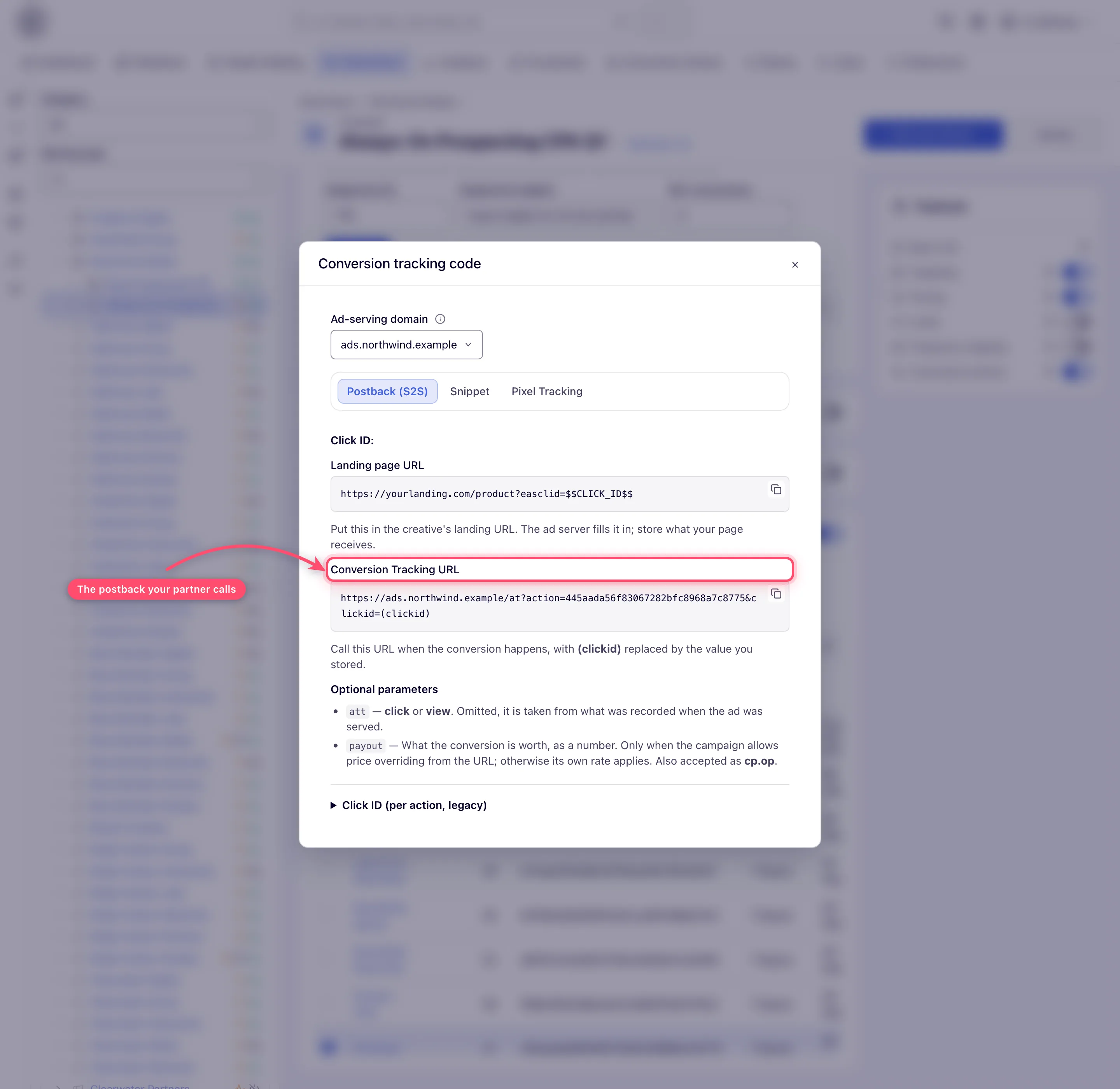
- Click ID — the partner puts
-
Running the same offer through several campaigns? Give them the same Campaign alias on the Conversion actions card so a click on one campaign can convert against another. No role has the alias control out of the box; ask your network manager.
Declare the attribution type with att=
att= is not part of the Conversion Tracking URL the tab generates — it is one of the
Optional parameters listed beside it. Have the partner add it with click (also
postclick, clickthrough, ct) or view (also
impression, imp, postview, viewthrough, postimpression, vt, vta), from whatever
their MMP or affiliate tracker recorded. Values are case-insensitive; -/_ separators are
ignored; bare digits are rejected as ambiguous. A partner who does not send it at all
still gets every conversion counted — it is classified from what the ad server recorded when it
served the click, and only when that tells nothing does the action’s Default attribution
type decide, which is Unattributed until you change it. An empty-looking split is
therefore the first thing to check: either the partner is not filling att= in and the ad
server has no click to go on, or the default is answering for them. Reconcile using the
Post-click conversions / Post-view conversions report columns and the Conversions Log’s
Attribution type column. Full rules:
Get the pixel and S2S tracking code.
Let the partner carry their own sub-values
Affiliates arriving from another platform expect to append their own breakdown values to the
click and get them back on the conversion. Ten names work without any setup on your side —
sub1 through sub10, the same names Everflow and Affise use:
…&sub1=affiliate42&sub2=creative-bEach is available in creatives and landing URLs as $$SUB1$$ … $$SUB10$$ (or
$$CUSTOM_PARAM_ESC(sub1)$$ when the value goes into a URL), and each travels with the click
through to the conversion, so the partner’s own dimension survives the round trip.
Only those ten are recognised bare — sub11 or a misspelling stays an ordinary request
parameter. Anything else you want to pass needs the cp. prefix
(Macros reference).
4. Put guardrails on volume and spend
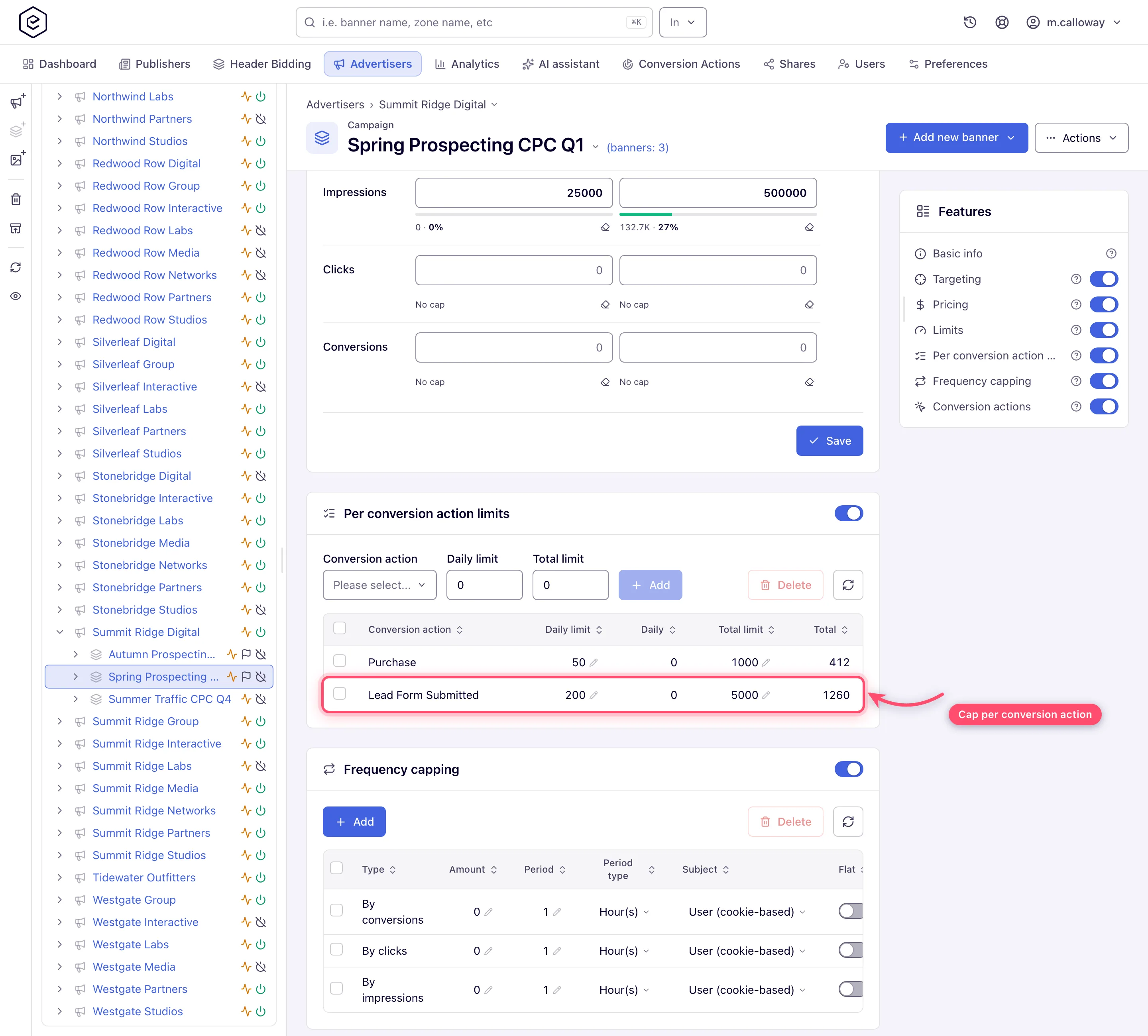
- Per conversion action limits (campaign card, off for every role by default): daily
and total conversion caps for this specific action. When either cap fills, the whole campaign
drops out of the auction, not just that action’s traffic
(Per-action limits).
- Limits card: Daily budget, Total budget, Daily conversions limit and Total conversions limit for the campaign as a whole (Limits). A total cap that fills also switches the campaign’s Active switch off, and it stays off after you raise the cap.
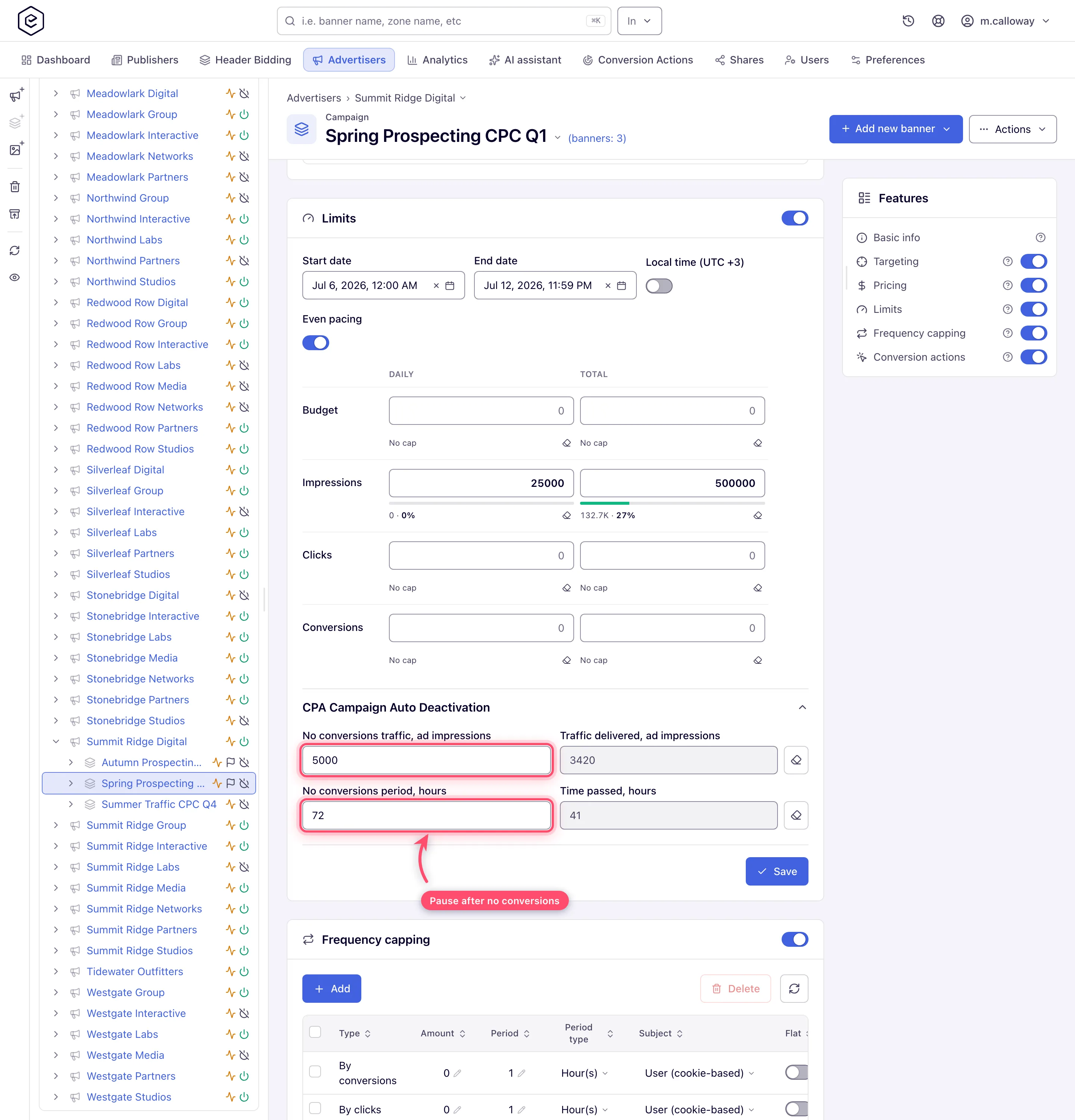
- CPA Campaign Auto Deactivation (collapsed subsection of the Limits card; CPA Banner
Auto Deactivation on a banner; off for every role by default): set No conversions
traffic, ad impressions and/or No conversions period, hours — if the campaign delivers
that many impressions, or that many hours pass, without a single conversion, it deactivates
itself. This is the kill-switch for a broken landing page or a dead postback.
5. Test the loop before going live
Click your own ad, complete the funnel, fire the postback with the captured Sub ID, then check: the action’s Activity badge turns Live, and the Conversions Log report shows the event row. (That report type is not in the stock roles — ask your network manager — and the action needs Detailed conversion log on for the row to exist.) If you changed the action’s Default attribution type, the S2S window checkbox or a window value just before testing, give it a cache reload first — the ad servers pick action settings up on a schedule, every 10 minutes on a standard network, so a postback fired straight after the save is still classified by the old values. Testing traps are listed in Get the pixel and S2S tracking code.
6. Watch for fraud (administrator side)
Performance pricing attracts fake conversions. The administrator toolkit (Moderate banners, sites and traffic quality):
- Admin → Validation & anti-fraud → Validation settings — Conversion deduplication (S2S), Do not record the same user sequential conversions, Conversion per IP time frame and Clicks validation, among other checkboxes.
- Account → Traffic Quality — per-placement fraud scores; a placement suddenly producing conversions with a Fraudulent score is a blocking candidate. The tab is off for every role by default.
- The Conversions Log report with IP/referrer columns is your dispute evidence — keep Detailed conversion log on for the action.
7. Report and reconcile
Run a report with the Conversions column grouped by Campaign / Banner / Placement, or set Split columns by → Conversion action for per-action columns — that is how a funnel (Registration → First deposit) reads left to right.
To settle what the click actually bought, add Split columns by → Attribution type: every conversion metric splits into a post-click and a post-view arm, so a partner claiming credit for post-view conversions can be answered with a number. Pick Conversion action and Attribution type together and each funnel step reads as Total / Post-click / Post-view.
Numbers rarely match the partner’s tracker to the unit — attribution windows, duplicate filtering and validation all remove events. The Expired windows columns show conversions that arrived after the action’s click or view lookback window closed: they were not credited, and they are frequently the whole discrepancy. See Analytics discrepancies before escalating.
Corner cases and gotchas
Corner case — your test conversions can silently vanish. A second conversion from the same IP inside the Duplicate conversion window (per IP) (or one caught by S2S validation) is dropped without an error. When a test doesn’t show up, wait out the window or test from another network before debugging the integration.
Corner case — a rename changes the macro’s text, not its meaning. The Sub ID macro embeds the action name (
$$SUB_ID(NewName_<id>)$$), but only the trailing_<id>is read. Partners who hard-coded the old name keep converting against the same action; the text just stops matching what you see in the panel. What does not work is a macro written without the id ($$SUB_ID(Signup)$$) — that one is left in the URL untouched, so always hand partners the generated macro rather than one typed by hand.
Corner case — auto-deactivation doesn’t check the pricing type. Despite the “CPA” label, the no-conversions kill-switch fires for any campaign it’s configured on. Never copy it onto a branding campaign that legitimately records no conversions.
Corner case — per-action limits have no reset button. Unlike the main Limits card’s counter erasers, the counters on a filled per-action limit clear only when you delete the row (re-add it if you still want the cap); raising the limit helps only if the new figure is above the count already accumulated. A filled total cap also switches the campaign off, so switch it back on by hand.
Corner case — a late postback is dropped only once the action measures the window. Two things have to be true: the action has Apply attribution window to server-to-server conversions ticked (on by default on actions created from release 149, off on older ones), and the conversion claims a click or a view — from the partner’s
att=, from a value the ad server handed out while processing a click, or from the action’s Default attribution type. When both hold, a conversion reported 10 days after the click against a 7-day window is not counted and not backdated: it is recorded only as a zero-revenue Expired post-click conversions diagnostic (no CPA charge, no piggybacks). When either is missing, the same postback is counted whatever its age. Watch that column when a partner claims conversions you don’t see, and align the window with the partner’s real conversion latency (trials, delayed approvals).
Per-role notes
- Advertiser: the stock role creates and prices conversion actions and sets the flight dates. CPA pricing, attaching the action to a campaign, the tracking code, caps, per-action limits, CPA auto-deactivation and the campaign alias are not in it — ask your network manager.
- Network manager: per-action limits and auto-deactivation are off by default; ask your network administrator to switch them on for your role.
- Admin: the fraud and traffic-quality screens in step 6 are in the admin area.
- Can view share: conversion settings and postback URLs display and copy, read-only — enough to hand the integration to the partner’s developer.
