
Piggyback pixels
Mirror recorded conversions to third-party trackers with URL (server-side) or JS (client-side) piggybacks on campaigns, sites and placements.
A piggyback is a third-party tracker the ad server notifies every time it records a conversion — either by calling a URL itself, or by handing the visitor’s browser a tag to run. Piggybacks live on campaigns, sites and placements, and one conversion fires every matching row from all three at once.
Who this is for
Network managers. The Piggybacks card appears on campaign, site and placement pages for the network manager; Sampling needs a permission of its own — see Per-role notes.
Prerequisites
- Conversion tracking already working — a conversion action linked to the campaign, and a pixel, snippet or S2S postback recording conversions. See Get the pixel and S2S tracking code.
- The URL or the tag the partner gave you.
- For a JS code (client-side) piggyback, a conversion page running one of the two integrations that can deliver it — see Which snippets deliver a client-side piggyback.
Steps
- Open the entity that should carry the piggyback:
- Account → Advertisers → advertiser → campaign → Piggybacks — fires on this campaign’s conversions; can be narrowed to one site or one placement.
- Account → Publishers → site → Piggybacks — fires on conversions delivered through this site; can be narrowed to one campaign.
- Account → Publishers → site → zone → placement → Piggybacks — the same, for one placement.
- Switch the Piggybacks card on. Switching it off later hides and deactivates the
rows without deleting them.
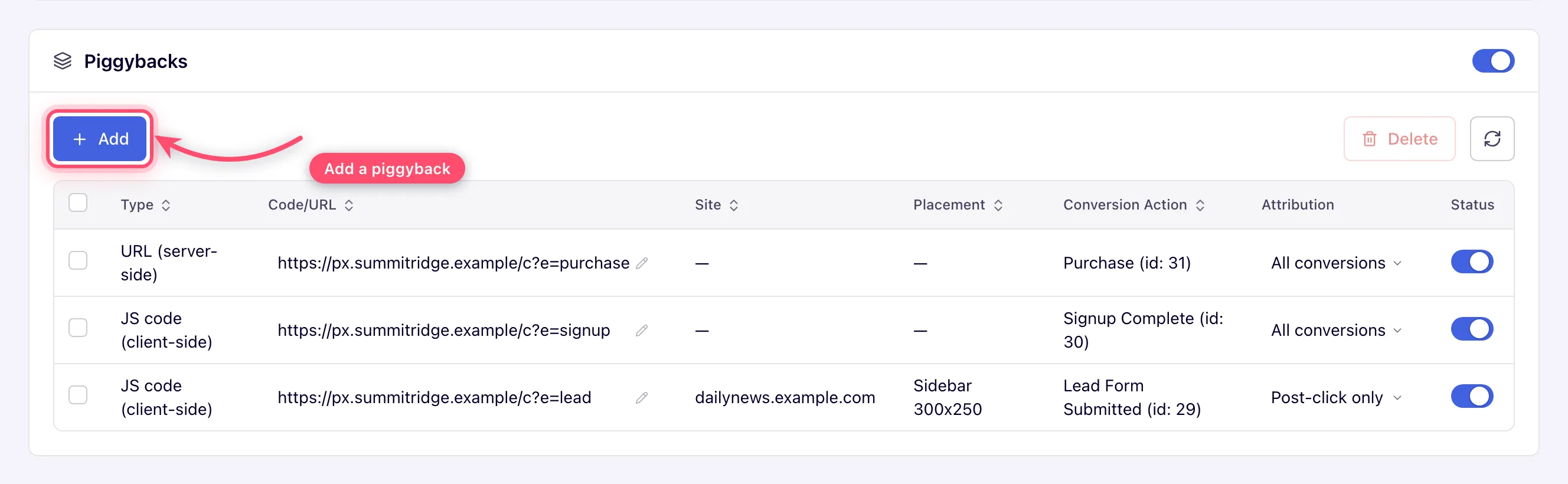
- Click Add. The Piggyback dialog opens with three groups.
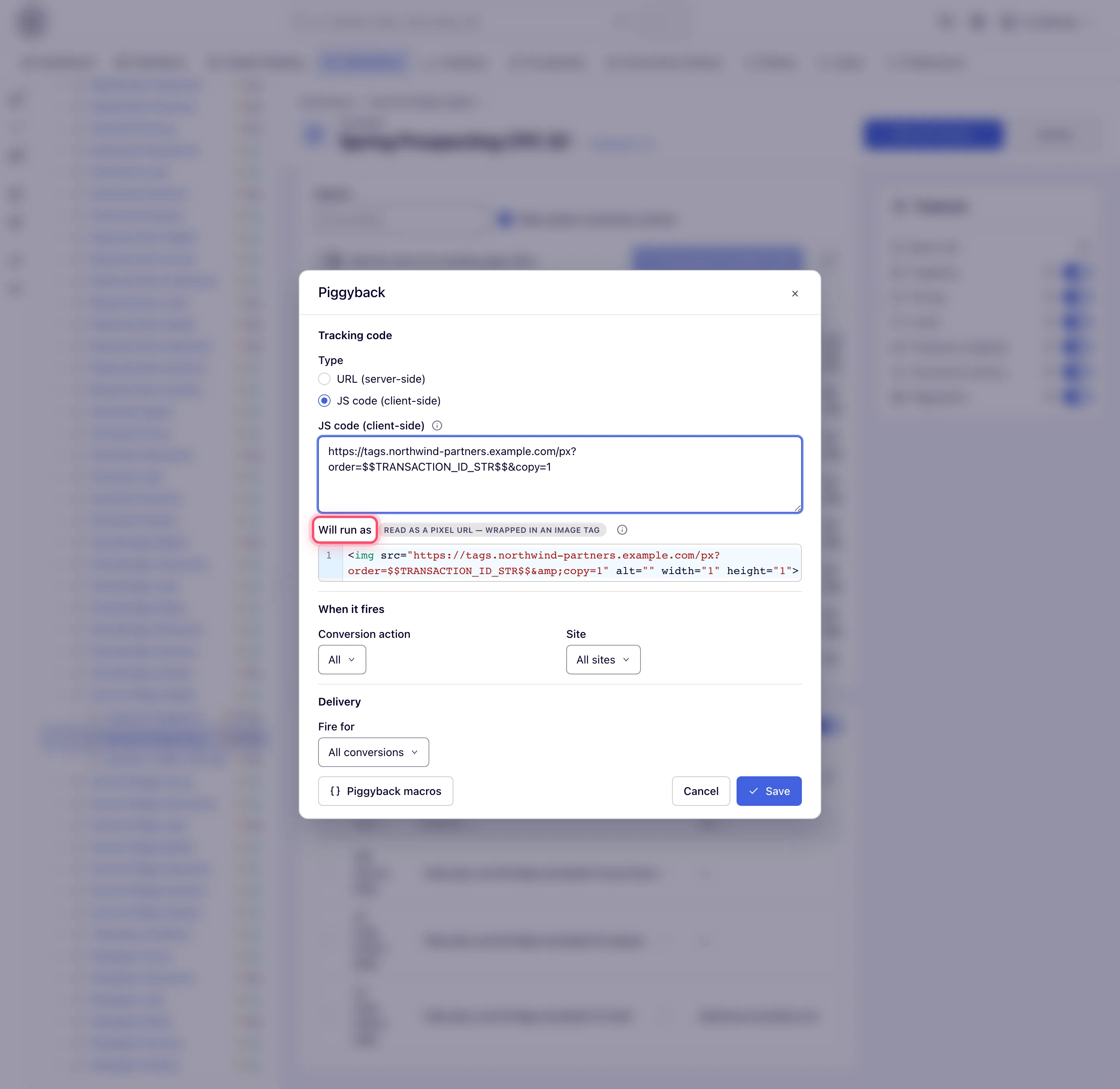
- Fill in Tracking code:
- Type — URL (server-side) (the default) or JS code (client-side). See Which type to use.
- The box below, labelled with whichever type you picked — the partner’s URL, or the partner’s tag. Both accept macros; Piggyback macros in the dialog footer is the reference list of the macros that resolve here — 50 while the network’s entity-name macros are switched on, six fewer for each side (publisher, advertiser) that has them off.
- For a JS row only, a Will run as block appears as you type: a badge saying how the server read your row, and the exact markup the browser will run. Check it — a tag misread as JavaScript is otherwise invisible until the partner reports no hits.
- Fill in When it fires. Everything defaults to “all”, so leaving this group alone
fires the piggyback on every conversion of the entity:
- Conversion action — All, or one action.
- On a campaign: Site (All sites). Pick a site and Zone and Placement appear, but Placement offers nothing but All placements until you pick a zone too.
- On a site or placement: Advertiser (All advertisers). Pick one and Campaign appears.
- Fill in Delivery:
- Fire for — All conversions, Post-click only or Post-view only.
- Piggyback sampling — 0 to 100, default 100. Shown only if your role may set sampling; otherwise new rows are created at 100. See How sampling is applied.
- Click Save. The dialog closes without a toast and the row appears at the bottom of the grid with Status on — or off, where Admin → Ad serving → Inventory & campaigns settings → Piggybacks default status has been turned off. A rejected save keeps the dialog open and marks the field: a malformed URL gives Invalid Url under the box and a Code url: Invalid Url toast — where your network’s URL-validation switch is off; with it on the console form saves any URL text (see the URL check below).
- To change a row afterwards, edit it in the grid — Code/URL, Attribution,
Sampling and the Status toggle are all editable in place on all three cards. A JS
row’s code is shown highlighted, line breaks kept; its pencil opens it in a code editor, so
a multi-line tag keeps its lines (and a
//comment ends where it should). To remove rows, tick them and click Delete, then confirm Delete record?.
Note: a saved change reaches the ad server on its next cache reload, which is every ten minutes on the default schedule — not instantly. The same applies to switching the card on or off and to deleting a row.
Options and fields
The two types
| Type | How it fires | Validated? |
|---|---|---|
| URL (server-side) | The ad server issues the request itself, asynchronously, straight after the conversion is recorded. Nothing runs in the visitor’s browser | Yes, where your network’s URL-validation switch is off — a malformed URL is refused on save and on inline edit (see the URL-check corner case below) |
| JS code (client-side) | The markup is returned with the conversion response and runs in the visitor’s browser, inside a frame of its own | No — any text is accepted, so a broken tag fails silently in the browser |
Neither type can affect the conversion itself: a URL piggyback’s response is logged and discarded, and a failure is not retried.
Which type to use
Use URL (server-side) whenever the partner accepts a plain call. It does not depend on the visitor’s browser at all, so it also covers app, CTV and server-to-server conversions, and it needs nothing installed on the conversion page.
Use JS code (client-side) when the partner will only credit a hit made by the visitor — Google Ads, GA4, Meta and most partner JS SDKs match on their own third-party cookie and on the visitor’s real browser. A server-side call from the ad server’s data centre is, to them, a request from the wrong device in the wrong country, and is either ignored or attributed wrongly.
Which snippets deliver a client-side piggyback
A JS row only runs if the conversion page uses an integration that can receive it, and only two of the five things Conversion Tracking Code hands out can:
| Integration | Delivers JS piggybacks? |
|---|---|
| Snippet tab — the landing-page helper | Yes, on both its post-click and post-view paths |
| Pixel Tracking tab → JS pixel tracking with piggybacks | Yes. This block only appears when you hold the piggyback permission and the campaign’s Piggybacks card is on |
| Pixel Tracking tab → JS pixel tracking | No — it fires a 1×1 image and cannot read a response |
| Pixel Tracking tab → Pixel tracking URL | No — an image cannot run anything |
| Postback (S2S) tab | No — there is no browser involved |
If a partner reports missing client-side hits, check which of these is actually on the conversion page first. URL rows are unaffected by all of this: the ad server calls them itself.
Warning: the two integrations treat consent differently. The Snippet withholds client-side piggybacks from a visitor who refused consent — the conversion is still counted, but no third-party tag is asked for. The older JS pixel tracking with piggybacks snippet has no such check and delivers them regardless. The consent it is reading is the one recorded on the publisher’s page at ad-request time, not a consent banner on the conversion page.
What you can paste into a JS row
Whatever the partner gave you. The row is classified once, on the way out, and always reaches the browser as working markup:
| What you paste | Read as | What runs |
|---|---|---|
A tag — <script>, <img>, <iframe>, a comment, several of them | Tag | Exactly as pasted |
A single URL with no spaces — https://partner.example.com/px?id=7 | Pixel URL | An <img> pointing at it |
A single URL whose path ends .js | Script URL | A <script src> pointing at it |
| Anything else — plain JavaScript with no tag around it | JavaScript | The same, wrapped in <script> |
&, ", < and > are escaped on the way into the tag, so a query parameter like
©=1 reaches the partner as a parameter and not as a ©. Several JS rows on one
conversion are delivered as one block, one row per line.
Fire for
| Option | Conversions delivered |
|---|---|
| All conversions (default) | Every conversion that gets as far as firing piggybacks — post-click, post-view, System, and conversions nothing could classify (Unattributed) |
| Post-click only | Only conversions classified Post-click |
| Post-view only | Only conversions classified Post-view |
Narrowing means only what we positively identified, not everything we did not rule out: an Unattributed or System conversion reaches an All conversions row and no other. Use it when a partner is paid on one attribution model — a tracker that credits post-click should not receive post-view hits.
System conversions are the ones the ad server records itself for video and viewability events. That is what makes a pixel fired when a banner becomes viewable possible: pick the viewability action (AD VIEWABLE IMPRESSION-GLOBAL (id: N)) as the Conversion action, leave Fire for at All conversions, and use a URL (server-side) row — a JS row never runs on a viewability event. The full recipe is in Fire a third-party pixel when a banner becomes viewable.
Grid columns
| Campaign card | Site and placement cards |
|---|---|
| Type · Code/URL · Site · Placement · Conversion Action · Attribution · Sampling · Status | Type · Code/URL · Campaign · Conversion Action · Attribution · Sampling · Status |
The scoping columns tell you which card you are on, and they scope from opposite sides: a campaign narrows by Site and Placement, a site or a placement narrows by Campaign.
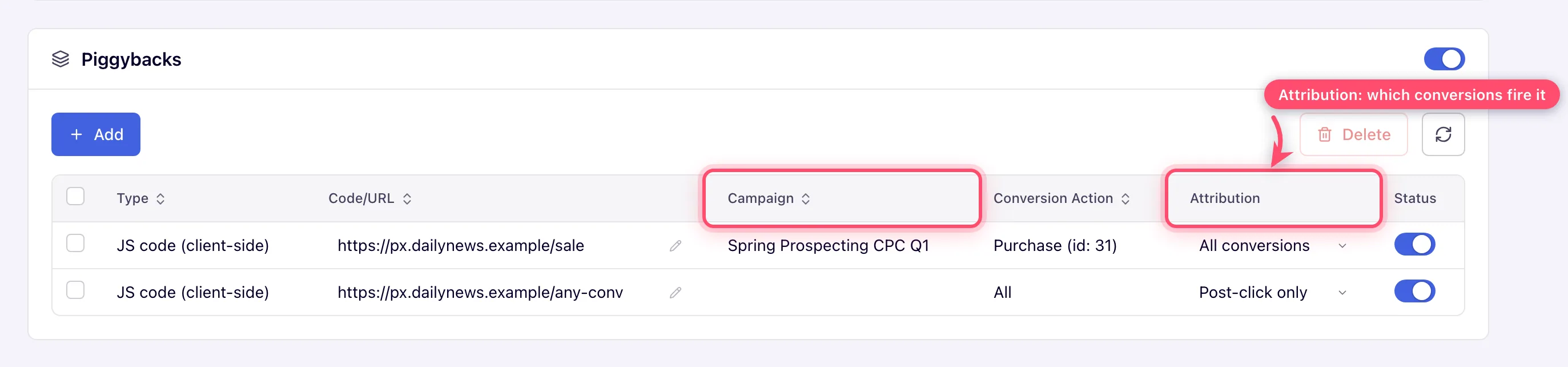
Attribution shows the row’s Fire for setting, Conversion Action shows
name (id: N) or All, and the Sampling column is absent altogether without the
sampling permission. A placement’s card is identical to a site’s, down to the columns and
the dialog — see the conversion tracking overview for a frame of it in place
alongside the other two placement-level tracking cards.
How the ad server picks the rows
When a conversion for action A is recorded on campaign C through placement P on site S, the ad server gathers the piggybacks of C, S and P and keeps a row when:
- its scoping matches — a campaign row’s Site and Placement, a site or placement row’s Campaign, each ignored when left at “all”; and
- its Conversion action is A or is All — and All includes the system actions, so an All row also fires on every viewability and tracked video event; and
- its Fire for admits this conversion’s attribution type.
Rows that are switched off, and every row on a card that is switched off, are not loaded into the ad server at all, so they cannot match and cannot affect sampling.
How sampling is applied
Sampling is a percentage from 0 to 100. A value outside that range is refused on every save — the dialog, the grid and the REST create and update — with an error on Sampling.
The two types are sampled differently, and the difference matters when you mix them.
JS code (client-side) rows each roll their own dice, after the Fire for filter. A 50% row fires on about half the conversions it is eligible for, independently of every other row.
URL (server-side) rows are decided once per conversion, from the lowest Sampling among the URL rows that fire for it — rows that matched the scoping and whose Fire for admits the conversion. Either every one of those URL rows fires or none does. A row that does not fire for a conversion has no say in its draw: a 5% Post-view only row leaves a 100% Post-click only row on the same campaign firing on every post-click conversion.
Tip: URL rows that fire for the same conversions share the lowest Sampling among them, so a 5% row throttles a 100% row next to it. If you need one partner sampled and another not on the same conversions, keep them on different levels of the hierarchy that do not overlap, or make the sampled one a JS row.
That same draw also changes how the conversion is recorded: a conversion whose URL piggybacks were sampled out is written to the advertiser’s statistics only, without the publisher-side attribution. Sampling is therefore not free — it costs publisher reporting on the conversions it drops. A conversion that no URL row fires for is never sampled out.
Sampling of 0 never fires; 100 always fires.
Macros
Both types accept macros, but only the conversion-time subset. Piggyback macros in the
dialog footer is the reference list — 50 entries while the network’s entity-name macros are on
(the _NAME and _NAME_ESC entries drop out for a side that has them off), among them:
| Macro | Resolves to |
|---|---|
$$ATTRIBUTION_TYPE$$ | click, view, system — or empty for an Unattributed conversion |
$$TRANSACTION_ID_STR$$ / $$TRANSACTION_ID_LONG$$ | The ad request’s transaction id, base-36 or numeric |
$$CLICK_ID$$ | The click token, the same value as $$ACTION_DATA$$ |
$$GROSS$$ / $$NET$$ | The conversion’s CPA price |
$$CUSTOM_PARAM(<key>)$$ | A custom parameter carried through the conversion |
$$UUID$$, $$COUNTRY$$, $$GDPR$$, $$GDPR_CONSENT_IAB$$ | User, geo and consent values |
$$CAMPAIGN_ID$$, $$BANNER_ID$$, $$PLACEMENT_ID$$, $$ZONE_ID$$, $$PUBLISHER_ID$$ | Entity ids, with _NAME variants |
Request-derived macros — IP, user agent, referer, device, advertising id, incognito, time
zone — are absent, because a conversion carries no ad request to read them from. A few
deprecated aliases still work without being listed: $$TRANSACTION_ID$$ is an old spelling of
$$TRANSACTION_ID_STR$$, so an older row using it keeps working, but write new rows against
the list.
The macro list also documents expired_click and expired_view for
$$ATTRIBUTION_TYPE$$. Neither can ever reach a piggyback: expired conversions do not fire
one at all.
Corner cases and gotchas
Tip: the Code/URL column shows every value in full: a long URL breaks over as many lines as it needs instead of pushing Sampling and Status out of view, and a long JS tag scrolls inside its own box. On a narrow window the grid can still scroll sideways.
Corner case: a conversion has to resolve to a campaign, a placement and an action before any piggyback is considered. A hit the ad server cannot match to all three fires nothing, however the piggybacks are scoped.
Corner case: expired conversions never fire piggybacks. When a click or view did match but was older than the action’s attribution window, the conversion is recorded as a Post-click (expired) / Post-view (expired) diagnostic with no revenue — and the ad server returns before it reaches any piggyback code, whatever Fire for says.
Corner case: rejected conversions fire nothing either. A conversion caught as a duplicate, by fraud detection or by a capping exclusion skips the URL piggybacks and is handed no client-side markup.
Corner case: scoping cannot be edited after the fact. The grid’s editors cover Code/URL, Attribution, Sampling and Status — not Conversion Action, Site, Placement or Campaign. To re-scope a row or move it to another action, delete it and add it again (over REST, the action of a site or placement piggyback can be changed in place).
Corner case: on the campaign dialog, Zone and Placement only appear once you pick a specific Site, and the placement list offers nothing but “All placements” until you pick a zone too. Resetting Site back to All sites removes both again and clears what you had chosen. The zone itself is never stored — it only narrows the placement list. Advertiser on the site and placement dialogs works the same way: it filters the campaign list and is not saved.
Corner case: the URL check applies only to URL (server-side) rows, and it follows your network’s strict URL validation, which is on unless Epom support has relaxed it for your network (a server-side setting). With strict validation on it is stricter than it looks: the address needs an
http,httpsorftpscheme (or a custom scheme Epom has allowed for your network) and a host under a registered top-level domain. Macros survive it —$$NAME$$,${NAME},{name},{{name}},[name],%%NAME%%and__NAME__, so?tid=$$TRANSACTION_ID_STR$$is fine — but reserved test domains are not:https://x.partner.example/pxis refused as Invalid Url wherehttps://x.partner.example.com/pxpasses. With validation relaxed, the console dialog checks nothing and saves any text, and over REST only the schemes that run script or read local files (javascript:,data:,file:and the like) are refused. The campaign card’s in-place edit of Code/URL additionally checks the address in the browser (URL must be valid) whichever way validation is set. JS rows are never URL-checked.
Corner case: a mistyped macro is sent to the partner verbatim. A macro the ad server recognises but cannot resolve is replaced with nothing — so
?ref=$$PAGE_DOMAIN$$arrives as?ref=, empty, because a conversion has no page. A macro it does not recognise, such as a typo, is not touched at all and arrives as the literal text$$PAGE_DOMIAN$$. Check new rows against the Piggyback macros list.
Corner case: a tag inside the frame sees an empty
document.referrer, because the frame’s own document has none. Everything else is intact — the frame is same-origin, sotop.locationreturns the real conversion page, and so does theRefererheader on the tag’s own requests. There is no piggyback macro that can substitute for it. A tag that looks for an element on the advertiser’s page also has to sayparent.document; its owndocumentis the frame’s.
Corner case: the advertiser’s Content-Security-Policy applies to the frame exactly as it would to a tag pasted into their page. A partner domain their policy does not allow is blocked by the browser, and the advertiser has to allow-list it.
Corner case: the frame stays on the page after it has run. It is 1×1 and positioned off-screen rather than hidden — some tags measure a hidden frame as unrenderable and decline to fire — and removing it would cancel requests still in flight. An advertiser’s developer finding it in the DOM is seeing normal behaviour.
Corner case: a campaign piggyback needs update on the campaign but only view on the site you scope it to. A site or placement piggyback needs only a view share — of the site, or of the placement’s site — and view on the campaign you scope it to: a publisher who may not change the site created for them still manages its piggybacks.
Corner case: someone whose role cannot set sampling does not see the Sampling column, and the REST API returns the field as null for them. Editing other fields keeps the stored sampling value.
Over the REST API
Site and placement piggybacks have the same life cycle over REST as in the grid:
POST /rest-api/piggyback/{site|placement}.do creates one, .../{id}/update.do changes
codeUrl, active, sampling (0–100), deliveryAttribution and the action it fires for
(actionId, or allActions=true), and .../{id}/delete.do removes it. A field you leave
out keeps its value; the type cannot be changed — delete the row and create it again. Every
call, including the /get.do list and the on/off switch, needs the piggyback pixel tracking
permission and at least a view share of the site (for a placement, of the placement’s site). Things the grid does not let happen are refused
rather than guessed at:
- an unknown
actionIdis an error onactionId. An action that is not in your action list — neither visible to you across the network nor shared with you — gets the same error, worded the same way, so the answer does not reveal whether the id exists. The console’s piggyback dialogs and grids apply the same rule; allActions=trueon create stores the row for every action of the campaign;- a site, placement or piggyback id that does not exist answers
404, and so does a deleted site or placement — a deleted site takes no new piggyback, and the list, update and delete of a deleted site’s or placement’s piggybacks answer404too; - a parameter the update does not take (such as
type) is listed back inignoredFields; POST /rest-api/piggyback/site.do(and.../placement.do,.../campaign/save.do) with anidedits that piggyback of the entity it names rather than creating a second one; anidthat belongs to another entity is refused, not moved.
Campaign piggybacks are the third level: POST /rest-api/piggyback/campaign/save.do, the batch
.../campaign/update.do and DELETE .../campaign/{id}.do need the piggyback pixel tracking
permission and update rights on the campaign, like the site and placement calls.
The /get.do list returns the rows even while the site’s or placement’s piggybacks are
switched off, as the grid does, with piggybacksEnabled telling whether they fire.
Per-role notes
- Network manager — the whole feature on campaigns, sites and placements, plus the JS pixel tracking with piggybacks block on the Pixel Tracking tab.
- Publisher and advertiser — no Piggybacks card and no piggyback block, unless an administrator adds the feature to the role.
- Sampling — hidden for every role until an administrator grants it separately.
- Can view share — on a site or placement the Piggybacks card works in full: the on/off switch, Add, the inline edits and Delete, while the rest of the page stays read-only. On a campaign shared for viewing the grid renders without toolbar or checkboxes, and its cells and Status toggle are locked.
Exact grants: see User roles.
