
Create and edit conversion actions
Define conversion actions, set attribution windows and CPA pricing, link actions to campaigns and manage sharing.
A conversion action defines one trackable event (a purchase, a signup, an install) and its attribution rules. You create actions once at the account level, then switch them on per campaign so conversions can be counted and, for CPA pricing, billed.
Who this is for
Network managers and advertisers who set up conversion tracking. Conversion Actions is a section both roles have by default; it is not one of the publisher’s. What each of the two can do with an action differs — see Per-role notes.
Prerequisites
- A campaign that should count conversions (for the linking part).
Steps
Create an action
- Go to Account → Conversion Actions.
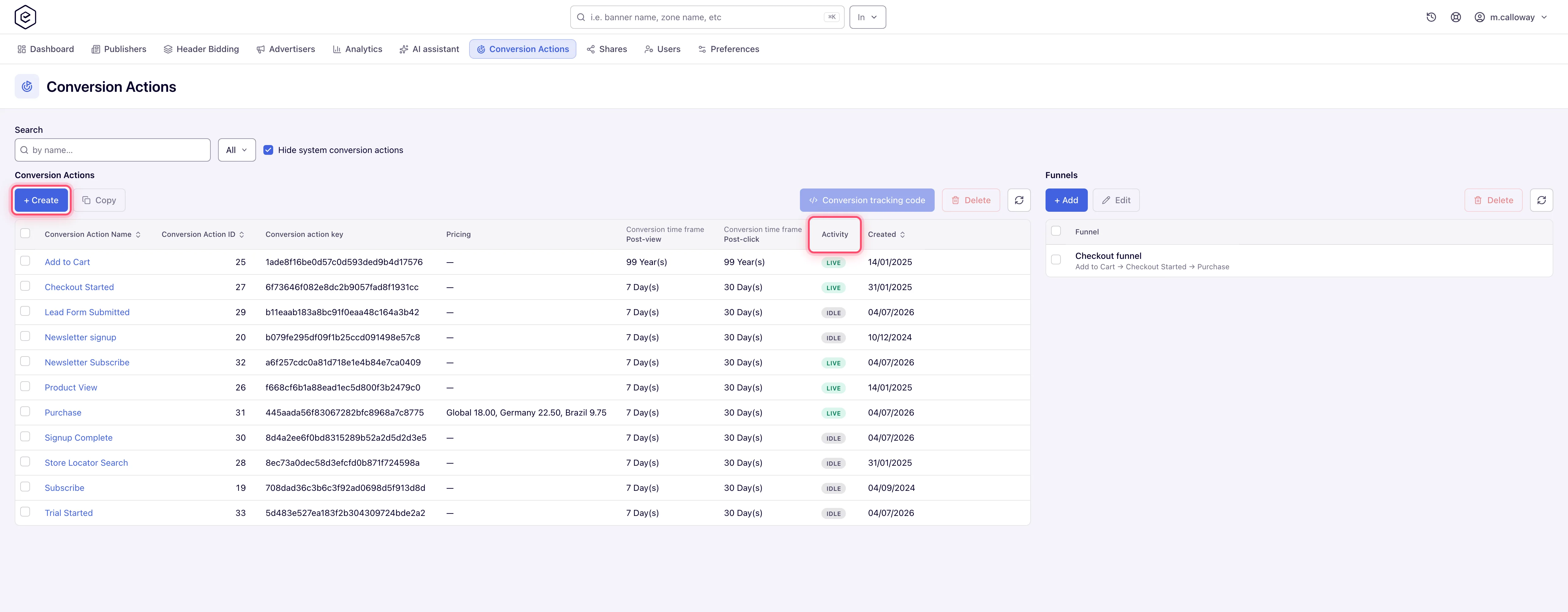
- Click + Create.
- Fill in the General information form. It is deliberately shorter than the edit form —
only these six fields are offered at creation, in this order:
- Conversion Action Name — up to 64 characters, and only letters, digits, hyphens and underscores. It looks like a free-text label and is not: a space is rejected with “Invalid conversion action name”. The rule applies whenever you set or change the name; an action whose name predates it keeps that name and saves normally until you rename it.
- Period type — one period that applies to both windows at creation time (Second(s) … Year(s)). On the edit page the two windows get their own period type.
- Post-view attribution window and Post-click attribution window — window values, 0–255.
- Apply attribution window to server-to-server conversions — ticked by default on new actions, cleared on every action that existed before this option shipped.
- Default attribution type — how a server-to-server conversion is recorded when nothing else classified it. Unattributed, Post-click or Post-view; leave it at Unattributed unless you know what the integration measures.
- Click Create. A Done toast confirms, and you land on the new action’s edit page.
Edit an action
- On the grid, click the action name (or double-click the row).
- Adjust the General information section. It carries everything from the create form plus
the read-only Conversion Action ID, the two Duplicate conversion window fields,
Detailed conversion log, and an independent period type per window (Click to conversion
period type / View to conversion period type). The two window fields keep the same
Post-click attribution window / Post-view attribution window names as the create form.
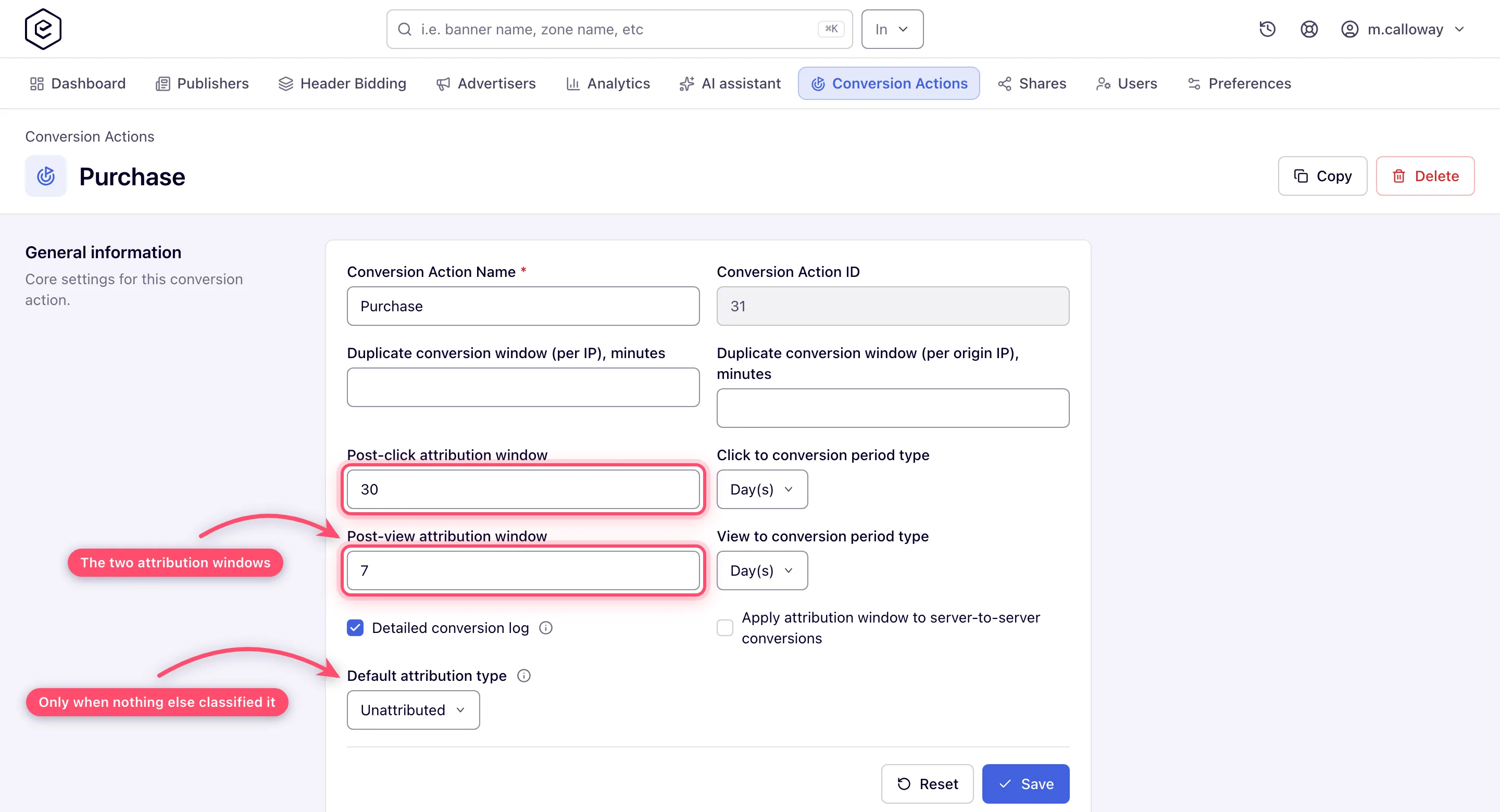
- Click Save. A “Data has been saved.” toast confirms the update; Reset discards your edits and restores the last saved values.
Below the form the page holds up to three collapsible cards: Conversion Tracking (the server-to-server URLs — see Get the pixel and S2S tracking code; shown only if your role has server-to-server tracking), Conversion Action Sharing, and Pricing.
Set CPA pricing
- On the action’s edit page, switch the Pricing card on.
- The grid always shows a Global row — the default price per conversion, and the row the
ad server falls back to for any country without one of its own. Add per-country overrides
with the Country + Price fields and Add.
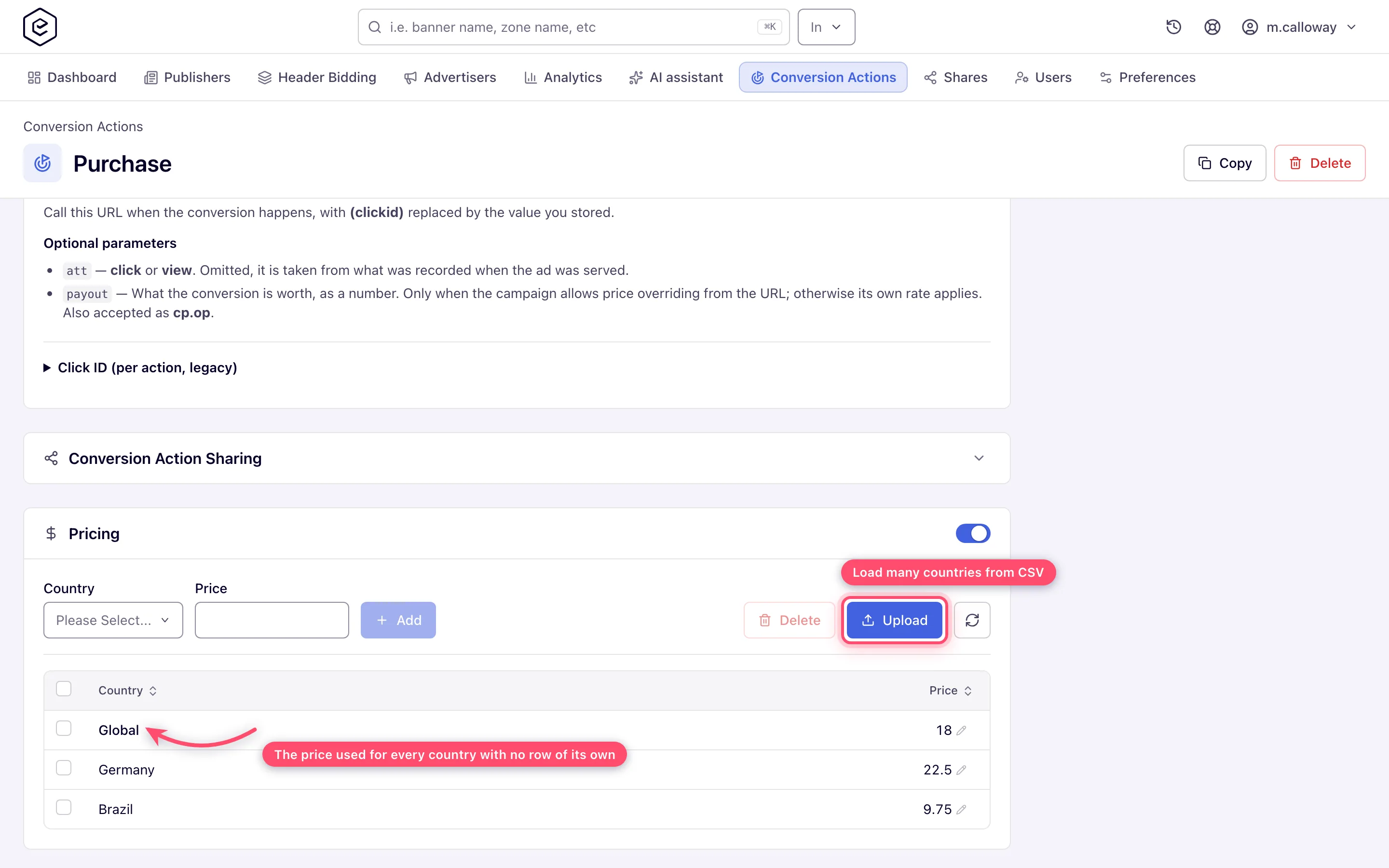
- Edit a price by clicking the cell. Upload takes a
.csvor.txtfile with aCountry,Priceheader (a*country sets the Global price) to load many rows at once. It adds and updates the countries in the file and leaves the others as they are. A line it cannot apply — an unknown country, a price that is not a number — is skipped and listed in the toast under The following warnings occurred during upload, and the rest of the file is still applied; a clean upload answers Done. - To remove per-country rows, tick them and click Delete.
Link the action to a campaign
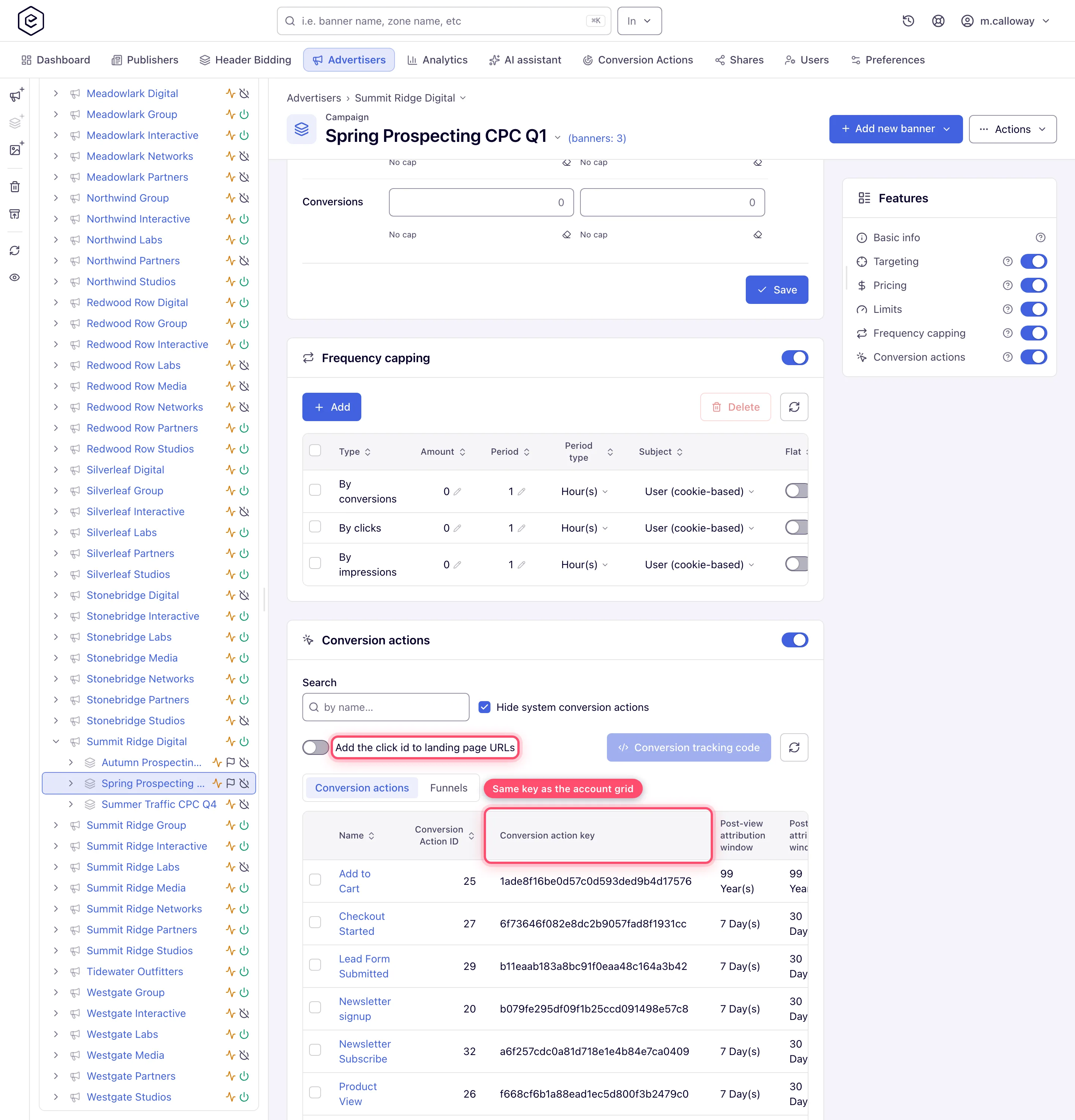
- Go to Account → Advertisers → advertiser → campaign and open the Conversion actions card. No such card on the campaign means your role does not have it — see Per-role notes.
- Switch the card on. The grid lists the actions visible to you with their
Conversion action key.
- Optionally set a Campaign alias (pencil icon next to “Campaign alias:”). Type a value and press Enter or the ✓ button; Escape cancels. Campaigns sharing the same alias attribute conversions as one group — a click recorded for one campaign can convert against another campaign with the same alias. Use a shared alias when you split one flight across several campaigns (say one per country or per creative concept) but still want their conversions counted together, so a click on one and a purchase on another are not lost as a cross-campaign mismatch. The alias is alphanumeric only — no hyphen, no underscore, no space — and at most 64 characters; anything else is refused under the field with “Please provide a valid alias value (valid characters: a-z, A-Z, 0-9)”. If there is no pencil, ask your network admin to enable the Campaign alias permission for your role.
- If the integration reads the click id off the landing page — the server-to-server Click ID
method, or the landing-page helper — switch on Add the click id to landing page URLs on
the same card. The ad server then appends
easclid=<click id>to the landing URL itself, so you do not have to paste$$CLICK_ID$$into each one. It rewrites the creative’s own Link field, so it reaches the creative types that have one (image and video creatives, click-through and email placements) and not the ones that keep their landing page inside markup (HTML Code, Template, native, OpenRTB) — those still need the macro written in by hand. The toggle is off until you turn it on, because it rewrites a URL the advertiser owns, and a URL that already carries a click id is left exactly as written. An untagged landing URL is the most common way an integration ends up half-wired: the tracking code is installed and the landing page never receives anything to store. See Install the landing-page helper for the full creative-type matrix and Get the pixel and S2S tracking code.
Copy or delete actions
- Copy — select exactly one row on the global grid and click Copy (the action’s own
edit page has the same button in its header). The copy is named
<name>_copy, then<name>_copy_1,<name>_copy_2… if that name is taken. It carries the two windows and their period types, both per-IP time frames, the attribution settings (Detailed conversion log, Apply attribution window to server-to-server conversions, Default attribution type, Reject duplicate conversions) and the whole Pricing card (global row and every country). You become the copy’s owner; the original’s other shares are not copied. - Delete — select one or more rows and click Delete, then confirm “Delete N record(s)?”. The same button sits in the edit page’s header and returns you to the grid afterwards. System actions cannot be deleted.
Options and fields
General information
| Field | What it does | Default | Notes |
|---|---|---|---|
| Conversion Action Name | Identifier used in reports and in the Sub ID macro | — | Max 64 characters, and only a-z A-Z 0-9 - _. No spaces — it is an identifier, not a label. A name from before the rule is kept, and checked again only when you change it (see the note below) |
| Conversion Action ID | System id of the action | assigned | Read-only |
| Duplicate conversion window (per IP), minutes | Rejects repeat conversions from the same IP within the window | empty (off) | 0–1440. Shown only if your role may set it and Admin → Validation & anti-fraud → Validation settings → Conversion per IP time frame is on (the default); while that switch is off the field is not offered and stored values are ignored |
| Duplicate conversion window (per origin IP), minutes | Same, keyed on the last external source IP | empty (off) | 0–1440; shown and gated together with the field above |
| Post-click attribution window + period | How long after a click a conversion still counts | 7 Day(s) (at creation) | Value 0–255; clicks take priority over views. Out-of-window matches surface as Expired post-click conversions diagnostics. A window longer than a week outlives the click id the landing-page helper stores on Safari — see the corner case below |
| Post-view attribution window + period | How long after an ad view a conversion still counts | 1 Day(s) (at creation) | Value 0–255; 0 means “never attribute a view”, which behaves differently on the two routes — see the corner case below. Out-of-window matches surface as Expired post-view conversions diagnostics |
| Detailed conversion log | Records the raw origin IP, User agent and X-Forwarded-For with each conversion, and is what makes the conversion appear in the per-event Conversions Log report at all — with it off, the conversion is still counted everywhere else, it simply has no row there. Also gates the custom-parameter log | on | Aggregate counters (Conversions, Revenue, etc.) are unaffected either way. The custom-parameter log additionally needs the network preference for it and custom-parameter forwarding on the campaign — with either missing, this box is ticked and that log stays empty |
| Apply attribution window to server-to-server conversions | Extends the two windows above to conversions posted to the S2S endpoint | on for actions created from release 149, off for older actions | Pixel conversions are always window-checked; leave it off to keep an existing action counting S2S conversions exactly as before. Only conversions that claim a click or a view are checked, so it takes effect together with the postback’s att= parameter or the default attribution type below. Not shown on system tracking actions |
| Reject duplicate conversions | Throws away a repeat of the same event on one click, for server-to-server postbacks | off | Postbacks only. The pixel route has its own network-level duplicate check that this box never touches, and a video or viewability tracking action is exempt on both routes — AD_PAUSE and repeated viewable impressions fire again by design. Shown only while Admin → Validation & anti-fraud → Validation settings → Conversions validation is on; see the corner case below for the whole shape |
| Default attribution type | How a conversion is recorded when neither the postback nor the ad server classified it | Unattributed | Choose Post-click or Post-view for an integration that always means one of them and cannot send att=. A fallback, not an override: the postback’s att= and a click the ad server observed both win over it, and pixel conversions never reach it. Choosing click or view also brings these conversions under the window when the option above is on. Not shown on system tracking actions |
Only Unattributed, Post-click and Post-view can be chosen as a default. The other three attribution values a report can show — Post-click (expired), Post-view (expired) and System — are derived by the platform, from the window check and from the action’s tracking event; the REST API refuses them with “Invalid attribution type”, and an action that somehow holds one is read by the ad server as Unattributed.
Cards below the form
| Card | What it does | Default | Notes |
|---|---|---|---|
| Conversion Tracking | The Postback (S2S) URLs for this action, built against an ad-serving domain you pick | shown | The Pixel tab is campaign-specific and appears only on a campaign’s card, not here. See Get the pixel and S2S tracking code |
| Conversion Action Sharing | Grants other users access: Is owner / Can edit / Can view | you as owner | Creating an action also applies your default shares, so the list may already have entries you did not add. New shares default to Can edit; Is owner is offered only if you may delete the action yourself. Only the action’s owner (or a user with the share-all grant) can change the list, and nobody can delete their own share (“Can’t delete own share.”) |
| Pricing | CPA value per conversion — a Global row plus per-country rows | off | Used when campaigns pay per conversion; campaigns can layer their own per-action prices on top |
On the campaign’s Conversion actions card
| Control | What it does | Default |
|---|---|---|
| Card switch | Whether this campaign counts conversions at all | off |
| Search / Hide system conversion actions | Filter the grid | hide-system on |
| Add the click id to landing page URLs | Appends easclid=<click id> to the creative’s Link field | off |
| Campaign alias | Groups campaigns so a click on one can convert against another | the campaign id |
| Conversion tracking code | Opens the tracking-code window for the one selected row | needs a selection |
Everything in that list except the grid itself needs the Manage Action Tracking permission; without it the card renders as a read-only grid. The Conversion tracking code button also needs Action Tracking: Code or Action Tracking: Server-to-Server.
Grid columns
The account grid (Account → Conversion Actions) shows: Conversion Action Name, Conversion Action ID, Conversion action key, Pricing, Conversion time frame → Post-view, Conversion time frame → Post-click, Activity, Created. The campaign card shows a shorter set: Name, Conversion Action ID, Conversion action key, Post-view attribution window, Post-click attribution window.
- Conversion action key is the action’s own key. It is the same value on both grids and in the REST API, it does not depend on the campaign, and it is the key the Postback (S2S) URL carries — so it is safe to paste into a postback from any campaign. The pixel code embeds a different, campaign-specific key; copy that code as generated rather than assembling a pixel URL by hand.
- Pricing shows the configured CPA values (
Global 18.00, Germany 22.50, …), or—when the Pricing card is off. - Activity shows Live when the action recorded a conversion in the last 2 days, and Idle otherwise.
Both places also show conversion funnels — a panel beside the account grid (below it in a window narrower than about 1280 px), and a Conversion actions / Funnels tab strip on the campaign card once at least one funnel exists and your role holds the server-to-server tracking permission. A funnel is a named sequence of these actions used when splitting a report; see Save a conversion funnel and report on it.
Corner cases and gotchas
Corner case: a conversion whose matched click or view is older than the window is not silently dropped anymore — it is recorded as a zero-revenue diagnostic and shows up in the Expired post-click conversions / Expired post-view conversions report columns (see Analytics metrics). Expired diagnostics are excluded from every conversion and revenue total and never trigger CPA pricing, capping, limits or piggybacks — but they let you see, after shortening a window, how many conversions the new window is costing you.
Corner case: the two windows are always applied to conversions that arrive through the tracking pixel, because the pixel reads the click/view cookie and knows how old the event is. For server-to-server conversions the check is opt-in per action via Apply attribution window to server-to-server conversions, and the option is off on every action that predates it — so an S2S integration built on an older action keeps counting exactly what it counted before, while one built on an action created since is window-checked from the start. The option only bites on postbacks that claim a click or a view — because the value was expanded while the ad server processed a click, because the postback declares one with
att=, or because the action’s Default attribution type says so. A conversion recorded as Unattributed has no event to compare against and is counted unchanged. The window runs from the moment the stored value was expanded.
Corner case: a window of 0 means opposite things on the two routes. On the pixel route it means “this event type never attributes”: a matching cookie is found, the conversion is dropped without even an expired diagnostic, and nothing is counted. On the server-to-server route it means “do not measure”: the postback is counted unconditionally even with Apply attribution window to server-to-server conversions ticked. So zeroing the post-view window silences view-based pixel conversions but does not silence a partner posting
att=view.
Corner case: the window you set here is what the ad server will accept — it is not a promise that the browser still remembers the click. Where the click id is kept by the landing-page helper, the storage runs out first on Safari: WebKit sweeps it after seven days of browser use without the visitor interacting with the advertiser’s site, whatever expiry was asked for, and lengthening the window here does not lengthen the storage. Genuine interaction with the site resets that clock, so a 30-day window loses the tail of late Safari conversions rather than all of them. The mechanism, and what to do about it, is on Install the landing-page helper.
This limit is the helper’s. A postback replays a value your partner stored on their own side and is unaffected. It is not a reason to prefer the pixel on Safari: the pixel matches on a cookie belonging to your ad-serving domain, read from the advertiser’s page, which Safari blocks outright.
Corner case: Default attribution type only fills a gap. A conversion the ad server already classified keeps that classification, a postback that sends
att=keeps what it sent, and a system tracking action is always System — the default is read last, after all three. It is also server-to-server only in practice: a pixel conversion arrives classified from the click/view cookie and never falls through to it. Changing the default therefore never relabels a conversion that declared its own attribution.
Corner case: duplicate protection is three separate mechanisms, and only one of them is this checkbox. A postback is de-duplicated only when the network switch (Admin → Validation & anti-fraud → Validation settings → Conversion deduplication (S2S)) and the action’s Reject duplicate conversions are both on — and because the checkbox is hidden while the network switch is off, an action that was ticked before an administrator turned the switch off quietly stops rejecting anything, with no control on screen to explain why. A pixel conversion is de-duplicated by a network-level setting that this checkbox never touches, which is why the pixel counts one conversion per click or view whatever the action says. A system tracking action is never de-duplicated on either route. How long a counted conversion is remembered for the check is derived, not configured: the longer of the action’s two attribution windows, capped by a platform ceiling (30 days by default) and never under a minute.
Corner case: on a system tracking action — one driven by a VAST or viewability tracking event — Default attribution type, Apply attribution window to server-to-server conversions and Reject duplicate conversions are all withheld. Such an action is always recorded as System, is never window-checked and is never rejected as a duplicate, so all three would be dead settings. Untick Hide system conversion actions on the grid and open one to see the shorter form.
Note: names from before the character rule — every built-in system action, such as “AD START-GLOBAL VAST”, and any action created before the rule landed — are kept as they are. Such an action saves normally as long as you leave its name alone; the rule only checks a name you type. Do not rename a built-in action: the VAST wiring reads those names. A Copy of such an action keeps the original name with
_copyappended, and does not inherit the tracking event that made the original a video action.
Corner case: a system action cannot be deleted. Selecting one and clicking Delete returns “You do not have permission to delete conversion actions” however privileged you are — the refusal is about the action being platform-owned, not about your role. The selection is checked as a whole before anything is deleted, so one system action (or one action you hold no Delete grant on) in a mixed selection refuses the whole batch and none of the ordinary actions in it is removed. Untick the system ones and delete again.
Corner case: none of the settings on this page reach ad serving the moment you save them. The ad servers work from a cache of the action rows that is reloaded on a schedule — every 10 minutes on a standard network — so for up to one reload the Default attribution type, Apply attribution window to server-to-server conversions and the two window values are still applied at their previous values. A hand-fired test conversion in that window looks like the setting was ignored; it was not, it just had not arrived yet.
Corner case: setting the default to Post-click or Post-view on an action that also has Apply attribution window to server-to-server conversions ticked puts postbacks that used to be counted unconditionally under a window. Those arriving after it closes are recorded as zero-revenue Expired post-click conversions / Expired post-view conversions diagnostics instead of conversions. Values expanded before release 149 carry no timestamp, so there is nothing to measure and they keep counting — watch the expired columns for a week after the change, not for an hour.
Corner case: the search / status / “Hide system conversion actions” filter row on the global grid is shown only to users whose role has the Global Actions create grant. Without it the grid still works, but there is no way to filter it.
Corner case: Hide system conversion actions is on by default, so the built-in platform actions (shared with every account, e.g. the video-event tracking actions) are invisible until you untick it. The same checkbox exists on the campaign’s Conversion actions card.
Corner case: Live / Idle is an activity indicator, not an on/off state, and it is not live: the set of active actions is recomputed once an hour (and at server start), so an action that has just recorded its first conversion can still read Idle for the rest of the hour. The “Live” filter option hides it meanwhile.
Corner case: in the Pricing card, clearing the Global row leaves the price Not set rather than zero — countries without a row of their own then fall through to the next pricing rule instead of being priced at nothing. Type an explicit
0if you do mean zero. Switching the whole Pricing card off erases the global price and every per-country row.
Corner case: renaming an action changes the Sub ID macro’s text (
$$SUB_ID(NewName_<id>)$$) but not what it resolves to. Only the trailing_<id>is read — the name is there for you, not for the server — so a landing page carrying the old name keeps recording conversions against the same action. Re-copy the tracking code when you want the text to match, not to keep it working. A macro with no_<id>at all ($$SUB_ID(Purchase)$$) does not resolve and is left in the URL as written.
Corner case: the two “Duplicate conversion window” fields are saved only while they are visible on your screen. Where they are not shown, saving the form leaves the stored values untouched; clearing a visible field to empty removes the window.
Per-role notes
- Network manager — every conversion action on the network, whoever owns it, including any action’s sharing list.
- Advertiser — your own actions and those shared with you: create, edit, delete and price them. The Conversion Action Sharing card is read-only, so re-sharing is a network-manager job. The stock Advertiser role has no tracking code: the action page carries no Conversion Tracking card and the Conversion Actions grid offers no Conversion Tracking Code button. It also has no Conversion actions card on a campaign, so attaching an action to a campaign is done by your network manager, who can also send you the pixel or postback URL, or switch these on for your role.
- Publisher — no Conversion Actions section; on a shared campaign the action names are plain text.
- Can view share — the fields and Pricing are read-only and there is no Save; ask for Can edit.
Exact grants: see User roles.
Via the API
The Actions tag covers the same life cycle: POST /rest-api/action/create.do,
GET /rest-api/action/id/{id}.do and GET /rest-api/actions.do, POST /rest-api/action/id/{id}/update.do
and DELETE /rest-api/action/{key}/delete.do. What differs from the console:
nameis required on create, is not blank and is at most 64 characters. The REST calls do not check the character rule the console enforces, so a name with a space saves; the console then keeps that name but refuses to rename the action to anything outside the rule. Use letters, digits, hyphens and underscores only.- Windows (
clickToConversionTimeFrame,viewToConversionTimeFrame) must be 0 to 255, else a400names the field; the period types takeSECOND…YEAR. - An update changes only what it sends. A field you leave out keeps its value.
defaultAttributionTypetakesUNSPECIFIED,POST_CLICKorPOST_VIEW; anything else is a400(Invalid attribution type). - Deleted and unknown actions answer
404, on read, update and delete alike. Deleting a built-in (system) action is a403. - Pass
campaignIdon create or on the single-action GET to get that campaign’spixelKeyback; without it the key is left out. The tracking codes themselves are read withGET /rest-api/action/id/{id}/tracking-code.do, described on Get the pixel and S2S tracking code.
