
Banner types — decision guide
Which banner type to pick for each placement type, which fields each type shows, and where preview is available.
A banner is one creative. Two things decide what the form asks you for:
- the placement type — where the creative can serve, chosen first;
- the banner type — what you actually supply: a file, a URL, markup, a template, native assets or a DSP connection.
You pick the placement type from the Add new banner menu, and the form’s Banner type combo then offers the types valid for that placement.
Who this is for
Anyone creating banners — advertiser users in the campaigns shared to them, network managers on the advertisers they own. The Banner type combo offers the types the chosen placement accepts and your role holds a permission for (see Which types your role sees).
Prerequisites
- A campaign you can edit.
Steps
-
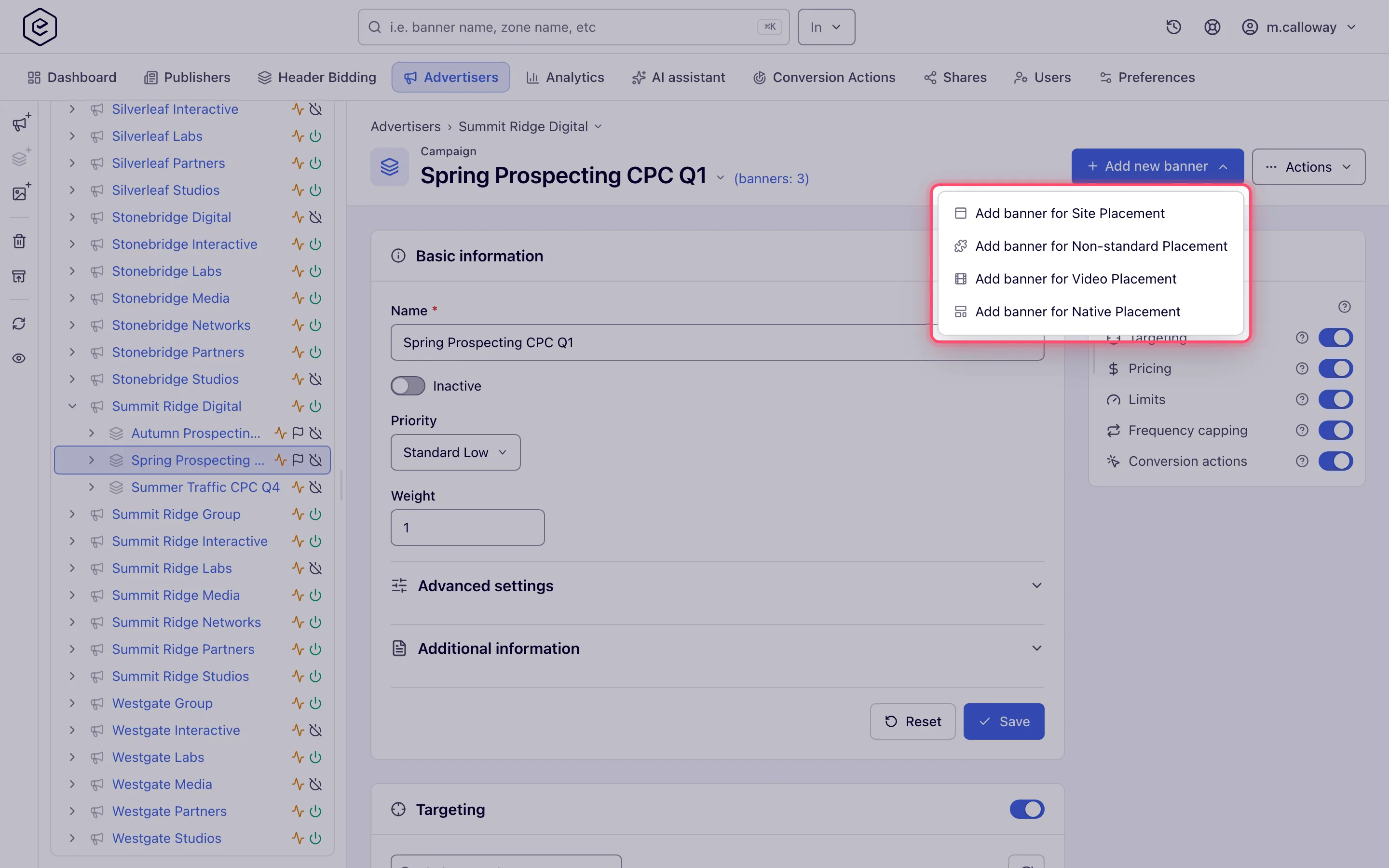
On the campaign, open Add new banner and pick the placement type the creative is for (Add banner for Site Placement, …for Video Placement, and so on). An entry you lack the banner permission for is not listed.
-
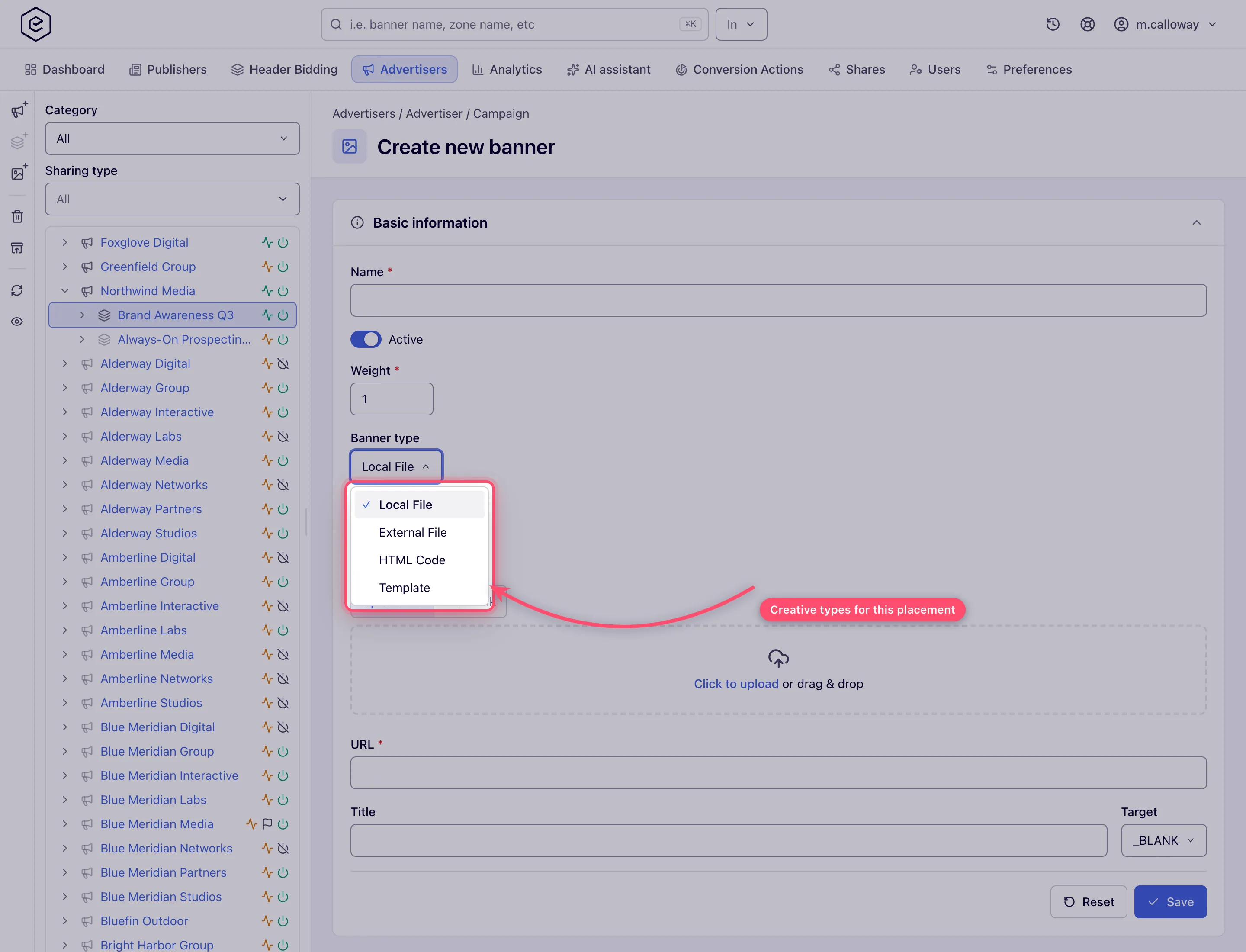
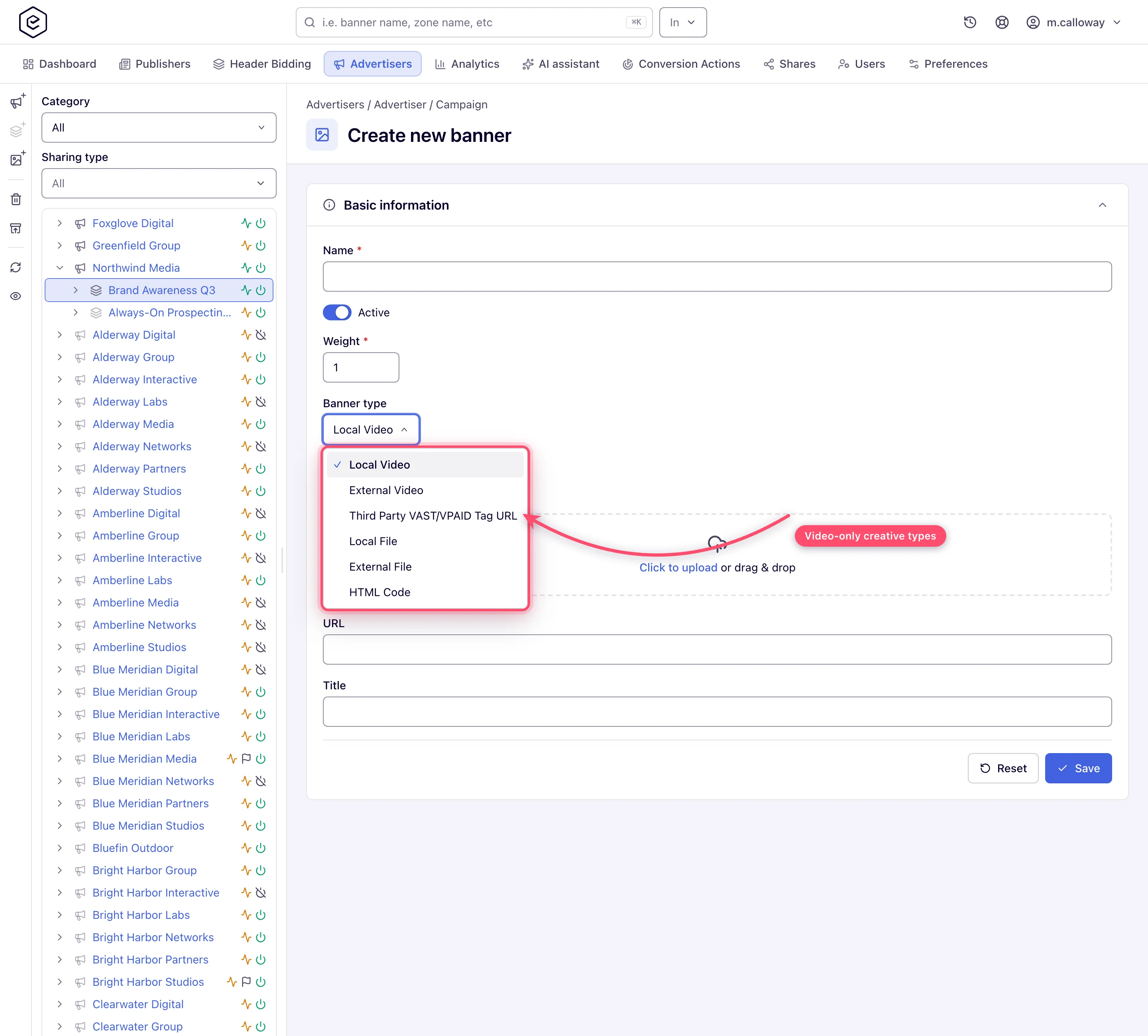
On the create form, pick the Banner type. The list depends on the placement you chose — a site placement offers up to five types, a video placement up to nine. The shots below were taken with the Open RTB permission granted; without it the OpenRTB entry is missing from both lists.
-
Fill the type-specific fields and Save. A new banner opens on its own edit page; link it to placements from its Linked placements card. Until you do, its header reads Not serving. On a network with more than 10,000 sites, zones and placements the card opens as the paged list, with a note saying why; Show as tree anyway loads the tree for that page. The same applies to a placement’s Linked banners card.
The type matrix
Placement columns: Site, Non-standard, Mobile site, Video, Application, Email, Native.
| Banner type (UI name) | S | N | M | V | A | E | Nat | You provide | Preview | Guide |
|---|---|---|---|---|---|---|---|---|---|---|
| Local File | ✓ | ✓ | ✓ | ✓ | ✓ | ✓ | — | uploaded image + click URL + size | ✓ | Image banners |
| External File | ✓ | ✓ | ✓ | ✓ | ✓ | ✓ | — | creative URL + click URL + size | ✓ | Image banners |
| HTML Code | ✓ | ✓ | ✓ | ✓ | ✓ | — | — | your HTML/JS markup | ✓ | HTML & Template |
| Template | ✓ | ✓ | ✓ | — | ✓ | — | — | a system template + its properties | ✓ | HTML & Template |
| OpenRTB | ✓ | ✓ | ✓ | ✓ | ✓ | — | ✓ | a DSP partner connection | — | OpenRTB (DSP) |
| Local Native | — | — | — | — | — | — | ✓ | native assets (icon/image/video + texts) | — | Native banners |
| External Native | — | — | — | — | — | — | ✓ | native asset URLs + texts | — | Native banners |
| Local Video | — | — | — | ✓ | — | ✓ | — | uploaded video file | — | Video banners |
| External Video | — | — | — | ✓ | — | ✓ | — | hosted video URL | — | Video banners |
| Third Party VAST/VPAID Tag URL | — | — | — | ✓ | — | — | — | a VAST/VPAID tag URL | — | Video banners |
| VPAID Framework | — | — | — | ✓ | — | — | — | a framework + its parameters | — | Video banners |
| Advanced Local Video(s) (Beta) | — | — | — | ✓ | — | — | — | multiple media files (auto-transcoded) | — | Video banners |
Preview marks the four types that get a preview button: HTML Code, Local File, External File and Template. The same four gate the preview icon in banner grids — it is one shared list, so if a type has no preview on the form it has none in the grid either.
Which types your role sees
Every type is its own permission, and the combo lists only the types your role holds — see User roles. A type you need but don’t see is one your network administrator has to grant in Admin → Users & access → User roles & permissions; native banners also need the Native Placement entry of the Add new banner menu granted before anyone can create one.
What each placement opens with
| Placement | Types offered | Pre-selected |
|---|---|---|
| Site, Non-standard, Application | Local File, External File, HTML Code, Template, OpenRTB | Local File |
| Mobile site | the same five | Local File |
| Video | Local Video, External Video, Third Party VAST/VPAID Tag URL, VPAID Framework, Advanced Local Video(s), Local File, External File, HTML Code, OpenRTB | Local Video |
| Local Video, External Video, Local File, External File | Local File | |
| Native | OpenRTB, Local Native, External Native | Local Native |
Note: the pre-selected type is not simply the first one listed. On an email placement the combo opens with Local Video at the top of the list but Local File selected. If your role lacks the permission for the pre-selected type, the form opens on the first type you do hold. Read the combo rather than assuming.
An application placement also opens with its own extras pre-set — Ad category (Banner Ad) and Application OS (iOS) — above the creative fields. A banner is offered only to application placements with the same OS and ad category.
Click-through placements
A click-through placement takes no banner. No banner type accepts it, so there is nothing to create: you configure the redirect on the placement itself.
Corner case: the Add new banner menu can still show a Click-through Placement entry if your role is granted click-through banners. It is a dead end — the form opens with an empty Banner type combo and cannot be saved. Don’t grant that permission expecting a working path.
Fields that follow the type
The form shows and saves only the fields relevant to the chosen type + placement combination. A hidden field is never submitted.
| Field | When it appears |
|---|---|
| Size (Ad unit) | Required for Local/External File on every placement, and for HTML Code on Site and Video. Shown but optional for HTML Code on Mobile site, Template on Site and Mobile site, and OpenRTB on Site, Non-standard, Mobile site and Application. Absent for HTML Code and Template on Non-standard and Application, for native, and for every video-file type. |
| URL (click-through) | Required for Local/External File, and for Third Party VAST/VPAID Tag URL, where it is the tag itself. Optional for the other video types, where it becomes the VAST ad’s click-through. Absent for HTML Code, Template and OpenRTB; a native banner has its own URL inside the Native assets fieldset. |
| Target | Always for Local/External File — on every placement, Video included. For other types: on Mobile site and Application, all except HTML Code and OpenRTB (and Template only on Application); never on Video; elsewhere only when the form carries an image field. |
| Install conversion action | Mobile site and Application only, and never for OpenRTB. |
| VAST tracking card | Video placements only, only once the banner is saved, never for OpenRTB, and only with the Manage Banner’s VAST Events permission. |
| Passback | HTML Code on Site, Non-standard and Mobile site; Template on Site and Non-standard — and only for a role that holds the AJAX invocation-code permission of that placement type. |
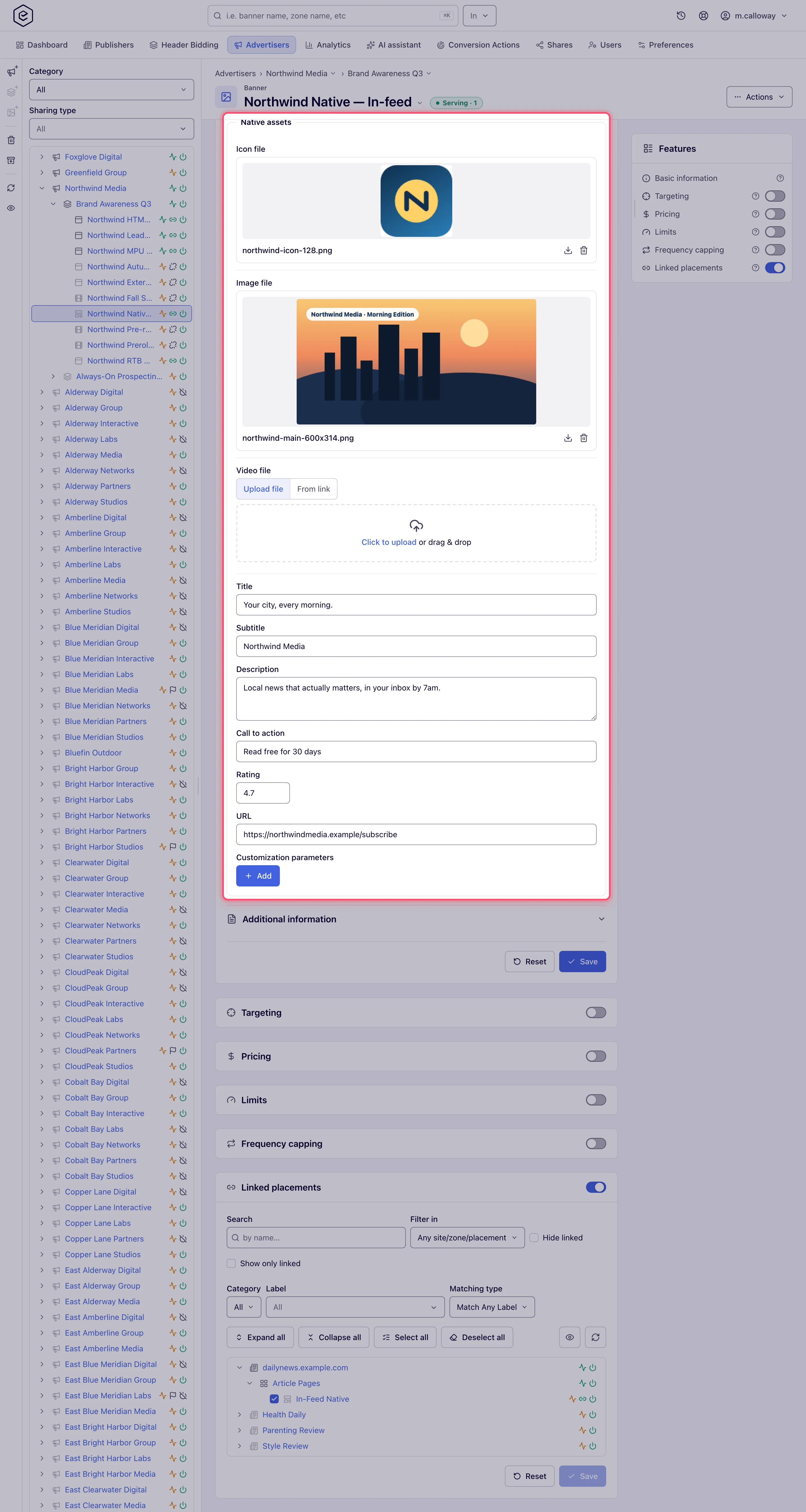
| Native assets | The Native assets fieldset: Icon, Image and Video (each with an exact size and a file or URL), then Title, Subtitle, Description, Call to action, Rating, URL and Customization parameters. Native placements only; the size rows need the Native Banner Sizes permission (on by default). |
Corner cases and gotchas
Corner case: the Banner type combo is permission-filtered per type. If a colleague sees “Template” and you don’t, your role lacks that banner-type permission — the form gives no hint that a type was hidden.
Corner case: Local and External Native are offered on native placements only. The type list is built from each type’s placement list, but the console then drops the two native types for every placement kind except Native, so on a site or mobile placement they are deliberately absent from the combo.
Warning: switching the Banner type on an existing banner and saving clears some of what the old type owned. A switch to HTML Code clears the stored image and video file names, the URL, the Title and the template with its property values. A switch to a video or VAST type also clears the HTML markup (and the template). A switch to an image type (Local or External File) clears the video file and the template but keeps the markup. Several of the switches also remove the banner’s stored files. Switching back does not restore what was cleared. Until you save, flipping the combo changes nothing, and Save on a banner whose type differs from the saved one asks for confirmation first — cancel to keep everything as it was.
Corner case: saving an existing banner can offer to link it to matching placements — only when New placements auto-linking (Advanced settings) is on for the banner or for its campaign, and your role holds Link Placements to Banners or Auto-linking settings. Creating a banner never shows this prompt. Declining leaves the banner unlinked, and an unlinked banner serves nowhere unless matching rules are switched on: the header reads Not serving, then Serving · N once a placement is linked, or Rules only when only the rules are on.
Per-role notes
- Advertiser — creates banners in the campaigns shared to them. On the stock Advertiser role that means Site Placement banners from a Local File, and a saved banner has no Frequency capping or Linked placements card: capping and linking are switched on by your network manager. See What your network controls.
- Network manager — the same form, on the advertisers they own.
- Can view share — the form opens read-only: the type combo cannot be changed, each card carries a Read-only pill, and there is no Save.
