
Configure pricing
Set what an advertiser pays and what a publisher earns — CPM/CPC/CPA and flat fees, per-country and per-action prices, revenue share, minimum margin and bid floors.
Pricing has two independent halves. The campaign or banner price is what the advertiser pays you; the placement or site price is what you pay the publisher. The gap between them is your margin, and nothing in the product links the two — you set each side separately.
On every entity, pricing is a table of countries, not a single price. The first row, Global, is what a country without a row of its own is charged. That is why the same card appears on a campaign, a banner, a placement and a site: they all edit the same kind of country table.
This page covers the Pricing card itself. Three companion pages cover the rest:
| Page | Read it when |
|---|---|
| Pricing precedence: which price is charged and paid | You need to know which card produced a Gross or Net figure — banner or campaign, revenue share or fixed price, CPA action prices, flat fees — with worked examples. |
| Set a bid floor and a minimum margin | You want to stop cheap programmatic bids, or keep direct CPM demand from serving below a margin. |
| Pricing over the REST API and MCP | You set or read prices from code or through an AI assistant. |
Who this is for
- Advertisers and network managers — the Pricing card on the campaign edit page, and a per-creative Pricing card that overrides it. The stock Advertiser role prices in CPM or CPC only.
- Network managers — the Pricing and Revenue share cards on placement and site edit pages. If you do not see them, ask your network administrator to grant Manage Site Payment Model — see User roles and Per-role notes.
Whichever card you are on, you need update access to the entity — your own, or a share with edit. A Can view share renders the card as a plain grid.
Prerequisites
- The entity is saved. There is no Pricing card on an unsaved campaign, banner, placement or site.
- For CPA, the conversion actions you want to price already exist — the CPA grid prices per action. See Conversion actions.
- Decide which side you are pricing. Setting only one produces a report with revenue and no cost, or cost and no revenue.
Steps
-
Open the entity and scroll to the Pricing card. Turn its switch on. Nothing is priced yet — switching on creates an empty pricing record whose global price is Not set, which is not the same as zero.
You must do this first. The card’s other controls appear only once the switch is on, and a REST call that prices an entity with no pricing record is refused with a 400 telling you to set pricing first — see the first corner case below.
-
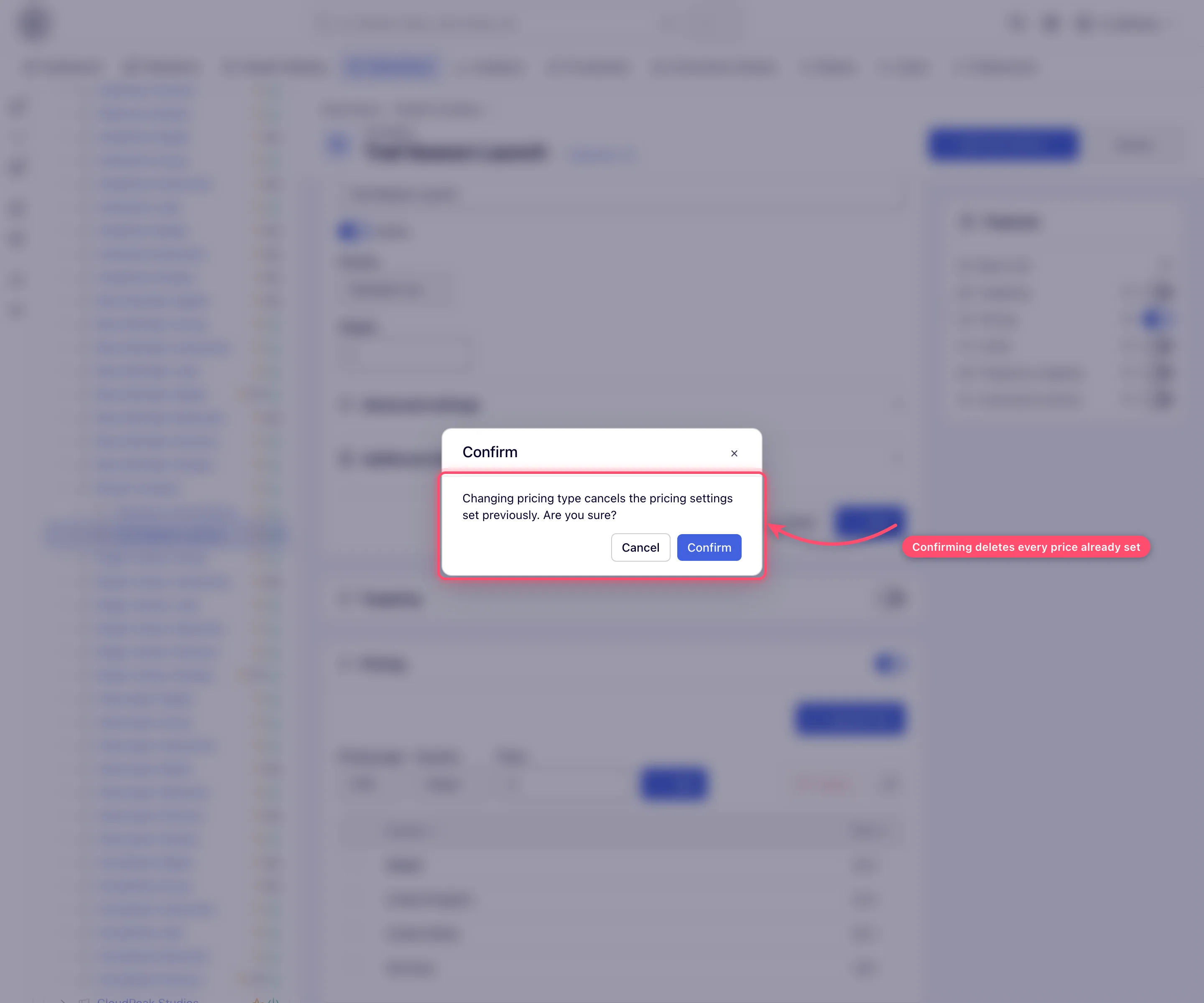
Pick the Pricing type. On a campaign or banner the choices are CPM, CPC and CPA; a placement or site adds Cost per day and Cost per month, where your network has granted them (on a stock network the list offers three types). Changing the type on an entity that already has prices asks for confirmation, and confirming deletes every price you had configured — the global price returns to Not set and all country and action rows are removed.
-
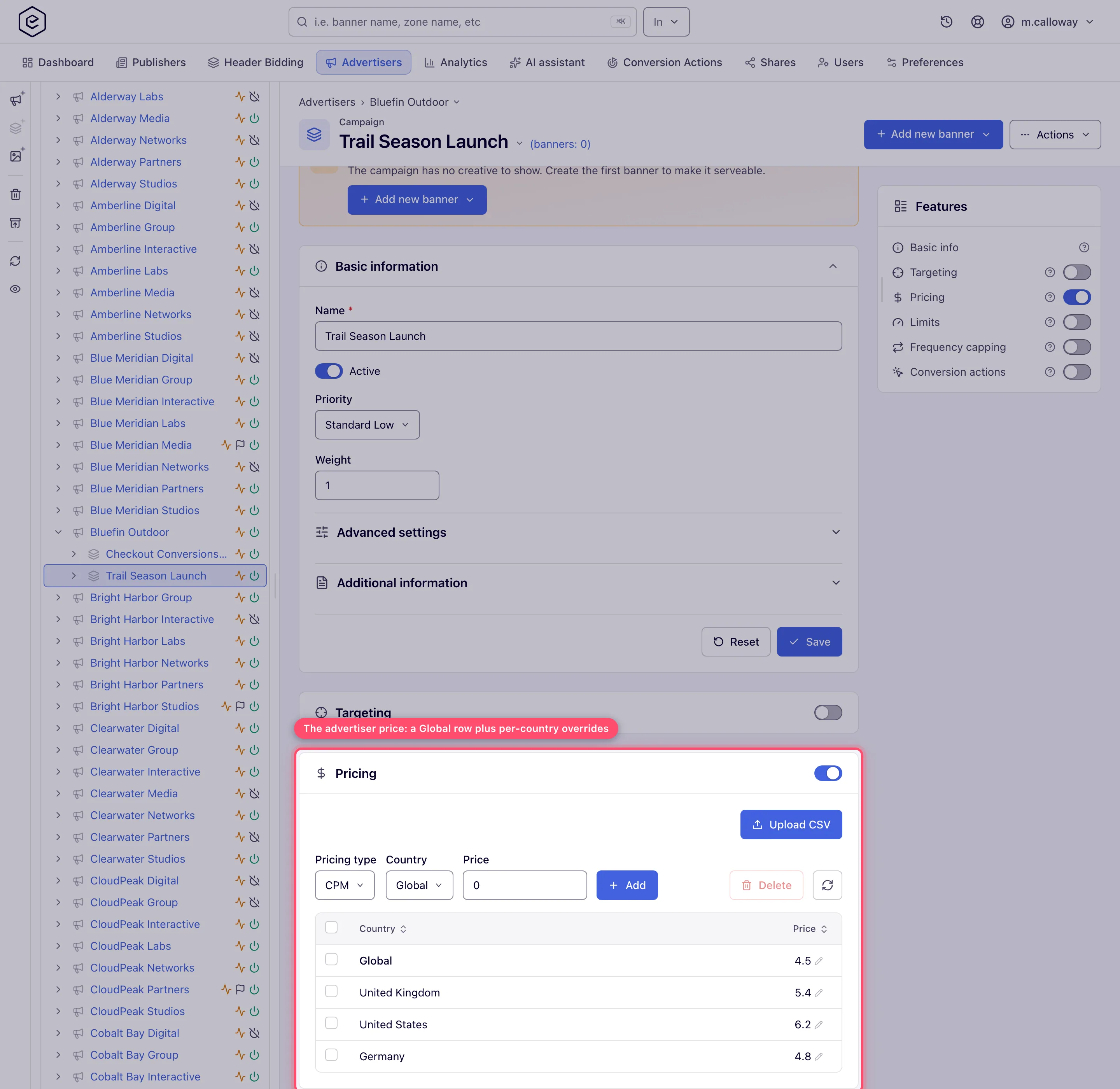
Set the Global price: click the Price cell of the Global row and type a value. This is the price for every country without a row of its own. Leave it Not set to let those countries fall through to the next rule instead; on a banner, placement or site a line under the grid names what that is.
-
Add country rows: pick a Country, type a Price, click Add. Adding a country that already has a row overwrites it rather than creating a duplicate. Pick a world region (Western Europe, LATAM, …) or a custom country group and one row is written for each member country. Pick Global in the country list to write the global price from the same bar.
-
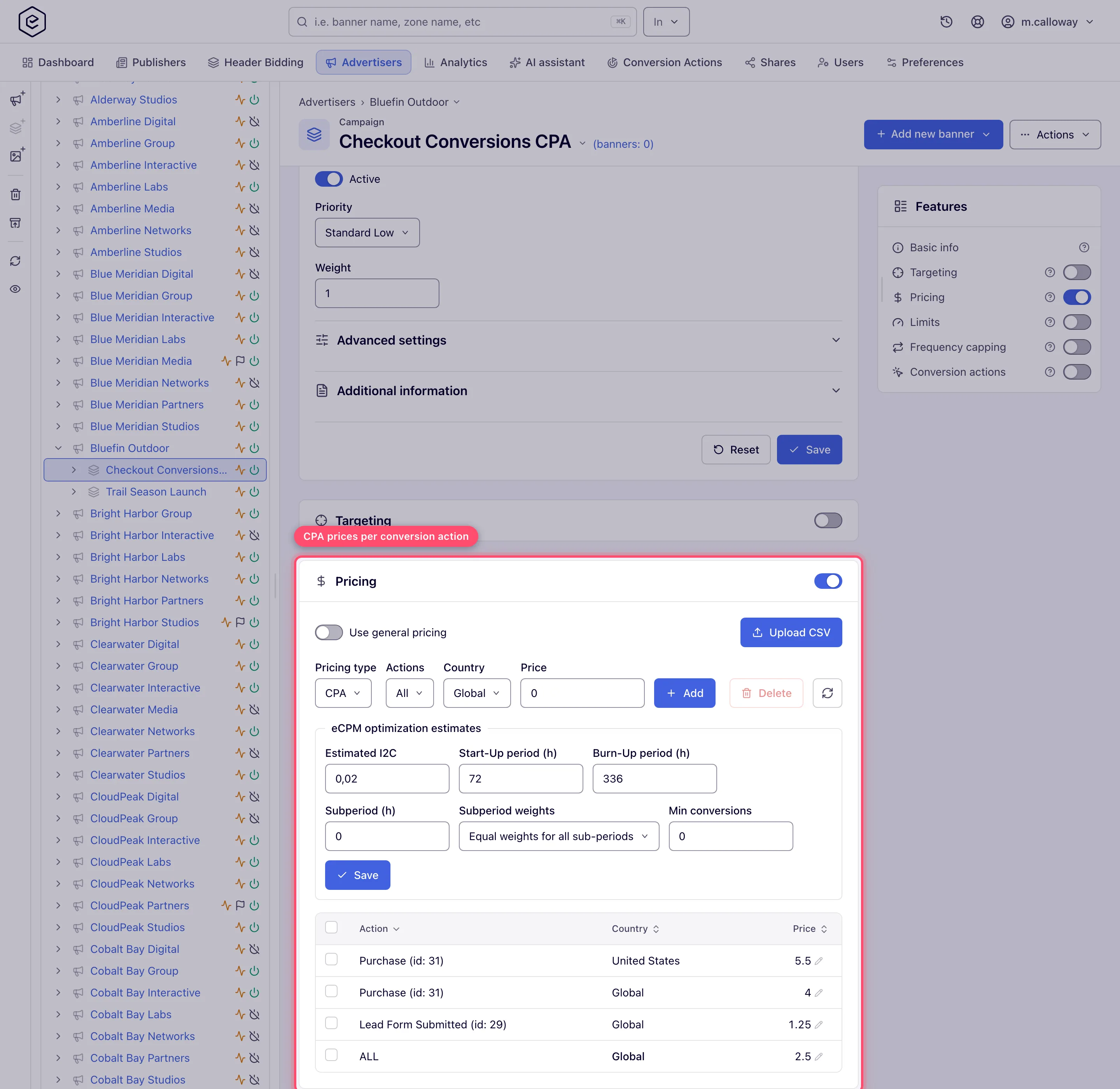
For CPA, also pick the Actions entry the price applies to. A named action prices only that one; All prices every action that has no price of its own — see CPA — which action price applies. You can combine the two axes — an action price for one country is a distinct row from the same action priced globally.
-
Edit any price in place by clicking the cell. Clear the Global cell to return it to Not set. Tick rows and click Delete to remove them.
-
Bulk load with Upload CSV (CPM, CPC and CPA only — the flat-fee models have no country table). CPM/CPC files have a
Country,Priceheader; a CPA file starts its header with_and has one column per action (its name, orAll); a*country sets the Global price. The import adds and updates only the countries the file mentions — a country already priced that the file leaves out keeps its stored price, on every entity. Read the CSV corner case below for the file’s other quirks (decimal commas, country-code normalisation) before you rely on it. A line that cannot be applied is skipped and reported with its line number, and the rest of the file is still applied, whichever entity the list belongs to: an unknown country or a price that is not a number comes back as a warning; a price outside 0–1,000,000 or a country listed twice comes back as an error. -
Publisher side only, and only when the type is CPM — optionally set a Minimum margin. See Set a minimum margin.
Options and fields
The five pricing models
Charged on is the event that books money; Per event is what the ad server records for one
such event, from a configured price.
| Model | Offered on | Charged on | Per event |
|---|---|---|---|
| CPM | campaign, banner, placement, site | every impression | price ÷ 1000 |
| CPC | campaign, banner, placement, site | every click | price |
| CPA | campaign, banner, placement, site | every conversion | the resolved action price, undivided |
| Cost per day | placement, site only | nothing at serve time | 0 — see below |
| Cost per month | placement, site only | nothing at serve time | 0 — see below |
The flat-fee models are not an ad-serving price at all. Ad serving books 0 gross and 0
net for a Cost-per-day or Cost-per-month placement. A scheduled job then rewrites the day’s
publisher net in analytics: it divides the flat fee by the impressions the
placement (or site) actually took in the period to get a synthetic CPM, then spreads that back
over each row. The advertiser side is never touched, so a flat fee produces publisher payout
only — there is no advertiser-facing flat fee anywhere in the product.
Warning — a site’s flat fee overrides every price under it. Once a site is on Cost per day or Cost per month, the publisher’s revenue in analytics for that site is the site’s fee, spread over all its placements by impressions, whatever the placements’ own Pricing cards say. A placement’s own CPM, CPC, CPA or flat fee is overwritten. Nothing on the screen warns you. If one placement needs a different price, do not give its site a flat fee. Details under corner cases.
The Pricing card’s controls
In on-screen order: the top row, then the add bar.
| Control | Appears when | What it does |
|---|---|---|
| Card switch | always | Creates or deletes the entity’s pricing record, with its country and action prices. Off means “this entity sets no price”; switching off asks for confirmation. |
| Use general pricing | type is CPA | Lets the network-wide action prices fill in where this entity has none. It does not replace the entity’s own prices — see Pricing precedence. |
| Minimum margin / Margin value / Save | placement or site, type CPM, Manage Minimum Margin enabled | The smallest gap the network requires between the advertiser price and the publisher payout. Margin value appears once the type is not None; Save commits both. |
| Upload CSV | type is CPM, CPC or CPA | Bulk import. Adds and updates only the countries the file mentions; every other existing row is left untouched. |
| Pricing type | editable | The model. Options are filtered by your per-model permissions. Changing it deletes all existing prices. |
| Actions | type is CPA | Which conversion action the row prices. All means every action that has no price of its own. The grid column is headed Action. |
| Country | type is CPM, CPC or CPA | Which country the row prices. Global writes the fallback price; a region or custom country group writes one row per member country. |
| Price | always | Accepts 0 to 1000000; stored to six decimal places. |
| Add | editable | Inserts the row, or overwrites the matching one. |
| Delete | rows selected | Removes the selected rows; the Global row is cleared rather than deleted. |
| eCPM optimization estimates | campaign only, type CPC or CPA, network optimization is eCPM with Burn-up, and Manage “eCPM Optimization” at enabled or read-only level | Seeds the optimizer before it has data: Estimated CTR and Min clicks on a CPC campaign, Estimated I2C and Min conversions on a CPA one, plus Start-Up period (h), Burn-Up period (h), Subperiod (h) and Subperiod weights. See Optimization. |
The other pricing surfaces
| Card | Where | What it does |
|---|---|---|
| Revenue share | site, placement | Pays the publisher a percentage of the advertiser’s gross for the same event instead of a fixed price. Each binding names an advertiser and a campaign, either of which may be Any. |
| Bid floor | site, placement, banner | A per-country minimum CPM an OpenRTB DSP bid must clear; direct campaigns are not filtered by it. Use as publisher price makes the floor double as the payout. Needs Bid Floor Management, which only your network administrator can grant — see Set a bid floor. |
| Minimum margin | site, placement | Lives on the Pricing card itself. The ad-server counterpart of a bid floor for direct demand. |
| CPM Threshold | site | A per-country revenue floor for the publisher, applied in reporting and payouts. It does not stop direct campaigns serving. See Site CPM threshold. |
| Network defaults | Admin → Ad serving → Inventory & campaigns settings | A default fixed price (with its own country rows) and default revenue-share bindings, stamped onto every new site at creation. Changing them does not touch sites that already exist. |
| General action pricing | the conversion action’s own edit page | A network-wide CPA price per action, with its own country rows. This is what Use general pricing draws on. |
On a site or placement the two payout cards always read in the same order — Revenue share first, Pricing second. With both switched on, a warning above the pair states which wins.
Corner cases and gotchas
Corner case — a price cannot be added before the switch is on. An entity whose Pricing card has never been switched on has no pricing record, so a price has nowhere to go. In the console the card’s controls do not appear until the switch is on. Over the REST API the call is refused with a 400 — No pricing is set yet: set it first with POST …/pricing.do — and nothing is written. On a banner the console has a second precondition: the creative’s file must be present in storage, and a banner whose uploaded file has gone missing refuses prices with no message at all.
Corner case — an empty Global price is not a zero. The Global row has three states, not two. Not set means countries without their own row fall through to the next rule. An explicit 0 is a real price that stops the fall-through: the publisher is paid nothing, the advertiser is charged nothing, and no lower rule is consulted. Clearing the Price cell returns the row to Not set.
Corner case — the revenue-share pickers name only advertisers you manage. The advertiser and campaign pickers offer every advertiser of the network, but one that is not shared with you (or that Mask campaigns hides from you) is listed by id —
ADVERTISER_12,CAMPAIGN_34— and a private advertiser you do not manage is not offered at all. The same masking applies to the names in the card’s grid.
Corner case — a region or country group writes one row per country, but only in the Add bar. The Country dropdown offers world regions (Western Europe, LATAM, Asia, …) and any custom country groups alongside Global and the individual countries, because it shares its list with targeting. Picking one in the Add bar writes a row for each member country at the price you typed, overwriting any that already exists; the region itself is never stored. A CSV upload and the REST API do not expand them: a country there must be an individual country, as an ISO code or an English name, and anything else is reported as not recognised. List the member countries individually in those.
Corner case — CSV format. Two columns for CPM and CPC, headers spelled exactly
CountryandPrice. For CPA the first header must be exactly_and each further column is named after a conversion action. The delimiter may be comma, tab or semicolon and is detected automatically; the file must be UTF-8; a leading$in a price is ignored. In a tab- or semicolon-delimited file a comma in the price is read as a decimal separator (1,50→1.50) as long as the value has no literal dot already — a comma-delimited file never gets this treatment, since there a comma can only be a quoted thousands separator. Countries are accepted as an ISO alpha-2 code or a full English name and are normalised to upper case (gb/GBis stored asUK, matching the Country picker). Upload adds and updates only the countries the file mentions — rows already on the grid that the file does not mention are left exactly as they were, the same as adding a country from the toolbar. Unrecognised countries and unparseable prices are reported one per line, each tagged with its line number, and the rest of the file still applies — a partial import is the normal outcome, not an aborted one. A price outside 0–1,000,000 is reported the same way, and a country listed twice in one file keeps its first value, with the later lines reported as errors.
Corner case — changing the pricing type wipes the grid. The confirmation is not decoration: confirming deletes the global price and every country and action row. The REST API does the same: sending a different
pricingTypeto a campaign’s or a site’s…/pricing.dodeletes their country and action prices (placements under the site keep theirs). Over the API, choosing a pricing type also needs that type’s permission (for exampleCPA_PRICING_TYPE), exactly as the console’s type picker does — including the first time a campaign’s or banner’s pricing record is created, whether by…/pricing.do(CPM unlesspricingTypeis sent) or by…/actionPricing.do(CPA). Without it the call is a 403 naming the permission and nothing is saved. On a campaign, if the network runs eCPM optimization and the campaign has collected optimization data, a second prompt offers to reset that data too. Adding or deleting a price can raise the same prompt.
Corner case — revenue share has no real on/off. The Revenue share switch only opens the editor; the feature counts as enabled the moment the first binding row exists — any row, including one bound to a single advertiser or campaign, not only the blanket Any / Any row. Switching it on saves nothing by itself, so add at least one binding before you leave: a switch turned on with no binding reads off again the next time the page loads. Switching it off deletes every binding, which is not reversible by switching it back on — so, on a site and on a placement alike, it asks Turn this off? first.
Per-role notes
- Advertiser — Pricing on campaigns and creatives, CPM or CPC on the stock role; CPA is switched on by the network manager. The advertiser entity itself has no Pricing card. See What your network controls.
- Network manager — Pricing on campaigns and creatives with every pricing type, plus Pricing and Revenue share on sites and placements; the stock role holds all of them. A bid floor needs Bid Floor Management, which the stock role does not have — see Set a bid floor.
- Publisher — no Pricing, Revenue share or Bid floor card on the stock role; reads what they are paid in analytics. A floor is set by the network — see Set a bid floor.
- Can View share — the card is a plain read-only grid, hidden where pricing is off; changes need Can Edit or Is Owner.
Exact grants: see User roles.
