
Billing, ad-server fees and referral billing
Record advertiser and publisher payments, track balances, read your network's ad-server fees and AI assistant usage, and run referral-program billing.
Money reaches three screens. Account → Billing is where you record real-world payments and watch what each advertiser and publisher owes. Admin → Billing & fees → Ad server fees shows what Epom charges your network: the plan in force, the monthly billing statistics and the AI assistant usage. Referral program billing, in the same group, pays commission to users who brought clients in.
None of these screens computes anything live. Every figure on them is read out of a pre-aggregated table or re-derived by a scheduled job — see Where the numbers come from before you reconcile anything against an analytics report.
Who this is for
Network administrators. Each screen is gated separately — Billing by the network user’s role, the admin pages by the admin role. See Manage users, roles and permissions. Two things to know before you hand out access:
- Billing is not an admin page. It lives under
/account/**, which an admin-role session cannot reach at all. An administrator who needs Billing must be on a network-side role (Network Manager and friends), not an admin role. - The Billing tab is off until an administrator grants it. Billing Tab is disabled on the stock network roles and belongs to the admin-only Billing Management group, so the User roles & permissions page does not list it. An administrator holding Admin Roles & Permissions enables it for a network role on Admin → Users & access → Admin roles & permissions; until then no user of that role sees the Billing tab.
- Ad server fees is read-only for you. The plan, its prices and quotas are agreed with Epom; to change plan, or to question a month’s figures, contact Epom support or your account manager.
Billing also obeys share-based visibility: a user whose campaign or inventory view permission is shared rather than all — an account manager, typically — sees payments and balances only for the advertisers and sites shared with them, and can record or remove payments only for those.
The network billing management permission (Billing Tab) covers only the network’s own books with its advertisers and publishers. The AI assistant is billed to the network on Epom’s invoice instead, so its usage report sits on the Ad Server Fees page and, like the right to set per-user assistant limits, takes the Ad-server fees admin permission.
Prerequisites
- Aggregate data populated. Balances and the summary cards read the publisher and advertiser aggregate tables, which scheduled jobs refill from the ad logs — they are never computed on page load.
- For referral billing: the referral program enabled and bracket percentages agreed. See Referral program.
Steps
Record payments and track balances
-
Go to Account → Billing.
-
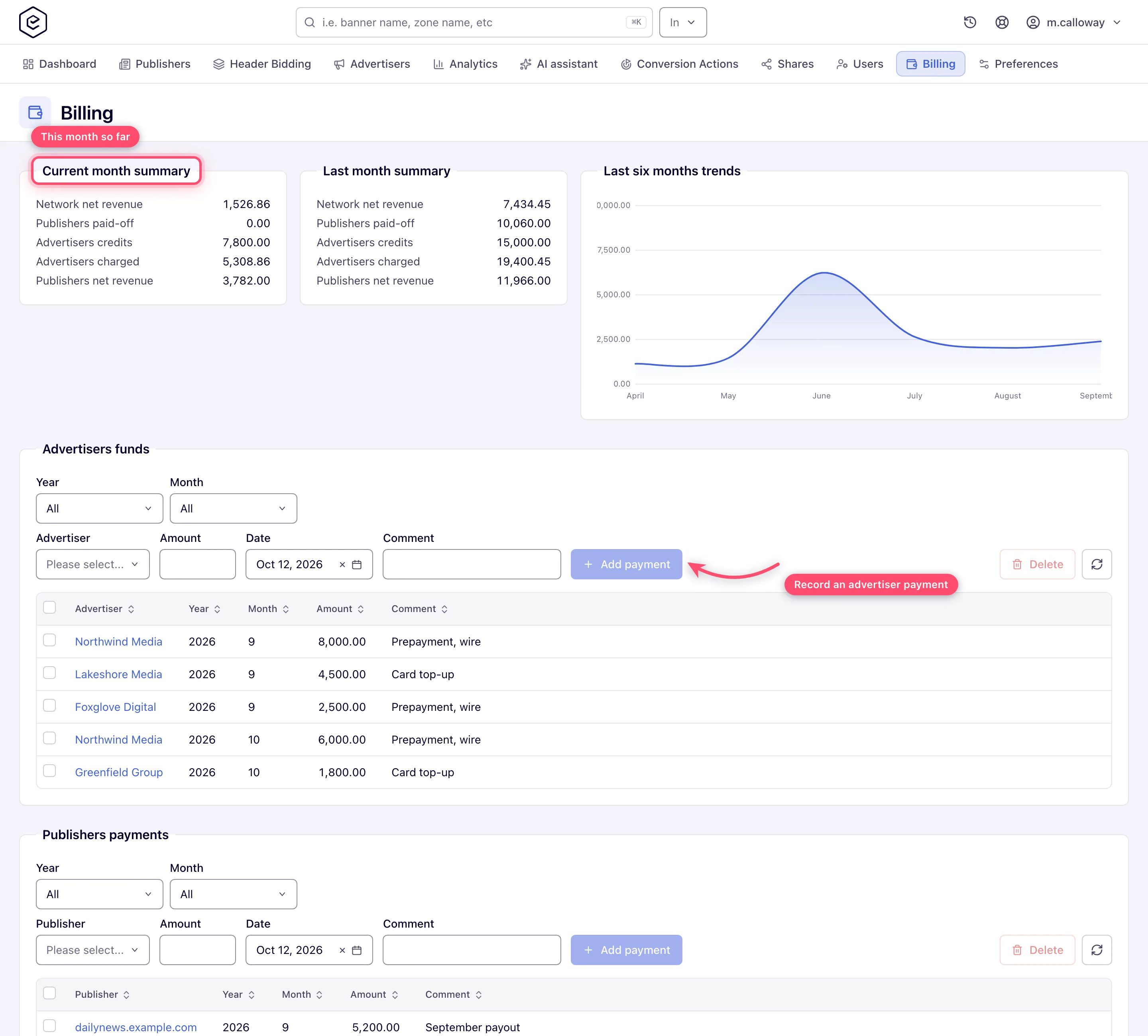
Read Current month summary and Last month summary. Each shows up to five lines; you see the advertiser lines, the publisher lines, or both, depending on which half of Billing your role holds, and Network net revenue only with both:
Line What it is Network net revenue Advertisers charged minus Publishers net revenue Publishers paid-off Sum of the publisher payouts you recorded this month Advertisers credits Sum of the advertiser payments you recorded this month Advertisers charged Advertiser spend for the month, from the aggregate table Publishers net revenue Publisher earnings for the month, from the aggregate table Last six months trends plots Network net revenue per month and only appears when you hold both halves.
-
Record money that actually moved. In Advertisers funds, pick the advertiser, type an Amount, set the Date and an optional Comment, then click Add payment. Publishers payments works the same way for payouts. A green Done toast confirms the save, the grid reloads, and the entity’s balance is adjusted for that month and every month after it.
-
To correct a mistake, tick the payment rows and click Delete. You are asked to confirm; the balance is adjusted back by the same amount. There is no edit — remove and re-add.
-
Read the Network financial balance panel. It holds two grids side by side, both of them for the Year and Month you pick at the top of the panel:
Advertiser grid Publisher grid Advertiser, Start balance, Payments, Charges, End balance Publisher, Balance, Paid, To be paid End balance = Start balance − Charges + Payments To be paid = Balance − Paid Each grid has its own name search, a Category filter and an eye toggle that hides rows with no activity in the month.
-
Click Recalculate balances (top right of the panel) after you have backfilled or corrected analytics, and confirm. This rebuilds all balances for all months, not the year and month selected above, and it runs in the background — expect it to take a while. A plain error toast means it could not start; try again later, and ask Epom support or your account manager if it keeps failing. It works with either half’s permission.
Note: rebuilding the advertiser and publisher aggregates from the first day of logs is done by Epom support, not from a button you have. Ask them, then click Recalculate balances.
Read your ad-server fees
- Go to Admin → Billing & fees → Ad server fees.
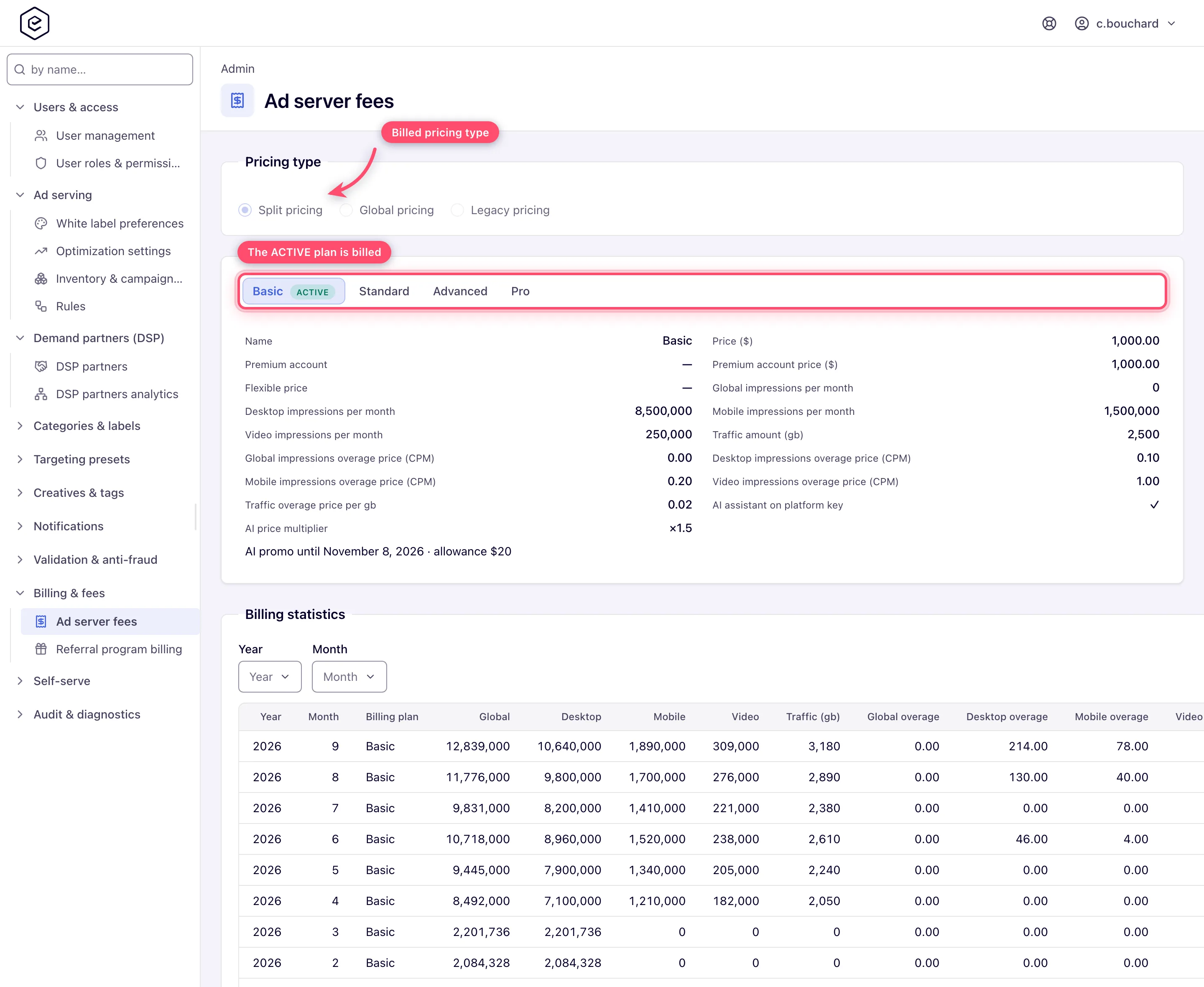
- Read the plan card of the plan marked ACTIVE — the one your network is billed on: its monthly price, the impression and traffic quotas it includes, and the overage prices charged above them.
- Read Billing statistics at the bottom of the page. One row per month, filtered by multi-select Year and Month: the impression counts, traffic in GB, the overage amounts, Charges, Custom charges and Total.
- Read AI assistant usage below it: pick a month to see what each user’s AI assistant chats cost — one row per user and key (own, network or platform), with requests, input and output tokens, the amount spent and the user’s effective monthly limit. Only rows on the platform’s key carry a charge; the total above the grid is what the assistant adds to the network’s invoice for that month.
Note: the plan, its prices and quotas, and the AI assistant billing terms are set by Epom. To change plan, or to have a month’s record recalculated after a data correction, contact Epom support or your account manager.
See where the CDN traffic goes
- Go to Admin → Billing & fees → CDN Usage (it takes the CDN Usage admin permission; a role that already sees Ad server fees has it).
- Pick the period with the same picker as in reports — the page opens on the current month (UTC days, up to a year at a time).
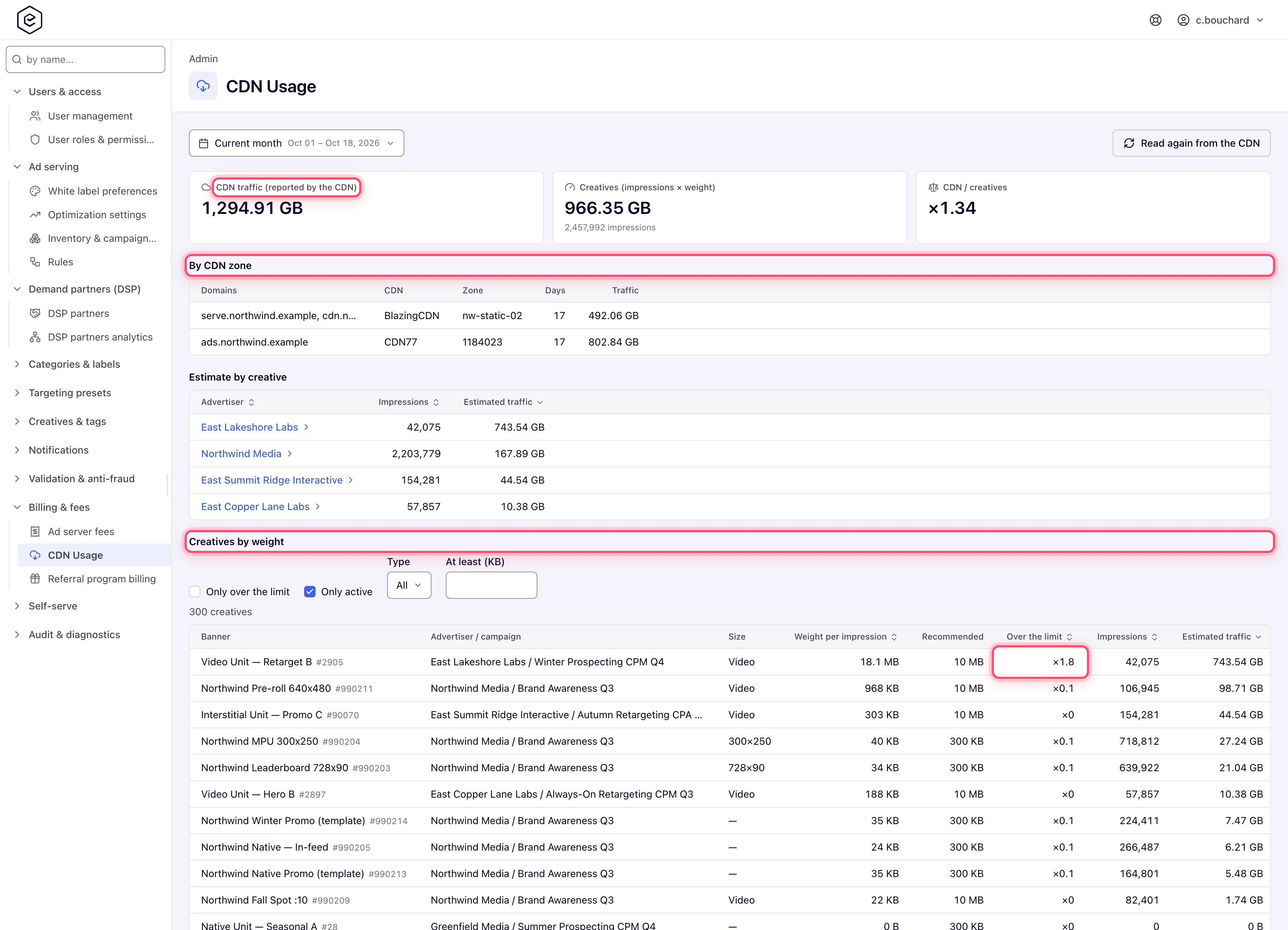
- Read the three figures at the top:
- CDN traffic — what the network’s CDN zones report themselves, every zone summed; the figure the Traffic (gb) column of the billing statistics is built from. A dash means no zone has been read for those days.
- Creatives — the estimate: each creative’s current weight times its impressions in the period. Creatives are weighed in the background; impressions of a creative not weighed yet are left out, and the figure says how many — right after a release that introduces weights, a large network needs a few minutes to be weighed in full.
- CDN / creatives — how many times the real traffic exceeds the estimate. Expect it above 1: the ad loader, video players picking renditions, template code and repeated downloads are CDN traffic that no creative’s weight includes. Far below 1 means most creative files are not served through the network’s CDN at all — the ad servers or the file storage serve them — and the page says so.
- By CDN zone lists each zone with its domains, its CDN, the days read and its traffic — one zone usually carries one serving domain; zones carrying several list them together.
- Estimate by creative breaks the estimate down: advertisers first; click one for its campaigns, and a campaign for its banners, each with impressions, estimated traffic and, at banner level, the creative’s weight per impression. Sort by any of the columns; the trail above the grid goes back up.
- Creatives by weight lists the network’s creatives one by one — by default the active
ones over their weight limit,
with the traffic each caused in the chosen dates first, so the heavy creatives that actually run
lead. Untick Only over the limit and set Type and At least (KB) to look for a size
instead: pick the type with the size, because 300 KB is heavy for a display banner and small for
a video. Sort by weight, by how far over the limit, by impressions or by traffic; the banner name
shows the banner id next to it, to find the banner in the account. Export CSV downloads
every creative that matches the filters, not only the page on screen, with the banner id in a
column of its own.
- Read again from the CDN re-reads every zone for the chosen days right away — useful after a CDN change or before checking today’s figure. A zone the CDN does not answer for keeps the days it already had, and so does a day the CDN’s answer leaves out: only a day it reports replaces the stored figure.
When every serving domain goes out through the client’s own CDN, the page says so: that traffic is not the network’s to bill, and the real figure stays empty.
Run referral billing
Commission rows are not created by hand. A scheduled job regenerates the current month’s rows every hour, and a second job regenerates the previous calendar month once a day at 01:23 server time on the first four days of the month. From the fifth onwards last month’s Unconfirmed rows stay as they are until you settle them. A row is only ever rewritten while it is still Unconfirmed, so the moment you mark one Confirmed, Paid or Declined the job leaves it alone. Commissions below one cent produce no row. Everything below is about steering and settling those rows.
-
Go to Admin → Billing & fees → Referral program billing.
-
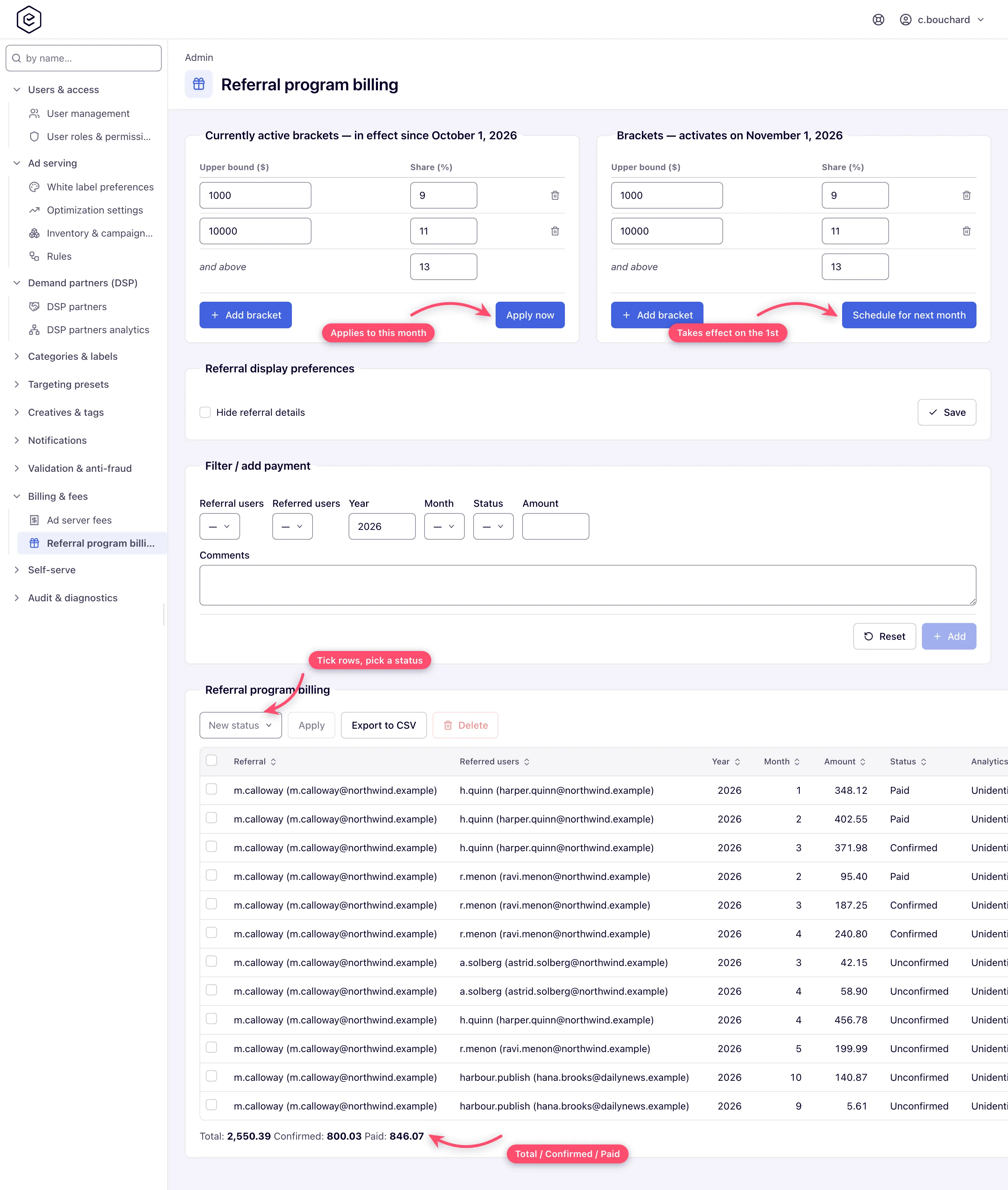
Maintain two bracket tables side by side. The left one, Currently active brackets — in effect since <the 1st of this month>, saves with Apply now. The right one, Brackets — activates on <the 1st of next month>, saves with Schedule for next month. Each row is an Upper bound ($) and a Share (%); Add bracket inserts a row above the trailing and above row, which is always open-ended. Neither table is ever empty: a network that has never configured brackets shows one open-ended row carrying the network’s flat referral rate, and adding rows above it turns that flat rate into the top band.
-
Rates are marginal: each bracket’s share applies only to the slice of revenue inside that bracket, the way an income-tax band works — not to the whole amount.
-
Optionally tick Hide referral details in the Referral display preferences section and click its own Save. The checkbox does not save by itself.
-
Use Filter / add payment to narrow the ledger by referral user, referred user, year, month and status. Year starts at the current year. The same row adds a manual payment: pick both users, type an Amount and optional Comments, then click Add. Add stays disabled until a referral user, a referred user and an amount are all set. Reset returns the filters to that starting state.
Note: the Referral users list is not every user who has referred someone. A referrer only appears there when their own role has the Manage Referral Program permission enabled. With that permission off for every role, the list is empty and no manual payment can be added — even though the ledger below may be full of rows. The Referred users list then fills from whoever the chosen referrer actually referred.
-
Work the ledger grid. Columns are Referral, Referred users, Year, Month, Amount, Status, Analytics status and Comments. Tick rows and pick a New status + Apply to bulk-update, Export to CSV to download the filtered ledger, or Delete to remove rows. Double-click a row to edit its amount, status and comments in a dialog.
-
Read the footer: Total is every row except Declined, Confirmed is only the Confirmed rows, Paid only the Paid rows — all three over the current filter.
Where the numbers come from
Every money figure on these screens is a sum over the same daily table the General analytics report reads. Nothing here has hour resolution and nothing here is current as of now.
| Figure | Source | Refreshed |
|---|---|---|
| Advertisers charged, and the advertiser grid’s Charges | The sum of Gross per advertiser per day, kept in a daily advertiser summary | Scheduled job every 4 hours, rewriting the last 14 days |
| Publishers net revenue, and the publisher grid’s balances | The sum of the Publisher-family Revenue per site per day, each row floored at its minimal revenue, kept in a daily publisher summary — the same figure the referral commission base reads | Scheduled job every 4 hours, rewriting the last 14 days |
| Network net revenue | Derived on read: Advertisers charged − Publishers net revenue | With the two above |
| Ad server fees impression counts | A General analytics report for the calendar month, grouped by placement type, run as the network user | Nightly |
| Ad server fees Traffic (gb) | What your network’s CDN zones report themselves — CDN77 and BlazingCDN, every zone of the network summed, in GB of 1024³ bytes. A network with no CDN credentials configured falls back to an estimate: each creative’s file size × its impressions. When a CDN cannot be read, the month keeps the figure it already had | Nightly for the current month; the previous month is re-read on the first four days of the next one |
| Ad server fees HB fills | Header-bidding fills won by Google or another partner, from the Header Bidding fill log, bucketed by placement type like impressions. Fills of your own campaigns are not in it — they are already impressions — and neither is a Google Ad Manager line item that serves one of your own Universal JS or Mount JS tags | With the above |
| Referral commission base | The sum of the Publisher-family Revenue for the referred user’s sites, each row floored at its minimal revenue, read straight from the daily statistics | Live at generation time — no aggregate in between |
Three things follow from that table and they cause most reconciliation tickets:
Fee impressions are bucketed by placement type, and the mapping is not obvious.
| Bucket | Placement types counted into it |
|---|---|
| Desktop | Site Placement, Non-standard Placement, Email Placement, Click-through Placement, Native Placement |
| Video | Video Placement |
| Mobile | Everything else — Mobile Site Placement, Application Placement, and any placement type added in future |
Header-bidding fills of other demand are billed too. When Google or another partner fills a slot through a header-bidding tag, no impression of yours is recorded, so the fee counts these fills separately. By default the billing plan counts them as impressions of the same bucket, at the plan’s own prices and packages; a plan can instead charge them at a flat CPM (default $0.01). They come from a beacon in the visitor’s browser, so expect them to run a few percent below Google’s own count — ad blockers drop the beacon, not the ad.
Two renders that reach the page through Google Ad Manager are yours and are not counted a second time: a line item whose creative is one of your own Universal JS or Mount JS tags — the tag tells the header-bidding tag that the render is yours, and the impression it serves is billed like any other — and your own Prebid win whose confirmation reaches the page late. A Simple Iframe or Direct URL tag cannot tell the page anything, so a line item carrying one is billed as a header-bidding fill on top of the impression the tag serves; put Universal JS in Ad Manager creatives. When your tag inside the line item has no ad of yours to serve — it comes back empty, or with the placement’s Default code — no impression is counted, and the render stays a header-bidding fill — the one charge for that slot.
Money is stored at six decimals and rounded once, at the end. Every summary and balance figure is kept to six decimal places; the fee charge is computed at full precision and scaled to six decimals, half-up. The screens then format to exactly two decimals for display. Nothing is rounded before it is summed.
Analytics rounds in the opposite order, which is why a report and a balance can differ by cents. An analytics report rounds each result row to the report’s funds precision (2 decimals on screen; the network’s export precision, or 8 decimals, in an export) and then recomputes Profit from the already-rounded Gross and Net. Group a report by day and you accumulate one rounding per day; Billing subtracts at full precision and rounds once. When the two disagree by small amounts, this is almost always why.
Corner case: days older than the 14-day refresh window keep the figure they were summarised with. Before release 153 that was Net rather than the Publisher-family Revenue, so on a network that populates the split advertiser/publisher columns a month that closed earlier can still differ from the referral ledger until Epom support rebuilds the publisher aggregates from the first day of logs; then click Recalculate balances.
Corner case: the advertiser and publisher aggregate fills are switched separately. The publisher fill is a server-side setting that is off by default (ask Epom support or your account manager to turn it on), while the advertiser fill always runs. The symptom is distinctive: Advertisers charged climbs normally, Publishers net revenue stays at 0.00, and Network net revenue therefore equals Advertisers charged. If you see that shape, the data is not missing — the publisher job never ran.
Corner case: the scheduled fills only rewrite the last 14 days. A correction to a day older than that will never reach Billing on its own. Ask Epom support or your account manager to rebuild the aggregates from the first day of logs, then click Recalculate balances.
Accounting periods
An accounting period is one advertiser’s revenue for one day, carrying a confirmation status that says how settled that day’s money is. You move a day up the ladder as you reconcile it, and Finalized seals it.
The controls are not on this page. They are per-row buttons on an Analytics report grouped by Advertiser alone, or by Advertiser + Advertiser owner — see Run a report. Select advertiser rows there, and the buttons act on those advertisers across the report’s whole date range.
The states
| Id | State | How a day gets there |
|---|---|---|
| 0 | Unidentified | No status recorded |
| 1 | Incomplete Data | The day is still accruing |
| 2 | Up-to-Date Data | Tracked data for the day is complete |
| 3 | Preliminary Confirmed | Preliminary confirm |
| 4 | Confirmed | Confirm |
| 5 | Finalized | Finalize accounting period |
Only the last three transitions have buttons. Nothing on the report moves a day from Incomplete Data to Up-to-Date Data. Saving an advertiser re-evaluates that advertiser’s days against its own confirmation-delay setting, but only when the user saving it holds the Manage Completeness Delay for Advertisers permission. A row still at Incomplete Data shows every period button greyed out.
Each forward step needs its own permission, and each button additionally checks the share level of every selected advertiser against the network’s sharing-type requirement for that step. Those requirements are set in the Accounting period management card on Admin → Inventory & campaigns settings, as three separate lists: Sharing type requirement for preliminary confirming, …for confirming and …for finalizing.
Reopening a finalized period
Step the period back down with the paired Undo buttons on the same report: Undo finalize period takes Finalized → Confirmed, Undo confirm takes Confirmed → Preliminary Confirmed, Undo preliminary confirm takes it one step further back. An undo needs the permission of the status you are leaving, so reopening a finalized day needs the finalize permission, exactly as sealing it did. Once the day is below Finalized, run your correction and climb the states again.
Note: the undo buttons are the only reopen mechanism — there is no separate “reopen period” screen. Each click moves the stored status by exactly one level.
Options and fields
Monthly statistics row
| Column | What it is |
|---|---|
| Global / Desktop / Mobile / Video | Impressions counted in each bucket for the month — including header-bidding fills of other demand when the plan counts them as impressions |
| Traffic (gb) | CDN traffic for the month |
| HB fills | Header-bidding fills won by Google or another partner in the month, shown whatever the plan does with them |
| …overage columns | Money charged for usage above each quota |
| HB charges | The flat charge for those fills, when the plan does not count them as impressions; 0 otherwise |
| Charges | The plan’s fixed monthly charges |
| Custom charges | A manual adjustment stored on the month record |
| Total | Every overage + HB charges + Charges + Custom charges |
Concepts
| Concept | Notes |
|---|---|
| Payment row | A bookkeeping fact about money that moved outside the platform. It adjusts balances; it moves no money |
| Balance recalculation | Full re-derivation of every balance from the aggregates, run in the background |
| Billing plan | Epom’s fee package for your network. Exactly one is active at a time |
| Referral bracket | A revenue range and a commission share. Marginal — each share applies only to its own slice |
| Accounting period | One advertiser × one day, with a confirmation status. Finalized locks it |
Corner cases and gotchas
Corner case: the two halves of the Billing page are gated independently, but the balance grids are not. A user holding only Publishers Payments loses the Advertisers funds panel, the Advertisers credits and Advertisers charged summary lines and the trend chart — but still sees the full advertiser balance grid, because that one is gated by Billing Tab alone.
Corner case: a fee month stops being rebuilt four days in. The current month is re-derived every night, and the previous month only while today is within the first four days of the new month. From the fifth onwards last month’s row is frozen; raise a question about it with Epom support or your account manager.
Corner case: a period button acts only on rows that are all at the same status. Select a mix and the button greys out. If you force the request anyway it is refused rather than partially applied, and days inside the range that are not at the expected status are silently left alone — there is no per-row report of what did or did not move.
Corner case: an invalid bracket set is rejected as a whole — if any row fails, nothing is saved. The error toast restates the rules rather than naming the offending row: “Brackets are invalid. Upper bounds must increase. Share must be between 0 and 100. Last bracket may be unbounded.” With more than two or three bands, check them yourself against those three rules; the message will not point at the one that broke.
Corner case: a referral user with a per-user share configured does not use the bracket table at all — their commission is a flat percentage of the referred user’s revenue. The brackets on this page apply only to referral users without that override.
Corner case: an Unconfirmed commission amount is not stable. The hourly job recomputes it from the month’s revenue so far and overwrites the row, so a figure you noted this morning can be larger by the afternoon. Move a row to Confirmed before you treat its amount as settled — that is what stops the job rewriting it.
Corner case: editing brackets does not restate a month that has already been generated with the old ones. Apply now changes what the current month’s Unconfirmed rows are recomputed to on the next hourly run; rows already Confirmed or Paid, and closed earlier months, keep the numbers they were generated with.
Corner case: the Analytics status column in the referral ledger is not the payment status. It is the lowest accounting-period confirmation status across every advertiser whose traffic ran on that referred publisher’s sites that month — the weakest link. It stays at Incomplete Data until every contributing advertiser’s days have moved up, and reads Unidentified when no status has been recorded for them.
Over the API
An advertiser’s payments are listed, added and removed per advertiser, with the same permissions, share checks and balance bookkeeping as the Advertiser payments grid:
GET /rest-api/advertiser/{advertiserId}/payments.do— the payments newest first (year,monthnarrow them,start/limitpage them),totalAmountover everything the filters match, andbalance— the advertiser’s balance row (start balance, charges, payments, end-of-month balance) forbalanceMonth(yyyy-MM, the current month when left out), ornullwhile none has been calculated for that month.POST /rest-api/advertiser/{advertiserId}/payments.dowithamount(greater than 0),date(yyyy-MM-dd, today when left out) and an optionalcomment(up to 200 characters). The balance rows from that month on move by the amount, exactly as when you add a row on the page. A field the server refuses comes back undererrors.<field>.DELETE /rest-api/advertiser/{advertiserId}/payments/{paymentId}.do— removes it and takes it back out of the balances.
There is no currency or payment-type field — payments are in the network’s currency — and no edit: remove the payment and add it again, as on the page. The calls need the same permissions as the page’s advertiser half; an advertiser that is not shared with you, a payment of another advertiser or an unknown payment answers not found.
Publisher payouts work the same way, per site, with the Publisher payments grid’s rules:
GET /rest-api/site/{siteId}/payouts.do (payouts newest first, totalAmount, and balance — balance, paid out and
still to be paid for balanceMonth), POST on the same path to book one (amount, date, comment, as above) and
DELETE /rest-api/site/{siteId}/payouts/{paymentId}.do to remove one. They need the same
permissions as the page’s publisher half; a site that is not shared with you answers not
found.
Per-role notes
- Administrator — reaches the fee and referral pages its admin role grants, never Account → Billing; switch into a network user to see Billing.
- Network manager — reaches Billing only with Billing Tab enabled; otherwise the page shows Permission denied.
- Shared or half-only roles — see only the advertisers and sites shared with them, and only the half (advertiser funds or publisher payments) they hold; the server refuses the other half, over the API too.
- Publisher, advertiser — no Billing section.
Exact grants: see Manage users, roles and permissions.
