
Configure DSP partners
Onboard OpenRTB demand partners — endpoint, timeout and QPS cap, pricing model, protocol versions, user sync, per-partner parameters and creative scanning — and read their bid funnel and spend.
A DSP partner is an external OpenRTB bidder your network sends bid requests to. This page walks through creating and tuning a partner, deciding which extra fields its creatives carry, and reading its bid funnel and spend. Once a partner exists, demand-side users can create OpenRTB banners that auction against it — see OpenRTB / DSP banners.
Who this is for
Network administrators with the DSP partners admin page (Admin → Demand partners (DSP) → DSP partners).
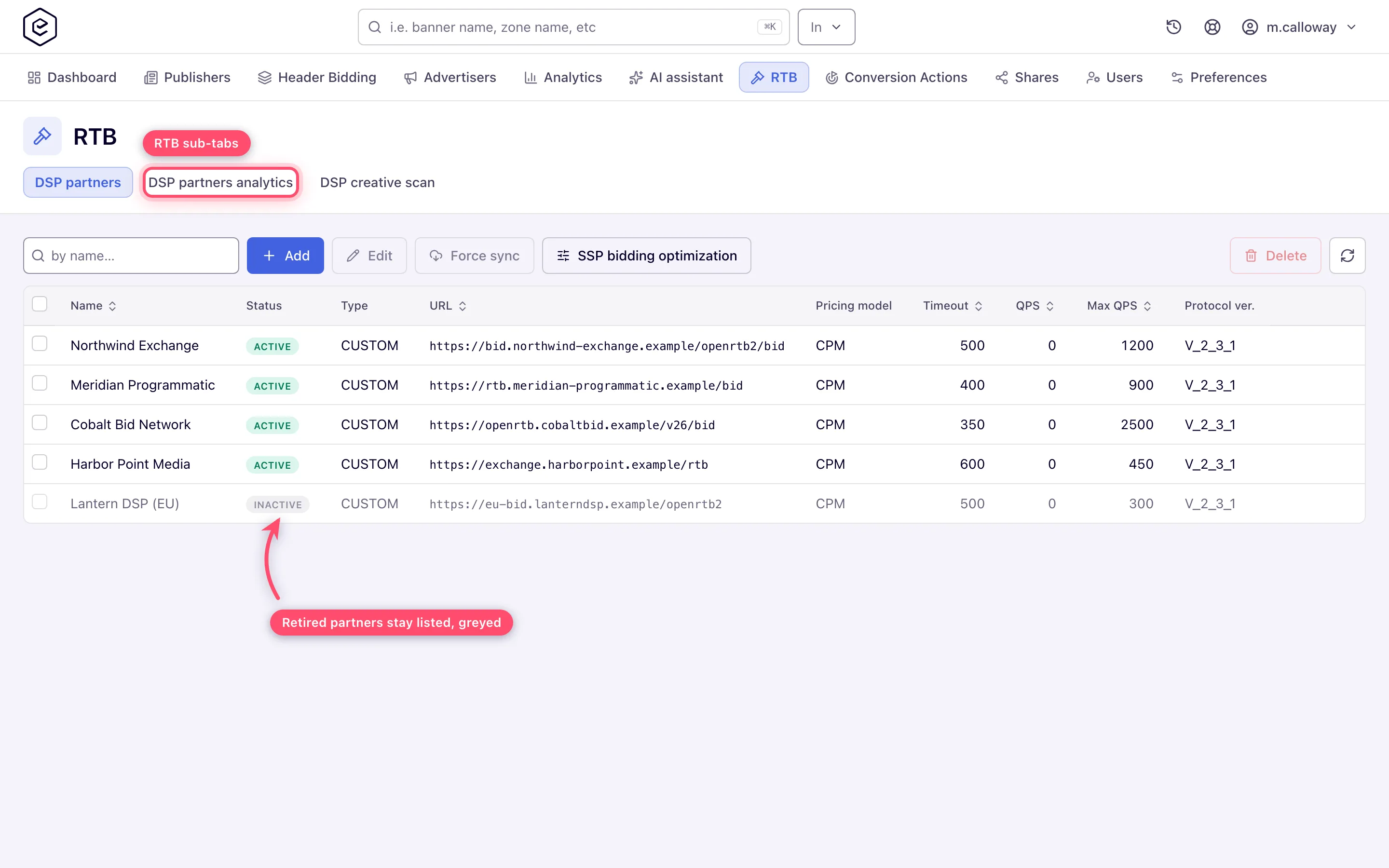
The same three RTB screens are also available inside the account area under an RTB tab, so a network can hand RTB work to its own staff instead of an admin login. The tab and each of its three sub-tabs — DSP partners, DSP partners analytics, DSP creative scan — are granted separately, ship disabled for every role, and open only when set to Enabled (Read-only opens nothing). An administrator grants them in Users and roles.
Prerequisites
- The partner’s bid endpoint URL and their preferred OpenRTB protocol version.
- Agreement on the billing basis (CPM, CPC or CPI) — it decides which delivery event earns money, and a mismatch books zero.
- Agreement on which optional parameters the endpoint expects, because every one you tick becomes a field on that partner’s creatives (see step 7).
- For creative scanning: a scan provider set up for your network by Epom support — see creative policy protection. Unconfigured providers show (not configured) and cannot be selected.
Steps
-
Go to Admin → Demand partners (DSP) → DSP partners and click Add (or select a row and click Edit; double-clicking a row also opens it). The page header reads Add DSP partner or Edit DSP partner.
-
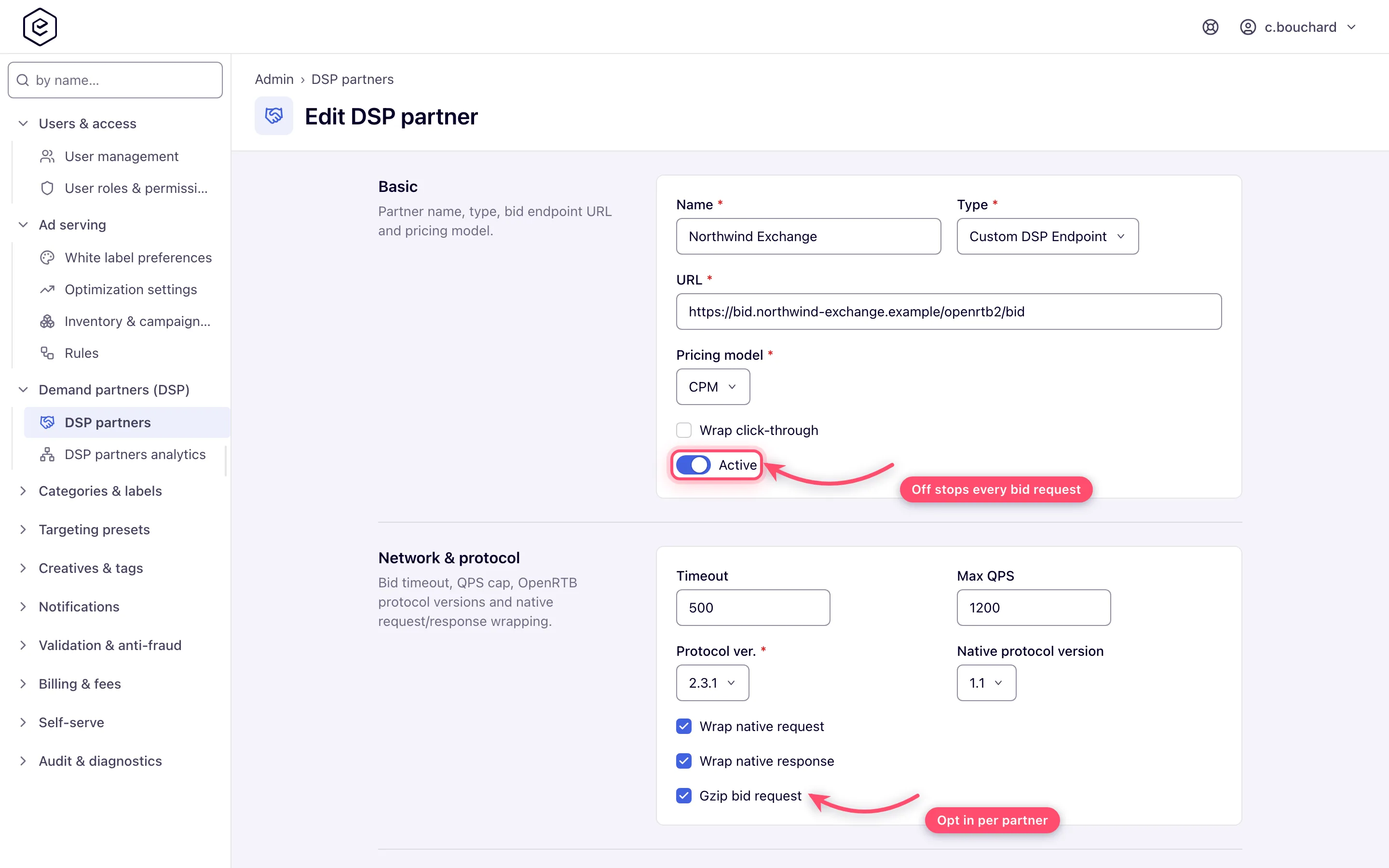
Basic — name the partner, pick its Type, enter the URL of the bid endpoint and choose the Pricing model. Tick Wrap click-through if the ad server has to count clicks itself (required for CPC — see the corner cases). Leave Active on; the toggle sits at the bottom of this card and a new partner is created active.
-
Network & protocol — set the bid Timeout in milliseconds and, if you need one, a Max QPS cap. Pick the OpenRTB Protocol ver. and Native protocol version, and decide whether native requests and responses are wrapped (both on by default — match the partner’s expectations). Tick Gzip bid request only if the partner accepts a compressed request body.
-
User matching — to sync user IDs with the partner, set a Shortname (lowercase
a-zand0-9, up to 64 characters) and tick Enable user sync. A save with user sync or custom data processing on and no shortname is refused with shortname: Required for user matching and custom data processing. Two read-only fields then appear with the derived User sync cookie name and User sync URL; hand the sync URL to the partner with their user-ID macro substituted for<REPLACE_WITH_DSP_UUID_MACROS>. Enable custom data processing derives a Custom data cookie name the same way. -
Auction & encryption — choose the price Encryption type and Cookie format, decide on Require a competing DSP, tick Allow in header bidding if the partner has agreed to be quoted on header-bidding slots, and pick the Creative scan provider. None (trusted) skips scanning for this partner entirely.
-
Analytics sync — this card exists only while Type is Epom WL DSP. Tick Enable analytics sync, then pick Sync sides and Metrics to sync and give the partner’s Report API URL. All three are required once the tick is on, and the save is refused if any is empty: the form shows one red message above Save naming the first empty field (for example analyticsSyncSides: Required) and stores nothing.
-
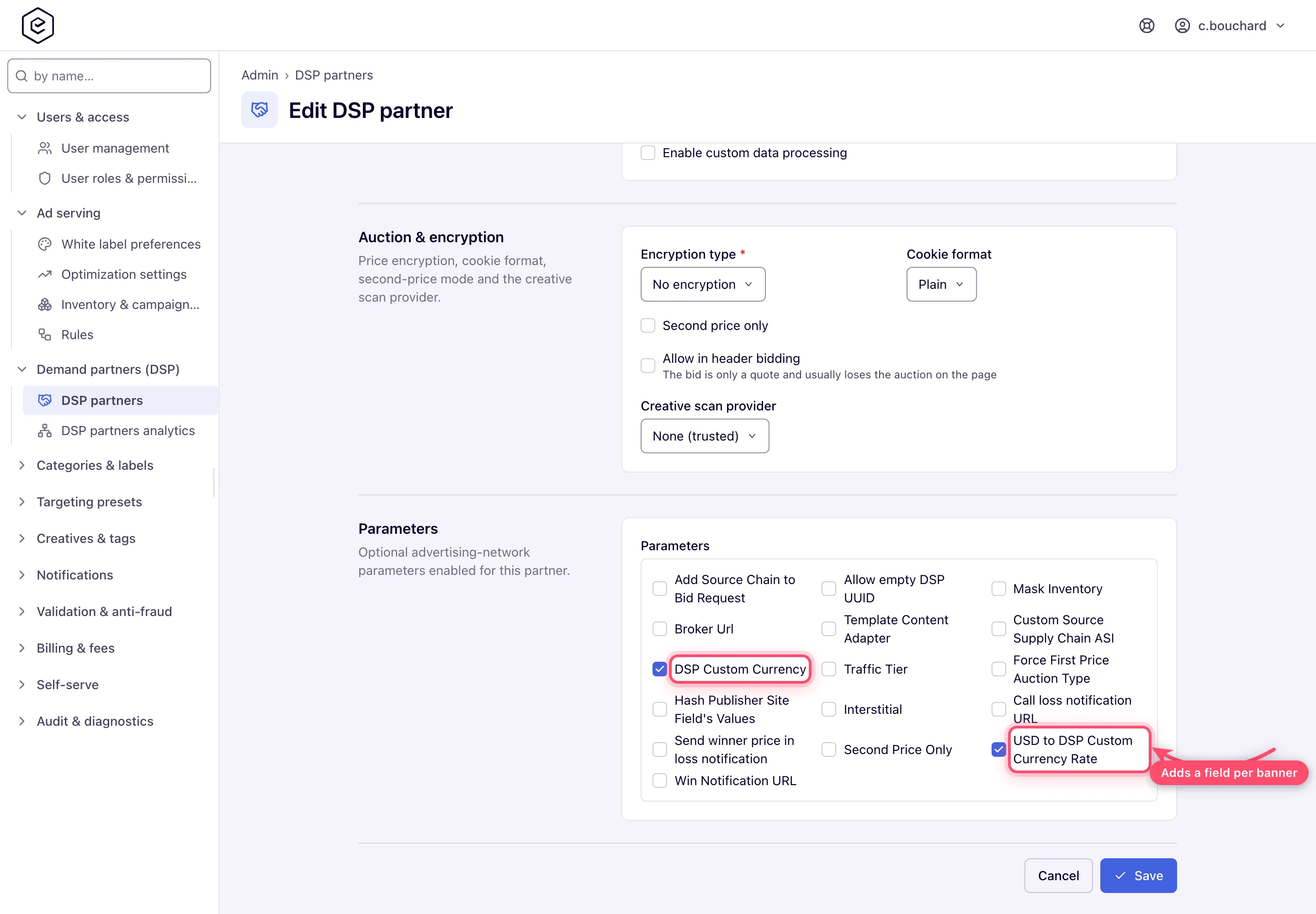
Parameters — tick the optional advertising-network parameters this partner needs. This is not a per-partner setting with a value on it: each tick adds that parameter as a field on every OpenRTB banner pointing at this partner, and the value is entered there, per creative. Ticking a required parameter makes every such banner unsaveable until its value is filled in — see the corner cases and the full list under Options & fields.
-
Click Save. The toast reads Done and you land back on the partner list. The partner becomes selectable on OpenRTB banners and starts appearing in analytics once traffic flows.
-
To retire a partner, switch Active off and save — no banner has to be touched first. If live banners bid through it, a confirmation names how many will stop.
-
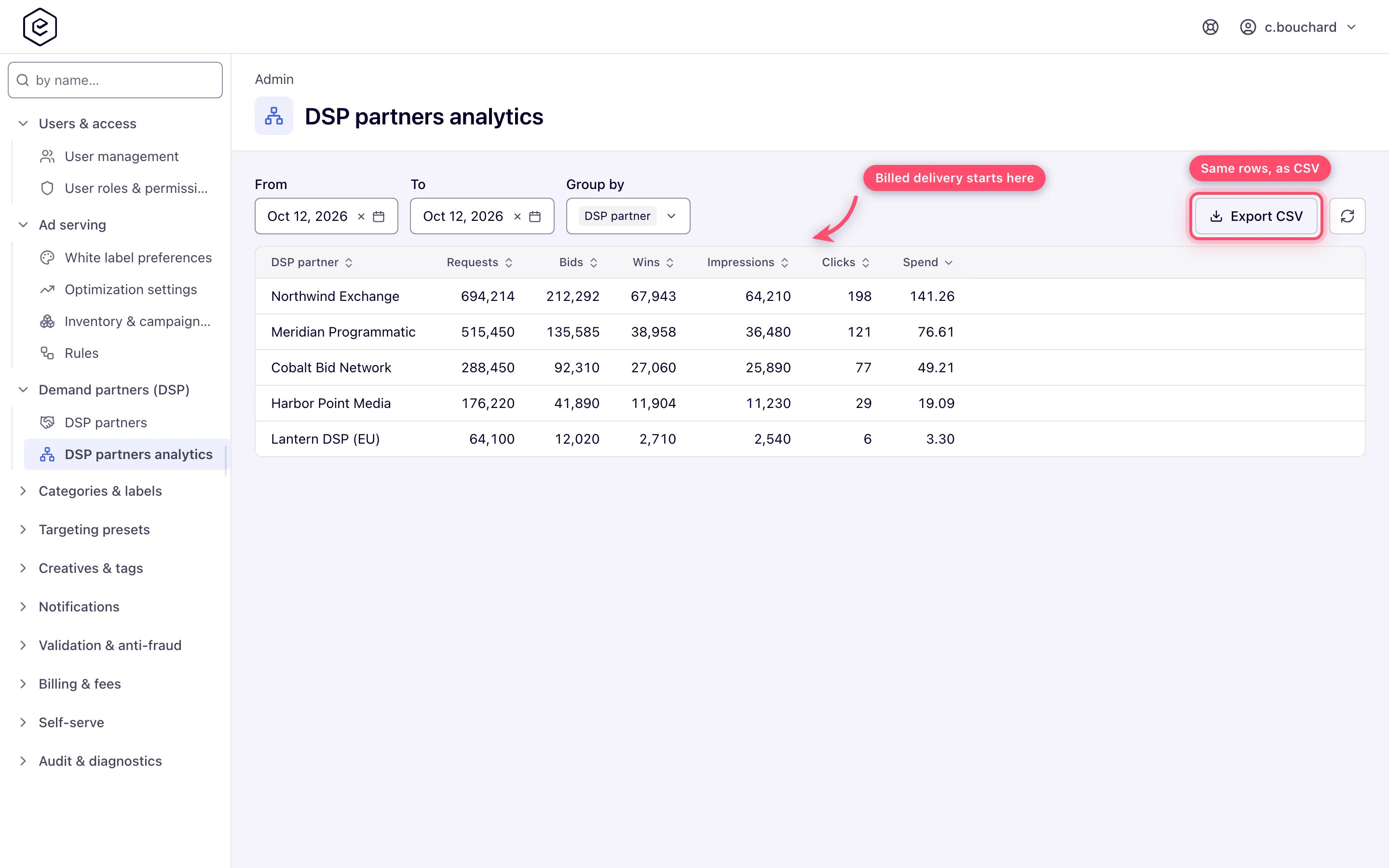
Monitor at Admin → Demand partners (DSP) → DSP partners analytics: pick any mix of Date, DSP partner, Placement ID and Country code in the Group by multi-select and read Requests / Bids / Wins / Impressions / Clicks / Spend. Ungrouped, the grid is a single total row. Export CSV downloads the same result set.
Note: the DSP partners analytics page needs its own DSP Partners Analytics admin permission — a role holding only DSP partners does not see it, and opening its URL shows Record not found.
What this form does not control
Three things network administrators reasonably expect to find here are not on it, and knowing where they actually live saves a support ticket:
| Knob | Where it is set | Notes |
|---|---|---|
| Bid floor | Banner → placement → site → banner pricing → campaign pricing → site CPM threshold, first non-zero wins | There is no per-partner bid floor anywhere in the product. The resolved floor is an eCPM for the request’s country and is written onto every impression of the bid request. A country-less request gets a floor of zero. |
| Revenue share | Placement, then site (per-advertiser and per-campaign overrides beat the blanket value) | Revenue share is a publisher-side split of the gross a delivery earned. Nothing takes a margin off DSP spend as such. |
| Currency | Hard-coded USD, with a per-banner escape hatch | See below. |
Currency in full. The ad server sends and settles in USD. A bid request omits
cur entirely and a bid response whose currency is present and is not USD is
rejected outright. The one exception is per creative, not per partner: tick both
DSP Custom Currency and USD to DSP Custom Currency Rate in Parameters,
then fill them on the banner, and that banner’s requests carry cur and
bidfloorcur in the chosen currency with the floor converted at your rate, while
the returned price is converted straight back to USD and held against the floor in
USD: a bid worth less than the floor once converted loses, and a second-price win
never clears below it. The rate is a number you
type, not a live FX feed — nothing re-checks it, so a stale rate quietly misprices
every bid made through that creative.
Export the analytics grid
Export CSV, next to the refresh button on DSP partners analytics, downloads the current result as a CSV file. The export carries the date range, the group-by selection and the sort you have on screen, but not the page window — the file holds every matching row, not just the visible page.
The columns follow the grid: only the dimensions you grouped by become columns, while Requests, Bids, Wins, Impressions, Clicks and Spend are always present. So a grid grouped by date and partner exports eight columns; ungrouping partner drops that column from the file too. Both the admin page and the account RTB tab export through the same endpoint, so the file is identical for either login.
Did the DSP not bid, or did it lose the auction? Requests, Bids and Wins per partner
The three counters are a funnel per partner (and per placement, country and date, if you group by them), so the step where the numbers fall off tells you what happened:
| Column | Counts | Not counted |
|---|---|---|
| Requests | Bid requests the ad server sent to the endpoint — counted as the request goes out | Header-bidding quotes |
| Bids | Responses carrying one valid bid: parsed, in USD (or no currency), one seat with one bid, price at or above the floor (deal bids are exempt from the floor) | No-bid (204 or empty), timeouts, errors, unparsable responses, bids below the floor or with several seats/bids |
| Wins | Auctions the partner’s bid won with a price and non-empty markup | Bids that lost to another bid or to direct demand |
How to read it:
- Requests high, Bids near zero — the partner is not bidding, or every bid is rejected before the auction (below your floor, wrong currency, malformed). Check floors first (see Which floors to use); a troubleshooting log task names the rejection reason per bid. The partner’s own logs show whether they answered no-bid.
- Bids high, Wins low — the partner bids but loses the auction: another partner or your direct campaigns paid more. Compare its bid prices with the winners’ before raising floors.
- Wins above Impressions — the auction was won but the creative did not render (see What Spend counts below). A bid that is counted and then dropped later — a creative blocked by creative scanning, markup missing — is still a Bid.
Who can see it. Admin users open it at Admin → Demand Partners → DSP Partners
Analytics; account users see it as the RTB → DSP Partners Analytics sub-tab, and the REST
endpoint GET /rest-api/rtb/dsp-analytics/search.do answers, once their role has the DSP
Partners Analytics permission. On its own it is read-only — it does not let the person change
a partner.
What Spend counts
The six metrics come from two different places, unioned per (date, partner, placement, country). Requests / Bids / Wins are the auction funnel, counted by the ad servers. Impressions / Clicks / Spend come from the delivery log, joined to the endpoint through the banner that served.
That split is why Spend is what the partner was billed for delivery its endpoint won, not what it won at auction: an auction the partner won but whose creative never rendered adds a Win and nothing else. Wins above impressions is normal — the gap is creatives that lost the render, not lost money.
Which event was billed depends on the partner’s pricing model, and Spend follows it without you having to say so:
| Pricing model | Billed on | Read the rate as |
|---|---|---|
| CPM | Impressions | Spend ÷ Impressions × 1000 |
| CPC | Clicks | Spend ÷ Clicks |
| CPI | Impressions | Spend ÷ Impressions — the win price is booked per impression, not per thousand |
Impressions and Clicks are there so the rate can be checked against the deal. A CPC partner will show Spend against a low click count and a large impression count — that is the model working, not a discrepancy.
Spend for a partner is the sum over every OpenRTB creative pointing at it, so it equals the Gross the standard report shows for those creatives, and the two reconcile line for line. Creatives deleted since still count: the link that attributes an impression to an endpoint survives the deletion, so historical invoices do not shrink when someone tidies up a campaign.
Corner case: deleting the partner itself does break that link. Deletion clears the endpoint reference from every creative that pointed at it, so the partner’s past Impressions and Spend fall out of this grid while its Requests, Bids and Wins stay behind under
id(Deleted). Invoice a partner before you delete it, or deactivate instead — Active off stops delivery and keeps the whole history.
To pull the same figures for invoicing rather than reading them off the screen, see DSP endpoint traffic and spend.
Retire or delete a partner
Deactivating is the reversible half, and it stops delivery: banners whose partner is inactive are dropped before any bid request is built, so a banner pointing at one serves nothing until you either reactivate the partner or move the banner to another one. The partner is also gone from the picker on every other banner, and the partners grid shows it greyed with an Inactive badge.
Because that takes revenue down with it, saving a partner you have just switched off asks first when live banners depend on it, naming how many will stop sending bid requests — the same count the delete confirmation uses. The dialog’s confirm button is labelled Save, not Confirm.
The banners that already use it keep the selection rather than silently losing it — opening such a banner still shows the partner in its picker next to a warning saying the banner is sending no bid requests. Reactivating the partner puts those banners straight back in the auction; nothing has to be re-picked.
Deleting is not reversible and takes banners with it. Before the partner goes, the platform counts the active, non-deleted banners bidding through it; if there are any, the confirmation names the partner and the count and warns that they will be deactivated. On confirm the banners are switched off and the partner row is deleted. Deleted and already-inactive banners are ignored in that count — they are not serving, so nothing changes for them.
Tune SSP bidding optimization
Bid requests to a partner that keeps not bidding on a given placement and country are suppressed automatically. The thresholds that drive that live on this page: click SSP bidding optimization in the DSP partners toolbar and set
| Field | Range | Default | What it does |
|---|---|---|---|
| Enabled | on/off | off | Off means every request goes to every partner, unfiltered. |
| Optimization time frame (Mins) | 5–60 | 5 | How long a window is aggregated before the decision is recomputed. |
| Unoptimized bidding threshold (%) | 1–100 | 5 | The share of requests sent anyway, so a suppressed combination can prove itself again. |
| Minimum bids during time frame | 1–1000 | 1 | A partner + placement + country combination that bids fewer times than this in the window is suppressed for the next window. |
| Minimum required requests during time frame | 1–1000 | 10 | Combinations that saw fewer requests than this are left alone; too little traffic to judge on. |
The settings are platform-wide, not per-partner. Anyone who can edit DSP partners — admin or account-side — can change them, as can the admin Optimization settings permission. They used to sit on Admin → Optimization settings, which now covers campaign and CTR optimization only.
Connect a pop or banner OpenRTB endpoint
A first setup for a new demand partner — a pop network or a banner bidder — looks like this:
- Get an OpenRTB endpoint from the partner. Epom sends OpenRTB JSON bid requests; a partner offering “OpenRTB or an XML feed” should give you the OpenRTB endpoint. Ask which OpenRTB version they read — Epom can send 2.2, 2.3.1, 2.4, 2.5 or 2.6 (default 2.5) — and whether they accept gzip.
- Add the partner (Steps above). Pick its pre-built Type if it has one: the built-in pop networks need their own type, because each expects the pop signal and answers the pop in its own way. Anything else is Custom.
- Create the demand side: an advertiser and campaign for the partner, and an OpenRTB (DSP) banner that selects this partner (OpenRTB (DSP) banners).
- Link the banner to the placements it may bid on. For banners, standard sizes work best — the request carries the placement’s size and bidders mostly bid on standard formats. For pops, link it to a Non-standard or Mobile Site placement with Always redirect on (Pop-under, tab-under and direct-link placements). The site keeps its existing ad tag — nothing changes on the page.
- Watch DSP Partners Analytics for Requests, Bids and Wins before touching prices.
Pops on the wire. For an always-redirect placement the bid request is marked as a pop —
imp.ext.type = "pop" for a Custom partner, the partner’s own convention (an interstitial
flag, an ext.format, no banner object) for the pre-built pop types — and the answer must be a
landing URL in adm (some pre-built pop types answer in their XML format, which Epom
reads). A pop answer that is not a valid URL is dropped. The winner is served as an HTTP 302 and
counted as an impression at its price.
Floors. A partner has no floor field — the imp.bidfloor Epom sends comes from the
demand and supply settings, the first non-zero value for the visitor’s country in this order:
the OpenRTB banner’s Bid Floor, the placement’s Bid Floor, the site’s Bid Floor, the
banner’s price, the campaign’s price, and finally the site’s CPM threshold. With none of
them set, the floor is 0. A bid below the floor is dropped (deal bids excepted).
TwinRed and other pre-built partner types
A partner with a pre-built Type (TwinRed, ExoClick, TrafficStars, HilltopAds, RollerAds and the rest) gets that network’s conventions on the wire; everything else about the setup is the same as for Custom. For TwinRed specifically:
- Every impression carries
imp.ext.adm_on_resp = 1, so the markup comes back in the bid response. A pop on an always-redirect placement is sent without animp.bannerobject. - The zone TwinRed shows in its stats is the
imp.tagidEpom sends — the placement key unless the placement has a Custom tag ID. Set one to see readable names there. - Spend follows the partner’s Pricing model. A partner set to CPC is billed on clicks, so its impressions carry no gross; check the model matches how the partner actually pays before comparing gross with the partner’s figures.
Which floors to use when starting with new RTB demand
Start without floors, let a few days of bids collect, read the bid prices per country and placement in DSP Partners Analytics, then set floors just under what the partner pays well — and raise them while the win rate holds. With several partners linked to the same placement they compete in one auction, so adding a second bidder usually raises the clearing price more than any floor does.
Sample request. The fields Epom fills, per placement type, are in the OpenRTB integration reference — hand it to the partner’s integration team.
Options and fields
Field order below is the order on screen. A * in the UI marks a required field.
| Field | Default | Notes |
|---|---|---|
| Name | — | Required. Free text. |
| Type | Custom DSP Endpoint | Pre-built types add partner-specific request quirks; Custom DSP Endpoint is plain OpenRTB. Full list below. |
| URL | — | Required. Bid endpoint. The form refuses more than 2,000 characters. |
| Pricing model | CPM | CPM = impression-based, win price booked per thousand; CPC = click-based; CPI = impression-based, win price booked per impression. A delivery event that does not match the model books zero. |
| Wrap click-through | off | Retargets the links in the partner’s banner creative through the ad server, so a click is counted before the user is passed to the partner’s own click tracker. Needed for CPC partners — see the corner cases. |
| Active | on | An active partner is offered on every OpenRTB banner and receives bid requests. Deactivating stops both. Shows greyed with an Inactive badge in the grid. |
| Timeout | 300 | Milliseconds, 1–30000. Bids arriving later are discarded. |
| Max QPS | blank = unlimited | Cap on bid requests per second across your whole network. 0 blocks the partner outright (the grid renders it as Blocked); blank renders as Unlimited. The enforced ceiling carries a 10% tolerance factor. |
| Protocol ver. | 2.5 | 2.2, 2.3.1, 2.4, 2.5, 2.6. Sent in the x-openrtb-version header; 2.5 adds banner.format, 2.6 moves schain to source.schain. |
| Native protocol version | 1.1 | 1.0, 1.1, 1.2. |
| Wrap native request | on | Wraps the native object in the outgoing request. |
| Wrap native response | on | Expects the partner’s native response wrapped. |
| Gzip bid request | off | Compresses the outgoing bid-request body and sends Content-Encoding: gzip. Opt-in per partner — not every bidder accepts a compressed body. Gzipped bid responses are accepted from every partner regardless of this flag. |
| Shortname | — | Lowercase a-z and 0-9, max 64. Required as soon as user sync or custom-data processing is enabled; drives the derived cookie names. |
| Enable user sync | off | Reveals the read-only User sync cookie name and User sync URL. |
| Enable custom data processing | off | Reveals the read-only Custom data cookie name. |
| Encryption type | No encryption | No encryption, Base 64, Blowfish. Encrypts the cleared price substituted into the winner’s markup. See the corner case on Base 64. |
| Cookie format | Plain | Plain or Base 64. Stored on the partner, but it does not decide how buyeruid is decoded — see the corner case. |
| Require a competing DSP | off | Does not change any price. It withdraws the partner from auctions where its banner would be the only DSP candidate, i.e. where there is no second price to clear at. Second-price clearing is a per-banner setting, not this one. |
| Allow in header bidding | off | Lets this partner be asked for a slot sold through header bidding. A header-bidding call is a price quote — the bid still has to win the page’s own auction, and usually does not — so a partner is asked only once you have agreed it may be. The platform-wide switch has to be on as well, and a partner on a CPC or CPI pricing model is never asked because it cannot honestly quote a CPM. |
| Creative scan provider | None (trusted) | Providers not set up for your network show (not configured) and cannot be selected; the server refuses the save even if one is submitted anyway. |
| Enable analytics sync | off | Epom WL DSP only. Requires Sync sides, Metrics to sync and Report API URL. |
| Sync sides | — | Publisher, Advertiser. |
| Metrics to sync | — | Impressions, Money. |
| Report API URL | — | The partner’s report endpoint, e.g. https://api.example.com/sspanalytics/endpoint/metrics/{key}/{StartDate(yyyyMMdd)}/{EndDate(yyyyMMdd)}. |
Type — one generic option plus sixteen pre-built integrations: Custom DSP Endpoint, TrafficStars, ExoClick, DoubleImpact, ZeroPark, TrafficHaus, ReachEffect, Evadav, TrafficPartner, Topple, Kadam, Epom WL DSP, TwinRed, TrafficHunt, HilltopAds, Galaksion, RollerAds.
Parameters
Every parameter ticked here becomes a field on each OpenRTB banner that points at this partner; the value lives on the banner, not here. Parameters marked value required below block the banner’s save until they are filled.
| Parameter | Value required | What it is for |
|---|---|---|
| Add Source Chain to Bid Request | no (default off) | Adds the source.schain object to the bid request. |
| Allow empty DSP UUID | no (default off) | Lets the request go out without a matched buyer ID. |
| Broker Url | yes | Broker endpoint used instead of the plain bid URL. |
| Call loss notification URL | no (default off) | Calls the partner’s lurl when its bid loses. |
| Custom Source Supply Chain ASI | no | Overrides the ASI domain in the supply chain. |
| DSP Custom Currency | yes (default USD) | Currency to quote the request in. Pair it with the rate below. |
| Force First Price Auction Type | no (default on) | Clears at first price for this creative. |
| Hash Publisher Site Field’s Values | no (default off) | Hashes publisher/site identifiers in the request. |
| Interstitial | no (default off) | Marks the impression as interstitial. |
| Mask Inventory | no (default Selected) | Masks inventory identifiers. |
| Second Price Only | no (default off) | Per-banner equivalent of the partner-level flag. |
| Send winner price in loss notification | no (default off) | Includes the winning price in the lurl call. |
| Template Content Adapter | no | Content-adapter template applied to the response. |
| Traffic Tier | no (default Mixed) | Routes the creative by traffic quality instead of describing it to the partner: Mixed (all traffic) takes everything, Verified (non-proxy) is dropped from the auction for a request with a proxy/VPN signal or a browser time zone that disagrees with the IP country, and Unverified (proxy only) is dropped for every request that looks verified. |
| USD to DSP Custom Currency Rate | yes (default 1.0) | Static USD→currency rate. Validated as a number greater than zero. |
| Win Notification URL | yes | The partner’s nurl, used when its bid carries none. Sent only to an http(s) URL on a public address. |
The partners grid
The list shows Name, Status, Type, URL, Pricing model, Timeout, QPS, Max QPS and Protocol ver.. Name, URL, Timeout, QPS and Max QPS are sortable; the other columns are not.
QPS and Max QPS are different things. Max QPS is the cap you set. QPS is measured — the ad servers write their observed requests-per-second back to the partner row about once a minute, for the whole network. It is read-only and appears nowhere on the edit form.
Toolbar: a by name… search, Add, Edit, Force sync, SSP bidding optimization, and, on the right, Delete and refresh. Force sync runs an out-of-band analytics pull for the selected partner instead of waiting for the scheduled cycle; it is enabled only when that partner has analytics sync on, and it blocks until the pull finishes, then reports Analytics sync triggered. Manual analytics rows updated.
Who can pick a partner: any user whose role grants OpenRTB gets every active partner on the banner form; partners are not assigned per role.
Private marketplace (PMP) deals: deal terms with a DSP partner are not set on this form — deal IDs are attached on the demand side when configuring OpenRTB banners/campaigns against the partner.
Corner cases and gotchas
Note: Save refuses a partner without a Name or without a URL and marks the empty field — a partner with no bid endpoint would be offered on every OpenRTB banner and never bid. Existing partners without a name or URL still load; fill both in when you next edit one.
Corner case: ticking a parameter changes every banner that already points at this partner, not just new ones. Turning on Win Notification URL, Broker Url, DSP Custom Currency or USD to DSP Custom Currency Rate — the four that require a value — makes each of those banners fail validation on its next save until someone fills the new field in. Agree the parameter set before creatives are built, or expect to revisit them.
Corner case: Require a competing DSP does not make the partner pay second price. It removes the partner from any auction where its banner would be the only DSP candidate — an opt-out of no-competition auctions. What actually clears at second price is a per-banner setting plus the Force First Price Auction Type parameter. Ticking this expecting a pricing change gets you less delivery and the same prices.
Corner case: Encryption type → Base 64 encodes the cleared price with the URL-safe Base64 alphabet (
-and_instead of+and/, with=padding), so1.25arrives asMS4yNQ==. Unlike Blowfish it applies only where the partner asks for it with${AUCTION_PRICE:B64}; a bare${AUCTION_PRICE}still receives the plain price.
Corner case: Cookie format is stored on the partner but is not what decides how the sync cookie is decoded into
buyeruid. The partner’s User sync URL stores the user ID exactly as the partner’s macro sends it, and that value is passed on as it is; only a cookie that carries its own format marker (|BASE64) is decoded, by that marker. Changing this dropdown will not fix a partner whose buyer IDs come through garbled.
Corner case: the user-sync cookie name and URL are derived from the shortname. Changing the shortname later silently changes both — any sync pixel the partner already deployed keeps writing the old cookie and matching stops.
Corner case: selecting a creative scan provider only takes effect if that provider is set up for your network (a server-side setting Epom support manages). Unconfigured providers are visible but disabled in the dropdown, and a save that names one anyway is refused (creativeScanProvider: This scan provider is not configured …) rather than stored — so the form cannot point a partner at a dead scanner. A partner whose provider was set up when it was chosen and later stopped being set up keeps the setting; scanning for that partner then stops altogether.
Corner case: Gzip bid request is a one-way agreement — the ad server does not fall back to an uncompressed body if the bidder rejects the compressed one. A partner that answers with 400s or stops bidding right after you tick it does not support gzipped requests; untick it. Response decompression is separate and always on for every partner, so leaving the flag off costs nothing on the response side.
Corner case: Timeout is also a round budget, not only a per-call allowance. The value is sent to the partner as
tmaxminus the time already spent in this auction round, and a partner whose turn comes with 10 ms or less left is skipped without a request. The ad server then waits up to the partner’s full Timeout, counted from the moment it sends, for the answer; a reply that misses it is counted as a timeout and cannot win. A separate, non-configurable one-second connect timeout caps any partner timeout above 1000 ms whenever the connection is cold.
Corner case: on a header-bidding bid the round also ends with the bid’s own time budget — the caller’s
tmax, capped at the ad server’s header-bidding default and less a reserve kept for the round trip. Thetmaxsent to the partner and the wait for its answer are both cut to what is left of that budget, never lengthened by it, so a partner whose Timeout outlasts the page’s auction is skipped or counted as a timeout instead of holding the bid back. Ordinary ad requests keep the full Timeout.
Corner case: Max QPS = 0 is not “no limit” — it blocks the partner completely, and the grid says Blocked. Leave the field empty for unlimited.
Corner case: a CPC partner earns on clicks, but a bid response links straight to the partner’s own click tracker, so by default the ad server never sees the click — clicks stay at zero and no revenue is recorded for the impressions served. Wrap click-through is what closes that gap. Leave it off for CPM and CPI partners, where the impression is the billable event and the setting changes nothing.
Corner case: Wrap click-through only rewrites quoted
hreflinks on<a>tags in HTML banner markup. Native creatives and VASTClickThroughnodes are never wrapped at all, so a CPC partner delivering native or video records no clicks whatever this setting says. Within HTML it also cannot reach links built by JavaScript, links inside a third-party iframe, unquotedhref=, or relative URLs. When nothing matches, the reason is recorded in the troubleshooting log for the request and the impression still serves.
Corner case: unticking every entry in a multi-select (Parameters, analytics sides/metrics) is saved as an empty set — it does not fall back to the previous selection.
Corner case: the Analytics sync card exists only while the partner type is Epom WL DSP. Switching the type away hides the card, and its settings are not sent on save; the server also drops any stored sync parameters that do not belong to the new type.
Corner case: the delete confirmation only names the partner when live banners are attached. With no linked active banners it reads a bare Delete record? — make sure the right row is selected before confirming.
Corner case: Active does not reach ad serving instantly. The ad servers reload partner settings about every ten minutes, so allow that long before delivery actually stops or resumes, and note that requests already in flight are never cancelled.
Corner case: the grid renders Type and Protocol ver. as raw stored values (
CUSTOM,V_2_5) while the edit form shows their labels (Custom DSP Endpoint, 2.5). Same data, two spellings.
Per-role notes
- Administrators see a sidebar link per page only with that page’s own Admin UI permission; a role holding just DSP Partners does not get the analytics page.
- Network managers have no RTB tab until an administrator grants at least one RTB Management permission.
- Analytics-only users read the funnel but cannot change a partner.
- Advertisers never see this page; they pick from active partners when building OpenRTB banners.
