
Header bidding on a site that runs its own Prebid.js
Add Epom as one more bidder to a publisher’s own Prebid.js — create the tag in Bidder integration, copy one bids entry per ad unit off the Code face, and what the publisher does with it, including routing it through their Prebid Server.
Use this route when the publisher already runs Prebid.js and adds Epom as one more bidder in their
own auction. The tag produces no script and no containers here: you create it in Bidder
integration, copy one bids entry per ad unit off its Code face, and the publisher puts each
into an ad unit they already have. The same entries work when their Prebid.js routes its bidders
through a Prebid Server.
Who this is for
Network managers and admins who build the tag, and the publisher’s developer who edits their Prebid configuration. The tag needs the access listed under Permissions.
Prerequisites
- Our
epom_asadapter in their Prebid.js build — see the two conditions at the start of When the site runs its own Prebid. - A placement of a supported type on the site for each ad unit you bid on.
- A network id on the ad server; without it the Code face stays empty after a save.
Steps
- Create the tag in Bidder integration, one slot per ad unit — section 1. Create the tag below.
- Save, open Code → Their Prebid.js, our adapter and copy one entry per slot — section 2. Read the entries off the Code face.
- Hand each entry over to go into the matching ad unit’s
bids, with the alias line when you bid under your own name — section 3. What the publisher does with it. - If their page calls its bidders through a Prebid Server, see Through their Prebid.js, into their Prebid Server.
When the site runs its own Prebid
The publisher already has ad units and already runs the auction; we become one more bidder inside
it. Nothing of ours goes on their page except one entry per ad unit. Two conditions, before
anything else: our adapter has to be in their Prebid build — the epom_as module is not yet
in a released Prebid.js build (it has been submitted to Prebid and is under review; upstream ships
only epom_dsp, which is the buy side and cannot sell your inventory), so ask Epom support or your account manager
for the module or a build that carries it; and their placements have to be listed on a tag, or every bid is refused — see
When a placement answers bids.
1. Create the tag
- Account → Header Bidding → Add. Pick the Site, the Serving domain and a name.
- Set What the tag brings to Nothing — the site runs its own Prebid and adds us as a bidder. The timeout, refresh and Google settings disappear: their Prebid owns all of that. Bidder code takes their place; what to put there is under Create a tag.
- On Slots, add one slot per ad unit of theirs that should carry our bid: the Placement
that answers it (its type decides what the ad unit may ask for — a Video Placement answers
mediaTypes.video, a Native PlacementmediaTypes.native, a Site or Non-standard PlacementmediaTypes.banner), their ad unitcodeas the Container name (it marks nothing on the page in this mode; it only names the entry), and on a Site Placement the placement’s own size under Ad units — required, though nothing you pick here reaches their page: the sizes are theirmediaTypes. Leave GAM ad unit and Fallback markup empty. There is no Partners tab: other bidders on that ad unit are theirs to configure, and Save refuses a tag in this mode while any slot still names a partner — remove them before switching, because the tab that holds them is hidden once you have. - Save, with Serve this tag on. Their entries exist only after this save.
2. Read the entries off the Code face
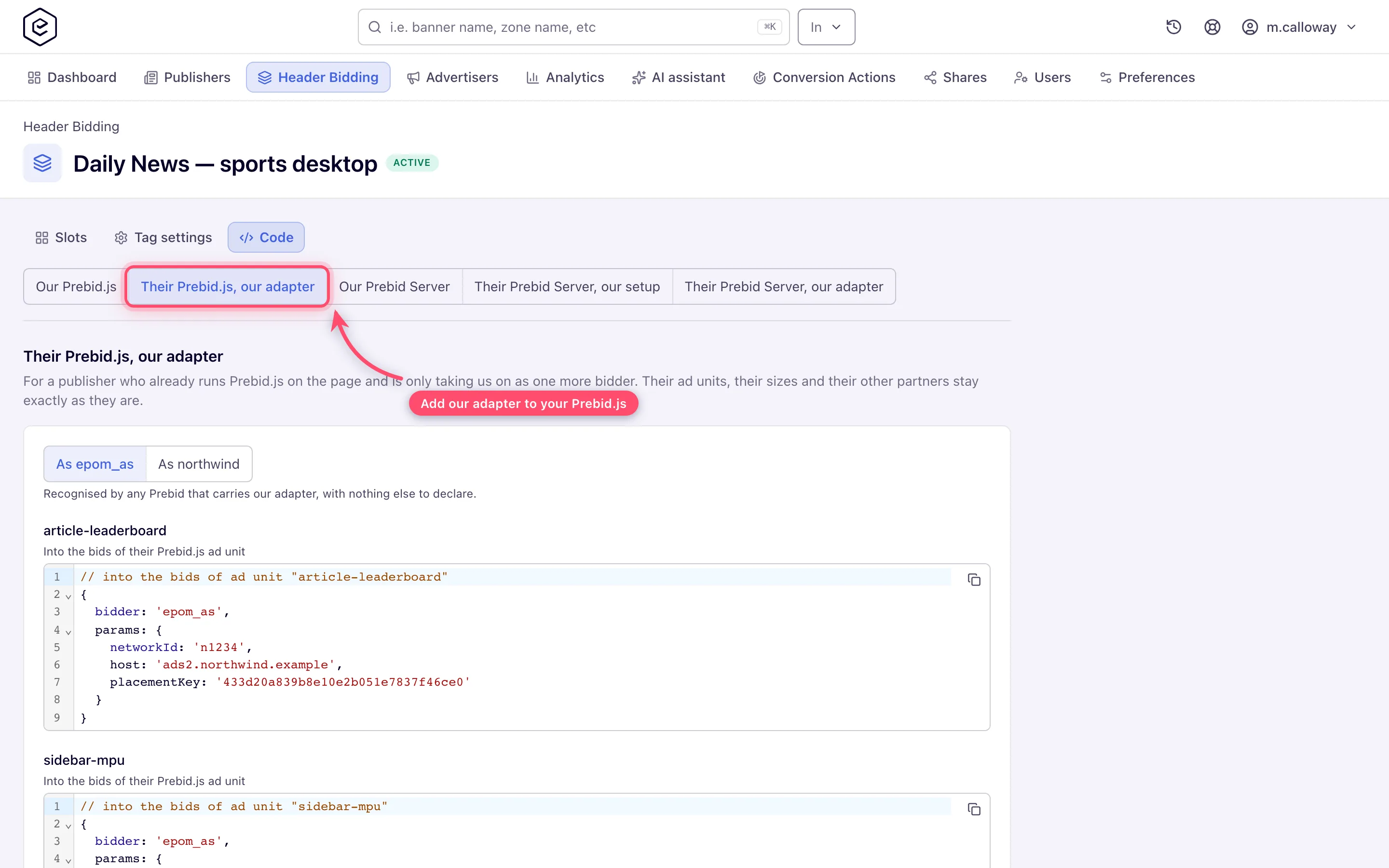
Open Code and pick Their Prebid.js, our adapter on the switch at the top. Above the entries a second switch picks the name we bid under: As epom_as — recognised by any Prebid that carries our adapter, with nothing else to declare — or As epom_{network}, the network’s own code or the tag’s Bidder code if you set one, which keeps our name out of their configuration at the cost of one more thing they must not forget. Then one block per slot, headed by the container name, with a copy button:
// once per page, before the auction — only under an alias
pbjs.aliasBidder('epom_as', 'epom_n1234');

// into the bids of ad unit "article-leaderboard"
{
  bidder: 'epom_n1234',
  params: {
    networkId: 'n1234',
    host: 'ads.example.com',
    placementKey: 'a4f21c9e7b',
    channel: 'sports-uk',
    customParams: { "section": "sport" }
  }
}
channel and customParams appear only when the placement carries them under Ad tags & API →
Settings — see Channel and custom parameters. They are a
snapshot: change them on the placement afterwards and the publisher has to be given the new entry,
because in this mode their Prebid config is the copy that counts. The same holds for host, which
is quoted from the tag’s Serving domain.
networkId names your network. Prebid.js still sends the bid to host, the network’s own domain,
where its cookies live. The field is there so the same entry also works in a publisher’s Prebid
Server, which may not take a bidder’s address from a parameter and reaches the network by its id
instead. An adapter that predates the field ignores it.
- It lists a slot only after the tag has been saved. The blocks are built from the last saved tag, so an edit reaches them only after you save; a note above the blocks flags the unsaved changes. Save, then copy.
- It can stay empty after a save. If the face still says Save the tag once to get a document
per slot. after you saved, and the naming switch offers only
epom_as, this network has no network id set on the ad server. Epom sets it — ask Epom support or your account manager; nothing in the tag fixes it. - The alias line names
pbjs. If their Prebid runs under another global, they rename that one call; the entry itself carries no global.
3. What the publisher does with it
The entry goes into an ad unit they already have. Not a new ad unit. Their mediaTypes stay as
they are, their other bidders stay as they are, and the entry is one more object in that unit’s
bids array:
pbjs.addAdUnits([{
  code: 'article-leaderboard',
  mediaTypes: { banner: { sizes: [[728, 90], [970, 250]] } },
  bids: [
    { bidder: 'appnexus', params: { placementId: 13144370 } },
    { bidder: 'epom_as', params: { networkId: 'n1234', host: 'ads.example.com', placementKey: 'a4f21c9e7b' } }
  ]
}]);
Their auction stays the only auction. A second addAdUnits + requestBids on the same ad
unit codes — a second wrapper, a second Prebid build, our tag in Owned or Adopt mode beside theirs
— silently voids the first one’s targeting: whichever run writes the GPT key-values last is the one
Google sees, and the other run’s winner is never rendered.
Every Epom ad unit on the page travels in one request to https://{host}/hb/bid, so
roadblocks and one-campaign-per-page rules hold across the page. host is the serving domain as a
bare hostname — no https://, no path; the adapter refuses anything else before the request leaves
the page. The ad server prices the impressions in order and stops at their bidderTimeout, less a
little kept back for the round trip, so a short timeout on a page with many units leaves the last
impressions unbid. The programmatic partners asked for an impression get the same deadline: their
answers are not waited for past it.
Sizes. Their mediaTypes.banner.sizes are the sizes we may answer with, and the creative has to
match one of them exactly or no bid is made — you see each refusal on the placement’s troubleshooting
log as a size the impression did not ask for. A placement pinned to one size needs
that size in their list; a placement that allows variable sizes needs every size its creatives come
in. Two cases are never size-matched: video, as under Instream video below, and any creative on a
Non-standard Placement, sized or not. A sizeless creative on a Non-standard Placement is answered at
the first size their unit lists; one with a size of its own is answered at that size.
Instream video. A Video Placement answers mediaTypes.video with context: 'instream';
playerSize is a hint and never matched. The bid comes back as VAST in vastXml, and Prebid.js
drops a VAST bid before bidsBackHandler unless their config says what to do with it. Pick by where
the ad is going: a player that takes VAST as a string (IMA, JW) needs
pbjs.setConfig({ cache: { allowVastXmlOnly: true } }); a player that wants a URL needs
cache: { useLocal: true }; only a real Prebid Cache — cache: { url: 'https://…/cache' } —
produces the hb_uuid a Google Ad Manager video line item needs. We return VAST, not a player: an
outstream unit needs a renderer of their own, or Prebid discards the bid.
Recognise what a missing cache setting looks like, because nothing on our side reports it: the ad
server answered with a bid and the placement’s troubleshooting log shows it, while the page’s slot
reports no bid at all. Prebid dropped the bid before bidsBackHandler ran, and the only trace is an
error in the browser console. When a publisher says video never fills while the log says it bid,
that setting is the first thing to ask for.
Native. A Native Placement answers mediaTypes.native, in the OpenRTB or the legacy asset
form; the bid answers each asset under the id they asked it under. Rendering is theirs — an
adTemplate or rendererUrl on the ad unit, or their own code over bid.native.ortb.
Two Epom networks on one page need two names. Both entries are called under one code, but
their reports and the hb_*_<bidder> keys then show one Epom, and a Prebid Server keeps only one
of them. Give each network a Bidder code of its own; both aliases are declared once per page,
before the auction.
Consent works as described under Consent: their consentManagement module’s
string rides the request, and a page without one still bids. Floors from their Price Floors
module, or params.bidFloor, are honoured before any markup is built — USD only. Capping rides
a cookie on the serving domain: the adapter sends the request with credentials, so the identity our
beacons set reaches the next bid; a browser that withholds third-party cookies leaves per-user
capping without an id on that page, and the bid is still made.
Through their Prebid.js, into their Prebid Server
The commonest server-side case has no slot id in it at all. A page already running Prebid.js can route some or all of its bidders through a Prebid Server instead of calling them from the browser, and for that publisher we are one more name in a list they already keep:
pbjs.setConfig({
  s2sConfig: [{
    accountId: 'the-id-their-server-issued',
    bidders: ['epom_as'],
    enabled: true,
    endpoint: 'https://their-prebid-server.example.com/openrtb2/auction',
  }],
});
Their ad unit does not change, and neither does the entry we print on the Their Prebid.js, our
adapter face — the same bids[] line, with the same networkId, host and placementKey. Prebid.js carries
those params to their server as imp.ext.prebid.bidder.epom_as, which is the same place every
other server face puts them, so there is nothing to store and nothing to keep in step. What the
publisher needs from us is those values; what they need from their own host is the accountId
and an epom_as their server recognises.
The slot still has to be sold by an active tag here, exactly as in the browser case — a request routed through a server carries no mark saying so, and the ad server cannot tell one from the other.
Corner cases and gotchas
Corner case: An alias has to be declared, once per page, before the auction. Under any name other than
epom_asthe adapter entry opens withpbjs.aliasBidder('epom_as', …); leave that line out and Prebid drops the bidder in silence. An empty Bidder code is notepom_as— it isepom_plus the network id, so the alias line is there unless you typedepom_as.
Corner case: A long alias truncates the Google key. Prebid cuts targeting key names at 20 characters, so
hb_deal_plus a bidder code longer than 12 characters reaches Ad Manager shortened —hb_deal_epom_dailynewsbecomeshb_deal_epom_dailyne. Build the line item on the shortened key, or keep the code short.
Per-role notes
- Network manager — builds the tag and copies the entries; the publisher’s Prebid configuration is theirs to edit.
- Publisher — pastes the entries into their own ad units; see Header bidding: what a publisher installs.
- Can View share — sees the site’s tags but cannot save or delete them; see the per-role notes on the main page.
