
Notifications & outbound mail
Configure the mail and in-app notifications the platform sends — event-triggered email templates, the macro palette, digests and their schedule, and the unsubscribe list.
Everything the platform proactively tells people — transactional email, digest email and in-app dashboard notifications — is content you edit from the five pages in the Admin → Notifications group. This page explains each of them, how a system event becomes a delivered message, and the several ways that message can go missing without anything in the UI saying so.
Who this is for
Network administrators. Each of the five pages is a separate grant, so a role can hold any subset — see Users, roles & permissions.
The Notifications group is collapsed by default in the admin sidebar; it expands on click, and opening any page inside it expands the group automatically.
Prerequisites
- Mail delivery itself is set up by Epom support, not on an admin page. If nothing arrives at all, ask Epom support or your account manager to check mail delivery before you suspect a template.
- DKIM signing is automatic but conditional. Mail is signed only when a DKIM key exists for the domain of its From address; otherwise it goes out unsigned, silently. Ask Epom support or your account manager to add a key for each sender domain you use.
- Transactional mail works out of the box; the other three pages start empty. A stock network ships with a handful of email templates already bound to their events, but with no scheduled events, no digest templates and no UI notification templates. A digest cannot even be saved until a scheduled event exists, because its Scheduled event field is required and its picker has nothing in it — so build the recurrence first.
How a message gets sent
- A system event fires — sign-up, forgot password, an entity shared, a campaign limit reached, a site approved. There are 135 of them; the full catalog is the Events grid inside every template editor.
- Every template subscribed to that event is fetched by event id alone. Both the
Activeflag and the Roles list are applied afterwards. - Roles narrow the send. A template with roles ticked is used only when the event’s target user holds one of them. A template with no roles ticked is used for everyone — see the corner case below, because the digest pages do the opposite.
- Addresses, subject and both bodies are Velocity templates, evaluated against the event’s attributes. Then the HTML body is evaluated a second time against the white-label context and dropped into the branded frame — logo, colours, company details and social links from White-label preferences.
- Recipients on the Email unsubscribe list are removed from the
Toline, the message is DKIM-signed when a key exists for its sender domain, and a failed delivery is retried several times.
Two properties of that pipeline are worth internalising before you debug anything:
Warning: there is no outbound-mail log you can open. No admin page shows delivery history; Epom support or your account manager can confirm from the server logs that a message with a given subject was sent, but not its body or template. Everything below that “goes missing silently” does so with genuinely nothing to click on.
Warning: an event with no matching template is a silent no-op. It is not an error, not a warning, not a UI notice — nothing is sent and nothing says so. Deleting or deactivating the wrong template therefore looks exactly like everything working.
What is in the mail, and what is never in it
No event exposes a password. The ${password} and ${newPassword} placeholders were removed
along with the templates built around them; the platform now sends links, not credentials.
| Event | What it carries |
|---|---|
| Password Changed | A notice only — ${passwordChangedAt}, ${passwordChangedIp} and ${forgotURL}, a link to the recovery page for a user who did not make the change. Fires on every password change, including one the user made themselves. |
| Forgot Password | $resetURL — a single-use link, valid 60 minutes by default. |
| Sign Up, Publisher/Advertiser User Activated | ${setPasswordURL} — a single-use link, valid 72 hours by default, that a newly provisioned user follows to choose their own password. Use this instead of sending credentials. |
| Advertiser / Publisher sent statistics account credentials | ${statisticUser.username} and ${statisticSetPasswordURL} — the invitation behind Create user & share statistics. Despite the event name, which is left over from when it did, it carries no password. |
Replaced on upgrade: the old New Password templates were built entirely around the password placeholder. Rather than leave a dangling sentence — or no takeover warning at all — the upgrade deleted every template bound to the password-change event and installed a single Password changed template, active and non-optional. A user cannot unsubscribe from being told their password changed. Edit its wording freely; just don’t switch it off.
Both link types carry their token in the URL fragment, after the #, so the token never
reaches a web-server log and mailbox link-scanners that pre-fetch URLs cannot burn the link
before the recipient clicks it. Issuing a new link invalidates the previous one, and so does
any password change.
Steps — edit an email template
-
Go to Admin → Notifications → Email notification templates. The grid lists Title, Subject, Active and Optional.
-
Select a row and click Edit (or Add for a new one). The form has four cards: Information, Template, Events and Roles.
-
Fill Information: Title (required, max 64 characters — it is the grid label only, never seen by a recipient) and the Active checkbox.
-
Fill Template: From, To, Reply to, Subject, the Full-width mail body checkbox, the HTML body and Plain text body editors, and Allow users to omit this notification.
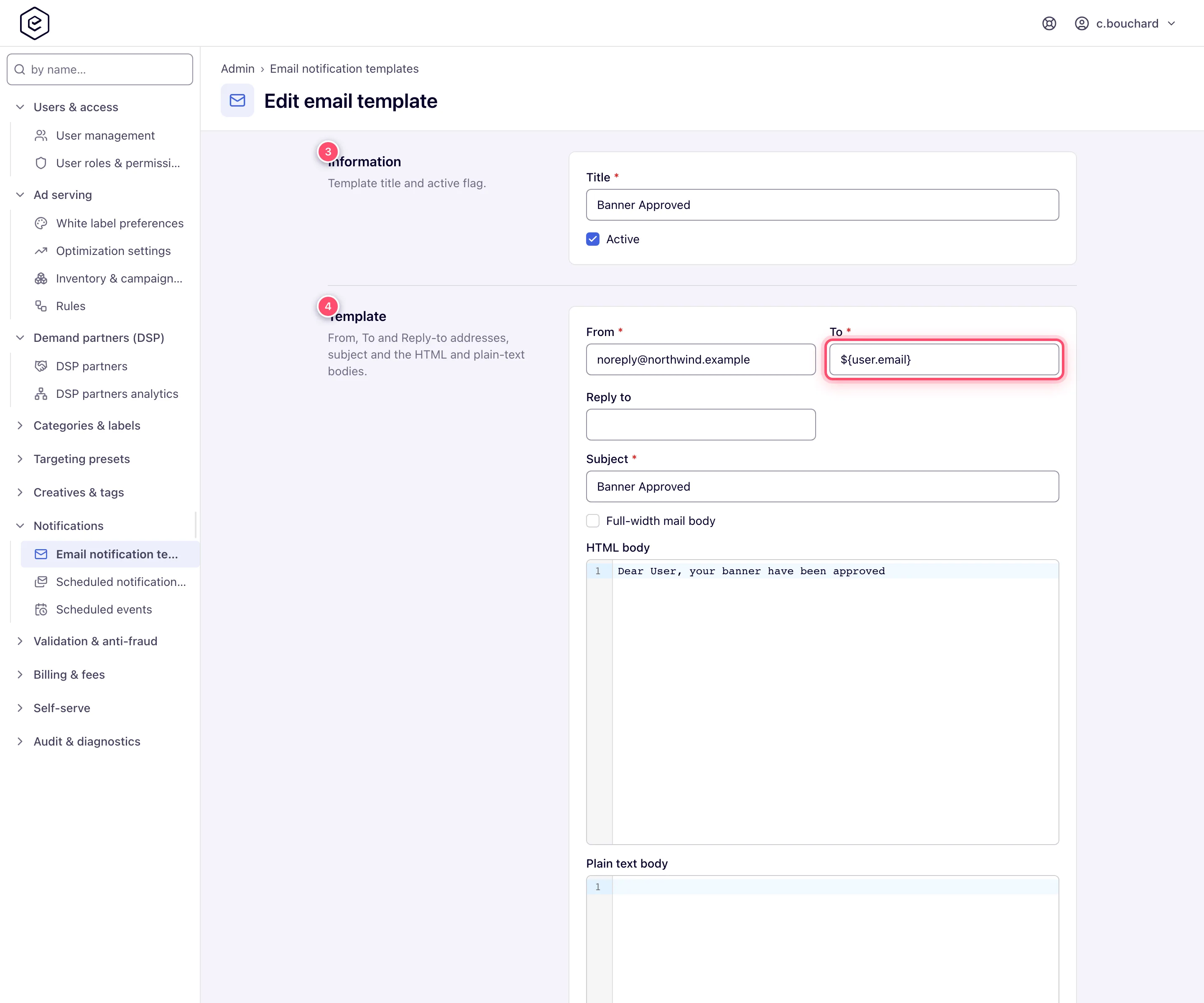
Tois almost always the macro${user.email}rather than a literal address. -
In Events, tick the system events that trigger this template. Use the Filter box to find one by name, and Show selected only to review what is already ticked.
-
In Roles, tick the roles whose users should receive it — or leave every box clear, which means all roles.
-
Click Save. A green Done toast appears and you stay on the edit page; only a brand-new template navigates, and it navigates to its own edit page.
Corner case: only Title is checked in the browser. Leave From, To or Subject empty and the form submits happily, the server rejects it, and you get
Requiredunder each offending field plus a summary banner. Nothing is saved — but you pay a round trip to find out. A missing Title shows the sameRequiredbefore anything is sent.
Finding the macros a template may use
Every ${…} a template can resolve comes from an attribute of one of its events, and the
editor will tell you which. In the Events grid, each row’s Attributes column lists that
event’s attributes as links; clicking one opens a Macros available through … popover with
the attribute’s description and the exact macros it exposes, each with a + button that
drops the macro into the body.
The macro list is built from the attribute’s underlying object, two levels deep, and lists
only the properties published to the palette — not every property the object has. A macro off
the palette can still resolve (the stock
Password changed template uses ${user.username}, which the palette does not list), but
only palette macros are meant to be relied on. A [name] in a macro marks a collection.
Target user, present on almost every event, yields ${user.email}, ${user.phone}, ${user.firstName}, ${user.lastName},
${user.company}, ${user.websiteUrl} and ${user.id}. Attributes that carry a bare value
rather than an object expose a single macro named after themselves — ${setPasswordURL},
${additionalRecipientsList}.
Note: the root of a user macro is
user, nottargetUser. The attribute is labelled “Target user” in the grid, but the Velocity name isuser. Take macros from the palette rather than from the label.
Helpers are not the same everywhere. $StringUtils and $whiteLabelImagesTool exist in
every pass. $properties (the white-label property map, e.g. $properties.company),
$host and $port (the server host and its HTTPS port) exist only in the second pass —
the one that wraps the bodies in the branded frame — so they work in HTML body and
Plain text body but stay literal text in From, To, Reply to and Subject.
$date (date formatting) is not injected into event mail at all; it exists only in the
Daily Notifications Digest and Scheduled Analytics Report templates.
Those two events list their whole model in the Events grid, so the palette offers it like any
other attribute: Scheduled Analytics Report exposes $scheduledReport, $hat (period,
grouping, filters), $summary (the totals row), $columns and $overflowed; Daily
Notifications Digest exposes $user, $notifications, $notificationsCount and
$yesterdayDate. Both add $generationDate, $date, $properties, $host and $port.
Corner case: an attribute the event does not declare is dropped before the template ever sees it, and Velocity is not in strict mode. A macro the event does not expose is therefore rendered literally — the recipient reads
${user.nickname}in their inbox. Nothing warns you at save time. Use the palette, and send yourself a test.
Editing a template body
Every body field on the three template editors is a code editor (CodeMirror), not a
rich-text box: it shows the markup exactly as stored and never reformats it on save. That
matters because email bodies are table-based layouts — a visual editor would reflow them and
break rendering in Outlook. Syntax highlighting covers both the HTML and the Velocity woven
through it, with separate colours for ${…} references, #if / #foreach directives and
## comments.
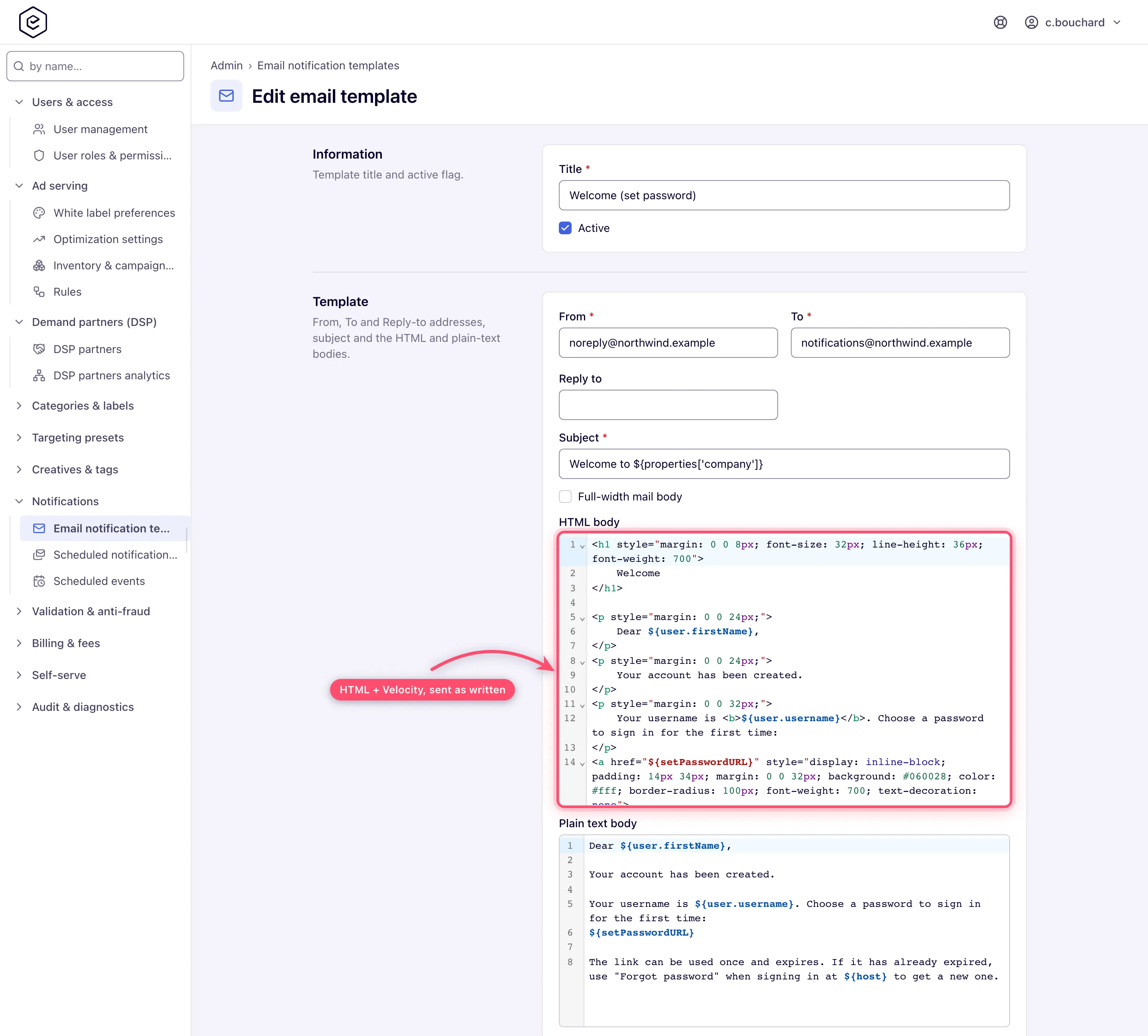
Corner case: the editor highlights, it does not validate. There is no linting, no HTML sanitising and no check that your
#foreachhas a matching#end— an unbalanced directive is coloured exactly like a balanced one and saves without complaint. It surfaces at send time, where a Velocity parse error in the subject or body substitutes the literal text “Error processing velocity template” into the mail, and a parse error in From, To or Reply-to drops the message entirely.
The + button in the macro popover inserts at the caret — but only once you have actually clicked into the editor. Before that first click it appends to the end of the body instead, which is deliberate: inserting at offset 0 would put the macro above the doctype.
Tip: the digest editor has two code editors, and the + targets whichever of HTML body and HTML item you clicked into last. Click into HTML item first when you are building the per-event row — that is where per-event macros belong. With no caret in either, it appends to HTML body.
The five pages
Email notification templates
One template per transactional email, sent immediately when one of its events fires.
The message — Information and Template cards:
| Field | What it does |
|---|---|
| Title | Required, max 64 characters. The grid label; never shown to a recipient. |
| Active | Unticked = never sends. The event links survive, so an inactive template is not the same as a deleted one. |
| From | Required, max 200 characters. Display Name <addr@example.com> is accepted. Its domain decides which DKIM key is used. |
| To | Required, max 1900 characters. Comma-separated; usually the macro ${user.email}. |
| Reply to | Optional, max 200 characters. |
| Subject | Required, max 700 characters. Velocity-capable. |
| Full-width mail body | Off, the branded frame constrains the mail to a 680px shell with a 560px content column. On, the body stretches to the client’s full width. |
| HTML body | The message. Wrapped in the white-label frame before sending. |
| Plain text body | Optional. When both are filled the mail goes out multipart. |
| Allow users to omit this notification | Marks the mail optional: an unsubscribe link is appended to the frame, and registered users who turned off Receive notifications by email are skipped — the server reloads that list of opted-out addresses at the top of every hour, so a change can take up to an hour to apply. Non-optional mail carries no link and ignores that preference. |
Who gets it, and when — Events and Roles cards:
| Field | What it does |
|---|---|
| Events | The system events that trigger this template. All 135 are offered. A template with no events ticked never sends. |
| Roles | Recipient roles, one checkbox per ACL role. No roles ticked means all roles. |
Two templates bound to the same event both fire — the recipient gets two mails, not one.
Corner case: ticking Allow users to omit this notification on a template whose event the platform considers mandatory (sign-up, forgot password, password changed, the account-activation events) saves the change and shows “There are no non-optional active email templates for notifying user about … event. User might not get notifications.” in a red alert toast instead of Done. The template is saved; the alert is the only place the product tells you a mandatory notification has been left uncovered, so add or activate a template that users cannot opt out of for that event.
Scheduled notification templates (digests)
Digest email that accumulates events and sends them in one message on a schedule. The nav entry and the list header both read “Scheduled notification templates”; the edit form’s own header reads “Add / Edit scheduled email template”. Same thing.
Differences from a plain email template: it adds BCC, replaces the plain-text body with a required HTML item fragment rendered once per accumulated event, requires a Scheduled event, and drops Allow users to omit this notification entirely. From, To, Reply to and BCC each allow 1900 characters here (200 for From and Reply to on a plain template), Subject 700, and Title 64.
| Field | What it does |
|---|---|
| BCC | Comma-separated. Becomes the message’s real BCC header. BCC recipients are filtered against the unsubscribe list just like To. |
| HTML body | Required. Reference the accumulated rows with ${items}. |
| HTML item | Required. Rendered once per event, at the moment the event fires, and stored; the stored fragments are what ${items} expands to at send time. Editing the item does not retro-render items already accumulated. |
| Scheduled event | Required. The recurrence that fires the send. |
| Triggered events | Only 97 of the 135 events are offered here — see the corner case below. |
| Roles | No roles ticked means nobody. The opposite of the plain email page. |
UI notification templates
In-app notifications instead of email; users see them in the account area. Fields: Title, Active, Subject, Body, and under Dashboard display options User-dependent subscription, Display on dashboard and Notification type (Information / Alert / Warning, which controls the banner styling), then Notification events. Body is the same Velocity code editor, and all 135 events are offered.
| Field | What it does |
|---|---|
| User-dependent subscription | Off, every user an event targets receives the notification. On, only users who ticked this template’s Title under Account → Preferences → Notification settings → Notification events receive it. |
| Display on dashboard | Shows the notification on the user’s dashboard, with the styling of the chosen Notification type. |
There is no Roles list on this page, and a role that holds Skip All Notifications receives none of them.
Users pick their user-dependent notifications under Account → Preferences → Notification
settings. The same settings, including extra recipients, can be read and set over REST
(/rest-api/notification-settings, /subscriptions and /recipients); a role holding Skip
All Notifications, or without view rights on campaigns or inventory, is refused.
UI notifications by e-mail — the Daily Notifications Digest. A UI notification created for
a user who has Receive notifications by email on is also queued for one daily e-mail. At
00:30 every day, each user with queued notifications gets
one message rendered from the first active, non-optional email template bound to the
Daily Notifications Digest event (sent to the user’s address plus their additional
recipients). The queued notifications are marked sent whether or not such a template exists,
so a network without one drops the digest silently. The template ships with the network but
inactive — tick Active on Daily Notifications Digest under Email notification
templates to turn the e-mail on. Its model carries $notifications, $notificationsCount,
$user, $generationDate and $yesterdayDate, plus $date, $properties, $host and
$port. Being non-optional, it has no unsubscribe link.
Scheduled events
The recurrence definitions digests subscribe to. The grid shows Name, Frequency, Period and Start at; the form is three fields:
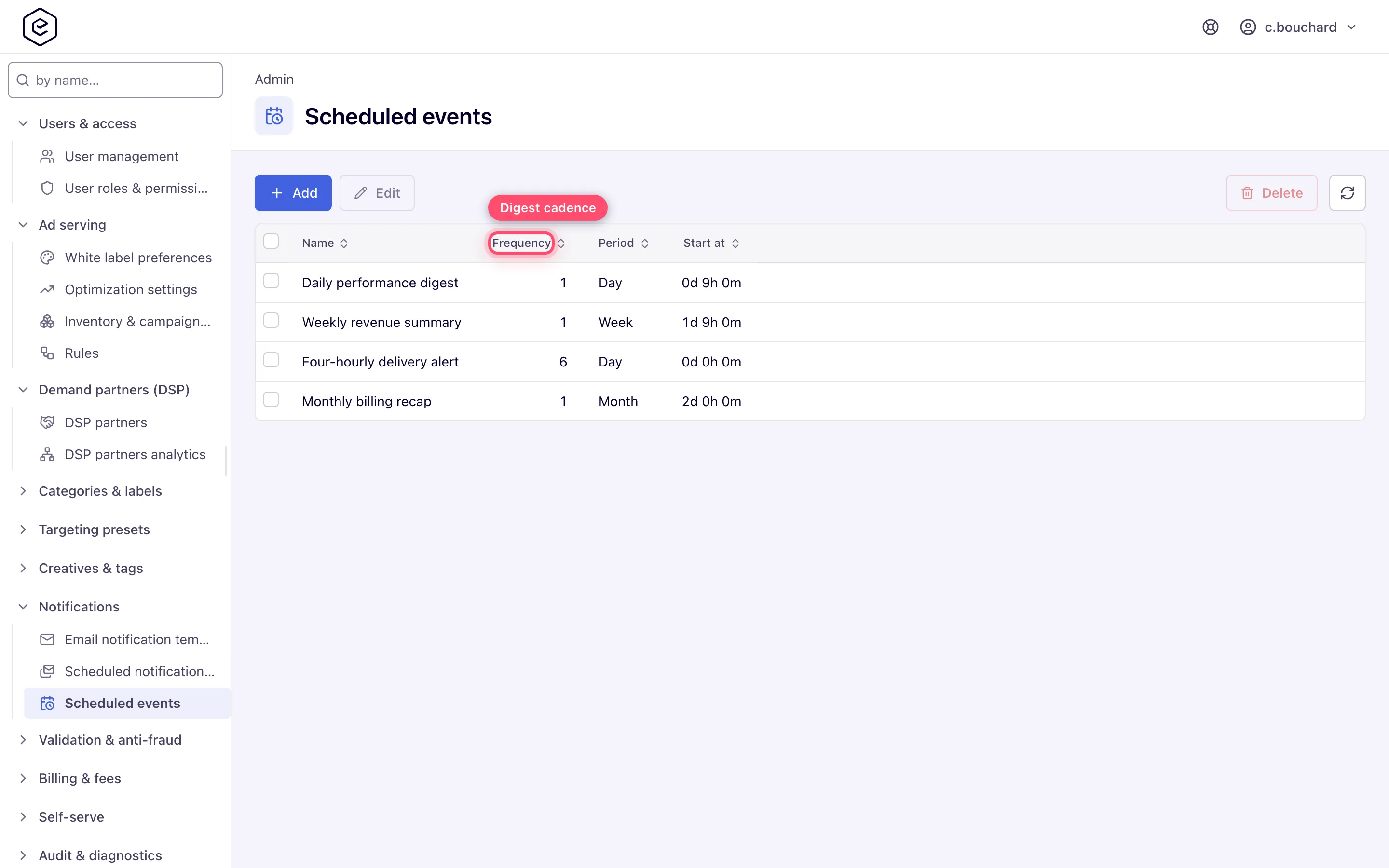
| Field | What it does |
|---|---|
| Name | Required, max 64 characters. What the digest template’s picker shows. |
| Default frequency | Two controls on one row: a count (0–200) and a period — Day, Week or Month. The interval between sends is the period divided by the count, so 4 times per Day is every six hours. |
| Default start at | An offset into the period, as days + hours + minutes (days 0–30, hours 0–23, minutes 0–59). The week starts Monday; the month starts on day 1. |
A user’s own copy of a recurrence can be read and retuned over REST —
GET /rest-api/users/{username}/scheduledEvents and
POST /rest-api/users/{username}/scheduledEvents/{scheduledEventId} (period 1 = Day,
2 = Week, 3 = Month; frequency; startAt in minutes; a field you do not send keeps its
value). The caller must be that user or an admin whose role manages that account.
Corner case: both “default” fields mean it literally. Creating a scheduled event copies them onto a per-user subscription for every existing user, and creating a user copies them again for every existing event. Nothing afterwards reads them. Editing the default frequency of an existing scheduled event changes nothing for anyone already subscribed — only for users created later.
Email unsubscribe list
The opt-out ledger: a searchable grid of addresses with an inline Add box and a per-row
Delete. Addresses land on it in exactly two ways — an administrator adds one by hand, or
somebody submits the page behind the unsubscribe link in an optional email and is not a
registered user. Opening the link only shows a page; the choice is applied when that page
is submitted, and only if the link’s key matches the address. For a registered user the same
page sets their Receive newsletters and Receive notifications by email preferences from
its two checkboxes (they can leave either on), nothing is listed, and the system event
Unsubscribe fires — a template can listen to it. For an address that is not registered the
page always lists it, whatever the checkboxes say.
Removal is the admin Delete button only. There is no self-service re-subscribe, and submitting the unsubscribe page again re-adds the address. Neither the list nor the two user switches affect non-optional mail, digests or scheduled reports.
Low-budget alert: get notified when an advertiser’s budget is running low
The platform has a built-in event for this: Advertiser has less than $50 at the balance (the amount in the name is the threshold set for your network; 50 by default).
When it fires. The advertiser has a Total budget on its Limits card (Budget row, Total column — see Limits) and the money left — total budget minus what has been spent against it — is at or below the threshold. It is checked each time new statistics for that advertiser’s campaigns are written, so it is not a once-a-day message: while the remainder stays under the threshold and the advertiser keeps delivering, every check can raise it again. Campaign and banner budgets do not trigger it — only the advertiser’s.
Who gets it. Every active user the advertiser is shared with as Is Owner, Can Edit or Can View. Template Roles narrow that further, as for any event.
Switching it on. Nothing is sent until a template listens to the event:
- Admin → Notifications → Email Notification Templates → create a template (or open an existing one), tick Active.
- Set To to
${targetUser.email}and write the subject and body; the event exposes the advertiser (${advertiser.name}, …) and the recipient. - In Events, tick Advertiser has less than $50 at the balance. Save.
Because the event repeats while the balance stays low, consider a Scheduled Notification Template (digest) on the same event instead, so each user gets one summary per period rather than a mail per check — or a UI Notification Template for an in-app notice.
Changing the threshold amount is a server-side setting, not an admin page: ask Epom support or your account manager to change it (default 50).
Corner cases and gotchas
Corner case: the Roles checklist behaves in opposite ways on the two email pages. On Email notification templates, no roles ticked = send to everyone the event targets. On Scheduled notification templates, no roles ticked = the digest accumulates for nobody, silently. Always tick roles on a digest.
Corner case: digests are not opt-in. Every user is subscribed to every scheduled event automatically — on user creation for all existing events, and on event creation for all existing users. Users cannot unsubscribe; Account → Preferences → User scheduled events only lets them retune frequency, period and start offset. Setting frequency to 0 is the de-facto mute, and it logs a warning on every processing cycle.
Corner case: an inactive user is treated differently by the two kinds of mail. Transactional mail still goes out to them; digest items are never accumulated in the first place. And if a user is deactivated between two digest sends, the items accumulated while they were active are skipped and the clock still advances — they are lost, not deferred.
Corner case: a digest cannot aggregate an arbitrary event. Only events that carry a Target user attribute and name a Placement, Zone, Site, Banner, Campaign or Advertiser qualify — 97 of 135. That is why Sign Up, Forgot Password, Password Changed and the … Shared events are missing from the digest picker but present on the other two pages. A share event looks entity-shaped but its attribute is a share object, so it does not qualify either.
Corner case: a message whose entire recipient list is filtered out — everyone on the unsubscribe list — is dropped and counted as a success. Nothing surfaces anywhere. Check the unsubscribe list before you suspect mail delivery.
Corner case: the unsubscribe filter matches on the address itself, ignoring any display name — a template addressed
Support Team <ops@example.com>is suppressed by anops@example.comentry on the list. It applies toToand BCC alike, including a user’s additional recipients, which every event carrying a Target user BCCs automatically.
Corner case: while experimenting, un-tick Active rather than deleting. Deleting a template also deletes the record of which events it listened to, and there is no undo.
Corner case: outbound mail has no locale. There is no per-language template and no per-language variant of one; the send path never consults the recipient’s UI language, and the branded frame around every HTML mail is fixed English (the “This message has been generated automatically” note, and the unsubscribe sentence, which names the white-label Company name, or reads “us” when none is set). A user who set their interface to Korean still receives whatever you typed, in an English wrapper. The admin UI you type it in is fully translated — only the mail is not. The one exception is the attachment of a scheduled analytics report, whose column labels are rendered in the report owner’s language.
When a scheduled analytics report does not arrive
Scheduled reports ride this same mail pipeline, on their own hourly run (every hour, half a minute past the hour). Almost every way they fail is silent, so work down this list rather than watching for an error:
| Cause | Anything logged? |
|---|---|
| The report’s owner is inactive | Nothing at all |
| The owner’s parent account is inactive | Nothing at all |
| The report has no recipients — and nobody is a recipient by default, not even the owner | Nothing at all |
| The Scheduled Analytics Report template is missing, inactive, or has Allow users to omit ticked | An error naming the recipient, never the template |
| A recipient is on the unsubscribe list | One info line |
| Row count exceeded the export limit and was truncated | Nothing at all |
Corner case: the report template is looked up by its event, not by id, and must be active and non-optional. Ticking Allow users to omit this notification on it therefore stops every scheduled report on the network — with no message that names the template. If two active non-optional templates are bound to that event, which one is used is arbitrary.
Per-role notes
- Administrator — sees only the Notifications pages its role allows; one reached by URL without the grant shows Record not found. Grant the two template pages together with Scheduled events, since a digest cannot be saved without one.
- Network manager, publisher, advertiser — recipients only. They control the two email switches on their user record, the unsubscribe link, their notification events and their own digest timing; nothing else.
Exact grants: see Users, roles & permissions.
Related
- Users, roles & permissions
- White-label preferences
- Saved & scheduled reports — scheduled analytics report emails ride the same mail pipeline
- Admin area map
