
Header bidding tag settings and slots
Reference for a header-bidding tag — every Tag, Auction and Refresh setting, the slot fields, video, native and full-screen slots, when a placement answers bids and why it refuses, the advertiser domain, other bidders, the supply chain, consent, and channel and custom parameters.
This is the reference behind every header-bidding route: what each setting on a tag does, what a slot holds, how video, native and full-screen slots differ from a banner, which placements answer bids and why one refuses, and what the tag sends with each bid — the advertiser’s domain, other bidders, the supply chain, consent, and the placement’s channel and custom parameters. To pick a route and set a tag up, start from Header bidding.
Who this is for
Network managers and admins who build and maintain header-bidding tags. Editing a tag takes the Header Bidding Tab Visible toggle, Inventory View on the role and update rights on the tag’s site — see Permissions.
Create a tag
A tag belongs to a site and lists its slots. Account → Header Bidding → Add opens a new tag on its Tag settings face; the slot editor waits until the tag has a site, because the placement picker is filled from it. The settings are grouped as the form groups them.
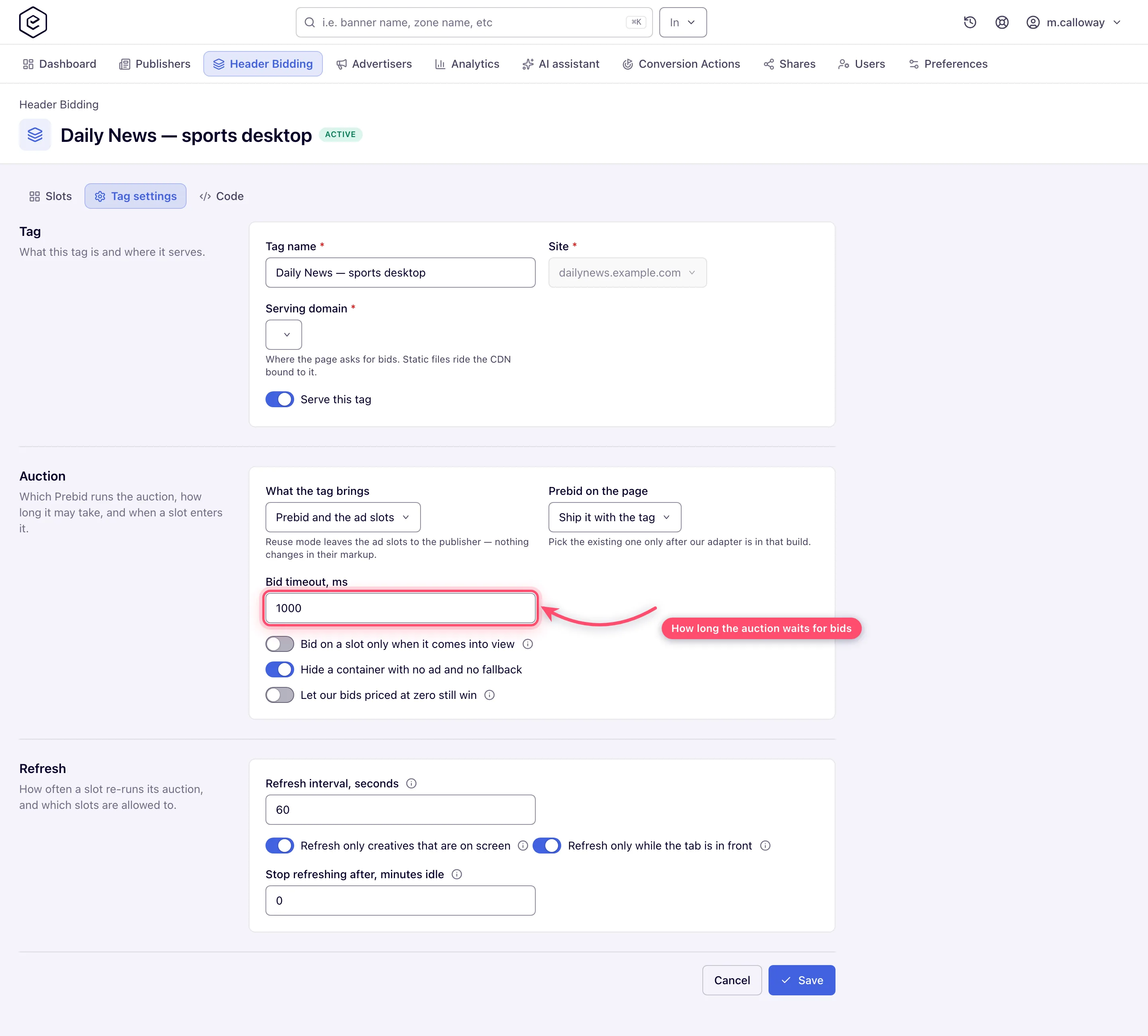
Tag
- Tag name — required, up to 128 characters.
- Site — required, and fixed once the tag has been saved: the picker greys out, because every slot points at a placement of this site. To sell another site’s inventory, create a second tag. Before that first save the site can still be changed, and changing it clears the placement from every slot already added — a slot’s placement does not move with it.
- Serving domain — which of the network’s ad-serving domains answers this tag’s bid requests.
The static half of the tag is served from that domain’s CDN when one is configured; the picker
shows those as
domain → cdn. A new tag starts with the network’s default domain selected. Only a domain the network has configured for ad serving is accepted. - Serve this tag — on by default. Switched off, the tag stops answering bids within about a minute — see When a placement answers bids. The badge beside the tag’s name reads Active or Paused accordingly.
Auction
- What the tag brings — how much of the page the tag takes over. Three options, which this
guide calls Owned, Adopt and Bidder for short:
- Prebid and the ad slots (the default, Owned): the tag brings Prebid, defines the Google slots itself and owns the whole lifecycle; the page carries only containers.
- Prebid only — reuse the publisher’s Google Ad Manager slots (Adopt): the page already defines its own GPT slots and the tag attaches to them instead of defining duplicates — see Adopting a page’s existing Google slots.
- Nothing — the site runs its own Prebid and adds us as a bidder (Bidder): the tag produces no script and no containers and needs no Ad Manager work; see When the site runs its own Prebid.
- Prebid on the page — Ship it with the tag (the default) loads our own Prebid build under
its own global,
easPbjs, so nothing on the page has to change. The site already runs Prebid reveals Its global variable — usuallypbjs, up to 64 characters — and we then load no library at all. Two Prebid builds on one page means two auctions, and the second quietly overwrites the first one’s targeting, so pick this only once our adapter is compiled into their build. Not offered in Bidder integration. - Bid timeout, ms — how long the in-browser auction waits for bids. Default 1000, from 100 to 65,535. Owned and Adopt only: in Bidder integration the publisher’s Prebid owns the timeout, and this field is replaced by Bidder code.
- Bidder code — Bidder integration only. The name the publisher’s Prebid registers us under
and the name they see in their reports. Leave it empty and the name is the one shown as the
placeholder —
epom_plus this network’s id. Up to 64 characters. Typeepom_asto bid under the adapter’s own code with nothing for the publisher to declare; any other name adds onepbjs.aliasBidderline to the snippet, which they run once per page before the auction. Give each Epom network that sells one publisher a name of its own, or their reports merge the networks into one line. - Bid on a slot only when it comes into view — off by default, so the whole page is bid on at once, below the fold included. Turn it on to save requests on very long pages; holding the first load delays every ad.
- Hide a container with no ad and no fallback — on by default. A slot that ends a round with nothing and has no fallback markup gives its space back to the layout, and is re-auctioned when its place becomes visible again — a dialog re-opened, a panel expanded.
- Let our bids priced at zero still win — off by default, matching Prebid’s own default. Prebid throws away a bid priced at exactly zero before it can render, so inventory carried on the deal rather than on price — a House ads creative with no CPM of its own — bids and then fills nothing. Turn this on when the network runs such demand and you would rather not invent a nominal price for it. The opt-in is written under Epom’s own bidder code, so every other bidder on the page keeps Prebid’s default. Ignored in Bidder integration, where the bidder settings are the publisher’s to write.
Refresh
Hidden in Bidder integration — the publisher’s Prebid owns the auction there.
- Refresh interval, seconds — seconds between auctions for one slot. Default 60; 0 turns refreshing off. Google Ad Manager sets 30 seconds as the minimum for a time-based refresh, so the form refuses anything between 1 and 29. Google also asks the publisher to declare refreshing inventory in their own account, with a declared rate no slower than the one set here. Which slots refresh, and when, is decided by the three rules below, not by this number.
- Refresh only creatives that are on screen — off by default. On, at least half the creative must be inside the viewport; off, it only has to be drawable at all. This one is ours: Google publishes no viewability condition on refresh. Off is roughly a third more rounds on a long page, and those impressions are still seen.
- Refresh only while the tab is in front — on by default, and the one to leave alone. A hidden tab keeps running the timer, so turning it off carries on refreshing while nobody is looking — about 65 extra rounds an hour. A hidden document is never drawn, so those impressions can never be counted viewable, and that drags down the price of every impression on the slot.
- Stop refreshing after, minutes idle — minutes with no mouse, key, touch or scroll before a slot goes quiet. Default 0, which never stops. A reader is often still for minutes at a time, so a short window costs real rounds — two minutes cuts a typical reader roughly in half. Coming back does not restart the interval: only the time away is subtracted.
A slot also waits while its last request has not reached Google Ad Manager. Google sends nothing until the visitor has answered the consent banner, so a slot gets one request in that time, not one per interval, and its interval starts when that request goes out.
Two more toggles — Serve our demand first, let Google take the rest and Tell Google the page language — live on the Code face under What goes in Google Ad Manager, because they only mean anything there. They are described under The Google Ad Manager line item.
Slots
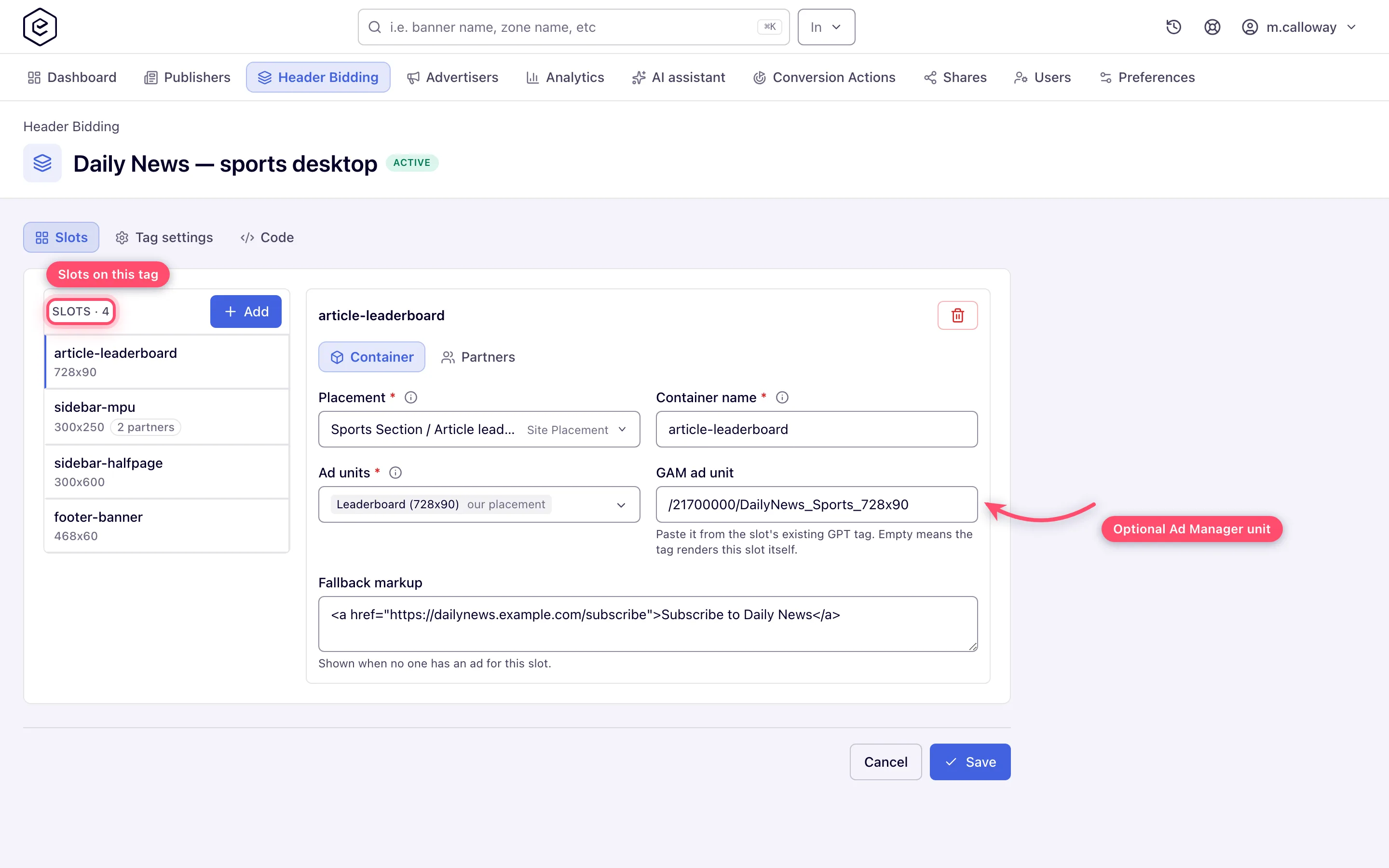
The edit page has three faces, picked with the switch above the form: Slots, Tag settings and Code. A saved tag opens on Slots, because it is the one you come back to; a new tag opens on Tag settings, because until it has a site there is nothing to put in a slot.
Slots are a list, with one open beside it. A row tells you what it holds without being opened — its size or type, how many partners it carries, and, if something is missing, what. Save refuses a tag with any of these, and pressing Save anyway takes you straight to the first slot that is holding it up:
- no placement, no container name, no ad units;
- a partner with no bidder, a partner whose parameters are not JSON, a partner missing a required parameter, a partner missing its alias.
The editor also refuses to send a tag with no name, no site, no serving domain, or a refresh interval between 1 and 29 seconds; it switches to the settings face and a red toast says which (The tag needs a name, Choose the site this tag belongs to, Choose the domain the tag is served from, The refresh interval cannot be under 30 seconds; 0 turns refresh off). A few refusals come back from the server only, because only it can see them: two slots on one tag with the same container name — the tag finds a container by that name, so the two would fight over every copy of it — and, for a partner, an alias with characters outside the allowed set (see Aliases).
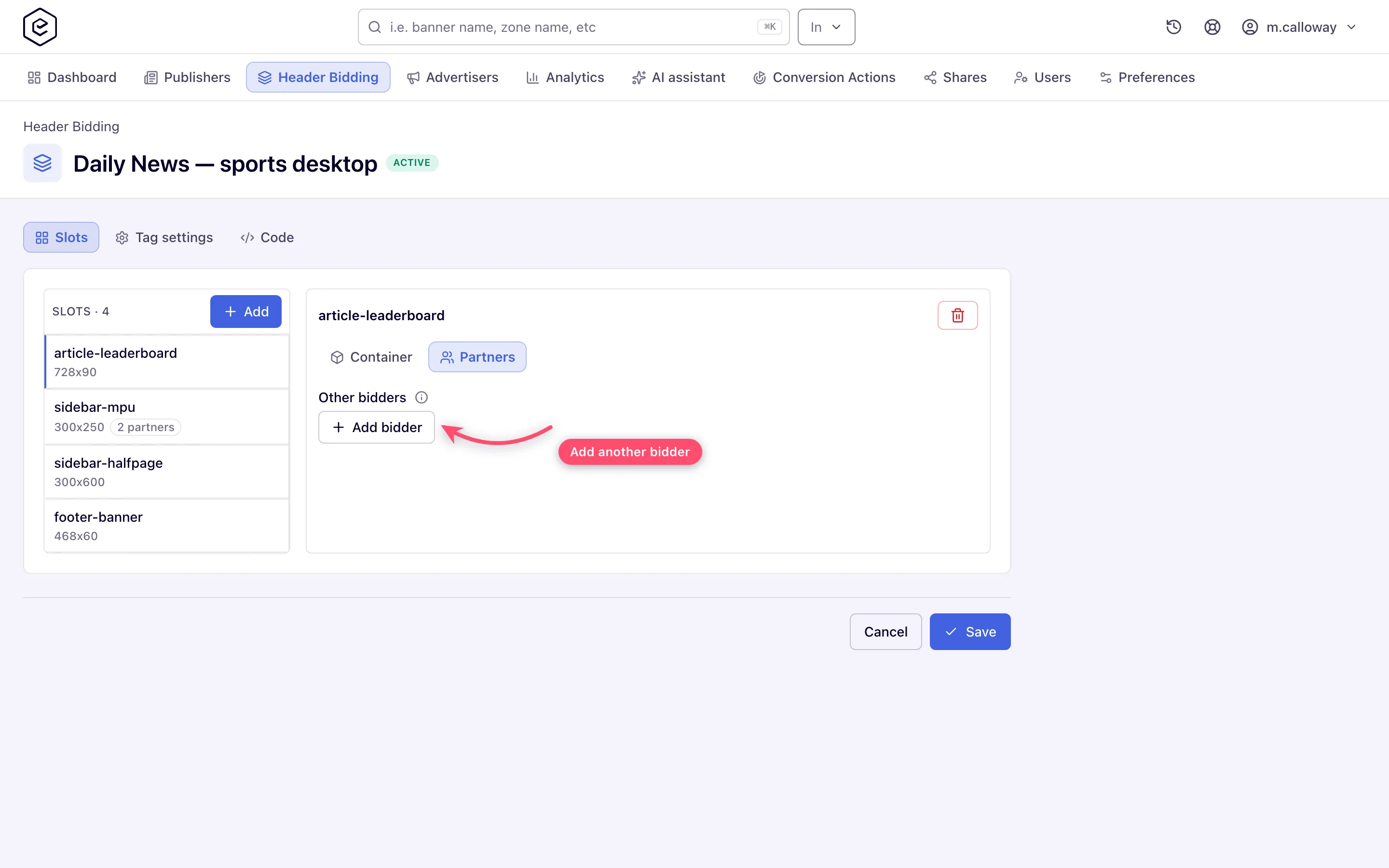
The open slot has two tabs. Container is what the slot is; Partners is who else it is offered to, and its label carries the count (Partners · 1). In Bidder integration there are no tabs: the container fields stand alone, because the partners are the publisher’s to add.
On Container, each slot maps one page container to one placement:
- Placement — required. The picker lists the site’s placements as zone / placement, with the size and the placement’s type, and closes off the types that cannot be sold this way with not supported yet. Its channel and custom parameters, set on the placement under Ad tags & API → Settings, are sent with every bid for this slot — see Channel and custom parameters. A placement with Always redirect on is closed off too, and the row says why.
- Container name — required, up to 64 characters: the
data-eas-adattribute value on the page. The same name may appear any number of times on the page; each copy is an independent slot, auctioned as the reader reaches it. It may appear only once on the tag. In Adopt integration the field is labelled Their slot id or ad unit path instead. On the server routes it is only a label — name the slot after the ad unit it serves. - Ad units — the sizes the container accepts. They go to all partners and to the Google slot, and the size our own placement serves is marked our placement. Required for an ordinary banner container; the list is filtered to the placement’s type, so a pre-roll is never offered a 300×250. Optional on a Native placement (a native bid is described by its assets; the sizes reach only the Google slot), on a Video placement (the first one is the player size on a page; empty means 640×480) and on a Non-standard placement — see Full-screen and other Non-standard slots.
- GAM ad unit — optional, up to 255 characters. Paste it from the slot’s existing GPT tag. Set, Google Ad Manager
also serves this slot and the tag drives the GAM slot itself; the publisher’s own
googletagcalls for that unit must be removed. Empty, the tag renders the slot itself. Does nothing on the server routes. - Fallback markup — shown when no one has an ad for this slot, instead of collapsing.
On Partners, Other bidders lists the partners this container is also offered to, each with the parameters that partner documents. A configured partner sits collapsed on one line — its name and the parameters it carries, and its alias as a chip — and opens when you click it. See Other bidders on your tag.
Video and native slots
A slot built on a Video or Native Placement is bid on the same way a banner is, but what happens to a win differs — and the difference is worth knowing before you promise a publisher either.
Native renders like a banner: the tag draws it in the container. When the slot also carries a
Google ad unit, the Google slot is defined with the special fluid size, which is what makes Ad
Manager treat it as native rather than as a banner of unknown dimensions. Ad units on a native slot
are not part of the bid at all — a native request is described by its assets — so they matter only
for that Google slot. The creative can fill a title, the main image, an icon, and the description,
call-to-action, secondary description and rating assets; a required asset it cannot fill means no
bid, and the placement’s troubleshooting log says which asset it was (see
What the troubleshooting log says about a bid).
A native win comes back as an OpenRTB native response, and every asset in it carries the id the
page asked that asset under — the ids are the page’s own, so a renderer keyed on them needs no
translation. The lengths and sizes in the request are honoured rather than ignored. A headline or a
description longer than the len the page allows is trimmed to fit, on a word boundary where there
is one: a shortened headline still sells, an absent one loses the impression. An image the slot
cannot show — not the exact size it named, or below the minimum — is not offered at all: when the
page marked that image required there is no bid, and the troubleshooting log names the asset and
both sizes; when it was optional the bid goes out without it and nothing is logged for that asset.
An optional asset the creative has no field for is left out rather than invented, and the assets sit
at the top level of the response, which is where Prebid looks for them.
Instream video is handed to your player, not drawn by us. Playing video needs a player, and
shipping one would put a second video stack on every page that already has its own. When an
instream bid wins, the tag fires an eas-video-bid event on the container. It bubbles, so one
listener at the top of the page is enough:
<script>
document.addEventListener('eas-video-bid', function (e) {
  // e.detail: code, slotName, bidder, cpm, currency, adId, vastXml, vastUrl
  myPlayer.loadAdTag(e.detail.vastXml);
});
</script>
The bid is marked used before the event goes out, so the next round is never offered the same one. A win with no VAST at all is reported to the console and the slot falls back as though nobody bid. A video creative is never size-matched: the player scales what it is handed, so a 640×480 creative bids into a 640×360 player.
A Google ad unit on a video slot does nothing yet. Instream does not reach Ad Manager through a slot on the page: it needs a video ad tag URL carrying the cached VAST. The tag does store a Google-bound video bid in Prebid Cache (when the platform runs one), but it does not build that ad tag URL. The path is ignored, the bid goes to your player, and the editor says so beside the field.
In an app the SDK renders both — it plays the VAST and draws the native assets itself; the event above belongs to the page runtime only.
Full-screen and other Non-standard slots
A slot can also be built on a Non-standard Placement — the type used for anything that is not a fixed rectangle: an interstitial, a playable, a pop-up, a skin. It is the one placement type that constrains no size, so its ad units are optional. Leave them empty and any creative on the placement can win; pick some and you have narrowed the bid to those sizes, which on this type usually means narrowing it to nothing, because a full-screen creative carries no size to match them with.
On a page, how the ad is sized comes from the placement itself: tick Fit container on it (Ad tags & API → Settings) and the tag renders the winning creative at the full width and height of your container, the same way the ordinary Epom tag has always treated that setting. Without it, the ad is drawn at the size the container asked for. The page tag sends no interstitial or rewarded signal with such a bid, so a partner reads it as an ordinary banner request.
In an app the SDK says what the slot is: an interstitial or rewarded ad unit marks its request
instl or rwdd and asks for the screen as its size. The ad server answers at that size — or at
the device’s own width and height when the request names none — so nothing is set on the placement
for this; leave the slot’s ad units empty. Use a Non-standard Placement for a full-screen image or
a playable; a full-screen video is VAST and belongs on a Video Placement instead (see
In an app: what each slot needs).
A creative on a Non-standard slot is never refused for its size: one stored without a size — an HTML5 or rich-media creative — and one with a fixed size (a 300×250 image, say) both bid, and the SDK or the page scales what it is handed to the space it asked for.
A slot that is meant to hold the ad until a reward is earned is marked Rewarded — see Rewarded just below.
A Non-standard Placement with Always redirect turned on cannot be used. It answers with a landing URL instead of an ad, which the tag would put on the page as visible text, so the editor closes it off and says why. The ad server honours that flag on Non-standard and Mobile Site placements only, so a Site, Video or Native placement carrying it is offered as usual.
Rewarded
A full-screen or video slot can be marked Rewarded — a toggle on the slot’s Container tab, shown only for slots built on a Non-standard or Video placement. That changes nothing about how the slot is served — the same creatives, the same auction — and everything about what an app does with the creative once it has it: the Prebid SDK keeps the ad up until the reward is earned, a video to its end and a playable until it says so, and then offers a close button instead of closing on its own.
The instruction rides in the slot’s stored impression, which Prebid Server copies onto the bid; a
page tag ignores it. A playable says the reward is earned by navigating to epom://reward, a fixed
address the SDK matches exactly — on a page that scheme is unknown and goes nowhere, which is right.
One slot is one kind of creative: a video placement answers with video, a Non-standard placement with HTML. A rewarded video and a rewarded playable are therefore two slots, each with its own id, and the app chooses which one to ask for.
When a placement answers bids
A placement answers header-bidding requests only while an active tag lists it as a slot. A bid for any other placement is refused, and the caller gets a no-fill. The placement key is not a secret — it sits in the HTML of every page running an Epom tag and in every VAST URL — so holding it is not what authorises a bid; being sold through a live tag is.
The ad servers refresh the tag list every minute, so:
- Deactivating a tag stops its bids within about a minute. Switching Serve this tag off, deleting the tag, or removing a slot from it takes that placement out of header bidding without touching the placement itself, which goes on serving every other way it always did. On the server routes the same switch withdraws the slot’s stored request, so an app sending that id gets a no-fill within the minute and, once the server’s own cache of the slot expires, starts reporting Prebid server does not recognize Config Id.
- A publisher on their own Prebid, or on a Prebid Server, needs a tag. Nothing is served to their page in Bidder integration, and a Prebid Server’s request is indistinguishable from a browser’s — so the tag is the only thing that can authorise either. Without one they get a no-fill that looks exactly like an auction nobody bid in. Create the tag before pointing them at us, not after they report the silence.
What the troubleshooting log says about a bid
A refused or empty bid leaves its reason on the placement’s troubleshooting log. Open a task for the placement under Admin → Audit & diagnostics → Troubleshooting log tasks (see Capture ad requests with a troubleshooting log task), reproduce the request, and look for the lines about header bidding. That page is in the Admin area, which a network manager does not see: ask an administrator to open the task. The reasons you will meet, and what to do about each:
| Reason | What to do |
|---|---|
| No active tag lists the placement | Create or reactivate a tag with this placement as a slot. |
| The placement key in the request matches nothing on this network | The snippet was pasted from another network, or mistyped. Hand over the code again. |
| The placement is inactive, or not yet in the ad server’s cache | Switch the placement on, or wait a minute after creating it. |
| Nothing on the placement was eligible | The same reasons an ordinary tag gets no ad: targeting, capping, limits or channel rules. |
| The creative’s size is not among the sizes the caller sent | Add the size to the slot’s ad units, or have the publisher send it. |
| Our price is under the publisher’s floor | The publisher’s imp.bidfloor beat the price; no bid is sent. |
| The floor was not in USD | It was compared as dollars. Have the publisher send USD. |
| Custom parameters were refused | A reserved name or an object value — see Channel and custom parameters. |
| The creative produced no markup | Its template rendered nothing; check the creative. |
| The creative cannot answer a native impression | A required native asset it cannot fill; the line names the asset and why (no such field, wrong image size). |
Who the bid names as the advertiser
Every bid names its advertiser in the OpenRTB adomain field — the domain a publisher’s page, its
ad server and any Prebid analytics adapter match against advertiser block lists and report demand
by. Epom fills it from the advertiser’s Advertiser domain (Account → Advertisers → advertiser →
Advanced settings); when that is empty and the creative was bought from a DSP partner, the domain
that DSP declared on its winning bid is used instead. With neither, the bid carries no adomain,
which is valid but leaves a publisher who vets demand by domain nothing to vet. Fill the advertiser
field for anything you sell into inventory that enforces a block list — and put the brand’s own
site there, never the creative’s click tracker. See
Create and edit an advertiser.
Setting that field takes its own permission (Set Advertiser Domain (OpenRTB adomain)), granted separately from the right to edit the advertiser, precisely because the value is published to every buyer. So an advertiser with no domain is not always an oversight: whoever set the advertiser up may not have been shown the field. If bids are going out unnamed, check the role matrix before chasing the advertiser’s owner.
Other bidders on your tag
The tag can offer a slot to partners besides us. Add them per slot on the Partners tab under Other bidders: pick the bidder, then paste the parameters exactly as that partner documents them, as a JSON object. The editor refuses anything that is not one, because parameters a partner cannot read reach it as nothing and no error appears anywhere. A row missing a parameter the partner marks required cannot be saved either. The parameters open in a Form view — one named field per parameter, the required ones starred — when the bidder publishes a parameter list, and always in a JSON view (a bidder with no published list has the JSON view only). A new row also takes a whole bid object pasted from the partner’s documentation, and picks the bidder out of it when this build carries it.
Three things worth knowing:
- We bid on the slot whether or not we are listed. A slot that names only partners still bids us. List us only for the case below — a second Epom deployment.
- A partner who outbids us goes through the ad server like any other line of demand, even with Serve our demand first on. That setting is about our own sold creative, not about winning in general. A partner’s private-marketplace deal does not bypass the publisher’s ad server either.
- A bidder no slot names costs the page nothing. The tag loads only the adapters it actually uses, so the list of bidders the platform carries can be long without slowing any page down.
The picker offers only the bidders this installation’s Prebid build carries. If a partner you want
is not there, it has to be added to the build — ask Epom support or your account manager; it is not something the
account can switch on. Each entry shows its Prebid code and where the bidder can run — pbjs for
the page, pbs for Prebid Server, most for both.
The list narrows to what the slot can use
A video slot is offered only bidders that take video, and a native slot only those that take native. A bidder that cannot be asked for the slot’s media type would answer with nothing, or with markup the page has no renderer for — and you would find out from an empty container rather than from the editor. A bidder whose Prebid registry page lists no media types at all is still offered everywhere: silence is not a claim. If you change a slot’s placement to a type its bidder cannot serve, the row stays and says so rather than disappearing.
Aliases: the same adapter twice on one slot
The tag keys a slot’s partners by bidder code. Two deployments of one adapter on one slot — a second Epom instance on its own host, or a partner who runs two — therefore need an alias: a second name the row bids under, resolving to the same adapter underneath. Every row has an alias field, so this works for any partner, not only for us. It is required in two cases, and the row says so: our own adapter (a row for us is meaningful only as a second Epom instance, with its own host and placement key), and the same bidder twice in one slot. Everywhere else it is optional; leave it empty and the bidder bids under its own code. An alias that is already some other bidder’s code is refused, because it would shadow that bidder on the page. An alias may use only letters, digits, dot, dash and underscore, up to 64 characters, because the same name appears as the fill source in the Header Bidding report; the editor does not check the characters, so the save is refused by the server with a red toast naming the alias and the slot. On a page the alias is registered with the base adapter’s consent-list id, so the consent gate still passes; on a Prebid Server it has to be declared, and the server faces print the declaration.
Bidder mode is the exception: there the page runs the publisher’s own Prebid and its bidder list is theirs to write, so the tab is not offered and Save refuses a tag switched to that mode while a slot still names a partner.
Reselling: the supply chain
If you resell a publisher’s inventory — the buyer pays you and you pay the publisher — buyers may require the tag to say so. Two fields do it:
- Supply chain seller domain, in white-label settings: your own domain as your buyers know it. One per installation.
- Supply chain seller ID, on each site: what you call that publisher in your own
sellers.json. One per site, because that is what the entry identifies.
Fill both and the tag carries a supply chain naming you as the seller. Leave either empty and it carries none — which is correct when you are not reselling: the IAB specification is explicit that a vendor paid a fee to serve, and not paying upstream sellers, must not appear in a chain at all. Epom never adds itself for the same reason.
Two things outside Epom have to match, or buyers will discount the chain anyway: you publish a
sellers.json listing that publisher, and the publisher’s ads.txt authorises your partners with
your seller IDs as reseller.
Consent
The tag reads the IAB TCF consent string from the page’s consent manager and sends it with every
bid request; the ad server’s GDPR policy then decides as it does for any ad request. A consent
manager is detected the way Prebid detects it — a __tcfapi function on the page, or the locator
frame one installs — and the first auction waits up to five seconds for the string, the same wait
the ordinary ad loader uses. A page with no consent manager still bids: the request goes out without
a consent string and the server decides by its configured policy. No second banner is needed on the
publisher’s side.
The consent manager has to load first. Its IAB stub must sit synchronously in <head>, above the
tag, as the TCF specification requires of every ad tag. The tag looks for the consent manager once,
when it starts: a stub that arrives later — loaded async, or placed below the tag — is not seen,
the page is treated as having none, and the first auction goes out without waiting for the
visitor’s answer.
Declined is not “no ads”. A visitor who declines still gets the auction, with the consent string that says so, and the ad server serves without cookies under the network’s GDPR policy. Whether Google Ad Manager is called for that visitor is a separate setting — Call Google Ad Manager without consent.
In an app, the SDK carries the TCF string and GDPR flag it finds in the app’s own storage; a bare GDPR applies = no with no string is read as unanswered, not as does not apply.
Channel and custom parameters
A header-bidding slot can carry the same channel and custom parameters a classic ad tag carries in
its URL, and they reach the same places: the channel targets and reports exactly as ch does, and
custom parameters reach custom targeting and $$CUSTOM_PARAM(name)$$ in creatives.
Set them on the placement, under its own Ad tags & API → Settings, exactly as you would for
a classic ad tag: add a Channel row, or a Custom parameter row per key. Every route picks them
up from there: the page tag sends them with every bid for that slot, the stored request carries
them for a server, and the adapter entries quote them for a publisher who runs their own Prebid —
so one placement carries the same channel whether it is served through an ajax tag, a VAST URL or
header bidding. On the page route nothing needs re-installing — the values ride in the tag config,
which refreshes on its own; on the adapter and document routes they are a snapshot, and a change
means a new hand-over. On a network that targets by channel this is what turns header-bidding slots
from no-fill into a bid.
A publisher who wrote their Prebid config themselves sets them by hand:
bids: [{
  bidder: 'epom_as',
  params: {
    networkId: 'n1234',
    host: 'ads.example.com',
    placementKey: 'a4f21c9e7b',
    channel: 'sports-uk',
    customParams: { section: 'sport', tier: 2 }
  }
}]
Custom parameters travel in the impression’s first-party-data object, which an ad unit’s
ortb2Imp.ext.data and any Prebid RTD module also write to — so data those contribute arrives as
custom parameters too, and a key already on the impression wins over both the placement’s values
and customParams. Page-level pbjs.setConfig({ ortb2 }) lands on the request, not the
impression, and is not read.
What the ad server accepts on ingest:
- Neither the number of custom parameters nor their lengths is capped, and neither is the channel’s — the same as an ordinary ad tag. Reports show the channel and each parameter cut to the width they are stored under, but the full values are what campaigns target on.
- Strings, numbers and booleans arrive as text. An array of those arrives joined with commas, so a contains rule can match one of them; an object, or an array holding one, is refused — there is no text form of it a campaign could ever match.
- A handful of names are reserved and refused:
key,pageId,requestUrl,documentReferer,ch,gdpr,gdprConsentIab, and the reserved name the console’s preview uses to force one particular banner — a page cannot pick its own winner.
Anything refused is recorded, per impression, on the placement’s troubleshooting log if you have a task open for it — nothing is dropped silently.
Corner cases and gotchas
Corner case: placements must be active; a placement that lost its zone or site cannot produce a placement key and its slot is skipped.
Corner case: A floor the publisher sets is honoured, in both directions. If our price for the slot comes out under
imp.bidfloor, no bid is returned at all rather than one their auction would throw away. The floor is also passed on to any programmatic partners asked for this slot, raising whatever floor you configured for it — the publisher’s can only raise the bar, never lower it. Prices are read as US dollars — the only currency the bid path handles. A floor sent in anything else is compared as though it were dollars, and the mismatch is named against the placement in the troubleshooting log. The same USD-only rule applies to demand bought from programmatic partners.
Corner case: a slot that sends no channel matches no include or matches channel rule, so on a network that targets by channel it gets no ad at all rather than an untargeted one — the same rule the classic ad tag follows. If header-bidding slots on such a network return nothing, check that the placement carries a channel under Ad tags & API → Settings.
Corner case: a placement that already has a channel set for its classic tag starts sending that same channel on its header-bidding slots too. That is the point — but if you wanted the two told apart in reports, the channel is not the way to do it: group by Traffic Source instead.
Related
- Header bidding
- Header bidding with Google Ad Manager
- Header bidding on a site that runs its own Prebid.js
- Header bidding through a Prebid Server
- Header bidding in an app with Prebid Mobile
- Header bidding reports and targeting
- Header bidding: what a publisher installs
- Create a placement
- Create a video placement
- Create a native placement
- Create and edit a site
- Create and edit an advertiser
- OpenRTB integration reference
