
Set up frequency capping
Use the Frequency capping card to limit how often one visitor sees, requests, clicks or converts on an advertiser, campaign, banner or placement.
The card is called Frequency capping, but frequency is only one of the five kinds of cap it holds. The same card also caps requests, clicks, conversions and impressions-without-a-click, and it appears on four entity levels — advertiser, campaign, banner and placement — with a different set of kinds on each. Every cap is per visitor, never a total volume cap; for volume and budget ceilings use Limits.
Who this is for
- Network managers — on demand, the card sits on the advertiser, on every campaign and on every creative; on supply, the same card on a placement caps the visitor on that ad slot, whoever fills it. The stock Network Manager role holds both.
- Advertisers whose network has switched capping on for their role. The stock Advertiser role has no capping card, so its caps are set by the network manager.
- Any other role needs Manage Inventory Capping for the placement card — see Per-role notes.
You also need edit rights on the entity: your own, or a share with edit. A Can view share shows the card with a Read-only pill instead of the on/off switch, no Add/Delete toolbar and no editable cells, and adding, editing or deleting a cap is refused. Which kinds and subjects you can pick depends on your role — see User roles.
Prerequisites
- The advertiser, campaign, banner or placement already exists and is saved. The card is not rendered on a “new entity” form.
- For Action capping, at least one conversion action is tracking conversions — see Conversion actions.
- To choose anything other than the default cookie counter, server-side capping storage must be enabled for the network — ask Epom support or your account manager. Otherwise every cap you create counts in a browser cookie.
Steps
-
Open the entity and scroll to Frequency capping.
- Demand: Account → Advertisers → advertiser (or → campaign, or → banner).
- Supply: Account → Publishers → site → zone → placement.
-
Turn the card’s switch on. The body is collapsed while the switch is off and cannot be opened by hand — the switch is the expander.
Switching on immediately creates one empty cap for each kind your role may set — Frequency, Click and Action on a campaign, banner or placement, just Frequency on an advertiser, minus any kind whose permission you lack — each at Amount 0, which does not restrict anything yet. No-Click is never created this way; you add it in step 4.
-
Set the numbers on the rows that are already there. Amount, Period, Period type and Flat are edited in place: click a cell, type, press Enter (Escape reverts, clicking away also commits). Each edit posts on its own — there is no Save button for this card.
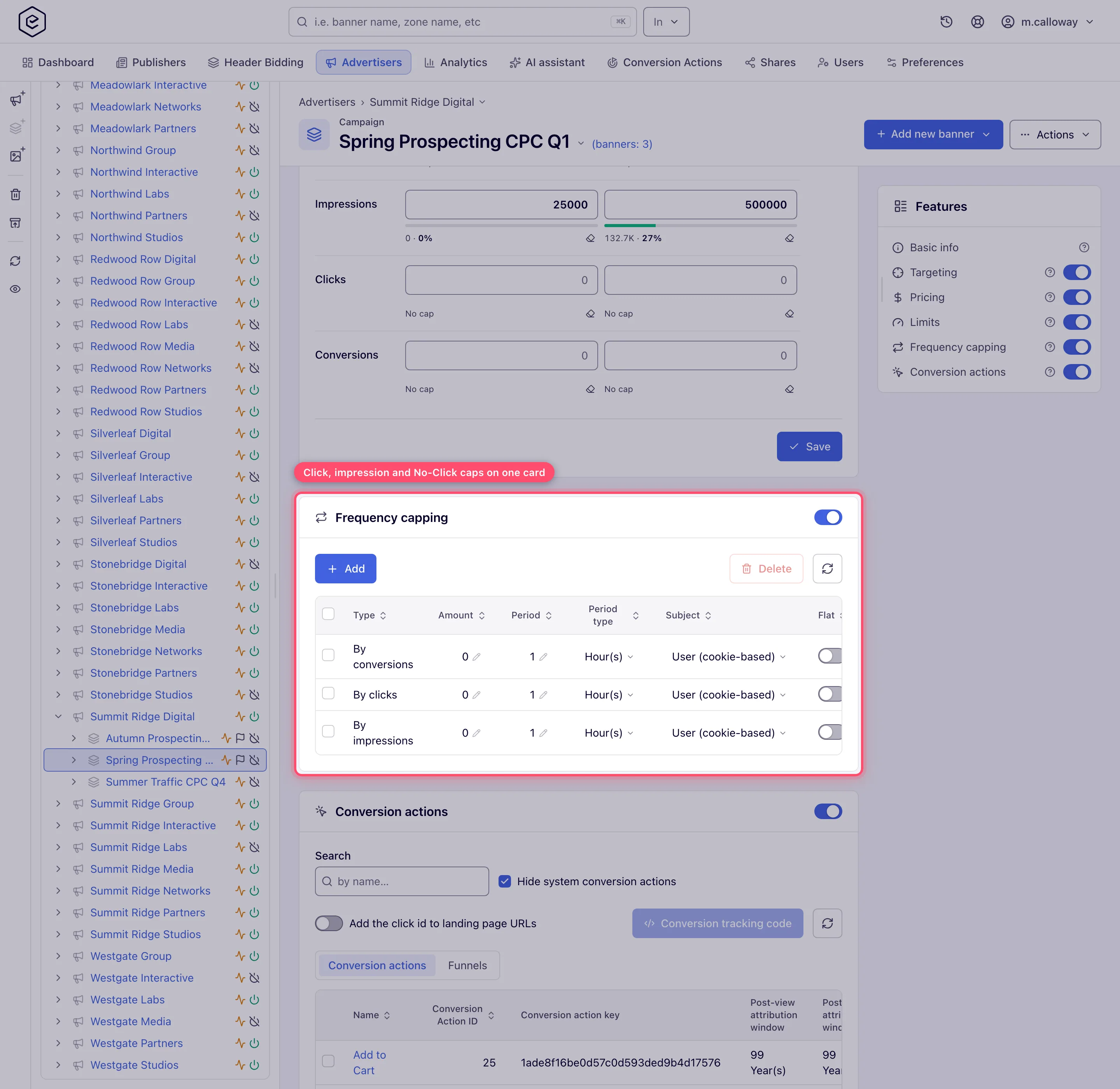
-
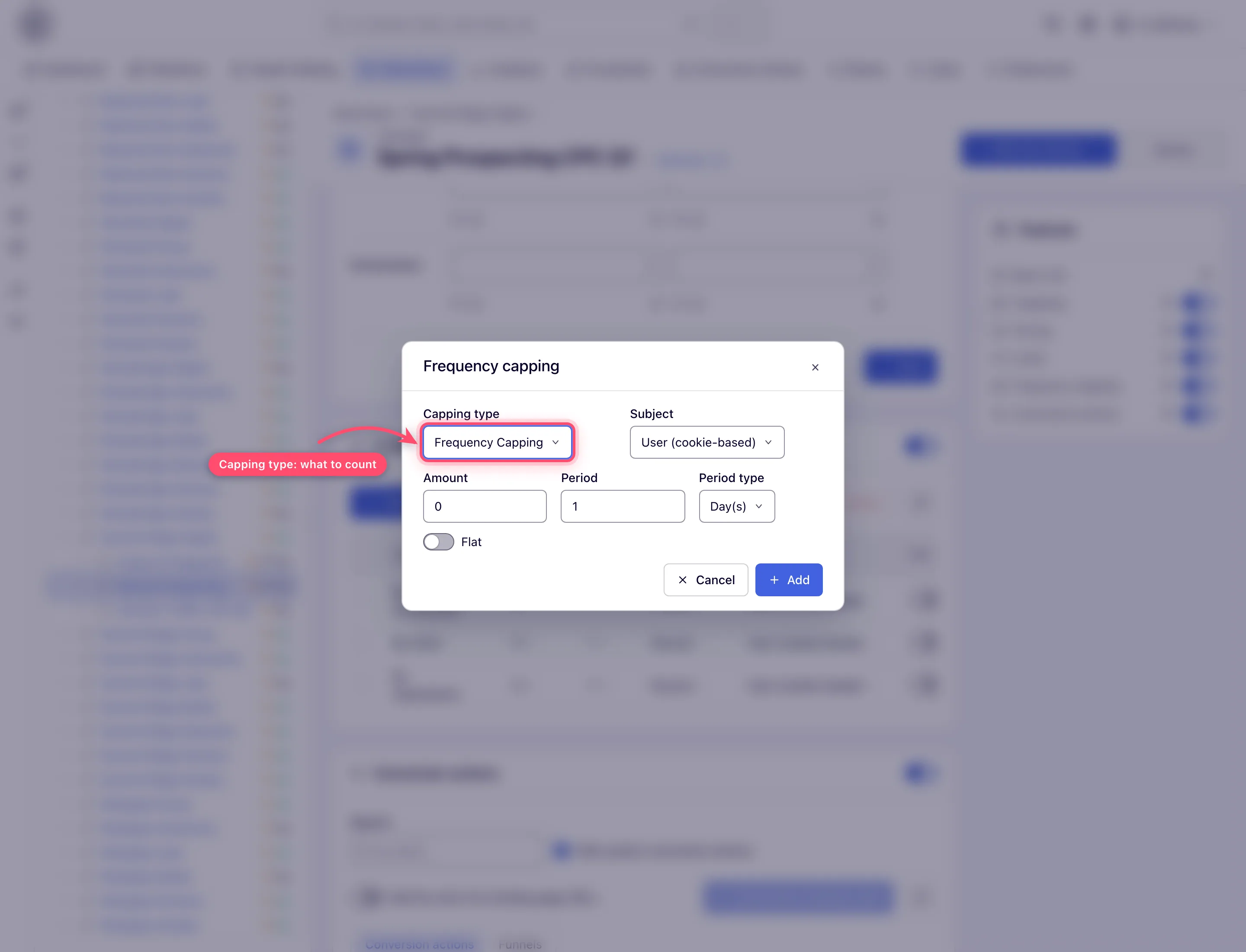
Click Add for a kind that is not on the grid yet (No-Click), or for a second cap of a kind that already is — for example “3 per day and 10 per week”.
The dialog opens with Capping type pre-selected to the first available kind, Amount 0, Period 1, Period type Day(s) and Flat off.
-
Pick the Capping type. The list is what the server offers for that entity level — not the full set of kinds. On a placement, for instance, No-Click is absent.
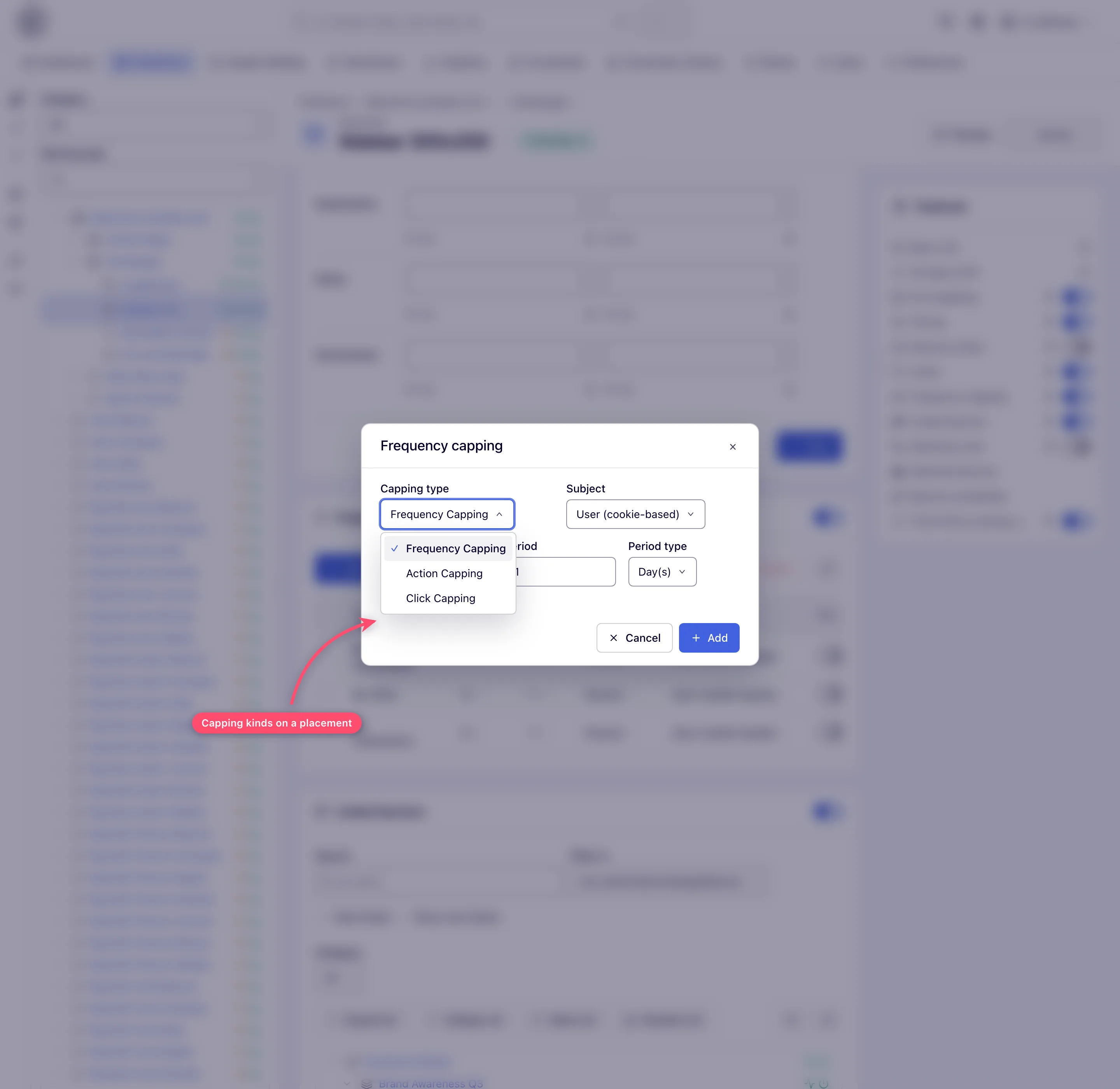
-
Set Amount and Period + Period type, optionally turn Flat on, and click Add. The row appears in the grid at once. Leaving a field empty gives “Please fill in all required fields.”
-
To remove caps, tick their rows and click Delete — a “Delete N record(s)?” dialog confirms. Deleting the last row makes the card read as off the next time the page loads, because “on” simply means “this entity has at least one cap”.
Options and fields
The five kinds of cap
| Kind | Counts | Counter resets |
|---|---|---|
| Request | the entity being chosen for an ad response, before any impression is confirmed | period expires |
| Frequency | a validated impression of the entity (bot-free, valid impression hash, known country) | period expires |
| Click | a click on the entity’s ad | period expires |
| Action | a conversion attributed to the entity for this visitor | period expires |
| No-Click | an impression that the visitor did not follow with a click | period expires, or the visitor clicks — a click zeroes the counter |
Request capping is the strictest of the impression-side pair: the ad only has to be returned, not rendered. On a placement it is stricter still — the counter ticks once per ad request that still had eligible demand at the end of filtering, whether or not an ad was finally chosen.
What each level offers
The Capping type list offers these kinds on each level:
| Kind | Advertiser | Campaign | Banner | Placement |
|---|---|---|---|---|
| Request | — | ✔ (once granted) | ✔ (once granted) | ✔ (once granted) |
| Frequency | ✔ | ✔ | ✔ | ✔ |
| Click | — | ✔ | ✔ | ✔ |
| Action | — | ✔ | ✔ | ✔ |
| No-Click | — | ✔ | ✔ | — |
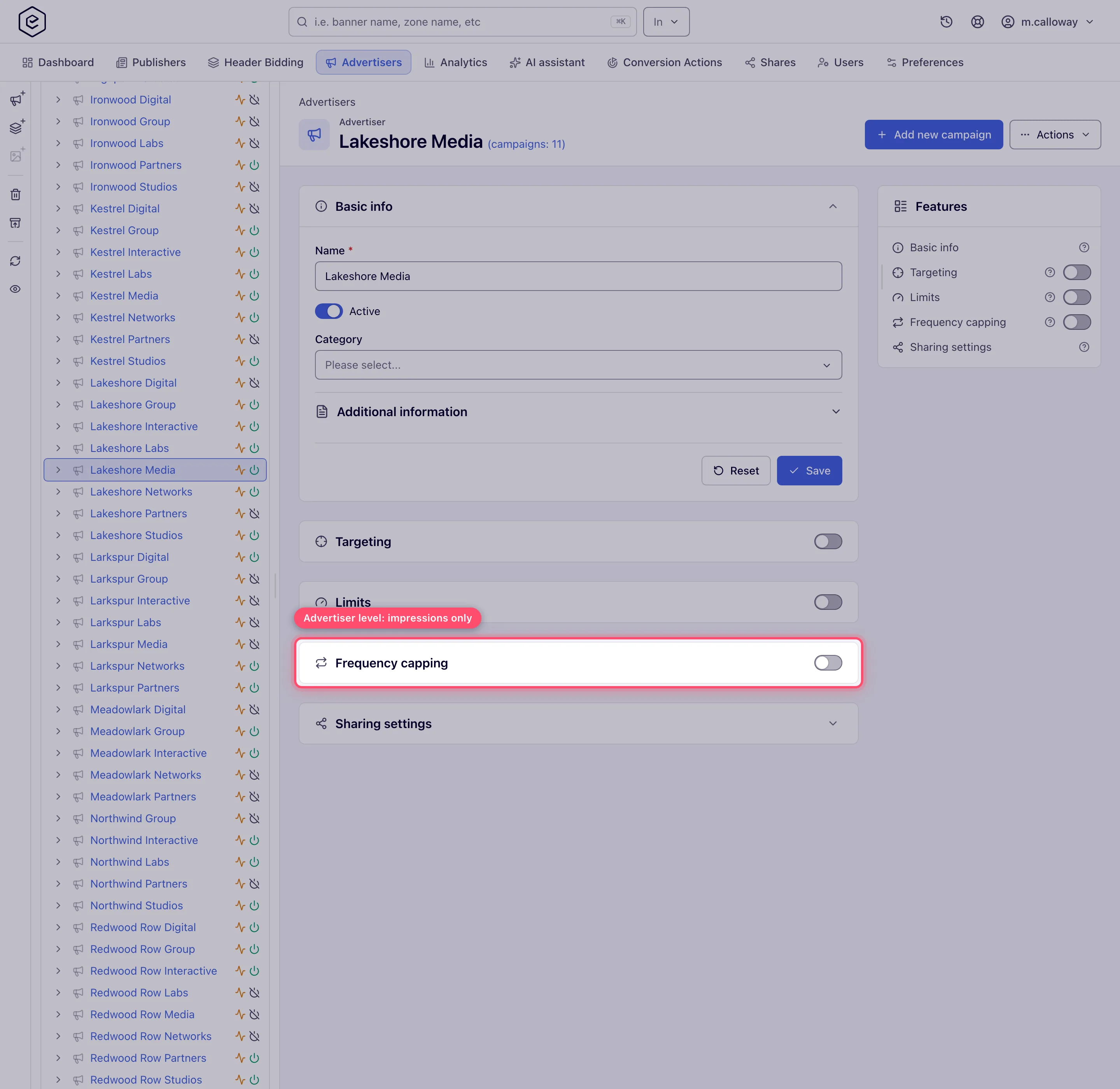
The advertiser level is deliberately minimal: one kind, covering everything underneath it — one impression cap that every campaign and banner of that advertiser shares.
Each kind has its own permission, and a placement uses a separate set; No-Click has none of its own and follows Frequency Capping.
The dialog calls a kind one thing, the grid calls it another
| In the Capping type list | In the grid’s Type column |
|---|---|
| Request Capping | By requests |
| Frequency Capping | By impressions |
| Click Capping | By clicks |
| Action Capping | By conversions — accepted conversions of any action; rejected ones and VAST playback events do not count |
| No-Click Capping | No-Click Capping (unchanged — this one has no short label) |
Fields
| Field | What it does | Default | Accepted values |
|---|---|---|---|
| Capping type | Which of the five kinds this row is | first kind in the list | fixed once the row exists — the grid has no Type editor |
| Subject | Where the counter is kept for this row | User (cookie-based) | see Where the counter lives below. Hidden unless server-side storage is on and IP capping (or L.E.S. IP capping) is enabled for the network and your role holds the matching IP-subject permission |
| Amount | Events allowed per visitor per period | 0 | 0 – 8 388 607. 0 means no restriction — the ad server skips any cap whose amount is 0 |
| Period | How many period units the window lasts | 1 | 1 – 255 |
| Period type | The unit | Day(s) | Second(s), Minute(s), Hour(s), Day(s), Week(s), Month(s), Year(s) |
| Flat | Spread the allowance evenly instead of letting it burst | off | see Flat below |
The period window, and when it rolls over
The window is Period × Period type measured from the first counted event, per visitor
and per cap. It is not aligned to midnight, to a calendar week, or to your account timezone,
and it does not slide.
Concretely, for “3 per 1 Day”: the first impression at 14:20 opens a window that closes at 14:20 the next day. The second and third impressions inside it are counted but do not move the end. The fourth is blocked. At 14:20 the next day the record expires, the counter starts from zero, and the next impression opens a fresh window.
Month and year are real calendar lengths, not fixed 30/365-day blocks — the ad server computes the window by adding the period to a calendar date when it loads the cap into its cache.
Flat
| Flat | Behaviour for “Amount 6, Period 1 Day” |
|---|---|
| off | all six can happen back to back, then the visitor is blocked until the 24-hour window expires |
| on | each event blocks the visitor for period ÷ amount — one impression roughly every four hours, refreshed at every event |
Flat trades the count for a spacing: a flat row keeps no counter at all, only a “blocked until” timestamp.
Where the counter lives
| Subject | Counter lives in | Enforced when |
|---|---|---|
| User (cookie-based) — default | cookies on the ad-serving domain (400-day lifetime; two per kind of cap — one for flat rows, one for the rest) | always, but only for visitors whose browser keeps that cookie |
| User (server-side storage) | the network’s server-side capping store, keyed by the visitor id the ad server resolved for the request (see below) | only while server-side capping storage is enabled for the network |
| User (cookie-based + server-side storage) | the cookie when a cookie is possible, the server-side store when it is not | cookie half always; server-side half only while server-side storage is enabled |
| IP | server-side store, keyed by the client IP | server-side storage and IP capping enabled for the network, and your role holds Capping IP Subject |
| L.E.S. IP | server-side store, keyed by the last external source IP (the address seen before proxies) | server-side storage and L.E.S. IP capping enabled, and your role holds Capping Last External Source IP Subject |
A cookie is treated as impossible — so a mixed cap falls back to the server-side counter and a plain cookie cap simply under-counts — when any of these is true:
- the ad request reports private browsing (
im=1); - the browser is Safari, Mobile Safari, Firefox, Firefox Mobile, Firefox Minimo, Brave or DuckDuckGo;
- the operating system is iOS, iPadOS or Apple TV;
- the browser or OS could not be identified at all.
That list is most of the mobile web. A cookie-based cap is therefore a weaker control than it looks: it is per browser profile, the visitor clears it by clearing cookies, and for a large share of real traffic it never accumulates in the first place. If a cap has to hold, use User (cookie-based + server-side storage) on a network that has server-side storage enabled.
The server-side counter is keyed by the visitor id the ad server resolves per request, and in
the default mixed user-identity mode that id comes from a uuid request parameter if the
tag supplies one, otherwise the Epom UUID cookie, otherwise a device fingerprint. So a
server-side counter usually survives a cleared cookie — but on a network configured for
cookie-only identity resolution, clearing cookies resets it too.
What happens when a cap is hit
The check runs during ad selection, after targeting and before the winner is picked, so a capped entity is removed from the auction rather than winning and being suppressed.
| Cap on | Effect for that visitor, for the rest of the window |
|---|---|
| Banner | that banner drops out; other banners in the campaign still compete and one of them can win |
| Campaign | the whole campaign drops out; other campaigns still compete |
| Advertiser | the advertiser and every campaign under it drop out |
| Placement | selection stops for that request — no ad at all is returned for the slot, not a different advertiser’s |
Over the API
Every kind of cap can be listed, created, edited and deleted over REST; the full parameter list is in Targeting, capping and limits via API.
- By capping record.
GETandPOST/rest-api/{advertiser|campaign|banner|placement}/capping/{id}list an entity’s caps and create one (type,amount,period,periodType,flat,subject; the new record comes back undercapping).POST /rest-api/capping/{cappingId}edits one — every field is required, partial updates are not supported there — andPOST /rest-api/capping/deletetakesid:TYPEpairs and refuses the whole call when one of them is not a cap of that type. - By kind, on a campaign or banner.
…/{id}/frequency-capping,click-capping,action-cappingandno-click-cappingeach haveset.do,update.do, aGETand aDELETE.set.docreates the rule or replaces the one for that subject;update.donever creates one — on a banner with no rule for the subject it answers404naming the banner, the kind and the subject and points atset.do, and the fields it does not receive keep their value. - Permissions. Writes need Manage Capping & Limitations (Manage Inventory Capping for a
placement) plus the permission of the kind and of the subject. A refusal is a
403that names the missing permission; a cap on an entity you may not change is also a403, an id that is not a cap of the stated type is a404, and so is a deleted entity. - Bad values — an Amount above 8 388 607 or a Period outside 1–255 — are a
400whoseerrorsnames the field.
Corner cases and gotchas
Corner case — turning the switch off deletes the caps, it does not pause them. There is no stored “capping enabled” flag: the switch reads on when the entity has at least one cap row and off when it has none. Switching it off deletes every Request, Frequency, Click, Action and No-Click cap on that entity; switching it back on creates fresh empty ones at Amount 0. A round trip through the switch loses your numbers; the console asks you to confirm before switching off, but the REST API does not.
Corner case — No-Click capping is cookie-only. It has no server-side counterpart, so a No-Click row with subject User (server-side storage) is never counted and never fires, and a mixed one stops working for exactly the traffic that cannot keep cookies. Leave No-Click caps on the default cookie subject and treat them as best-effort.
Corner case — Request capping is invisible until your network administrator grants it. Request Capping and Inventory Request Capping are off for every role on a stock network, so
Request Cappingis absent from every capping type list and the Add call is refused. An admin enables it per role in Admin → Users & access → User roles & permissions under Campaign Capping & Limitations (and Inventory Capping & Limitations for placements).
Corner case — the Subject column can be missing while the subjects are not. The column and its selector render only when server-side capping storage is enabled for the network, IP capping (or L.E.S. IP capping) is enabled for it, and your role holds the matching IP-subject permission. Where they are missing, existing rows keep whatever subject they were created with and the ad server still honours it — you simply cannot see or change it. A row created through the REST API with subject User (server-side storage) on a network that has server-side storage switched off is counted nowhere and blocks nothing.
Corner case — a kind you cannot see is still enforced. A kind your role lacks is filtered out of the grid but the ad server still applies it, so a card can be shorter than what the entity actually caps.
Corner case — server-side counters are bucketed by whole days. The server-side store keys and expires cap rows on a whole-day window, rounding anything shorter up to one day. A 12-hour or 2-hour cap therefore behaves as a 1-day cap once it is counted server-side — including a mixed cap the moment the visitor turns out to be on Safari or in private browsing. Keep sub-day periods on the cookie subject if the exact window matters.
Corner case — several caps of the same kind behave differently depending on Flat. Add two ordinary (non-flat) impression caps and both apply: the visitor is blocked as soon as either is exceeded. Add two flat impression caps and only the most restrictive one applies — the ad server picks the single flat cap with the smallest
period ÷ amountand ignores the rest.
Corner case — Period stops at 255. Amount takes 0 – 8 388 607 and Period 1 – 255, both whole numbers. Cross either and the cap is not saved — the card says the values are wrong, and the server error names the field, e.g. “Period: must be less than or equal to 255”. Keep Period ≤ 255 and raise the Period type instead: “1 Year”, not “365 Day(s)”. The REST API answers the same input with a
400whoseerrorsnames the field.
Corner case — apps and connected TV: there are no cookies, so use a server-side or mixed subject. The server-side counter then belongs to the device advertising ID the request carries (the
ifaparameter — Roku RIDA, Samsung TIFA, Android AAID, iOS IDFA…), so a viewer is counted as one person however many times the stitcher or app calls the tag. A request without a usable ID — none sent, a placeholder such asnullorunknown, or the all-zero ID a device hands out once the viewer limits ad tracking — is counted by its IP, user-agent and language instead, which on TV comes close to “one household, one set”. Behind a server-side ad insertion stitcher these are the viewer’s, not the stitcher’s (see Video placements). An ID passed explicitly as the user id parameter still takes precedence.
Note: caps at different levels stack; they never override one another. An advertiser cap of 8 per week, a campaign cap of 3 per day and a banner cap of 2 per 12 hours are three independent conditions, and the visitor is blocked at whichever runs out first — at whatever scope owns it.
Note: counters belong to visitors, not to your account. Editing an amount, deleting a row or turning the card off does not clear counters already sitting in visitors’ cookies or in the server-side store; those expire on their own schedule. Raising a cap from 3 to 5 takes effect for a visitor already at 3 only once the ad server reloads its cache.
Frequency cap not working: the ad shows on every page load
A cap of 3 per day that a visitor sees exceeded is almost always one of these:
- The subject is plain User (cookie-based) and the visitor has no usable cookie — private window, a browser or OS that blocks third-party cookies, an app WebView. Switch the cap to User (cookie-based + server-side storage), which falls back to the server-side counter for those visitors — or, for app traffic, to User (server-side storage) (see Ads in apps and WebViews).
- The page tells Epom not to use cookies. The tag’s
cookie-policy(data-cookie-policy) value decides what capping may use:1means no cookies and no server-side capping — every cap is skipped;2means no cookies but server-side capping still works;3drops only the user-ID cookie. Pages that set1when a visitor rejects a consent banner therefore lose all capping for that visitor — send2instead if capping must keep working. The same happens without a tag value when the network’s GDPR settings restrict visitors who gave no consent: Do not use any cookies or server-side processing behaves like1, Do not use any cookies like2, Do not use UID cookies like3. - Server-side capping is not enabled for the network. Without it the Subject selector is hidden and every cap is cookie-only — ask Epom support or your account manager.
- Flat is off. A cap of 3 per 24 hours without Flat lets all three impressions happen back to back. With Flat on they are spread to one every 8 hours.
- The cap sits on the wrong level. A cap on one banner does not limit the campaign’s other banners; a cap on a campaign does not limit the advertiser’s other campaigns. Put the cap where “the same ad” ends for the viewer.
- Two tags or two placements on one page — each has its own pool, and a cap on one placement does not count impressions served through another.
Even pacing and limits are separate controls: they cap volume per period, not per visitor, so switching them on or off does not change frequency capping.
Ads in apps and WebViews: why cookies don’t work and what to use instead
An ad shown inside a mobile app — through an SDK, a server-to-server API call, or a WebView that loads your tag — usually has no browser cookie that survives. A server-side call carries no cookie at all; an Android WebView blocks third-party cookies by default; an iOS WebView behaves like Safari. Every new request then looks like a new visitor to anything that relies on the Epom cookie.
What breaks without a cookie:
| Feature | What happens in an app |
|---|---|
| Caps with subject User (cookie-based) — impressions, clicks, conversions, requests, no-click | Each request starts a fresh counter: the cap never triggers |
| Caps with subject User (cookie-based + server-side storage) | Falls back to the server-side counter only when the ad server recognises a cookie-blocking browser — iOS, Safari, Firefox, Brave, an unknown browser, a detected private window. An Android WebView reports itself as Chrome Mobile, so the mixed cap stays on the cookie and under-counts |
| Cookie-value targeting and cookie-based retargeting / audience sync | The cookie is never there to match |
| Conversion pixels | A pixel on the advertiser’s page finds no click or view cookie and the conversion is not attributed |
What to use instead:
- Cap with User (server-side storage) on campaigns and placements that get app traffic. The
server-side counter needs no cookie; it belongs to the first identity the request offers:
- the user id you pass explicitly (
uuidon the request, or User ID /data-uuidon the tag); - otherwise the device advertising ID in
ifa(Android advertising ID, iOS IDFA, CTV IDs — the oldergoogleAdId,appleAdId,androidAdIdnames are also read;ifaMD5/ifaSHA1for hashed IDs); - otherwise a fingerprint of IP, user-agent and language (or the
fpvalue if you send one). An all-zero ID (the user limited ad tracking) and placeholders such asnullorunknownare ignored and also land here. Ask the app or SDK developer to fillifawith the real advertising ID — it is what makes one phone count as one viewer. For server-to-server calls also pass the viewer’sclientIpandclientUa, otherwise every request looks like your server. The Subject selector appears only when Epom has enabled server-side capping storage for the network.
- the user id you pass explicitly (
- Track conversions server to server. A postback with the click id (S2S) does not need cookies — see Server-to-server (postback).
- Pass the device ID on to demand. The
$$IFA$$macro puts the device ID into a third-party tag or tracker, and OpenRTB bid requests carry it asdevice.ifa, so DSPs can cap and target by it themselves.$$BUNDLE$$passes the app’s package name. - Use limits for volume. Limits count per entity on the server and work the same in apps and browsers.
Corner case: a tag or a network GDPR setting that says “no cookies and no server-side processing” (
cookie-policy1) turns off server-side caps too — the same as on the web. In apps under GDPR send2(no cookies, server-side allowed) when the user has not consented to cookies but capping must work.
Only the first impression per user — and how to count it
Serve something only on a visitor’s first impression (a premium pre-roll on the first view of the session, a welcome banner): give that campaign or banner a cap of 1 per period — 1 per 1 Day, or 1 per 30 Minutes for “first per session” — and a higher priority than the rest of the placement’s demand. Once the visitor has seen it, the cap removes it and the next eligible ad serves. For “first and second impression only”, use 2. To hand the next impressions to a different partner in a fixed order, use daisy chaining with View 1-N per campaign/banner.
Count unique impressions in reports: Epom has no “impression number per user” dimension — a report cannot tell you which impressions were a visitor’s 1st, 2nd or 3rd. What it can show:
- Unique Visitors in a General report grouped by Campaign (or Campaign + Country) — see Analytics metrics;
- the Unique view of the Advanced report — unique impressions, unique users and unique IPs per event family;
- the impressions of a campaign capped at 1 per period, which by construction are first impressions.
Per-role notes
- Advertiser — the stock Advertiser role has no capping card: Frequency, Click and Action capping are off. Ask your network manager to set the caps, or to switch capping on for your role; once on, you cap your own advertiser (Frequency only), campaigns and creatives (Frequency, Click, Action, No-Click). See What your network controls.
- Network manager — the card on advertisers, campaigns, creatives and placements. The placement card comes with Manage Inventory Capping, which the stock role holds.
- Publisher — no capping card; per-visitor caps on their placements are the network’s to set.
- Can View share — the card is read-only, and missing where the entity has no caps; changes need Can Edit or Is Owner.
Exact grants: see User roles.
