
Add, edit, and remove targeting rules
Switch targeting on for an entity, add include/exclude rules per dimension, understand how they combine, and remove them again.
Targeting decides which ad requests an entity is allowed to serve on. You switch it on per entity, then add rules one dimension at a time — include the traffic you want, exclude the traffic you don’t. This page covers the whole loop: switching targeting on, adding a rule, changing one, and taking it away.
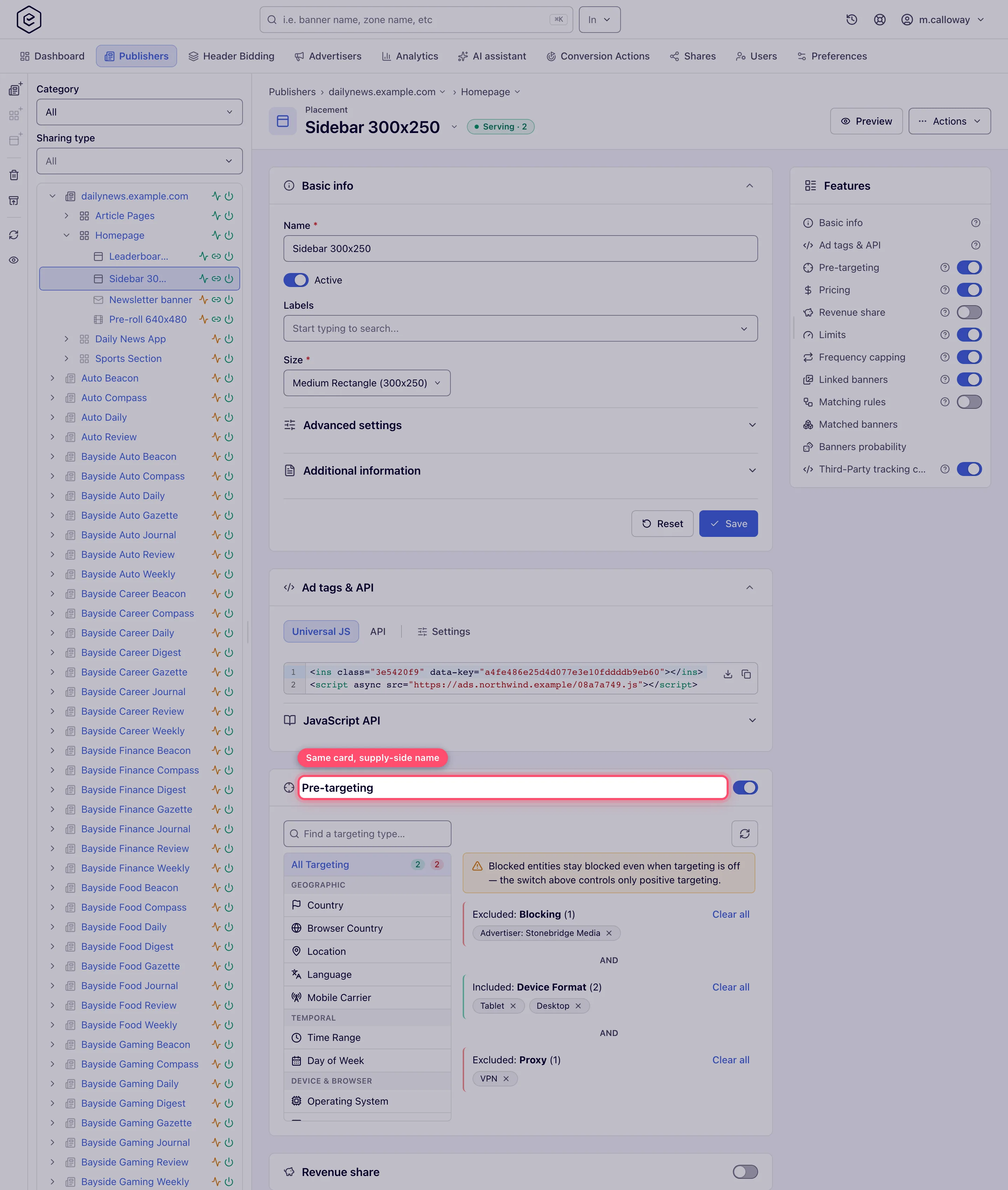
The same card appears on all six entity levels. On advertisers, campaigns and banners it is called Targeting; on sites, zones and placements it is called Pre-targeting. Apart from the title and the permission that gates it, the two are the same component — same dimension list, same editors, same include/exclude buttons — so everything below applies to both.
Who this is for
- Advertisers and network managers — the Targeting card on an advertiser, a campaign or a creative. It is a default card for the Advertiser role: deciding who your own campaign reaches needs nobody’s help.
- Network managers — the same card, plus Pre-targeting on the inventory side, where a site, zone or placement decides which demand it will accept.
- Publishers — the Pre-targeting card on the sites, zones and placements they can edit; see Per-role notes.
You need edit rights on the entity itself: you own it, or it is shared with you with edit rights. A Can view share is not enough to change anything.
Which dimensions the list offers you is decided per role and per side, so two colleagues editing the same campaign can be offered different sets.
Prerequisites
- The entity exists and is not deleted.
- Edit rights on it — you own it, or it is shared with you with edit rights.
Steps
-
Open the entity — for example Account → Advertisers → Northwind Media → Brand Awareness Q3. On a campaign, Targeting is the second card, directly under Basic information; on other entities it sits further down. The Features rail on the right lists it either way and jumps straight to it.
-
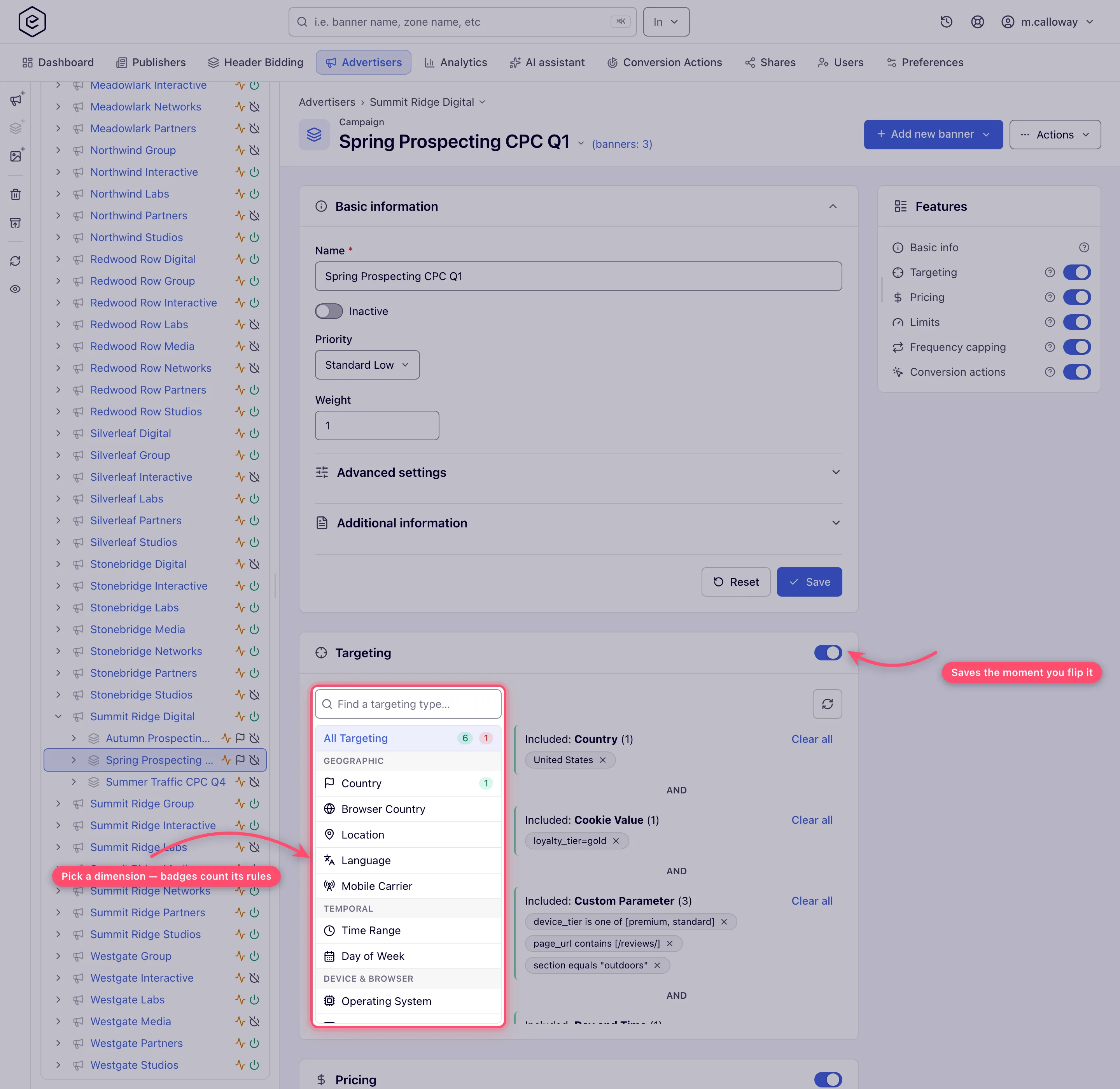
Flip the card’s switch on. There is no Save button: the switch posts immediately and the card body appears underneath it. While the switch is off the body is not rendered at all — you see the card header and nothing else.
-
Pick a dimension in the list on the left. The list is grouped — Geographic, Temporal, Device & Browser, Device scores & specs, Content & Apps, Network, Presets, Data & API, Risk — and a group appears only when it has a dimension to offer. A Find a targeting type… box above it filters as you type. Dimensions that already carry rules show a green badge for the number of includes and a red one for excludes. All Targeting at the top is the default view and shows every saved rule; picking a dimension both opens its editor and filters the list below to that dimension.
-
Fill in the editor that appears in the bordered box. What it contains depends on the dimension — a value picker, a relation and a number, one or more text fields, a time window, or nothing at all. See Options & fields below for the full map. Fields marked with an asterisk are required.
-
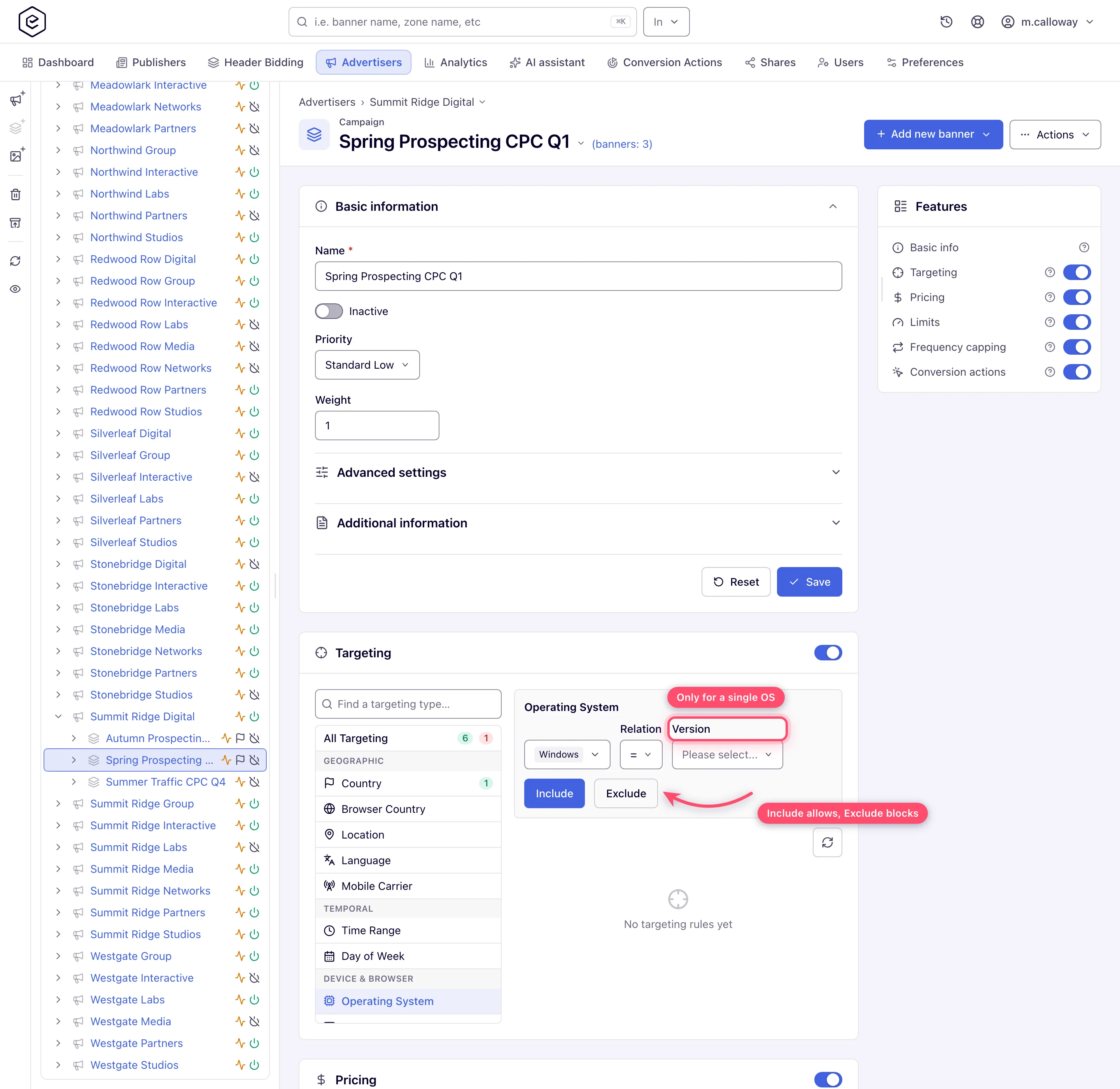
Click Include to allow the drafted value, or Exclude to block it. Both buttons stay disabled until every required field is filled. On success nothing is announced — the editor clears back to its empty state, the new rule appears as a chip in its group below, and the dimension’s count badge goes up. You stay on the same dimension so you can add another rule. A rejected rule is the only case that speaks: a red toast with the server’s message, and nothing saved.
-
Repeat for more values and more dimensions. Rules of the same dimension merge into a single group with an Included: block and an Excluded: block, each showing its own count.
-
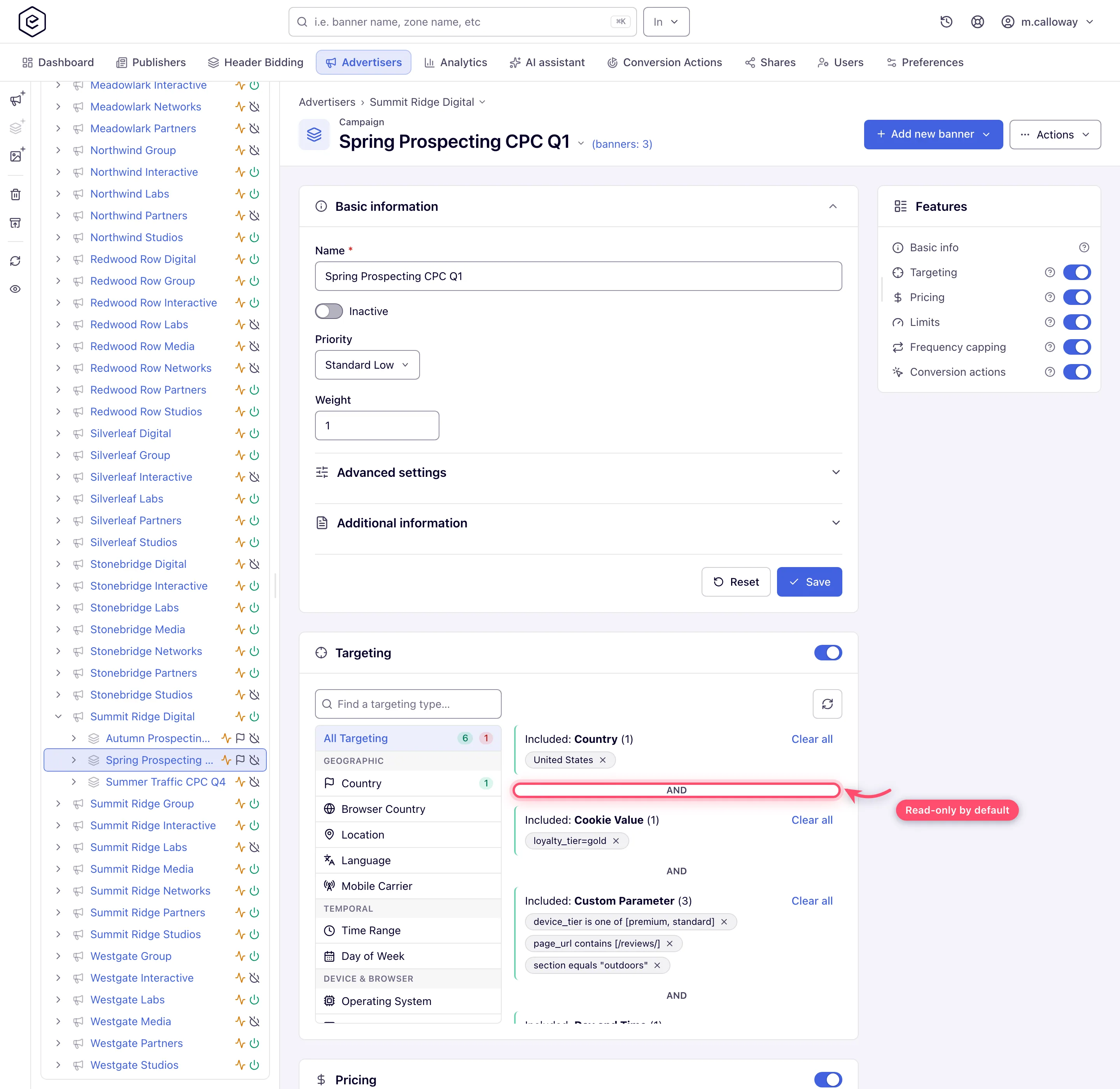
Check the operator between groups. Where two adjacent groups belong to different dimensions, the card shows AND or OR between them. It is a clickable button only for roles that hold Manage Operation Between TargetingRule Types; for everyone else it is a static label showing the current setting, which is AND by default.
-
To take a rule away, click the ✕ on its chip; to empty a whole Included or Excluded block, click Clear all next to its heading. Either way a Confirm dialog asks “Clear targeting?” — “Clear targetings?” when it covers more than one rule — and you click Delete to go ahead or Cancel (or Esc) to keep it. The deletion is applied immediately.
To change a rule, remove it and add the new version: rules are not editable in place, and a chip offers no control other than its ✕.
Every action on this card — the switch, each Include or Exclude, each removal, the operator — is saved the moment you make it. Nothing on the card is part of the entity’s Save button.
How the rules combine
Three levels of combination, and they are not the same:
| Level | Rule |
|---|---|
| Several values in one dimension, all Include | OR — the request matches if it matches any one of them. Two included device formats mean “mobile or tablet”. |
| Any Exclude in a dimension | Wins outright. If an excluded value matches, that dimension fails, whatever the includes say. |
| Dimensions against each other | The AND / OR operator on the card. With AND (the default) every dimension must pass; with OR one passing dimension is enough — blocking groups still always apply and never count as that passing dimension. |
A dimension with only excludes passes any request that does not match an exclusion. A dimension with includes fails every request that matches none of them.
The AND/OR operator only ever applies within one entity. The six levels are always ANDed with each other: an ad request must clear the site, then the zone, then the placement, then the advertiser, then the campaign, then the banner. Setting a campaign to OR does not loosen the advertiser above it.
Note: an entity with targeting switched on but no rules at all imposes no restriction — it is the rules, not the switch, that narrow the traffic.
Options and fields
The card’s controls
| Control | What it does |
|---|---|
| Card switch | Master on/off for this entity’s own targeting. Posts immediately; the body appears or disappears with it. Off by default on a new entity. |
| Find a targeting type… | Filters the dimension list as you type. While a query is active the All Targeting row is hidden. |
| All Targeting | Shows every saved rule and closes the editor. Its badges are the totals across all dimensions. |
| Dimension row | Opens that dimension’s editor and filters the rule list below to it. Green badge = includes, red badge = excludes. |
| Refresh (circular-arrow icon, above the rule list) | Re-reads the rule list from the server. Useful when someone else is editing the same entity. |
| Include / Exclude | Saves the drafted rule as an allow or a block. Disabled until the editor is valid. |
| ✕ on a chip | Removes that one rule, after a confirmation. |
| Clear all | Removes every rule in one Included or Excluded block, after a confirmation. |
| AND / OR | How different dimensions combine. One setting per entity, not per group. |
Which editor each dimension opens — pickers
| Editor | Dimensions | What you see |
|---|---|---|
| Multi-select | Country, Browser Country, Language, Mobile Carrier, Day of Week, Device Format, Device Vendor, Protocol, Proxy, Connection Type, Traffic Source | One searchable list; every value you tick becomes its own rule. Country and Browser Country also offer world regions and your custom country groups at the top of the list. The Mobile Carrier list comes from the geo service: while that service is not answering, the picker says Carriers could not be loaded: the geo service is unavailable. Try again later. instead of showing an empty list. |
| Operating System | Operating System | Multi-select of systems. Select exactly one and a Relation (=, <, >, >=, <=) and a Version list appear; both are optional. |
| Browser | Browser | Multi-select of browsers. Select exactly one that the platform can version-parse and Relation plus a numeric Version (0–999) appear; both optional. |
| Resolution | Resolution | Relation plus a single resolution. Choosing Custom… replaces the preset with Width and Height (both required). |
| Preset group | Preset Domains, Preset IP Ranges, Preset App Packages | One preset group per rule. Empty if no group of that kind exists yet — see Preset groups. |
| Location | Location | Country, then Region, then City, each revealed by the one above. Only the country is required; leaving region or city empty targets the whole country or region. |
| DMP | DMP | Provider, then a segment; picking a segment reveals its children. Only the first level is required — the deepest segment you pick is the one targeted. |
| Day and Time | Day and Time | Day of Week (required) plus the same From / To / Client local time controls as Time Range. |
Which editor each dimension opens — typed values and yes/no
| Editor | Dimensions | What you see |
|---|---|---|
| Relation + number | Device Release Year, Device RAM, Browser Rank, Hardware Rank, Platform Rank, Price Band | A Relation and one number. Defaults: >= for Device Release Year, Device RAM and Price Band; <= for the three ranks. |
| IP range | IP Range | From and To, both required, IPv4 or IPv6. |
| Time window | Time Range | From and To times plus a Client local time toggle. Both start at 00:00, and Include / Exclude stay disabled until the two differ — for the whole day use 00:00 to 23:59. |
| Single text field | Domain, App Package, Channel | One box (labelled Channel(s) for Channel). Channel additionally splits on commas and semicolons — see the corner case below. |
| Two text fields | Cookie Value | Cookie Name and Value, both required. |
| Three text fields | API JSON Field | API URL, JSON field and Value, all required. |
| Custom Parameter | Custom Parameter | A Type; choosing Expression asks for one free-text expression, any other type asks for Parameter, Operator and Value. See Custom parameter targeting. |
| Risk score | Traffic Risk Score | Relation (defaults to >=), a required Risk level, and an optional Category multi-select — leaving it on All categories… covers every category. |
| Nothing to fill | Wi-Fi Traffic, Is Web App, Incognito Mode | Yes/no dimensions. The editor is empty and Include / Exclude are the whole control: Include means “only this traffic”, Exclude means “never this traffic”. |
For what each dimension actually matches on an ad request, see the targeting dimension reference.
Corner cases and gotchas
Corner case: switching targeting off deletes nothing, but it also shows nothing. The card body — dimension list, editor and rule list — is removed from the page while the switch is off, so an entity with rules looks identical to one without. Switch it back on and every rule is exactly as you left it.
Corner case: there is no way to edit a saved rule. Chips carry a remove button and nothing else. To change “Firefox >= 120” to “Firefox >= 130” you remove the rule and add it again.
Corner case: adding a rule that already exists succeeds silently and changes nothing. No error, no duplicate chip, no second row — the server skips exact duplicates. If you clicked Include and the count did not move, you had already saved that value.
Corner case: picking a dimension filters the rule list to that dimension, so a dimension with no rules shows No targeting rules yet even when the entity has plenty of rules in other dimensions. Click All Targeting to see them all again.
Corner case: a world region or a custom country group is expanded into one rule per country when it is saved. Including “Europe” does not produce a chip called Europe — it produces a chip for every country in the region, and removing one of them removes only that country.
Corner case: a Location rule can go stale after you save it. The geo database is updated by its provider, which now and then renames a place or folds it into a neighbour — “Lexington-Fayette” became “Lexington”, Las Vegas suburbs such as “Enterprise” and “Spring Valley” are now reported as Las Vegas. A rule naming a place the database no longer knows matches no visitor. Its chip turns red and a note above the group counts them. An include of that kind is simply ignored while the entity has other locations that still exist; but when every location include is stale, or a stale place is excluded, the rule keeps every visitor out and the entity stops serving. Remove the red chip and add the place again under its current name — or clean up every such place at once on Stale locations, which the note’s Clean up stale places across the account link opens and which says what removing each one changes.
serving_checknames such rules as well. A new location rule is checked when you save it: a region or city the geo database does not know is refused with Unknown region: … or Unknown city: …, as over the REST API. While the geo service is not answering, the card cannot tell a stale place from a valid one: it shows every place as saved, with no red chips, and a short note under the group says the places could not be checked. A short outage of the geo service is not mistaken for this: the ad servers keep using a place they have already found and treat it as gone only after three failed look-ups in a row, a minute apart.
Corner case: version narrowing appears only when exactly one value is selected. Selecting a second operating system or browser clears the version and resets the relation to
=, and the rule is saved without a version. Only browsers whose versions the platform can parse offer the field at all: Chrome, Chrome Mobile, Safari, Mobile Safari, Firefox, Firefox Mobile, Microsoft Edge, Microsoft Edge Mobile, Opera, Opera Mini, Samsung Browser, UC Browser, Yandex, QQ Browser and Baidu Browser. Every other browser is targeted as a whole.
Corner case: an IP range whose To is lower than its From passes the in-page check — both ends are valid addresses — and is refused by the server with the toast “Please enter valid IP range (Sample: from 194.222.012.001 to 194.223.07.01, …)”. Nothing is saved. A genuinely malformed address is caught in the page instead, with “Enter a valid IPv4 or IPv6 range.” under the fields and the buttons greyed out.
Corner case: Time Range and Day and Time evaluate in UTC unless you turn on Client local time — not in the ad server’s local zone. A 09:00–17:00 window without the toggle is 09:00–17:00 UTC. With the toggle on, the window is read against the UTC offset the visitor’s browser sends with the ad request (the
tzparameter); a request that carries none counts as UTC. Day of Week has no toggle and always uses that visitor-local offset, the same way as with Client local time on. Day and Time applies the toggle to both its day and its window.
Corner case: a Time Range may run past midnight. Setting From later than To — 22:00 to 06:00 — is read as the overnight window, not as an empty one. Setting them equal is refused — the editor starts at 00:00–00:00, and Include / Exclude stay disabled until the two differ, because an equal pair is a window no request ever falls into (the REST API refuses it too). For the whole day use 00:00 to 23:59. The same applies to the window of a Day and Time rule: to cover the picked weekdays all day, set 00:00 to 23:59.
Corner case: the Channel box accepts a comma- or semicolon-separated list and creates one rule per entry in a single click.
news, sport; techbecomes three chips.
Corner case: blocked advertisers, campaigns, banners, sites and placements are not created here — they come from the blocking flows (see Blocking demand and inventory) and appear in this card as Blocking and is Blocked by groups, above a warning that they keep applying even when the switch is off. That warning holds for advertisers, campaigns, banners, sites and placements. A zone is the exception: the ad server loads none of a zone’s rules while its switch is off, blocks included. No blocking flow writes a block to a zone, so this matters only for a block that was put there some other way.
Corner case: Time Range and Day and Time evaluate in UTC unless you tick Client local time. A “9:00–17:00” rule without the checkbox means 9:00–17:00 UTC, not the visitor’s or your account’s time (see the FAQ below).
Corner case: rules that reach the card from somewhere else — a campaign’s blocks shown on its banners, a site’s blocks shown on its placements, or an “is Blocked by” entry contributed by the other side — appear only for users who hold Blocked by. A campaign’s or site’s block is marked as inherited and never has an ✕ on the child; remove it on the campaign or site. An “is Blocked by” entry is read-only (no ✕) only when that grant is Read-only; with the full grant the ✕ is there and deletes the original rule where it was created. See Blocking demand and inventory.
Corner case: if the operator between rule groups reads as a fixed AND and cannot be clicked, your role lacks Manage Operation Between TargetingRule Types. Ask your network administrator for it before you can switch a group set to OR.
Corner case: a rule of a dimension your role cannot use is still shown and still enforced — it simply has no ✕, so you can read it but not remove it.
Corner case: on a Can View share the card shows the saved rules and nothing else — no dimension list, no editor, no remove buttons — with a Read-only pill in place of the switch. If targeting is also switched off, the card is hidden entirely, so a viewer cannot tell whether rules exist.
Targeting FAQ
How do include, exclude and AND / OR combine?
Inside one dimension: any matching Exclude rule fails the dimension; otherwise, if the dimension has Include rules, at least one must match (they are OR’d). Between dimensions the entity’s AND / OR switch applies: with AND every dimension that has rules must pass, with OR one passing dimension is enough. Levels always stack with AND — a banner serves only if its advertiser, campaign and banner targeting all pass (and, on the supply side, the site, zone and placement pre-targeting).
When the visitor’s value is unknown (no country detected, no domain on the request) an Include rule fails and an Exclude rule is skipped.
Can I target a URL or part of a URL (only /watch/ pages)?
Not with a built-in rule: Domain targeting matches hosts only, never the path — a rule on
example.com matches example.com and every subdomain (news.example.com), never a single
section of the site. Two ways to target pages:
- Separate placements per page type — the cleanest: put a different placement’s tag on
/watch/pages and link only the campaigns meant for them. Reports then split by placement too. - Custom parameter targeting on the page URL. A Custom Parameter
rule reads any request parameter, including
requestUrl— the page URL the tag sends (set it withdata-page-urlon the tag, or let the loader send the current URL). A Substring rule “requestUrlcontains/watch/” matches those pages. Or have the page send its own section as a custom parameter (data-cp-section="watch") and target that — more robust than matching URLs.
Country or Location — which one?
Both work on the visitor’s IP location. Country takes a list of countries (and country groups); Location picks one country, region or city per rule. They are different dimensions, so a campaign with both is combined by its AND / OR switch like any other two dimensions — use Country for country lists and Location only when you need regions or cities. (Browser Country is a third, separate dimension that reads the country from the browser’s settings, not from the IP.)
How do I exclude a combination — Windows users in one city — and keep everyone else?
There is no rule for “this AND that” as one exclusion. Excluding Windows and excluding the city on an AND entity removes all Windows users and everyone in the city. Options:
- Split the campaign: one copy for the country without the city, one for the city that excludes Windows. Each copy uses ordinary rules.
- OR on an entity with only those two dimensions: with the operator set to OR, an Exclude on the OS and an Exclude on the city block a request only when both fail — Windows in that city — because any other visitor passes one of the two. This works only while the entity has no other targeting dimension (under OR any passing dimension lets the request through), so keep the country or other limits on the campaign or advertiser level, which always stack with AND.
Can I route traffic by a value my page sends?
Yes — send it as a custom parameter (data-cp-<name> on the tag, &cp.<name>= on a URL) and add a
Custom Parameter rule on the campaign or banner that should get
that traffic. Use the channel (data-channel) when it is a traffic source you also want as a
report dimension.
How do I find every campaign that targets a country?
There is no search across all entities by targeting value. Two practical routes: open the placement’s Banners probability card and filter it by the country — it lists the banners that can serve there and their share; or run a General report grouped by Country and Campaign to see which campaigns actually delivered in it.
Which time zone does a Time Range use?
Without Client local time the window is in UTC — a campaign meant for 09:00–18:00 in
UTC+3 needs 06:00–15:00. With Client local time it is the visitor’s own clock, taken from
the UTC offset the JS loader sends (tz). VAST, Direct URL and API requests do not send tz
unless you add it, so for them the “local” window falls back to UTC as well.
Both ends are inclusive to the minute (09:00–17:59 ends at 17:59). A window whose end is earlier than its start runs over midnight: 22:00–06:00 is the night. Day and Time applies the same window on the picked weekdays only.
Can I reach people really located in a country even when they use a VPN?
The IP is all the server sees, and behind a VPN or proxy it is the VPN’s — the real IP cannot be recovered. Two dimensions help:
- Proxy matches IPs the IP database classifies as a proxy or VPN, by category — exclude it to keep such traffic out, or include it to buy only that traffic.
- Browser Country reads the country from the browser’s time zone, which a VPN does not change. Proxy included + Browser Country = Kazakhstan reaches VPN users whose browser clock is set to Kazakhstan. It needs the JS loader (it sends the time-zone name); VAST and Direct URL requests have no browser country.
Per-role notes
- Advertiser — the Targeting card on the advertiser, every campaign and every creative; rules set higher up narrow everything below them.
- Network manager — the same, plus Pre-targeting on sites, zones and placements.
- Publisher — the Pre-targeting card on sites, zones and placements. The stock role targets by country, language, IP range, browser, operating system, location, time and day, mobile carrier, Wi-Fi, custom parameter, device format and vendor, cookie value, proxy and device release year; other types are added by your network. See the Publisher playbook.
- Shared-entity viewer — on a Can View share, sees the saved rules read-only; changing them needs Can Edit or Is Owner.
