
Limit conversions per action
Cap daily and total conversions of one named conversion action on an advertiser, campaign, banner, site or placement — and understand that a filled total cap switches the entity off.
An ordinary limit can cap conversions, but it counts every conversion
together. A per-action limit is finer: it caps conversions of one named
conversion action, so a campaign that tracks both
install and purchase can budget them separately.
It is also blunter than it looks. A per-action limit has exactly two settings — a daily cap and a total cap — and when either is reached the whole entity stops serving. When the total cap is reached, the ad server goes further and switches the entity off. Read What happens when a limit fills before you set one.
Who this is for
Whoever your network administrator has granted the per-action permissions to. The card is called Per conversion action limits. It sits on all five levels: an advertiser, a campaign and a banner on the demand side, a site and a placement on the supply side. It is off on a stock network; if you do not see it, ask your network admin to grant the per-action limit permission for your side — see User roles.
Prerequisites
- The entity must already be saved. Every write here is addressed to an entity id, so the card is not offered on a New advertiser / campaign / banner form — save first, then reopen the entity to edit it.
- At least one conversion action must be visible to you. The picker is filled from the network’s conversion actions; if you hold Actions → View only through shares and nothing has been shared with you, the picker is empty and there is nothing to limit. See Conversion actions.
- On a campaign, conversion tracking must be on for the limit to ever count anything — that is the campaign’s separate Conversion actions card. Nothing stops you saving a limit on a campaign that has it switched off; the limit simply sits at zero forever.
Steps
-
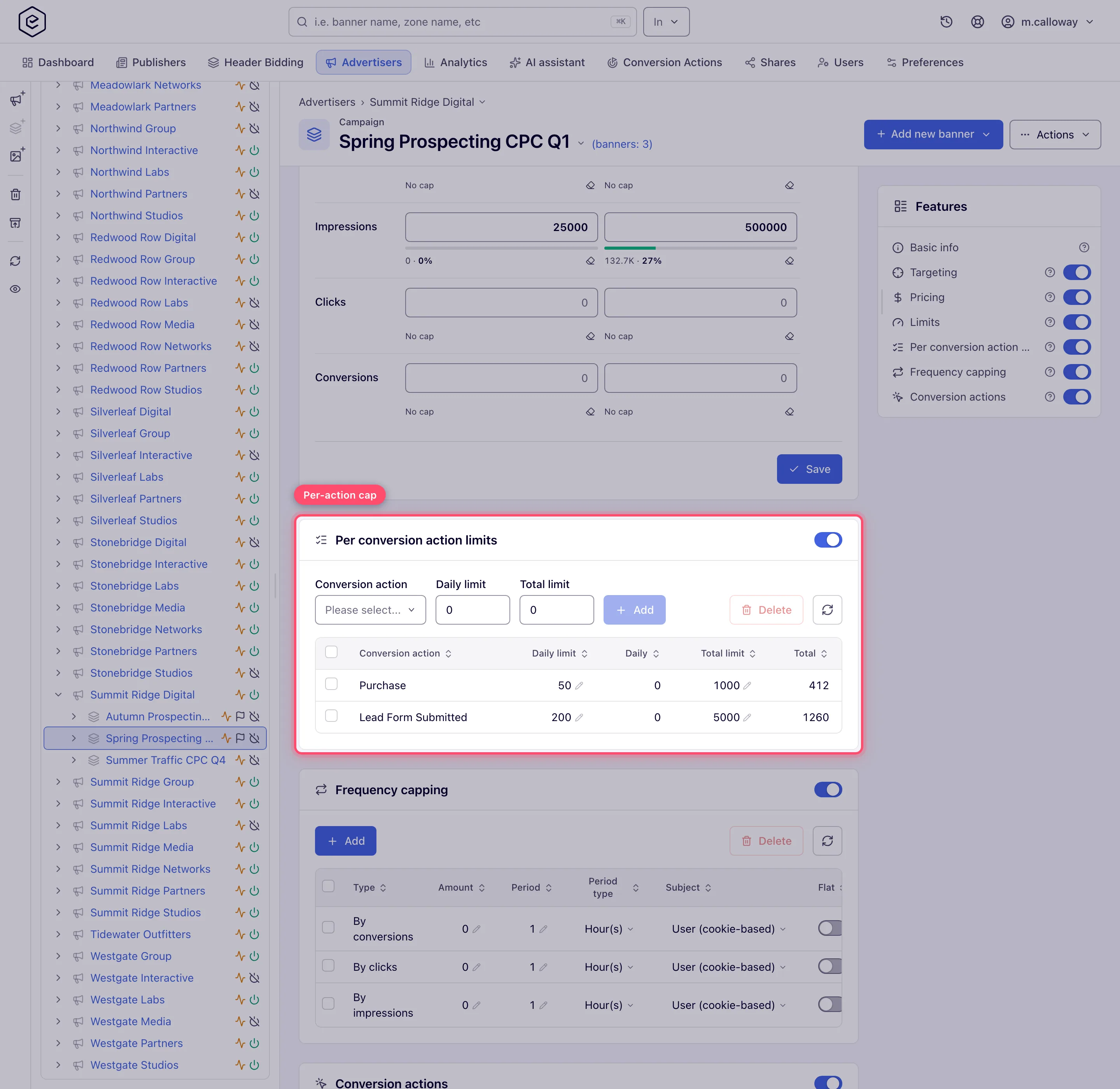
Open the entity — for example Account → Advertisers → advertiser → campaign — and scroll to Per conversion action limits, or click it in the Features rail on the right.
-
Turn the card’s switch on. The card body only exists while the switch is on: there is no separate collapse control, so switching off hides the toolbar and the grid together.
-
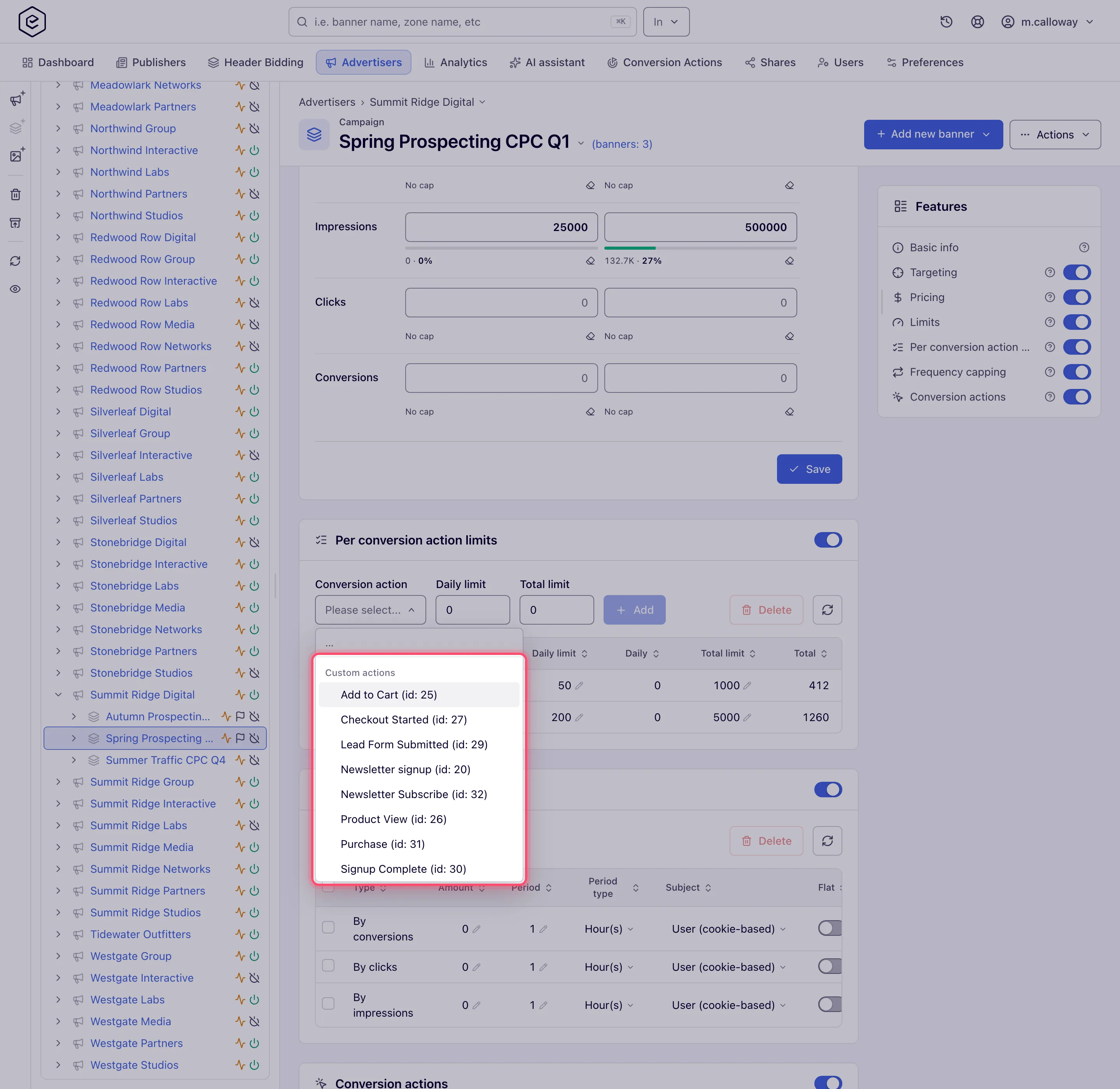
Open Conversion action and pick the action to cap. The list is grouped — your own actions first under Custom actions, then the system video and viewability actions under Video quartiles & completion, Video interaction and Viewability. Type to search.
-
Type a Daily limit and/or a Total limit, then click Add.
0means no cap on that side. If you set both, the daily figure must not exceed the total. -
The new row appears in the grid with five columns: the action, Daily limit, Daily (today’s count), Total limit, Total (the count since the row was created). Click a limit cell to edit it in place; the change is saved when you leave the cell.
-
To remove rows, tick them and click Delete, then confirm Delete N record(s)?.
There is no Save button on this card — Add, an inline edit and Delete each apply immediately. A failure surfaces as a red toast and the grid refetches, so what the grid shows after the toast is what is stored.
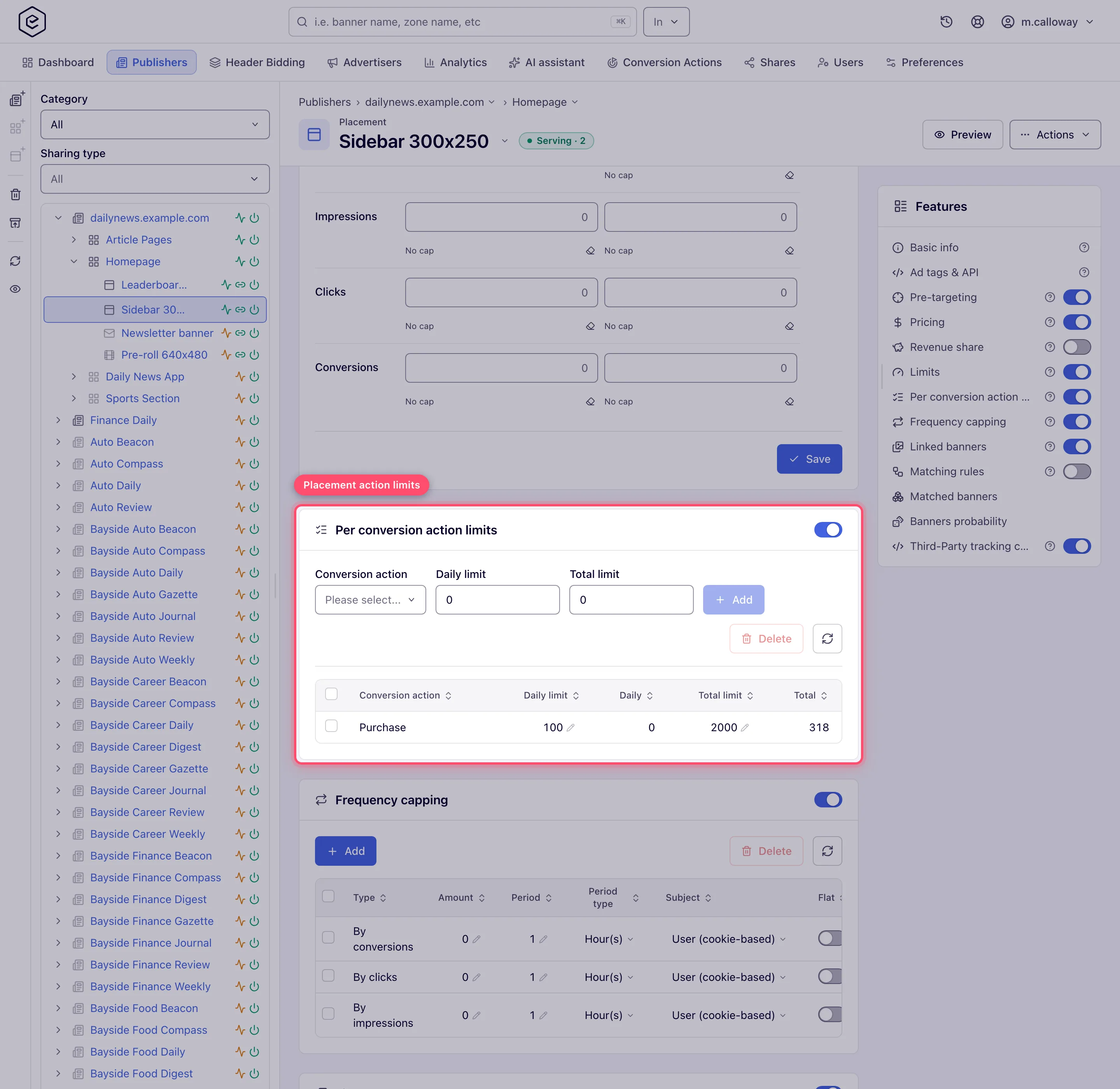
The card is identical on a site or placement, apart from the toolbar layout — the publisher side puts Delete and the refresh button on their own row beneath the add form.
Options and fields
| Field | What it does | Default | Notes |
|---|---|---|---|
| Card switch | Enables the feature on this entity | Off | Switching off deletes every row on the entity after a confirmation — see corner cases |
| Conversion action | Which action’s conversions are counted | — | One row per action per entity; picking an action that already has a row overwrites it |
| Daily limit | Max conversions of this action per day | 0 | 0 = uncapped. Must be ≤ Total limit when that is above 0 |
| Total limit | Max conversions of this action since the row was created | 0 | 0 = uncapped. Reaching it switches the entity off |
| Daily | Read-only counter — conversions of this action today | 0 | Rolls over on the ad server’s date, not yours |
| Total | Read-only counter — conversions since the row was created | 0 | Never resets; deleting the row is the only way to clear it |
Both limits are whole numbers of 0 or more, up to about 4.29 billion. A figure above that is
refused with a red toast that does not say which field was too large. A field left blank is saved
as 0, so a row with both fields blank (or both 0) is accepted but restricts nothing — enter at
least one positive limit, and switch the entity off if you want it to stop serving.
How an action limit differs from an ordinary limit
The two features look like siblings but are stored and configured separately — an action limit is not “a Limits row with an action attached”. This is everything an action limit can express:
| Capability | Ordinary limit | Per-action limit |
|---|---|---|
| Impressions / clicks / budget / opportunities caps | Yes | No — conversions only |
| Conversions cap | Yes, all actions together | Yes, one named action |
| Daily and Total tiers | Yes | Yes |
| Weekly and Monthly tiers | Yes | No |
| Start date / End date | Yes | No |
| Local time | Yes (start/end only) | No |
| Even pacing | Yes | No |
| No-conversion rules | Yes | No |
| Clear button per counter | Yes | No |
| Explicit Save | Yes | No — changes apply on Add / edit / Delete |
| Rows per entity | One | One per action |
Use both together freely: they are independent, and an entity stops serving when either the ordinary limit or any action limit is reached.
Note: the ordinary Limits card’s Local time setting shifts the limit’s start and end dates into your timezone — it does not move the daily counter’s rollover. Both features roll their daily counters over on the ad server’s own date, so a per-action limit having no Local time option costs you nothing.
What happens when a limit fills
An entity is treated as limited when any single row on its card is reached — the check is “any of them”, not “all of them”. One filled action stops the entity for every action and all of its traffic.
What “stops” means depends on which side filled:
| Cap reached | Effect |
|---|---|
| Daily limit | The entity is excluded from the auction until the daily counter rolls over. It comes back on its own. |
| Total limit | The same exclusion, and the ad server clears the entity’s Active switch on its next hourly statistics update. It does not come back on its own. |
And where the exclusion bites depends on the entity level:
| Level with the filled cap | What is dropped from the auction |
|---|---|
| Banner | That banner only; the campaign’s other banners keep serving |
| Campaign | Every banner of that campaign |
| Advertiser | Every campaign of that advertiser |
| Placement | Every campaign, i.e. the placement serves nothing |
| Site | Every campaign on every placement of that site |
Wherever the entity’s status icons are drawn — the entity tree, the linking trees, the levelled grids — a reached action limit adds the greyed Finished flag.
To restart a filled limit you must do two things, in this order:
- Clear the count — delete the row (and re-add it if you still want the cap). Raising the limit does not reset the counters; it only helps if the new figure is above the count already accumulated. There are no Clear buttons on this card.
- If a total cap was reached, switch the entity back on — deleting the row does not re-activate it.
Warning: enforcement is not instant. A limit you add, raise or delete reaches the ad servers on their next scheduled settings refresh, and the counters you see in the grid are updated with the hourly statistics update. Expect a lag of minutes in both directions, and do not treat a per-action limit as a hard real-time ceiling.
Corner cases and gotchas
Warning: turning the card’s switch off deletes every per-action limit row on that entity once you confirm the Turn this off? prompt. The switch is not a pause, and there is no undo. If you only want to stop enforcing a cap for a while, raise the limits instead, or write the rows down first.
Corner case: when you set both, Daily limit must not exceed Total limit (unless Total is
0). Breaking that rule is rejected with “Total conversions limit less than daily conversions limit.” — a message that reads backwards, but it means your daily figure is too big. The same rule applies to an inline edit of either cell.
Corner case: picking an action that already has a row silently overwrites that row’s limits. The picker does not hide already-limited actions, there is no duplicate warning, and the row keeps its accumulated counters — so re-adding an action to “start over” changes the caps and clears nothing.
Corner case: adding a row with both limits left at
0succeeds and creates a row that caps nothing. It is inert rather than harmful, but it is easy to create by clicking Add straight after choosing an action.
Corner case: you can cap an action the entity never fires, and nothing warns you. The picker lists every action you can see, with no relation to what the entity actually tracks. On a campaign, conversions are only recorded while the campaign’s own Conversion actions card is switched on — a per-action limit on a campaign with tracking off will never move off zero.
Corner case: the grid and the picker label the same action differently. The picker tidies the system actions up (Ad Creative View), while the saved row shows the stored name (AD CREATIVE VIEW-GLOBAL VAST). They are the same action.
Corner case: there is no Ad Opportunity system action; it appears neither in this picker nor on your Conversion Actions page.
Corner case: deleting a conversion action does not delete the limits that reference it. Action deletion is a soft delete, so the row stays in the grid under the deleted action’s name and keeps being enforced — while the action itself is gone from the picker, so you cannot re-create the row if you remove it. Delete the limit row first, then the action. (System video and viewability actions cannot be deleted at all.)
Corner case: the same conversion increments the row on every level that caps that action. A campaign row and a placement row for the same action both count it, and each fills against its own limit — so the effective cap is whichever runs out first.
Note: the counters are maintained by ad serving and cannot be typed into. Only the two limit columns are editable.
Note: the rows can also be managed over the REST API under
/rest-api/per-action/, wheretypeisADVERTISER,CAMPAIGN,BANNER,SITEorPLACEMENT. Adding a row switches the card on; a cap you leave out ofaddorupdatekeeps its stored value;deleterefuses the whole call with a404when one of the ids is not a limit of that entity. The switch (…/enable,…/disable) exists forADVERTISER,CAMPAIGNandBANNERonly, and switching off deletes the rows as in the console. See Targeting, capping and limits via API.
Per-role notes
- Advertiser — no per-action limits card at any level. Cap the whole funnel with Limits, or ask the network for Campaign Per Action Limit.
- Publisher — no card on a site or a placement unless the network grants it.
- Can View share — rows and counters are readable but read-only; changing them needs Can Edit or Is Owner on the owning advertiser or site.
Exact grants: see User roles.
Related
- Conversion actions — creating the actions this page caps
- Limits (volume caps and budgets) — the impressions, clicks and budget sibling
- Frequency capping — per-user caps rather than per-entity totals
- Delivery controls overview
- Why is my ad not serving?
