
Work with zones
What zones are for, how to create and edit one, the five zone-level cards, and what deleting a zone takes with it.
A zone is the middle level of the supply tree: a named group of placements inside one site. Typical zones are page areas (“Homepage”, “Article Pages”) or business groupings (“Premium”, “Remnant”). Zones carry no ad tags of their own — they exist to organize placements, to give reports a grouping, and to hold filters and rules that apply to every placement in the group.
Who this is for
Publishers and network managers organizing placements under a site. A publisher gets the zone itself; the five cards below it belong to the network manager — see Per-role notes.
Prerequisites
- A saved site to attach the zone to.
- Inventory create rights. On a masked or view-only share the Add new zone button is not rendered at all.
Steps
-
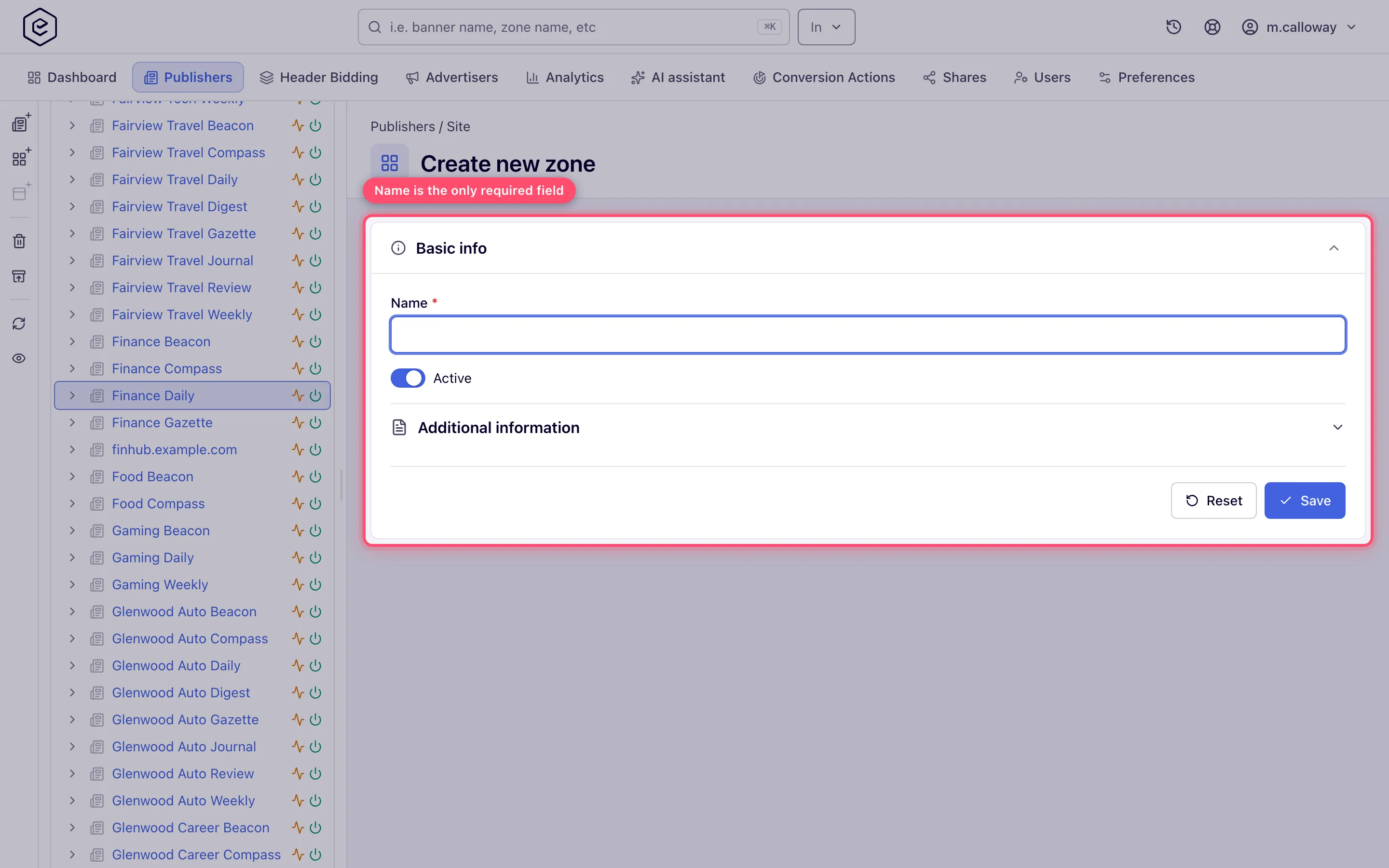
Open the site (Account → Publishers → site) and click Add new zone in the header.
-
Enter the Name. It is the only field the form requires — there is no category and no size. If your role can switch zones on and off, the Active switch, on by default, sits under it. Everything else a zone can carry appears after the first save.
-
Optionally open Additional information for a Description, and fill any additional fields your network has configured.
-
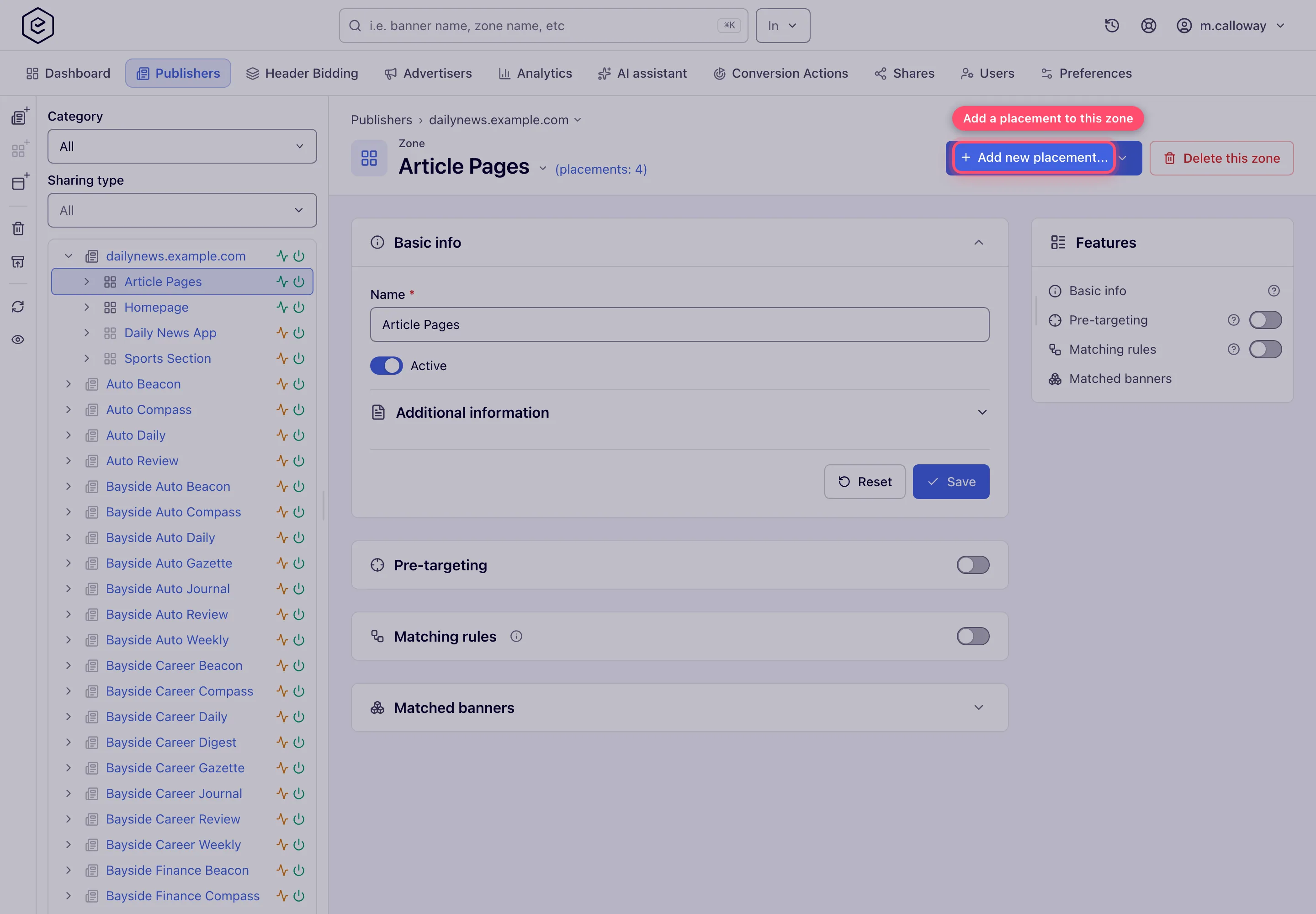
Click Save. You get a Zone saved toast and land on the full zone editor. Until the zone has its first placement it shows the nudge “This zone has no placements yet — A placement is the actual ad slot — the zone serves nothing without one. Create the first placement and link banners to it.” with the same Add new placement… menu as the header.
-
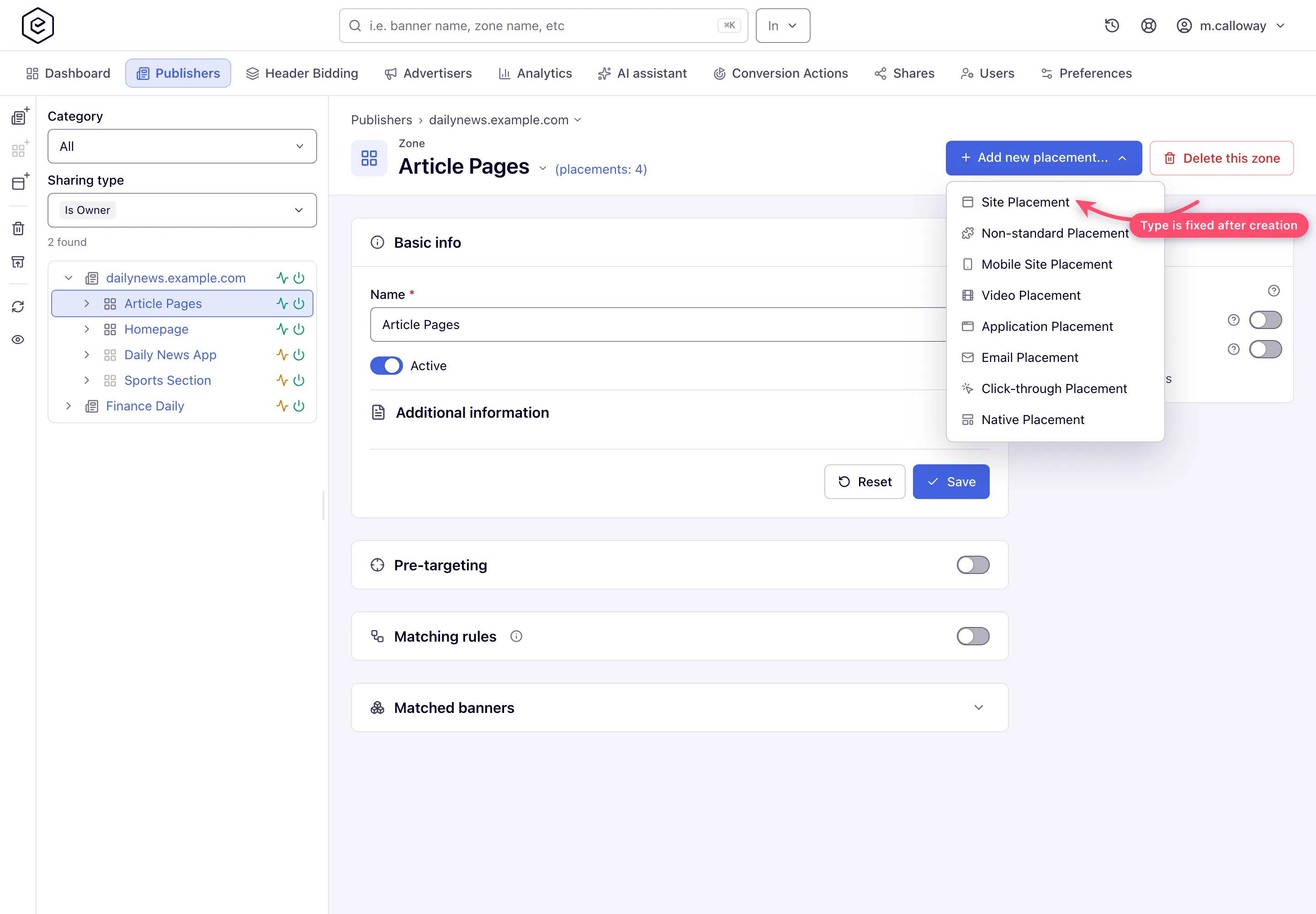
Click Add new placement… and pick a type — see Create a placement.
After the first save — the zone cards
Five cards, in page order. Each can be switched on and off from the Features rail when you can edit the zone.
| Card | What it does |
|---|---|
| Pre-targeting | Traffic filters applied to every placement in the zone. See Pre-targeting and blocking. |
| OpenRTB integration | IAB categories (sent as sectioncat) and blocked IAB categories (merged into bcat) sent in bid requests for this zone. See how the levels combine. |
| Matching rules | Category/label rules that auto-pair this zone’s inventory with demand. See Rules and defaults. |
| Matched banners | Read-only cascade of the advertisers → campaigns → banners the rules currently match. |
Which of these cards you see depends on your role — see User roles.
Corner case: Matched banners renders only when the Matching rules card is visible too. A role that cannot see Matching rules never gets Matched banners, and nothing on screen says why.
Header actions
- Placements counter — the title reads
Article Pages (placements: 4); the count links to the zone’s placement list. - Site / zone switchers — the breadcrumb and the title carry quick switchers, so you can jump to a sibling site or zone without going back to the tree.
- Add new placement… — the per-type creation menu. Hidden on masked or non-editable shares.
- Delete this zone — deletes the zone and every placement under it; see the corner case below.
Options and fields
The whole zone form, in the order it renders.
| Field | What it does | Control | Default | Where | Notes |
|---|---|---|---|---|---|
| Name | Zone display name | Text, max 128 | — | Both | Required. Locked (and skipped on save) on a masked share. |
| Active | On/off for the zone and every placement under it | Toggle | On | Both | Shown only if your role can switch zones on and off. |
| Additional fields | Network-defined custom fields | Varies | — | Both | Only when your network has configured them. |
| Description | Free-text notes | Textarea | — | Both | Under Additional information. Not rendered at all on a masked share. |
| Created | Creation date | Read-only text | — | Edit | Last field in Additional information. |
Corner case: the 128-character cap on Name is enforced by the server, not by the input, and the over-length failure has no friendly message registered — you get the validation framework’s generic “size must be between…” text rather than something naming the field.
Move or copy a zone or placement
Drag a zone onto another site, or a placement onto another zone, in the Publishers tree; the dialog asks whether to Move or Copy (with the number of copies, 1 to 20) and whether to Keep banners linked. The grid clipboard does the same: put zones or placements in it, open the destination site or zone, and choose Move or Paste a copy.
- A moved placement keeps its placement key, and a zone moved to another site keeps the keys of every placement in it — so every ad tag already published for them keeps serving, unchanged.
- A copy is a new placement with a new key: its tags have to be taken from the copy.
- Keep banners linked on a move leaves the placement’s banner links as they are; cleared, it unlinks every banner and takes them out of the placement’s daisy chain. On a copy it decides whether the copy is linked to the same banners.
- Moving needs update rights on both sites — the one the entity leaves and the one it joins.
- Nothing is moved or copied into a deleted zone or site, or out of one: the move is refused with a message naming the deleted entity, and the placement or zone stays where it was. The same holds for campaigns and banners in the Advertisers tree.
Corner cases and gotchas
Deleting
Corner case: deleting a zone deletes every placement under it. The confirmation says so literally — “The zone will be deleted along with its placements. You can restore it within 90 days. Are you sure?” — and it means it: the delete cascades to each placement, and those tags stop answering. For 90 days Recently deleted (the box-with-arrow button in the Publishers tree’s action rail, and the link on the delete toast), the Undo on the toast of a delete made from the tree rail, or
POST /rest-api/deleted-entities/{type}/{id}/restorebrings the zone and those placements back (their tags answer again after the ad server’s next reload — see Restore something you deleted), but traffic is lost in between. Move the traffic first.
Corner case: the cascade reaches the ad server almost immediately, not on the next cache reload. Each deleted entity publishes an update message that patches the ad server’s in-memory inventory, so a tag you deleted “just to test” is dark within seconds.
Pre-targeting
Corner case: zone pre-targeting is a filter, not a merge. A request must pass site and zone and placement pre-targeting, evaluated broadest-first and failing fast. A rule that allows traffic at placement level still loses if the zone blocks it — when a placement will not serve, check all three levels.
Error messages
Corner case: three different “denied” strings mean three different things. Editing a zone you may not edit gives “You do not have permission to edit this zone”; a delete you may not perform gives “Access denied”; a placement edit gives “Permission denied”. If you are matching a screenshot from a colleague to a cause, the exact wording tells you which action was refused.
Corner case: a zone save can fail with an affiliate-related message shown as a toast rather than as an error under a field. Nothing is highlighted on the form — read the toast.
Over the API
- Matched Ads —
GET /rest-api/matched/ZONE/{zoneId}.do?returnType=ADVERTISER|CAMPAIGN|BANNER(BANNERwhen omitted), with the card’s filters andstart/limit; it needs the Matched advertisers permission. Sites and placements use the same endpoint. - Open RTB categories —
GET/POST /rest-api/zones/{zoneId}/openrtb.doreads and setsiabCategoriesandblockedIabCategories(ids or IAB codes such asIAB1_2); only the lists sent change, and an empty list clears one. It needs the Open RTB permission.GET /rest-api/iab-categories.dolists the catalogue. A placement’s card is/rest-api/placements/{placementId}/openrtb.do, which also takesblockedBannerAttributesandcustomOpenRtbTagId— see Set a placement’s OpenRTB settings, which also explains how the zone’s lists combine with the site’s and the placement’s. - Custom fields —
/rest-api/additional-fields/ZONE/{zoneId}.do. - Move —
POST /rest-api/zones/update.dowith the zone’sidand anothersiteIdmoves the zone; a placement moves the same way through itsupdateendpoint with anotherzoneId. Both keep the placement keys (see Entities via API). From an AI assistant,entity_updatewithparentIddoes it.
Per-role notes
- Publisher — edits the zone’s Basic info and adds placements; the five cards above belong to the network side.
- Network manager — Basic info plus all five cards.
- Can View share — the form is read-only and Add new placement… is hidden; ask the owner for Can Edit (deleting needs Is Owner).
- Masked share — the name shows as
ZONE_<id>and is locked, Description is hidden, and the placements under the zone are masked too.
Exact grants: see User roles.
