
Share sites and advertisers with users
Grant users Is Owner, Can Edit or Can View access to sites and advertisers in bulk, understand what recipients see, create a statistic account, and revoke access.
Sharing connects an existing user to a site or an advertiser with a defined access level. The Shares page does this in bulk — many entities to many users at once — and lists every share you can see so you can audit and revoke access.
Who this is for
Anyone whose role holds the Share permission on Inventory (the Inventory sharing tab) or on Campaigns (the Advertisers sharing tab). Each tab shows only when its own permission is held, and the Shares tab itself shows when either is.
- Stock Publisher and Advertiser roles do not hold the Share permission, so they have no Shares tab. When the network grants it (usually at shared width) they can share only the sites and advertisers they own. Without it, the way to give a partner read-only numbers is a scheduled e-mail report. See Per-role notes.
- Network managers need the Share permission on Inventory and/or Campaigns, which your network administrator grants. At all width a network manager can share anything the role can see.
Prerequisites
- The recipient must already be an active user, and your role must be allowed to see that user’s role. Network managers pick from the active users of every role they can view. A publisher or advertiser picks only from the active users they created themselves — in practice their statistic accounts — so the way to add a recipient is to create one there, or to ask the network manager to share on their behalf (see Manage network users).
- The sites or advertisers you want to share must exist.
Steps
-
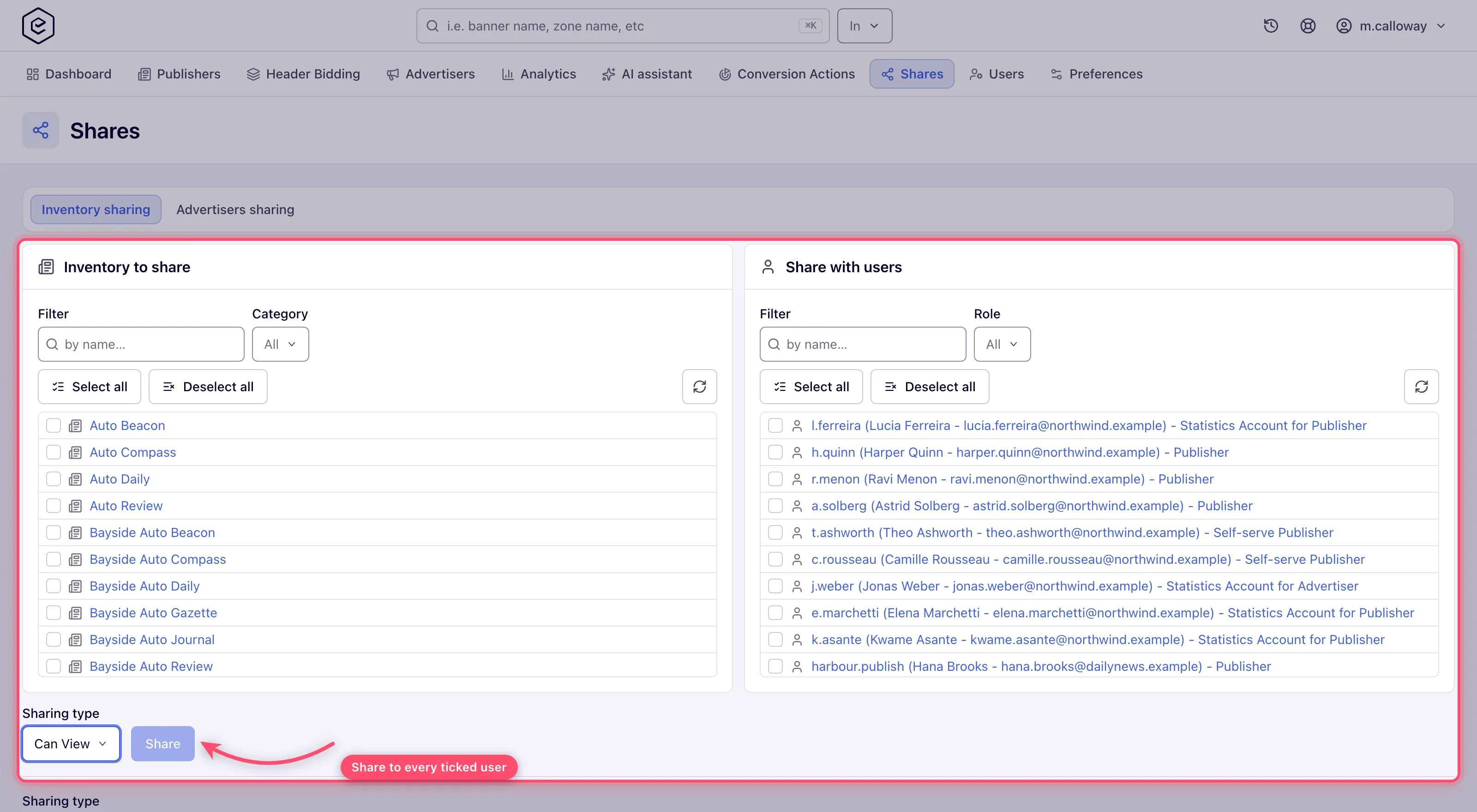
Go to Account → Shares and pick the tab: Inventory sharing (sites) or Advertisers sharing.
-
In the left panel (Inventory to share / Advertisers to share), tick the entities. Use the Filter box to narrow by name and — if your role has the categorization permission — the Category selector. Select all / Deselect all act on the currently filtered list.
-
In the right panel (Share with users), tick the recipients. Filter by name or narrow by Role. Each row shows username, full name, e-mail and role so you can tell users apart.
-
Pick the Sharing type:
Type Recipient can Is Owner Everything on the entity, including deleting it (when their role may delete) and sharing it on up to Is Owner. Can Edit View and modify the entity. May share it on, up to Can Edit, when their role holds the Share permission — see Sharing a single entity. Can View View the entity and its statistics. Cannot share it. Is Owner is in the list only when your role may delete: an Is Owner share lets its holder delete the entity, so you can hand it out only on entities you could delete yourself.
-
Click Share and confirm (Share access?). Every ticked entity is shared with every ticked user — the grid below refreshes with the new rows and a Done toast appears.
-
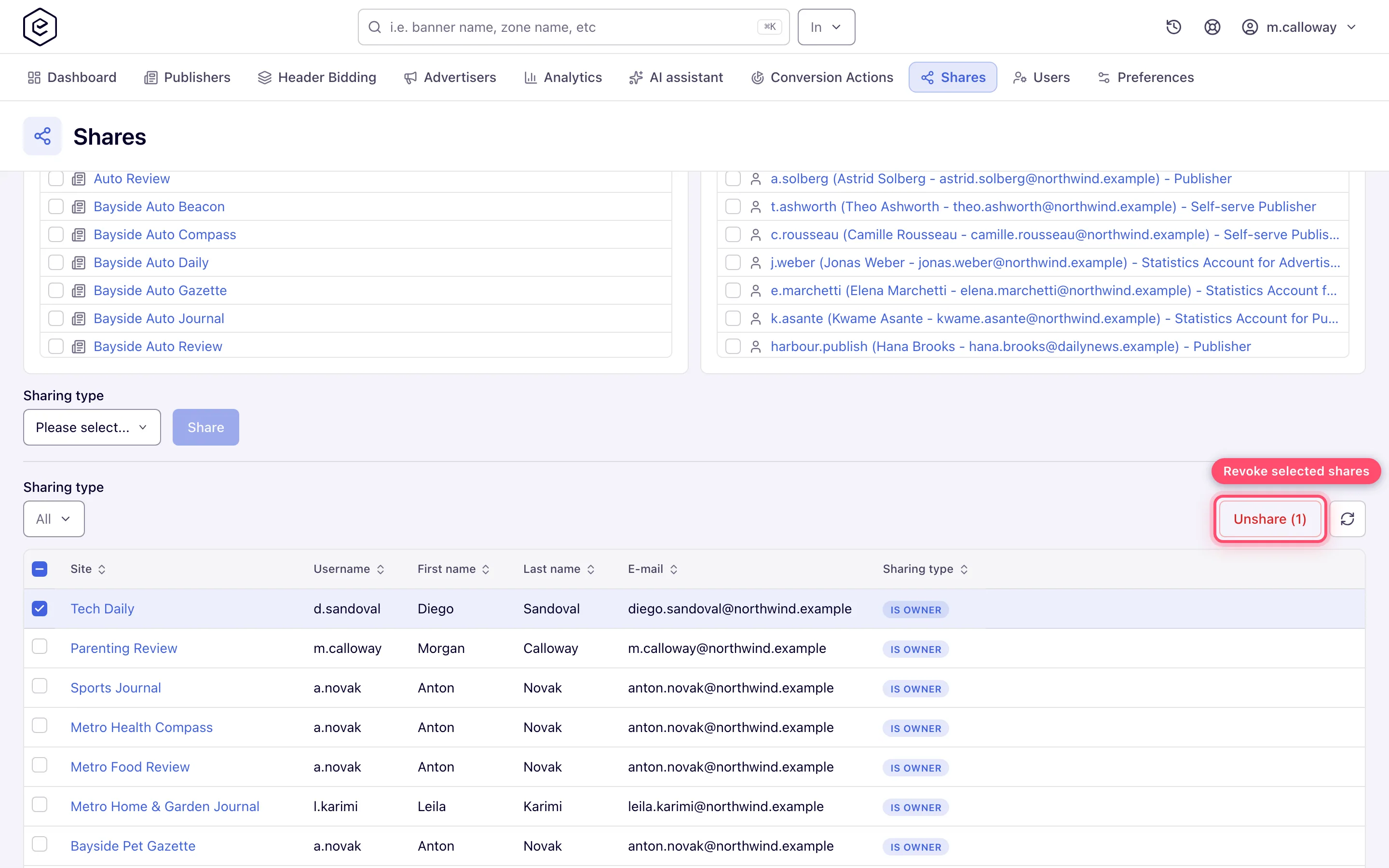
To revoke access, tick rows in the grid and click Unshare, then confirm (Remove access?). The button shows the selection count, e.g. Unshare (3).
Options and fields
| Element | What it does | Notes |
|---|---|---|
| Filter (entity picker) | Server-side name search of your shareable sites/advertisers | Re-filtering clears the ticks |
| Category | Narrows the entity picker by publisher/advertiser category | Shown only if your role uses categories — on both tabs |
| Filter (user picker) | Matches username, e-mail, first or last name | |
| Role | Narrows the user picker to one role | |
| Sharing type (create panel) | Access level for the new shares | Required — Share stays disabled without it |
| Sharing type (grid filter) | Multi-select filter on existing shares | |
| Grid columns | Site/Advertiser, Username, First name, Last name, E-mail, Sharing type | All sortable; entity names link to their edit pages; usernames link only for users you may edit |
What the recipient sees
- The shared site or advertiser appears in the recipient’s Publishers / Advertisers area alongside their own entities, with children (zones, placements, campaigns, banners) reachable through it.
- With Can View, edit pages show their fields read-only and have no Save. Statistics remain fully visible. A few buttons outside the form — for example Delete in the Publishers tree — are not greyed out for Can View; the server refuses what they ask for.
- With Can Edit, the recipient can change the entity. Whether they can also pass access on depends on their role’s Share permission and on the width of it, not on the share type alone.
- On networks that enable the Mask Inventory / Mask Campaigns permissions for the
recipient’s role, entities the recipient does not own display anonymized codenames (for
example
ADVERTISER_123orSITE_456) and contact fields come back empty. This is how you let a client run campaigns across your inventory without revealing site identities.
Sharing a single entity from its edit page
Three edit pages carry a share card. Type a username, pick the sharing type and click Add (tooltip Share); tick a row and click the remove button (Remove access) and confirm to revoke.
| Entity | Card title | Default type | Who gets the card and its add/remove toolbar |
|---|---|---|---|
| Advertiser | Sharing settings | Can Edit | Anyone who can edit the advertiser and holds the Share permission — they see the card with its toolbar; everyone else does not see the card |
| Site | Sharing settings | Can View | Anyone with the Share permission sees the list; the toolbar is the site owner’s |
| Conversion action | Conversion Action Sharing | Can Edit | The list is read-only unless you are the owner or hold Share at all width |
With the share permission at shared width the server bounds every share change:
- you can grant at most your own share type, and cannot replace a share higher than yours (the owner’s), unless the recipient is a user you created;
- you can remove a share only while your own share on the entity is Can Edit or Is Owner, and only one no higher than yours or one of a user you created.
Nobody removes their own share, at any width: someone else who may share the entity removes it.
The REST share endpoints, the Pending Banners grid, conversion actions and templates apply those two bounds too, and the REST endpoints and the Shares page remove shares by exactly the card’s rule. On the surfaces where you type a username — the cards above, Pending Banners, conversion actions, templates and Default sharing settings — you can share only with users your role lets you see; any other username reads as unknown. The all width is not bounded by them. (The Shares page is covered under Corner cases & gotchas below.)
Is Owner needs the right to delete, at every width. An Is Owner share lets its holder delete the entity, so you can grant it — or raise a share to it — only on an entity you may delete yourself: your role holds Delete at all width, or at shared width and you are the entity’s owner. Can Edit and Can View are not affected. Where you may not, the Sharing type list leaves Is Owner out, and a request that asks for it anyway (over REST, through the AI assistant, or from a stale page) is refused with Is Owner lets its holder delete this item, so only a user who may delete it can grant Is Owner.
A refused add or remove on a card shows the server’s reason, so a refusal caused by the width bound above says which bound it was. A refusal that carries no reason falls back to Only owner can change advertiser share settings on an advertiser, Access denied when adding on a site and Only the owner can remove access to this site when removing.
Who sees what
Can a network admin see every campaign in the network?
What a user sees in Advertisers and Publishers is set by two permission widths on their role — Campaigns and Inventory: All sees every advertiser (or site) in the network, Shared only those shared with the user. A network manager account whose role is Shared sees only its own and shared entities, however senior it is. To look at a client’s account exactly as they see it, use Switch user on the user grid (Switch into a user’s account) — it needs the user-management permission, and the target user’s role must allow it.
Can an advertiser see its statistics broken down by site?
Yes, if their role allows it; the stock Advertiser role does not. Grouping and filtering a report
by Site (and by zone and placement) is a role setting the network manager controls. With it
on, the advertiser’s reports offer the Site group-by and the publishers filter tree; without it
those options are not there. Sites the advertiser does not own appear under masked names
(SITE_456) when their role is set to mask inventory. Give such a role only to the advertiser
users who should see the split.
Can a publisher get a statistics-only login for one site?
Yes — a network manager can create one for each of their publishers. Use Create user & share on the site (below): it creates the user, shares only that site with Can View, and e-mails them a link to set a password. They see that site’s statistics and cannot change anything (what they see). For an advertiser, the same action on the advertiser shares only that advertiser.
Read-only numbers without sharing
The stock Publisher and Advertiser roles cannot create logins or share, but they can send their own reports. On Analytics, build the report the partner needs, save it under Saved reports, then add a schedule and the partner’s address as a recipient: the file arrives by e-mail on the days and at the hour you pick, with no login needed. See Schedule recurring emails.
Statistic accounts
When a client needs read-only statistics for one site or advertiser and has no login yet, create the account from that entity’s page instead of two separate steps.
-
On the site or advertiser edit page open the actions menu and choose Create user & share. The entry appears only when your role holds the Share permission for that entity type and may create users in at least one role. A publisher or advertiser with sharing granted may create users in the two Statistics Account roles.
-
In the Create statistic account dialog fill Username and Email (both required) and pick the Role (the roles your role may create users in). The e-mail starts as the entity’s contact e-mail.
-
Click Save. The platform:
- creates the user — active at once, owned by you, with a random placeholder password nobody knows;
- adds a Can View share on the entity;
- e-mails an invitation to the address you entered with a single-use link to choose their own password. No password is ever sent. The link expires; if it has, the client uses Forgot password on the login page to get a fresh one.
The toast reads Invitation to choose a password sent to followed by the address.
You need edit rights on the entity, and the role must be one you may assign — an administrator role never is.
Corner case: the username and e-mail must both be free — an account already using either is refused with Username must be unique or Email must be unique, and nothing is created. Pick another name, or share the entity with the existing user instead. Both fields take up to 64 characters and the e-mail must be a valid address.
Corner case: if the site or advertiser had no contact e-mail, the statistic account’s e-mail is written into that field, and a second toast says so.
Corner case: the entry is not offered on a site or advertiser you hold only as Can View — creating the account needs edit rights on the entity.
What the statistics account sees
The account sees only what is shared with it — the one site or advertiser, at Can View — and its role decides the tabs. With the stock roles:
| Role | Tabs | On the shared entity |
|---|---|---|
| Statistics Account for Publisher | Dashboard (the publisher dashboard), Publishers, Analytics, Preferences | The site, its zones and placements open read-only, with no Save. The role cannot create or change inventory whatever the share, and it holds no ad-tag permissions, so display, native and application placements show no Ad tags & API card (Video and Email placements still show their tags). Reports cover requests, impressions, clicks, conversions, eCPM and revenue |
| Statistics Account for Advertiser | Dashboard (the advertiser dashboard), Advertisers, Analytics, Actions, Preferences | The advertiser, its campaigns and banners open read-only. Reports cover impressions, clicks, conversions, eCPM and charges |
A role your network has edited, or another role picked in the dialog, can show more or less.
Over the API
POST /rest-api/system-users/create-and-share.do does the same in one call, for any number of advertisers and sites:
login (the new username — the field is not called username because that is the API’s sign-in parameter), email,
role (id or name), optional firstName / lastName (the first name defaults to statisticsAccount),
advertiserIds, siteIds and shareType (CAN_VIEW by default, or CAN_EDIT / IS_OWNER). There is no password
field, and the answer carries none: it returns {success, userId, username, email, roleId, role, active, shareType, advertiserIds, siteIds, invitationSentTo}, and the user gets the same invitation with a single-use set-password link —
the advertiser statistics-account mail when advertisers are shared, the site one when only sites are, and the network’s
account-activated mail when nothing is shared.
It is stricter than the dialog in two ways. A login or e-mail already in use is refused (400, errors.login /
errors.email) instead of being adjusted, so the invitation always reaches the address you gave. And with the shared
share grant you cannot hand out more than your own share on the entity. Otherwise the rules are the dialog’s: the role
must be one your role may create users in (an administrator role never is; an unknown or forbidden role answers 400
or 403 and names the roles you may assign), and must be able to see advertisers or sites to receive them; each entity
needs the share grant and edit rights on it (403 otherwise; an advertiser or site that is missing, deleted or not
visible to you answers 404). Nothing is created unless every check passes.
To grant, change or revoke a single share, use the Shares endpoints: POST /rest-api/siteShares/update.do and
POST /rest-api/advertiserShares/update.do (siteId or advertiserId, shareType, optional userId, which defaults to
yourself), DELETE /rest-api/siteShares/{userId}/{siteId}.do and DELETE /rest-api/advertiserShares/{userId}/{advertiserId}.do,
and GET /rest-api/siteShares.do / GET /rest-api/advertiserShares.do to list. They apply the bounds above, including
that nobody removes their own share; a refusal is a 403 with the reason.
Corner cases and gotchas
Corner case: changing the Filter text, Category or Role in a picker reloads its list and clears everything you had ticked in that picker. Set your filters first, then tick.
Corner case: the pickers and the grid are linked. Ticking entities or users doesn’t just prepare the share — it also filters the grid below to the matching rows. If the grid looks mysteriously short, clear the ticks and filters.
Corner case: at shared width the page offers only the entities you own, and a combination the server refuses (for instance a type above your own share on that entity) is skipped without an error — the toast still says Done. Check the grid afterwards.
Corner case: Is Owner is offered when your role may delete at all, but each ticked entity is checked on its own: with Delete at shared width only the entities you own get Is Owner, the rest are skipped. When none of them could get it, nothing is shared and the refusal says why.
Corner case: with the narrower shared grant you can unshare a row only while your own share on that entity is Can Edit or Is Owner, and only if it is at least as high as the row’s or the recipient is a user you created. Your own row never goes, at any width. Rows outside those bounds stay: when none of the selected rows could be removed the toast reads Cannot delete record; when some could, the grid reloads and the refused rows are still there.
Corner case: the Share with users list follows the Share permission of its own tab — Inventory on Inventory sharing, Campaigns on Advertisers sharing — so a role holding only one of the two sees an empty user list on the other tab.
Corner case: some users in the Share with users picker appear in italics and don’t link anywhere — they belong to roles you cannot manage. You can still share entities with them; you just can’t open or edit their user account.
Per-role notes
- Network manager — with Share at all width, share anything you can see with any active user in the roles you can view.
- Publisher and advertiser — no Shares tab on the stock roles; send a scheduled report instead. Once the network grants sharing: only entities you hold as Is Owner, only users you created; create a recipient with the statistic-account action.
- Can View recipient — edit fields are read-only and the entity cannot be shared on.
