
Roles, permissions, and sharing
For administrators and network managers — how account types, custom roles, the permission matrix and entity sharing combine to decide what each user can see and do.
What a user can see and do in Epom is decided by three layers, applied in this order:
- The account type their role is built on — which of the two consoles they land in.
- The permission matrix of that role — which features, tabs, report columns and entity actions exist for them at all.
- The shares that connect them to specific advertisers, sites, templates and conversion actions — which particular entities those permissions reach.
The matrix decides how much; shares decide which. A permission set to Shared does nothing until a share exists, and a share does nothing unless the permission is at least Shared.
Account types and consoles
Every role is built on an account type, and two are current:
- Admin — the admin console, for your network’s administrators.
- Network — the account area, for everyone else: network managers, publishers, advertisers and statistics accounts.
A role named “Publisher” or “Advertiser” is an ordinary Network role shaped by its permissions. Don’t read the role’s name as its account type.
Warning: the Static role dropdown in the Add role panel still offers older account types under their internal names. Pick NETWORK or ADMIN. A role created on any other type gets an empty permission matrix and locks its users out of both consoles.
What each stock role sees
Each user has exactly one role. The stock roles open these areas:
| Stock role | Areas it opens | What it reaches |
|---|---|---|
| Publisher | Dashboard, Publishers, Analytics, Preferences | Sites shared with it or created by it; creates Site placements; cannot link, unlink, share or delete |
| Advertiser | Dashboard, Advertisers, Analytics, Conversion Actions, Templates, Preferences | Advertisers shared with it or created by it, plus conversion actions |
| Network Manager | Set by your network administrator — typically both trees, Header Bidding, Analytics, the AI assistant, Conversion Actions, Shares, Users and Preferences | Usually the whole network; creates links and onboards users |
| Statistics account | Whatever its role allows, limited by a Can View share | The one site or advertiser it was created for, read-only |
Other areas — Templates for a network manager, Media Library, Traffic Quality, RTB, Pending sites, Pending banners, Billing and Referral program — appear only when a role is granted them. The account area hides what a role may not do rather than letting it fail: tabs, cards, fields, grid actions and dropdown options all disappear or turn read-only.
The playbooks describe the day-to-day work of each role:
Managing roles
Roles live under Admin → Users & access:
- User roles & permissions lists every Network-based role.
- Admin roles & permissions lists every role, Admin-based and Network-based alike.
Roles are tabs across the top of the page. + Add role asks for a name, the account type, and optionally a role to Copy all settings from — the fastest way to start. A Search box filters the matrix by permission name, and Save at the foot of the page saves the whole matrix. You can open any role, but you can save, rename or delete only a role you manage.
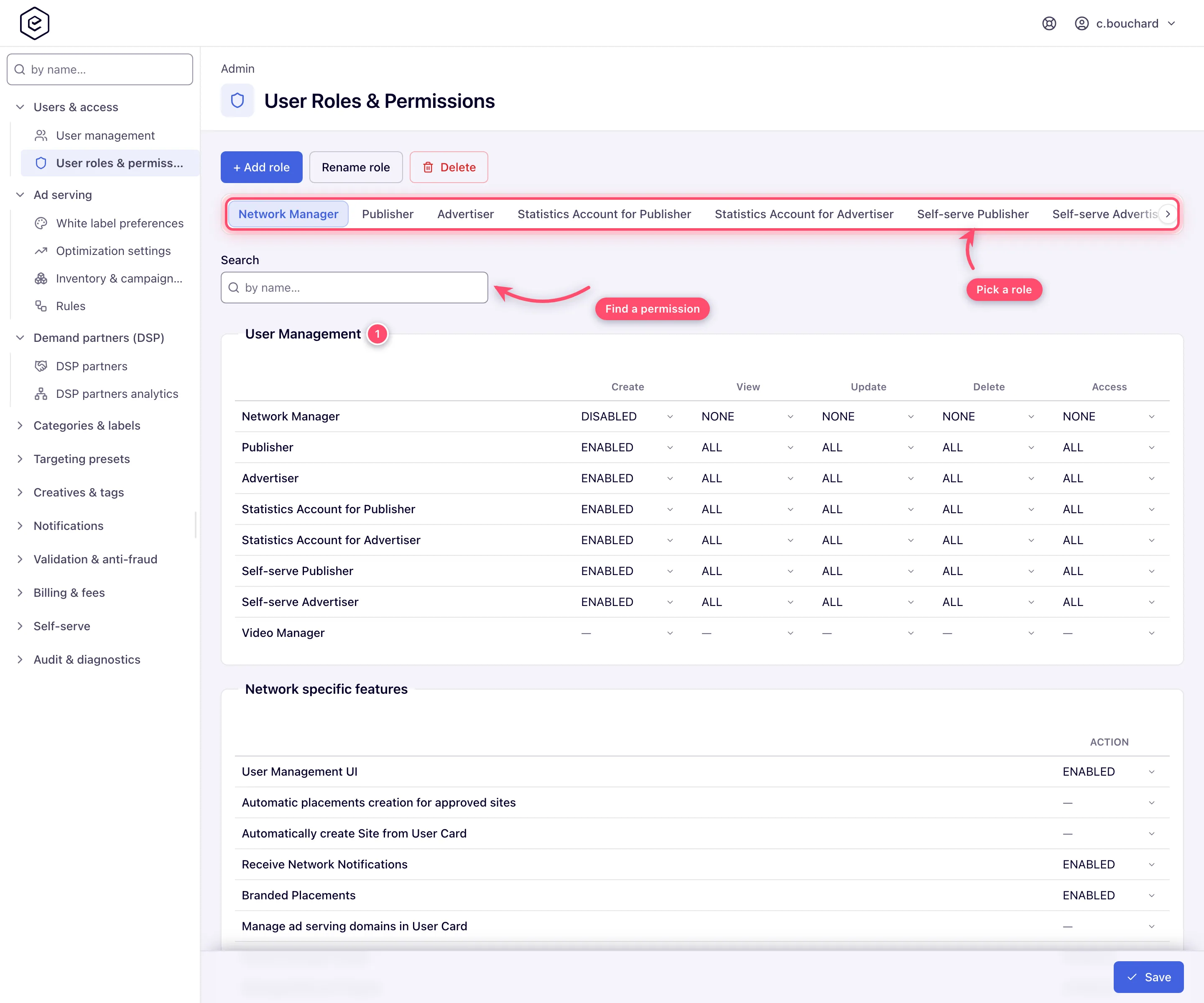
The matrix is a stack of sections. Entity sections (users, inventory, campaigns, templates, conversion actions, rules) set Create, View, Update, Delete and Share at one of three scopes:
- None — no access; the entities and their tab disappear.
- Shared — only entities explicitly shared with the user.
- All — every entity in the network; no share needed.
Feature sections are on/off switches, and some also offer Read-only, which shows a card’s values with its controls inert.
A few capabilities, including site and banner approval and billing, appear only on the Admin roles & permissions page. If you cannot find the row for Pending sites, Pending banners or Billing on User roles & permissions, open the same role there.
For the step-by-step, see Manage users and roles.
Corner case: a scope of Shared with no shares behaves like an empty network, not an error. The user signs in and sees the tab, but every list is empty until something is shared with them.
Sharing
Shares exist for advertisers, sites, templates and conversion actions. Each share links one user to one entity at one level, and reaches everything underneath it:
- Is Owner — view, change and share it on at any level, and delete it when the role holds the Delete permission (the stock Publisher and Advertiser roles do not). Without Delete you can still share it on as Can Edit or Can View, but not as Is Owner.
- Can Edit — view and change it, and share it on up to Can Edit.
- Can View — open it and read every figure; nothing can be changed.
Each level also needs the matching action granted at Shared or All in the role. A Can Edit share is useless if the role cannot update that kind of entity, and a role with All never consults shares.
Manage shares on Account → Shares, on the Sharing settings card of a site or advertiser, in the share dialog on Templates, or on a conversion action’s sharing card. See Share entities with users.
Default share settings on Account → Preferences (for roles that may share; the stock Publisher and Advertiser roles have no such card) list users who automatically get a share whenever you create a new advertiser, site, template or conversion action. They apply only at creation; use Apply to existing entities to back-fill what you already own. See Preferences.
Corner case: with a Can View share, an advertiser or campaign shows only its basic information card, marked Read-only, with no Save button. Raising the share to Can Edit brings the other cards back without touching the role.
Masked entities
A role can be set to mask inventory or campaigns. A masked entity shows a placeholder name such
as ADVERTISER_45 or SITE_123 everywhere, and its identifying fields — description, contact
details, URL and adomain — are not shown. Numbers, reports and search on the placeholder still
work. No stock role masks anything.
- Only an Is Owner share un-masks an entity; Can Edit and Can View are masked alike.
- Masking is not read-only: a masked entity shared at Can Edit can be edited, apart from the identifying fields, which saving never overwrites.
- A masked site offers no Add new zone, and a masked campaign offers no Mass banner upload or Add new banner. Only an Is Owner share restores them.
- In the banners matched to a placement, masked banners of a private advertiser are left out.
See Sharing & permission model.
Switching into another user’s session
The users grid carries a Switch button that opens another user’s session; Exit user in the user menu returns you to your own. Switch is offered only for active users, and only if your role has View and Access at All for the role of the user you are switching into. A user who is listed but has no Switch button usually means the Access grant is missing.
Corner case: a switched session is real, not a simulation. Everything you do is done and logged as that user — a site created while switched into a publisher gets the network’s default site status, as it would if the publisher created it.
Statistics accounts
A statistics account is a lightweight reader for someone who needs the numbers for one site or one advertiser. On the site or advertiser, open Actions → Create user & share, enter a username and e-mail, and pick a role. Epom creates the user with a Can View share on that entity and e-mails an invitation with a single-use link to choose a password, valid for 72 hours by default.
- Pick a minimal role. What confines the account is the single Can View share plus its role; a role with access to all campaigns makes it a full user.
- The username and e-mail must not belong to an existing user; a taken one is refused. To give an existing user the numbers, share the entity with them instead.
- The menu entry appears only if you may share that kind of entity and may create at least one role that can view it.
