
Go-live checklist
Pre-launch verification pass — statuses, linking, targeting sanity, capping, preview, a real test page and analytics visibility before you send production traffic.
Run this pass before pointing production traffic at a new setup. Each step verifies one common way launches silently fail. The whole list takes about ten minutes and saves the classic first-day incident: “everything is configured and nothing serves”.
Who this is for
Anyone flipping a new campaign or placement live — network managers for the full list, advertisers for the demand half and publishers for the supply half. Each step says who runs it.
If you are a publisher: what you do. Steps 1 (your site, zone and placement are on), 4 (your pre-targeting), 8 and 9 (preview and a test page with the real tag) and 10 (the report). Also confirm how the tag handles consent on your pages and that your
ads.txtcarries your network’s lines — see Privacy signals and ads.txt. The steps marked (network manager) are your network’s; when one of them fails, send your network manager the placement’s name and the page URL.
Prerequisites
- A configured chain: advertiser → campaign → banner and site → zone → placement, linked (see the network quick start if not).
- Access to a test page (any HTML file you can open in a browser).
Steps
- Statuses — the whole chain is Active (everyone, on their own side). Serving requires every level to be active: advertiser, campaign, banner, site, zone, placement. Walk both trees and check the status indicators; a single paused ancestor silently stops everything below it. Watch for “hide inactive” filters in the tree rail — an entity you cannot see may still be the inactive culprit.
- Approval states (network manager with the Pending tabs; they are not on the stock role, so otherwise your network administrator). On networks that review content, check Pending banners and Pending sites. A pending site still serves, and so does a creative under the soft review mode; under the strict mode a creative stays switched off until approved, and a Rejected creative is switched off. Make sure nothing is deactivated or rejected.
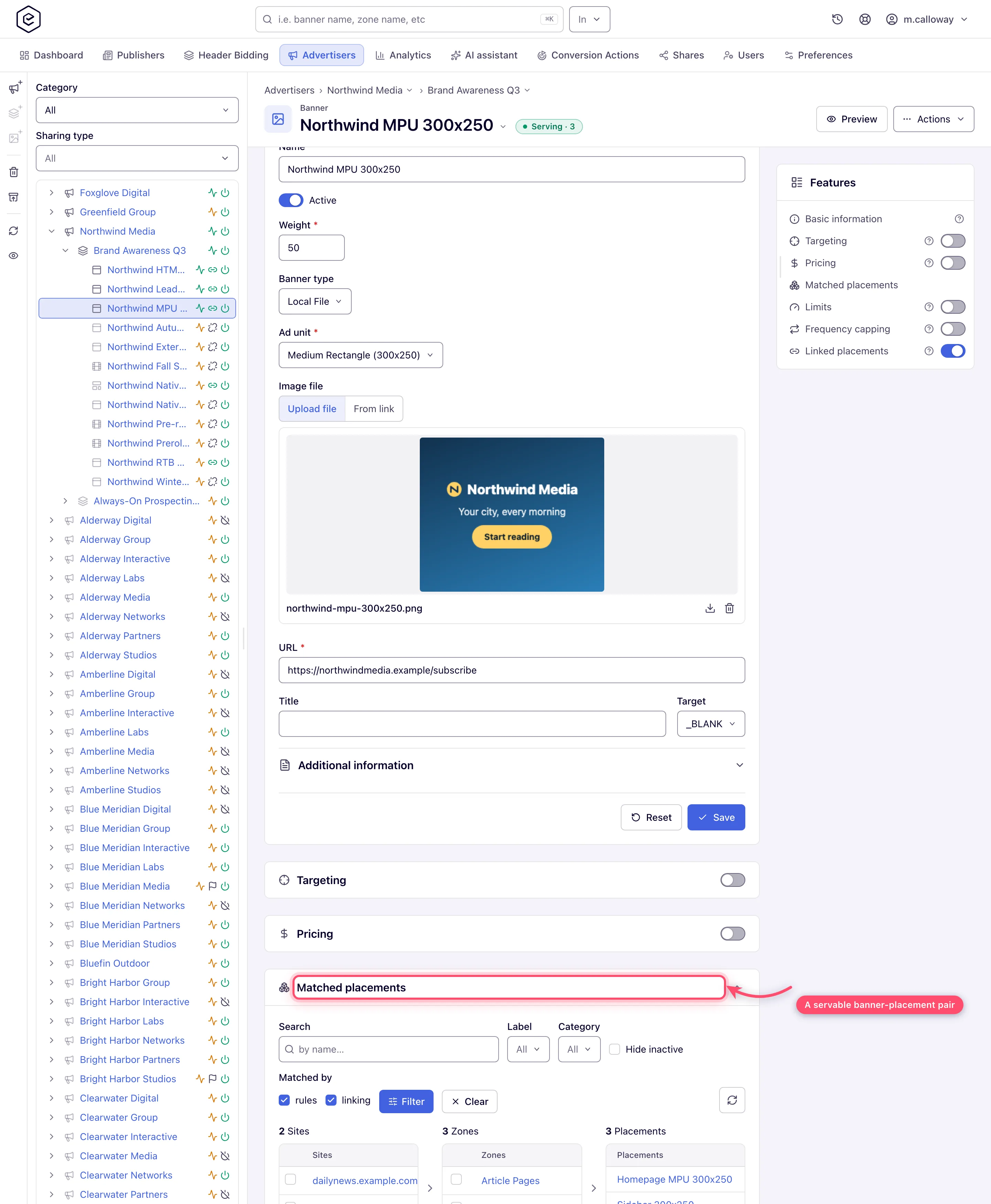
- Linking — verify from both ends (network manager). Open the banner’s Matched placements card and
the placement’s Matched banners card. Both must list the counterpart. The Linked
placements card showing a row is necessary but not sufficient — matched means the
pair is actually servable (size, type and rules all agree). The pill in the banner’s and the
placement’s header should read Serving · N; Not serving means nothing is wired to
the other side yet. The Matched cards are not on any stock role; without them, rely on the
serving pill and step 7.
- Targeting sanity (everyone, on their own levels). For every level that has targeting rules: confirm they describe real traffic. Empty targeting serves to everyone — that is the safe default. Classic self-inflicted blocks: a country list that omits your test location, device targeting that excludes your test browser, time-of-day windows read in a different time zone than you assume (Time Range reads UTC unless Client local time is set). Remember targeting stacks across levels — a campaign rule AND a banner rule must both match, and the site, zone and placement pre-targeting must match too.
- Capping and limits won’t strangle the launch (network manager, and the advertiser where the cards are shown). Check Frequency capping and Limits at campaign (and, where you hold them, placement) level: a leftover test value like “1 impression per user per month” produces exactly one ad and then silence, and a filled total limit has already switched the entity off — it stays off after you raise the cap, until you switch it back on.
- Pricing is set (network manager, and the advertiser on the campaign). A campaign with the wrong pricing type or a zero rate may serve but produce useless analytics and billing. Confirm the Pricing card matches the insertion order.
- Run diagnostics (advertiser or network manager) on the campaign (the Actions menu on the campaign edit page). It checks the campaign end to end and lists blocking issues — no banners, no linked inventory, limits — in one modal. Fix anything it reports.
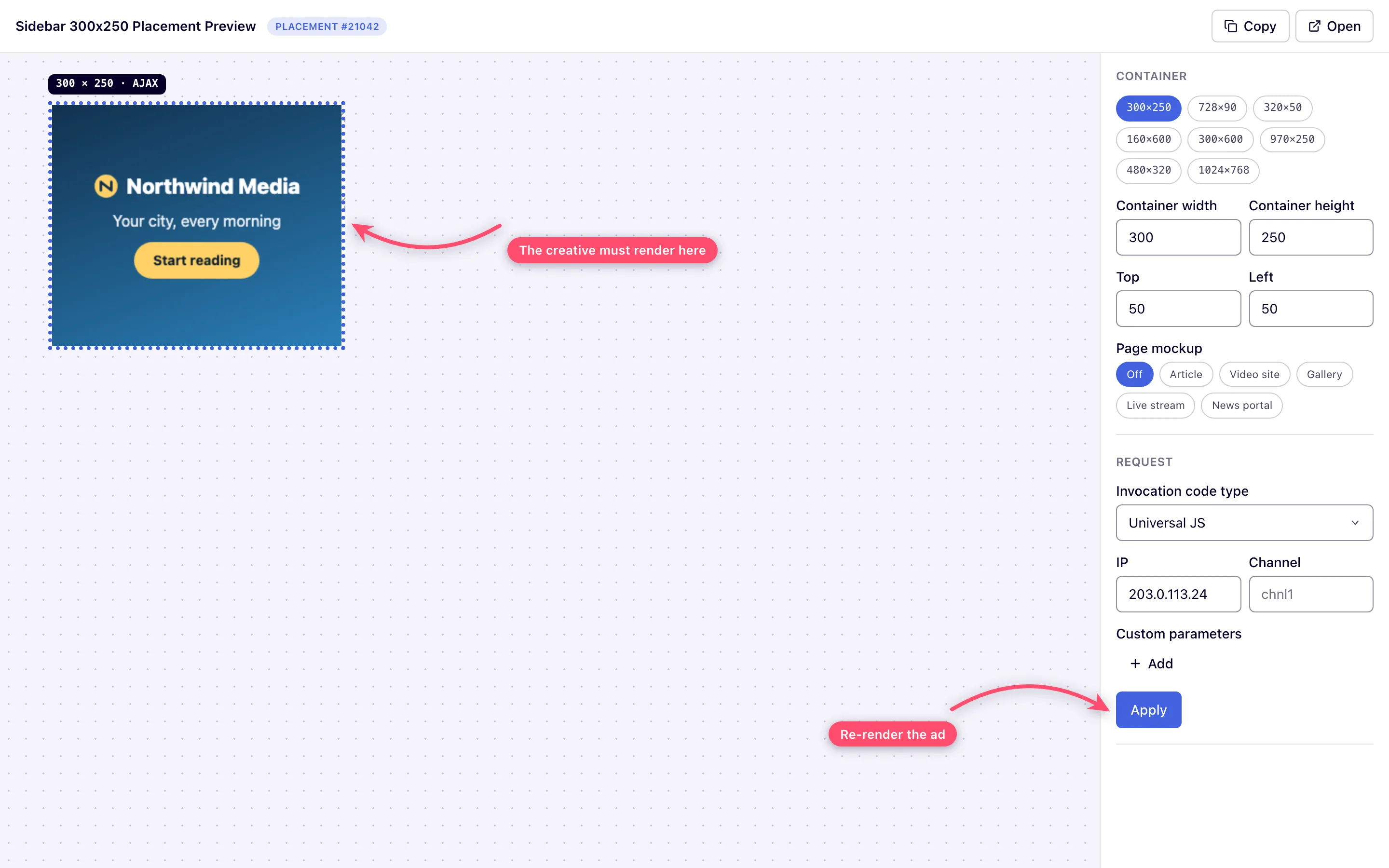
- Preview the placement (publisher or network manager). Use the placement’s Preview action (site, mobile site,
non-standard, video and email placements have one): the standalone preview page renders the
ad in an ad container, with controls to vary the invocation code type, IP, channel and
custom parameters, and Apply to refetch. The right creative must render. The page needs
an invocation code type your role may preview — without one it shows Not Supported and no
Request controls.
- Test page with the production tag (publisher or network manager). Paste the ad tag from Ad tags & API into a plain HTML file and open it in a normal browser (not only the preview). This catches protocol and domain issues the in-app preview can mask — e.g. an HTTP tag on an HTTPS page.
- Analytics visibility (everyone). Generate a few impressions and a click on the test page, wait until the hour they fell in has ended (reports load by the hour), then run a report with Date range Today, Group by Placement, and Run report. Non-zero impressions and the click landing in the report is your end-to-end confirmation. Also confirm passback behavior: request the page from a context your targeting excludes and check the slot falls back gracefully (passback code or clean collapse).
Before a whole network’s first launch
The list above checks one campaign or placement. A new network also needs, once:
- Your own ad-serving domain, if you want one — see Use my own domain (CNAME).
- ads.txt lines on your publishers’ sites — see Privacy, consent and ads.txt.
- The consent policy for visitors in the EEA — see GDPR and TCF consent.
Options and fields
This is a verification pass — the fields involved are documented on their own pages:
| Check | Where the settings live |
|---|---|
| Statuses | Status toggle on every entity’s Basic info card |
| Linking | Banner → Linked placements / Matched placements; Placement → Linked banners / Matched banners |
| Targeting | Targeting card on advertiser, campaign, banner; Pre-targeting on site, zone, placement |
| Capping / limits | Frequency capping and Limits cards on advertiser, campaign and banner; on a site or placement they need a permission your network administrator grants |
| Tags | Placement → Ad tags & API |
Corner cases and gotchas
Corner case: “linked” is not “matched”. A banner can be linked to a placement while the Matched cards stay empty — size changed after linking, a category rule now excludes the pair, or the placement type stopped accepting the banner type. Always verify with the Matched cards (step 3), not the link list.
Corner case: geo lookups on test traffic. From office VPNs, localhost or datacenter IPs the visitor country can resolve to nothing or somewhere unexpected — and any country-targeted ad quietly skips. Test geo targeting with the preview page’s IP override, not by trusting your own connection.
Corner case: changes take a few minutes to reach the ad servers, and reports load by the hour — an event appears shortly after its hour ends. Re-test after a few minutes, not after every save, and check the report after the next full hour.
Corner case: the first impression you “lose” may be capping working. If you set a frequency cap and reload the test page repeatedly, the ad correctly disappears for your browser after the cap is hit. Use a private window or a different browser before declaring the setup broken — and remember cookie-based caps don’t persist in private windows themselves.
Per-role notes
- Network manager: the whole list. Ask your network administrator for any card you cannot see.
- Advertiser (stock role): statuses, targeting, pricing and flight dates, diagnostics and the report. Linking (step 3) and limits beyond the flight dates come from your network manager.
- Publisher (stock role): see the box at the top. Pricing, limits, linking and the Matched cards fall to your network manager; pre-targeting is yours.
- Can View share or demo account: every check reads fine, but fixes need Can edit; on a demo, run step 10 against a chain you built yourself.
