
Publisher playbook
What a publisher does day to day — add a site, organize it into zones, create placements, take the ad tag, link the demand, share what you own, and read what the inventory earned.
As a publisher you run the supply side: your sites, the zones that organize them, the placements that hold the ads, the tags that go on your pages, and the reports that show what those placements earned. This page walks through that work in the order you usually do it and points to the guide for each step.
It describes the stock Publisher role, the one a new network gives its publishers. Your network can widen or narrow it; What your network controls lists what is off by default and who switches it on.
Where you work
A stock Publisher has four tabs:
Dashboard · Publishers · Analytics · Preferences
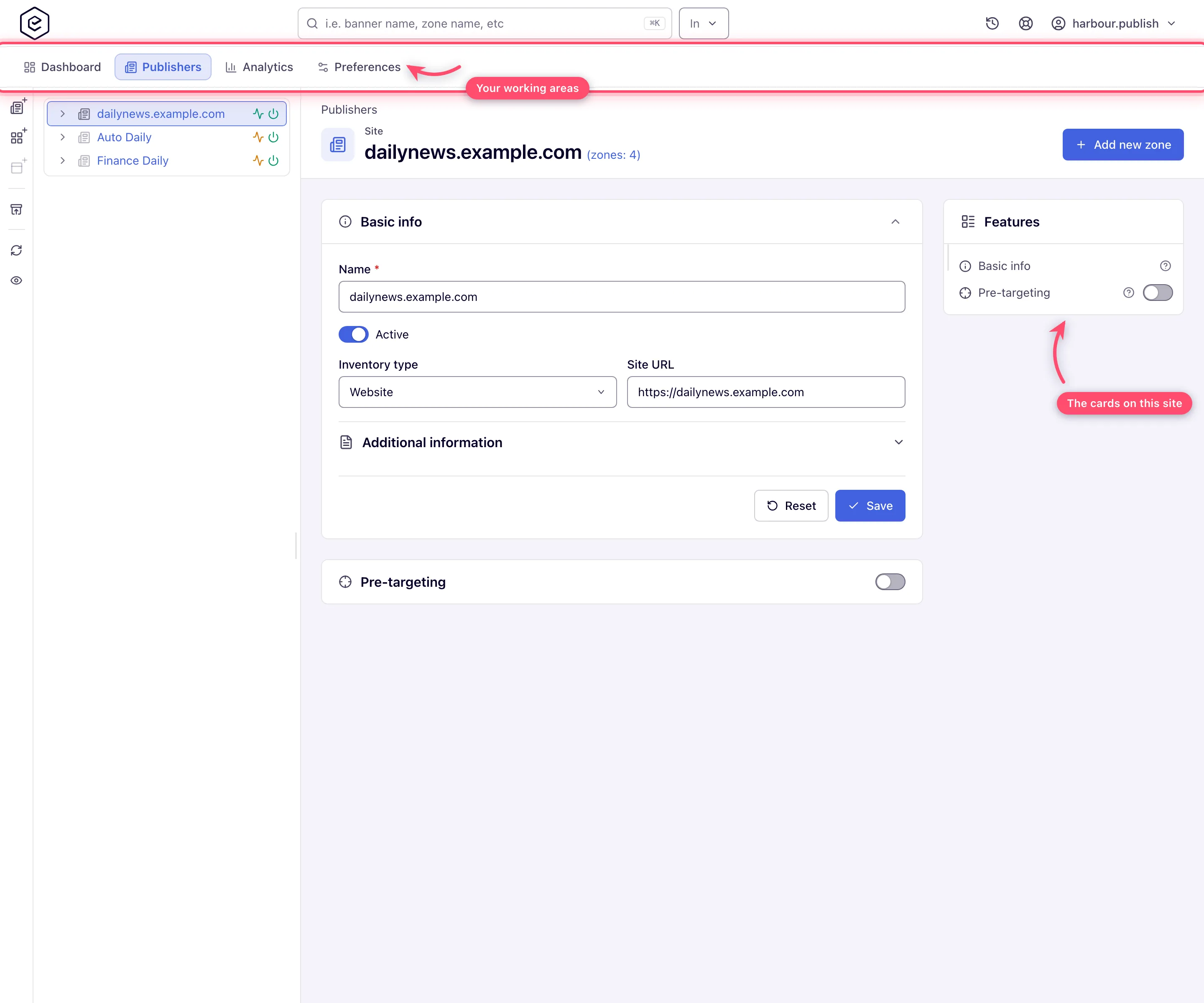
Publishers is where you spend the day: a tree of sites, zones and placements, with the edit page for whatever you select beside it. Dashboard and Analytics show performance, and Preferences holds your own settings. Further tabs, such as Header Bidding, Advertisers, Shares or Templates, appear when your network adds them to your role.
1. Add a site
Use New site on the rail beside the Publishers tree. A site you create is yours as Is Owner straight away. The stock role has no Category field; your network assigns categories.
A new site usually starts Approved. If yours shows an amber Pending or red Rejected badge in the page header, the network has not signed it off yet. A pending site still serves ads, but it is left out of search suggestions and, on networks that generate placements automatically, gets none until it is approved.
See Sites.
2. Organize it into zones
Select the site and click Add new zone in its header (or the New zone icon on the rail). A zone is just a grouping: a name, an Active switch and a description. See Zones.
3. Create placements
Select a zone and use Add new placement…, then pick the placement type. The stock role creates Site Placements, the standard display slot on a web page. Other types (Mobile Site, Non-standard, Video, Native, Application, Email) are created for you by the network unless your role includes them; once one exists under your site you work with it like any other placement. The type decides which cards and settings the placement gets. See Create placements and Placement types.
On a placement you can set its size (or a flexible size), auto-refresh, its Active switch, pre-targeting and a Default code that is returned when nothing fills the slot — your passback. The order in which the demand linked to the placement is tried (daisy chaining) is a network setting; see Daisy chaining and passback.
4. Take the ad tag
Open the placement’s Ad tags & API card, pick the tag tab and Copy. The Copy ad tag icon copies a placement’s tag without opening it: in the Grids view it is on every Site, Mobile Site, Non-standard, Video and Email row, while the tree shows it only on placements that have had traffic recently — never on one you have just created. On a Non-standard placement it copies Direct URL rather than Universal JS, so take that tag from the card.
What the card offers depends on the placement type:
| Placement type | Tabs a stock Publisher gets |
|---|---|
| Site, Mobile Site | Universal JS, plus Settings |
| Non-standard | Universal JS and Direct URL, plus Settings |
| Video | Video Player and the VAST tags |
| Native, Application | API — the request URL and parameters, no snippet |
Universal JS appears only once the network has an ad-serving domain; on a network without one, a Site or Mobile Site placement has no Ad tags & API card at all, and a Non-standard one offers only Direct URL. The card also disappears while the placement’s Active switch is off.
See Ad tags & API and Invocation codes.
5. Put the tag on your page
Paste the Universal JS tag where the ad should appear. On a page with several slots, keep one
copy of the <script> and one <ins> per placement. For WordPress and other site builders, see
Install a tag on WordPress or another CMS.
The slot fills once demand is linked to the placement, which the network does — by hand or through its matching rules. Until then it returns its Default code, or stays empty.
Before you go live, check how the tag treats consent on your pages and add the lines your network
gives you to your ads.txt. See Privacy signals and ads.txt.
6. Sell through header bidding (if your network does)
If your network sells your pages through Prebid, it sends you a script and one container per ad
position, a bids entry for your own Prebid.js, or a set of slot ids for your app. See
Header bidding: what a publisher installs.
Watching what it earns
The Dashboard is the publisher dashboard: one period control in its header drives the Revenue, Impressions, eCPM, Clicks and CTR tiles, a trend chart, and a Publisher/Zone/Placement tree with Requests, Fill rate, Impressions, Clicks, Revenue, CTR and eCPM per site, zone and placement. Revenue is what you are paid, unless your network adjusts the figures shown to you; if a statement differs, ask your network manager. It has no widgets to add or move — the widget dashboard belongs to roles with the base report columns, such as the stock Network Manager. See Dashboards.
On Analytics, keep Type of reports on General, set the date range and grouping, and cut the report to a site, zone or placement with the Publishers filter. Save a set-up you want again. See Run a report.
Corner case: a site missing from the Publishers filter is usually inactive. Turn Hide inactive off above the filter tree.
Your earnings are what the network pays you per site, zone and placement, after its revenue share or fixed price. The network sets those terms; the pricing cards are not on your pages. Payment dates and methods are agreed with your network, not set in the product — see When and how am I paid?.
Sending the numbers to a partner. The stock role cannot create logins for other people, but any saved report can be e-mailed on a schedule to any address: save the report on Analytics, then add a schedule and recipients. See Schedule recurring emails.
Sites shared with you
Every site in your tree comes at one of three levels, and the Sharing type filter above the tree narrows to each:
| Level | What you can do |
|---|---|
| Is Owner | Everything your role allows — what you get on a site you created |
| Can Edit | Open and change it, add zones and placements under it |
| Can View | Open it, take its tags and report on it; nothing can be changed |
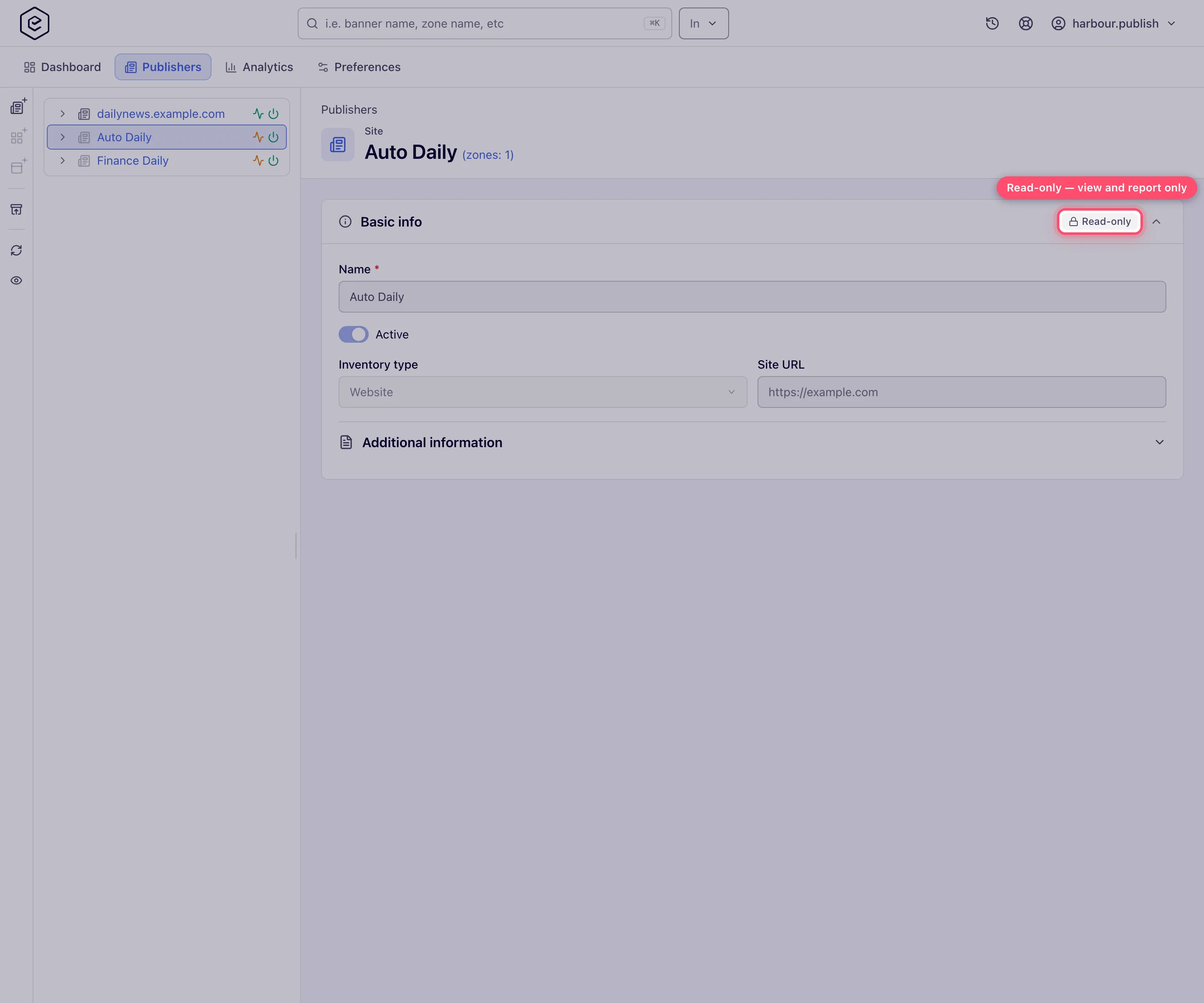
A Can View site opens completely, but every card carries a Read-only pill and there is no Save or Reset button. The tree does not mark read-only sites, so open one to tell. If you need to change it, ask your network manager for Can Edit.
Corner case: Delete on the tree rail is greyed out on a site, zone or placement you may not delete: one held below Is Owner, and any of them for the stock Publisher role, which cannot delete inventory.
An empty tree means nothing has been shared with you yet and you have not added a site. Ask your network manager which sites you should have.
When your network grants more
These sections apply once your role has the matching permission.
Selling your own demand. With the Advertisers tab you sell campaigns directly: New advertiser starts the chain. A banner competes for a placement only once the two are linked, which needs the link permission as well; Banners probability then splits traffic between the linked banners. See Advertisers and Hierarchy and linking.
Sharing what you own. Pass on a site from its own Sharing settings card, up to your own level (Is Owner only if your role may also delete sites), or use the Shares tab for several sites and users at once. The Shares tab lists only what you hold as Is Owner and only users you created; a Can View site cannot be passed on. Actions → Create user & share on a site creates a statistics account with a Can View share on it and e-mails an invitation to choose a password. See Shares.
Templates. A Placement Content Adapter template, picked in a placement’s Adapter template field, lets native creatives render in a display, mobile, non-standard or application slot. See Templates.
Header Bidding tab. Build the header-bidding tags for sites you can edit yourself instead of receiving them. See Header bidding.
What your network controls
| Capability | Stock Publisher | Who switches it on |
|---|---|---|
| Create sites, zones and Site placements; pre-targeting, Default code, auto-refresh, flexible size | Yes | — |
| Scheduled e-mail reports to any address | Yes | — |
| Pick a site Category | No — the field is not shown | Your network manager assigns categories |
| Create Mobile Site, Non-standard, Video, Native, Application or Email placements | No | Your network manager |
| Universal JS tag | Yes, on Site, Mobile Site and Non-standard placements | The network needs an ad-serving domain — ask your network or Epom support |
| Mount JS, Simple Iframe, Direct URL on Site and Mobile Site, API on Site, Mobile Site and Non-standard | No | Your network manager |
| Link or unlink banners | No — there is no Linked banners card | Your network manager, or the network’s matching rules |
| Delete sites, zones or placements | No | Your network manager deletes, or grants Delete |
| Share sites, Create user & share, Shares tab, default share settings | No | Your network manager |
| Header Bidding, Advertisers and Templates tabs | No | Your network manager |
| Revenue share, pricing, CPM threshold, limits, capping, daisy chaining | No — the cards are not shown | Your network manager |
| Bid floor | No | Your network manager, who asks your network administrator |
| Banners probability card, matched and linked banners | No | Your network manager |
The internal names of these permissions — for example Manage Publisher Revenue Share, Link Placements to Banners or Bid Floor Management — are what your network manager sees when editing your role. You do not need them; describe what you want to do.
Placeholder names
If your network gives your role inventory or campaign masking, entities you do not own show as
placeholders such as SITE_12 or BANNER_2290. Sizes, types and statuses stay visible; only the
name is withheld. The stock Publisher sees real names. See
Sharing & permission model.
Preferences
On the stock role Preferences holds a Change password card, your personal information, your user interface preferences, a login IP whitelist, your notification subscriptions and extra recipients, and your scheduled events. If your network administrator has withdrawn Manage Preferences from the role, the first three cards are missing: reset your password from Forgot password? on the sign-in page, or ask your network manager to set a new one. See Preferences.
