
Advertiser playbook
How to run campaigns in Epom as an advertiser — open the accounts shared with you, build campaigns and creatives, target and cap them, link them to inventory, and read the results.
As an advertiser you work the demand side of the network: the advertiser accounts you created or that were shared with you, the campaigns and creatives under them, and the reports that show how they did. This page walks through the work in the order you usually do it and points to the guide for each step.
It describes the stock Advertiser role, the one a new network gives its advertisers. Your network can widen or narrow it; What your network controls lists what is off by default. When a card or option described in a guide is missing for you, that table is the first place to look, and your network manager is the person to ask.
Where you work
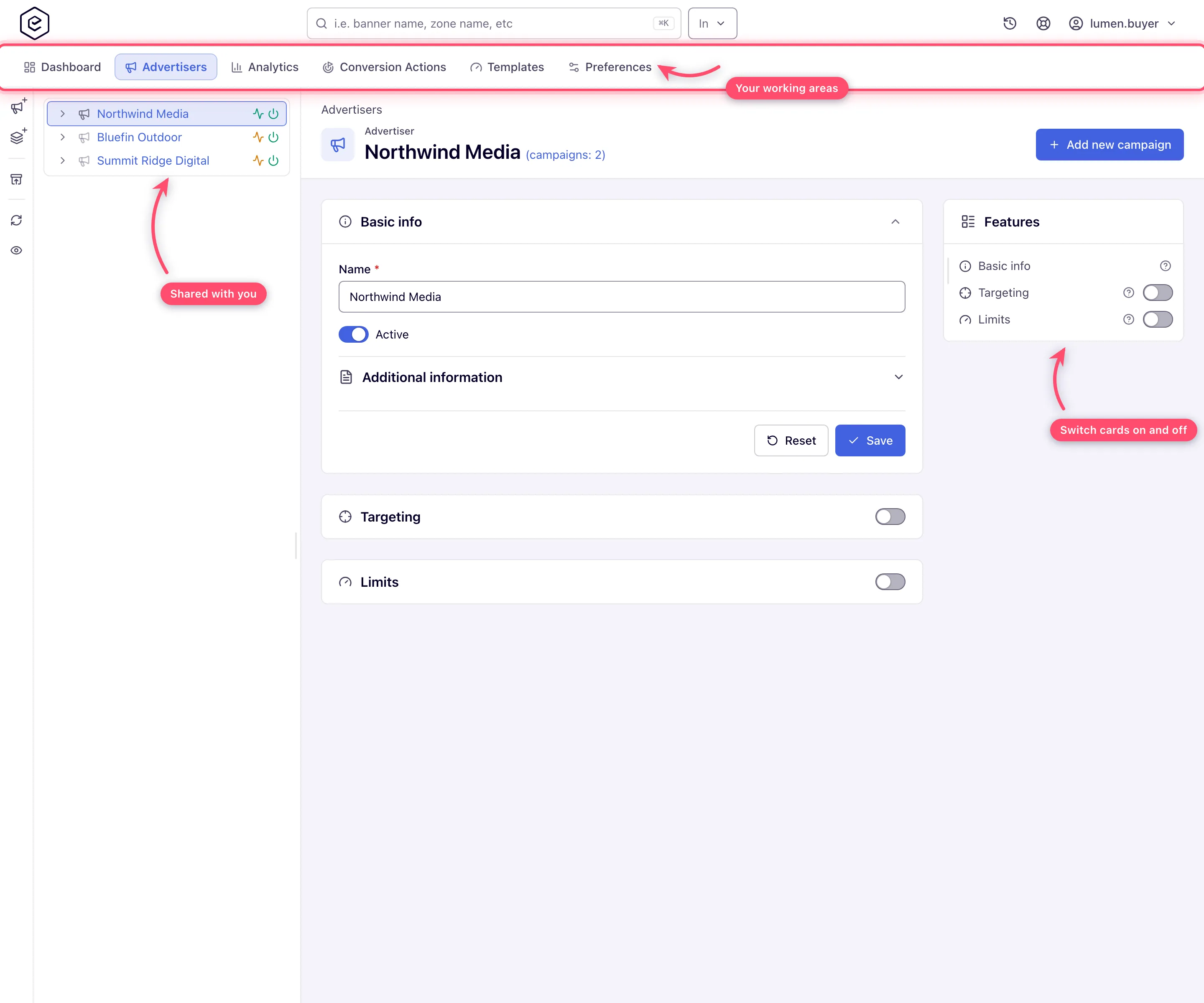
A stock Advertiser has six tabs:
Dashboard · Advertisers · Analytics · Conversion Actions · Templates · Preferences
- Dashboard — the advertiser dashboard: Charges, Impressions, eCPM, Clicks and CTR over the period you pick. See Dashboards.
- Advertisers — your advertiser accounts, and every campaign and creative under them.
- Analytics — the report builder.
- Conversion Actions — the conversion actions you own or that were shared with you.
- Templates — creative templates shared with you, read-only.
- Preferences — Change password, your personal information and user interface preferences, the set-cookie pixel for cookie targeting, a login IP whitelist, notification recipients and your scheduled e-mails.
There is no Publishers or Shares tab on the stock role. The user menu (your name, top right) carries color theme, density and the trees or grids view. If your network administrator has withdrawn Manage Preferences from the role, the password, personal information and interface cards are missing: use Forgot password? on the sign-in page or ask your network manager to set a new one, and ask them to change your personal details.
1. Find your advertisers
Open Advertisers. You see the advertisers you created and the ones shared with you. A share sits on the advertiser and reaches every campaign and creative under it, at one of three levels:
| Your level | What you can do |
|---|---|
| Is Owner | Everything your role allows — what you get on an advertiser you created |
| Can Edit | Build and change campaigns and creatives under it |
| Can View | Open it and read every figure; nothing can be changed |
The Sharing type filter above the tree separates the accounts you run from the ones you only watch. An empty list means nothing has been shared with you yet: create an advertiser with New advertiser, or ask your network manager which accounts you should have.
See Advertisers and Sharing & permission model.
2. Build a campaign
Select an advertiser and click Add new campaign in its header (or the New campaign icon on the rail). On the stock role a campaign page carries:
- Basic information — name, the Active switch and Weight, which you can see but not change.
- Targeting — see step 4.
- Pricing — CPM or CPC and the rate agreed with your network. See Pricing.
- Limits — the flight’s Start date and End date, which you set, and the total and daily Budget, which your network sets and you can read. See Limits.
- Exclude competitors campaigns — campaigns that must not appear on the same page view as this one. See Exclude competitive campaigns.
The campaign’s Actions menu copies a campaign, uploads many creatives at once with Mass banner upload, and runs Run diagnostics, which lists what blocks delivery.
See Campaigns.
Note: moving a campaign to another advertiser is checked against the advertiser you move it from; copying is checked against the one you copy it to. You need working access at both ends.
3. Add creatives
Use + Add new banner on the campaign. The stock role adds creatives for Site Placement (standard display slots on web pages), as a Local File: an image you upload, with its Ad unit size and the click-through URL (required). For many images at once, use Mass banner upload in the campaign’s Actions menu. Use Preview to see the creative rendered before it runs.
See Banners overview and Bulk banner operations.
Note: other creative kinds — HTML code, external files, templates, video, native, mobile and in-app creatives — are role permissions. An existing one under a campaign you can edit opens normally; to create new ones, ask your network manager.
4. Target the campaign
Targeting is a card on the advertiser, the campaign and the creative. The levels stack: the advertiser narrows the campaign, and the campaign narrows the creative. Set broad rules once at the top and keep the creative card for exceptions. The stock role targets by country, IP range, browser, operating system, time of day and day of week, protocol, proxy, device release year, app package and cookie value; other targeting types are added by your network. See Add targeting.
5. Get the creative onto inventory
A creative serves only once a placement is linked to it, by hand or by the network’s matching rules. The stock role has no linking card on its banner page and no Publishers tab, so the link comes from your network manager. Tell them which campaign and which sites or sizes it is for. See Hierarchy and linking.
6. Conversions
On Conversion Actions you create, edit and delete your conversion actions and their attribution windows. Attaching an action to a campaign (the campaign’s Conversion actions card) and the tracking code — the pixel or the postback URL — are not part of the stock role: ask your network manager to attach the action and send you the code, or to switch those on for your role. See Conversion actions and S2S and pixels.
Got a code from your network manager?
- A pixel goes on the page that confirms the conversion (the thank-you page), as the network manager sent it — see Pixel tracking.
- A postback needs the click ID to travel with the click: add
?easclid=$$CLICK_ID$$to the landing URL of your creative (&easclid=$$CLICK_ID$$when the URL already has a?, as with UTM tags), or ask your network manager to switch on auto-tagging for the campaign; your system then sends the click ID back — see Click ID. - Test it once the creative is linked and serving: click your ad, complete the conversion, then check that the action’s Activity badge on Conversion Actions reads Live and the Conversions column of a General report counts it — see Test a conversion.
7. Read the numbers
On Analytics, keep Type of reports on General, set the date range and granularity, choose what to group by and which columns to show, filter to the advertisers, campaigns or creatives you care about, and Run report. Your spend is the Charges column (on the dashboard, the Charges tile) — what you are billed, unless your network adjusts the figures shown to you; if an invoice differs, ask your network manager. Save a set-up you will want again, and schedule it to arrive by e-mail. See Run a report and Saved and scheduled reports.
Reporting is not limited by share level. A Can View advertiser reports in full.
What your network controls
| Capability | Stock Advertiser | Who switches it on |
|---|---|---|
| Create advertisers, campaigns and Local File (image) creatives for Site placements | Yes | — |
| Targeting, CPM/CPC pricing, flight dates, competitor exclusions, Run diagnostics | Yes | — |
| Create and edit conversion actions | Yes | — |
| Other creative kinds: HTML code, external file, template, video, native, mobile, in-app | No | Your network manager |
| Budget, impression and click limits | Budget is read-only; impression and click limits are not shown | Your network manager |
| Frequency capping | No — the card is not shown | Your network manager |
| Conversion actions card on a campaign, conversion tracking code (pixel, postback) | No | Your network manager |
| CPA pricing | Set a price on your own conversion action — yes; switch a campaign to CPA — no | Your network manager |
| Change a campaign’s or creative’s weight | No — shown read-only | Your network manager |
| Link creatives to placements | No — there is no linking card | Your network manager, or the network’s matching rules |
| Publishers tab | No | Your network manager |
| Share advertisers, Create user & share, Shares tab | No | Your network manager |
| Create or edit templates | No — shared templates are read-only | Your network manager |
| Delete advertisers, campaigns or creatives | No — Delete is not offered | Your network manager deletes, or grants Delete |
| Creative review before serving | Off | Your network manager |
The internal names of these permissions are what your network manager sees when editing your role, for example Frequency Capping, Manage Action Tracking, Link Placements to Banners and Banners Moderation With Deactivation. You do not need them; describe what you want to do.
When your network grants more
Sharing. With the share permission you can pass on an advertiser you hold at Is Owner or Can Edit, up to your own level — Is Owner only if your role may also delete advertisers — from its Sharing settings card, in bulk on the Shares tab, or with Actions → Create user & share, which creates a read-only statistics account for a client. See Shares. Without it, schedule a saved report to e-mail the client instead (Saved and scheduled reports).
Creative review. If your network reviews creatives, new and edited ones carry a Pending or Rejected badge on their edit page, and Actions → Submit for approval sends a fixed creative back. Depending on the setting, a waiting creative either keeps serving or is switched off until approved.
Corner case: if review switched your creative off, approval does not switch it back on. Check that an approved creative is active again.
Corner cases and gotchas
Corner case: a Can View advertiser shows fewer cards, each marked Read-only. Ask for Can Edit and the full set appears.
Corner case: a read-only campaign offers no Add new banner or Mass banner upload, and a typed create-banner address answers Permission denied. Ask for Can Edit to add creatives.
Corner case: the stock Advertiser role cannot delete advertisers, campaigns or creatives, so an open entity has no Delete action and the tree’s Delete is greyed out. Once the network grants Delete, it appears only on entities you hold as Is Owner.
Corner case: where a rule names a site or advertiser you have no access to, you see a generated id such as
SITE_412instead of the name. The rule still applies.
