
Never show an empty slot — passbacks and house ads
Recipe for guaranteed fill — layer house-ads campaigns, placement default code, daisy chaining and banner passback tags so every request renders something.
A blank ad slot is lost money and broken layout. This recipe layers Epom’s four fallback mechanisms so that when paid demand can’t serve — capped, limited, mistargeted, or simply absent — something of yours renders instead. The layers, from “still earns attention” to “last resort”:
| Layer | What renders | When it fires |
|---|---|---|
| 1. Paid demand | Normal campaigns, programmatic | Whenever eligible |
| 2. House ads | Your own promos (House ads priority) | Only when nothing above can serve |
| 3. Placement default code | An external passback tag or static markup | When no banner at all matched, on the request paths that return it (which ones) |
| 4. Banner passback tag | The next banner Epom would have served, re-requested by the Universal JS tag | When the external demand you gave the slot to declines it |
If you are a publisher: what you do. Layer 3 is yours: put your fallback tag in the placement’s Default code (step 4), and watch Fill rate in your reports (step 7). The house-ads campaign, daisy chaining and the banner passback tag — the steps marked (network manager) — are set up by your network; ask your network manager if you want house ads in your slots.
Who this is for
Network managers and publishers who own the placement configuration. The house-ads campaign itself is built on the demand side by a network manager whose role can set campaign Priority. The stock Publisher role has the Default code field.
Prerequisites
- Working placements (Monetize a website gets you there).
- Creatives for your house promos in every ad-unit size your placements use.
- If you passback to an external ad server: its tag, and (for layer 4) its passback slot where you can paste a tag of yours.
Steps
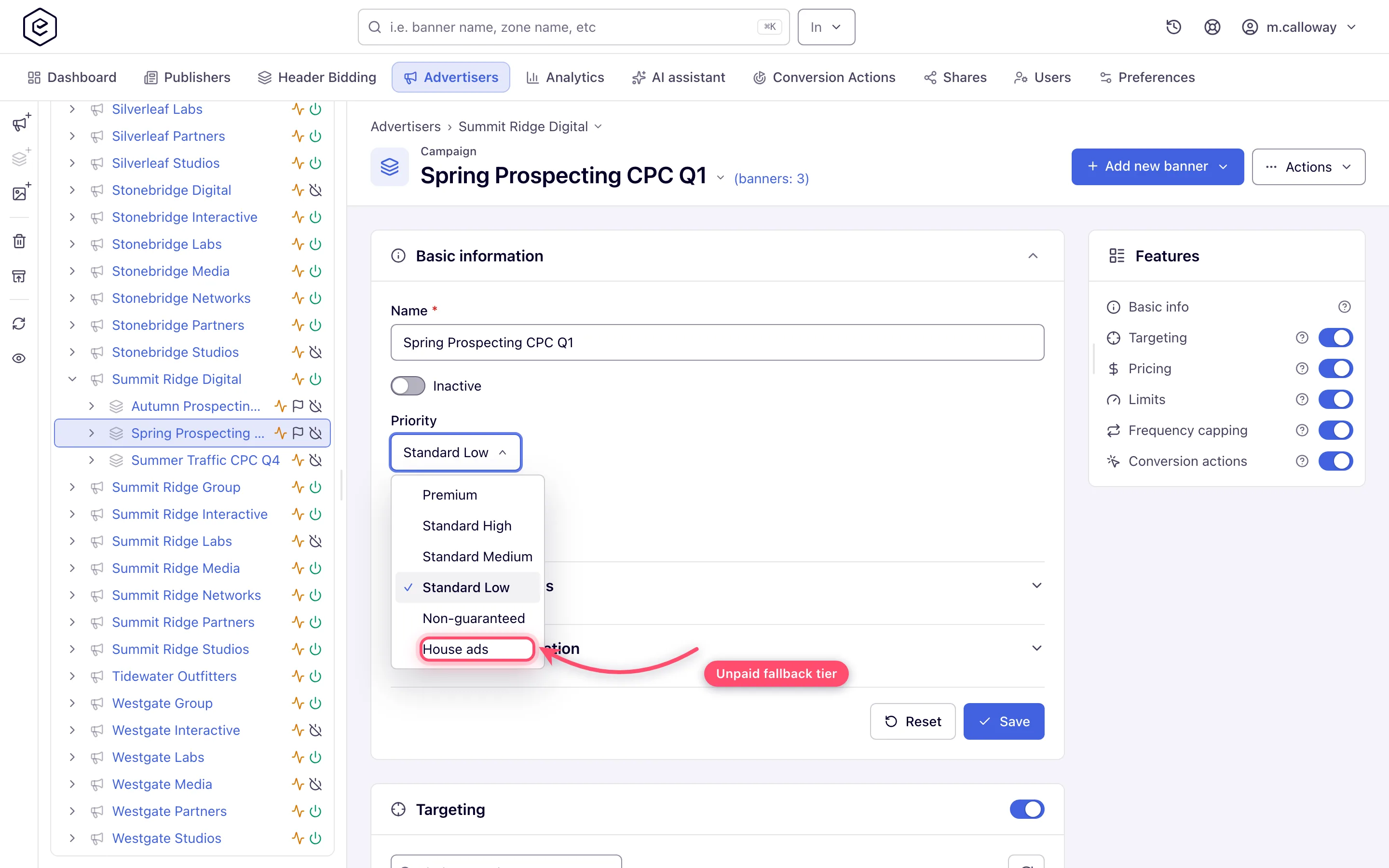
- Create the house demand (network manager). Add an advertiser (e.g. “House”), a campaign
under it, and set the campaign’s Priority to House ads on the Basic information
card (rotation mechanics). House ads is the last of
the six tiers (Premium, Standard High, Standard Medium, Standard Low, Non-guaranteed, House
ads), and the ad server walks the tiers in that order, so a House-ads campaign serves only
requests every other tier left unfilled — it never competes with paid demand.
- Give it a banner per ad-unit size you run (network manager) — 300×250, 728×90 and so on — then link the banners to your placements — directly, via Rules, or with new-placement auto-linking so future inventory is covered automatically (the three linking mechanisms).
- Keep house ads always eligible (network manager). Leave targeting off (empty targeting = serve to all) and don’t cap or limit the campaign — a house ad that can be blocked defeats its purpose.
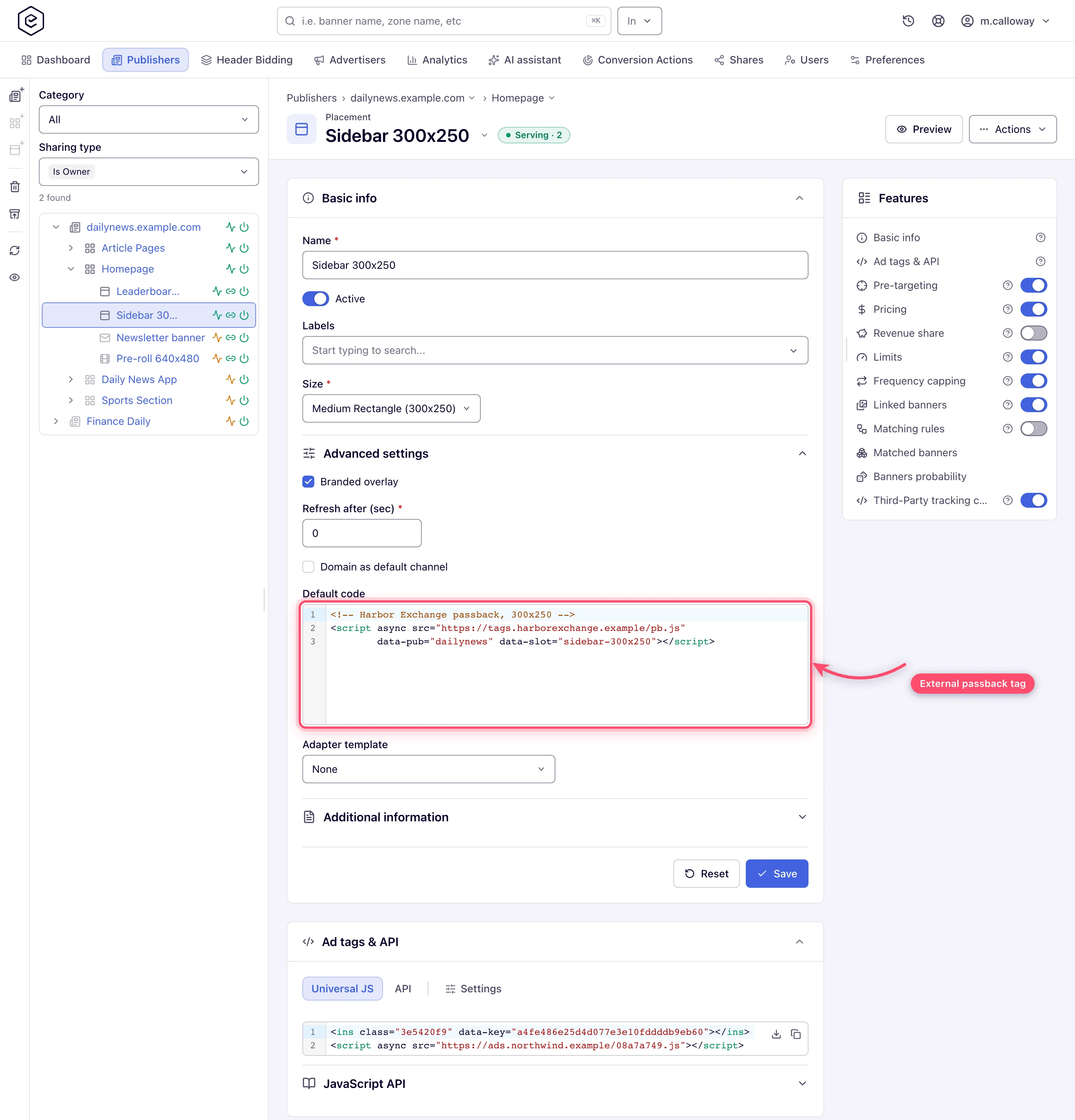
- Add the placement default code (publisher or network manager) as the safety net below
house ads: placement →
Basic info → Advanced settings → Default code, paste the external passback tag or static
markup (details). The field is on Site, Mobile
Site and Non-standard placements only. With well-linked
house ads this layer should almost never fire — which is exactly why it’s worth having.
- Optional — order the fallback explicitly with daisy chaining (network manager). If you want a strict waterfall (direct-sold first, then network demand, then house) instead of weighted rotation, switch on the placement’s Daisy chaining card, pick campaign- or banner-level chaining and arrange the order (full walkthrough). No role has the card out of the box — your network administrator has to switch it on before you plan on a waterfall.
- Optional — close the loop with a banner passback tag (network manager). If you hand the slot to an
external ad server via a Code banner, tick Enable passback functionality on that banner
and save. The Banner passback code block that appears when you reopen it is a one-line
<script>you give to the external system to run on its no-fill branch: it asks the Universal JS tag on the page to re-request the slot without that banner, instead of leaving the external system’s blank in place. The option exists for Code banners on Site, Mobile Site and Non-standard placements (and Template banners on Site and Non-standard ones), and only for a role your network administrator has given the Universal JS tag for that placement type (details). - Verify. A publisher watches the placement’s Fill rate (or Requests vs Impressions) in a General report — with this recipe in place, it should be close to 100%. A network manager can also use the placement’s Banners probability card, which simulates a request: while any paid banner is eligible the house banner reads NA (it has no share of the rotation); set Country, Browser or OS to a visitor the paid campaigns do not match and the house banner shows a share instead of NA. The card’s Priority filter starts on As served (highest priority only); pick House ads to see the house banners on their own.
Corner cases and gotchas
Corner case — House ads priority zeroes the weight. Choosing House ads sets the campaign’s weight to 0 and greys out its eCPM Optimization and CTR optimization checkboxes (the I2C optimization for actions one stays editable): house ads only fill otherwise-unsold requests, so weighting them is meaningless, and a save stores weight 0 whatever the field said. Choosing another priority again restores the weight the campaign was loaded with — or 1 if it was already saved as House ads — so re-check your intended weight before saving.
Corner case — good house ads mean the default code never fires. Layers 2 and 3 overlap: an always-eligible house banner is a matched banner, so the default code (which fires only when no banner matched) becomes dead code on that placement. That’s fine — but if you want the external passback to get the unsold traffic (it pays, house ads don’t), don’t link house banners to that placement; choose per placement which layer wins.
Corner case — the silent unlink can punch holes in your safety net. Saving a banner re-checks size compatibility and silently drops links to placements that no longer fit. Resize a house creative and every exact-size placement it protected quietly loses its fallback. After any house-banner edit, re-check its linking list.
Corner case — a daisy chain can bypass the tiers. With a Campaign-type chain and Apply priorities off, the chain order replaces the six tiers — except for House ads: the chain is walked without the house campaigns first, and they serve only when nothing else in it could, wherever they sit in the chain order.
Note: the default code renders whenever no banner matched — including when demand exists but is blocked by targeting or capping. If a “wrong ad” shows up on the page, check whether it’s your own passback tag before opening a demand investigation. Not every request path returns it: VAST/video requests, the native JSON endpoint and Application placements get their own empty response instead — see when the default code is returned.
Per-role notes
- Publisher (stock role): the Default code safety net and the fill-rate check. The house campaign, daisy chaining, banner passback and the Banners probability card belong to the network manager.
- Network manager: builds the house advertiser, campaign and creatives, and sets Priority. Daisy chaining and the passback option need your network administrator to switch them on (steps 5 and 6).
- Can view share: Default code is read-only.
