
Create and edit a site
Add a website or app property, manage its categories and approval state, and use the site-level cards — pre-targeting, RTB, revenue share, pricing, limits, CPM threshold, payments and shares.
A site is the top of your supply tree: one website or one mobile app. Zones and placements live under it, and a set of site-level cards controls money and traffic rules for everything below — revenue share, pricing, limits, CPM threshold, pre-targeting and RTB.
Who this is for
Publishers creating and running their own properties, and network managers doing it on their behalf. The two roles get different parts of this page — see Per-role notes.
Prerequisites
- Inventory create rights to add a site; update rights on the site to edit it.
- Nothing else — the site is the root of the supply tree.
Steps
- Go to Account → Publishers and click New site in the tree’s action rail (on an empty
account the “Create your first site” banner offers the same action).
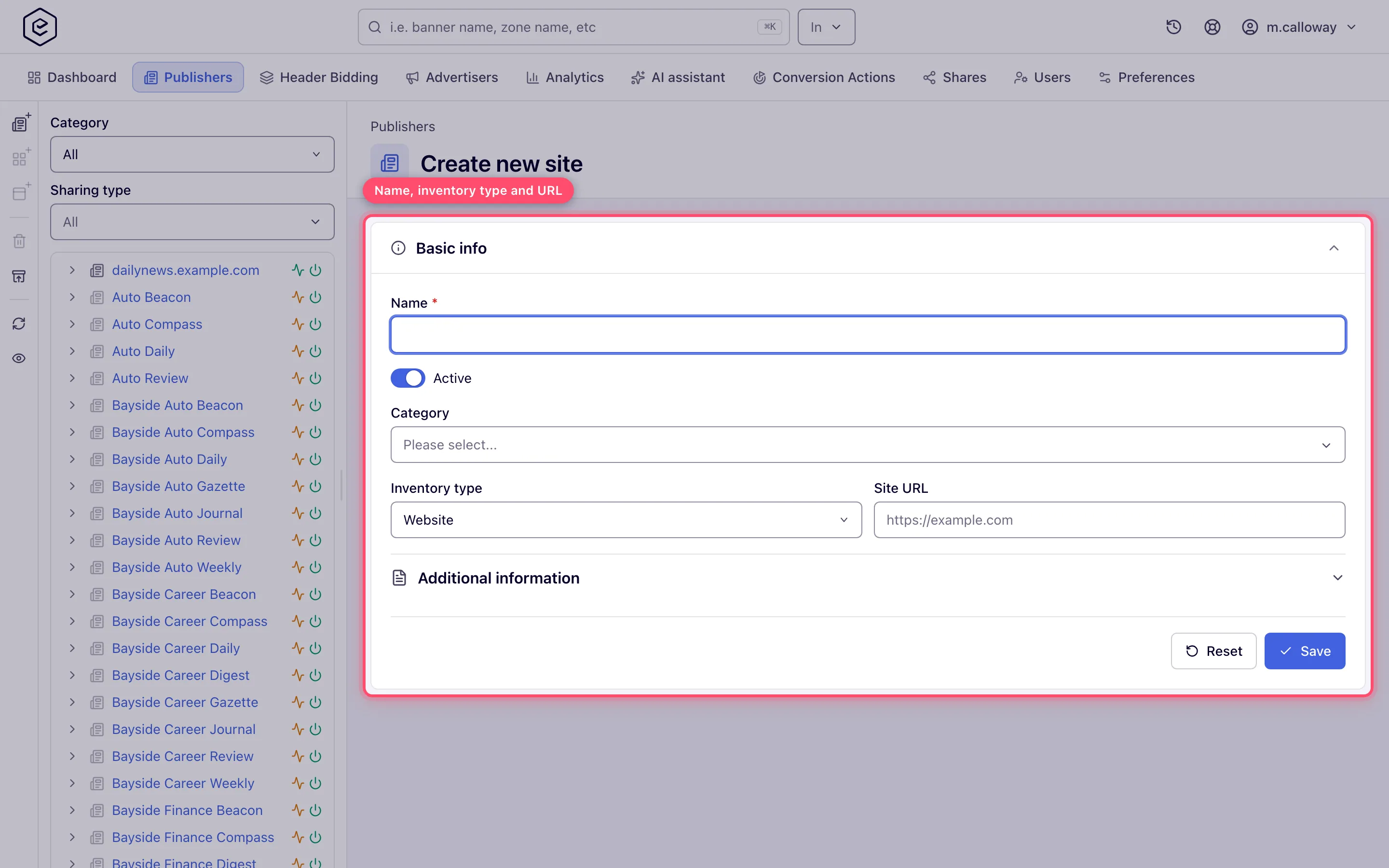
- Fill in Name (required) and pick the Inventory type:
- Website — enter the Site URL (e.g.
https://example.com); - App — the URL field becomes App bundle (e.g.
com.example.app).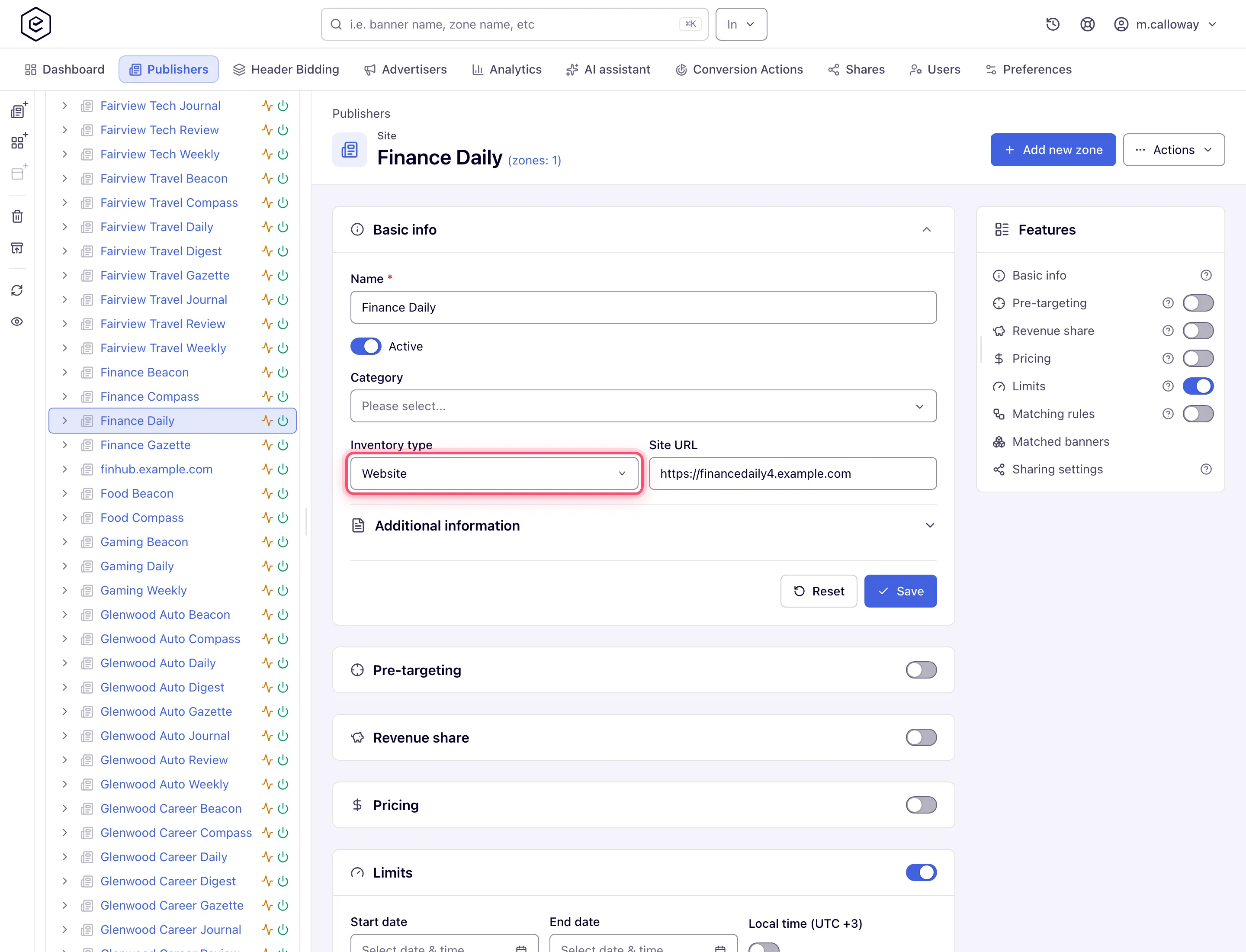
- Website — enter the Site URL (e.g.
- If your role shows a Category field, optionally pick one or more categories. They drive automatic banner↔placement linking and Rules matching, so choose them honestly. The stock Publisher role has no Category field; the network assigns categories to its sites.
- Open Additional information for contact Email, Description, and the Monthly impressions / Monthly visitors estimates.
- Click Save. You get a “Site saved” toast and land on the full site editor. Now add the first zone — the page shows a “This site has no zones yet” banner with a Create zone button until you do.
Options and fields (Basic info)
| Field | What it does | Default | Notes |
|---|---|---|---|
| Name | Site display name across trees, grids, reports | — | Required, max 128. Not editable on masked shares |
| Status (Active/Inactive) | Master on/off for the whole site subtree | Active | Shown only if your role can switch sites on and off |
| Category | Publisher categories used by auto-linking and Rules | none | Changing it triggers the auto-link question (see corner cases). With a read-only categorization grant the field is visible but locked |
| Inventory type | Website ⇄ App | Website | Switches the URL field to App bundle |
| Site URL / App bundle | The property address / package id | — | Max 255. A URL with spaces saves with a warning toast; a URL with no scheme (example.com) is rejected outright |
| Additional fields | Network-defined custom fields | — | Appear only if your network configured them |
| Private (Advanced settings) | Marks the site private | off | Shown only if your role allows it |
| Collect cookies (Advanced settings) | Per-site cookie collection toggle | off | Shown only if your role allows it; not a network switch |
| Email / Description | Contact and notes | — | Not rendered at all on masked shares |
| Monthly impressions / Monthly visitors | Traffic estimates picked from preset ranges | — | Informational |
| Supply chain seller ID (Additional information) | What you call this publisher in your own sellers.json. With it filled in, this site’s header-bidding tags carry an IAB supply chain naming you as the seller; empty, they carry none | — | Max 64. Fill it only if you resell this publisher’s inventory. It also needs Supply chain seller domain in white-label settings — with either one empty no chain is sent at all, which is the correct state when buyers pay the publisher directly and you are paid a fee to serve. Not submitted on a masked share |
| Created | Creation date | — | Read-only, last field in Additional information |
Corner case: Name, Site URL and App Bundle have server-side length caps (128 / 255 / 255) that the inputs do not enforce, and no friendly message is registered for them — an over-long value fails with the validation framework’s generic “size must be between…” text. Supply chain seller ID is the one field that does enforce its own limit in the input.
Corner case: if your network turns on Site Categories Required, clearing every category fails the save with “You must provide at least one category”.
Site-level cards
The cards below Basic info follow the same pattern: a switch turns the feature on/off, and the Features rail on the side mirrors the switches. A card renders when the feature is already on or when you can fully edit it — so a read-only grant on a feature that is switched off gives you no card at all.
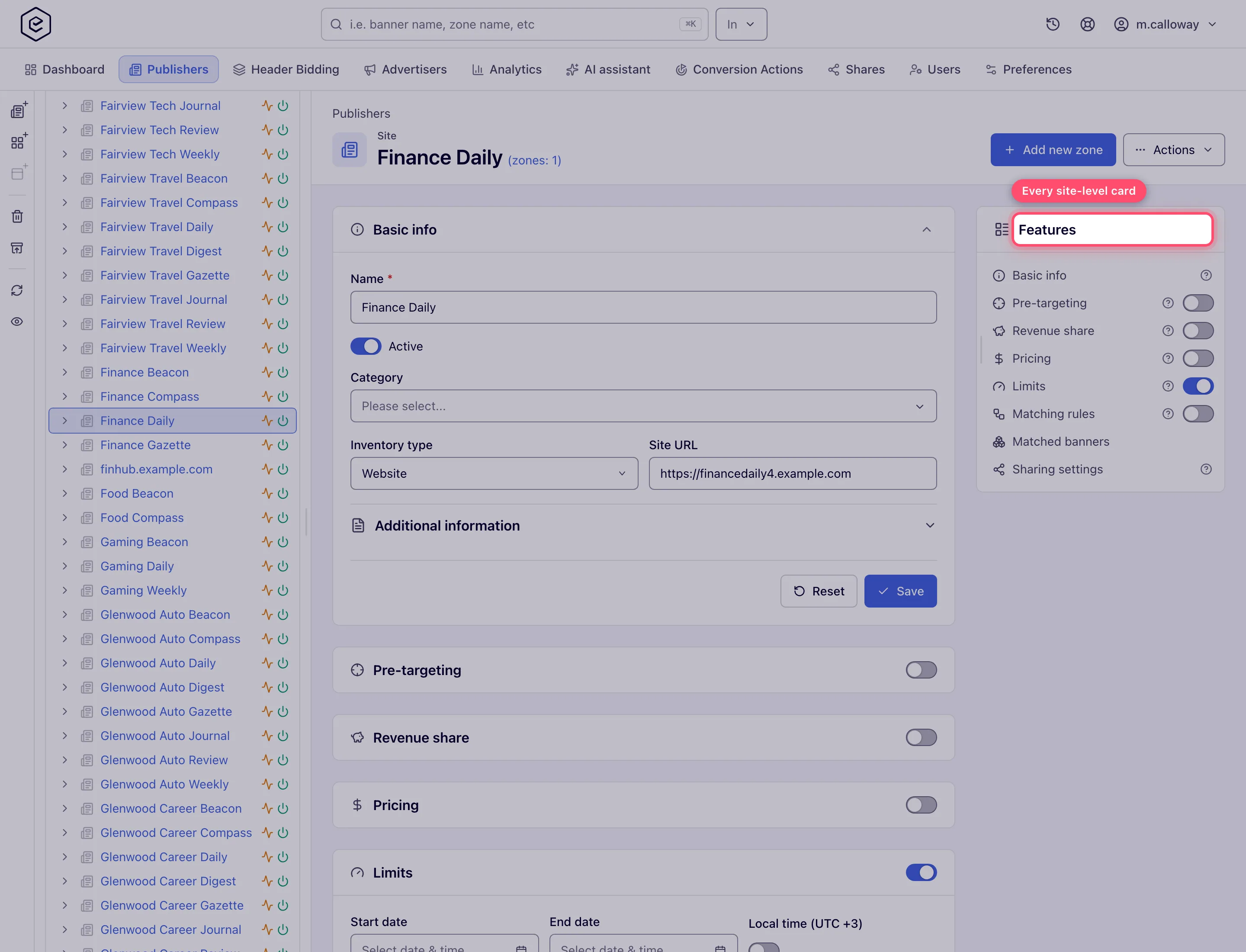
| Card | What it controls |
|---|---|
| Pre-targeting | Traffic filters applied to every placement under the site — see Pre-targeting and blocking |
| OpenRTB integration | IAB categories, blocked IAB categories and the OpenRTB publisher id sent in bid requests — see how the site, zone and placement lists combine |
| Revenue share | Per-advertiser revenue-share percentages |
| Pricing | Publisher payment model and per-country prices |
| Bid floor | Minimum acceptable price, per country |
| Limits | Impression/click/conversion caps for the site — see Limits |
| Per conversion action limits | Caps per conversion action |
| CPM Threshold | Per-country minimum CPM the publisher is guaranteed — a revenue floor for reporting/payouts and the fallback RTB bid floor; direct campaigns still serve below it — see Site CPM threshold |
| Matching rules | Automatic banner-matching rules scoped to this site |
| Matched banners | Read-only cascade of the advertisers → campaigns → banners the rules currently match |
| Piggybacks | Third-party tracking pixels fired with site traffic — see Piggybacks |
| Video creative requirements | The publisher’s video spec: an uploaded video that misses it is not served on this site — see Check video creatives against a publisher’s spec |
| Payments | Read-only publisher payout history by year |
| Sharing settings | Give other users access to this site — see Shares |
Which of these cards you see depends on your role — see User roles.
Header actions
- Zones counter — the title shows
(zones: N)and links to the zones list. - Approval badge — when your network reviews sites, a Pending or Rejected badge appears next to the eyebrow. An approved site shows no badge at all.
- Add new zone — hidden on masked or non-editable shares.
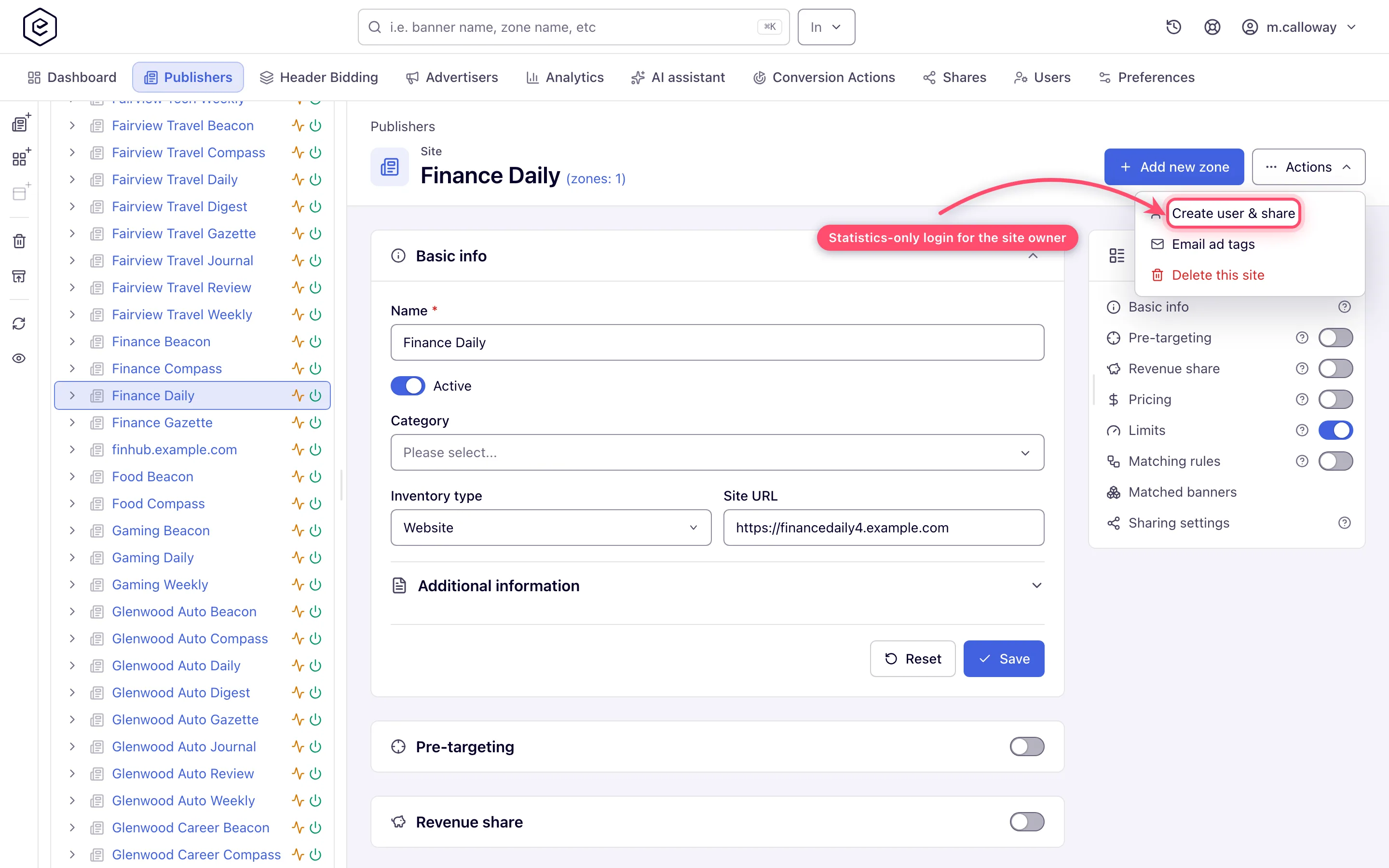
- Actions → Create user & share — creates a statistics-only user for this site: enter username, email and role. The address receives an invitation with a single-use set-password link, not a password. Useful for giving a site owner read access to their own numbers without a full account. See Account users.
- Actions → Email ad tags — opens a dialog with the site’s placement tree and one checkbox per available tag type for each placement (each placement’s default tag type comes pre-checked). Enter recipients, subject and body and send; optionally as a single file. Shown only with the Email Invocation Codes permission, on an editable site, and only when the network has a Send invocation code email template — the frame below comes from a network without one, so the entry is absent from it. See Email ad codes on a site.
- Actions → Delete this site — the confirmation reads “The site will be deleted along with its
zones and placements. You can restore it within 90 days. Are you sure?”, and it cascades: every
zone, and through them every placement. For 90 days Recently deleted (the box-with-arrow
button in the Publishers tree’s action rail, and the link on the delete toast) or
POST /rest-api/deleted-entities/{type}/{id}/restorerestores the site with those zones and placements and their banner links (Restore something you deleted).
Corner cases and gotchas
Corner case: changing the site Category on save triggers an auto-link check. If the new category matches existing auto-linkable banners, a dialog asks “Apply banners auto-linking for category?” — Yes links them immediately, No saves the category without linking. If the check itself fails you get a “Cannot check auto-linking” toast and the save still goes through, unlinked. The prompt only adds links. Creatives linked for the previous category stay until auto-linking is re-applied from the edit page — Check auto-linking, then Apply auto-linking (see Re-applying auto-linking).
Corner case: the approval badge shows only Pending and Rejected. Don’t wait for an “Approved” badge — approval is signalled by the badge disappearing.
Corner case: a Site URL with spaces is accepted and saved — the only signal is the toast “Site URL contains spaces. Please verify the URL.” Check it if tags later misreport domains. A URL with no scheme at all is the opposite case:
example.comfails validation outright, andhttps://example.comis what it wants.
Corner case: on a masked share the Name and URL/Bundle are locked and the Email, Description and Supply chain seller ID are not rendered at all. The save deliberately omits every one of them, so a viewer cannot overwrite the owner’s values with the blanks they were shown — you can still edit traffic estimates and any feature card you have rights to.
Corner case: the site editor has no control for Domain category, ad-serving domain or the site-level invocation-code domain, even when your role holds permissions for them. To serve a site from a different ad-serving domain, ask your network or Epom support.
Over the API
The Payments card is GET /rest-api/site/{siteId}/payouts.do; booking and removing payouts is described in
Finances, fees and referral billing.
Per-role notes
- Publisher (stock role) — creates sites, edits Basic info (without Category), sets the site’s Pre-targeting and adds zones. There is no Sharing settings card and no Create user & share; revenue share, pricing, limits, CPM threshold and OpenRTB are the network’s settings. See What your network controls.
- Network manager — also gets the money and traffic-rule cards plus Create user & share and Delete this site.
- Administrator — has no site editor; switch into a network user to edit a site.
- Can View share — every card is read-only; ask the owner for Can Edit (deleting needs Is Owner).
Exact grants: see User roles.
