
Create a placement
Pick the right placement type, fill the fields every type shares, and know which types get a Size field, which require it, and what the editor gains after the first save.
The placement is the ad slot itself — the only entity that produces an ad tag. You pick its type once, at creation, and the type decides which fields, which cards and which tag formats the placement will ever have. This page covers choosing the type and the fields every type shares; the per-type pages cover the rest.
Who this is for
Publishers and network managers building out inventory. The Add new placement… menu lists the types your role holds, which can be fewer than the eight below — see Per-role notes.
Prerequisites
- A saved zone to own the placement.
- A role that includes the type you want to create — the menu lists only the types yours holds.
Choosing the type
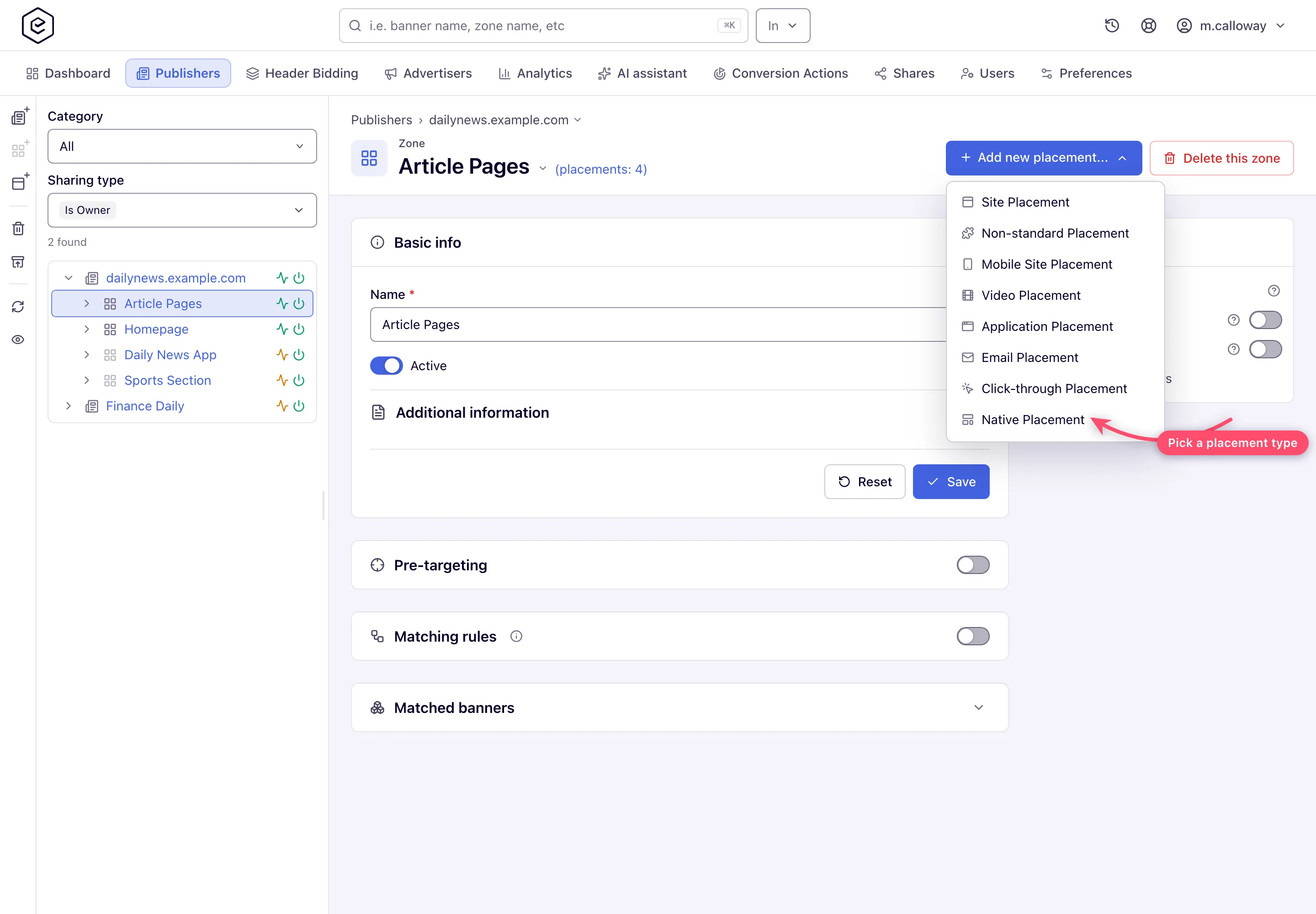
Eight types, listed here in the order the menu shows them:
| You are serving… | Pick this type | What you get to integrate with |
|---|---|---|
| Standard display banners on a desktop website | Site Placement | Universal JS, Mount JS, Simple Iframe, Direct URL, API |
| Pop-ups, pop-unders, floaters, interstitials and other non-standard formats | Non-standard Placement | Universal JS, Mount JS, Direct URL, API — pops and direct links: see Pop-under, tab-under and direct-link placements |
| Display banners on mobile-web pages | Mobile Site Placement | Universal JS, Mount JS, API, Direct URL |
| In-stream or out-stream video through a player | Video Placement | VAST / VPAID / VMAP tag URLs and a demo Video Player |
| Ads inside a native mobile app | Application Placement | the ad API only |
| Ads inside email newsletters | Email Placement | an email-safe image + click tag |
| Click tracking only — no ad markup | Click-through Placement | tracking URLs only |
| Native-styled ads (title, image, icon, CTA) served as JSON | Native Placement | the ad API only |
Which tag types you actually see also depends on your permissions and on your network having an ad-serving domain configured — see Ad tags, invocation codes and the API.
Note: the Native type has a fixed name in the console. Both menus — this button and the left tree’s + menu — always show Native Placement; a network-level label for the Native type renames it in neither. See the Placement types reference.
Steps
-
On the zone page, open Add new placement… and pick the type. (The tree’s + menu and the “This zone has no placements yet” nudge offer the same entries, filtered by the same permissions.)
-
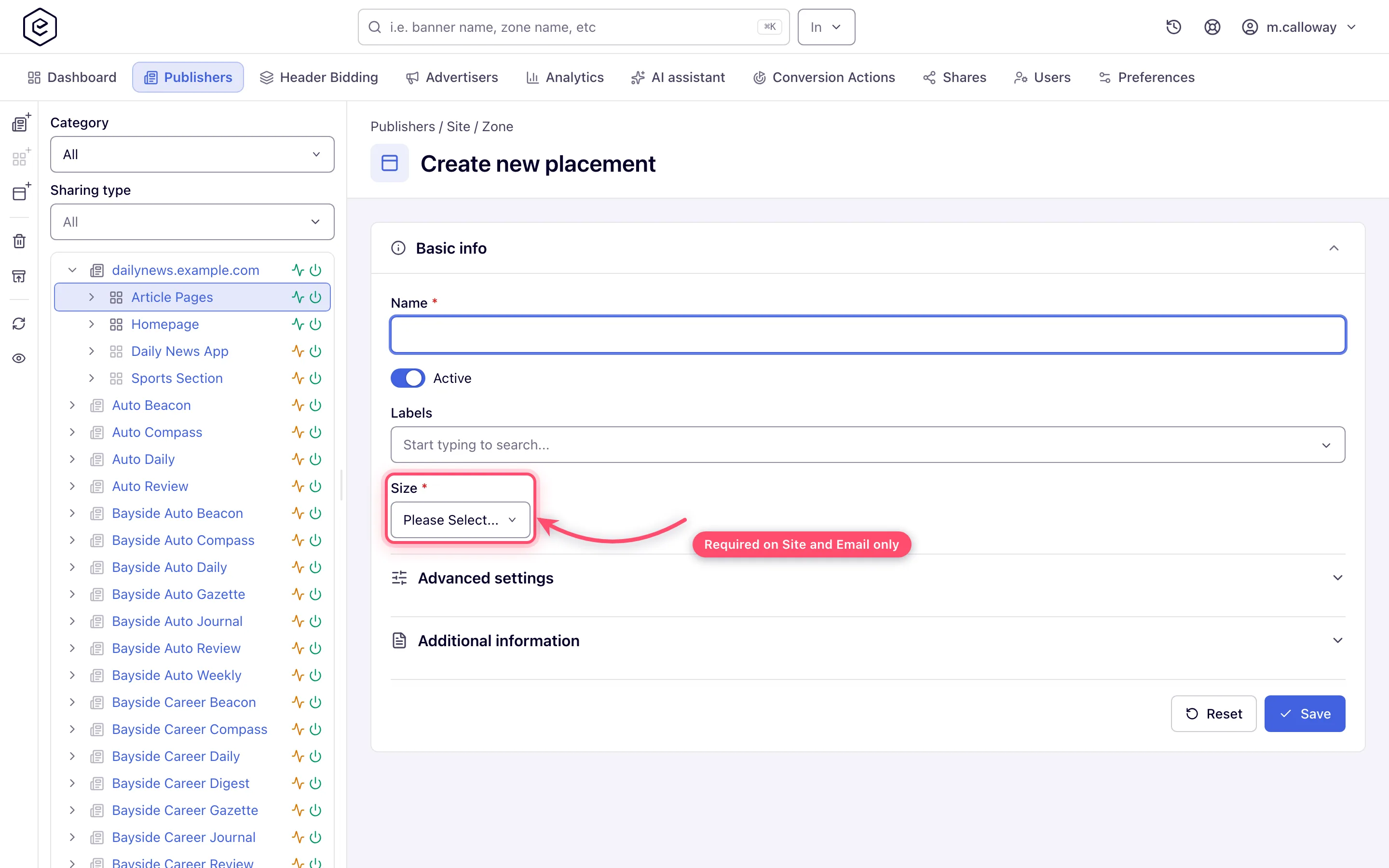
Fill in Name — the only field required on every type. Under it, the Active switch is on by default (shown if your role can switch placements on and off).
-
Assign Labels if your role shows the field. The picker offers the existing labels and lets you type a new one; it can arrive pre-filled with the network’s default labels for that placement type.
Corner case: labels can be mandatory for your role. Then a save with no label is rejected with “You must provide at least one label”, and nothing on the form marks the field required before you try.
-
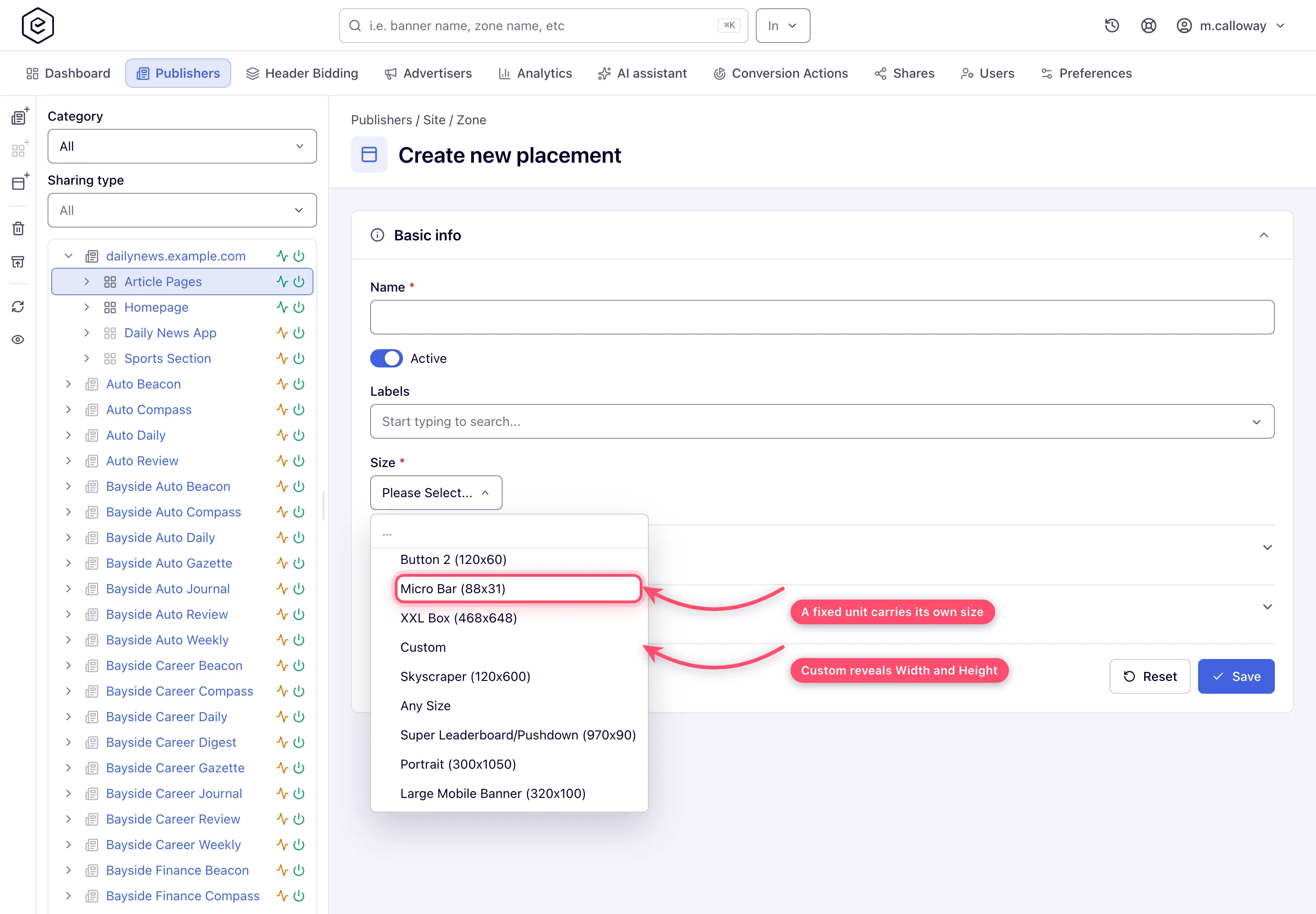
Pick the Size — on the four types that have one (see the table below). The list is the network’s ad units for that type; each fixed unit carries its own dimensions, and choosing Custom reveals Width and Height inputs.
-
Fill any type-specific fields the form shows — Ad category, Application OS and Display type on an Application placement, the VAST/VPAID/VMAP groups on a Video placement — plus any additional fields your network defined for placements (free text, up to 255 characters, drawn right after the type-specific fields). See the per-type pages.
-
Open Advanced settings if you need any of it. On the types that show it, Refresh after (sec) is required and pre-filled with
0(off), so don’t clear it — leave0unless you want the ad to re-request itself. A new Site Placement also starts with Branded overlay ticked, as the frame shows; see the table below.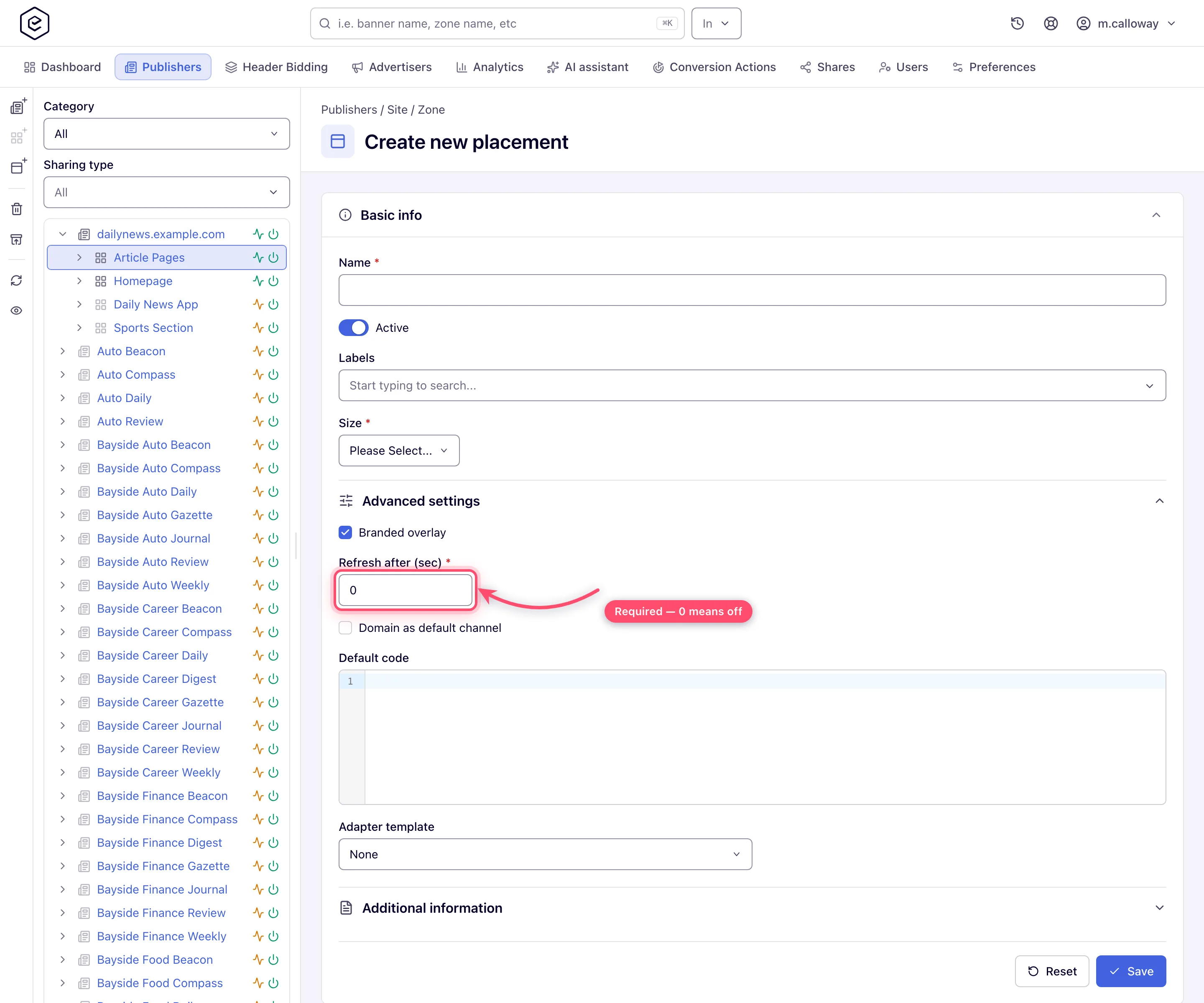
-
Click Save. A Done toast confirms it and you land on the full placement editor.
Unless Disable auto-Linking is ticked, a create first asks the server which auto-linkable banners would link to the new placement. If there are any, a Save changes dialog asks “Link the matching auto-linkable banners to this placement (N)?” — Yes links them as part of the save, No saves the placement unlinked. If the check itself fails, a “Can not check banner auto link” toast appears and the save goes ahead without linking.
Options and fields
Basic info — every type
| Field | What it does | Control | Default | Notes |
|---|---|---|---|---|
| Name | Placement display name | Text, max 512 | — | Required. Locked (and skipped on save) on a masked share. |
| Active | On/off for this placement | Toggle | On | Create and edit pages; shown if your role can switch placements on and off. |
| Labels | Free-form tags for filtering and bulk operations | Multi-select | the network’s default labels for the type, if any | Whether you see it, can add new labels, or must pick one depends on your role. |
| Additional fields | Free-text fields your network defined for placements | Text, max 255 each | — | Only when the network has defined some; drawn after Size and the type-specific fields. |
Under Additional information, in this order:
| Field | What it does | Control | Default | Notes |
|---|---|---|---|---|
| Placement key | The 32-character id every tag and API call carries | Read-only text | — | Edit page only — it does not exist until the first save — and hidden while Active is off, because a paused placement has nothing to install. |
| Description | Free-text notes | Textarea | — | Not rendered on a masked share. |
| Created | Creation date (dd/MM/yyyy) | Read-only text | — | Edit page only. |
Size — only four types have it
The server attaches a size to a placement only for these four types; on the other four there is no Size field at all, and no width/height is stored.
| Type | Size field | Required | Ad units offered |
|---|---|---|---|
| Site Placement | yes | yes | 15 — the IAB standards plus Custom and Any Size (12), and 970×90, 300×1050 and 320×100 |
| Email Placement | yes | yes | 11 — the same list without Any Size |
| Video Placement | yes | no | 3 — two Landscape Video Player sizes and Custom Video Player |
| Application Placement | yes | no | 8 — banner sizes plus the four phone/tablet interstitials |
| Mobile Site Placement | no | — | — |
| Non-standard Placement | no | — | — |
| Click-through Placement | no | — | — |
| Native Placement | no | — | the native asset sizes are separate fields |
Corner case: Any Size exists only on Site Placement. It is a 0×0 ad unit that lets any banner size match, which is what you want for a responsive slot and what you do not want if you meant to sell one format. See Responsive and flexible sizes.
Corner case: Mobile Site and Non-standard placements having no size surprises people who came from the classic page. Banners still link to them — the size check simply has nothing to compare against on the placement side.
Advanced settings
Everything here is collapsed by default. The form draws only the fields that apply to the placement’s type and that your role allows; when none of them applies, the section is not shown at all.
| Field | What it does | Control | Default | Shown on |
|---|---|---|---|---|
| Branded overlay | Draws the network’s branding overlay over the ad | Checkbox | on for a new Site Placement, off for a new Mobile Site or Non-standard one (two white-label defaults, one per type) | Site, Mobile Site and Non-standard, when branded placements are switched on for the network and your role |
| Always redirect | Forces a redirect rather than inline markup | Checkbox | off | Mobile Site and Non-standard |
| Disable auto-Linking | Keeps auto-linking rules from attaching banners to this placement | Checkbox | off | A type that has a size |
| Refresh after (sec) | Re-requests an ad after N seconds; 0 is off | Number 0–1000, required | 0 | Site, Mobile Site and Non-standard |
| Flexible placement size | Lets banners that fit inside the slot serve here (width and height at or under the placement’s) | Checkbox | off | A type that has a size |
| Domain as default channel | Uses the calling page’s domain as the traffic channel | Checkbox | off | Every type except Application; it needs a request that carries a page domain |
| Default code | Markup served when nothing matched — passback or house ad | Code editor | empty | Site, Mobile Site and Non-standard |
| Adapter template | Renders native demand into this placement’s format | Select, default None | None | Every type except Native and Video |
Corner case: Refresh after (sec) is required wherever it shows — Site, Mobile Site and Non-standard placements. Clearing it marks the field with an error and blocks the save, so type
0rather than trying to empty it.
Note: Third-Party lookup limit is not on the form. Every placement carries the setting — a new one starts at
5whether you create it in the console or over the REST API — and the ad server reads it. It is set only over the REST API, asthirdPartyNetworkLookupLimit— a whole number from 0 to 10, anything else is refused with400— on thePOST /rest-api/placements/update/<type>.docall that creates or edits the placement; saving a placement in the console leaves the stored value as it is. What it does is described in Set up daisy chaining and passbacks.
Corner case: Adapter template is on the types that are not native. That is deliberate: it is how native demand gets rendered into a standard slot. A Native placement doesn’t need it, because the caller renders the assets itself.
What appears after the first save
The create form is just the Basic info card. The saved placement becomes the full editor and gains, depending on type and your permissions:
- Ad tags & API — the tag tabs, the Settings tab and the API reference (details); hidden while the placement is paused (Active off);
- Pre-targeting, RTB configuration, Revenue share, Pricing, Bid floor, Limits, Per conversion action limits, Frequency capping, Linked banners, Matching rules, Matched banners, Banners probability, Piggybacks, Third-Party tracking codes, Server-Side trackers, Daisy chaining and Content replacement;
- on video placements, the VAST tracking card;
- the read-only Placement key and Created rows in Basic info;
- a header Preview button on the types that have a preview-capable tag (Site, Mobile Site, Non-standard, Video and Email), and an Actions menu with Macros list and Delete this placement. The delete confirmation reads “The placement will be deleted. You can restore it within 90 days. Are you sure?”; the success toast links to Recently deleted, where Restore something you deleted brings it back with its placement key and banner links.
Note: a video placement shows RTB configuration twice. The RTB configuration card is its own card and appears on any saved placement if your role has OpenRTB access — it carries the custom tag id and the IAB categories sent in bid requests (details). The playback and duration fields that video and native placements have sit in a subsection of Basic info that carries the same title.
Corner case: changing which banners are linked from the placement side (the Linked banners card) needs Link Placements to Banners and the right to update the placement’s site — your own site, an editable share, or Inventory → Update: All. A network-wide link grant alone does not reach another customer’s placements.
Corner cases and gotchas
Corner case: the type is immutable. Posting a different type to an existing placement is silently ignored. There is no “convert to video”: create a new placement, move the tag, delete the old one.
Corner case: a fixed ad unit hides the width/height inputs and saves the unit’s own dimensions. Size is what banners link and match on, so a placement saved against the wrong unit matches nothing — and says nothing about it. If you need an unusual size, pick Custom and type the exact numbers.
Corner case: saving an existing placement re-checks the banners linked to it. A linked banner that no longer fits the placement — typically after you change its Size — is unlinked as part of the save, but only when its files are present, and the save still ends in Done: the unlinked banner ids go to the action log, not to the screen. Open Linked banners after resizing a placement that serves.
Corner case: the type menu is permission-filtered. If a colleague sees Video Placement and you do not, your role does not include that type; ask your network admin. No message is shown.
Corner case: the 512-character cap on Name is enforced by the server with no friendly message registered, so an over-long name fails with the validation framework’s generic “size must be between…” text.
Per-role notes
- Publisher and network manager — both create placements; the menu lists only the types your role includes; ask your network admin for a missing one, such as Click-through Placement.
- Administrator — creates placements from the account console after switching into a network user; the Size ad units are set admin-side.
- Can View share — Add new placement… is hidden.
- Demo account — with a demo page configured, Preview shows on every type — see Demo accounts.
Exact grants: see User roles.
Related
- Work with zones
- Display placements
- Native placements
- Video placements
- Application, email and click-through placements
- Ad tags, invocation codes and the API
- Placement types reference
- Other admin tools — auto-placement templates for new sites
