
Matching rules and network defaults
Write the category and label rules that pair demand with inventory, make them attach to new entities automatically, and set the network-wide defaults that decide how new sites, advertisers, banners and placements are born — with the caveats, a fix-it checklist and a link to the full field reference.
What it is and why
A matching rule is a named set of category and label conditions that pairs demand with inventory without anyone linking banners to placements by hand: a Campaign rule attached to a placement says which advertising categories may serve there, an Inventory rule attached to a campaign says which inventory categories it may serve on. Inventory & campaigns settings is the other half: fifteen independently saved cards that decide what every new site, advertiser, banner or placement looks like the moment it is created — including whether it is born with rules already attached.
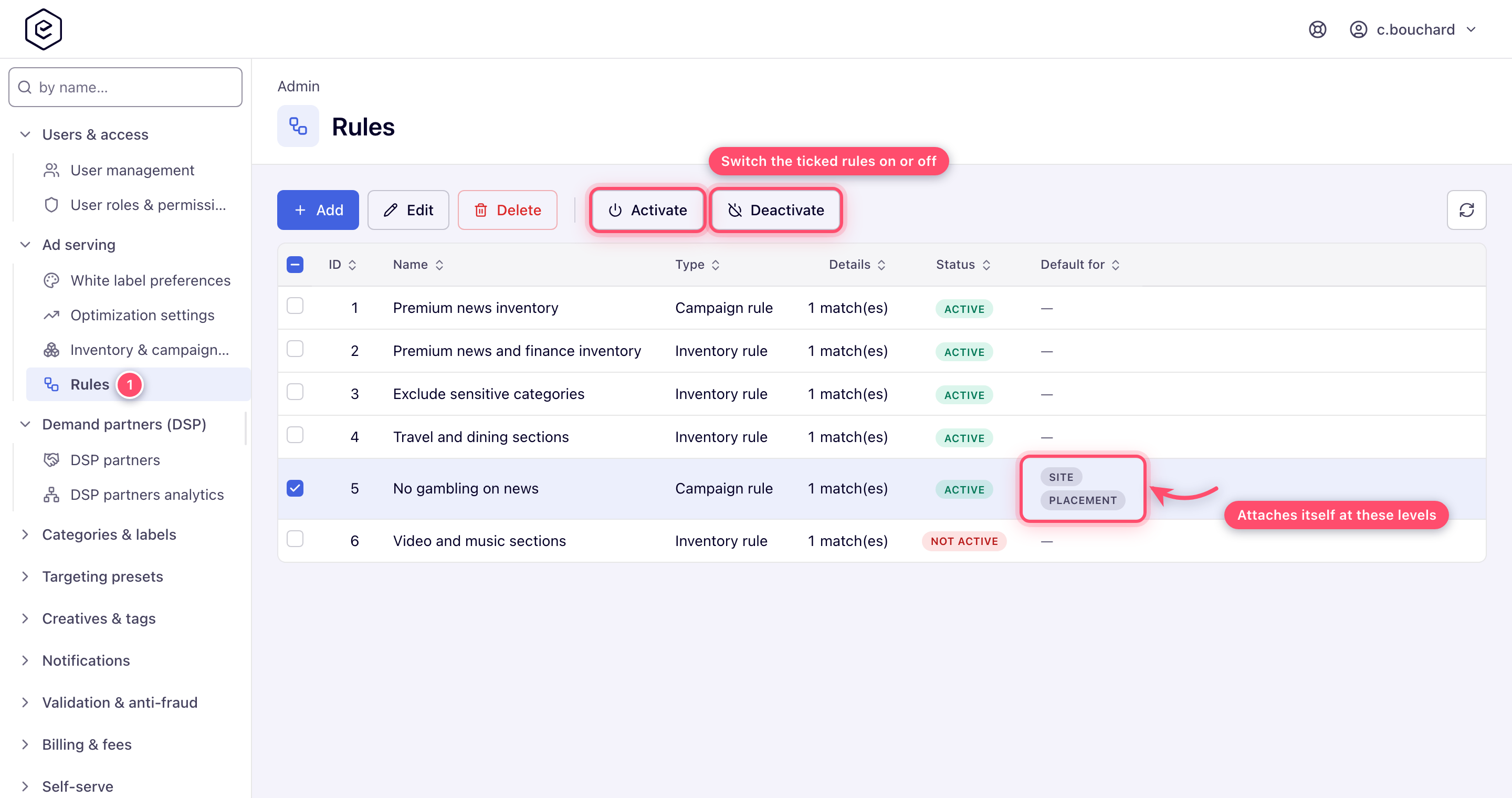
Example. A network runs 40 news sites and 3 gambling advertisers. One Campaign rule, No gambling on news, with a single condition exclude · OR · categories Gambling, Betting, is attached to the 120 news placements; from the next ad-cache reload those placements no longer take the 3 advertisers’ banners through rule matching — and no placement had to be edited by hand.
Typical scenarios
| You want | Set | Where |
|---|---|---|
| Keep gambling and betting demand off every news placement | Campaign rule, condition exclude · OR · Gambling, Betting, attached to the news placements | Rules, then the placements’ Matching rules card |
| A sports advertiser serves only on sports inventory, nothing else | Inventory rule, condition include · OR · Sports, Football, Motorsport, attached to the advertiser | Rules, then the advertiser’s Matching rules card |
| Every new placement is born with that No gambling on news rule attached | Tick All placements under Apply automatically to on the rule, and set Placement card to On under Rules panel default status | Rules + Inventory & campaigns settings |
| New sites wait for review before a network administrator sees them as approved | Site default status = Pending (their placements still serve meanwhile) | Inventory & campaigns settings |
| New advertisers, campaigns and banners start paused until someone checks them | Advertiser default status = inactive | Inventory & campaigns settings |
| Entity names never leak into served markup | Macros accessibility: both sides Inactive — the name macros are stripped from every ad | Inventory & campaigns settings |
Step by step
Create a matching rule
-
Open Admin → Ad serving → Rules. The grid lists every rule with ID, Name, Type, Details (1 match(es)), Status and Default for (badges for the levels the rule auto-applies to). There is no search box.
-
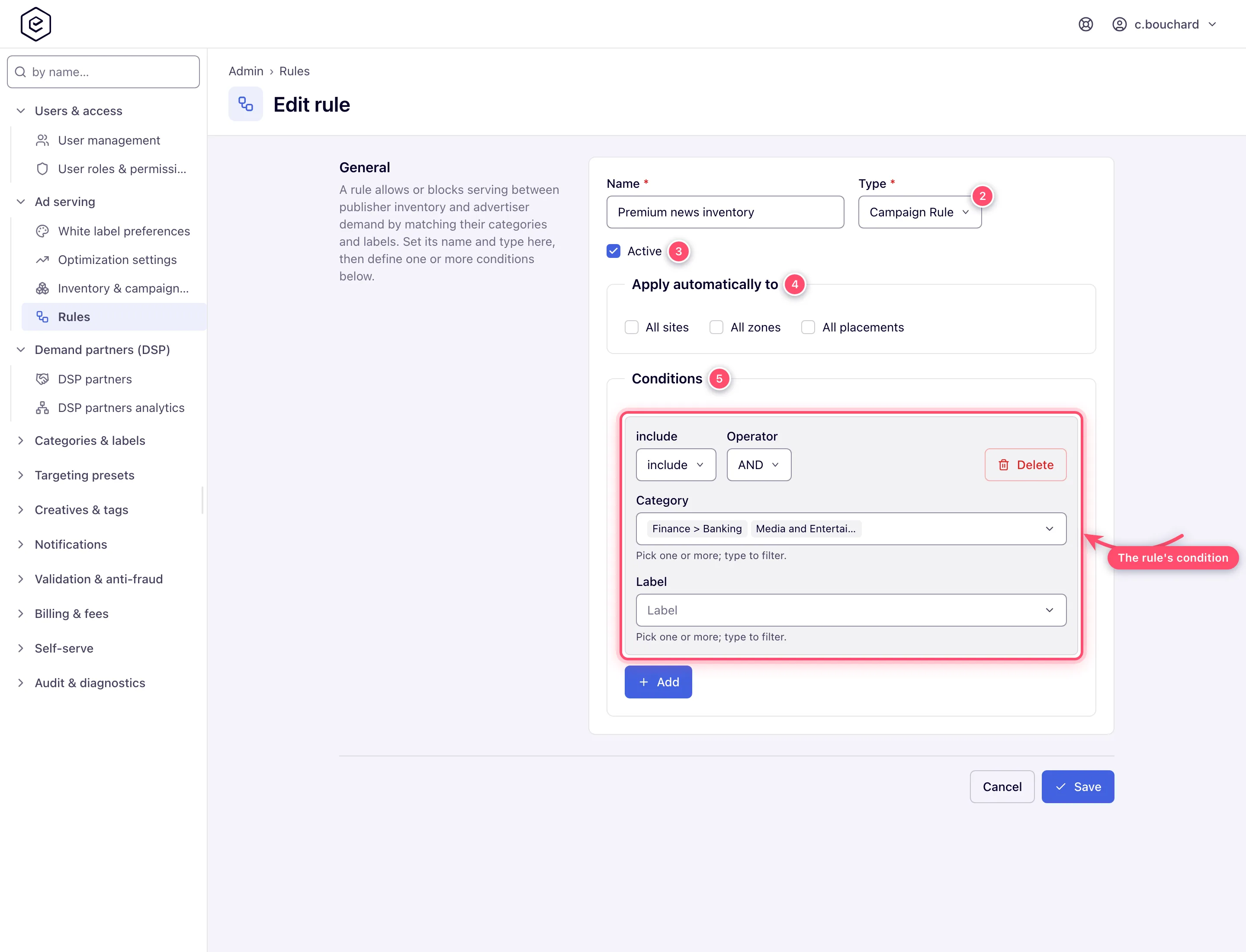
Click Add. Name the rule (up to 128 characters — the name is what network users see in their rule picker) and pick the Type. The type names the side the rule tests, which is the opposite of the side you attach it to:
Type Tests Attach it to So it controls Campaign Rule advertising categories + labels (demand) sites, zones, placements which demand may serve on that inventory Inventory Rule inventory categories + labels (supply) advertisers, campaigns, banners where that demand may serve Switching type clears every category already chosen — the two vocabularies are not interchangeable.
-
Tick Active. A new rule is created inactive, and an inactive rule is left out of the ad cache entirely — not enforced even where it is already attached.
-
Optionally tick Apply automatically to — All sites / All zones / All placements for a Campaign rule, All advertisers / All campaigns / All banners for an Inventory rule. On its own the box does nothing; see Make a rule apply automatically.
-
Under Conditions click Add for each condition: an include / exclude picker, an Operator (AND = every selected category and label must be present; OR = any one of them), a Category multi-select and a Label multi-select. Conditions are ANDed — an entity must satisfy all of them. A rule with no conditions matches everything on the other side.
-
Click Save. The form returns to the grid with a Done toast. Later, tick rules in the grid and use Activate / Deactivate instead of opening each one.
-
Hand the rule to the account side: a network manager attaches it on the Matching rules card of a site, zone, placement, advertiser, campaign or banner — see Attach matching rules to an entity.
Make a rule apply automatically
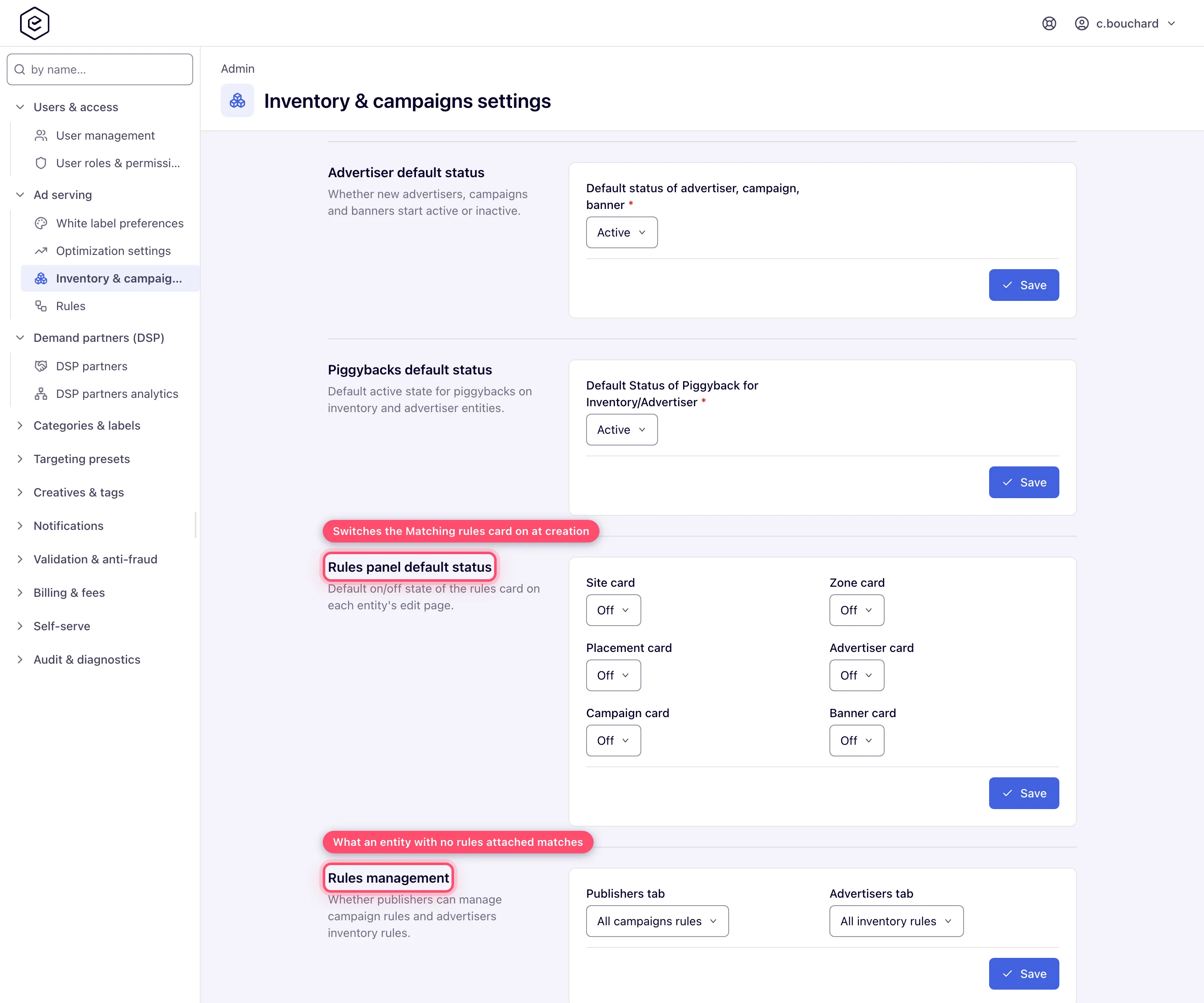
The Apply automatically to boxes are consumed at exactly one moment: when an entity’s Matching rules card is switched on. Then every rule flagged for that level is attached to it, each as its own single-rule group. That moment arrives either at creation, if Inventory & campaigns settings → Rules panel default status has that entity’s card set to On, or by hand, when someone switches the card on for an existing entity.
So a genuinely automatic rule needs both: the flag on the rule and the matching card set to On. With the card left Off — the shipped default for all six levels — the flag achieves nothing until a user turns a card on themselves. The boxes are never retroactive.
Change a network default
-
Open Admin → Ad serving → Inventory & campaigns settings.
-
Change the controls on the card you need. Almost every card has its own Save button; there is no page-level save. Site revenue share preferences and Site pricing preferences are the exceptions: an on/off switch in the heading (off asks for confirmation and deletes the bindings or per-country rates) and a table whose rows you Add and Delete one by one. Default VAST tracking events is two blocks, each with its own Save.
-
Click that card’s Save. A Done toast confirms it (Site default status says Default site status changed.). Most cards shape new objects only — check which cards apply when before expecting a change on objects that already exist.
Caveats and exceptions
- Who can do this. Network administrators. Rules and Inventory & Campaigns Settings are two separate permissions, so an admin may hold one without the other: with Rules only you can author rules but not set Rules panel default status, so Apply automatically to never reaches new entities; with Inventory & Campaigns Settings only you see Rules panel default status but not the Rules management card. Grant the two together. Network managers never see these screens — they work with the Matching rules card (active rules of the opposite type only) and Matched banners / Matched placements; publishers and advertisers have no Matching rules card at all, so a rule reaches their inventory or demand unseen.
- Vocabularies first. The categories a rule matches on must already exist — advertising and inventory categories under Manage category taxonomies, labels under Admin → Categories & labels → Labels. The rule form only selects; with no labels on the network the Label picker is simply empty.
- A rule can only widen a placement’s candidate pool. At serving time the banners a placement’s rules select are added to the banners hard-linked to it. A directly linked banner keeps serving whatever any rule says — an exclude rule is not a way to stop a linked creative; unlink it or use blocking.
- What a rule reads is not always on the entity it is attached to. Inventory categories come from the site, labels from the placement; advertising categories from the advertiser, labels from the banner plus its campaign — see What a rule looks at.
- Rules are re-evaluated lazily. When the ad cache reloads, every placement’s rule result is marked stale and recomputed in the background; the first request meanwhile is answered from the previous result. Expect a short window after a rule change in which serving still reflects the old rule.
- Rules are not auto-linking. Auto-linking runs once, when a placement or site is created or edited, and writes permanent banner ↔ placement links; rules write nothing and are recomputed forever. One is not a substitute for the other — see Hierarchy and linking.
- A rule in use cannot be deleted. If it is attached to an entity whose Matching rules card is on, the confirmation warns “Rules in use will not be removed” and a Rules in use dialog lists each blocked rule and the entities holding it — by type and numeric id (Advertiser: 9), never by name. Entities whose card is off do not block it: the delete removes the rule from their lines. A multi-row delete removes the free rules and reports the rest (a “N record(s) deleted” toast plus the dialog). Deactivate has no such restriction and is the right move while diagnosing delivery: it stops enforcement everywhere and keeps every attachment.
- Un-ticking Apply automatically to never detaches the rule from entities that already received it; the mechanism only adds. A default rule you deleted from an entity is attached again the next time that card is switched on.
- Re-saving a rule rebuilds its conditions from scratch — condition rows get new identities; the rule’s own id is stable.
- Site default status = Pending often looks like it did nothing: a user holding the sites-approval permission, or an admin switched into a publisher’s account, always creates Approved. The setting bites only for publishers creating their own sites. And approval is not an on/off switch — a Pending site’s placements serve while it waits.
- Default VAST tracking events are copied once, at creation; a copied placement or banner keeps its source’s events, OpenRTB banners are skipped (no VAST tracking card), auto-placements are not covered.
- Default VPAID framework shows an empty dropdown — not an error — for an admin without the VPAID framework management permission.
- Daisy chaining lookup depth is range-checked (1–100) in the browser only.
Not working?
| Symptom | Check | Where |
|---|---|---|
| The rule is attached but has no effect | Active is ticked — an inactive rule is dropped from the ad cache; the rule’s type is the opposite of the entity’s side (Campaign rule on inventory, Inventory rule on demand) | Rules grid → Status; the edit form |
| A banner still serves where the rule excludes it | The banner is hard-linked to the placement; rules only add candidates | The placement’s linked banners; use blocking or unlink |
| New entities are not getting the “default for” rule | Rules panel default status for that level is On; the flag applies only when a Matching rules card is switched on, never retroactively | Inventory & campaigns settings → Rules panel default status |
| Entities with the card on and no rules match everything (or nothing) | Rules management — All … rules vs None of … rules decides the empty-card behaviour; the card’s own empty state prints the answer | Inventory & campaigns settings → Rules management |
| The rule matches more than expected | The rule has no conditions (matches everything), or the Operator is OR; remember categories are read from the site / advertiser, labels from the placement / banner + campaign | The rule’s Conditions |
| The change took a minute to show | Expected — rule results are recomputed lazily after the ad-cache reload | — |
| Delete says Rules in use | Detach the rule on the listed entities (by id), or Deactivate instead | The Rules in use dialog |
| A new-object default did not change existing objects | Expected — most cards shape new objects only | Which cards apply when |
| New sites come out Approved despite Pending | The creator holds the sites-approval permission, or is an admin switched into the publisher | The creator’s role |
| The Label picker is empty | No labels exist on the network | Admin → Categories & labels → Labels |
| The VPAID framework dropdown is empty | The admin lacks VPAID framework management | The role’s permissions |
Reference
The essentials; every field and all fifteen cards are on Matching rules and network defaults: fields and settings.
| Rule field | Essentials |
|---|---|
| Name | Required, ≤ 128 characters, shown in every user’s rule picker |
| Type | Campaign Rule (tests demand, attach to inventory) or Inventory Rule (tests supply, attach to demand); changing it clears the categories |
| Active | Off for a new rule; inactive = not enforced, hidden in the picker until Show inactive |
| Apply automatically to | Three level boxes; consumed only when a Matching rules card is switched on |
| Conditions | ANDed rows of include/exclude · AND/OR · categories · labels; none = matches everything |
| Settings card | Shapes | Read |
|---|---|---|
| Site default status · Site revenue share · Site pricing · Advertiser default status · Piggybacks default status · Rules panel default status · Daisy chaining lookup depth · Default VPAID framework · Default VAST tracking events · Placement domain as default channel | New objects only | At creation |
| Rules management · Banner approval obligatory fields · Banner approval moderation fields · Accounting period management · Macros accessibility | Everything on the network | Live |
| REST | What it does |
|---|---|
GET /rest-api/network/settings.do | newEntities.active (Advertiser default status), newEntities.siteApprovalStatus (Site default status, for a user who may create sites), newEntities.piggybackActive |
Where the vocabularies live: advertising and inventory categories and labels under Categories & labels (Manage category taxonomies); ad unit sizes under Creatives & tags → Custom ad units & sizes (Other admin tools); Custom country groups — named country sets reusable in geo targeting — are not yet documented.
Related
- Matching rules and network defaults: fields and settings
- Attach matching rules to an entity — the account-side card, the demand/supply flip, and how include/exclude and the group operator are evaluated
- Manage category taxonomies — the two category vocabularies a rule matches on
- Keep unwanted ad categories off your inventory — blocking, which removes candidates where a rule can only add them
- Moderate banners, sites and traffic quality — the workflow the two banner-approval cards feed
- Piggybacks · Daisy chaining and passback · Pricing · Macros reference · Finances, fees and referral billing — the features the live settings govern
- Other admin tools — VPAID frameworks, auto placements, additional entity fields
- Hierarchy and linking — direct links and auto-linking