
Configure the self-serve campaign catalogue
The admin Self-serve group — the prototype banner each self-serve campaign type is cloned from, and the country × OS CPM floor matrix that feeds the suggested price the REST API hands an external self-serve front end.
The Self-serve admin group holds two catalogues that a self-serve advertiser front end reads over the REST API: the prototype banner that new creatives of each self-serve campaign type are cloned from, and the CPM floor matrix that the API turns into a suggested price.
Both are configuration for an external client. Epom ships no self-serve advertiser UI —
nothing in the product lets an advertiser pick a self-serve campaign type and get a
creative. The self-serve storefront is your own
application, and it calls /rest-api/prototype/*, /rest-api/floorCPMs* and
/rest-api/banner/create. These two admin pages are what those endpoints answer with.
Note: neither page changes ad serving. The floor rates are advice returned to an API caller, not a bid filter — see The floor is advice, not a gate.
Both pages are keyed on the same seven self-serve campaign types: Banner (desktop), Banner (mobile), Banner (app), Native, Pop-under, Interstitial (mobile), Interstitial (app).
The same type appears in two other places. A campaign record carries one, and it is a REST
parameter on the banner, campaign and floor-rate endpoints, which accept either the enum name
(BANNER_DESKTOP) or the numeric ID (1) for backward compatibility. The current console
draws no control for the campaign’s type: the Basic info card keeps the stored value and
sends it back unchanged on save, so the way to set it is the REST selfServeCampaignType
parameter on POST /rest-api/campaign/create.do and POST /rest-api/campaign/{campaignId}/update.do.
The type stored on a campaign is a label; it does not by itself clone anything.
Who this is for
Network administrators. Each page is a separate admin permission — see Manage users, roles and permissions. A role may hold one and not the other; the Self-serve group disappears from the admin sidebar when it holds neither. See also Per-role notes.
Prerequisites
- The seed banner already exists as a normal creative under a live campaign and advertiser, and you know its numeric ID. The form takes an ID, not a picker.
- The optional default conversion action also already exists, and is not a shared-by-default action.
- For floor rates, a CSV file — it is the only way to add a country to a matrix.
Steps
The two settings are independent; configure the one you need.
Self-serve campaign prototype banners
A prototype pairs one self-serve campaign type with one seed banner. There is a unique key on the campaign type, so the table holds at most seven rows — one per type, and a second prototype for a type you already covered is refused with Duplicate entry.
What actually gets cloned
When your storefront calls POST /rest-api/banner/create with a selfServeCampaignType
parameter, the server looks up that type’s prototype and clones the banner. Nothing else
is cloned: the campaign must already exist and is named by the request’s campaignId, and the
new banner belongs to that campaign and therefore to that campaign’s advertiser.
| Carried over from the prototype | Creative type and payload (code, link, image / video / file references, title), size and ad unit, placement type, targeting rules, frequency / click / action / no-click capping, limits, pricing, price-adjustment rules, template and template property values, VAST and native configuration, tracking code, labels and autolink settings, approval status, active flag |
| Not carried over | Placement links — the clone starts unlinked; the prototype’s name (replaced by the name in the request); the prototype’s campaign and advertiser; the default conversion action |
Warning: the prototype’s Default conversion action is never applied to the cloned banner. The server stores it, publishes it over
/rest-api/prototype/list,/rest-api/prototype/banner/{type}and/rest-api/prototype/banner/action, and stops there. It is a value for your storefront to read and act on — if your client ignores it, nothing wires it up.
Two failures your client will see:
- No prototype configured for the requested type → 400 No available prototypes for campaign type [BANNER_NATIVE].
- The prototype’s banner has been deleted → 400 Banner id not found.
The read endpoints answer differently: GET /rest-api/prototype/{prototypeId} and
GET /rest-api/prototype/banner/{type} return 404 naming what is missing (Prototype N not
found. / No prototype for campaign type …).
Manage prototypes
- Go to Admin → Self-serve → Self-serve campaign prototype banners. The grid heading
reads Self-Serve prototype banners and the columns are CampaignType, Banner
id and Default conversion action. Both entity columns render as
[id: N] name; an unset default action shows—.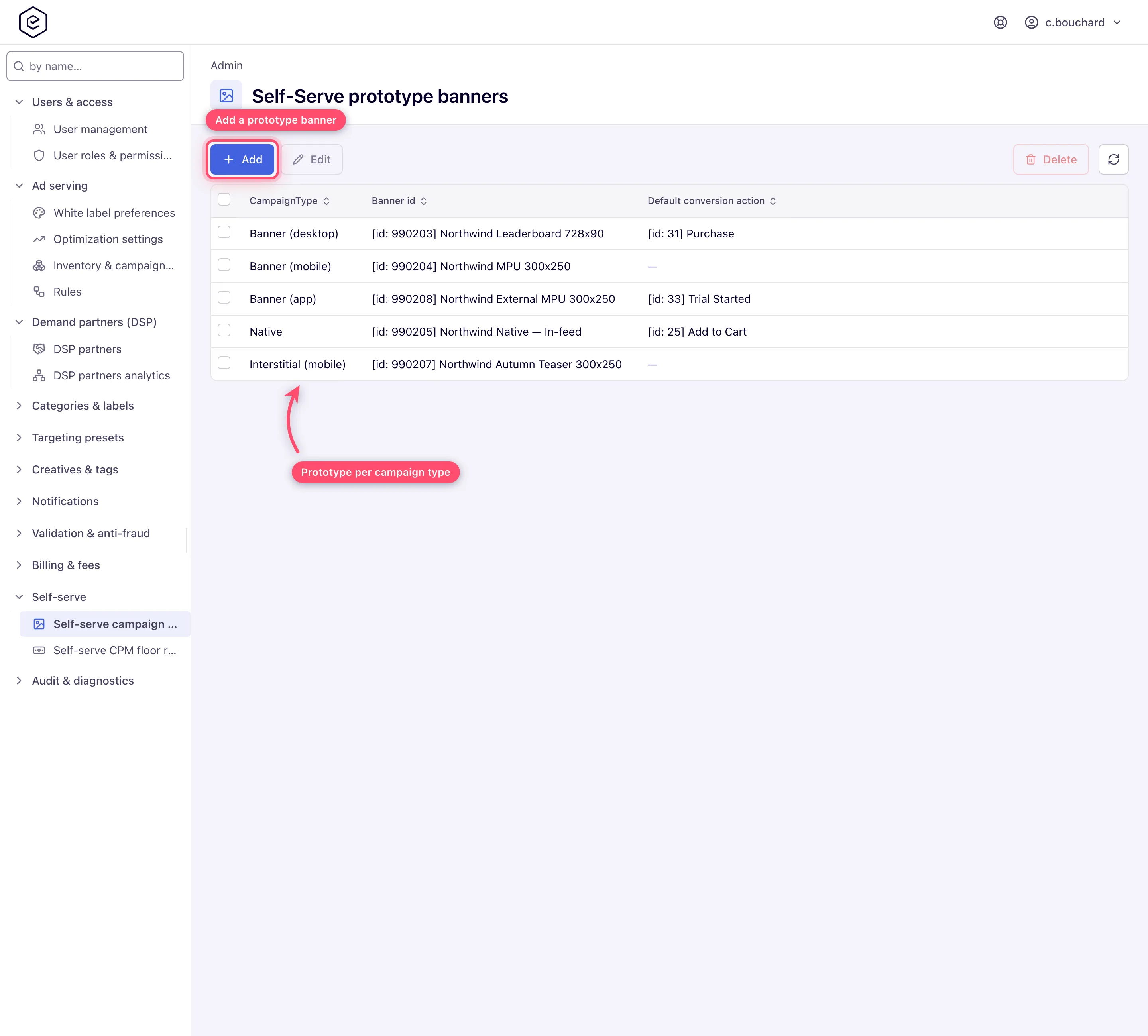
- Click Add (the page becomes Add prototype banner), or tick a row and click Edit (Edit prototype banner).
- Fill the three fields — Self-Serve type, Prototype banner ID, Default conversion action ID — and click Save. A successful save shows a Done toast and returns you to the grid. Cancel goes back without saving.
- To remove a prototype, tick its row and click Delete, then confirm Delete record?.
Deleting a prototype does not touch the banner it pointed at.
Self-serve CPM floor rates
One matrix per campaign type. Rows are countries, columns are five fixed operating systems — Windows, Linux, Mac OS X, Android, iOS — and each cell is a CPM floor rate for that country/OS/type combination.
Add or change rates
- Go to Admin → Self-serve → Self-serve CPM floor rates. The page lists the seven campaign types; click Edit on one.
- The matrix opens at Edit CPM floor rates — Banner (desktop) (or whichever type you
picked). A country whose code is
*is shown as Global; a cell with no rate shows—. Rows come back in no particular order, so Global can sit anywhere in the list.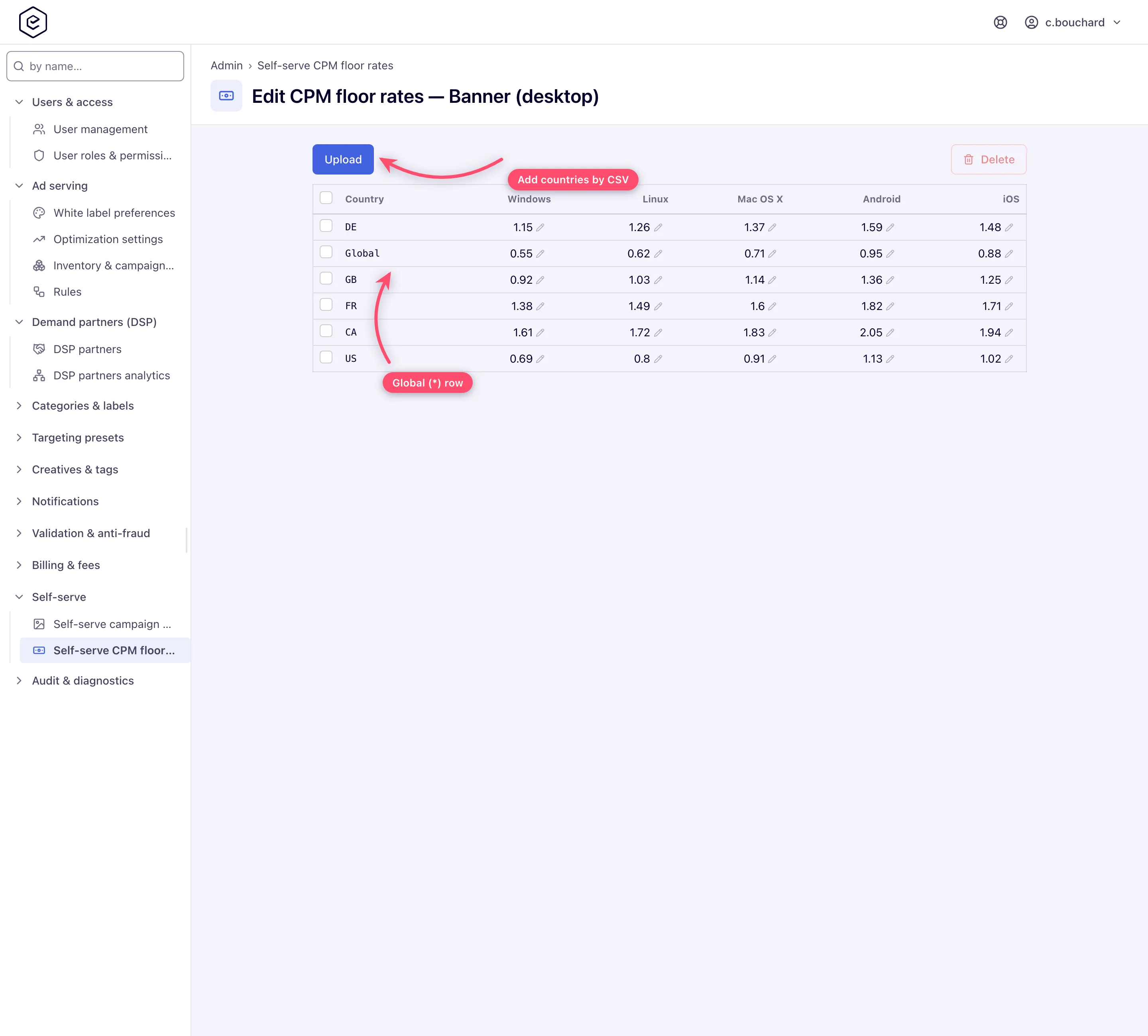
- To add countries, click Upload and pick a CSV. This is the only way to create a row — there is no “add country” control anywhere on the page. Uploading a country/OS that already has a rate replaces that rate, so a corrected file reprices in one go.
- To change a rate that already exists, click the cell, type the new value and press Enter or click away. The cell saves on its own; there is no page-level Save, and no confirmation — a successful edit just leaves the new number in the cell.
- To remove countries, tick their rows and click Delete. Confirm Delete N record(s)? and you get an Entries has been removed. toast. A delete removes that country’s rates for all five operating systems, in the campaign type you are editing only.
CSV format
Three comma-separated columns in the order country, operating system, rate. UTF-8, and no header row — a header line is read as data and rejected as an invalid record.
- country — an ISO 3166-1 alpha-2 code, or
*for global. - os — the operating system’s display name (
Windows,Linux,Mac OS X,Android,iOS) or its constant name (WINDOWS,LINUX,MAC_OS_X,ANDROID,IOS), both spelled exactly. Any other value is accepted when it contains one of the OS names, case-sensitively —Android 14→ Android; butiPadresolves to iPadOS andWindows Phoneto Windows Phone, which are not among the five. - rate — a number, zero or greater.
US,Windows,0.90
US,Linux,0.85
US,Mac OS X,1.10
US,Android,1.25
US,iOS,1.40
*,Windows,0.40
*,Linux,0.35
*,Mac OS X,0.50
*,Android,0.55
*,iOS,0.60
Every country in the file must carry a rate for all five operating systems (an extra
operating system such as Windows Phone is saved for a complete country but never shown in the
five-column matrix — suggest without an os still counts it). A country
short of one is dropped in full, and the upload reports Records for the following countries
were ignored because they don’t have rates for all required operating systems: ….
Other rejections you will see, one message per offending line: Invalid line: [ZZ, Win, 1.10] (the operating system did not resolve, or the country is empty, or the rate is not a number), Invalid country code: XX, Invalid rate value: -1.0 for a negative rate, and Invalid record: […]. Expected: country, os, rate when a line does not have exactly three columns.
Warning: an upload with any rejected line ends with an error toast listing the messages, not Done — but the lines that were valid are still saved. Read the error toast, then check the grid to see which countries made it in.
How a rate becomes a price
Your storefront asks GET /rest-api/floorCPMs/suggest for a campaign type and advertiser,
optionally narrowed by os and geo. The server collects every matching row, takes the
single highest rate among them, and returns two numbers:
| Figure | How it is derived |
|---|---|
| minimal | highest matching rate × the advertiser’s CPM floor adjustment ÷ 100. The adjustment is a per-advertiser percentage that defaults to 100, so by default minimal equals the raw rate. It has no console control; set it over REST with the advertiser’s selfServeCpmFloorAdjustment parameter (0–10000). |
| suggested | (rate × A ÷ 100) + (rate × B ÷ 100 × (1 + rate)^-0.6), rounded to two decimals. A (default 207) and B (default 90) are server-side settings; ask Epom support or your account manager to change them. The advertiser adjustment does not enter this figure. |
With stock configuration a 1.00 rate yields a suggested CPM of 2.66 and, for an advertiser left at 100%, a minimal of 1.00.
GET /rest-api/floorCPMs returns the raw rows instead, for a client that wants to render
the matrix itself; it requires campaignType and os (a missing or unknown one is a 400
naming it), and region or geo narrow it. Both endpoints use REST API authentication.
suggest needs campaignType and advertiser and answers
{"SuggestedCPM": {"minimal": …, "suggested": …}}. It is 403 without a view share on the
advertiser, and 404 when the advertiser does not exist or no rate matches. os takes names
or IDs, comma-separated; a geo value that starts with - (geo=-US) excludes those
countries instead of selecting them, and * / 0 select the Global row.
The floor is advice, not a gate
Nothing in the ad server ever compares a bid against these rates. They are read only by the admin pages here and the two REST endpoints above. The floors that ad serving does apply are the unrelated publisher bid floor and the OpenRTB deal floor.
The advertiser’s CPM floor adjustment plays no part in ad serving either. If your storefront lets a buyer price below the suggested figure, the campaign serves at that price.
Options and fields
Prototype banner form
| Field | Required | Notes |
|---|---|---|
| Self-Serve type | Yes | One of the seven types. Defaults to Banner (desktop). Only one prototype may exist per type. |
| Prototype banner ID | Yes | Numeric ID of the seed banner. It must not be deleted, and neither its campaign nor its advertiser may be deleted. Left empty, the form refuses to submit with Banner ID is required; an ID the server cannot resolve comes back as Banner not found. under the field. |
| Default conversion action ID | No | Numeric ID of a conversion action that is not deleted and not shared by default. Clear the field to unset it. An ID that does not resolve is refused with Action with id [N] is not found under the field — see the corner case below. |
Floor matrix controls
| Control | What it does |
|---|---|
| Upload | Multipart CSV upload into the campaign type you are editing. The only way to create rows; a row that already exists takes the uploaded rate. |
| Cell (inline edit) | Updates one existing country/OS rate. Enter or blur commits; Escape reverts. |
| Row checkbox / header checkbox | Selects one country, or all of them. |
| Delete | Removes the selected countries’ rates for this campaign type. Disabled until something is selected. |
Corner cases and gotchas
Corner case: a Default conversion action ID that does not resolve — no such action, a deleted one, or one that is shared by default — is refused with Action with id [N] is not found on that field, and nothing is saved. Clearing the field is the only way to unset it.
Corner case: CSV upload is the only way to create a country’s rates; it also replaces rates that already exist. Inline editing only changes an existing rate — an inline edit on a country/OS with no rate behind it is rejected with No corresponding record found.
Corner case: because a country is only accepted with all five operating systems at once, every row you can see should already have five rates. A
—in the grid means the row was written outside the admin UI, and clicking that cell will not fill it in — the update call has no record to update.
Corner case: one unresolvable OS spelling costs more than its own line. The line is rejected, and its country, now short of one of the five operating systems, is dropped in full — including the lines for it that were valid. Fix the spelling and upload the country again.
Corner case:
*(Global) is not a fallback./rest-api/floorCPMs/suggestfilters by exactly the countries you pass, sogeo=USwith no US rows returns 404 — it does not fall back to the Global row. Global only participates when the caller passesgeo=*,geo=0, or nogeoat all. Seed the specific countries your storefront asks for.
Corner case: the suggested CPM is derived from the highest matching rate, not an average and not the closest match. A single expensive country or OS left in an unconstrained query pulls the whole suggestion up.
Corner case: a rate keeps four decimal places and cannot be negative; the largest rate it can hold is 9 999 999.9999. The inline editor and the CSV parser both reject values below zero.
Corner case: a prototype’s banner and default action cannot be hard-deleted while the prototype references them. A normal delete in the account UI is a soft delete, though, and passes straight through: the prototype row survives, looks healthy in the grid, and every clone request for that type starts failing with Banner id not found. Audit prototypes after pruning creatives.
Corner case: the seven campaign types are a fixed list. There is no eighth, and adding one is a product change.
Corner case: when its request fails — a dropped connection, say — the floor matrix reads Failed to load rather than its empty-matrix hint. Reload before editing; the rates are still stored.
Corner case: the campaign-type list on the floor-rates page labels its second column Conversion actions. It holds the Edit links and has nothing to do with conversion actions. Ignore the heading.
Corner case: the white-label
hideSignUpproperty only hides the sign-up link on the sign-in page (classic and new); it does not disable/signUp. Which roles can sign up is each role’s Sign-up grant — see Configure white-label branding.
Per-role notes
- Administrator — needs each page’s admin permission; without it the page still opens by URL but never loads.
- Network manager, publisher, advertiser — cannot reach these pages. The campaign’s self-serve type and the advertiser’s CPM floor adjustment are admin-only grants as well.
- Self-serve user — an ordinary network user. Whether a role may sign up is that role’s Sign-up grant, not a white-label setting.
Exact grants: see Manage users, roles and permissions.
