
Block demand and inventory (pre-targeting blocks)
Block a named advertiser, campaign or banner on your inventory — or a named site or placement on your demand — then find, remove and audit the rules that result.
Besides dimension rules (browser, operating system, day of week…), the two sides of the platform can refuse each other by name:
- Inventory blocks demand — a placement or site refuses a named banner, campaign or advertiser.
- Demand blocks inventory — a banner or campaign refuses a named site or placement.
Both are stored as ordinary targeting rules, in five dedicated rule types: Blocked Banners, Blocked Campaigns, Blocked Advertisers, Blocked Placements and Blocked Sites. They never appear in the add-rule picker on the Targeting card, whatever your permissions: blocks come only from the two flows below.
Who this is for
- Publishers and network managers refusing a named advertiser, campaign or banner on their own inventory, from the Banners probability grid on a placement.
- Advertisers and network managers refusing a named site or placement from their demand, from an analytics report.
Before you start: blocking by name is switched off for all three roles as shipped — on both sides. The Banners probability grid is there, and reports run as usual, but the Block buttons are not drawn until your network administrator turns the scope you need on for your role. See Per-role notes. Read the rest of this page to know what to ask for: each scope — this placement, this site, all sites — is switched on separately, as is being able to see who blocked me.
Prerequisites
- The placement is saved, and the banners you want to block are linked to it — the Banners probability grid is a live simulation, so rows that cannot win right now show as NA.
- For the analytics flow, a report that has run and returned rows, grouped so that the buttons appear (see the table under Options & fields).
Steps — block an advertiser, campaign or banner on your inventory
-
Go to Account → Publishers → site → zone → placement and scroll to Banners probability. The grid lists every eligible banner with its computed share of the placement’s traffic.
-
Optionally narrow it: the Search box matches advertiser, campaign and banner names, and Grouping (Banner / Campaign / Advertiser) collapses the grid to that level.
-
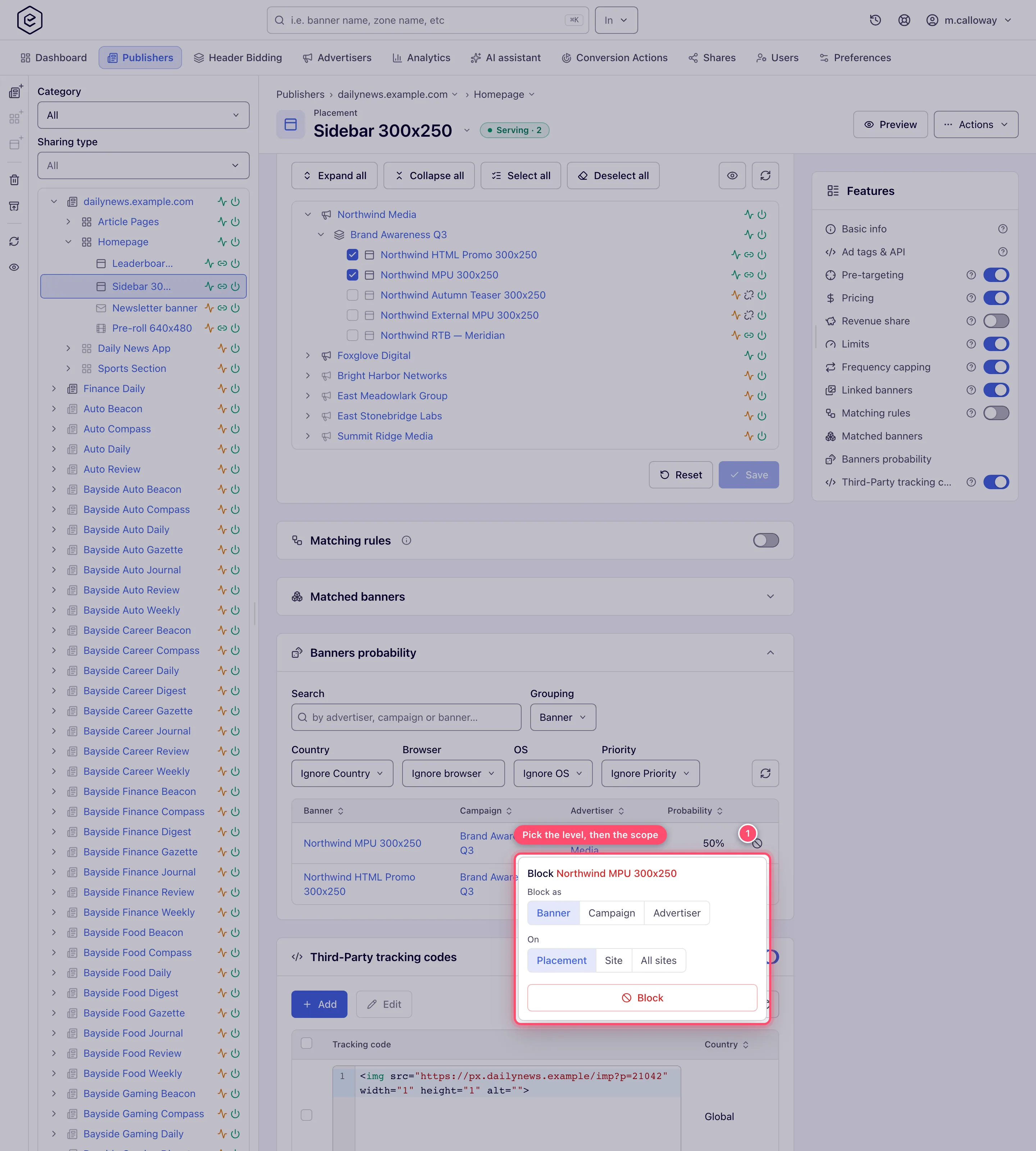
On the row you want, click the Block button at the end of the row (a circle-with-slash icon). A popover opens headed Block <row name> with two choices:
- Block as — Banner, Campaign or Advertiser. Only the current grouping level and the levels above it are offered, so grouping by Advertiser leaves Advertiser as the only choice.
- On — Placement, Site or All sites. A control with a single option renders as plain text rather than a segmented button.
-
Click Block. A confirmation dialog asks “Block advertiser on site?” (the wording follows your two choices). Click Confirm.
-
On success a green toast reads “Successfully blocked advertiser on the specified scope” and the grid reloads.
-
Open the Pre-targeting card of the entity you wrote the rule to — the placement for a Placement scope, the site for Site and All sites. The new rule sits under Excluded: Blocking, as a chip such as
Advertiser: Northwind Media.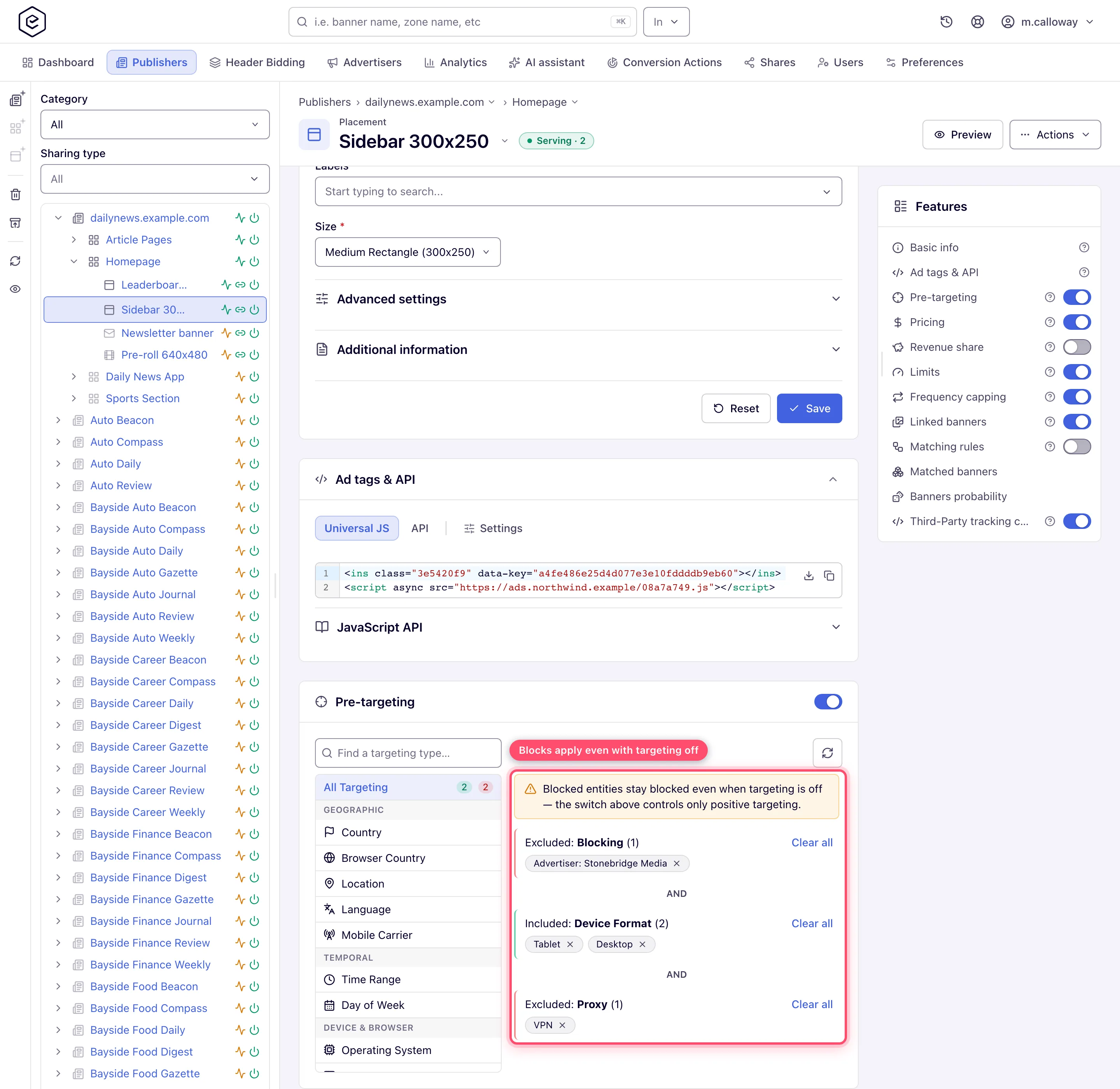
Note: the rule is saved immediately, but the Banners probability grid reads the ad-server’s in-memory cache, so the change shows only after the next cache refresh. A blocked advertiser or campaign then shows as NA; a blocked banner drops off the grid.
What each choice actually writes
Block as decides which entity the rule names, and therefore how much demand it removes.
| Block as | Rule type | What stops serving |
|---|---|---|
| Banner | Blocked Banners | that one creative; the campaign’s other banners keep serving |
| Campaign | Blocked Campaigns | every banner in that campaign |
| Advertiser | Blocked Advertisers | every campaign the advertiser has — including campaigns created after you set the block, because the ad server resolves the advertiser’s campaign list at request time |
On decides where the rule is stored, and therefore how much inventory it covers.
| On | Rule is written on | Rows created | Reach |
|---|---|---|---|
| Placement | the placement | 1 | this placement only |
| Site | the site the placement belongs to | 1 | every placement under that site, including ones added later |
| All sites | every site your account can currently see | one per site | those sites only — a site created afterwards is not covered, because the fan-out is a snapshot taken when you click Block |
Corner case: All sites is not a switch, it is a bulk write. For a banner-level block the fan-out covers the sites shared with you plus any site the banner is already linked to; for campaign and advertiser levels it covers the sites shared with you. Each resulting row is independent, so undoing it means removing the chip on every site one at a time — there is no “unblock everywhere” action.
Steps — block a site or placement from your demand
This is the mirror direction: the rule is written on a banner or campaign and names a site or placement.
-
Go to Account → Analytics and build a report that groups by Site (or Placement) together with Banner or Campaign — the buttons only appear for those combinations.
-
Click Run report and wait for the results grid.
-
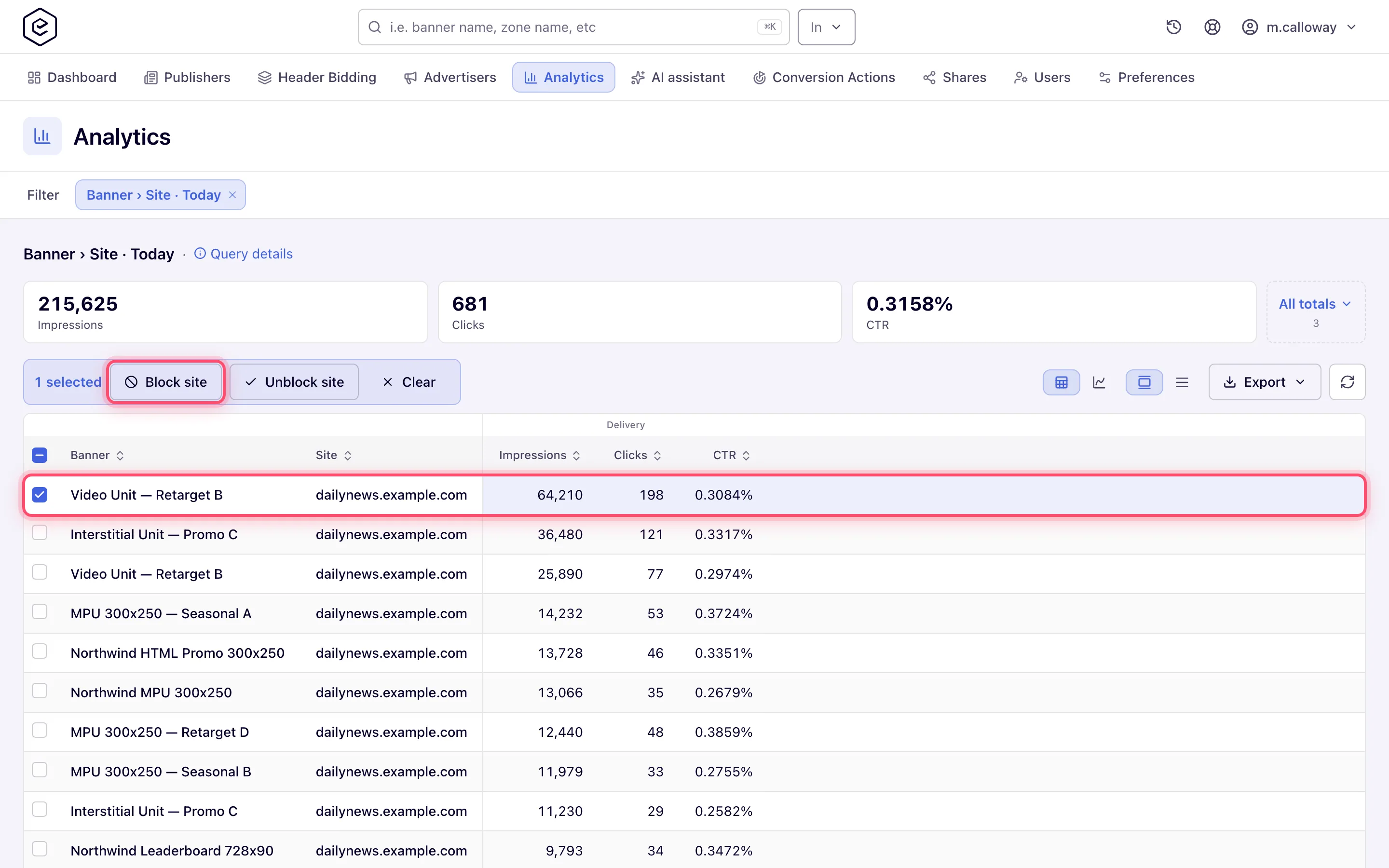
Tick the rows whose traffic you want to cut off. A highlighted selection bar appears above the grid reading “N selected”.
-
Click Block site or Block placement.
-
A toast reads “Records have been blocked”. The rule is written to each selected row’s banner if the report groups by Banner, otherwise to its campaign.
-
To undo, select the same rows and click Unblock site / Unblock placement, or open the banner’s (or campaign’s) Targeting card and remove the chip from Excluded: Blocking.
Note: a block or unblock the server refuses — a missing permission, or a row it cannot write — shows the server’s reason as an error toast instead of the success one. An Unblock that finds no matching block has nothing to refuse, so it still reports success; after a bulk unblock, confirm on the banner’s or campaign’s Targeting card that the chips are what you expect.
Where a block appears, and where to remove it
A block is one row, shown from both ends. The side that owns it sees it under Blocking; the side it was aimed at sees it under is Blocked by — and that second group exists only for users who hold Blocked by.
| Rule | Owned by | Shown as Blocking on | Shown as is Blocked by on | Removed from |
|---|---|---|---|---|
| Blocked Banners / Campaigns / Advertisers, scope Placement | the placement | the placement | the entity it names, and everything under it — an advertiser block also surfaces on each of that advertiser’s campaigns and banners | the placement’s Pre-targeting card |
| Blocked Banners / Campaigns / Advertisers, scope Site or All sites | the site (one row per site) | the site — and every placement under it | same as above | each site’s Pre-targeting card |
| Blocked Sites | the banner or campaign | that banner or campaign | the named site, and its zones and placements | the banner’s/campaign’s Targeting card, or Unblock site in analytics |
| Blocked Placements | the banner or campaign | that banner or campaign | the named placement only | the banner’s/campaign’s Targeting card, or Unblock placement in analytics |
Corner case: a placement’s Pre-targeting card lists its site’s blocks inside its own Blocking group, marked (inherited from the site) and without an ✕ (a banner does the same with its campaign’s blocks, marked (inherited from the campaign)). The block is one rule on the site or campaign that applies to every placement or banner under it, so it is removed on that parent’s own card, not from a child.
Corner case: the same entity blocked at both placement and site level produces two chips with identical text in the placement’s Blocking group. Removing one leaves the other in force.
Unblocking is direction-specific. The analytics Unblock site / Unblock placement buttons only remove Blocked Sites and Blocked Placements rows from a banner or campaign. They cannot touch a publisher’s block on their inventory, and nothing in analytics can — those come off the placement’s or site’s own Pre-targeting card.
What the blocked advertiser sees
Nothing, by default. A blocked banner simply stops being selected; there is no notice, no status change, and no entry on the campaign — the traffic just stops. The ad server files the drop under the same generic targeting exclusion it uses for any rule that did not match, so even a troubleshooting trace does not separate “the publisher blocked this creative” from “it failed the country rule”.
The one place it does surface is the entity’s own Targeting card, under is Blocked by,
with a chip like By Site: Harbour Gazette or
By Site: Harbour Gazette > Zone: Homepage > Placement: Article MPU. That group is added only
for users holding Blocked by — so two people can open the same banner and only one of them
learns that a publisher has blocked it. It aggregates upwards too: a banner shows blocks aimed
at its campaign and its advertiser, not only at itself.
Corner case: a name in these chips is masked when you cannot view that advertiser or site, and — if your account has Mask Campaigns or Mask Inventory — also when you do not own it. The masking applies on every targeting card, supply and demand. The masked text is built from the id (
ADVERTISER_9,SITE_4), except on a masked blocked-advertiser chip, which can show the bare type tokenBLOCKED_ADVERTISERSinstead of any label.
Corner case: an is Blocked by chip for a banner-level block on a site, zone or placement card ends in a stray fragment of HTML —
… > Banner: Northwind MPU 300x250 <a href="/account/advertisers/banner-preview.do?…"></a>. Ignore the tail; the part before it is the real value.
Options and fields
Block popover (Banners probability grid)
| Control | Options | What it does |
|---|---|---|
| Header | — | Reads Block <name>, where the name is the row’s name at the current grouping level — not necessarily the entity you are about to block |
| Block as | Banner, Campaign, Advertiser | Chooses the rule type. Only the grouping level and the levels above it are offered |
| On | Placement, Site, All sites | Chooses where the rule is written. One option per Block … on … permission you hold |
| Block | — | Opens the confirm dialog (Confirm / Cancel) |
Analytics selection bar (appears once at least one result row is ticked)
| Button | Appears when | What it does |
|---|---|---|
| Block site / Unblock site | Blocked Sites enabled, report grouped by Site and by Campaign or Banner | Adds/removes a Blocked Sites rule on the row’s banner (or campaign) |
| Block placement / Unblock placement | Blocked Placements enabled, report grouped by Placement and by Campaign or Banner | Adds/removes a Blocked Placements rule the same way |
| Block channel | Channel targeting enabled, report grouped by Banner and Channel | Adds a Channel exclude rule — a dimension rule, not a named block |
| Set banners OFF | Banner-status permissions, report grouped by Banner | Deactivates the banner; unrelated to blocking |
| Clear | always | Clears the selection |
Groups in the Targeting / Pre-targeting card
| Heading | Contains | Chips |
|---|---|---|
| Excluded: Blocking (N) | blocks this entity holds, plus blocks inherited from its site or campaign | removable, with Clear all for the group — except inherited chips, which are marked as such and removed on the site or campaign |
| Excluded: is Blocked by (N) | blocks other entities hold against this one | removable unless your Blocked by grant is read-only |
Blocked rules are always exclude rules — the server rejects anything else with “Please use only Exclude rule.” — so both groups only ever render an Excluded: block, never an Included: one.
Corner cases and gotchas
Corner case: blocks keep working when targeting is switched off. The ad server loads blocked-entity rules regardless of an entity’s targeting switch, so turning Pre-targeting off does not release anything you blocked. The card stays collapsed while its switch is off and does not list any rules, so a placement with blocks and targeting off shows only the card header — and on a window wide enough for the Features rail not even that, only the switched-off rail entry — even though it is still refusing the blocked demand. To review or remove blocks, switch targeting on — the block groups and the “Blocked entities stay blocked even when targeting is off” note appear in the card body.
Corner case: creating a block silently switches targeting on for the entity that receives the rule, because the write path enables it. Any positive rules that entity already had — and that you had deliberately parked by switching the card off — start applying again at the same moment. The page does not repaint the switch, so it still reads off until you reload the page; reload after blocking to see the real state.
Corner case: setting an entity’s rule-type operator to OR can stop its blocks being applied. Rule types are evaluated in order with blocked types last, and OR stops at the first type that passes — so a placement with any passing dimension rule never reaches its blocked list. Leave entities that block on the default AND.
Corner case: the popover header and the confirmation dialog can both name the wrong thing. With Grouping on Banner and Block as on Advertiser, the header still reads “Block Northwind Leaderboard 728x90” and the dialog only says “Block advertiser on site?” — neither names the advertiser you are about to remove from the placement. Read the Block as control, not the header.
Corner case: the ✕ on a blocked chip is drawn for anyone who can manage the card, even without the blocked-type permission. Without Show Blocked Banners the click comes back as “You do not have permission to delete target for this Zone” and the chip stays. The toast says “Zone” whichever entity the card is on — its wording is fixed in the card.
Corner case: blocking from analytics writes one rule per selected row, in sequence, and stops at the first refusal. The rows before it stay blocked and the rest are not attempted; the error toast names the refusal, not the row.
Corner case: a block that points at a deleted entity is kept but hidden from the card, so restoring a deleted banner or site also restores every block that named it.
Corner case: the REST API covers the blocks only in part. It can create Blocked Sites and Blocked Placements on an advertiser, a campaign or a banner (
POST /rest-api/{advertiser|campaign|banner}/{id}/targeting/{site|placement}/create.do), and it can block advertisers on a placement (POST /rest-api/placement/{placementId}/targeting/advertiser/create.do?advertiserIds=…&rule=…, which needs Block Advertiser/Campaign/Banner on Placement). It cannot block a campaign or a banner on a placement, or anything on a site or a zone — those come only from the Banners probability grid.GET /rest-api/blocked/entities.dolists the blocked advertisers and placements visible to the caller. Like the console, the placement endpoint takes onlyrule=EXCLUDEand answers anything else with a 400 “Please use only Exclude rule.”
Per-role notes
- Publisher — blocks from the Banners probability card on a placement. Each scope (placement, site, all sites) is switched on separately, so you may block on one placement but not site-wide. Every scope also needs Show Blocked Banners, the permission that writes the block — without it no Block button is drawn, whichever scopes are on.
- Advertiser — blocks from an analytics report; Block site and Block placement are switched on independently.
- Network manager — both entry points, once your network administrator switches them on.
- Shared-entity viewer — on a Can View share, blocked chips have no ✕ or Clear all and no Block button appears; blocking needs Can Edit or Is Owner.
