
Sell pre-roll video in your player
Recipe for VAST video monetization — a video placement with skip and pod settings, the tag URL your player loads, video demand with companions, event tracking and fill measurement.
You run a video player on your site or app and want to sell the pre-roll (or a pod of ads before content). In Epom that is one Video placement whose tag URL your player loads; everything else — skip rules, pods, demand, tracking — hangs off it.
Who this is for
Publishers integrating a player and network managers running video demand.
Prerequisites
- A player that accepts a VAST ad-tag URL (for VPAID or VMAP: a player supporting those specs). Any IAB-VAST-compatible player works — you configure the player with one URL.
- A site and zone to own the placement.
- Video demand: your own video creatives, third-party VAST tags, or programmatic partners that bid on video.
Steps
-
Create the placement. On the zone, choose Add new placement… → Video Placement, name it and save (details).
-
Set the viewer experience in the VAST configuration block of Basic info:
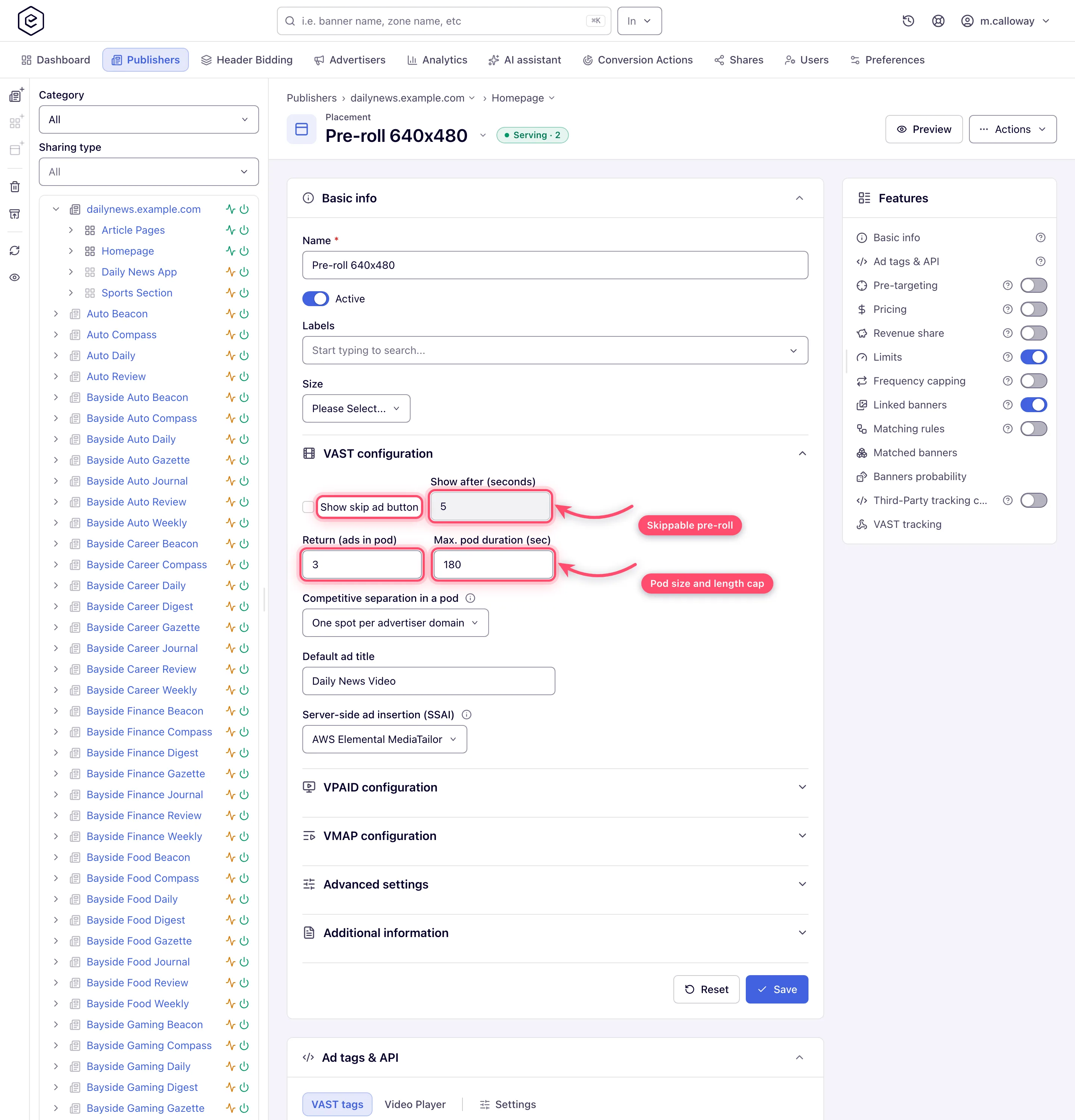
- Show skip ad button + Show after (seconds) — skippable pre-roll (0–60 s);
- Return (ads in pod) — leave at 1 for a single pre-roll; raise it (up to 20) to return an ad pod, and cap the total with Max. pod duration (sec);
- Default ad title — fallback title for creatives that carry none.
For VMAP responses, set Max pre-rolls in the VMAP configuration block. Full field reference: Video placements.
-
Declare player capabilities for programmatic in the RTB configuration block of Basic info — Playback method, API framework, Min. ad duration (sec), Max. ad duration (sec) and Skip min (sec). These are bid-request signals for DSP demand; set them honestly or partners bid with creatives your player can’t run. No role has the block out of the box; ask your network manager (or, as a network manager, your network administrator) to switch it on.
-
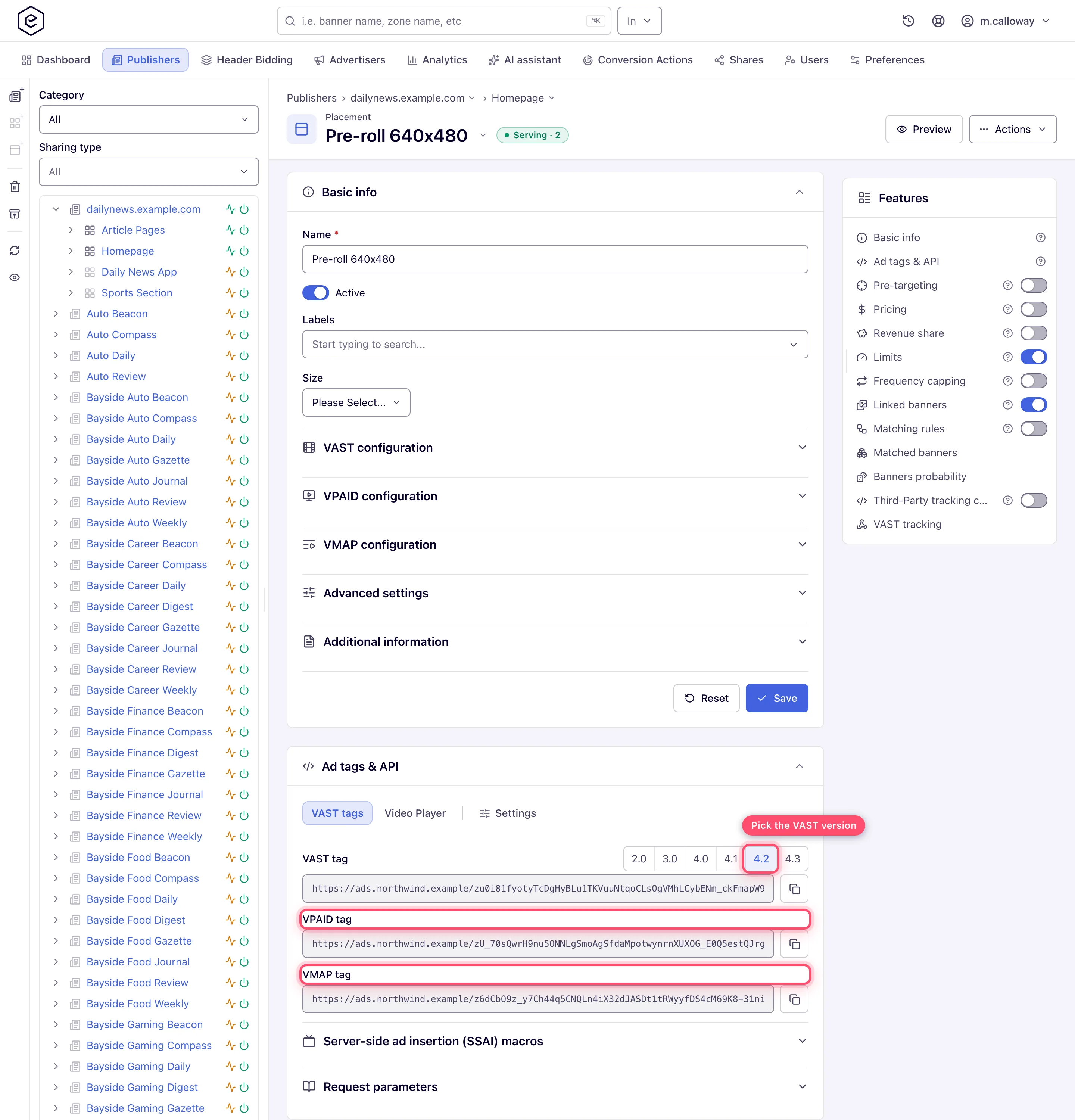
Save, then copy the tag from the VAST tags tab of the Ad tags & API card. If your network has several ad-serving domains, pick the Domain first on the card’s Settings tab (the picker is hidden on roles not allowed to pick a domain). Choose the spec your player asks for in the VAST version picker (4.2 by default), then copy the VAST tag, VPAID tag or VMAP tag URL and paste it into your player’s ad-tag setting. Leave the version at 4.2 unless your player demands otherwise: 4.1 and up is what lets the ad be viewability-measured, and VPAID and VMAP do not follow the picker.
-
Add demand. On the advertiser side, create video banners — uploaded or hosted video files, a third-party VAST/VPAID tag, a VPAID framework creative, or the multi-file Advanced Local Videos — and link them to the placement (video banner types). Add Companion ads on the banner if a display creative should render next to the player during playback.
-
Wire up tracking on the placement’s VAST tracking card (needs Manage Placement’s VAST Events):
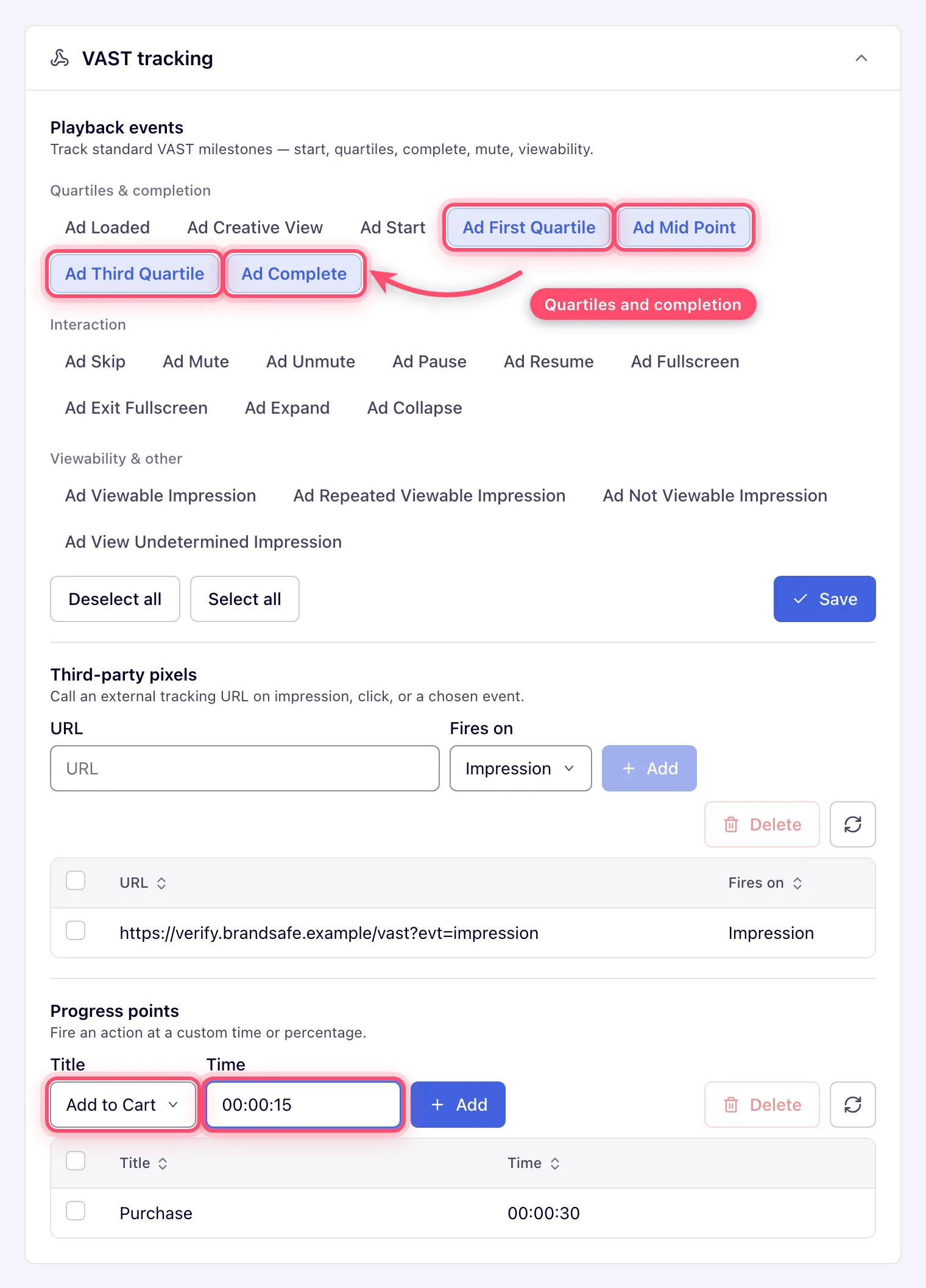
- enable the playback events you want recorded (quartiles, completion, skip, mute/pause, viewability);
- add progress points that fire a
conversion action at a custom playback
time, entered as
HH:mm:ss— e.g. “watched 15 seconds” as a billable/reportable event; - add third-party pixels for an external verification vendor on impression, click or any VAST event.
-
Measure fill. Run a General report grouped by Placement, with Time granularity set to Day, and the Requests and Impressions columns — fill rate is impressions ÷ requests. Progress-point conversions appear as conversion columns filtered by their action (running reports). If requests arrive but impressions stay near zero, walk Ads are not serving.
Corner cases and gotchas
Corner case — a tag below VAST 4.1 cannot be viewability-measured. In the new interface the version picker defaults to 4.2, so a freshly copied tag is fine; but a tag pasted into your player earlier, or copied from the classic placement page (which offers only fixed VAST 3.0 / 4.0 / VPAID / VMAP rows and has no picker), carries no viewability at all. Re-copy it at 4.2 — which fixes it provided your player implements Open Measurement, since the version alone is only half the requirement. See Video viewability and Open Measurement.
Corner case — RTB constraints do not filter your directly-linked banners. A directly linked 60-second creative still serves even when Max. ad duration says 30. The RTB block constrains programmatic bids only; police direct demand yourself when linking.
Corner case — the whole video block saves with the Basic info Save button. There is no separate save inside the VAST/VMAP/RTB sections; edit pods and navigate away, and the changes are gone (the unsaved-draft banner offers to restore them on return).
Note — pods need a pod-aware player. Setting Return (ads in pod) above 1 changes the response into a multi-ad pod. Verify your player actually plays pods before raising it — a player without pod support typically plays only the first ad, and you will under-deliver versus what reports suggest was returned.
Per-role notes
- Publisher: the video placement and its VAST tag are yours.
- Network manager: the RTB configuration on the placement has to be switched on for your role by your network administrator. Video demand is built on the advertiser side.
- Can view share: settings are read-only, but the tag URL still copies.
- Demo account: Preview on a video placement opens the live demo page with the placement’s VAST tag.
