
Copy and preview an ad tag
Copy a placement's default tag from the grid or tree without opening the editor, and check how the tag serves on the standalone preview page — container size and page mockups, request overrides (code type, IP, channel, custom parameters) and the shareable 30-day preview link.
Two shortcuts around the placement’s Ad tags & API card: the Copy ad tag quick action puts a placement’s default tag on the clipboard straight from a grid, and the Preview page shows the tag serving — in a resizable container or a page mockup — and gives you a link you can send to people who have no login. Choosing a tag type and setting it up are on Ad tags, invocation codes and the API.
Who this is for
Publishers and network managers who hand out tags and check them before they go live, and anyone who needs to show a placement to a site owner or an advertiser.
Prerequisites
- A saved placement of a type that self-renders: Site, Non-standard, Mobile Site, Video or Email (Native, Application and Click-through placements have neither the quick action nor Preview).
- For a preview: the placement, its zone and its site switched on, and at least one tag type your role may generate for it.
Steps
- To copy a tag without opening the editor, click the Copy ad tag icon at the end of the placement’s row in the Grids view — see Copy-tag quick action. To copy a particular tag type, open the card and copy from its tab instead.
- To see the tag serve, click Preview in the placement editor’s header, or the eye icon next to the placement’s name in the placements grid — see Preview.
- Adjust the Container and Request controls, then click Copy to put a shareable link on the clipboard, or Open to open it.
Copy-tag quick action
In the Grids view (a display preference in Preferences), placement rows end in a Copy ad tag icon — in a zone’s placements grid, which is what opening a zone gives you there, and in the all-placements grid. One click puts the placement’s default tag on the clipboard without opening the editor, and a Copied toast confirms it.
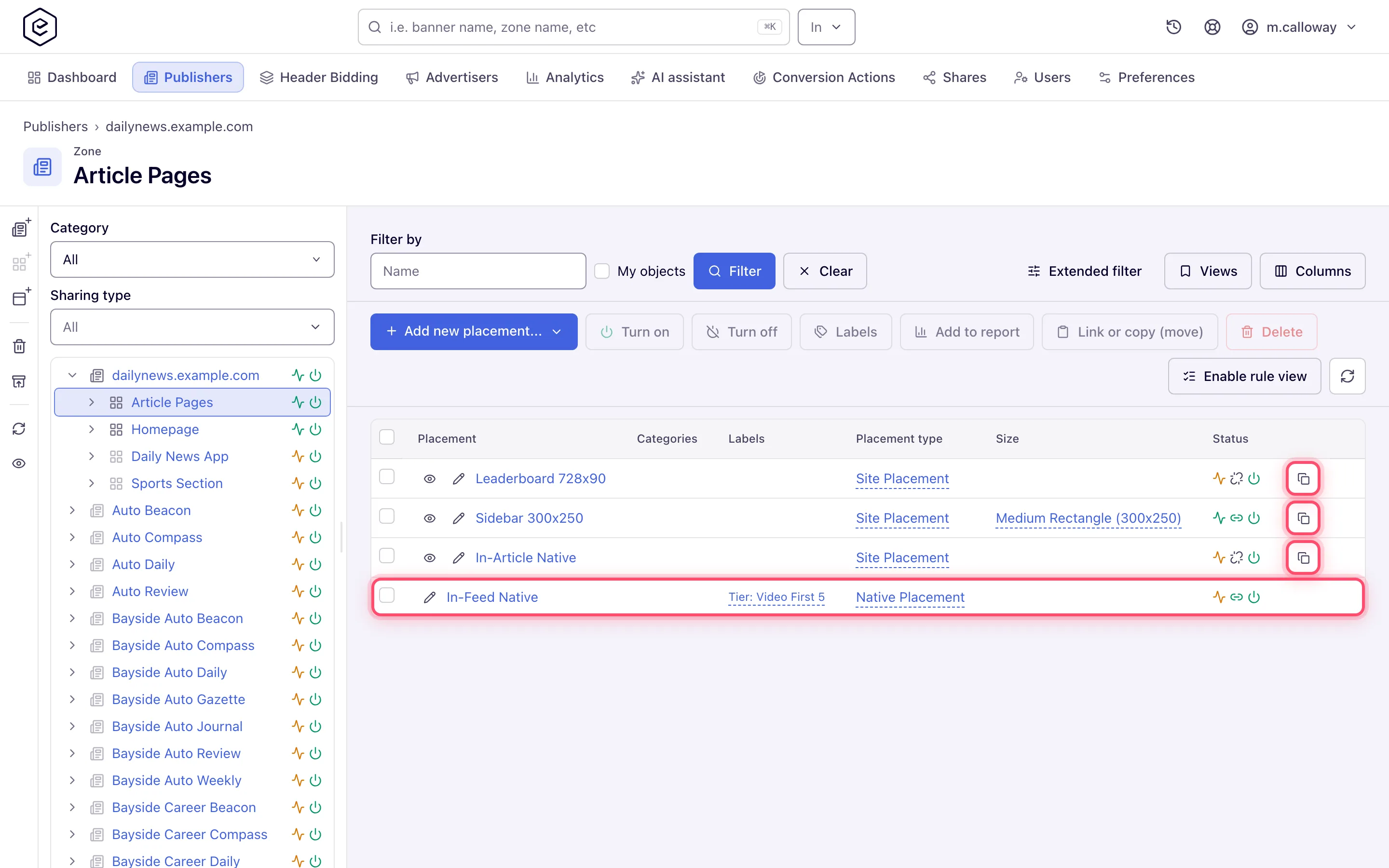
Only placement types that have a tag get the icon — Site, Non-standard, Mobile Site, Video and Email. Native, Application and Click-through rows have none. The tree shows the same icon on a placement row and in its hover card, but only for placements the tree draws as active (with recent traffic); a quiet placement has none there, so use the grid or the card.
When the default resolves to a type with no snippet, the action toasts “This placement type has no ad tag” — informational, not an error.
Corner case: the quick action and the card do not pick the default the same way. The card opens on the first tab your permissions leave standing; the quick action resolves its type on the server by walking the code types in their own fixed order — Simple Iframe, Video Player, API, Direct URL, Email, Universal JS, Mount JS — and taking the first one your role may use. So it gives you Simple Iframe or Direct URL before Universal JS wherever your role holds them, and on a Mobile Site placement with the API permission it resolves to API, for which no snippet exists, so the action reports “no ad tag” on a placement whose card visibly has tabs. Open the card and copy from the tab you want.
Preview
The header Preview button opens the standalone preview page in a new tab; the placements grid has the same page behind the eye icon next to a placement’s name. The button depends on the placement type, not on your role: Site, Non-standard, Mobile Site, Video and Email placements have it; Native, Application and Click-through placements do not (nothing self-renders).
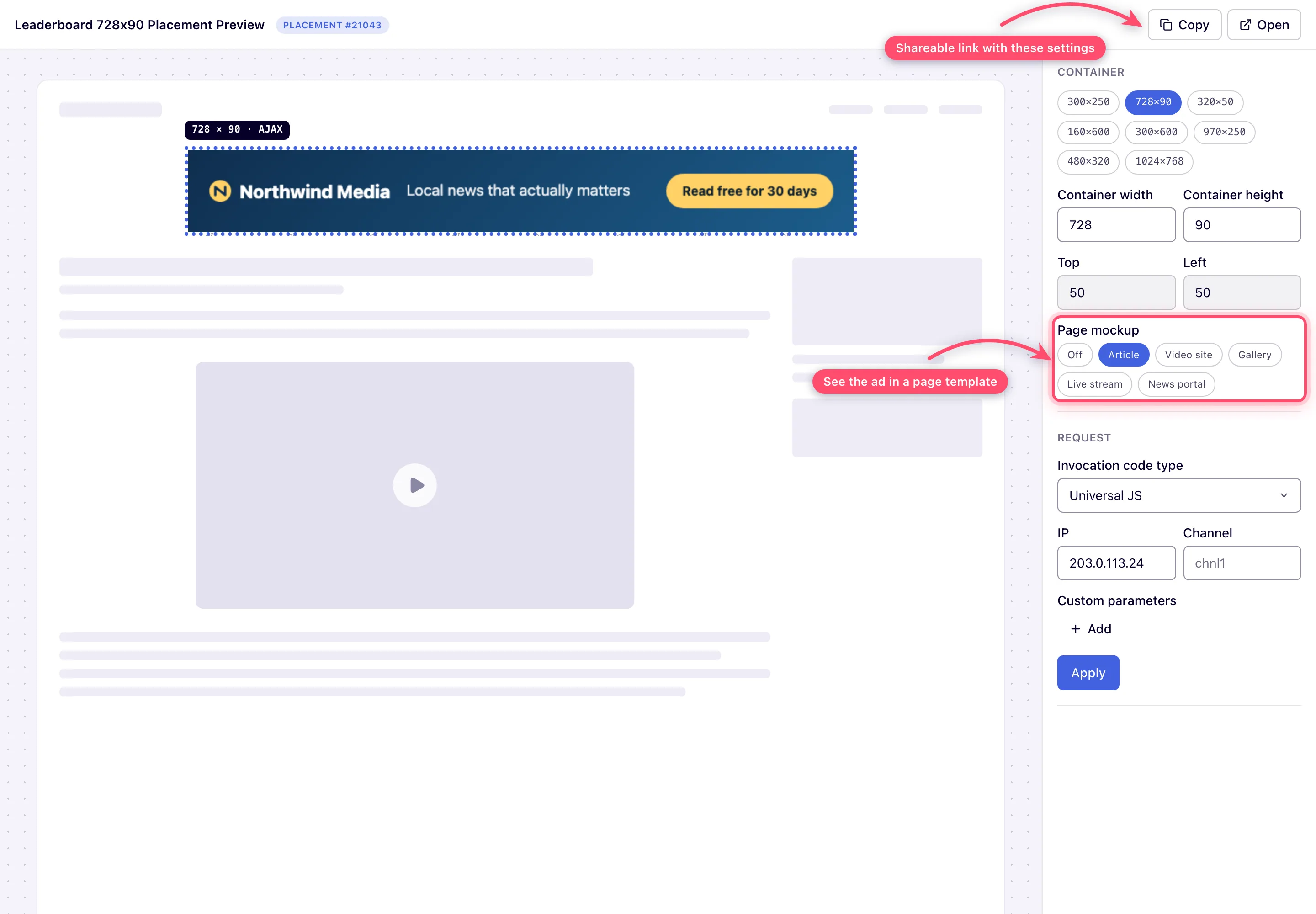
The page shows the placement’s title with a Copy and an Open button, the dotted Ad Container, and a panel of controls in two groups:
- Container (applies live, no reload): size chips for the common ad sizes, Container width and Container height, Top and Left offsets (disabled while a page mockup is on, because the mockup decides where the ad sits), and Page mockup — five CSS page shapes (Article, Video site, Gallery, Live stream, News portal) plus Off, which wrap the live ad container in a plausible page so you can judge the ad in context. The old free-text Background image URL field is gone; it survives only as a query parameter on links shared before it was removed, and while one is present the mockup picker is disabled.
- Request (press Apply to re-request the ad; choosing another type applies at once): Invocation code type, IP (serve as if from that address — handy for geo targeting checks; its placeholder is your own address), Channel, and Custom parameters as name / value rows with Add and a delete button per row. The group is offered only when the placement has at least one tag type the preview can render for you.
The type list is limited to what your role may generate and, for Universal JS, to networks that have an ad-serving domain. When there is none, the page opens with Not Supported inside the container and no Request group. A placement, zone or site that is switched off cannot be previewed: the page says Preview is not currently available for deactivated placement/zone/site.
Copy puts a link with the current settings on the clipboard (applying any pending Request edits first) and Open opens it. The link opens a bare view — only the ad on its stage or mockup, no controls — and works for people who are not logged in: it carries a token that authorises that placement’s preview, so you can send it to a site owner or an advertiser. There is no URL text field to copy it out of.
Corner case: the token is signed and expires after 30 days. A link older than that, or one made before release 152, opens nothing; copy a fresh one from the preview page. A placement’s token opens only that placement, not a creative that happens to share its id.
Corner cases and gotchas
The corner cases of the quick action and of the preview link are in their sections above. One more:
Corner case: on a demo account, on a network that has a demo page configured, the Preview button appears for every placement type. Site, Native and Video placements open that demo page with the placement’s own tag attached; any other type opens the standard preview.
Per-role notes
- Every role — the quick action and the Preview button depend on the placement type, not on the role; the tag the quick action copies and the Invocation code type list on the preview page are limited to the tag types your role may generate.
- Demo account — see the demo-page corner case above.
Exact grants: see User roles.
