
Use case: protect your inventory from bad creatives and bad traffic
A layered protection setup — banner moderation for what your advertisers upload, automated creative scanning for DSP demand, and the traffic-quality workflow for fraud.
Three independent layers, each catching what the previous one can’t:
| Layer | Catches | Where |
|---|---|---|
| Banner moderation | What your OWN advertisers upload | Account → Pending banners |
| DSP creative scanning | What EXTERNAL programmatic demand renders | Admin → Demand partners (DSP) → DSP creative scan, or Account → RTB → DSP creative scan |
| Traffic quality | Fraudulent/suspicious traffic on your inventory | Account → Traffic Quality |
None of the three is a gate on the others: a creative can pass moderation and still deliver bot traffic, and a placement scored Fraudulent keeps serving until someone stops it.
Who this is for
Network administrators. No network role has any of the three surfaces out of the box:
- Pending banners — reviewing creatives is an administrator capability, not part of any network role, and no role has it by default. It is granted under Admin → Users & access → Admin roles & permissions; if nobody in your network can open that page, ask Epom support or your account manager.
- Traffic Quality — off for every role until your network administrator switches it on for that role.
- DSP creative scan — the admin page is added to an admin role on request (ask Epom support or your account manager); the account-side RTB → DSP creative scan tab is off for every network role.
A network manager who needs Traffic Quality or the account-side scan console asks their network administrator to switch it on for their role.
Prerequisites
- Layer 1 is switched on per role, not per network (an administrator step): a user’s saves are moderated only when their role has moderation on — soft, or with deactivation — and someone must be able to review. A reviewer is never moderated themselves.
- Layer 2 needs a scan provider set up for your network by Epom support and Creative scan provider set on each DSP partner you want scanned. Partners left on None (trusted) are never scanned.
- Layer 3 needs Traffic Quality enabled for your network by Epom support, Advanced analytics available, and the tab switched on for the role.
Steps
-
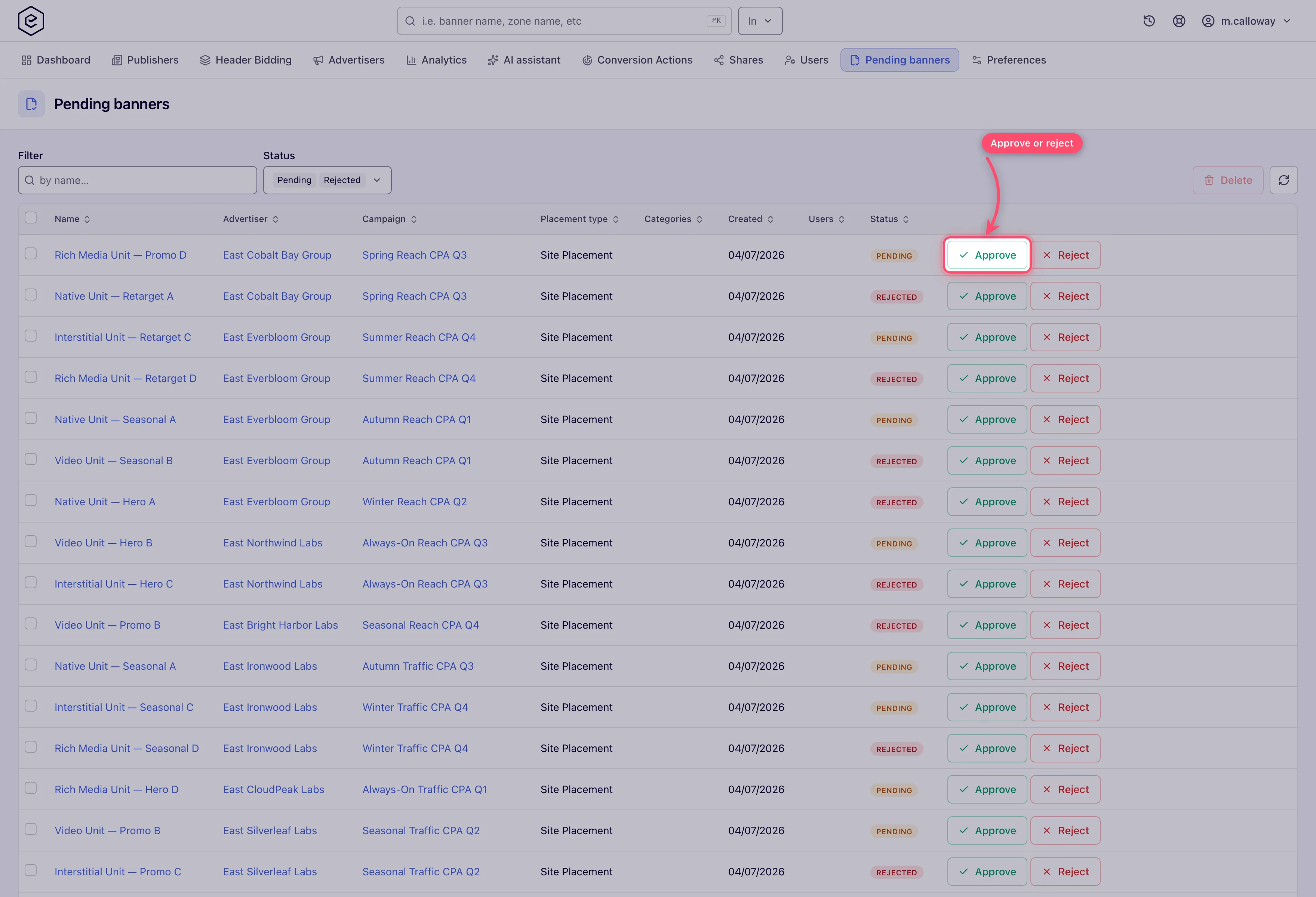
Turn on moderation (administrator step) for the roles whose uploads you want reviewed (see Prerequisites). The two modes differ: with moderation with deactivation a creative cannot be activated until approved and editing a moderated field switches it off again; with soft moderation an edit only sends the creative back to the queue and it keeps serving while it waits. Review at Account → Pending banners: the Status filter defaults to Pending + Rejected; click Approve or Reject on a row. Reject also switches the creative off, and approving does not switch it back on. Approve and Reject work one row at a time — Delete is the only action that takes a multi-row selection. The advertiser sees the status badge on the banner.
-
Enable creative scanning per DSP partner (administrator step: set the scan provider on the partner). Creatives from that partner are scanned for malware and policy violations; a Blocked one never wins the auction — the runner-up takes over. The scan console shows each creative’s status and is read-only: you cannot force a rescan or clear a verdict from it.
-
Watch traffic quality. The page scores placements — Site, Zone and Placement columns identify each row — with a Score, a Level (Clean, Suspicious, Fraudulent, Blocked), the share of proxy, emulator and duplicate traffic and named Indicators. The Level filter defaults to Fraudulent + Blocked. Generate report on a row produces a PDF for evidence. The page does not block anything: pausing or unlinking the placement, or tightening its pre-targeting, are separate steps you take on the placement.
-
Make it a weekly loop. Queue → zero, scan console → review new verdicts, traffic quality → review the Fraudulent and Blocked rows.
Corner cases and gotchas
Corner case: moderation applies at banner save time — already-approved banners are not re-queued when you first enable it. Do a one-time review of existing creatives if you’re switching moderation on for an established network. Likewise a brand-new banner from a moderated user starts as New, not Pending, until they use Submit for approval.
Per-role notes
- Administrator: the approval queue and the admin scan console are yours.
- Network manager: none of the three surfaces by default; ask your network administrator for Traffic Quality or DSP Creative Scan if you need them.
- Publisher and advertiser: they see only the effects — an approval badge on a moderated creative, or a blocked DSP creative losing the auction.
