
Header bidding with Google Ad Manager
Sell a page served by Google Ad Manager through header bidding — the script and containers that go on the page, the key-values, line item and creative to create in Ad Manager, and how the tag adopts a page’s existing Google slots.
Use this route when the publisher’s ads are served by Google Ad Manager: the tag brings Prebid, prices your demand before Google is asked, and hands the result to Ad Manager through key-values and a line item you create there. This page covers both ways the tag meets a Google page — defining the slots itself, or adopting the ones the page already has. The tag itself is built as under Steps on the main page.
Who this is for
Network managers and admins who build the tag, working with someone on the publisher’s side who can edit their Google Ad Manager — the key-values, order, line item and creative are created there, not in Epom. The tag needs the access listed under Permissions.
Prerequisites
- A saved tag whose What the tag brings is Prebid and the ad slots or Prebid only — reuse the publisher’s Google Ad Manager slots — see Create a tag.
- The ad unit path of every position you sell and, when adopting, the id of the div each slot renders into.
- Access to the publisher’s Ad Manager, or someone on their side who has it.
Steps
- Build the tag and its slots, filling GAM ad unit on each slot Google should also serve — see Slots.
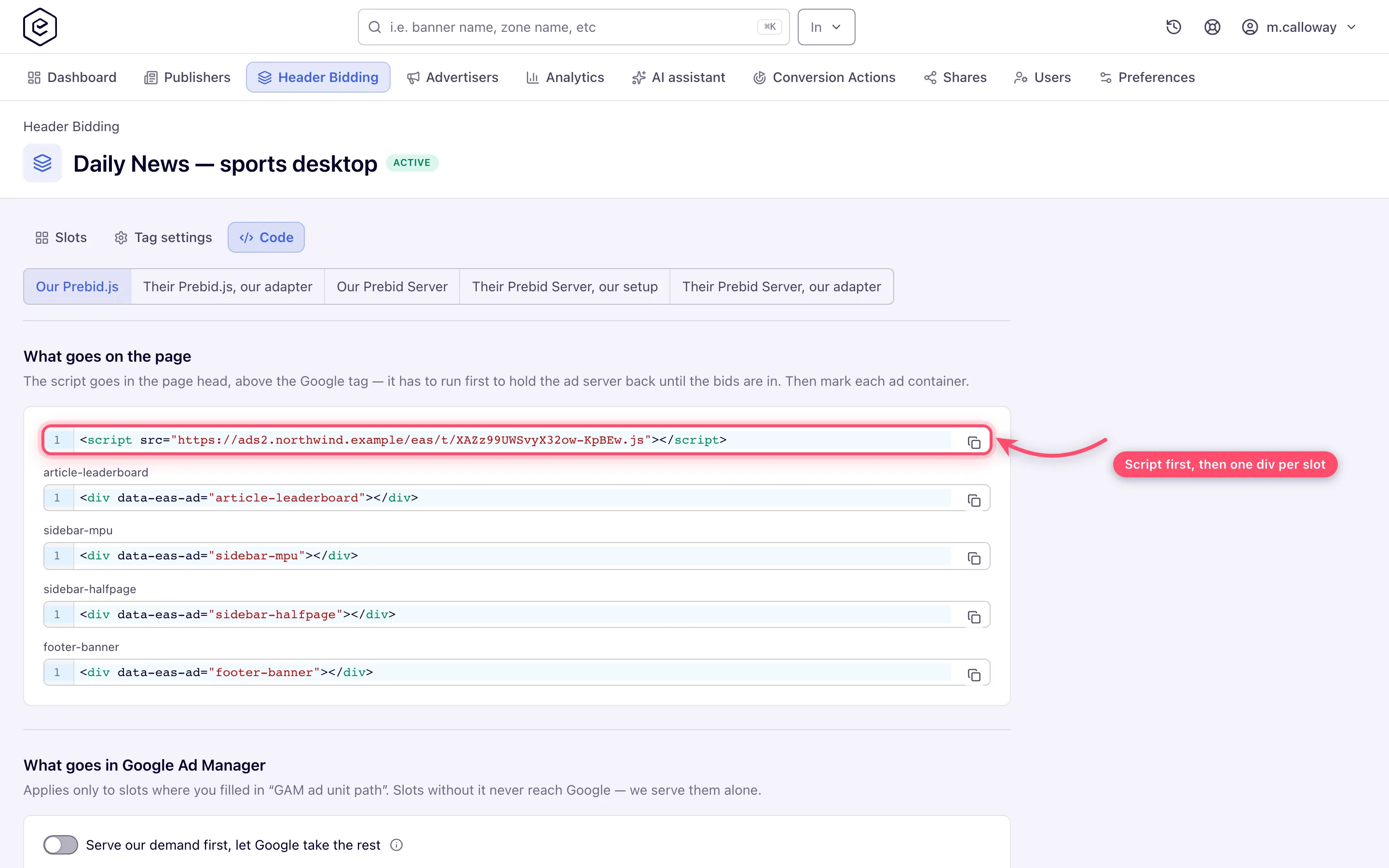
- Open Code → Our Prebid.js and hand over the script and the containers — What goes on the page.
- Create the keys, the line item and the creative in their Ad Manager — The Google Ad Manager line item.
- If the page keeps its own Google tag, check the rules under Adopting a page’s existing Google slots.
- Watch who fills each slot in the Header Bidding report.
If the page runs Google Ad Manager
This is the route for a page whose ads are served by Google Ad Manager today and where you want
your campaigns priced before Google is asked. You do not need to know Prebid to set it up. In one
sentence: Prebid is the open-source script that asks bidders for a price before the ad server is
called, then hands the winning price to Google as key-values on the ad request, where a line item
you create decides whether that price beats Google’s own demand. The tag brings its own copy of
Prebid under its own variable, easPbjs, so nothing already on the page collides with it.
Two values of What the tag brings apply here: Prebid and the ad slots when the page has no
Google tag yet, or the publisher is happy to replace their googletag calls with one container per
position; Prebid only — reuse the publisher’s Google Ad Manager slots when the page already runs
Google Publisher Tag and must keep it. The second has rules of its own under
Adopting a page’s existing Google slots.
Before you start, get from the publisher the ad unit path of every position you will sell — it
looks like /12345678/Site_Desktop_160x600 and is in their existing googletag.defineSlot call —
and, if you are adopting, the id of the div each slot renders into (div-gpt-ad-…) or that ad
unit path; either identifies the slot. Then build the tag (Create a tag,
Slots), create the key, the line item and the creative in their Ad Manager
(The Google Ad Manager line item), hand over the two snippets
(What goes on the page), and watch who fills each slot
(Reporting). Everything you hand over for this route is on the Code face under
Our Prebid.js.
What goes on the page
One script in the head, above the Google tag — it has to run first to hold the ad server back until the bids are in — and one attribute per ad position:
<script src="https://{serving-domain}/eas/t/{tag-public-id}.js"></script>

<div data-eas-ad="leaderboard"></div>
{serving-domain} is the serving domain’s CDN host when it has one, as the Serving domain
picker shows (domain → cdn). The container blocks appear on the face as soon as a slot has a name,
saved or not; the script exists only once the tag has been saved, because its address carries the
tag’s public id. Do not
add async to the script: it is written to run before Google’s tag, and an asynchronous copy can
lose that ordering. A tag edit reaches the CDN through an automatic purge; a page that already
holds the script picks the change up within about five minutes.
The Google Ad Manager line item
Google never sees your creative. What reaches Ad Manager is a handful of key-values on the ad request — the price, an id, the size, the bidder, and the deal key — and a line item you create decides whether they beat Google’s own demand. When it does, the line item’s creative is a small script that pulls the already-won ad out of the browser and draws it. All of this is created once per publisher network, in their Ad Manager, and applies only to slots with a GAM ad unit.
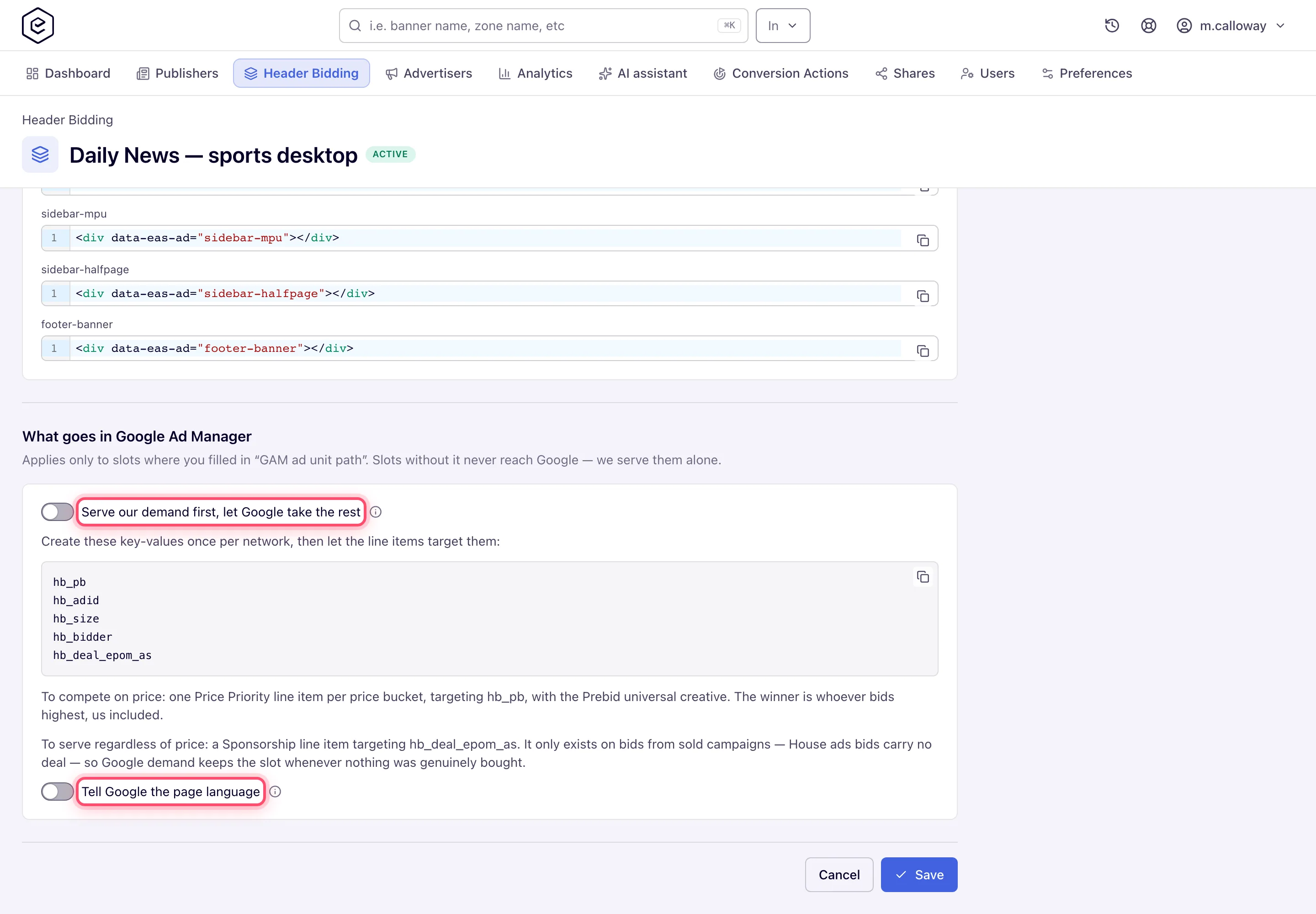
The Code face, under Our Prebid.js → What goes in Google Ad Manager, prints the key list and the two line-item recipes for the tag you are on. The steps behind them:
- Register the keys. Ad Manager refuses to target a key it does not know. Under Inventory →
Key-values, create these as free-form (dynamic) keys, values to be added later:
hb_pb,hb_adid,hb_size,hb_bidder,hb_deal_epom_as. - Create an advertiser (company) and an order to hold the line item, named so the publisher can tell it apart from their own campaigns.
- Create the line item. Two recipes, and the first is the one this route is built for:
- To serve regardless of price: a Sponsorship line item, goal 100%, with Custom
targeting
hb_deal_epom_asisepom-direct. The deal id exists only on bids from campaigns the network sold itself — neither House ads nor a programmatic partner’s win carries one — so Google demand keeps the slot whenever nothing was genuinely bought. A Sponsorship at 100% also outranks the publisher’s own lower-priority line items, so scope its inventory targeting to the ad units in the tag, never to run-of-network. - To compete on price: one Price Priority line item per price bucket, each with Custom
targeting
hb_pbis that bucket’s price and a rate to match, using Prebid’s standard buckets. The winner is whoever bids highest, us included. Use this only if the publisher wants Epom to fight Google on price rather than take the slot when a campaign was sold.
- To serve regardless of price: a Sponsorship line item, goal 100%, with Custom
targeting
- Add the creative. One third-party creative per trafficked size, carrying the Prebid
universal creative, attached to the line item — that is the recipe the Code face prints. Its
job is to ask the Prebid on the page to render the bid whose id Ad Manager passes in
hb_adid. The tag’s Prebid lives under the globaleasPbjs, notpbjs: a creative that addresses the page’s Prebid by name has to use that one. Tick Serve into a SafeFrame on the universal creative and it asks the page’s Prebid by message, whatever the global is called. - Serve our demand first, let Google take the rest — off by default, and leave it off unless the advertiser bought the inventory outright. With it off, every winner is handed to Google and competes there through the line item, and Google counts and measures the impression like any other. With it on, a sold campaign’s winning bid is drawn by the tag without asking Google for that slot at all; House ads and partner bids still go through Google. Owned only — hidden in Adopt, because bypassing Ad Manager on a slot the publisher created would paint over an impression Ad Manager has already counted. Turning it on also hides the key list and the two line-item recipes on the Code face — the face shows them only while the setting is off (or in Adopt) — so copy them first if you still need them for the slots that go through Google.
- Tell Google the page language — off by default. Passes the page’s
<html lang>to Ad Manager as thedocument_languagekey-value so line items can target it, and does nothing when the page carries nolang. Google infers the language itself, and a wronglangattribute narrows your targeting rather than widening it. The key is page-wide, which is why Adopt never sets it on the publisher’s own GPT. - Call Google Ad Manager without consent — on by default. Turn it off when Google asks that only consented visitors reach Ad Manager: where GDPR applies and the visitor has not consented to TCF purpose 1 (storing or accessing information on the device), the tag never calls Ad Manager for them. The auction still runs and its winner — sold campaign, house or partner — is drawn by the tag itself, served without cookies; with no bid the slot stays empty or collapses. Google stops counting those requests against the publisher’s match rate, and those impressions stay with your demand. Consent that never resolved where GDPR applies counts as declined; a page with no consent manager is called as before. Owned only — in Adopt the Google tag is the publisher’s.
What fills and what Google keeps. The serving order per slot is sold campaign → Google → House ads campaign → fallback markup (or the container is hidden). A sold campaign wins whenever it bids, because its bid carries the deal id and the Sponsorship line item outranks everything else. A bid priced from a programmatic partner does not carry it: the money behind that bid is a cleared partner price, not a rate the publisher agreed with you, so it competes in Ad Manager on price like any other bidder. When it does not bid, the key is absent, the line item is not eligible, and Ad Manager serves exactly as it did before the tag — its own direct campaigns, then AdX or AdSense. Only when Google returns empty does the tag fall back to a House ads bid it is holding, then to the slot’s fallback markup. A House ads backfill campaign reaches that step only if its bid survives Prebid: bids priced at exactly zero are discarded before they can render, so either give the campaign a nominal CPM above zero or turn on Let our bids priced at zero still win, which exempts Epom’s bidder from that rule and leaves the rest of the page’s demand alone. The Header Bidding report shows this split per slot.
Prices. Epom bids what the publisher earns — the net price after site and placement pricing
and revenue sharing — in US dollars, so the hb_pb value Google sees is comparable with every
other bidder’s. The tag also writes a refresh key on every Google slot — false on the first
round, true on every refresh — so the publisher can target or exclude refreshed impressions in
any line item.
Adopting a page’s existing Google slots
Adopt is the mode for a page that already runs Google Publisher Tag. Instead of creating slots of its own, the tag takes over the ones the publisher’s Google tag has already defined — a second slot for the same ad unit would make Ad Manager count two ad requests per pageview and treat them as two units for competitive exclusion and frequency capping.
Three things follow from that, and all three surprise people:
The page must already load gpt.js itself. Adopt deliberately does not load it. On a page with
no Google tag there is nothing to adopt, and the tag says so in the browser console rather than
sitting silent.
A slot’s name is their element id or their ad unit path. Either matches — div-gpt-ad-top and
/12345678/Homepage_Top are both valid entries for the same slot, in the field the editor labels
Their slot id or ad unit path. Use whichever the publisher can give you reliably.
Slots you do not list are left to Google, untouched. The tag holds the page’s first ad request back so bids can join it, which holds back the publisher’s other slots too — so it releases those straight away, once each. It only does this when the hold actually applied; if the tag loaded after the Google tag had already started, nothing was held and nothing is released.
The tag keeps watching for about ten seconds after it loads, because a publisher’s Google setup is usually asynchronous and the slots may not exist yet when the tag runs. If a slot in the tag never matches anything on the page by then, the console names it. Slots Google collapsed come back into auction, and a container the page hides while empty is probed for three rounds rather than forever.
Adopt writes Prebid’s key-values, and the refresh key, onto the publisher’s own slot objects.
Slot-level targeting persists until it is cleared, so check with the publisher that neither collides
with a key their own setup already uses. A bid priced at exactly zero hides the whole mode until
Let our bids priced at zero still win is on — the symptom is a tag that adopts every slot and
never renders.
Corner cases and gotchas
Corner case: the tag must load before the Google tag on Adopt pages. Loaded after, Google’s services are already enabled: the first ad request cannot be held back any more, so the page’s first impression goes without our bids and header bidding only joins from the first refresh. The browser console says so in as many words.
Corner case: The auction can finish before Google’s tag has loaded. On a page that shows no consent banner the auction starts straight away and often ends before
gpt.jsis ready. A slot with an ad unit path then waits for Google’s tag and goes to Ad Manager as soon as it has loaded. Only a slot bound for Ad Manager waits: our own sold creative under Serve our demand first, and every slot of a visitor who declined consent while Call Google Ad Manager without consent is off, are served at once, also when other slots of the same round wait. Ifgpt.jsfails to load — an ad blocker dropped it, say — or has still not loaded 3 seconds after the auction ended, the slot is served without Google: our winning bid is rendered directly, and with no bid the slot is treated as an empty round (its fallback code, or collapsed). A blockedgpt.jsadds no delay; the 3 seconds are only the limit for a slow one.
Corner case: Keep the container, and keep it visible, while Google’s ad loads. Once Ad Manager answers a slot with an ad, the tag leaves that creative alone, whatever size it reports. The page has to do the same. A single-page app that rebuilds its ad containers on every route change discards the rounds still on their way: the tag drops a removed container’s Google slot and never asks Ad Manager to fill it, but an ad already chosen for it is a win Ad Manager counts and never sees rendered. The same happens when a page hides an empty container with
display: noneand a later round fills it while it is hidden. Google reports such slots as having a low render rate, and buyers stop bidding on them. Reuse the same container element across route changes, and reserve or collapse its space withoutdisplay: none.
Corner case: Your own ad tag as a line item’s creative. A publisher may traffic one of your placements’ ad tags in an Ad Manager line item. Use Universal JS or Mount JS for it: once its ad has loaded, the tag tells the header-bidding tag on the page that the render is yours — from a SafeFrame or a same-origin frame alike — so the Header Bidding report shows it under Direct campaigns and the ad-server fee counts its impression once. A Simple Iframe or Direct URL tag cannot say so: that render is recorded as an Ad Manager fill and billed as one, on top of the impression the tag serves. A tag that has none of your ads to serve — it comes back empty, or with the placement’s Default code — says nothing either, and the render stays an Ad Manager fill, since no impression is counted for it.
Corner case: Let our bids priced at zero still win does not let house demand overtake Google. Serve our demand first renders a winner without asking Google only when the bid carries the deal id, and House ads bids never do — so a zero-priced house bid still waits its turn behind Google, exactly as a priced one does. Partner-priced bids do not carry it either.
Per-role notes
- Network manager — builds the tag and copies what the Code face prints; the Ad Manager work is done in the publisher’s own account.
- Publisher — pastes the script and the containers; see Header bidding: what a publisher installs.
- Can View share — sees the site’s tags but cannot save or delete them; see the per-role notes on the main page.
Related
- Header bidding
- Header bidding tag settings and slots
- Header bidding on a site that runs its own Prebid.js
- Header bidding through a Prebid Server
- Header bidding in an app with Prebid Mobile
- Header bidding reports and targeting
- Header bidding: what a publisher installs
- Ad tags and the ad API
- Create a placement
