
Use case: a seasonal campaign with geo and dayparting
Run a date-bounded promo that serves only in chosen countries and only at chosen hours/days, with a budget that resets and a launch-day checklist.
A promo has hard boundaries: it must run between two dates, only in certain countries, and often only at business hours (or evenings). Here is the standard assembly.
Who this is for
Network managers and advertiser-role users running a date-bounded promo from their own campaign.
Prerequisites
- A working campaign (linked or rules-matched to inventory).
- Agreement on whose clock “hours” follow — UTC or the visitor’s own — see the corner case below before you promise “9:00–18:00” to anyone.
Steps
- Bound the flight by dates. In the campaign’s Limits card set Start date and End date. Outside of them the campaign does not serve regardless of targeting. The card’s Local time switch only converts how the two dates are read and saved; it does not move the reset of a daily budget.
- Limit the geography. Campaign → Targeting → add a Country rule (include the promo countries). A Location rule (country, then region, then city) narrows further if the promo is local. A custom country group (set up by your network administrator) or a world region is one pick in the list, but it is stored as one Country rule per country.
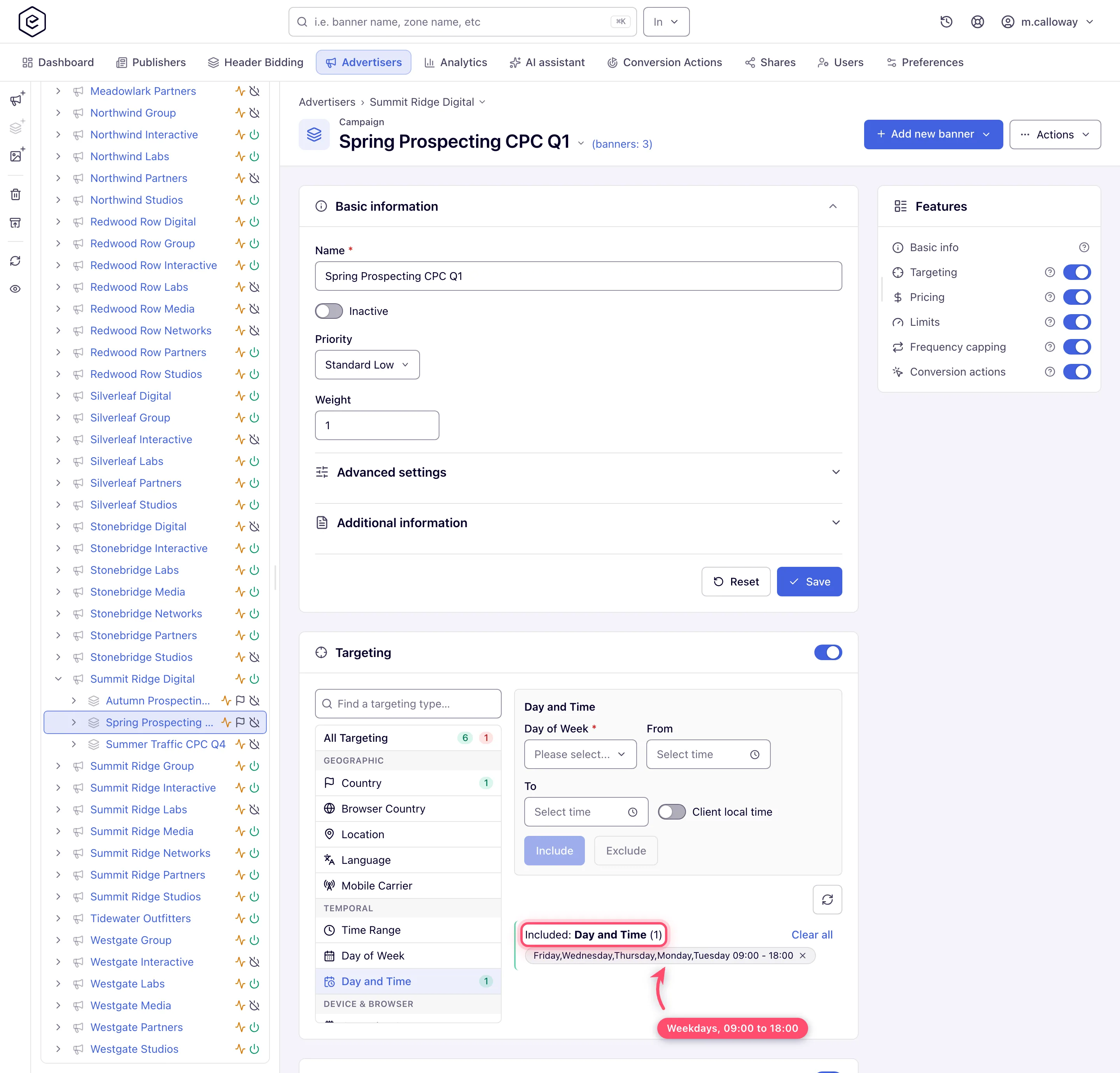
- Daypart. Add a Day and Time rule: pick Day of Week values, then From and
To, and decide whether Client local time is on (see the corner case). One rule is
the picked days combined with one time window. The stock Advertiser and Publisher roles have
this rule type; where it is missing from the Add list, use a Time Range rule plus a
Day of Week rule, or ask your network manager to switch it on.
Combine with the Country rule — different dimensions combine with AND by default,
which is what “these countries AND these hours” needs; the AND/OR switch is not in any stock
role (ask your network manager if you need it).
- Cap the spend. Campaign → Limits: a budget (or impressions) limit with the period that matches the promo — Total for the whole flight, or Daily if you need “N per day”. A total cap that fills also switches the campaign off for good: raising the cap does not switch it back on. Frequency capping on top keeps a single user from burning the budget.
- Ramp checklist (launch day). Run the go-live checklist; then, an hour after start, run a report with Time granularity set to Hour to confirm delivery actually started in the right window and countries.
- After the flight. The end date stops serving by itself. Leave the campaign in place rather than deleting it: it stays out of the auction, and next season you move the dates.
Options and fields
| Lever | Where | Notes |
|---|---|---|
| Flight dates | Campaign → Limits (Start date, End date) | Hard on/off — beats everything else |
| Country / Location | Campaign → Targeting | Include or exclude lists; Location is country → region → city |
| Day and Time | Campaign → Targeting | Days of week × one time window; UTC unless Client local time is on |
| Budget / impression limits | Campaign → Limits | Daily, weekly and monthly caps reset on their boundary; a total cap switches the campaign off |
| Frequency capping | Campaign → Frequency Capping | Per-user pacing during the burst |
Corner cases and gotchas
Corner case — whose clock is it? A Time Range or Day and Time rule reads the hours in UTC unless its Client local time switch is on, and then it follows the visitor’s own clock — the UTC offset the JavaScript tag sends (VAST and Direct URL requests don’t send one, so they stay on UTC); it never follows your account’s reporting zone (see Which time zone does a Time Range use?). A standalone Day of Week rule always uses the visitor’s clock. If your audience spans timezones, a “09–18” rule is 09–18 on ONE clock — verify with an hour-granularity report on day one instead of assuming.
Corner case: geo targeting depends on the IP→location lookup; traffic whose country cannot be resolved matches no include rule and silently gets nothing. If volume looks low, compare a report grouped by Country with the traffic you expected before blaming the creative.
Note: a budget starts its period over at the boundary — midnight for a daily cap, Monday for a weekly one, the 1st for a monthly one — on the platform’s clock, not yours, and the Local time switch does not move it. A total cap never rolls over.
Per-role notes
- Advertiser and network manager both run this from the campaign. A stock Advertiser’s campaign carries the Targeting and Limits cards, with Country, Time Range, Day of Week and Day and Time rule types. On the stock role the Limits card sets only the dates (the budget is read-only), and Location, Frequency capping and the AND/OR switch are not in it — ask your network manager for step 4 and for a Location rule. A stock Network Manager has Location but not Day and Time; ask your network administrator for what your role is missing.
- Shared campaigns: at Can view the targeting rules and the limits display in full, marked Read-only and with no Save button.
