
Manage users, roles and permissions
Create platform users, assign an ACL role, and edit the role permission matrix that decides everything a user can see and do.
Everyone who signs in is a user, and every user holds exactly one role. The role carries a permission matrix, and that matrix decides which section of the product the user lands in, which pages and cards render, and whose data fills them. This page covers the four Admin pages involved — User management (the people), User roles & permissions and Admin roles & permissions (the matrices), and Admin user preferences (your own login).
Who this is for
Network administrators whose own role carries the matching Admin UI permission. Each page is a separate checkbox on the role, labelled like the page’s entry in the sidebar:
| Page | Admin UI permission |
|---|---|
| User management | User management |
| Admin roles & permissions | Admin roles & permissions |
| User roles & permissions | User roles & permissions |
| Admin user preferences | Admin user preferences |
A network’s admin role normally ships with User management and User roles & permissions; ask Epom support or your account manager to add the other two to your role if you need them.
They are four separate grants: a role can hand out user accounts without being able to edit a single permission, and vice versa.
How a role decides access
Three facts explain almost every “why can’t this user see X” question.
1. The role’s base role decides which half of the product you get. Every role is built on one of two static base roles — Admin or Network — and that choice is what routes a user to the Admin area or the Account area. The console bounces you to your own section if you ask for the other one, and decides which is yours from the role’s base role.
Note: the only thing that moves a user between the Admin and Account areas is assigning them a role whose base role differs.
The base role also fixes which permission groups exist for that role. An Admin-based role gets two: User Management and Ad Server management, plus the Admin UI permissions checkbox list. A Network-based role gets every other group — targeting, capping, banner types, analytics, invocation codes and the rest — and no Admin UI checkboxes.
2. A permission has to be granted, not just exist. The permission editor lists every permission the product knows, so a permission always appears in the editor — but if no grant has ever been stored for a role it has no value, the cell reads as a dash, and the feature it gates is invisible to everyone in that role. See the corner cases below for what to do about it.
3. Each cell is an operation crossed with a grant. The columns of a group are its permission types (the operations); the value in a cell is a granting type (how far the grant reaches). Both lists are fixed in code — see Options & fields for the complete sets and which combinations the editor actually offers.
For how permissions then combine with entity shares, see Sharing and permission model.
Prerequisites
- At least one role to assign. The platform ships with base roles; anything else is a role an administrator created.
- To assign a role to a user you need Create on that role. To edit a role’s matrix you need Manage Role on it. Handing out Manage Role itself is reserved to Epom support (see the corner cases).
Steps
Create or edit a user
-
Go to Admin → Users & access → User management.
-
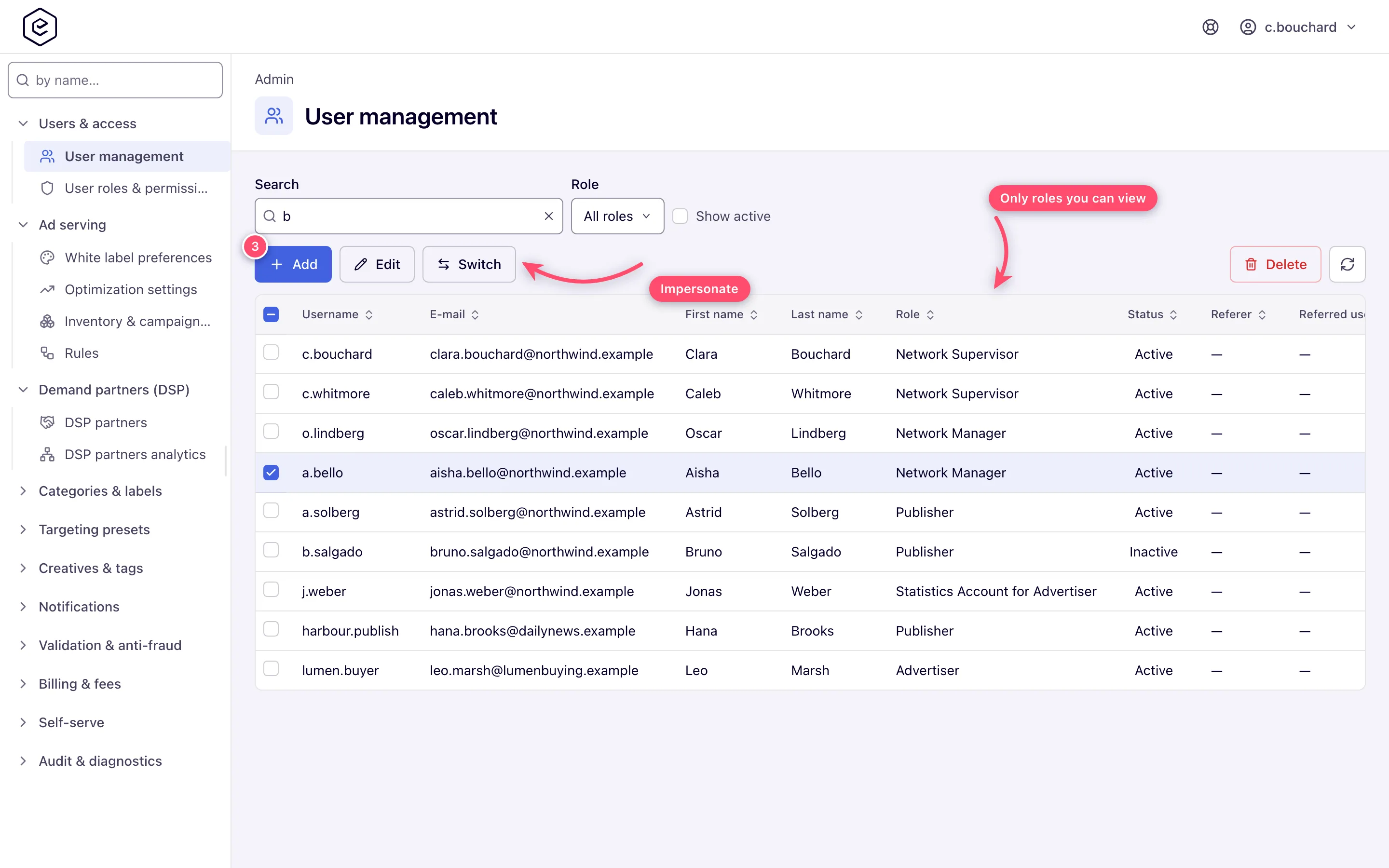
Narrow the list if you need to: Search by username or email, pick a Role, or tick Show active. A Show referrals checkbox appears too if your role has the referral program permission. The grid is already filtered before you touch it — it lists only users whose role you hold View on, so it is normally shorter than the network’s headcount.
-
Click Add, or select a row and click Edit; the form opens as its own page. Double-clicking an editable row opens it as well.
-
Fill the form — three sections, Login information, Personal information and Additional information. Username, E-mail, Role and Created are required; Password is required only when creating.
-
Click Save. A Record successfully processed. toast confirms, and a newly created user gets its own edit URL so a second save updates it instead of creating a duplicate.
The password you type here is never mailed to the new user. Activation mail carries a single-use set-password link instead, minted when the event fires and only for an active account. It expires after the configured initial-set lifetime (72 hours by default) and issuing a new one invalidates the old. Don’t pass the password you typed along by hand — send the user through the link, or through Forgot password if it has expired.
Assign a role
The Role select is on the Additional information section, and it is required. Changing it changes the user’s entire permission set at once, and — if the new role has a different static role — moves them between the Account and Admin areas at their next sign-in.
Corner case: the select offers every role on the network, including ones you are not allowed to hand out. The check happens on save: the target role must be one you hold Create on, and so must the role the user is in today — otherwise the save answers 403 Access denied. That second half is what stops a lower-privileged administrator taking over a more privileged account by re-saving it into a role they can assign.
Switch into a user’s account
- Select the row and click Switch. The button enables only for an active user whose role you hold Access on.
- You land in that user’s account. The user menu’s log-out slot becomes Exit user, which returns you to User management.
An admin session cannot open the Account area directly whatever its role carries; Switch is the way to see the account side.
The restriction is enforced on the server, not only by the disabled button: a switch into a user whose role you lack Access on is refused with 403 Access denied.
Edit a role’s permission matrix
-
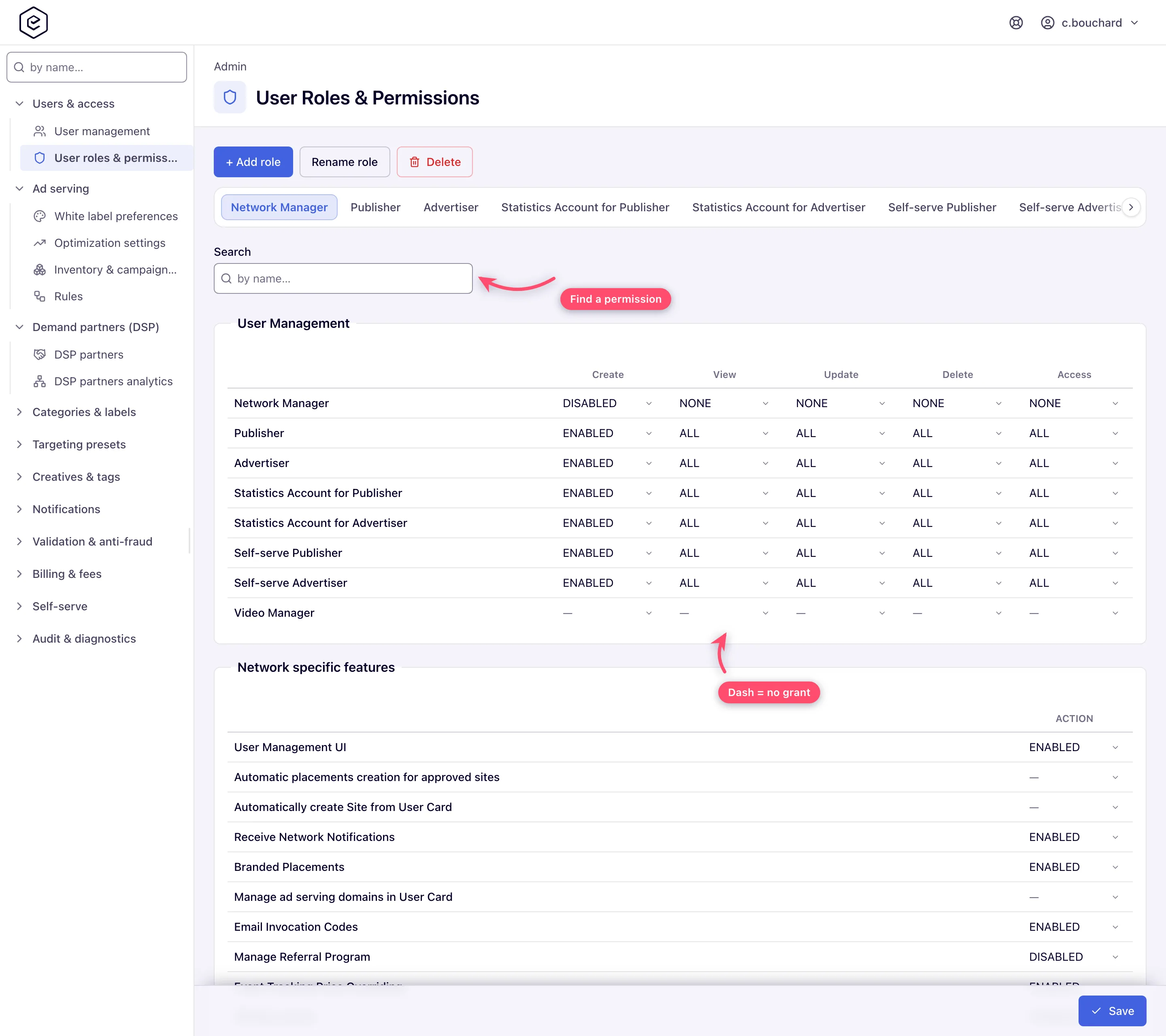
Go to Admin → Users & access → User roles & permissions, or Admin roles & permissions. Each role is a tab; the tab strip scrolls. User roles & permissions lists Network-based roles only; Admin roles & permissions lists every role and shows more of each. Any role’s tab opens read-only for you; only the save checks Manage Role.
-
Use the sticky Search box to find a permission by name. It filters every group table and the checkbox section at once and shows a
shown/totalcounter while a query is active. -
Click a cell to open its dropdown and pick a grant. A cell with no stored grant shows a dash until you choose one.
-
On an Admin-based role, the Admin UI permissions section at the bottom is one checkbox per Admin page.
-
Click Save. A Permissions saved. toast confirms and the matrix reloads with the persisted values. A save for a role you do not hold Manage Role on is refused with Access denied — see the corner cases.
Add, rename or delete a role
- + Add role opens an inline row: a Role name, the Static role it is built on, and an optional Copy all settings from an existing role. Copying takes that role’s Admin UI permissions and its whole matrix; without it the new role starts with just User roles & permissions. The Static role list offers Network and — only if you hold the Create ADMIN-based role permission — Admin; the older static roles are retired and cannot be used for a new role.
- Rename role and Delete act on the tab that is currently open, and both answer 403 Access denied for a role you do not hold Manage Role on. Deleting drops you onto the first remaining role.
Update your own admin account
- Go to Admin → Users & access → Admin user preferences.
- Change password (current, new, confirm) and Change personal information (name, email, phone, country, state/province, company, website) save independently.
I can’t see a tab, report or targeting option — which permission is missing?
A missing tab, card, report or drop-down option is almost always the role, not a bug: a permission at None or Disabled removes the item entirely rather than greying it out. Find the row in Admin → Users & Access → User Roles & Permissions, on the user’s role tab, under the table named below (the quick-search finds a row by its name).
A tab or card is missing
| What is missing | Table → row to set |
|---|---|
| Advertisers tab | Tabs Management → Advertisers Tab Visible, and Campaigns view set to Shared or All |
| Publishers tab | Tabs Management → Publishers Tab Visible, and Inventory view set to Shared or All |
| Analytics tab | Analytic Reports’ Type → Analytics Report Type General, plus view on Campaigns or Inventory |
| Limits card | Demand: Campaign Capping & Limitations → Manage Capping & Limitations. Supply: Inventory Capping & Limitations → Manage Site and Placement Limits. Each cap (daily budget, total impressions…) is its own row there |
| Traffic Quality tab | Tabs Management → Traffic Quality Tab Visible and Traffic Quality → Traffic Quality Reports |
| RTB tab | RTB Management → any of DSP Partners, DSP Partners Analytics, DSP Creative Scan |
| Header Bidding tab | Tabs Management → Header Bidding Tab Visible, and Inventory view |
| Media Library tab | Campaigns Management → Media Library, and Campaigns view |
| Users tab (account area) | Network specific features → User Management UI |
| Pending Sites / Pending Banners tabs | Network specific features → Sites Approval / Banners Approval — admin-only rows, set on Admin roles & permissions |
| Billing tab | Billing Management → Billing Tab — admin-only group, set on Admin roles & permissions |
| Shares tab | Share on Campaigns or Inventory set to Shared or All |
| API key field in Preferences | Network specific features → API Key Access (Read-only shows it, Enabled also lets the user generate one) |
| AI assistant tab | Network specific features → AI Assistant Chat (and the assistant switched on for the network) |
| Preferences tab | Tabs Management → Preferences Tab Visible |
An analytics report type, column, filter or date range is missing (Advanced analytics, logs)
Every report type, column, group-by/filter and date-range preset is its own permission, so two users of the same network can see different report forms.
| What is missing | Table → row to set |
|---|---|
| Advanced report type | Analytic Reports’ Type → Advanced Analytics |
| Impressions / Clicks / Conversions log reports | Analytic Reports’ Type → Analytics Report Type Impressions Log (Clicks Log, Conversions Log) |
| A group-by or filter in reports (browser, OS, referer, top domain, risk level, device…) | Analytic Reports Group/Filter By → the row named after it |
| A column in reports (Requests, Gross, Net, Profit, Risk Score…) | Analytic Reports Columns → the row named after it |
| A date range preset (Last 3 months, Custom range…) | Analytic Reports Time Range → that range |
A targeting option is missing (DMP targeting, Traffic Risk Score, Browser…)
| What is missing | Table → row to set |
|---|---|
| A targeting type in Add targeting on an advertiser, campaign or banner (DMP, Traffic Risk Score, Browser, Connection Type…) | Targeting → the row of that type, and Manage Demand Targeting for the card itself |
| The same on a site, zone or placement | Pre-Targeting → the row of that type, and Manage Supply Pre-targeting |
| DMP segments missing from the DMP rule, or uploading an audience refused | DMP → First-Party DMP (one row per DMP provider) |
| DMP Settings / DMP Audiences admin pages | Admin UI checkbox DMP settings (admin roles only) |
A role that only sees its own or shared advertisers and sites
Set the role’s Campaigns and Inventory rows to Shared rather than All: its users then see exactly the advertisers and sites they created (creating makes you the owner) or that were shared with them. Hide what the role should not use — Advanced Analytics, a targeting type such as Traffic Risk Score — by setting those rows to Disabled. See Sharing & permission model.
After changing a role
After saving, the change can take a while to reach a signed-in user; have them sign in again before deciding it did not work. If it still has not applied after that, ask Epom support or your account manager.
Who can change a role or give a user more access?
- Changing a role’s matrix needs the User roles & permissions (or Admin roles & permissions) admin page and Manage Role on that role. You can only grant an Admin UI page your own role already has, and only Epom support can hand out Manage Role. Taking rights away is always allowed.
- Moving a user to another role needs Create on the target role; you also cannot edit a user who sits in a role you cannot create.
- Giving access to one advertiser or site does not need a role change at all — share it (Shares); the role decides what kind of things a user can do, shares decide on which entities.
- A permission changed on a role applies to every user in that role. To change one person, create a role for them (Add role → Copy from their current role) and move them into it.
- If nobody in your company has the Admin area, ask Epom support or your account manager to change the role.
Options and fields
User edit form
| Field | Section | Notes |
|---|---|---|
| Username | Login information | Required, unique, up to 64 characters. |
| Password | Login information | Required when creating. On an existing user the field is replaced by a Change password button; leaving it untouched keeps the current password. |
| First name, Last name | Personal information | Optional. |
| Personal information | Required, up to 64 characters. | |
| Phone, Country, State/Province, Company, Website URL | Personal information | Optional. |
| Active | Additional information | On by default. An inactive user cannot sign in and cannot be switched into. |
| Role | Additional information | Required. See Assign a role. |
| Referer, Referral ID | Additional information | Referral-program linkage. |
| Comments | Additional information | Free-form administrator notes. |
| API key | Additional information | Read-only field with a Generate button; the key is never typed by hand and Save never writes it. Generate mints a new key on the server and replaces the live one immediately, without waiting for Save, and only for a user whose role you may hand out. It needs a saved user, so Add shows the field without the button. On this Admin page both field and button are ungated — the API Key Access permission gates them only on the account-side user list. |
| AI assistant monthly limit per user, $ | Additional info | This user’s monthly cap for the AI assistant, in USD. Empty = the network default (set by Epom support), else $20. 0 = no allowance. Only administrators and users holding the Ad-server fees admin permission may change it (Billing Tab does not grant it); anyone else sees it read-only and can still save the rest of the form. Applies on the network’s and the platform’s key, never on the user’s own key. |
| Limit the user set on their own key, $ | Additional info | Read-only: the cap the user set for themself in Preferences → AI assistant. It applies only while they run on their own Anthropic key. Empty = no limit. |
| Receive newsletters / Receive notifications by email | Additional information | Both on by default. |
| Created | Additional information | Required. Editable audit date. |
Password rules are enforced by the server: at least 8 and at most 64 characters, and not starting or ending with a space, and not one of the passwords on the common-password blocklist. The form itself checks only the 8–64 length (and the e-mail format) before it sends.
Note: the policy also refuses a password that contains the account’s own username or email local part — on these forms as everywhere else.
Changing an existing user’s password here works like the user changing it themselves: the user’s other sessions are signed out, any password-reset links they hold stop working, and they receive the password changed notification.
On an existing user the form is followed by companion panels that save independently of it: User interface preferences (navigation style, show entity IDs, advanced analytics view, display language), Payment details (needs the User Payment Details permission, and renders read-only on a view-only grant), User scheduled events, and a Default share panel when the network has one to offer. If your role has the referral-program permission the page also grows a second tab, Referral program, holding the referral share, referred clients and referral revenue.
The user grid
Columns: Username, E-mail, First name, Last name, Role, Status, Referer, Referred users, Date created. Every column except Referred users sorts, server-side.
| Control | Enabled when |
|---|---|
| Add | always |
| Edit | the selected user’s role is one you hold Update on |
| Switch | the selected user is Active and their role is one you hold Access on |
| Delete | the selected user’s role is one you hold Delete on, and the row is not you |
The grid itself is filtered the same way: it lists only users whose role you hold View = All on. A user you may not view is absent, not greyed out — so a grid that looks far shorter than the network’s real headcount usually means the User Management group of your role grants View on only a few roles.
A Shared View grant on a role does less than All: you can name that role’s users as share recipients, but you can open the record of only the users you own — the statistics accounts you created yourself. Opening any other user of that role is refused, and the grid lists none of that role’s users either way.
Operations (the matrix columns)
| Column | What it governs | Grants offered |
|---|---|---|
| Create | may create entities of this type / hand out this role | Enabled / Disabled |
| View | may see them | the row’s own set, normally None / All / Shared |
| Update | may change them | the row’s own set |
| Delete | may remove them | the row’s own set |
| Access | may switch into a user of this role | the row’s own set |
| Share | may re-share the entity | the row’s own set |
| Manage Role | may edit this role’s matrix | Enabled / Disabled. Granted by Epom support; the editor does not offer you this column |
| (no heading) | the single column of a group of on/off features: one feature permission per row | the row’s own set |
Only Create and Manage Role override the grants offered by the row; every other column falls back to the granting-type set declared on the permission itself. A group of on/off feature permissions has a single column with no heading.
Grants (the cell values)
Cells show the grant by name, in your interface language. Which set a cell offers depends on the permission (English names below):
| Set | Values | Used by |
|---|---|---|
| Entity scope | None, All, Shared | Entity-type permissions — inventory, campaigns, templates, actions. The default set for a permission that declares none. |
| Entity scope with links | None, All, Shared, Linked, Shared and linked | Entity permissions that also understand linked-only visibility. |
| Feature toggle | Enabled, Disabled | Most feature permissions, plus the Create and Manage Role columns. |
| Feature toggle with read-only | Enabled, Disabled, Read-only | Feature permissions whose card can render disabled instead of hidden. |
| Navigation style | Trees and grids, Trees, Grids | The account navigation preference. |
| Analytics view | Simple, Extended, Unique | Advanced-report depth. |
There is no “Own” grant — a user’s own entities are covered by All or by a share, never by a separate grant value.
Corner cases and gotchas
Corner case: a permission whose default grant was never stored is invisible rather than missing. Its row renders in the editor — the editor lists every permission the product knows — but the cell is a dash and every user in that role is refused. It mostly shows up on an installation that was upgraded rather than set up fresh. The fix is to set the cell yourself and save — the save stores the missing grant. If a feature is missing for every role, look for a dash in its row before assuming the feature is not installed.
Corner case: twenty-nine permissions are admin-only and are stripped from the User roles & permissions screen — DMP targeting and pre-targeting, sites and banners approval and the two moderation modes, bid-floor management, video RTB configuration, self-serve CPM floor and campaign types, banner view tracking, the accounting-period confirmations, the advertiser completeness delay, the advertiser analytics column, the advanced report type and its default view, the four raw-log and cookie report types, header bidding, the three AJAX invocation-code permissions, and inactive-template property updates. Two whole groups go with them — DMP and Billing Management. To grant any of these to an account-level role you must open that role on the Admin roles & permissions page instead, which shows more groups and rows for the same role than the user page does. The server enforces this too: without Admin roles & permissions the admin page answers Access denied instead of showing the matrix, and a save that changes an admin-only row is refused the same way.
Corner case: you cannot delete your own account. The Delete button stays disabled on your own row, and the server refuses the request as well.
Corner case: you can open any role’s tab and read its matrix, but a role editor saves only roles you hold Manage Role on, and the save is refused outright — the whole save, not one row — if it would grant rights over a role you do not manage. The editor therefore offers you only what it will accept. In the User Management group it lists just the roles you manage, one row each, without the Manage Role column. Two grants stay restricted on the server as well: Manage Role itself can only be handed out by Epom support, and you cannot tick an Admin UI checkbox your own role doesn’t already have. Removing grants is always allowed. A save the editor would not have offered you, for example one posted by hand, answers 403 Access denied.
A role you hold no Manage Role on is therefore missing from the User Management table, not greyed out, whichever role’s tab is open; the other groups of that tab show in full.
Corner case: removing an Admin UI checkbox does more than hide a sidebar entry. The same permission is re-checked on the request itself, so the page and the actions it starts both stop working, not just the link. The check also honours a per-user permission override, so a user can hold an admin page their role does not grant.
Corner case: the Admin UI checkbox list is delta-checked on save. You may remove any checkbox and you may re-save ones the role already has, but you cannot add one your own role does not hold. Un-ticking every box is a real state and is saved as “none”, not read as “leave unchanged”.
Corner case: a matrix change can take a while to apply everywhere, and a user moved to a different role keeps the old one until they sign in again. Have affected users sign in again; if a change still has not applied, ask Epom support or your account manager.
Corner case: the matrix follows your interface language: group, permission and column names, the grant options and the Admin UI checkboxes are translated, and so are the headings of the two role-editor pages. The role names in the User Management group are not — they are shown exactly as the role was named.
Per-role notes
- Epom support — the only one who can grant Manage Role or add an Admin UI checkbox your role lacks; ask them.
- Other Admin-based roles — reach the pages their Admin UI checkboxes allow, but their matrix has only User Management and Ad Server management, so no account-level features.
- Network manager — manages users from the account-side Users page (User Management UI), handing out only roles it holds Create on; cannot edit any role’s matrix.
- Publisher, advertiser — no user management; an extra login has to come from the network.
