
Monetize a mobile app
Recipe for in-app advertising — an application placement served through the ad API, native-in-app options, app-package targeting for demand, and the capping caveats of app traffic.
You ship a native Android or iOS app and want ad slots inside it. There are two routes, and neither involves an Epom SDK — there is none:
- An Application placement (this page): the app, or your server on its behalf, calls the placement’s ad API and renders the response itself. Demand reaches it the same way as any other placement — links, Rules and programmatic.
- Prebid Mobile, if your network sells through header bidding: the open-source Prebid Mobile SDK in your app talks to a Prebid Server, and Epom takes part as an ordinary Prebid bidder. Your network sends you the server address, an account id and one slot id per ad unit. See Header bidding: an app with Prebid Mobile.
Who this is for
Publishers with app inventory and network managers onboarding them. Neither the stock Publisher nor the stock Network Manager role can create an Application placement; ask your network manager (or, as a network manager, your network administrator) to switch it on for your role. Until then the network creates the placement and you configure it. The request documentation in step 3 is switched on separately; both stock roles have it.
Prerequisites
- An app (or a client/server on its behalf) able to call an HTTP ad API and render the response.
- A site representing the app property and a zone under it.
- Demand that fits app traffic: display and native creatives, or programmatic partners.
- For step 3: the application-placement API documentation on your role. The stock Publisher and Network Manager roles have it; a custom role may not.
Steps
- Model the app as inventory. Create a site for the app (use it for categories, revenue share and approval like any property; set Inventory type to App, which swaps Site URL for App bundle), a zone per app section, then Add new placement… → Application Placement for each slot.
- Fill the app-specific fields on Basic info
(field reference):
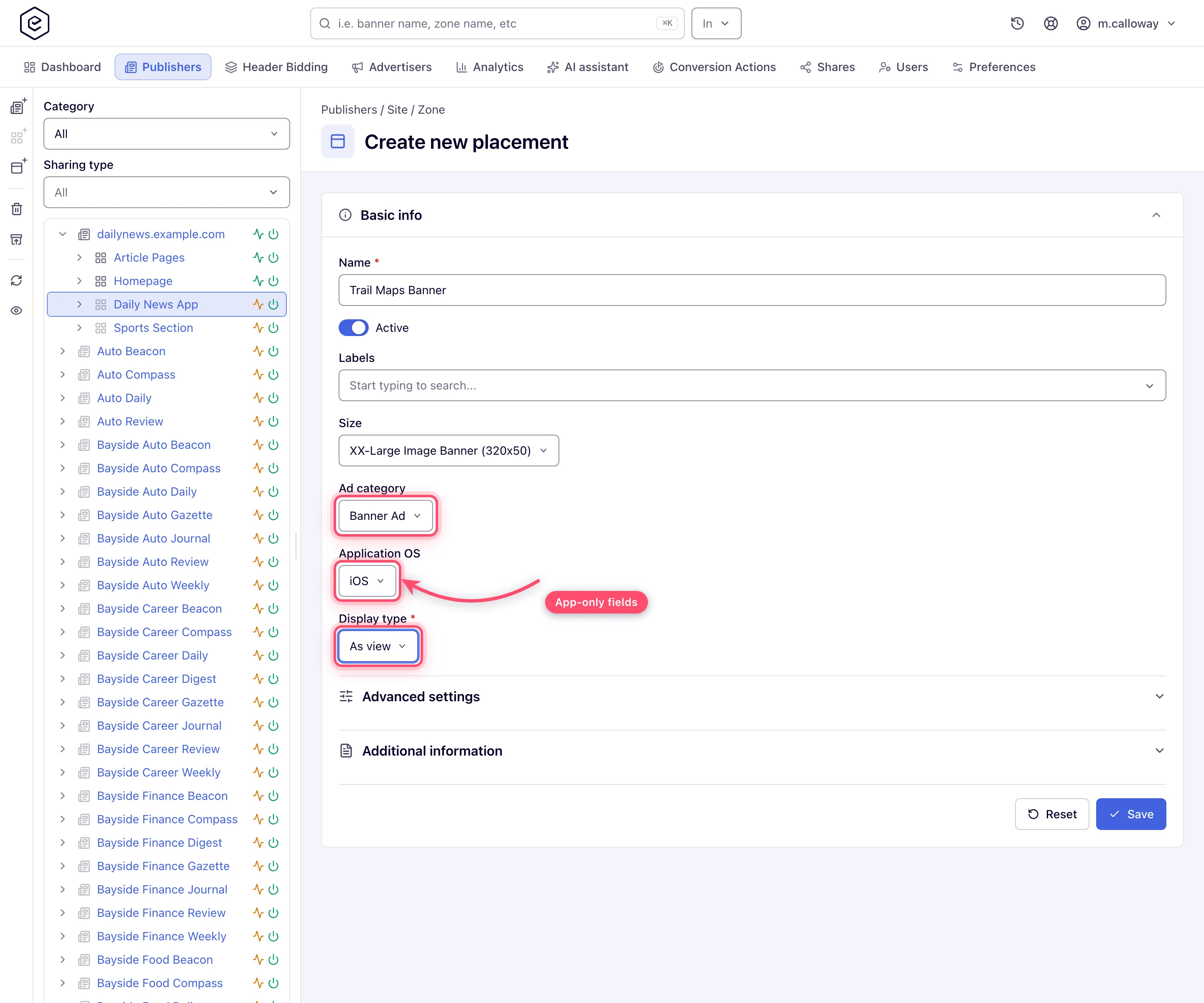
- Size — optional on an application placement (only Site and Email placements require one), but set it if you serve sized display creatives: matching uses it;
- Ad category — the format of the slot: Banner Ad, Interstitial Ad, Native Ad or Rewarded video (not a content category). Required; a new placement starts on Banner Ad;
- Application OS — iOS or Android. Required; a new placement starts on iOS. Demand must match it to link;
- Display type — As view or As activity; optional and nothing is pre-selected;
- Integrate. Save, then open Ad tags & API. Its only code tab, API, carries the
request URL and the parameter table (the Settings tab beside it holds the default
parameters added to every tag). Call it from the app or from your server and render the
response yourself. Pass
keyalways; passclientIpandclientUawhen you call server-to-server — the card marks both as required for S2S, “for targeting to work properly”. Passifa(the device advertising ID) andbundle(the app’s package or bundle id) from the app: the capping note below depends onifa, and App Package targeting (step 5) on the package.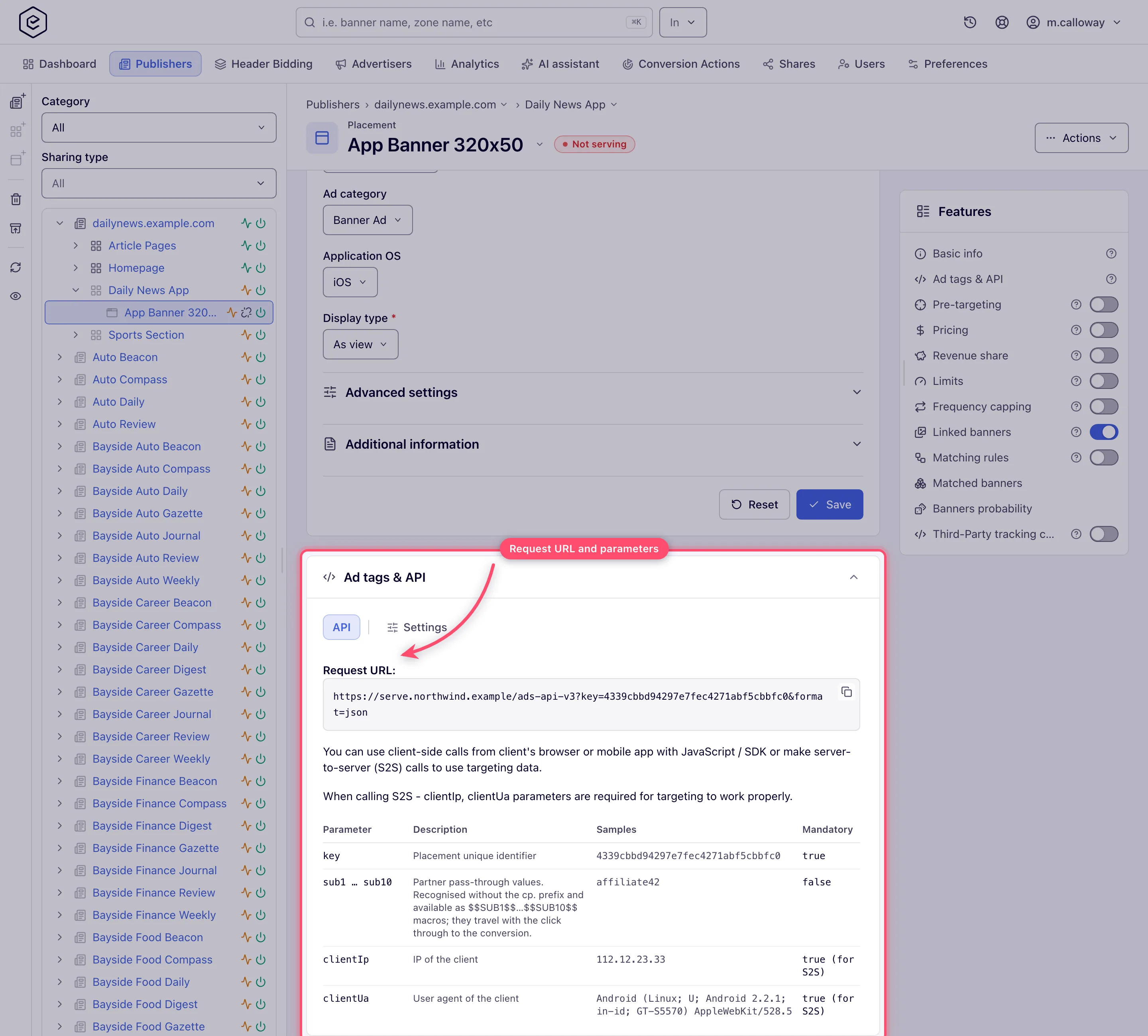
- Go native if the slot is native. Two options:
- link native banners created for the Application type (Local/External Native serve on application placements) and render their fields in your own layout; they match by their native size settings rather than by Application OS and Ad category;
- or create a Native placement instead — it returns structured JSON (title, icon, image, CTA, click URL, impression beacons) over the API, purpose-built for feeds. Your renderer must fire the beacons or nothing is counted.
- Point demand at apps. On campaigns, add App Package targeting with the bundle id
(e.g.
com.example.game) to include or exclude specific apps, or target an admin-maintained Preset app-package group with one rule. Combine with OS, device format, carrier and connection-type dimensions (targeting reference). App Package and its preset counterpart are switched on per role: the stock Advertiser role has both, the stock Network Manager role neither. If the one you need is missing from the Add list, ask your network manager (or, as a network manager, your network administrator). The rules compare against the request’s app package. Send it inbundleon every request; a request with no package never matches an App Package rule. Requests from an Android WebView also carry the package automatically. If App Package targeting or the Package Name column does not reflect thebundleyou send, contact Epom support or your account manager — which source wins is set per network. - Measure. In Account → Analytics run a General report with Group by → Placement
or Site and Time granularity → Day. The General report has no app dimension; a
per-app breakdown (Package Name, which follows the app-package setting in step 5) exists
only in the Advanced report type, which your network administrator has to switch on for your role. Pass
chin requests if you want channel-level splits.
Corner cases and gotchas
Corner case — no “Domain as default channel” for apps. The option takes the channel from the page that made the request — the origin parameter or header — and an app request normally carries no page origin, so application placements do not offer it. If you segment reporting by channel, pass the channel explicitly as the
chrequest parameter from the API call.
Corner case — application placements have no standard Preview. API responses aren’t self-contained markup, so the Preview button is not drawn for this type. Test by calling the API tab’s request URL yourself.
Corner case — a paused application placement shows no key and no API card. The Placement key and the Ad tags & API card disappear while the Active switch is off, live and before you save. Switch the placement on to see the request URL again.
Corner case — demand must match the app profile, not just the size. A banner links to an application placement only when it was created for the Application type (Add new banner → Add banner for Application Placement) and its Application OS and Ad category equal the placement’s. When both the placement and the banner carry a size, the usual size rules apply on top; a placement with no size accepts any size. A creative that links fine to a site placement can refuse to link here — check those selects first. Native banners are the exception: they skip the OS and category check and match on their native size settings.
Note — frequency capping behaves differently in apps. Default capping counts per visitor with a browser cookie, which in-app requests don’t carry. If per-user caps matter on app inventory, ask Epom support or your account manager whether server-side capping storage is enabled, use the User (server-side storage) subject and send the device advertising ID in
ifa— the server-side counter is keyed to it (a request without a usable one is counted by IP, user agent and language instead); see Ads in apps and WebViews (the mixed subject stays on the cookie in an Android WebView). For hard volume guarantees use Limits, which are counted server-side per entity.
Per-role notes
- Publisher: you configure the application placement and copy its API request URL; creating one is not in the stock role — ask your network manager.
- Network manager: the same, plus pricing, limits and revenue share where granted.
- Can view share: the placement opens and reports, but its fields are read-only.
- Demo account: Preview on an application placement answers Not Supported.
