
Manage categories and labels
Four category vocabularies coexist in Epom — advertising, inventory, IAB and domain — plus labels. What each one classifies, who can see it, and exactly what a delete takes with it.
Admin → Categories & labels is where you maintain the vocabularies everything else classifies entities with. Four unrelated category systems coexist in Epom and only two of them are maintained in the new UI, so the first job is working out which one you actually mean. Labels sit alongside them: free-text tags on banners, campaigns and placements that feed matching rules, auto-linking and the analytics filters.
Who this is for
Network administrators. Each page in the group is a separate Admin UI permission, so an administrator may hold one and not the others — see User roles. Custom country groups, in the same menu group, is covered in Matching rules and network defaults.
Prerequisites
- None. Both category tables ship seeded with a 15-entry starter list (Arts, Games, Business, Health, Sports …) that you can extend, rename or prune. The label table ships empty.
The four category systems
They are unrelated tables with unrelated jobs. Nothing links them, and a name that exists in one has no meaning in the others.
| Vocabulary | Maintained | Carried by | Read by |
|---|---|---|---|
| Advertising categories — demand side | Admin → Categories & labels → Advertising categories | Advertisers only (a campaign or banner inherits its advertiser’s categories through the hierarchy) | Campaign matching rules; the Category filter in the advertisers tree, grids, shares and analytics |
| Inventory categories — supply side | Admin → Categories & labels → Inventory categories | Sites; also the Auto-link categories set on campaigns and banners | Inventory matching rules; new-placement auto-linking; the Category filter in the publishers tree, grids, shares and analytics |
| IAB categories — the IAB Content Taxonomy 1.0 | Nowhere. 391 rows seeded with the database; there is no admin page and no REST endpoint that writes them | Sites, zones and placements — both a declared list and a blocked list | OpenRTB bid requests only: declared → cat / sectioncat / pagecat, blocked → bcat |
| Domain categories — deprecated | Not in the console | Sites | Not a content taxonomy at all: a legacy grouping of serving domains, superseded by the ad-serving domains Epom support manages for your network |
Note: “IAB categories” and the network’s own taxonomies solve different problems. Use IAB for programmatic signalling to DSP partners; use advertising and inventory categories for in-platform classification, matching rules and reporting. Blocking unwanted creatives is covered in Keep unwanted ad categories off your inventory — that page explains which lever actually stops demand, and which is only a request.
Corner case: the IAB list is fixed. There is no supported way to add a code — the taxonomy is IAB 1.0 (
IAB1…IAB26plus sub-codes such asIAB25_3), not the newer 2.x/3.x content taxonomy. If a DSP asks for a 2.x code, map it to the closest 1.0 code.
Steps
Add a category
-
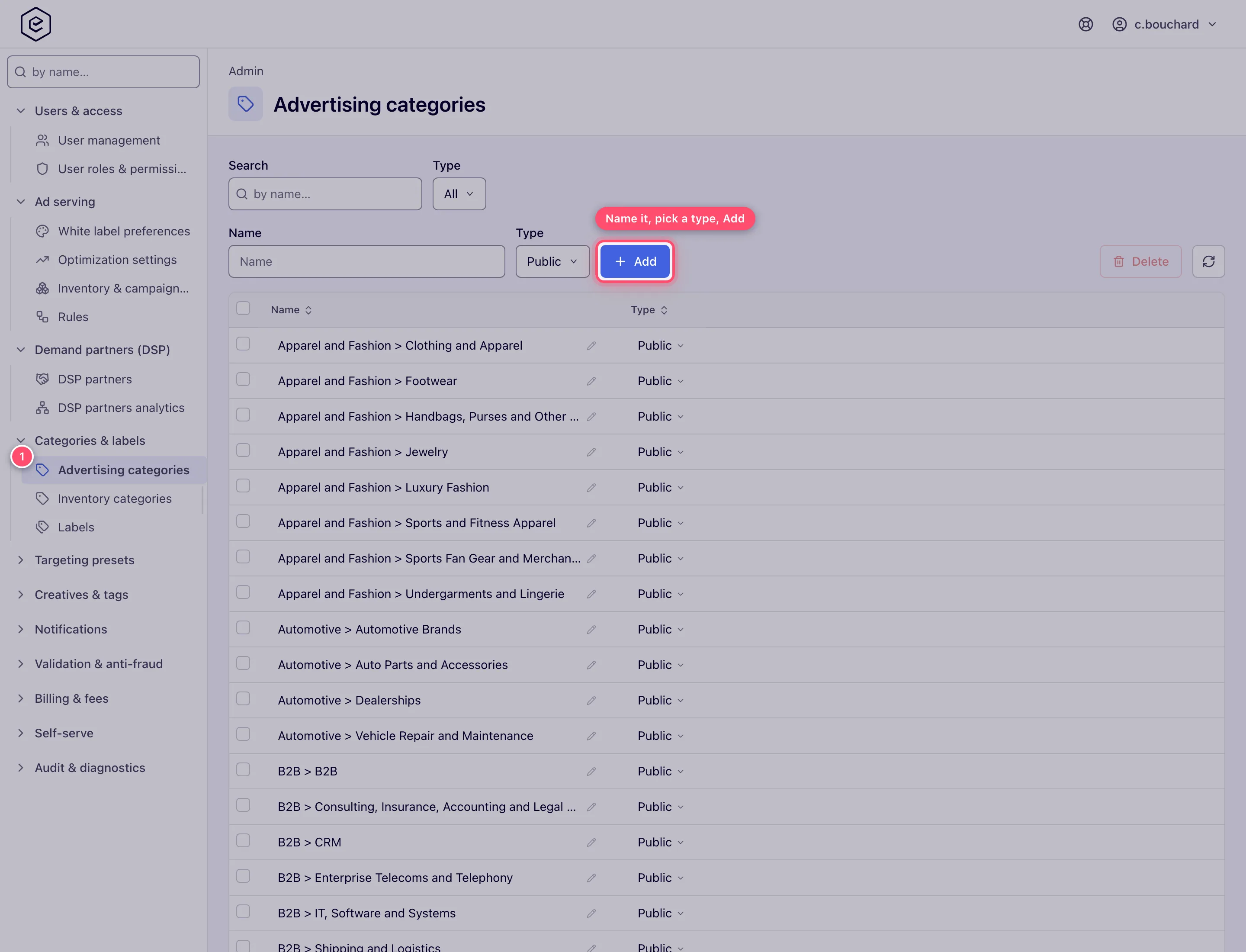
Go to Admin → Categories & labels → Advertising categories, or Inventory categories — the two pages are identical in shape and behave the same way.
-
In the bar above the grid, type the Name, pick the Type (Public or Internal), and click Add. Pressing Enter in the Name field does the same thing.
-
A Done toast confirms it and the grid reloads with the new row.
Two failures you will meet here, both as a red toast rather than a message under the field:
- Clicking Add with the Name box empty answers Enter a category name first. — the request is never sent.
- A name that already exists in that taxonomy answers Name must be unique. Names are
compared case- and accent-insensitively, so
artscollides withArts.
Rename a category or change its type
There is no separate edit page — both columns are edited in place.
-
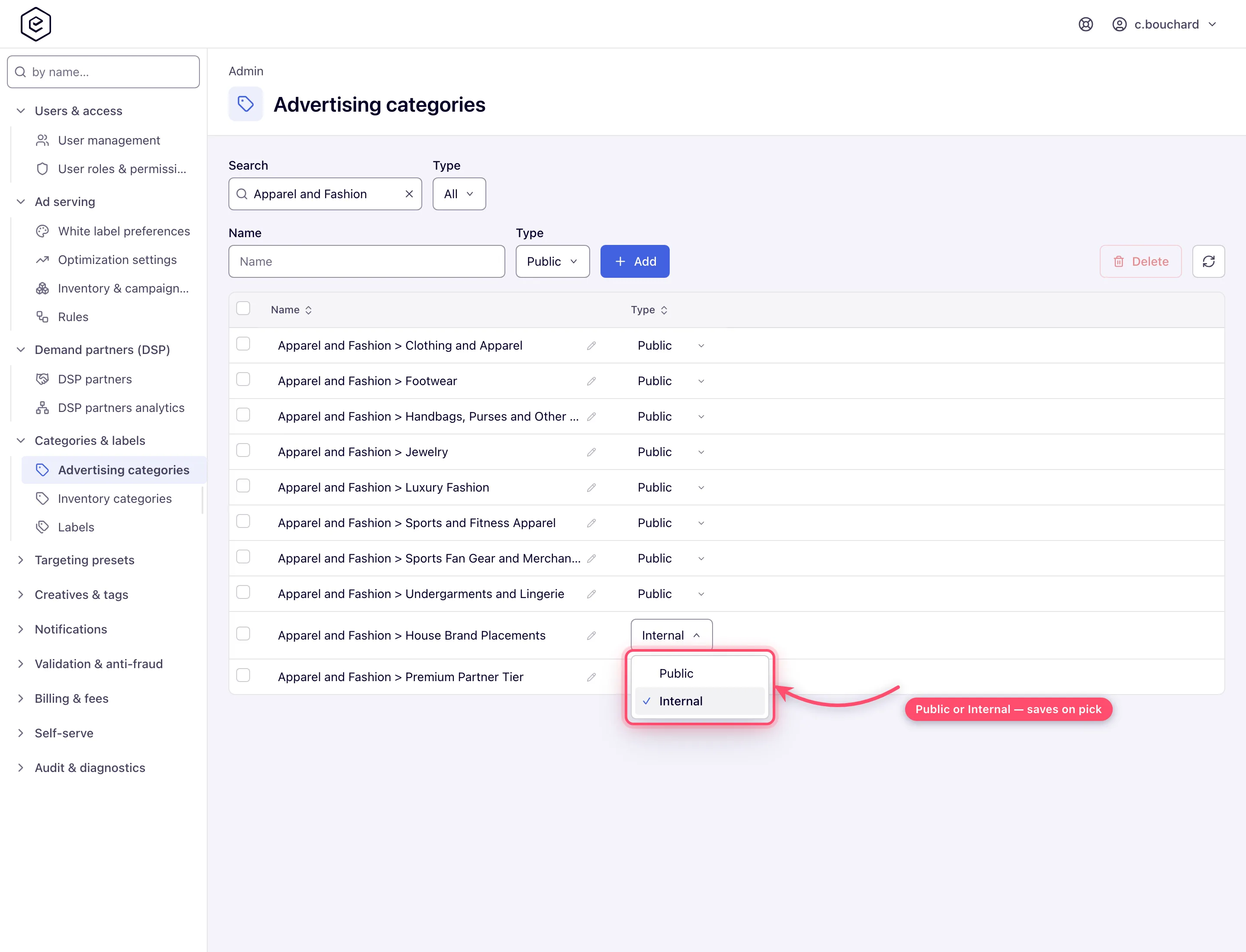
Click the Name cell (it carries a faint pencil). It turns into a text box with the current value selected.
-
Type the new name and press Enter, or click away — either commits. Esc discards. Nothing is sent if you did not actually change the value.
-
Click the Type cell to open a small Public / Internal list and pick the other value. It saves on pick.
-
Each committed cell saves on its own and answers Done.
Renaming is safe: advertisers, sites and rules point at the category record, not at its text, so every reference follows the new name.
Delete a category
- Tick one or more row checkboxes. The Delete button lights up and counts your
selection — Delete (3).
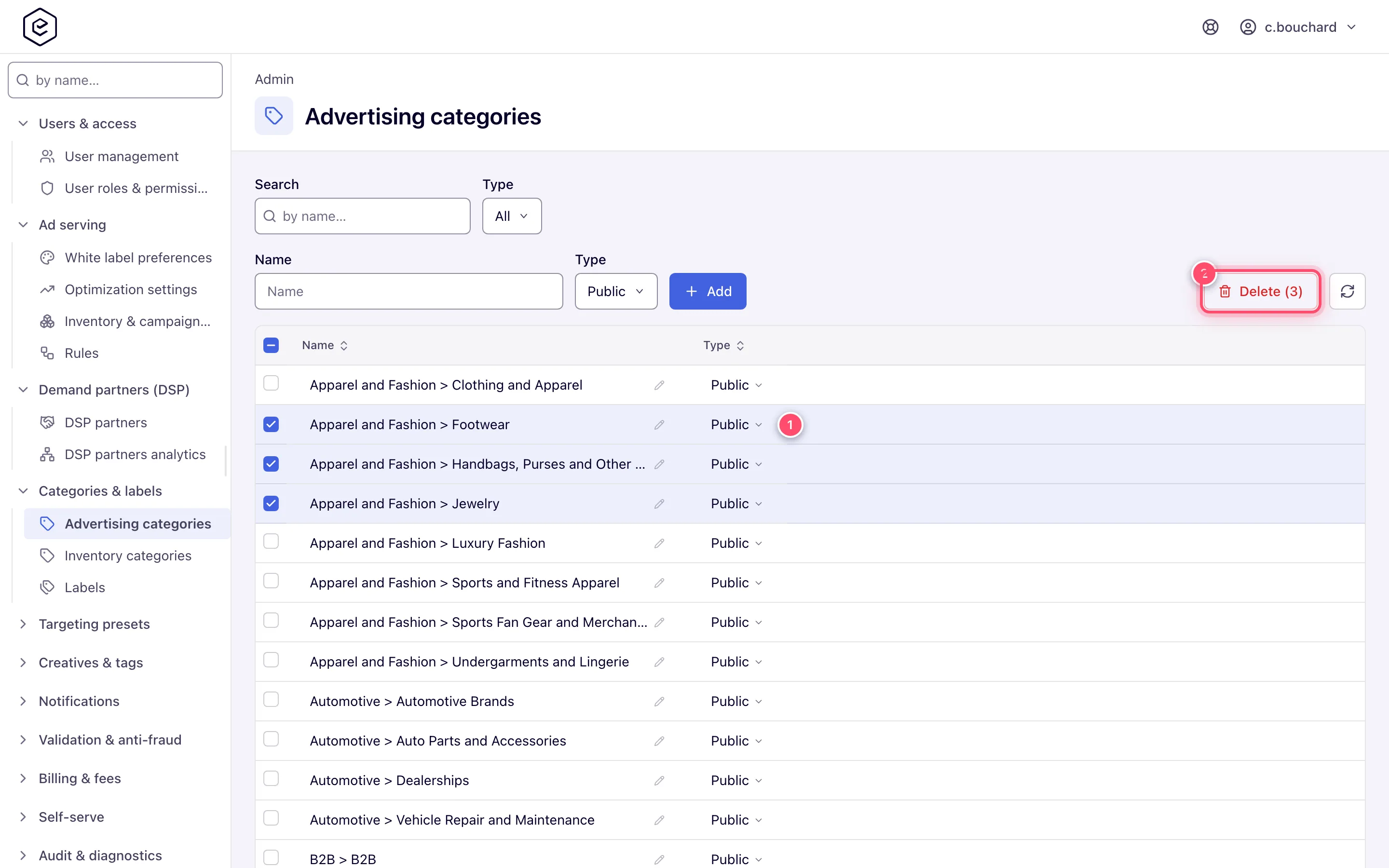
- Click it. A Confirm dialog asks Delete record(s)?
- Click Delete. Each row is deleted with its own request and a single Done toast follows.
There is no in-use check anywhere in this flow. The category is removed even when advertisers, sites, banners, campaigns and rules reference it — see What a delete takes with it for exactly which rows go.
Maintain labels
Labels are a single flat list of free-text values shared by banners, campaigns and placements. They have no Public/Internal notion and no demand/supply split.
-
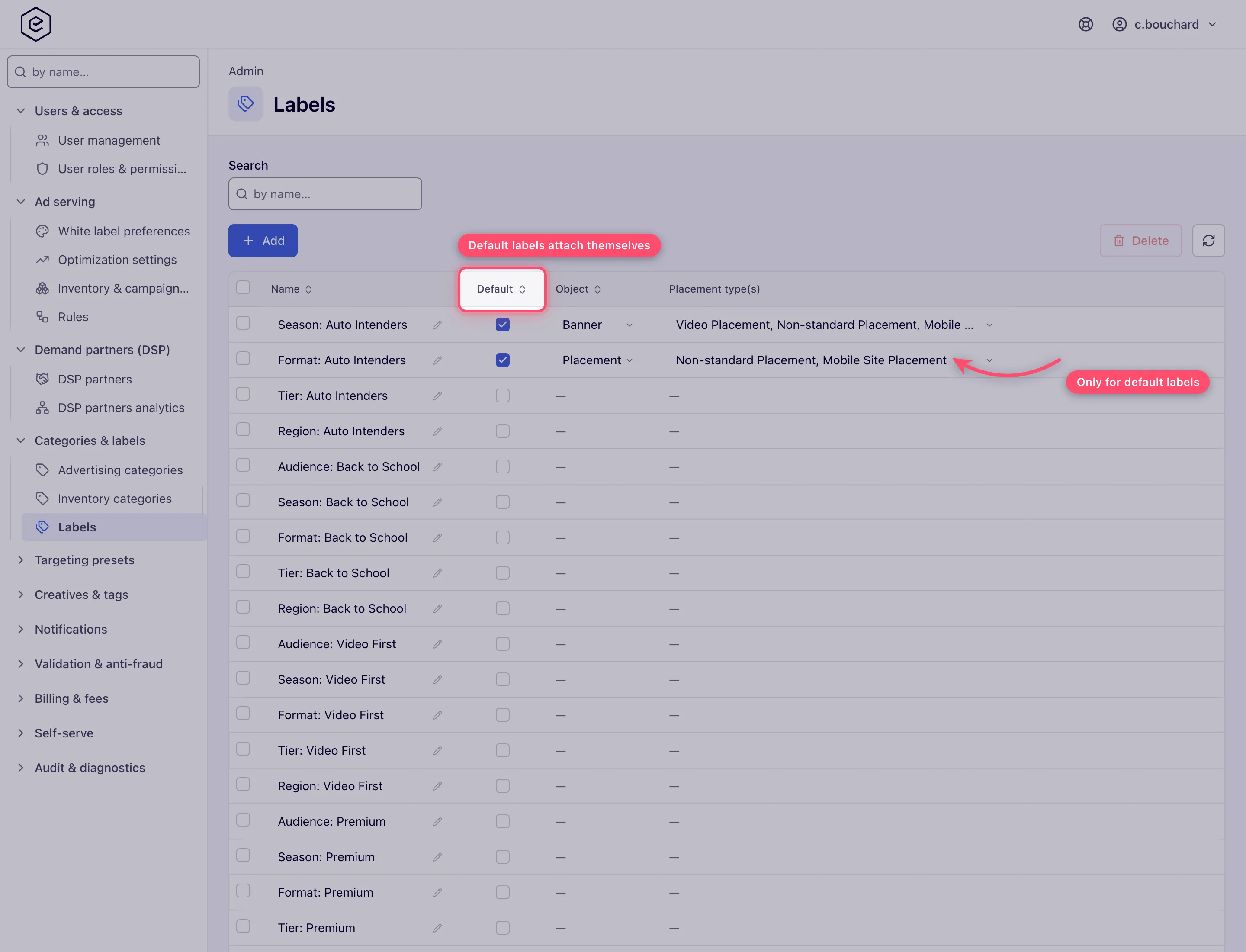
Go to Admin → Categories & labels → Labels. The grid has four columns: Name, Default, Object and Placement type(s).
-
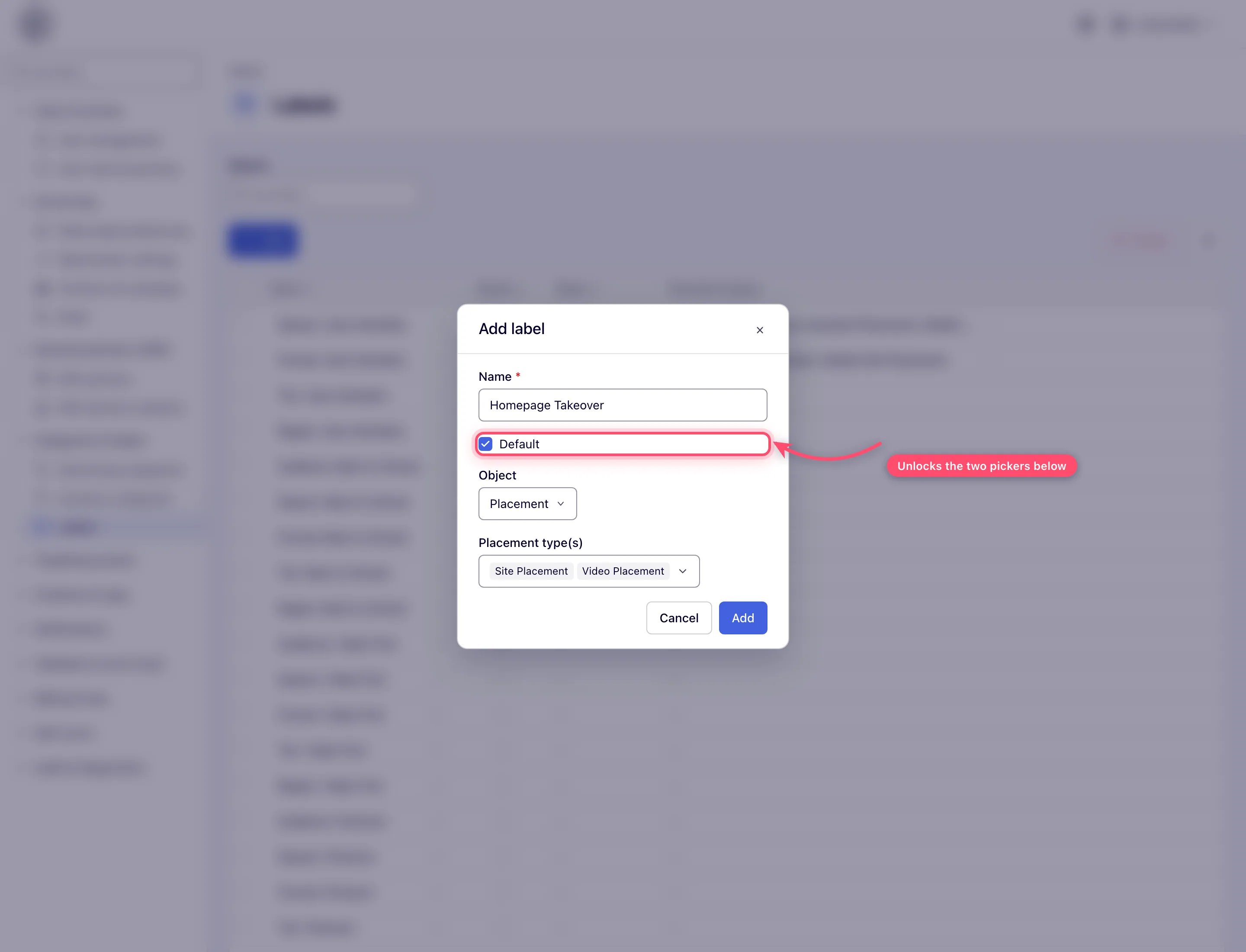
Click Add. A small Add label dialog opens with four controls. Type the Name — until you do, its Add button stays disabled.
-
Leave Default unticked for an ordinary label; Object and Placement type(s) stay greyed out and are not submitted. Click Add; a Done toast follows.
-
Back in the grid, edit any label in place: click the Name cell to rename, tick or untick Default, and — on a default label only — click Object or Placement type(s) to change them. Non-default rows show a dash in those two columns.
-
Delete works exactly as it does for categories: tick rows, Delete, confirm.
Note: on creation a duplicate name is refused with Label already exists. That check only runs when the label is new; a rename onto an existing name surfaces as a generic failure rather than that friendly message.
Make a label a default
A default label is applied automatically to entities as they are created — you do not have to attach it by hand.
- Tick Default on the label.
- Set Object to Banner or Placement — those are the only two object types the platform supports here.
- Pick one or more Placement type(s). This is the filter, and it is required in
practice: a default label whose placement-type set is empty matches nothing, because
the lookup keeps only labels whose set contains the type being created.
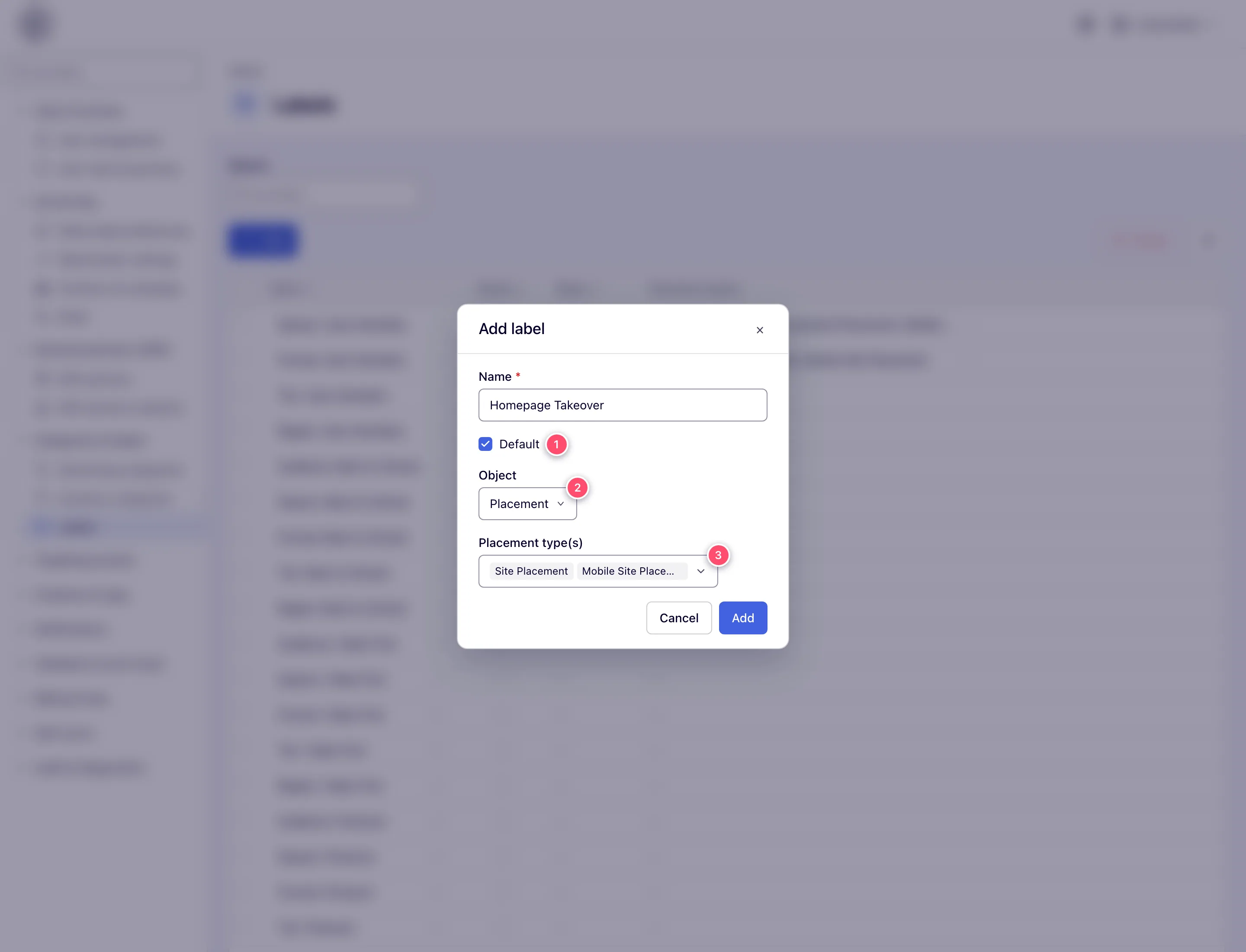
From then on the label arrives pre-attached: on a new placement whose type is in the set, and on a new banner whose placement type is in the set. It applies at creation only — an existing entity never picks the label up later, and removing it from one entity does not affect the label itself.
Options and fields
Category (both taxonomies)
| Field | What it does | Default | Limits |
|---|---|---|---|
| Name | The value users pick on entity forms and in rule match lines. | — | Required; max 128 characters; unique within that one taxonomy, case-insensitively. The same name may exist in both taxonomies as two unrelated records. |
| Type | Public or Internal — see Public vs internal. | Public | — |
Above the grid there are also a Search box (filters by name as you type) and a Type filter (All / Public / Internal). Both filter the list in the browser; the page fetches the first 1,000 categories in one call and pages them client-side, so a taxonomy larger than that would be silently truncated — the list arrives capped and nothing in the grid says so. Click Name or Type in the header to sort; untouched, the grid shows the rows in the order the server returns them, which is creation order.
Label
| Field | What it does | Default | Limits |
|---|---|---|---|
| Name | The label text, as it appears in every entity picker. | — | Required; max 64 characters; unique across all labels. Leading and trailing spaces are trimmed on save. |
| Default | Whether this label is attached automatically to newly created entities. | Off | — |
| Object | Which entity type the default applies to: Banner or Placement. | Placement | Only meaningful while Default is on; cleared on save when it is off. |
| Placement type(s) | Which placement types trigger the default: Site Placement, Non-standard Placement, Mobile Site Placement, Video Placement, Application Placement, Email Placement, Click-through Placement, Native Placement. | none | Only meaningful while Default is on; cleared on save when it is off. |
Public vs internal categories
Every category is Public or Internal. The taxonomy itself is one list; what an account user is offered is filtered by two role permissions per side — Show Public Categories and Show Internal Categories — and a user who holds neither gets an empty category picker, not a partial one.
The usual setup marks network-internal classification (payout tiers, quality buckets, house-brand flags) Internal so publishers and advertisers never see those values, while managers and admins see everything.
The Category field itself appears only for roles holding Advertisers Categorization (advertisers) or Inventory Categorization (sites); a read-only grant shows it disabled.
Where each vocabulary is used
| Consumer | Vocabulary | Where |
|---|---|---|
| Advertiser — Category multi-select | Advertising | Advertiser edit → Basic info. There is one field, not a primary + a list. |
| Site — Category multi-select | Inventory | Site edit → Basic info |
| Campaign / banner — Auto-link site categories | Inventory | Basic info, shown once auto-linking of new placements is switched on. While the switch is on a campaign needs at least one category; a banner needs at least one category or one label. |
| Banner — Auto-link placement labels | Labels | Basic info, in the same auto-linking block. With categories set too, a placement must match both. |
| Banner / campaign / placement — Labels | Labels | Basic info |
| Matching rules — match lines | Both categories and labels | A Campaign Rule matches advertising categories; an Inventory Rule matches inventory categories; either can match labels. See Matching rules and network defaults. |
| Analytics — entity tree filters | Both categories and labels | The Label filter comes with a Matching type of Match Any Label or Match All Labels. |
| Site — Domain category | Domain | Site edit → Basic info |
| Site / zone / placement — IAB category, Blocked IAB category | IAB | The OpenRTB card (called RTB configuration on a placement) |
Making a category or a label compulsory
Role permissions — Advertiser Categories Required, Site Categories Required and Banner / Campaign / Placement Labels Required — turn the optional field into a required one. The save is refused with a per-field error (You must provide at least one category or You must provide at least one label) rather than a banner. Each rule only bites when the user can also edit the field it guards: the label rules need the matching Labels permission, Advertiser Categories Required needs Advertisers Categorization, and Site Categories Required needs Inventory Categorization.
Corner case: a Required permission granted without the matching Categorization or Labels permission does nothing in the console — that role never sees the field, so its saves are not held to it. The REST API, which accepts
categoryIdwithout the Categorization permission, still enforces the category rules. Grant both when the role should be made to pick a value in the console.
What a delete takes with it
Nothing refuses the delete, and nothing is left dangling — every reference is removed with the category or label, whichever route the delete comes through.
- Advertising category: every advertiser that carried it loses it, and so does every rule match line that named it.
- Inventory category: every site, every rule match line and every campaign and banner auto-link set loses it; the campaign’s per-category rate rows go with it.
- Label: every banner, campaign and placement that carried it loses it, as do every banner’s Auto-link placement labels set and every rule match line that named it. A default label’s configuration goes with the label.
Corner cases and gotchas
Corner case: a rule match line that named only the deleted category silently stops matching anything on that line — the line survives, empty. Rules are the least visible consumer of a taxonomy, so audit Admin → Ad serving → Rules after any delete.
Corner case: deleting the last inventory category out of a campaign’s or banner’s auto-link set leaves auto-linking switched on with nothing selected. The entity keeps serving, but the next person to open and save it is blocked by Select at least one category until they pick one or turn auto-linking off.
Corner case: when the server refuses a delete, you get an error toast with its reason instead of Done, and the row stays in the grid. Nothing was removed; fix the cause the message names and delete again.
Corner case: Show only used categories changes the rule entirely. With that permission enabled, a user’s category picker is built from the categories already attached to the advertisers or sites shared with them — so a category you have just created is invisible to those users until somebody who can see it assigns it somewhere. The Public/Internal filter still applies on top.
Corner case: flipping a category from Public to Internal does not strip it from entities that already carry it, and a user who cannot see it will not wipe it by accident either — the save re-attaches the categories the current user is not permitted to see before writing. They just cannot see or re-add it.
Corner case: an advertiser or site save that names a category id which no longer exists — for example one you deleted a moment ago while the entity form was still open — is refused rather than silently dropped from the list. Reopen the form to get the current list.
Corner case: there is no merge tool. If two spellings of the same category have accumulated entities, re-categorise the entities by hand before deleting the duplicate — deleting it does not move its assignments anywhere.
Corner case: with Create Labels, a network user can type a new label straight into the Labels picker on a banner, campaign or placement, and the save creates it network-wide. Without it, naming an unknown label is refused with “Label … not found and you don’t have permission to create new labels”. Withhold it to keep the label list under admin control.
Per-role notes
- Administrators need the matching Admin UI permission to change a vocabulary; building a rule needs only Rules.
- Publishers, advertisers and network managers assign categories on sites and advertisers but cannot create, rename or delete one.
- Network users with Create Labels can add new labels from an entity’s Labels picker.
- Read-only grants show the Category or Labels field disabled; a Can View share is read-only whatever the grant.
Related
- Matching rules and network defaults — matching rules, platform defaults, custom ad sizes and country groups
- Keep unwanted ad categories off your inventory — IAB blocking versus name blocks, and which one is a hard stop
- Attach matching rules to an entity — how account users apply category/label rules per entity
- Admin area map
