
Install the landing-page helper
Paste one block on the advertiser's site so the click id is stored first-party and conversions fire with easq('track', 'event') — get the block, read it and install it in plain HTML or Google Tag Manager.
The helper is one block of JavaScript the advertiser pastes on their own site. When a visitor
arrives from one of your ads, it takes the click id out of the landing URL and stores it on the
advertiser’s own domain. Later, when that visitor converts, the page calls
easq('track', 'first_deposit') and the conversion is posted to the ad server with the stored
click id attached.
It is the middle option between a tracking pixel and a server-to-server postback: it runs in the browser like a pixel, but it matches on a first-party value the advertiser stores rather than on a cookie belonging to your ad-serving domain — so it keeps working where third-party cookies are blocked. It asks the advertiser for one paste and no backend work.
This page gets the block and installs it. Two more pages cover what comes after:
| Page | What it covers |
|---|---|
| Landing-page helper reference | Firing a conversion per funnel step, sending a payout, how long the click id lasts, reading the click id from your own code, and every command and option. |
| Check and troubleshoot the landing-page helper | easq('debug'), reading the result of a conversion and the reason it did not count, and what to check when nothing arrives. |
Who this is for
The advertiser’s developer or tag-manager owner, and the account manager walking them through it.
Producing the block takes a campaign and someone in Epom who can open its tracking code — on a
stock network that is the network manager, not the advertiser — see
Get the pixel and S2S tracking code. Installing the block needs no backend
work and no Epom account — but verifying it takes both of you. Only the ad server can mint a click
id, so the developer has to be handed a test click URL to try it with, and the commonest failure of
all — nothing stored, reported as no-clickid — is fixed on the campaign, not on the page.
When to use it instead of a pixel or a postback
| Pixel | Landing-page helper | Server-to-server postback | |
|---|---|---|---|
| Where it runs | Advertiser’s browser | Advertiser’s browser | Advertiser’s server |
| What it matches on | A click/view cookie on your ad-serving domain | A click id stored on the advertiser’s domain | A click id the advertiser stored server-side |
| Survives third-party cookie blocking | No | Yes | Yes |
| Survives a different browser or device | No | No | Yes |
| What the advertiser has to do | Paste a pixel on the thank-you page | Paste one block on every page | Store a value, then make an HTTP call |
| Needs the click id in the landing URL | No | Yes | Yes |
Pick the helper when the advertiser can edit their pages (or runs a tag manager) but will not build a backend integration. Pick the postback when the conversion happens off the web — an app install, a call centre, a payment confirmed days later on another device. The helper can hand the click id to a backend if you want both: see Read the click id from your own code.
Prerequisites
-
A conversion action, switched on for the campaign — see Create and edit conversion actions.
-
The creative’s landing URL must carry the click id. Nothing in the block can create one; it can only read one that arrived. Put
$$CLICK_ID$$into the creative’s landing URL:https://yourlanding.com/product?easclid=$$CLICK_ID$$Add the click id to landing page URLs on the campaign’s Conversion actions card does that for you, wherever the click-through is built out of the creative’s own Link field: Local File and External File images, Local Video and External Video and the VAST tag creatives that carry a
<ClickThrough>, the email-placement click, and both click-through URLs a click-through placement hands out — including the hidden-landing-page one, which resolves the link at click time. On HTML Code, Template, native and OpenRTB creatives the landing page lives inside markup somebody else wrote, where the toggle has nothing to rewrite, so there the macro has to be written into the landing URL by hand.A URL that already carries the macro (or an
easclid=parameter) is left exactly as written, so the two cannot collide.$$ACTION_DATA$$is the same token under its older name and still works. See Macros reference. -
Access to the advertiser’s site — every page, not only the conversion page.
Note: the Snippet tab does not warn you when the landing URL is not carrying a click id. It cannot see the creative. The generated block opens with a comment restating the requirement, and that comment is the only reminder anyone gets — leave it in place when you hand the block over.
Steps
Get the block
- Go to Account → Advertisers → advertiser → campaign and open the Conversion actions card — its own switch has to be on. On a campaign that already has actions it will be.
- Select exactly one action row and click Conversion tracking code. The grid takes one row at a
time, so the block you get tracks that one action and carries one
easq('track', …)line. - Pick the Ad-serving domain above the tabs — the block is built for that host, and the conversion call is sent there. Picking one saves it onto the campaign then and there (it needs Action Tracking: Code and Update on the campaign), and every tracking code that campaign issues from that moment carries the new host: this block, its pixel codes, its postback URLs. It is not a way to look at an alternative host — and a block already installed at an advertiser goes on naming the old one. (On the global Account → Conversion Actions page there is no campaign to save it against, and the choice is forgotten when the window closes.)
- Open the Snippet tab and copy the block. The tab is there only for a role with Action Tracking: Server-to-Server, and only from a campaign — the payout flag baked into the block is a campaign fact, so the global Account → Conversion Actions page offers the postback tab alone.
The tab’s settings — Format, Click ID parameter, event names, payout, and the
Count one conversion per click checkbox — are described in
Get the pixel and S2S tracking code. What comes out
is complete: there is nothing in the block for the integrator to fill in — with one exception, the
{{…}} variable names in the optional alternative tag of the Google Tag Manager format, which are
covered under Install it — Google Tag Manager.
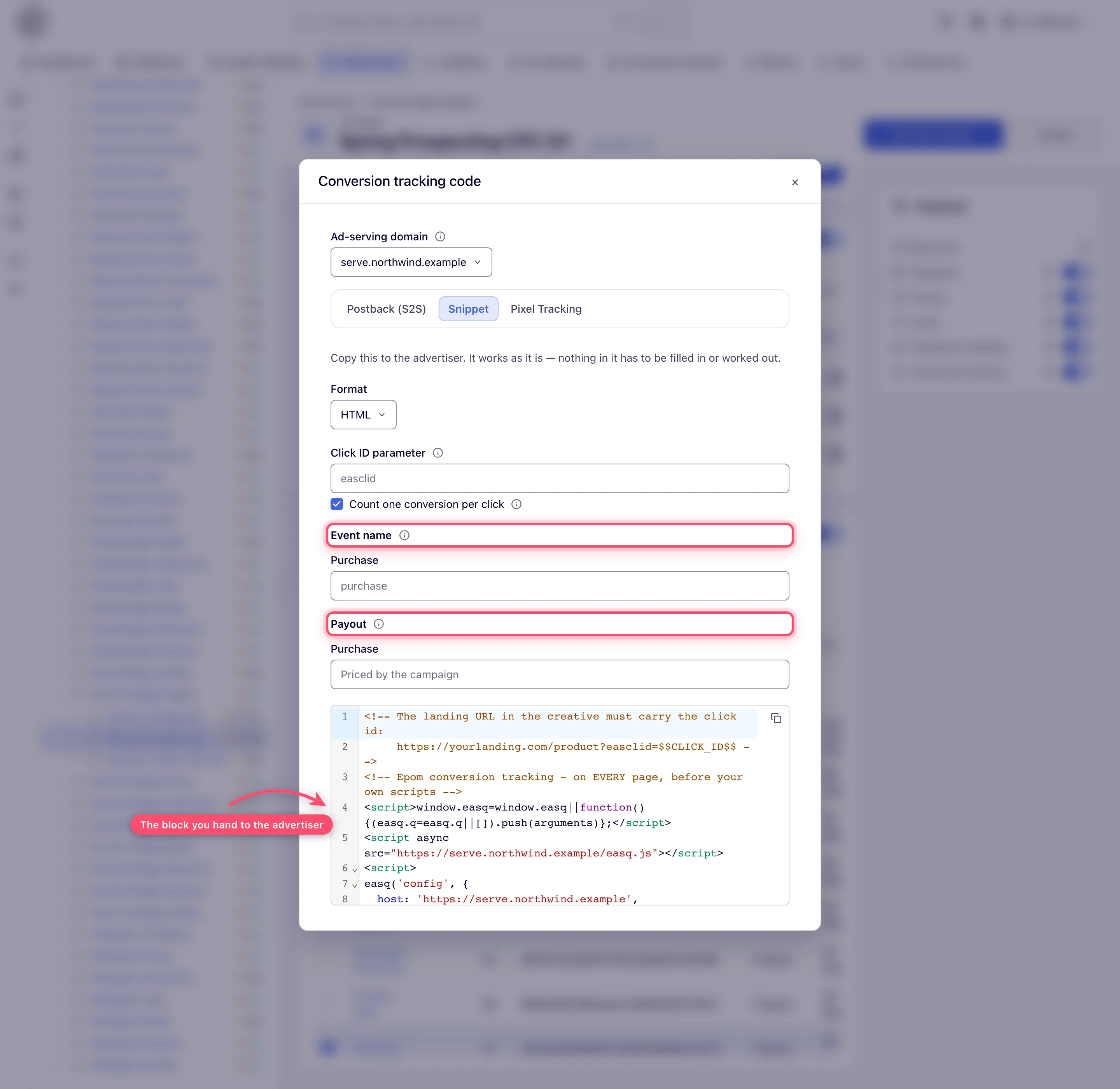
The code box scrolls inside itself, so the picture shows only the first lines. Copy the block with the button in its corner rather than retyping it from the screenshot.
For a whole funnel in one block, switch to the Funnels tab on the same card, select the
funnel and click Conversion tracking code. That block names every step of the funnel in its
actions dictionary and carries one easq('track', …) line per step, in funnel order — the shape
the rest of this page uses. The tab is not shown until at least one funnel has been saved; see
Save a conversion funnel and report on it.
Read the block
A generated block has three parts. This is the HTML shape; the Google Tag Manager shape carries the
same three parts split across tags. The example is a two-step funnel block — a single-action block
is the same shape with one entry in actions and one track line.
<!-- The landing URL in the creative must carry the click id:
     https://yourlanding.com/product?easclid=$$CLICK_ID$$ -->
<!-- Epom conversion tracking - on EVERY page, before your own scripts -->
<script>window.easq=window.easq||function(){(easq.q=easq.q||[]).push(arguments)};</script>
<script async src="https://ads.example.com/easq.js"></script>
<script>
easq('config', {
  host: 'https://ads.example.com',
  network: '17',
  payoutOverride: false,
  actions: {
    'registration': ['b21f0c9d4e7a3f5182c6d0ab94e7f331'],
    'first_deposit': ['7c4a1e08b5d29f63a0e1c74b8d2f5069']
  }
});
easq('arbitrate', 'last-click');
</script>

<!-- One line per funnel step, where the step happens -->
<script>easq('track', 'registration');</script>
<script>easq('track', 'first_deposit');</script>- The stub (
window.easq=window.easq||…) queues calls made before the script has finished loading. It must come first. - The script tag loads
easq.js. It isasync, one static file, identical for every network, and safe to cache. - The config call registers the ad-serving host and the event dictionary — and, as a side effect, captures the click id from the current URL. That is why the block belongs on every page: the landing page needs it to store the click, and the conversion page needs it to read the click back.
The easq('track', …) lines are the conversion. Put each one where that step actually happens, not
where the block sits.
The easq('arbitrate', 'last-click'); line sits in the same <script> as the config call, and it is
there by default: Count one conversion per click is ticked when the tab opens, and only
unticking it takes the line out. It settles which of two of your own ad-serving domains on one
landing page gets the conversion — the later click wins. Despite the name of the checkbox, it is not
the once-per-click rule described in Fire a conversion per funnel step
and has nothing to do with it. On a page running a single
ad-serving domain it changes nothing.
Install it — plain HTML
Paste the first three parts into the site template, in <head> or at the top of <body>, ahead of
your own scripts, so it is present on every page. Then move each easq('track', …) line to the
page or moment where that step completes — the order-confirmation page, the “account created”
screen, the deposit receipt.
Nothing bad happens when a page carries the block twice. The second copy of the script starts no
second runtime — the file returns immediately when it finds one already loaded — and the second
copy’s config and track calls simply run against the runtime that is there. Calling
easq('config', …) more than once for the same host merges rather than duplicating — new event
names are added, so an init block that runs on every page view is fine.
If the site runs a Content-Security-Policy, two origins have to be allowed, and they are not always
the same host: the one named in the <script src> belongs in script-src, and the host from the
config call belongs in connect-src, because the conversion is a credentialed fetch to it. A
network with a CDN in front of its ad-serving domain generates a block naming the CDN in the script
tag and the serving domain in host. That is correct — allow both rather than editing host to
match. A third origin comes into it only if your network mirrors conversions to third-party trackers
(see Piggyback pixels): those tags come back with the counted conversion and are
written into a hidden same-origin frame, so the advertiser’s own policy governs them and a strict
one will block them.
What the block stores, so the advertiser’s privacy people can answer for it: two first-party cookies
on the advertiser’s own domain — one holding the click ids and which conversions each has already
counted, one small record of which ad-serving host captured last — plus a localStorage copy of the
first. The click-id jar and its localStorage copy are named after the ad-serving host
(_easclid_…); the ownership record is a single _easq_owner, shared by every ad-serving host on
the page, which is why it is not namespaced. A counted conversion may also render your network’s
configured third-party tags into a hidden frame on the page — the one part of this in which the
advertiser is not the only party, so say so if they ask. All of it is written by the config call
as the visitor lands from an ad — at page load, long before any conversion happens. Whether that may run
ahead of the advertiser’s own consent tool is the advertiser’s decision, not one this page makes for
them — but gate it behind consent and a visitor who lands before granting it arrives with a click id
nothing captures, and their conversion is lost.
Install it — Google Tag Manager
The Snippet tab’s Google Tag Manager format splits the same thing into two tags:
- Tag 1 — Custom HTML, trigger All Pages. The stub, the config call and the script tag.
- Tag 2 — Custom HTML, one tag per funnel step, triggered by the event for that step. It holds
the single
easq('track', …)line.
The generated block also offers an alternative to a tag per step: one Tag 2 for everything, with the event name coming from a GTM variable.
<script>easq('track', '{{Event Name}}');</script>On a campaign that takes a payout from the page, the generated line carries one too:
<script>easq('track', '{{Event Name}}', { payout: {{Order Value}} });</script>{{Order Value}} there is a placeholder, and the name is a trap: what belongs in the payout field is
the price of the conversion, which is almost never the order total — see
Send a payout. Point it at the variable that holds the price before you publish the
tag.
Quote a text variable, never a number — a tag manager pastes a variable’s value straight into the source, so an unquoted string is a syntax error that kills the whole tag. (A quoted number still prices correctly; it is simply not the shape the generated block emits.) The generated block already has the quoting right for your campaign; copy it rather than retyping it.
Tag 2 may safely fire before easq.js has arrived: the stub in Tag 1 queues the call, and the
runtime applies every queued config before any queued track, so a conversion tag that runs ahead
of the script still counts. What it must not do is fire before Tag 1 itself has executed. The
stub lives in Tag 1 and Tag 2 is a bare easq('track', …) line, so a step tag that runs first throws
easq is not defined and the conversion is lost with no diagnostic anywhere. The All Pages
trigger normally settles it — Tag 1 runs on the page view, the conversion events come later. Where a
step’s trigger is the same GTM event as All Pages, though — a Page View trigger scoped to
/thank-you, say — nothing orders the two, so give Tag 1 a higher firing priority, or make it the
step tag’s setup tag.
Once the block is on every page, fire each step where it happens — see
Fire a conversion per funnel step — and check the
result with easq('debug') — see Check and troubleshoot the landing-page helper.
Corner cases and gotchas
Corner case: the block goes on every page. It is not a conversion tag — the config call is what captures the click id when the visitor lands, and a copy that appears only on the order-confirmation page will store nothing and report
no-clickidforever.
Corner case: the stored click id is written on the highest domain the browser will accept, so a click captured on
lp.shop.exampleis readable atcheckout.shop.example. It cannot cross to a different registrable domain. A checkout hosted on a payment provider’s own domain is outside the advertiser’s storage, and the conversion has to be fired from a page back on their site.
Corner case: changing the ad-serving host orphans every click id already stored, and nothing avoids it. The storage name is derived from the host, so a block pointed at a new one starts with an empty jar and reports
no-clickidfor every visitor who landed before the change — the same whether thehostline was edited by hand in the installed block or the Ad-serving domain was changed in the tab. What the tab buys is not those click ids: it saves the host onto the campaign, so the block and every other code that campaign issues keep naming one domain, where a hand-editedhostleaves the page posting to a domain the campaign never issued a code for. Change the host once, and expect a gap the length of the advertiser’s conversion lag.
Corner case: the
easq('track', …)line is safe to fire before the script has loaded. The stub queues it, and the runtime applies every queuedconfigbefore any queuedtrack. The stub has to have run, though: it is the first line of the block, and of Tag 1 in the tag-manager shape.
Per-role notes
- Network manager — produces the block from any campaign they can open; the stock role has the Snippet tab.
- Advertiser — the stock role has no Snippet tab and no campaign Conversion actions card, so it cannot produce the block: ask your network manager for it, or for Action Tracking: Server-to-Server and Manage Action Tracking on your role. See What your network controls.
- Publisher — no Conversion Actions section; the block is an advertiser-side artefact.
- Can view share — you can open the tracking window and copy the block, but an Ad-serving domain pick is refused with Permission denied.
Exact grants: see User roles.
