
Sell ads in an email newsletter
Recipe for email inventory — an email placement whose creative and landing URLs go into your template, what demand can serve there, why capping is unreliable in mail clients, and how to measure honestly.
A newsletter slot is the most constrained ad environment there is: no JavaScript, no
iframes, often no cookies — just an image and a link. Epom’s Email placement is built
for exactly that: it gives you two URLs, one for the <img> and one for the <a>, and
rotates the creative server-side each time the image is fetched.
Who this is for
Publishers with a newsletter audience and network managers selling it. Neither the stock Publisher nor the stock Network Manager role can create an Email placement; ask your network manager (or, as a network manager, your network administrator) to switch it on for your role. The Email tab of the placement’s Ad tags & API card carries no permission of its own — it appears whenever the placement is of this type and switched on.
Prerequisites
- A site and zone representing the newsletter.
- Edit access to your email template (or the merge-tag features of your sending platform).
- Image demand: an email placement links Local File and External File banners (the uploaded or hosted image creatives) and the two video types, Local Video and External Video. HTML-code, template, native and OpenRTB banners do not link to it — mail clients execute no scripts. The banner has to be created for the Email type (Add new banner → Add banner for Email Placement on the campaign): a banner built for a site placement never links to an email placement, whatever its size.
Steps
-
Create the placement (network manager, unless your role has Email placements switched on). On the zone, choose Add new placement… → Email Placement, set the name and the Size matching the slot in your template (required for this type), and Save — the integration URLs exist only after the first save, and only while the placement’s Active switch is on.
-
Copy the two URLs. Open the Ad tags & API card; it has one code tab, Email (field reference). Under the ready-made code block it shows two read-only, copyable fields:
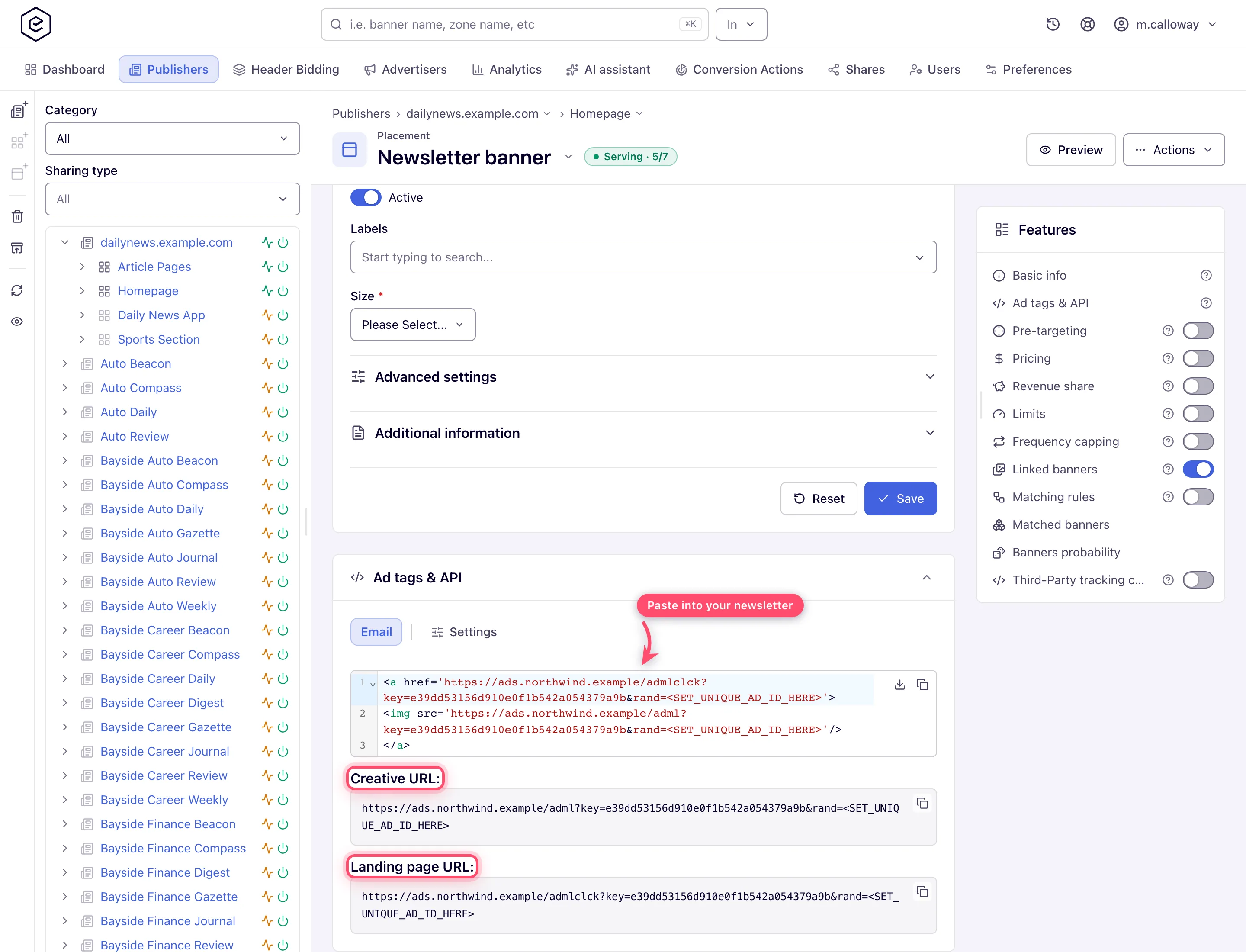
- Creative URL → the
srcof your<img>tag; - Landing page URL → the
hrefof the<a>wrapping that image.
The code block is the same pair as one ready-to-paste snippet. If your network serves from several domains, the Settings tab of the same card has a Domain picker; the URLs are rebuilt for the domain you pick. Where the picker is missing from your role, the URLs use the network’s default ad-serving domain.
- Creative URL → the
-
Harden the tag in your template. Both URLs carry
rand=<SET_UNIQUE_AD_ID_HERE>. Replace that placeholder with a unique value per send or per open — a merge tag from your sending platform — otherwise aggressive caches may pin one creative for many opens. Any default parameters you set on the Settings tab follow it in the URL. -
Connect demand (network manager). Link image banners created for the Email type with the same size as the slot (or let Rules do it). Pricing works as usual — CPM on the demand side pays per image load, CPC per click; your payout comes from the placement or site pricing or revenue share.
-
Control volume with Limits, not caps (network manager). If a sponsor bought “50 000 impressions in this newsletter”, put an impression Limit on their campaign — limits count server-side and don’t depend on the mail client. (Why not frequency capping: see the gotchas.)
-
Measure. In Account → Analytics run a General report with Group by → Placement and Time granularity → Day: impressions are image loads, and clicks and CTR come from the landing URL. Compare against your sending platform’s open counts, expecting a gap (see gotchas).
Corner cases and gotchas
Corner case — the ad is frozen at open time. Mail clients run no JavaScript, so the creative is chosen when the image is fetched and never rotates within an open. Reopening the email fetches again and may show a different creative — screenshots from readers can legitimately disagree with each other.
Corner case — never retire the serving domain used in sent newsletters. The URLs you pasted are literal; emails already in inboxes keep pointing at that domain forever. If the network migrates domains, past issues lose their images and clicks — keep the old domain serving or accept the loss.
Corner case — a paused placement has no URLs. The Placement key and the whole Ad tags & API card disappear as soon as the Active switch is off (live, before you save). Switch the placement on to get the URLs back; the URLs already in sent mail keep pointing at a placement that now serves nothing.
Corner case — a banner of the wrong placement type just never links. An email placement matches only banners created with placement type Email (Add banner for Email Placement); an image banner made for a site placement stays invisible to it even at the same size. Video banners link without a size check; every other eligible banner must match the placement’s size exactly, unless the placement ticks Flexible placement size (under Advanced settings, where your role has it), where a banner no larger than the slot links too.
Corner case — frequency capping is unreliable on email traffic. Default caps count per visitor via a browser cookie, but many mail clients proxy image requests through their own servers: cookies don’t persist and many recipients appear behind the same proxy IPs. Cookie caps under-count; IP-subject caps (which exist only where the network has server-side capping storage and IP capping switched on, and your role may pick an IP subject) can lump thousands of readers together and block them as one “visitor”. Sell email inventory on volume (Limits) rather than per-user frequency — full subject semantics in the capping matrix.
Note — impression counts ≠ opens. Some mail providers prefetch images before the user ever opens the mail, and users with images disabled load nothing. Treat the impression column as “image fetches”, not “human opens”, and expect discrepancies against your email platform’s analytics in both directions.
Per-role notes
- Publisher: your network manager creates the Email placement (or switches Email placements on for your role); you copy its Email tag. Pricing, limits and revenue share are set by your network manager.
- Network manager: create the placement once your role has Email placements, plus the commercial cards and the Domain picker where your network administrator has switched them on.
- Can view share: the form is read-only, but both URLs still display and copy.
- Demo account: Preview on an email placement opens the built-in preview.
