
Preferences — profile, security and UI settings
Change your password, personal info and API key, connect an AI assistant (MCP), see your AI assistant spend and limit, add your own Anthropic API key and cap it, tune UI mode, theme, language and density, manage the login IP whitelist, notification subscriptions and scheduled events.
The Preferences page is your personal control panel: password, contact details, API key, the AI-assistant connection, how the interface looks, who else receives your notification emails, and from which IP addresses your account may sign in. Cards appear top to bottom; each saves independently.
Who this is for
Every signed-in network user. Not everyone gets the same page: a role without Manage Preferences opens a shorter one without the profile cards. See Per-role notes before you tell someone where a card should be.
Prerequisites
- None — this page is about your own account.
Steps
- Go to Account → Preferences.
- Work through the cards you need. The form cards have their own Reset and Submit; the list cards (default sharing, IP whitelist, recipients, scheduled events) save as you add, change or remove rows, and a few settings save instantly where noted. Which of these cards you see depends on your role — see User roles. The cards, in page order:
Change password
Current password, New password and Confirm new password. Mismatches and a wrong current password come back as field errors; success reads Password changed.
The new password must be at least 8 characters (up to 64), must not begin or end with a space, must not contain your username or the local part of your email address, and must not be one of the widely-used passwords the platform screens against. There is no mixed-case/digit/symbol requirement — length is what makes a password hard to guess, so a memorable passphrase is a better answer than a short string with substitutions. Epom can tighten these limits for your network; the exact figures come from the platform password policy.
Whenever you change your password here — in the console or over REST — or through a reset link, the platform signs your other sessions out and emails you a Password Changed notice. If one of those arrives and it wasn’t you, use the recovery link in it immediately and contact your network administrator.
User’s payment details
Your payout details. The card needs the User’s Payment Details permission, which the stock Publisher and Advertiser roles do not hold. Fill Beneficiary name, Beneficiary residence, City, Street and a Billing contact (Email, Name), then pick the Payment method: Wire (Bank name, Bank address, Swift, Acc./IBAN, Currency — USD, EUR or GBP) or PayPal (Email). Both end with Other payment details. PayPal is not available when the beneficiary residence is Hong Kong. Success reads Payment details has been changed.
Change personal information
First/last name, email (required), phone, country, state/province, company, website URL — plus the API Key row and two switches (Receive newsletters, Receive notifications by email, each flipping to a Does not receive… label when off). The server accepts up to 64 characters in names, e-mail, state, company and website and 20 in the phone, and the website must be a valid URL. The API key is shown shortened to its first four characters — Copy copies it in full — and Generate issues a new 32-character key. Success reads Personal info changed.
AI assistant (MCP)
Connects Claude Code, Cursor or another MCP client to your account — the assistant then works
as you, with your API key and permissions. The card shows the endpoint URL, ready-to-paste
snippets for Claude Code and for clients that take a JSON server definition (a paste-ready
mcpServers block; your key is shortened on screen to its first four characters, and Copy
copies it in full), and the tools the assistant is offered for your role. Without a key it offers
Generate API key (when your role may generate one) or tells you to ask your account
manager. It also notes that clients which sign in only through OAuth, such as claude.ai in the
browser and ChatGPT, cannot connect yet: the server does not offer OAuth.
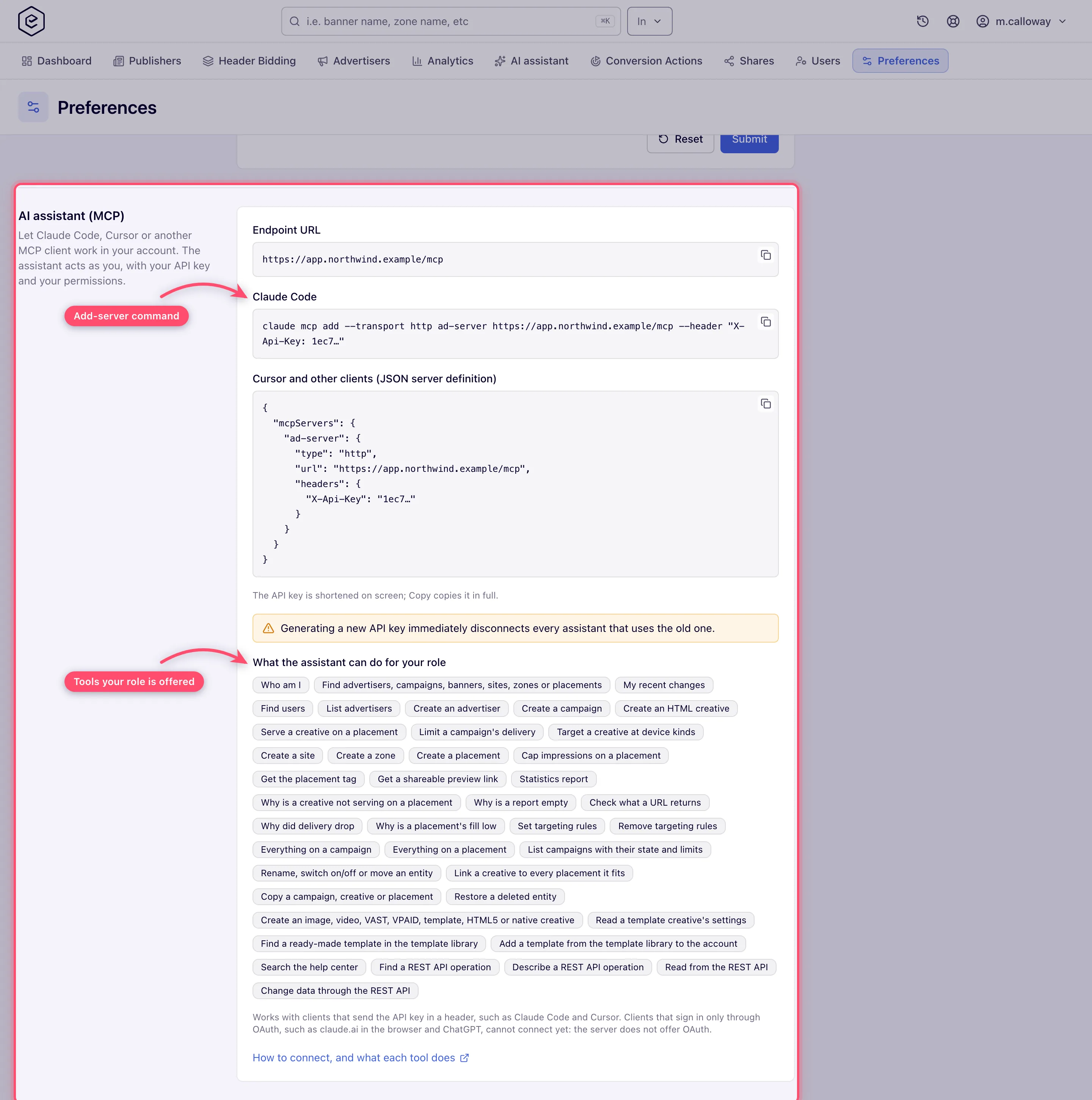
The card appears when MCP is on for the network (it is on by default). If neither this card nor the API key row is on your page, ask your network admin for API Key Access. The user menu (your name, top right) then shows Connect AI assistant, which opens this card; the entry appears under the same conditions. See Connect an AI assistant (MCP) for the clients that can connect and what each tool does. To chat with the same assistant right in the console instead, use the AI assistant tab.
AI assistant
Everything about the built-in AI assistant’s spend and your own Anthropic key, in one card.
Which key you run on. The assistant runs on your own key if you set one — only for you, paid to Anthropic by you, not billed by the platform; else on your network’s key, else on the platform’s (billed to the network), else it is off. A badge at the top of the card says which (Your key ···7f3a, Network key, Platform key or No key); on the platform’s key a second badge shows the promo while one runs (Free until Nov 7 · then paid — amber in its last week or once the allowance runs low, Promo ended afterwards) and a Ways to save button lists the cheaper options. Ask in analytics and the traffic-quality analysis never use your key — they run on Epom’s server key.
This month. What you spent this calendar month (UTC) on the key you run on now, as a big figure against your limit ($13.92 / $20.00 this month) with a slim bar that turns amber at 80 % and red at 100 %. One short line under it names who set the limit, and its ⓘ explains the rest — who can change it, and what the figure counts (billed USD on the platform’s key, Anthropic list price on your own or the network’s key; during the promo, how long it lasts and how much of the allowance is left):
| Line | Meaning | What to do |
|---|---|---|
| Limit: yours | Your own cap, on your own key | Change it in the field below |
| Limit: set by your admin | A per-user limit on your user | Ask your administrator for more |
| Limit: network default | The network’s limit for each user | Your administrator can set your own limit instead; Epom support or your account manager can change the default |
| Limit: platform default | No other limit, on the platform’s key | Your administrator can set another |
| No limit | Nothing caps the key you are on | Set your own limit, if on your own key |
The figure is hidden while you have no key at all.
Your own key. One row says which key is in use (Platform key in use, Network key in use, No key: the AI features are off, or Your key ···7f3a · added Oct 6, 2026). Click Add your own key (Replace once one is set) to open the key field, paste the key and click Save key; Cancel closes the field. The key is checked with Anthropic before it is stored; a refused key (The key was rejected by Anthropic.) or a failed check (Could not verify the key, try again.) stores nothing. The key is stored encrypted and never shown again — only its last four characters (the ⓘ next to the field says so). Remove deletes it after a confirmation. A user who loses the permission can still remove a key they set earlier, but not set a new one.
Your monthly limit on your own key, $. Shown only while you run on your own key, as one row: the field, its ⓘ and Save limit. Leave it empty (No limit) for no cap, or enter 0 to 1,000,000 and click Save limit: the assistant stops once your own key has cost that much this month at Anthropic list price. It caps only your own key — the limits on the network’s or the platform’s key are set by your administrator, and they apply again as soon as you remove your key. Your administrator sees your own limit, read-only, on your user’s edit form.
User interface preferences
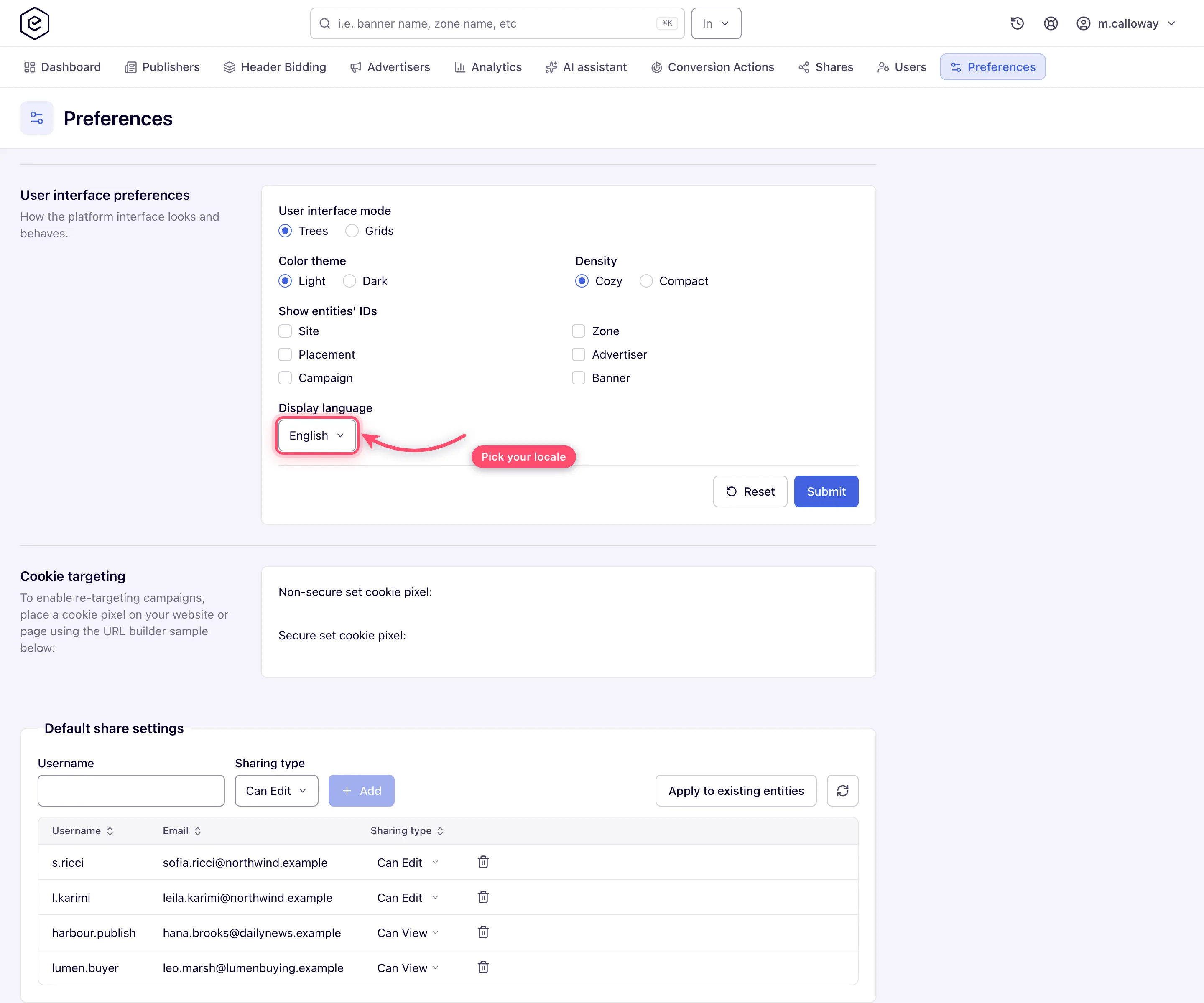
| Setting | Options | Notes |
|---|---|---|
| User interface mode | Trees / Grids | Changes how the Publishers/Advertisers areas navigate |
| Color theme | Light / Dark | Applies instantly, no Submit needed — same toggle as the user menu |
| Density | Cozy / Compact | Applies instantly, no Submit needed |
| Show entities’ IDs | Site, Zone, Placement, Advertiser, Campaign, Banner | Ticked types display numeric IDs next to names across the UI |
| Advanced analytics view | Simple / Extended / Unique | The views offered follow your analytics permissions |
| Display language | 15 languages | Shown only when the network allows signed-in users to change language |
Click Submit — the toast reads Done and the page reloads so the new language and UI mode take effect.
Cookie targeting
Ready-made pixels for cookie-based targeting (Non-secure set cookie pixel and Secure set cookie pixel); place one on your website to enable re-targeting campaigns.
Analytics default status
Titled Analytics default status (System-wide): the revenue-confirmation status applied by default — one Status (Unidentified, Incomplete Data, Up-to-Date Data, Preliminary Confirmed or Confirmed). It is a network-wide setting, so a change affects everyone, not only you. Success reads Default analytics status changed.
Default sharing settings
Users who automatically receive a share on every site, advertiser, template and conversion action you create from now on. Type a Username and an Access level and click Add (a user can be listed once), change a row’s type inline, or click Apply to existing entities to push the defaults onto what you already own: it creates the missing shares and raises lower ones, never lowers a share, and skips entities you cannot share (a Can View entity, for example). The username must belong to a user your role may see; any other reads as unknown. Is Owner is offered only when your role may delete advertisers, sites, templates or conversion actions: a default Is Owner share lands as Is Owner only on the entities you may delete, and as Can Edit on the others (an Is Owner share lets its holder delete, and you cannot hand out more than you hold). See Shares for what each share type means.
Login IP whitelist
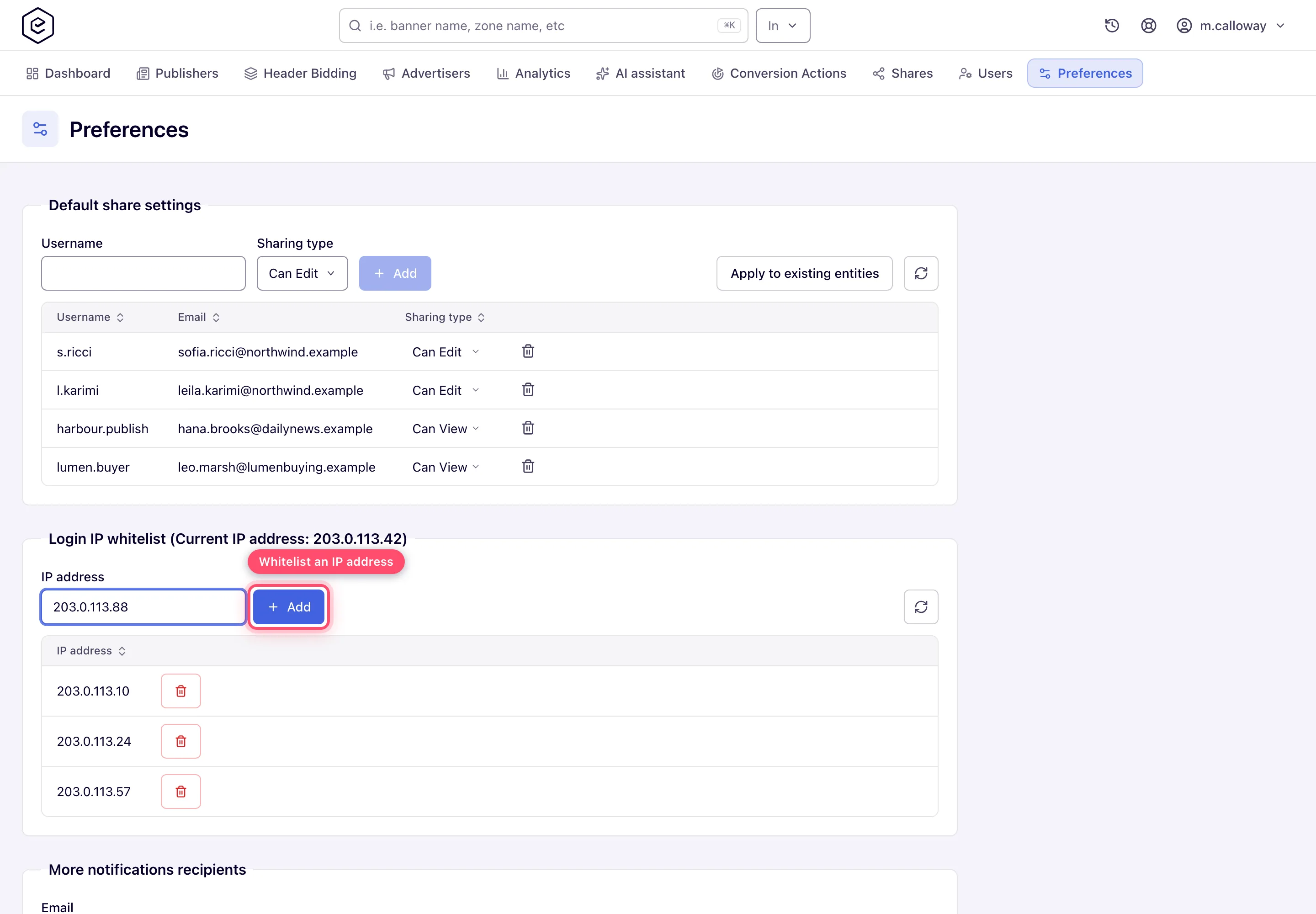
The panel title shows your current IP address. Type an address in IP address and click Add; the trash button removes a row after a confirmation. Add addresses to restrict sign-in: while the list is empty, any IP may sign in; as soon as it has at least one entry, your account can sign in only from listed addresses. Each entry is one address, not a range. The list applies to the console sign-in form, the remember-me cookie and REST login requests.
Notification settings
A Notification events checkbox list of the events you can subscribe to. Submit saves the whole set — unticking everything unsubscribes you from all of them; success reads Notification settings changed. The card appears only when the network has subscribable events for your account.
More notifications recipients
Extra email addresses that receive copies of your notification emails — useful for a team inbox. Type an Email, click Add; the trash button removes a row after a confirmation (the dialog reads Remove this email from the notification recipients?).
User scheduled events
Per-event schedule for recurring emails (such as scheduled reports): Period (N times per Day / Week / Month) and Start at (day + HH:MM). Edits auto-save two seconds after you stop typing — there is no Submit button on this card.
Corner cases and gotchas
Corner case: add your current IP to the whitelist first. If you whitelist only other addresses, your next sign-in from this machine is refused. Changes can also take up to about ten minutes to be enforced, so a just-removed address may still work briefly.
Corner case: Color theme and Density save instantly and independently of the card’s Submit — they work even for users whose other preference fields are read-only. The same two switches, plus Display language (when allowed) and User interface mode (with the grant), sit in the user menu, where a language or mode change saves at once and reloads the page.
Corner case: Generate (on either card) replaces your API key at once — no Submit needed. The old key stops working immediately, which disconnects every AI assistant and API integration still using it.
Corner case: a save changes only the fields it sends. A script posting to the personal-info, UI-preferences or notification-settings save keeps every field it leaves out; a text field sent empty is cleared (the email cannot be). To clear the Show entities’ IDs boxes or the notification subscriptions, send
uiShowIds=ortemplateIds=empty rather than nothing.
Corner case: the scheduled-events editors only auto-save while the values are valid (frequency 0–200, day 0–30, proper time). An out-of-range value is silently not saved — refresh the card to see what’s actually stored.
Over the API
Your own profile: GET /rest-api/user-preference/get.do returns it in a preference object (never a password), and
POST /rest-api/user-preference/update-profile.do changes it with a JSON body of only the fields to change — firstName,
lastName, phone, company, websiteUrl, country, state, accountUIStyle, advancedAnalyticsView, locale,
darkTheme, compactMode, receiveNewsletter, receiveNotificationsByEmail. A field left out keeps its value and an
empty string clears phone, company, websiteUrl, country or state. Password, e-mail, API key and role are never
changed there, and a body property the operation does not know comes back in ignoredFields with its reason in
ignoredFieldReasons. locale is accepted only when the network lets signed-in users change language. To change your
password use POST /rest-api/user-preference/change-password.do (currentPassword, newPassword, confirmPassword).
Your notification settings are under /rest-api/notification-settings: GET .do lists the events you may subscribe
to with your subscription, the extra recipients and whether notifications are e-mailed at all;
POST .../subscriptions.do replaces the subscribed set with templateIds (empty to unsubscribe from all); POST and
DELETE .../recipients.do add and remove an email. As in the console, a role with Skip All Notifications or
without view rights on campaigns or inventory is refused with 403, and the message names which of the two applies.
Per-role notes
- Network manager — the full page once your network administrator enables Manage Preferences; payment details, the API key and the AI cards need further grants.
- Publisher and advertiser — Change password, personal information and UI preferences, but no Analytics default status or payment details. If your network switches payment details on for your role, enter your payout details on this page.
- A role without Manage Preferences — a shorter page, without Change password, personal information or UI preferences. Theme and density stay in the user menu. To change your password, use Forgot password? on the sign-in page, or ask your network manager to set a new one in Account → Users.
- Read-only preferences — the password card is hidden and the profile cards lose their buttons.
- Shared login — password and IP-whitelist changes affect everyone who uses it.
