
Create and manage banner templates
Build reusable creative templates — HTML body with macro placeholders, typed properties, bundled files — share, export/import and test them.
A template is a reusable creative shell: an HTML body with macro placeholders, a set of typed properties the trafficker fills per banner, and optional bundled files. Once a template exists, anyone creating a Template banner picks it from a list and only fills the properties. This page covers building and managing the templates themselves; using a template in a banner is covered in HTML code and Template banners.
Who this is for
Anyone who builds reusable creative templates. Of the stock roles only the advertiser has the Templates tab; a network manager or publisher gets it when the network grants it. With the tab you can create templates and view, edit, share and delete the ones you own or that are shared to you; a role with view-all access sees every template of the network. Templates your network administrator created in the admin console are global: banner-form pickers list them with a “(global)” suffix, and they are not editable from the account area. A template is global only when it is created from the admin console’s template page: the account form and the REST API never bind a global value, so one sent there is ignored and the template stays private to its shares.
Prerequisites
- The creative’s markup ready, and a plan for which parts vary per banner — those become properties.
Steps
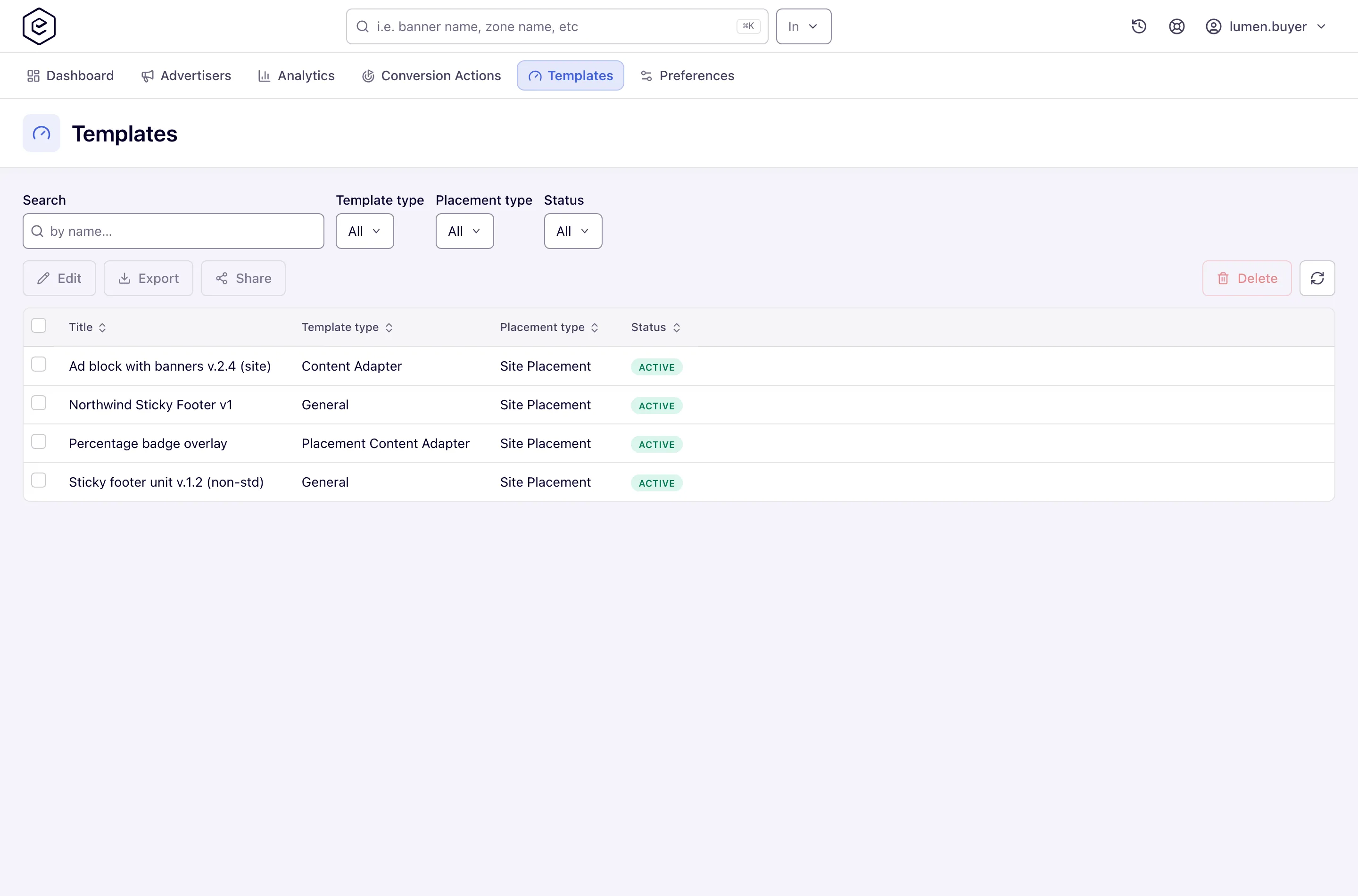
- Go to Account → Templates. The grid lists every template of the network when your role has
view-all access, and otherwise the templates you own or that are shared to you, with Search (by
name), Template type, Placement type and Status filters.
- Click Add. Fill the Template information card:
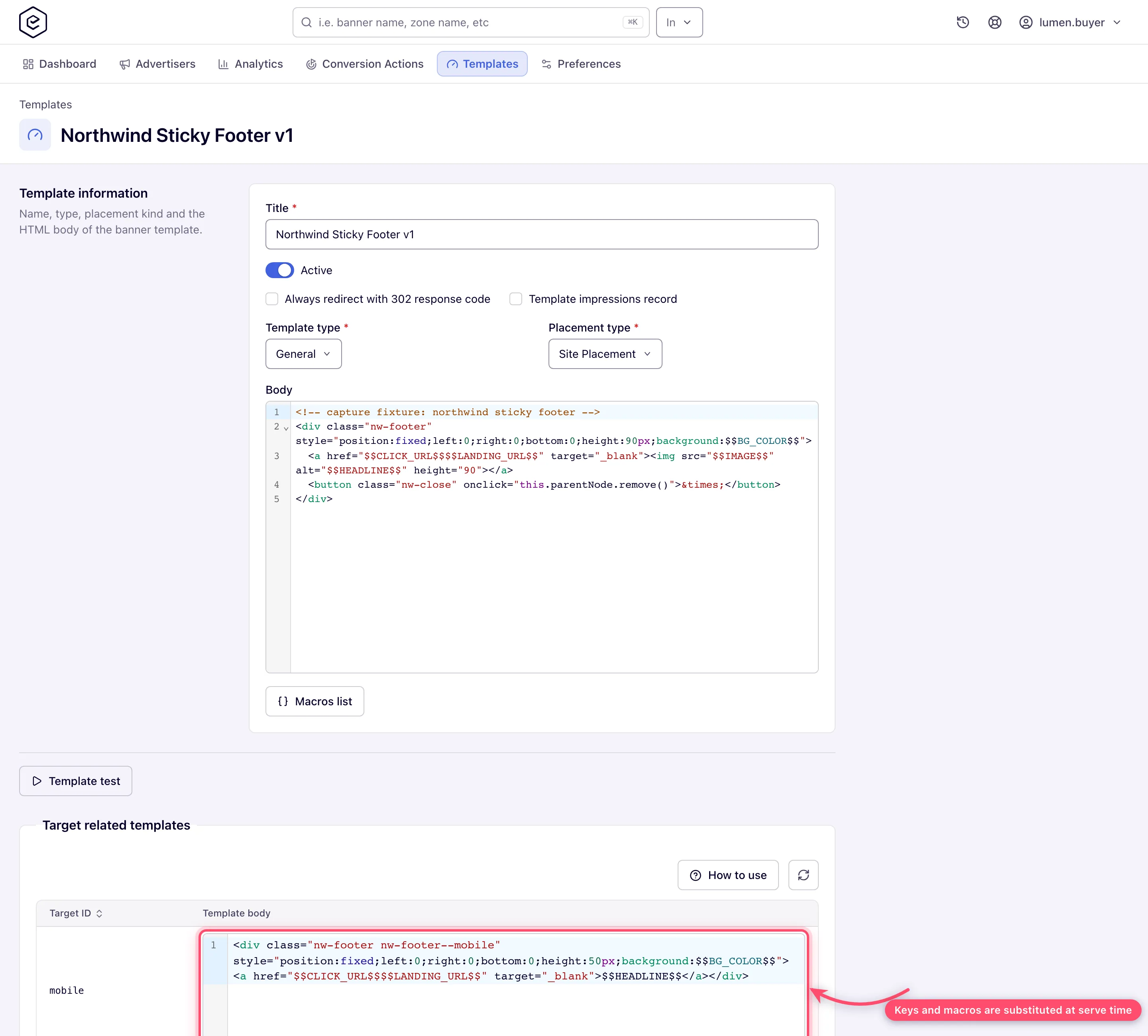
- Click Save. The editor reloads with the saved template and the sub-sections appear: Target related templates, Template files, Template properties (and Native template required creatives for the Placement Content Adapter type).
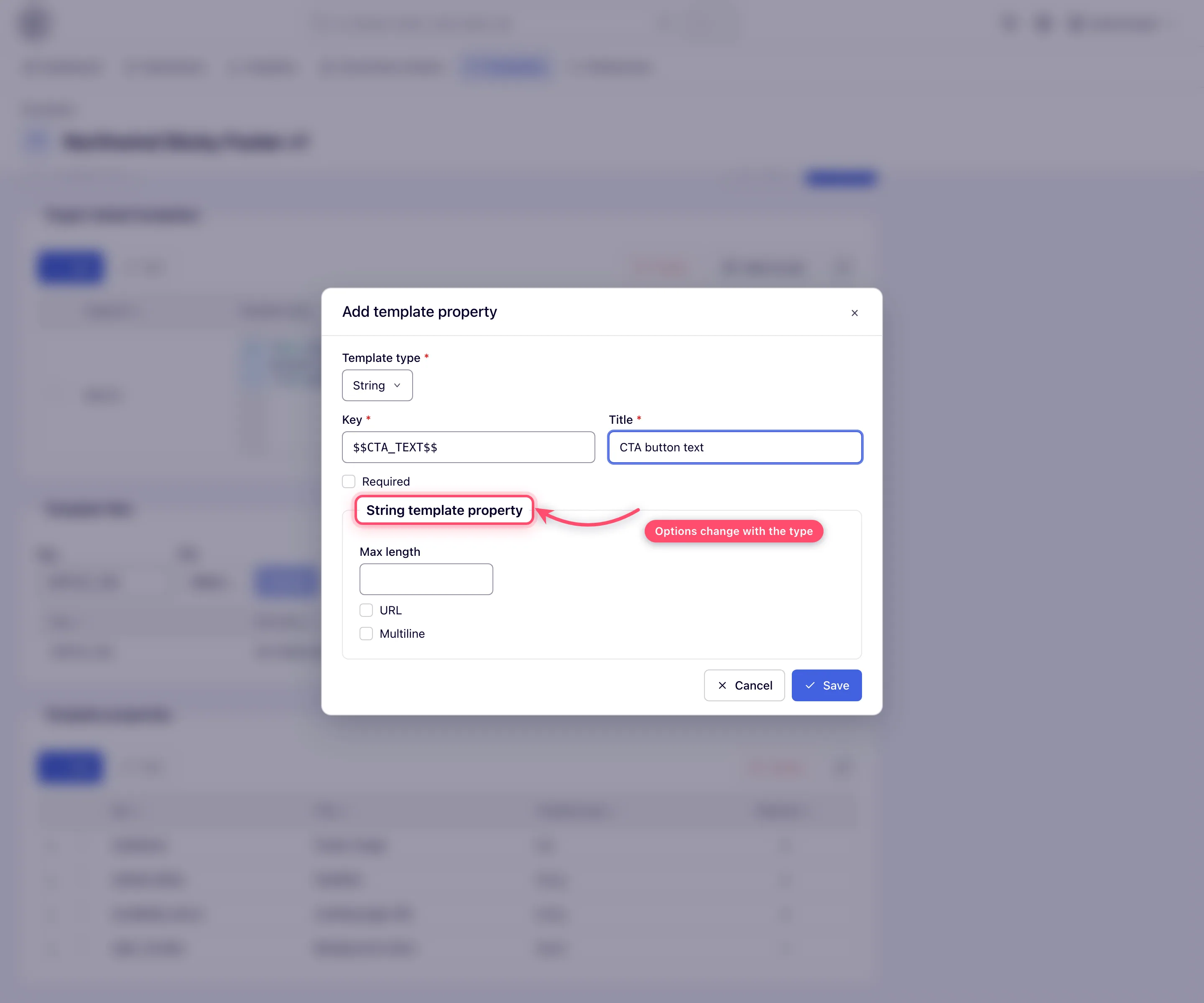
- Add properties: for each, set a Key (the token you reference in the body), a
Title (the label banner creators see), a Type and whether it is Required.
Type-specific options appear per type (see the table). Drag rows to reorder — the order
here is the field order in the banner form.
- Upload files (key + file; the default key pattern is
$$FILE_1$$) and reference the keys from the body. - Click Template test (in the footer of a saved template) to try it: the dialog builds a form from the template’s properties plus a placement type/ad-unit selector, and Preview renders the markup with your test values substituted in a new tab.
- A new template starts Active; switch it off and Save to retire it. Only active templates appear in the banner form’s Template picker.
Add a ready-made format from the template library
Instead of building a rich-media template yourself, you can add one from the public template library — catfish and sticky bars, interstitials, skins, push-downs, video sliders and overlays, native and placement adapters. The library is available unless your network has switched it off.
- With the AI assistant: describe the format you want; the assistant says whether the account already has it, and adds it only after you agree.
- Over the REST API:
GET /rest-api/template-catalog/list.dolists the library with each template’s status on your network,POST /rest-api/template-catalog/install.doadds one, andGET /rest-api/template-catalog/xml.doreturns its XML for Import without installing it. See Network and misc API.
Either way needs the Templates create permission and Templates view on all templates. A template the network already has is never installed twice. The installed template then appears in this grid like any other.
Target related templates — asking for the next body
A template can hold several bodies, one per Target ID. A body that decides it cannot show the ad — an empty feed, no creative, a player the browser refuses — asks the ad tag for the next one instead of leaving a blank slot. It does that by posting a message up the frame chain; the Universal JS loader matches the placement and re-requests. How to use in the Target related templates toolbar shows the ready-to-copy snippet with the parameter reference.
The $$…$$ macros are substituted when the markup is generated, so paste them as-is:
<script>
(function () {
  var msg = JSON.stringify({
    by: "$$AJAX_INVOCATION_CODE_KEY$$",
    key: "$$PLACEMENT_KEY$$",
    bId: $$BANNER_ID$$,
    pb: true,
    wi: true,
    excType: "ALL"
  });
  var cur = window, prev, guard = 0;
  do {
    cur.postMessage(msg, '*');
    prev = cur;
    cur = cur.parent;
  } while (prev !== cur && guard++ < 10);
})()
</script>| Parameter | Meaning |
|---|---|
by | Loader identity — must equal the ad tag key or the message is ignored. Required |
key | Placement key the request belongs to |
bId | Banner that failed to render |
id | Container element id — an alternative to key / bId; matched first |
pb | Marks the request as a passback; without excType it implies excType: "ALL" |
excType | ALL excludes every banner already tried, CURRENT only the last one, omitted excludes nothing (plain rotation) |
wi | Counts an impression for the banner being passed back |
templTarId | Target ID of the body to render next — the value from the Target ID column |
rptd | Marks the request as a repeat of a previous one |
Corner case: a repeat request sent less than 50 ms after the previous one is ignored, so a body that fails instantly still cannot spin the loader.
Options and fields — Template form
| Field | What it does | Notes |
|---|---|---|
| Title | Template name shown in lists and banner-form pickers | Required |
| Active | On/off toggle, on for a new template (the grid column is Status) | Inactive templates are hidden from banner-form pickers |
| Always redirect with 302 response code | Marks the template as always-redirect | |
| Template impressions record | Set when the template fires the impression tracking itself | Prevents double counting for self-tracking creatives |
| Template type | General, Content Adapter, Placement Content Adapter, Video Companion | Placement Content Adapter reveals min/max required native ads and the required-creatives grid |
| Placement type | Which placement kind the template serves into | Filters where the template is offered in banner forms |
| Body | The HTML/JS markup | Property keys, file keys and system macros (the Macros list button under the editor, reserved macros included) are substituted at serve time |
Property types and their extra options:
| Type | Banner-form control | Type-specific options |
|---|---|---|
| File | File upload | Allowed content types |
| String | Text input (or textarea) | Max length, URL, Multiline |
| Integer | Number input | Min value, Max value, Step |
| Boolean | Checkbox | — (the dialog says “Boolean properties take no extra configuration.”) |
| Select | Dropdown | Values (one key=label per line), Add please select |
| Placement Key | Placement key value | — |
| HTML5 Zip Creative | ZIP upload (HTML5 creatives) | — |
The dialog lists the types in that order, and the type of a saved property cannot be changed (the select is locked while you edit). Key and Title are both required (“Key is required.”, “Title is required.”).
A file sent for a File property must be one of its Allowed content types, whether the property is required or not — a banner save with any other file is refused on that field, on create as on update.
A String property’s Max length caps the value a banner may carry — a longer one is refused with Must be at most N characters. Leave Max length empty (or 0) for no limit.
Grid actions
The toolbar reads Add, Edit, Export, Share, then Import and Import as new, with Delete and refresh on the right. Edit, Export, Share and Delete need a selected row.
- Add, Import, Import as new — only with the create right.
- Edit — opens the editor (double-click works too); disabled when your role cannot update templates.
- Export — downloads the template as XML (content, properties, files metadata).
- Import — uploads a template XML; if a template with the same internal unique ID already exists, it is updated in place, otherwise a new one is created.
- Import as new — always creates a new template from the XML.
- Share — opens the sharing dialog (username + Is owner / Can edit / Can view). Available only while the template is active, and only the owner can change the shares (“Only owner can change template share settings”). Is owner is offered only if you may delete the template yourself.
- Delete — permanent; asks for a second confirmation while banners or placements still use the template (see below).
Corner cases and gotchas
Warning — deleting a template that is in use: if a live banner is built on the template, or a live placement uses it as its native adapter, Delete first shows a warning listing them (the first ten, by ID) and asks you to confirm. A shared or public template can be in use by banners and placements you cannot see: those are counted, not listed. Confirming deletes the template and detaches it from every one of them: the banners lose their markup and the placements lose their native rendering, so what those placements serve can change completely. Nothing is deactivated for you. To avoid that, move those banners and placements to another template first, then delete. Deleted banners and placements are not counted. Over the REST API the same refusal is a
409listing the ones you can see underusages; repeat the call withforce=trueto delete anyway, anddetachedBanners/detachedPlacementsin the answer say how many were detached.
Corner case: editing a template’s body or properties affects every banner using it — existing banners pick the changes up once the ad-serving cache reloads, without being re-saved. Each save bumps the template’s internal version.
Corner case: deactivating a template removes it from banner-form pickers, but banners already built on it keep serving — the ad cache loads templates regardless of the active flag. Editing the template properties of such a banner then requires the Update properties and status, based on inactive template permission.
Corner case: the file/property/sub-template sections exist only after the first save — a brand-new template shows just the main form until you save it.
Corner case: Import matches by the template’s internal unique ID, not the title. Re-importing an XML you exported earlier silently overwrites that template — use Import as new when you want a copy.
Corner case: new templates are automatically shared to everyone in your default sharing list at creation, like other shareable entities.
Corner case: deleting a property cascades into every banner’s stored value for it. Renaming a property’s key orphans the old token in the body — update the body in the same edit.
Corner case: a property key cannot be a reserved macro name.
$$WIDTH$$and$$HEIGHT$$, for instance, are refused with This is a reserved macro name and cannot be used here — the platform already substitutes those. Pick a name of your own ($$OVERLAY_OPACITY$$) and check the Macros list for what is taken.
Corner case: the property dialog labels the property’s data type Template type, and the property grid uses the same words for its column — the same label the template’s own General / Content Adapter / Placement Content Adapter / Video Companion field carries. They are unrelated: in the dialog it means String, Integer, Boolean, Select, File and so on.
Per-role notes
- Advertiser — the stock role has the tab and can create, edit, share, import and export the templates it owns.
- Network manager, publisher — no tab on the stock roles until the network grants it; a network manager with view-all access then sees every template.
- Can view share — the editor renders read-only: Save/Reset and the property/file toolbars are hidden. In the grid Edit and Delete follow your role’s rights, not the share, so they can stay enabled; the server then refuses a change the share does not allow. Export still works.
Related
- HTML code and Template banners — using a template in a banner
- Serve an HTML5 creative from a ZIP bundle
- Banner types — decision guide
- Macros reference
- Shares and collaboration
- Bulk banner operations — mass-updating template properties
- Catfish, sticky, branding (skin) and interstitial formats — formats built on templates, and their sizing, click and “not showing” checklists
