
Tags and preview problems
The tag is on the page but nothing renders, the preview disagrees with the live page, or the Preview button is missing — causes and checks for every tag type.
The placement’s tag is on the page but the slot stays empty or broken; or the preview and the live page disagree; or you cannot find a Preview button at all. Find your symptom below.
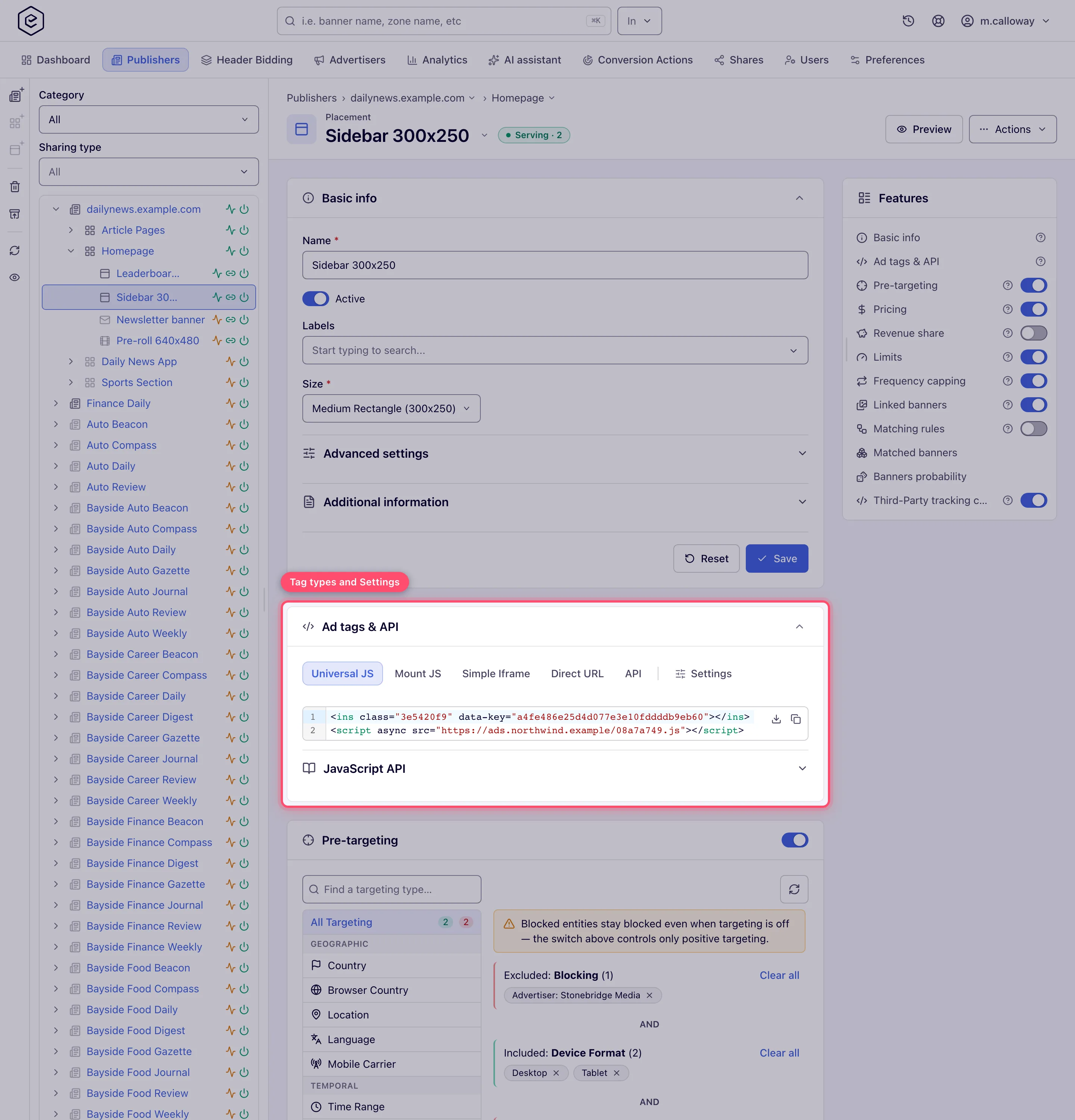
Tags live on the placement edit page in the Ad tags & API card — one tab per tag type available for the placement type and your permissions, and a last Settings tab (for roles that can edit the placement) that holds the knobs the tags are built from:
| Placement type | Tabs |
|---|---|
| Site | Universal JS, Mount JS, Simple Iframe, Direct URL, API |
| Mobile Site | Universal JS, Mount JS, API, Direct URL |
| Non-standard | Universal JS, Mount JS, Direct URL, API |
| Video | VAST tags, Video Player (a demo player) |
| Native, Application | API |
| Click-through | Show tracking URLs only — it generates no ad tag |
Each of Universal JS, Mount JS, Simple Iframe, Direct URL and API has its own per-placement-type invocation-code permission; the video and email tabs have none. Universal JS and Mount JS also need at least one ad-serving domain configured on the network.
The Settings tab holds Domain (when the network has ad-serving domains configured), Ad wrapper (Site, Mobile Site and Non-standard), Protocol and Fit container (Mobile Site and Non-standard only), plus the default parameters added to every tag generated for the placement. Each change saves the moment you make it — there is no Save button, only a Done toast — and the code on every tab is regenerated.
Symptom: the tag is on the page but nothing renders
Not even a passback appears — the slot is simply blank. Likely causes, most common first:
- Wrong protocol → mixed content. A tag generated with
http://on anhttps://page is blocked by every modern browser (check the browser console for mixed-content errors). In the card’s Settings tab set Protocol to HTTPS (or Relative, which writes a protocol-relative//address) and re-copy the code. - Wrong or stale domain. The tag embeds a specific ad-serving domain. If the network switched domains, or the tag was copied from a different installation, the request goes nowhere. Re-copy the current tag from the Ad tags & API card; pick the domain in the Settings tab’s Domain selector rather than editing the code by hand.
- An ad blocker. Test in a browser profile without extensions, and from a network without DNS-level filtering, before debugging anything else.
- The tag was edited by hand. Placement IDs, domains and parameters inside the code are generated to match each other. Replace hand-modified code with a fresh copy.
- Nothing matched and there is no passback. If the request is reaching the server (Requests count in a General report grouped by placement), the slot stays empty when no banner matches and no default/passback code is configured — that is a selection problem: see My ad is not serving.
Corner case: the Universal JS and Mount JS tabs only appear when the network has ad-serving domains configured. If a tab you expect is missing from the card, it is either the placement type, a permission, or network configuration — in that order of likelihood.
Symptom: a third-party tag renders once, then every reload is blank
On a placement with Refresh after (sec) set, the first impression looks right and every
reload after it leaves an empty slot. The cause is never a duplicate id — the loader strips
the id attribute off the previous ad before injecting the new one — but the third-party
library’s own state, which lives in the page’s window and survives the swap.
Google Publisher Tag passbacks hit this the hardest, and they have their own page: Google (GPT) passback tags in a placement. It also covers the other half of the story — what to do when Google answers “no ad” and the request would otherwise be lost. A header-bidding slot (Account → Header Bidding) is a different mechanism with its own page, Header bidding.
Symptom: iframe tag behaves differently from the JS tag
The tag types are not interchangeable — some differences are inherent:
- Simple Iframe renders inside a fixed-size frame. Creatives that measure or resize the page, expand on hover, or need to “break out” cannot do so from an iframe. Third-party scripts that check whether they are framed may refuse to render entirely.
- Universal JS / Mount JS render inline on the page by default. The Ad wrapper in the Settings tab (Without Wrapper, Friendly Frame, Sandboxed Frame, No-redirect Frame) can put the ad in a frame instead — which changes what a third-party script can see.
- Fit container (checkbox in the Settings tab, Mobile Site and Non-standard placements only) scales the creative to the element it is mounted in. If a creative appears cropped or letter-boxed after you toggled it, re-check that setting — it is saved per placement, not per copy of the tag.
- Direct URL returns the ad markup at a URL — it is meant for server-side or custom integrations, and (unlike the JS tags) has no preview support.
Corner case: the Settings tab’s Domain, Ad wrapper, Protocol and Fit container persist on the placement and regenerate the displayed code immediately. If two people copy the tag at different times with different settings, they get different tags. The last saved state wins for both.
Symptom: no Preview button on my placement
The Preview button (page header of a saved placement) appears only for placement types that have at least one preview-capable tag type:
| Placement type | Preview button |
|---|---|
| Site, Non-standard, Mobile Site | Yes — via the Universal JS and Mount JS tag types (and Simple Iframe on Site) |
| Video | Yes — via the Video Player tag |
| Yes — via the Email tag | |
| Native, Application, Click-through | No Preview button — they have no preview-capable tag type |
For placements without preview, verify delivery with the API response itself or a test page — see Ad tags and the serving API.
Corner case: on a demo installation a demo-account user sees the Preview button for every placement type. Clicking it sends Site, Native and Video placements to the network’s demo page, with your placement’s tag, API URL or VAST tag handed to it; every other type opens the ordinary preview, which has nothing to show for a type without a preview-capable tag. The demo page is the same one the demo ribbon’s See live button opens — see Demo accounts.
Corner case: the button depends on the placement type, not on your permissions. What your permissions decide is which tag types the preview offers: a role without any preview-capable tag permission for the type gets a preview page with nothing to render. If a colleague can preview the same placement and you cannot, compare your roles’ invocation-code permissions.
Symptom: preview works but the live page doesn’t (or the reverse)
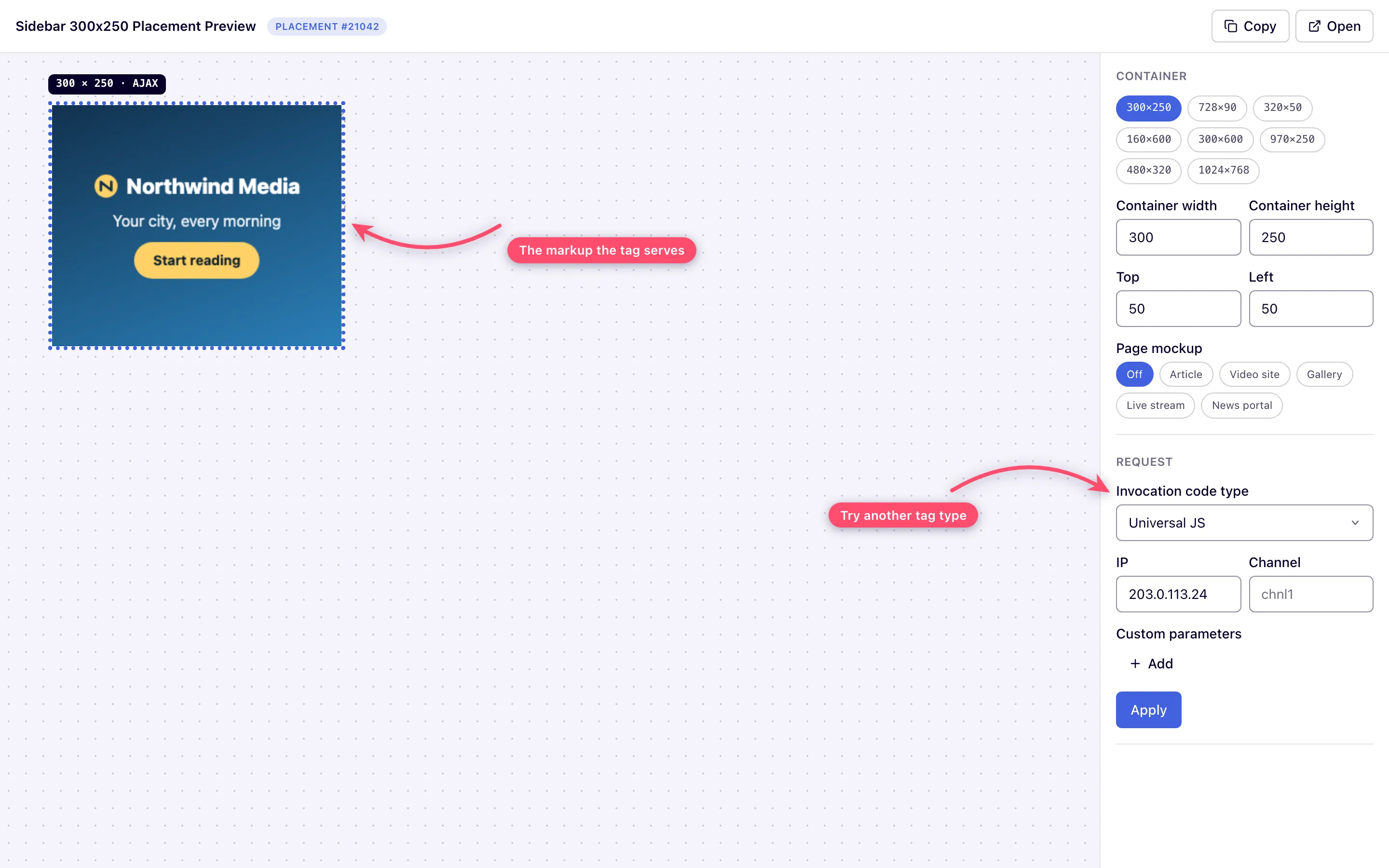
The standalone preview page renders the same markup the tag serves, inside a dotted “Ad Container”:
Keep its mechanics in mind when comparing against a real page:
- Preview renders the ad markup directly on the page (not inside an iframe), because many ad scripts refuse to render when framed. A creative that works in preview can still fail on a site that embeds the tag inside its own iframe.
- Content controls change the ad; layout controls don’t. The Invocation code type, IP, Channel and Custom parameters fields re-request the ad when you press Apply — use the IP field to see what a visitor from another country would get, and Channel / Custom parameters to reproduce a specific tag configuration. The container size, Top / Left offsets and the Page mockup only restyle the container.
- The container size is a preview aid — the live page’s real container decides what fits there.
- Copy (or Open) in the preview header gives a shareable link that reflects the current control values and opens without logging in — send it to a publisher or advertiser instead of a screenshot. The link is signed and works for 30 days from the moment the preview page produced it; after that it answers “Not found.” — open the preview again and send the new link. Links created before release 152 stopped working with that release.
- Preview requests are still real ad selection: targeting, capping and limits apply. If preview is empty, run the ad-not-serving checks with the preview’s IP override in mind. A placement, zone or site that is switched off has no preview at all — the page says “Preview is not currently available for deactivated placement/zone/site”.
Corner case: if a custom preview link is set up for your network (a server-side setting), the preview area shows that external page framed instead of inline markup. Behavior differences in that mode come from the external page, not from the ad server.
Symptom: video placement — player empty or silent errors
- The VAST tags tab gives the VAST, VPAID and VMAP tag URLs for your player; the player, not the ad server, decides how failures surface. Most players fail silently on VAST errors — test the VAST URL in your player vendor’s validator first. The Video Player tab is a demo player pre-wired to the placement, useful as a second opinion.
- Video banner types have their own constraints (media files present, VAST/VPAID tag reachable, wrapper depth) — see Video banners and Video placements; the step-by-step is in Diagnose video ad playback failures.
- Third-party VAST/VPAID tags that contain VPAID scripts require a VPAID-capable player; a plain VAST player shows nothing for them.
